
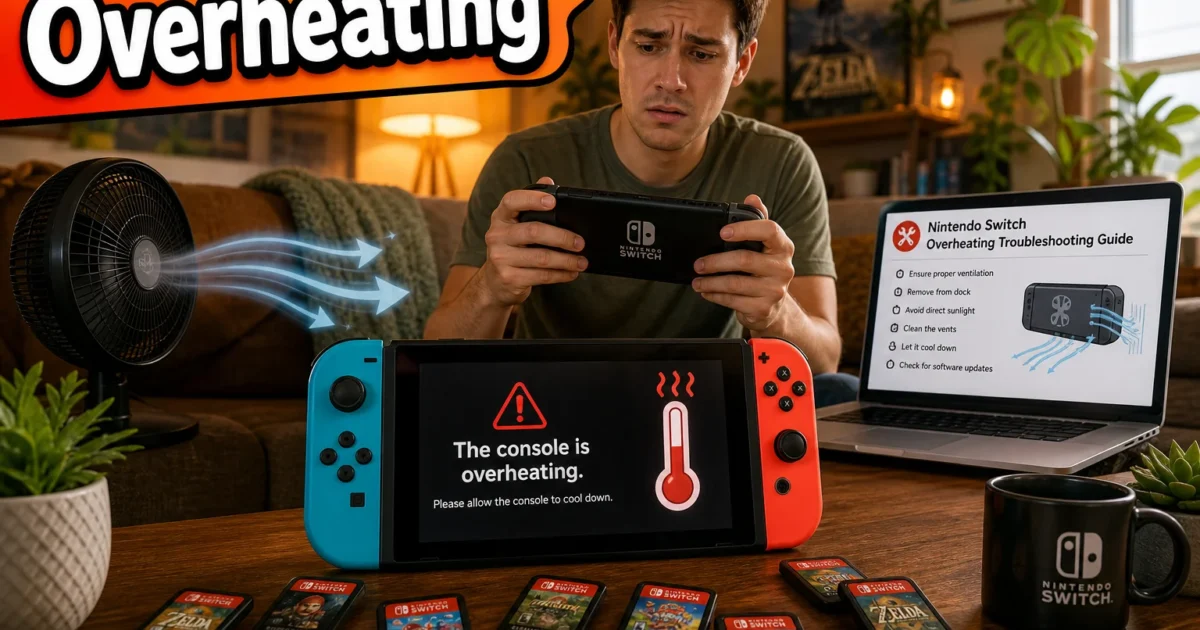
What’s more annoying than grabbing your Nintendo Switch for a quick game and getting slow menus, endless loading, or a fan that sounds unhappy? A warm console or one slow loading screen usually isn’t a disaster. Games, charging, and downloads all make the Switch work harder.
Repeated shutdowns, crashes, very long loads, and grinding fan noises deserve attention. The cause usually points to heat, storage, or the network. Start with the safe fixes below, then save resets and repair work for last.
Quick Fixes to Try First
- Identify the Slow Part: Test the HOME Menu, an installed offline game, and Nintendo eShop separately. This shows whether the slowdown affects the console, one game, or your internet connection.
- Check for Heat Warnings: A little warmth is normal. Temperature warnings, extreme heat, instability, or repeated shutdowns aren’t.
- Improve Airflow: Put the console on a hard, flat surface. Keep it away from sunlight, bedding, carpet, and crowded cabinets.
- Restart the Console: Hold the POWER Button for at least three seconds, select Power Options, and then select Restart.
- Install Updates: Open System Settings > System > System Update.
- Compare Storage: If one game is slow, check whether it’s installed in system memory or on a microSD card.
Quick Diagnosis: Heat, Slow Loading, or Both?
| Symptom | Likely Cause | First Step |
|---|---|---|
| Warm console with stable gameplay | Normal heat from gaming or charging | Check that vents remain clear |
| Very hot console, warning, or shutdown | Poor airflow or hardware trouble | Power off and let it cool |
| One game loads slowly | Game data, update, or storage device | Update it and compare storage |
| Every game and the HOME Menu lag | Temporary system problem | Restart and update |
| Only microSD games are slow | Slow, damaged, or failing card | Compare with system memory |
| Only Nintendo eShop is slow | Wi-Fi, internet, or service delay | Test an offline game |
| Fan grinds or rattles | Possible fan fault or obstruction | Stop testing and contact support |
Nintendo’s safety information gives the same operating range for the original Nintendo Switch, Nintendo Switch – OLED Model, and Nintendo Switch Lite: 5-35°C (41-95°F). Nintendo Switch 2 safety guidance also lists 5-35°C (41-95°F). That’s the temperature of the room around the console, not a reading from inside it.
Common Nintendo Switch Performance Issues and Solutions
Problem: The Console Feels Warm
Symptoms:
- The back or top feels warm.
- The fan becomes audible during a demanding game.
- The console stays stable and shows no temperature warning.
Why it happens: The processor, battery, and charging system all create heat. Warmth by itself doesn’t mean your Switch is overheating (electronics have never been famous for staying chilly).
Fix:
- Save your game.
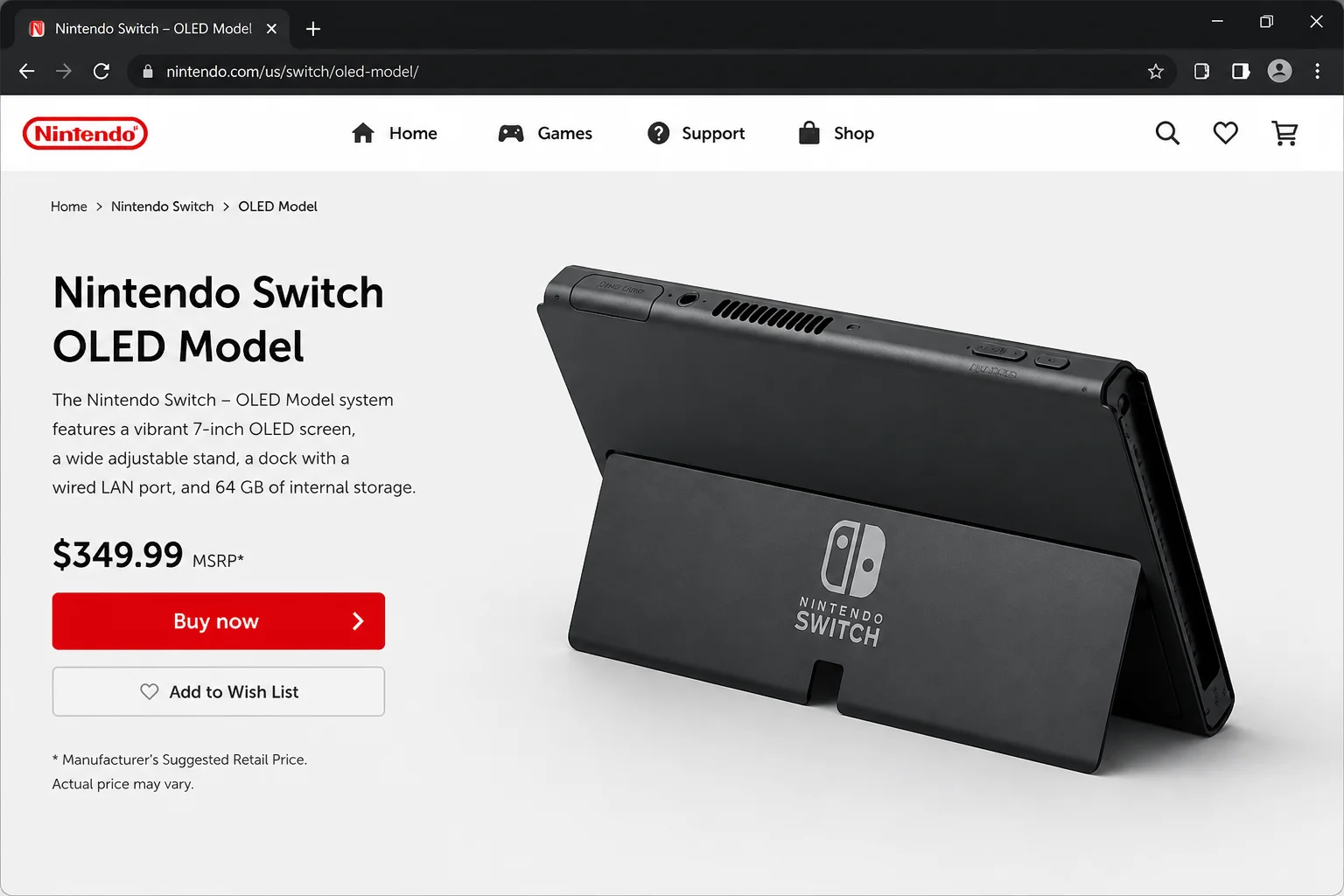
- Check the top and rear ventilation openings.
- Move the console onto a hard, flat surface.
- Keep it out of direct sunlight.
- Temporarily remove a thick case if it crowds a vent.
- Test again after the console cools.
Verify the fix: Play the same game for 15-20 minutes. A warm console that stays stable is behaving normally. If you get a warning, crash, or shutdown, keep troubleshooting.
Problem: The Console Gets Very Hot or Shuts Down
Symptoms:
- A high-temperature warning appears.
- Games become unstable before the console turns off.
- Shutdowns happen repeatedly.
- The console becomes uncomfortable or unsafe to touch.
Why it happens: Soft surfaces, blocked vents, sunlight, an enclosed dock, or a badly fitted case can hold in heat like a heavy blanket. Repeated heat-related shutdowns may also point to an internal hardware fault.
Fix:
- Turn the console off.
- Disconnect it from the dock or charger.
- Move it to a cool, ventilated room within Nintendo’s 5-35°C operating range.
- Let it cool naturally.
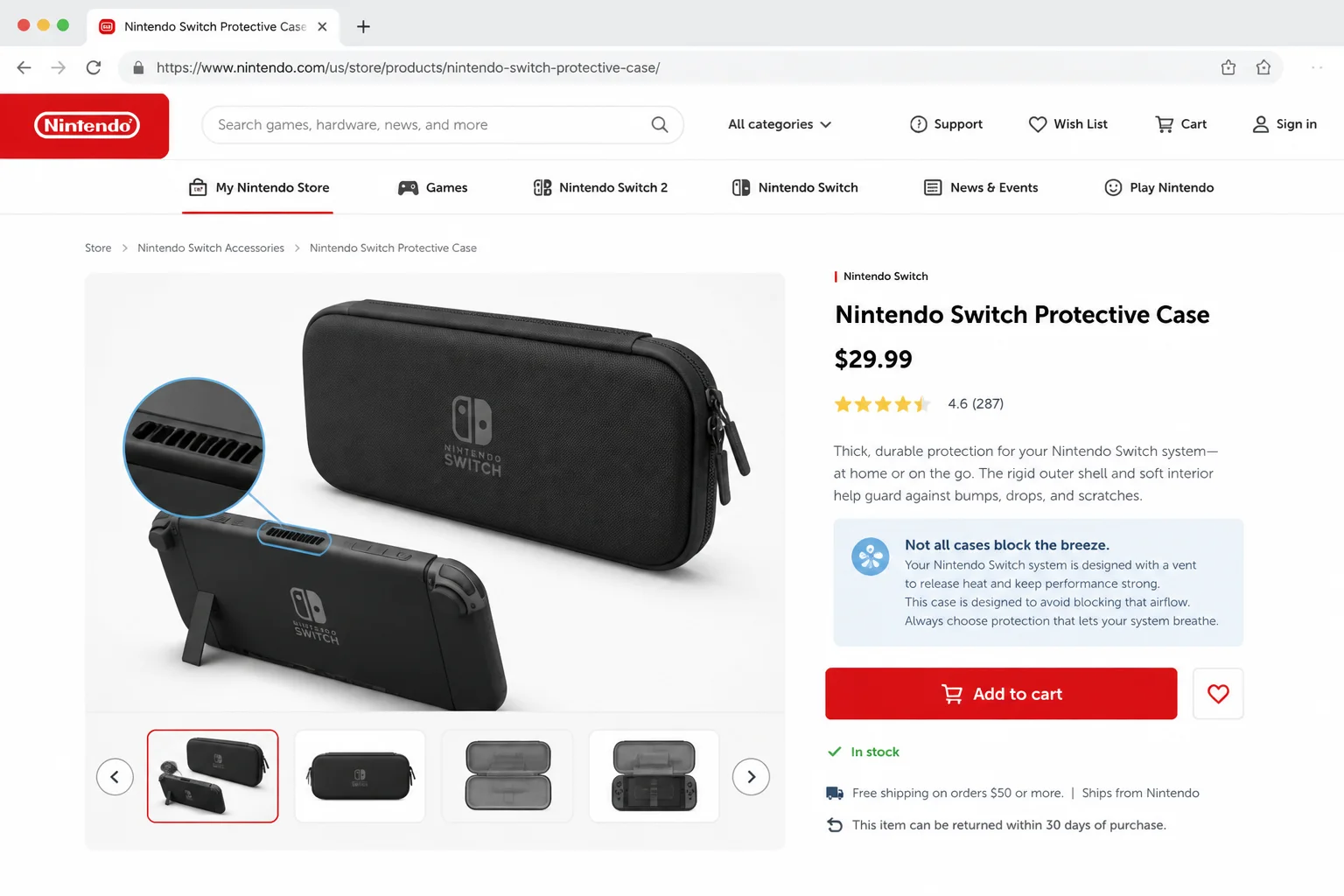
- Remove any case that overlaps or crowds the vents.
- Check around the external openings without inserting anything into them.
- Restart and test on a hard surface.
Don’t reach for a freezer, refrigerator, hair dryer, liquid, compressed-air nozzle, or vacuum attachment. Sudden temperature changes and moisture can turn an annoying problem into an expensive repair.
Verify the fix: If another warning or shutdown happens in a cool, open location, stop testing and contact Nintendo Support.
Problem: The Fan Is Unusually Loud
Symptoms:
- The fan stays loud while sitting on the HOME Menu.
- It rattles, grinds, or changes pitch sharply.
- Noise continues after the console cools.
Why it happens: A steady rush of air during a demanding game can be normal. Grinding or rattling deserves more attention. It may mean the fan is worn or something is blocking it internally.
Fix:
- Close the game.
- Let the console cool in an open area.
- Remove a thick case for comparison.
- Check that nothing covers the vents.
- Restart and listen while the console is idle.
Verify the fix: If the fan quiets down while idle, it’s probably reacting normally to heat. Persistent mechanical noise needs professional service, so don’t open the console yourself.
Problem: The Docked Console Runs Hot
Symptoms:
- Heat or loud fan noise occurs mainly while docked.
- The dock sits inside a cabinet or crowded shelf.
- Cables or decorations surround the console.
Why it happens: A closed dock location traps warm air like a tiny cupboard-sized oven. The console keeps moving that same warm air around, which doesn’t give its cooling system much to work with.
Fix:
- Place the dock upright in an open area.
- Leave clear space around the dock and console.
- Move cables away from ventilation openings.
- Avoid enclosures that wrap around the dock.
- Let the console cool, then compare handheld and docked operation.
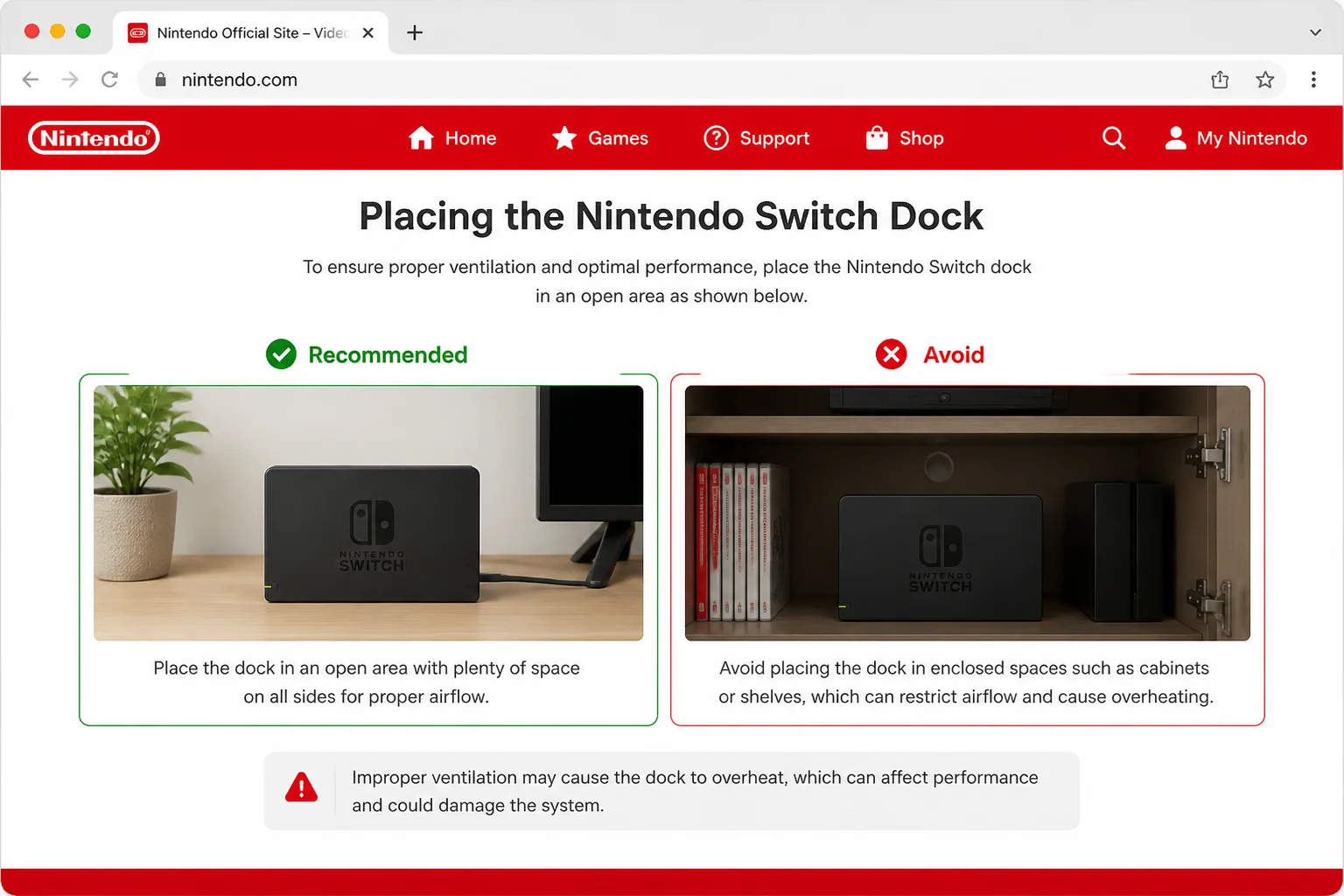
Verify the fix: If handheld play stays stable but the old dock location causes trouble, poor airflow was probably the culprit.
Problem: The HOME Menu or Wake Behavior Is Sluggish
Symptoms:
- Menus respond slowly.
- Switching software takes longer than usual.
- The console acts strangely after waking from Sleep Mode.
Why it happens: Temporary software problems can hang around after many sleep-and-wake cycles, rather like clutter piling up in a junk drawer. Sleep Mode pauses the console. It doesn’t give it the clean start that a restart does.
Fix:
- Hold the POWER Button for at least three seconds.
- Select Power Options.
- Select Restart.
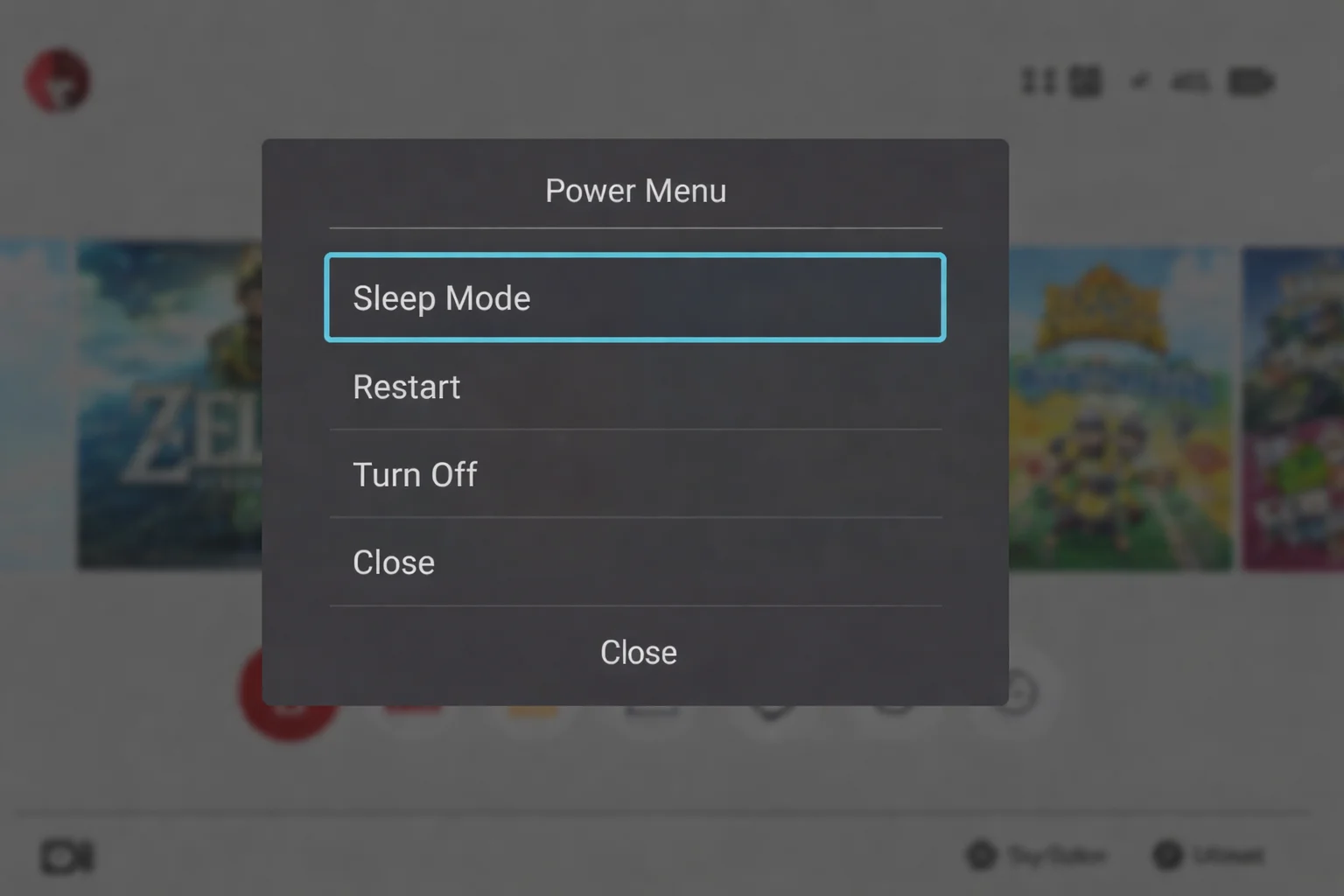
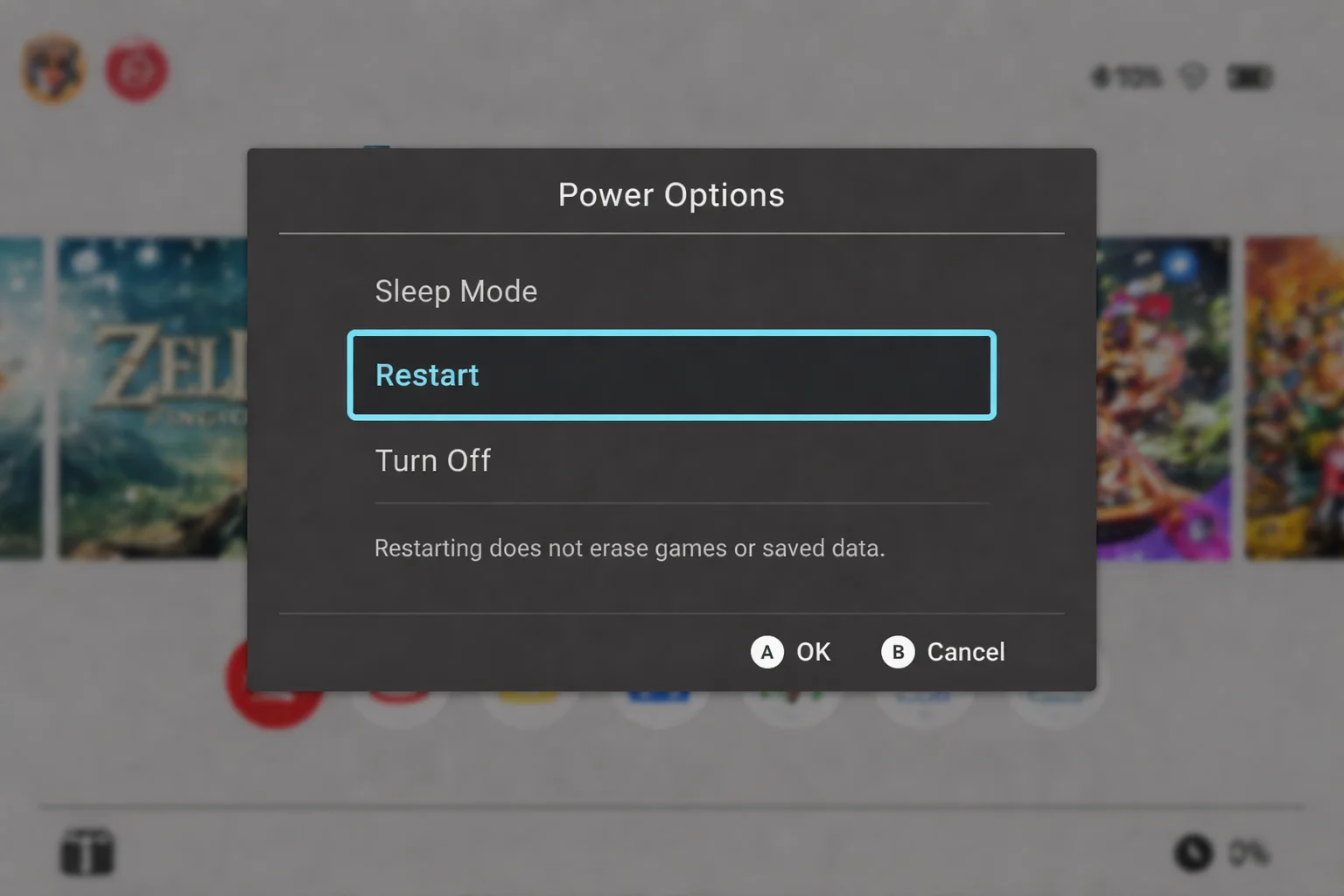
For a full cold reboot, select Turn Off instead. Wait about 30 seconds, then press the POWER Button again. Your games and saved data won’t be deleted.
Verify the fix: Move around the HOME Menu and reopen the affected game. If both still feel sluggish, check for a system update.
Problem: Crashes or Sluggishness Continue After Restarting
Symptoms:
- Games crash or freeze.
- The console wakes incorrectly.
- General sluggishness affects several games.
Why it happens: Nintendo releases updates with general system stability improvements. An update can fix software bugs, but don’t count on every update to lower temperatures or shorten game loads.
Fix:
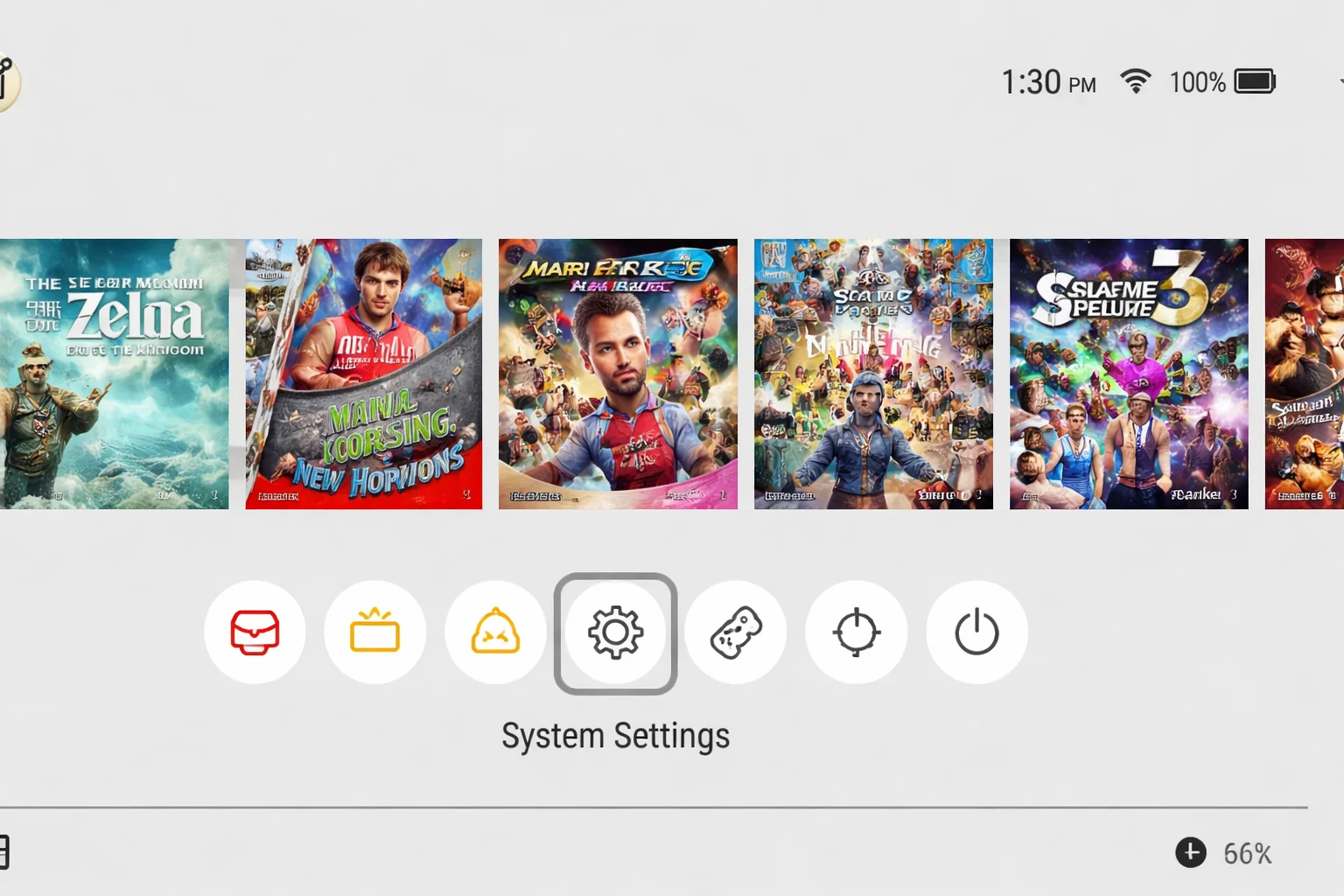
- Select System Settings from the HOME Menu.
- Scroll down and select System.
- Select System Update.
- Allow the console to restart if prompted.
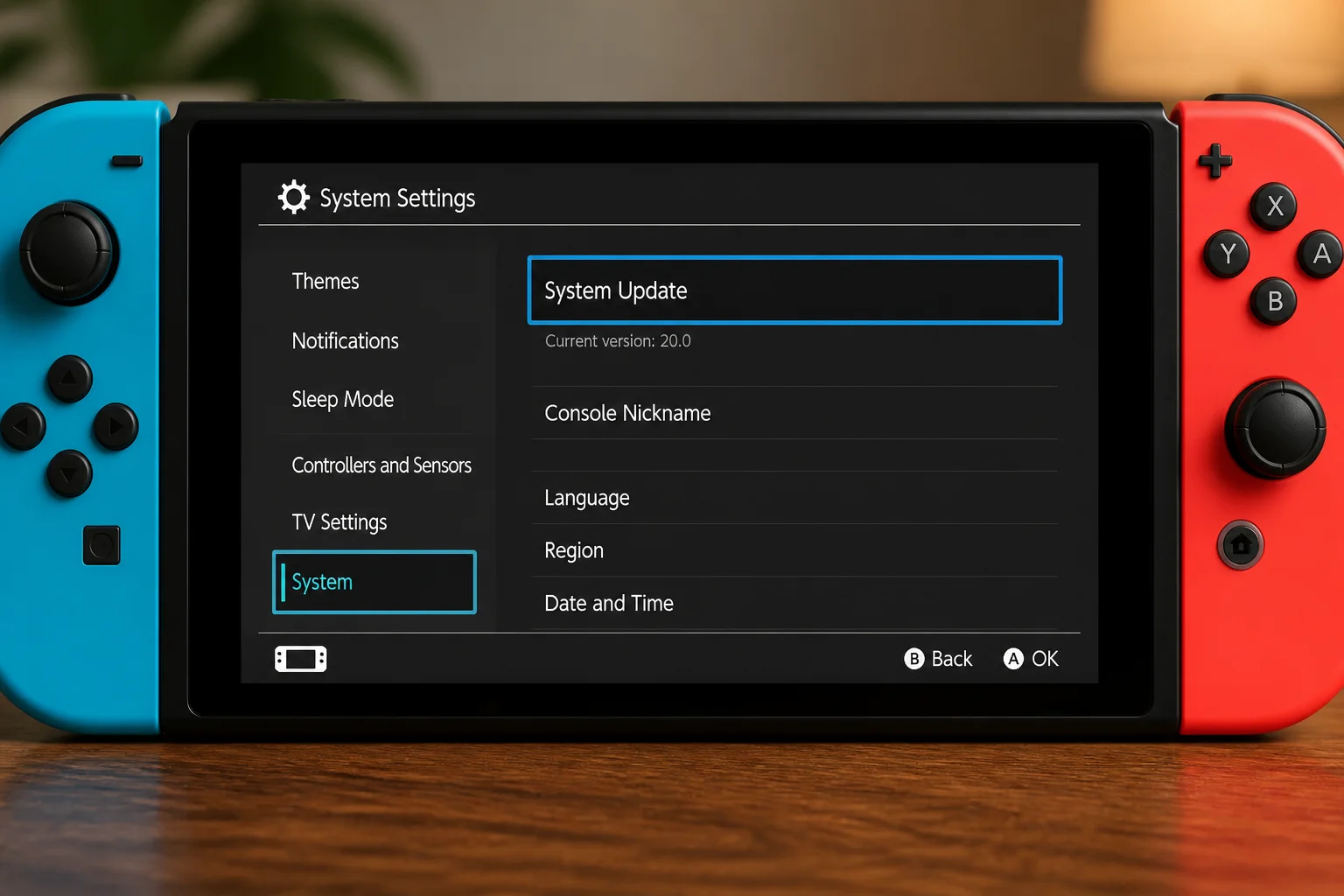
Nintendo doesn’t provide a manual fan-control or performance-mode setting. The console manages its own cooling and performance automatically.
Verify the fix: Confirm that the system reports the latest version. Then repeat the game or action that caused the trouble.
Problem: One Game Loads Slowly
Symptoms:
- One title has long startup or level-loading times.
- Other installed games and the HOME Menu behave normally.
- The problem began after an interrupted update or download.
Why it happens: When one game drags while everything else runs normally, its data, update, or storage location is the better suspect. A system-wide hardware fault usually affects more than one title.
Fix:
- Highlight the game on the HOME Menu.
- Press the + Button or – Button.
- Select Software Update > Via the Internet.
- Restart the console.
- Open System Settings > Data Management.
- Check whether the game is associated with system memory or the microSD card.
- If practical, archive and reinstall the game to system memory for comparison.
Archiving removes the game files but keeps the game’s icon and save data. Stay away from any saved-data deletion option. Nobody wants to fix a loading problem by accidentally wiping a 70-hour save.
Verify the fix: Load the same save or level and compare the time. Some games have long loads built in, so you’re looking for a clear change from that game’s usual behavior.
Problem: Games on the microSD Card Load Slowly
Symptoms:
- Internally stored games work normally.
- microSD games freeze, load slowly, or show data errors.
- Problems affect several titles on the card.
Why it happens: The card could be slow, nearly full, counterfeit, damaged, or failing. Nintendo recommends a UHS-I-compatible microSD card with a transfer speed of 60-95 MB/s for the original Switch family. A bigger speed number on the label doesn’t guarantee faster Switch performance because the console has its own limits.
Fix:
- Fully turn off the console before removing the card.
- Inspect the card for visible damage.
- Reinsert it securely and restart.
- Open System Settings > Data Management.
- Compare one affected title with a game in system memory.
- Back up recoverable screenshots and videos before formatting or replacing the card.
- Replace a consistently failing card with a genuine card that meets Nintendo’s current guidance.
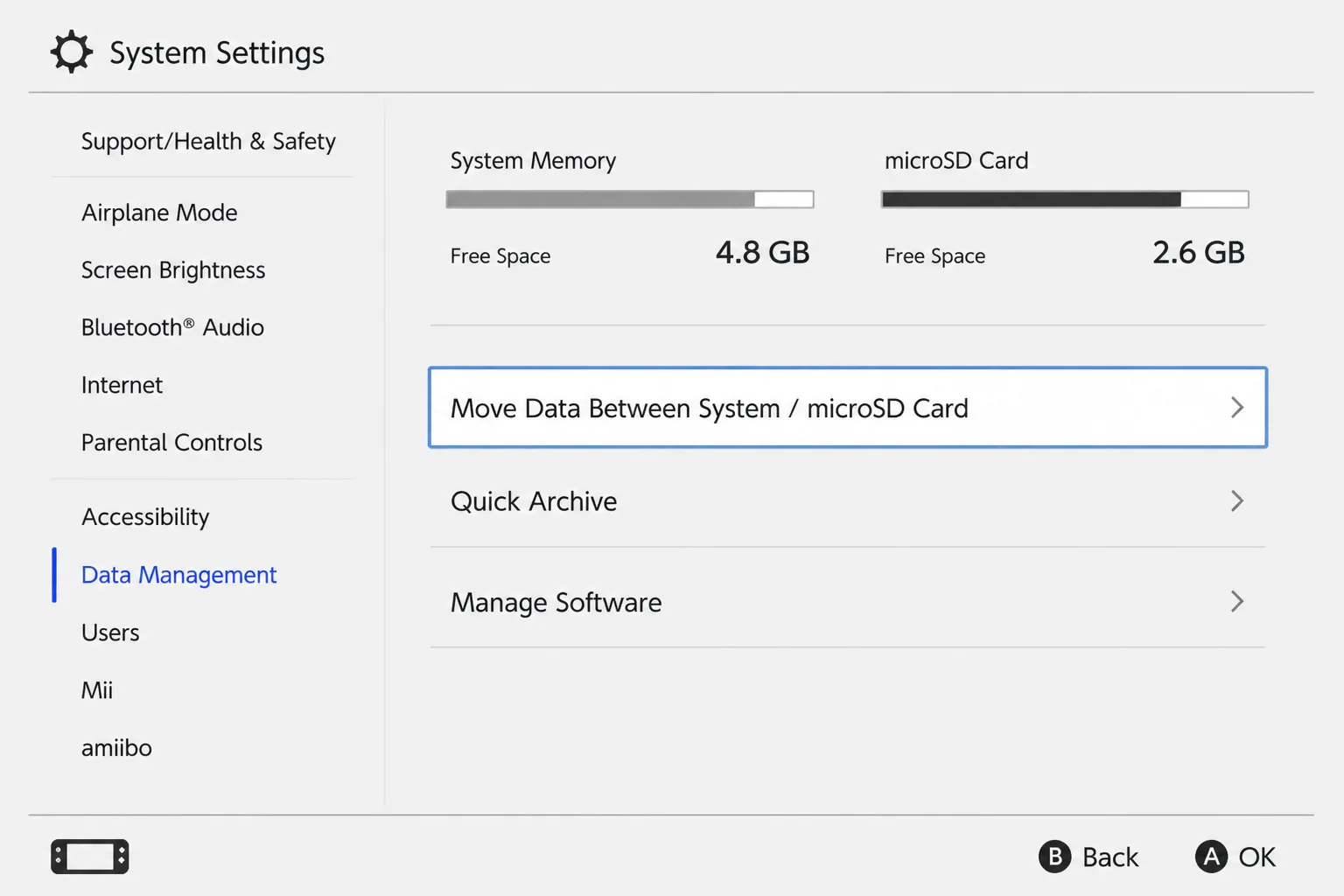
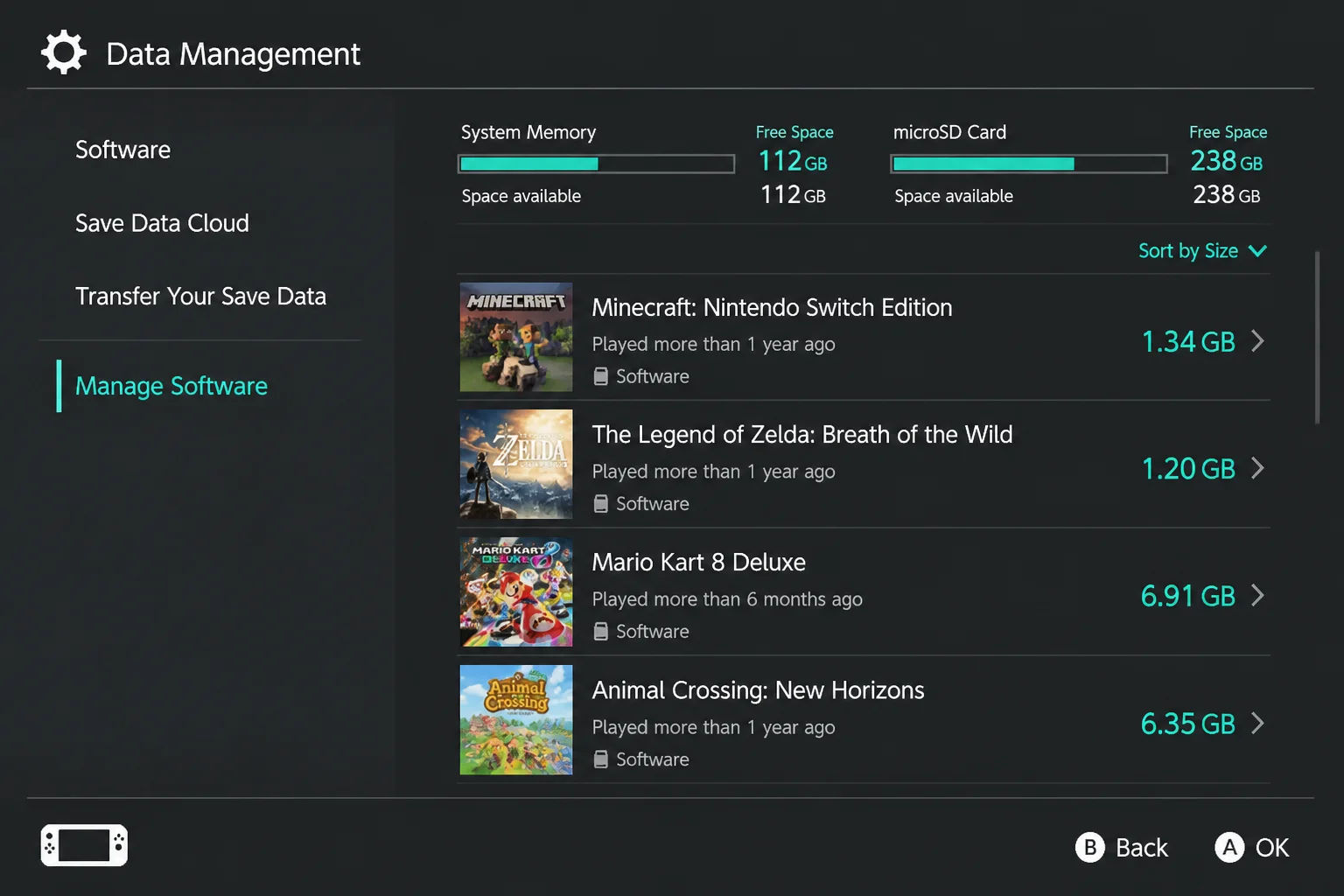
Verify the fix: Run the same loading test from system memory. A big improvement points toward the card or its data, rather than overheating.
Problem: Storage Is Nearly Full
Symptoms:
- Downloads or updates fail.
- Data Management shows little free space.
- Several large games, screenshots, or videos are installed.
Why it happens: Games and updates can chew through storage surprisingly quickly (those harmless-looking screenshots add up too). Freeing space helps failed downloads and updates, but it won’t speed up every loading screen.
Fix:
- Open System Settings > Data Management.
- Review system-memory and microSD usage.
- Select Manage Software.
- Choose an unused game.
- Select Archive Software and follow the confirmation prompt.
- Remove unneeded screenshots or videos separately if necessary.
Verify the fix: Return to Data Management and make sure the available space increased. Then retry the download or update that failed.
Problem: Nintendo eShop Is Slow but Installed Games Are Fine
Symptoms:
- Store pages or downloads load slowly.
- Offline games and the HOME Menu work normally.
- The console is not showing heat warnings.
Why it happens: Nintendo eShop relies on your Wi-Fi, internet connection, and Nintendo’s online services. Public Wi-Fi can be especially rough. A sluggish shop doesn’t prove that your console is overheating or failing.
Fix:
- Test an installed offline game.
- Return to the HOME Menu.
- Reconnect the console to Wi-Fi.
- Move closer to the router.
- Test another trusted network if available.
- Try Nintendo eShop again later if only the service remains slow.
Verify the fix: If local games remain responsive, put your attention on Wi-Fi or service availability. Cooling and storage probably aren’t causing this one.
Error Messages Quick Reference
| Error message or code family | What it usually means | What to do |
|---|---|---|
| High-temperature warning | The console detected unsafe operating heat | Turn it off, improve airflow, and let it cool |
| “The software was closed because an error occurred” | The game or system encountered a crash | Restart, then update the game and system |
2002-xxxx | Often associated with storage or microSD data errors | Restart, reseat the powered-off card, and test internal storage |
2110-xxxx | Network connection or Wi-Fi setup problem | Reconnect to Wi-Fi and restart the router |
2137-xxxx | Download, update, or network communication problem | Check the connection and retry later |
2813-xxxx | Nintendo eShop or Nintendo Account transaction issue | Follow the exact on-screen instructions and use Nintendo Support |
| “Unable to start software” | Missing, damaged, or unreadable game data | Check for updates and reinstall software without deleting saves |
Pay attention to the last digits. Search Nintendo Support for the complete code, since two codes in the same family can have different causes.
Platform-Specific Fixes
On Nintendo Switch, Switch OLED, and Switch Lite
Handle restarts, updates, cache resets, and storage checks on the console itself. You can also compare docked and handheld use on the original Switch and OLED model. Switch Lite is handheld-only, so dock-placement tips don’t apply to it.
To reset cached web and account-related data:
- Open System Settings.
- Select System.
- Select Formatting Options.
- Select Reset Cache.
- Choose the user.
- Select Reset.
This clears cached website data for that user. That can include cookies, browsing history, IDs, and passwords saved by compatible system web functions. Downloaded games and save data stay put.
A cache reset mainly helps with account or web-service trouble. I’d skip it for slow games stored on microSD, since it won’t repair a damaged card or guarantee shorter loading times.
On macOS
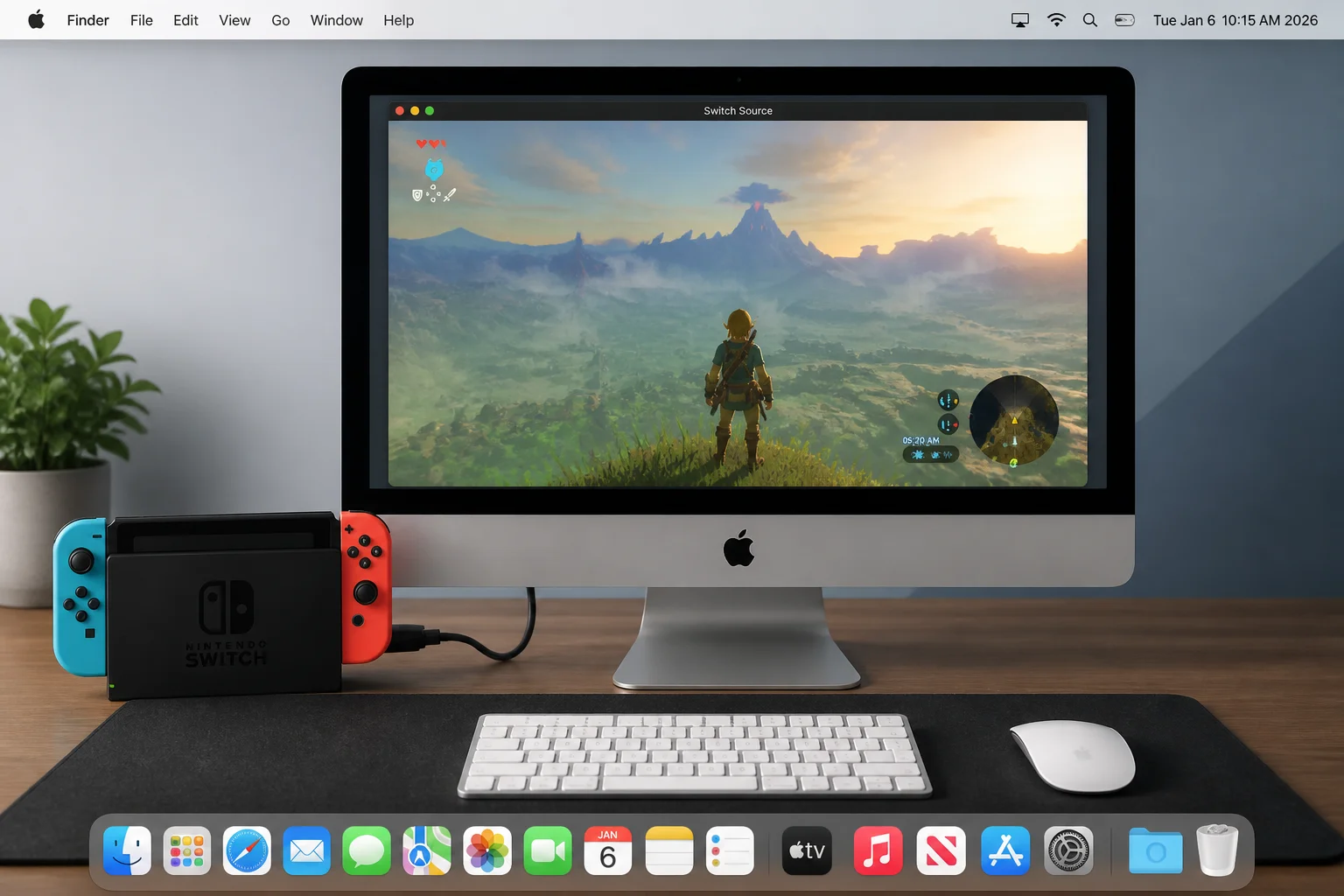
You don’t need a Nintendo Switch performance utility on macOS. A Mac can’t change the console’s fan speed, performance mode, or heat controls. Those settings aren’t exposed to users on the Switch either.
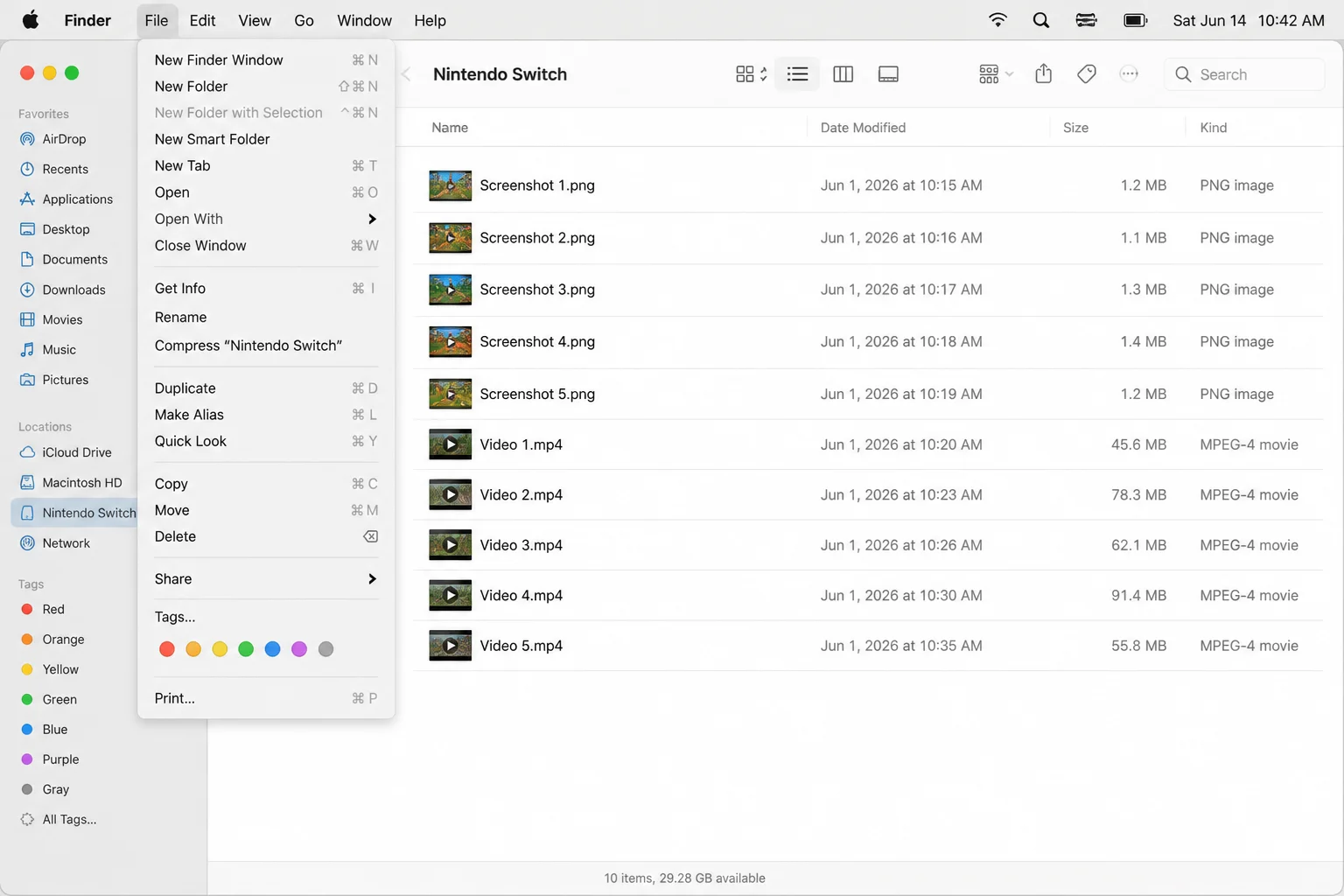
Your Mac can copy accessible screenshots and videos from a removable microSD card before you replace it. Fully power off the Switch before removing the card. Don’t erase or reformat the card in Disk Utility as an early troubleshooting step, and put it back in the console before testing games.
Nintendo Switch 2: Keep Its Instructions Separate
Nintendo Switch 2 has different hardware, storage support, and system updates. Keep its directions separate instead of applying every original-Switch storage fix to it.
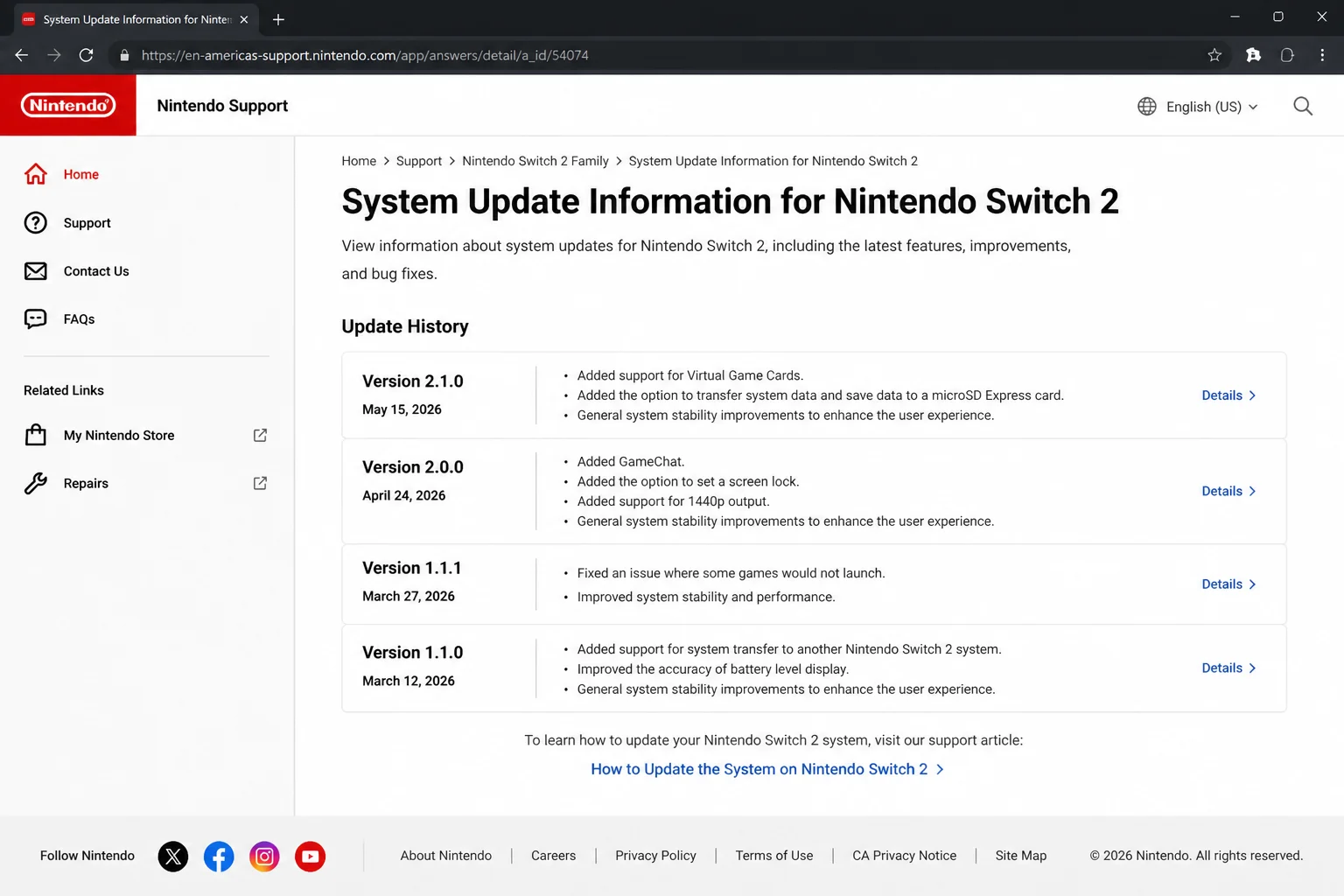
For Switch 2 updates, open System Settings on that console and check Nintendo’s separate Nintendo Switch 2 update history. Expanding storage for Switch 2 software requires microSD Express. A standard microSD card used for original Switch games doesn’t meet that requirement.
Settings and Configuration Mistakes to Check
- Using Sleep Instead of Restart: Waking the console doesn’t clear temporary software states. Use POWER Button > Power Options > Restart.
- Looking for Performance Mode: Nintendo gives users no fan-curve or performance-mode control. Changing TV Output settings won’t boost game speed.
- Blocking the Dock: Keep the dock upright in an open area. A tight cabinet can turn into a little heat trap.
- Assuming Every Case Is Safe: A well-fitted case is usually fine. Remove it during testing if it overlaps or crowds an opening.
- Treating Free Space as a Universal Speed Boost: More free storage helps downloads and updates. It won’t automatically shorten every loading screen.
- Deleting Save Data Too Soon: Archiving or reinstalling a game differs from deleting its saves. Avoid saved-data deletion during basic troubleshooting.
When to Get Help
Nintendo Switch consoles don’t give regular users useful heat logs or a fan diagnostic report. Before contacting support, write down:
- The complete error code.
- The game or action that triggers the issue.
- Whether it happens handheld, docked, or while charging.
- Whether the software is in system memory or on microSD.
- The installed system version.
- How often warnings or shutdowns occur.
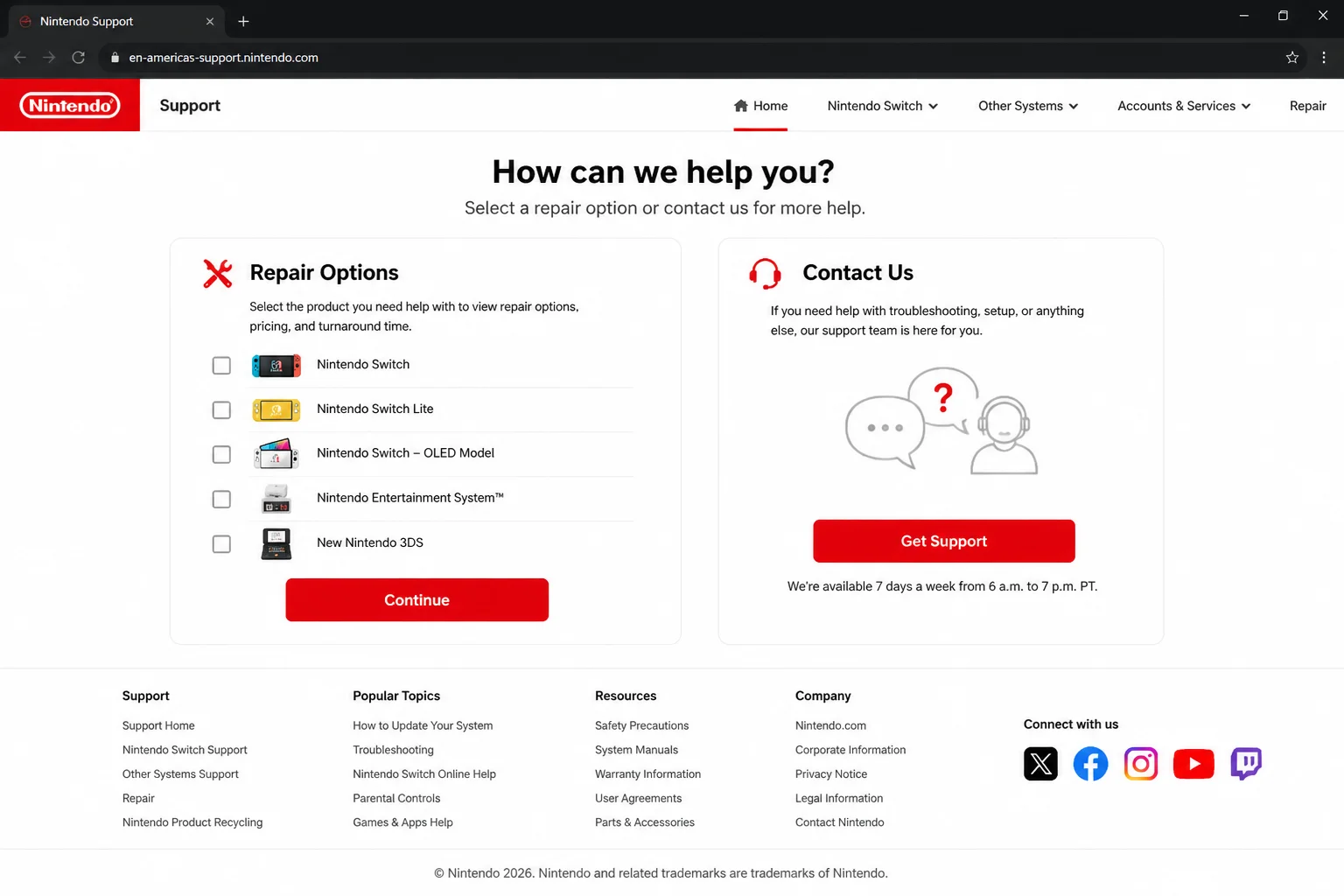
Contact Nintendo Support if the console keeps shutting down, stays extremely hot after cooling, makes grinding noises, smells odd, or looks swollen. Stop using it right away if you see swelling or smell burning. That’s well past the “try another restart” stage.
Prevention Tips
- Give It Room: Use the console and dock on firm surfaces with plenty of open space around the vents.
- Avoid Hot Locations: Keep every covered model within Nintendo’s 5-35°C operating range.
- Restart Occasionally: A proper restart can clear small glitches left behind by repeated Sleep Mode use (a quick fresh start works wonders on plenty of gadgets).
- Update Safely: Install official game and system updates over a stable connection.
- Buy microSD Cards Carefully: Counterfeit cards are annoyingly common, so buy from a seller you trust.
- Watch for Patterns: One slow online service points toward the network. Several slow microSD games point toward storage.
- Leave Repairs to Nintendo: Don’t open the console or push cleaning tools into its vents.
Frequently Asked Questions
Is it normal for a Nintendo Switch to feel warm?
Yes. Gaming and charging both create heat. Start worrying when that warmth comes with warnings, crashes, extreme heat, instability, or repeated shutdowns.
Can a system update fix crashes or sluggish wake behavior?
It can. Nintendo updates often include general stability improvements. Still, don’t treat an update as a confirmed heat or loading-speed fix unless Nintendo says that’s what it addresses.
Does clearing cache affect saved games?
No. Resetting a user’s cache clears cached web-related information, not game save data. It also won’t fix damaged storage.
When should I stop troubleshooting?
Stop after a repeated heat warning or shutdown in a cool, open setup. Also stop immediately if you notice swelling, a burning smell, extreme heat, or grinding fan noise.
Wrapping Up
| Step | Action | Applies To |
|---|---|---|
| 1 | Separate heat, local loading, and online delays | All models |
| 2 | Improve ventilation and restart | All models |
| 3 | Update the system and game | All models |
| 4 | Compare microSD with internal storage | Model-specific |
| 5 | Contact Nintendo after repeated shutdowns | All models |
A temporary glitch, poor airflow, one troublesome game, or a flaky storage card causes plenty of Switch slowdowns. Work through the easy checks first, and don’t expect one fix to cure every type of lag.
My rule is simple: if a Switch shuts itself down from heat more than once after these checks, it’s graduated from “annoying quirk” to “let Nintendo inspect it.” That’s safer for the console and a lot safer for your saved weekend.
Last updated: August 25, 2026 | Applies to Nintendo Switch, Nintendo Switch – OLED Model, Nintendo Switch Lite, and separately identified Nintendo Switch 2 guidance