

Snapchat continues to be a viral social media platform that houses millions of users. However, while using Snapchat, you may want to avoid a particular person being able to contact you or seeing your content on the app.
Luckily, you can easily block that person’s account on Snapchat. And if you later change your mind about blocking them, it’s easy to unblock the blocked person. Follow our step-by-step guide to find out how to block and unblock someone on Snapchat.
Why Block Someone on Snapchat
There are many reasons why you may want to block someone on Snapchat. They might be an ex-partner you don’t want to see in your friends list anymore or a colleague from work who you want to hide your Snapchat stories from. They can also be a random person you know through Snapchat or don’t know at all who keeps spamming you with unwanted content or ads.
No matter the reason, blocking this person removes all traces of them from your account. And the best part is — they won’t get notified that you blocked them and won’t have any sure way of finding out they’ve been blocked.
Is There an Alternative to Blocking Someone on Snapchat?
If you’re only tired of seeing the notifications from that one person on Snapchat, consider choosing an alternative method. You can just silence the notifications about their activity on the app.
When you enable this option for a Snapchat friend, they remain on your Friends list. Unlike a blocked user, a silenced user can still send you Snaps and chats, but you won’t get a single notification about them.
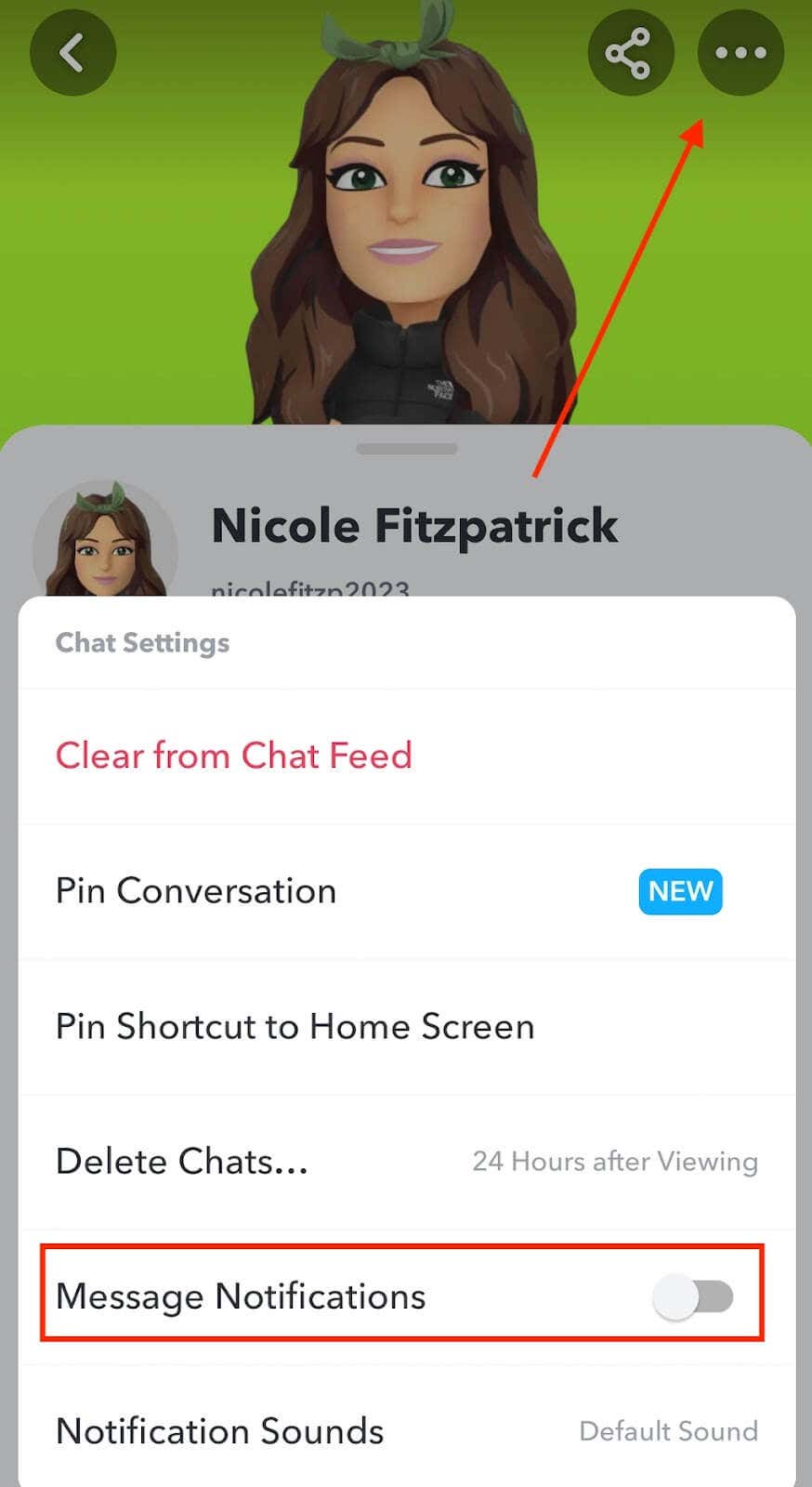
To mute notifications from a Snapchat user, select their avatar next to their name to navigate to their profile page. Once there, open the three-dot menu in the top-right corner of the screen and choose Chat Settings. Then switch the Message Notifications toggle off.
If muting a Snapchat user isn’t enough, but you still don’t want to cut off the person completely, you can remove them from your friends list.
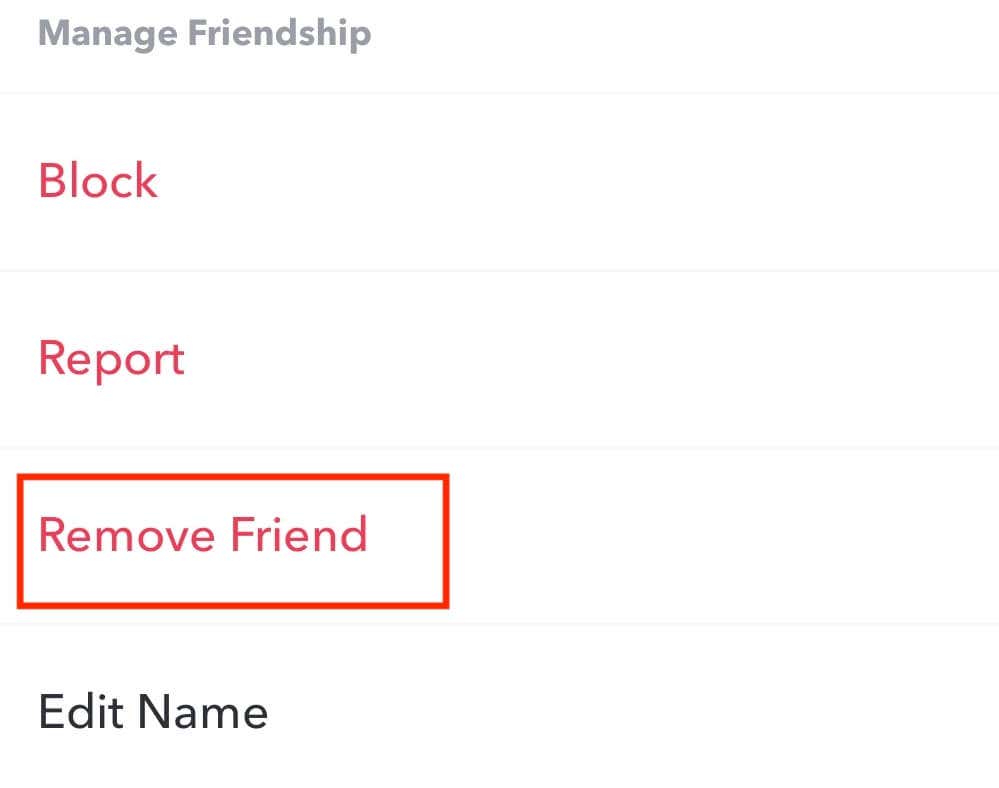
The main difference between blocking people and removing friends on Snapchat is that the person can still see the content you share publicly even after you remove them from your friends list.
How to Block a User on Snapchat
Blocking someone on Snapchat hides their account from you and yours from them. They won’t be able to search for you on the Snapchat app. If they don’t have your contacts outside Snapchat, you’ll effectively cut this person off by blocking them.
To block someone on Snapchat, follow the steps below. The instructions are the same for Android and iOS users.
- Open Snapchat. If you aren’t already signed into your account, select Sign in and enter your login details.
- Navigate to the Snapchat account that you want to block. You can find them in your Conversations at the bottom left of the screen, on My Friends list, or use the magnifying glass icon in the top-left corner of the screen to search for your friend’s name.
- After you find the user, press and hold on to the chat or open the three-dot menu and select Manage Friendship.
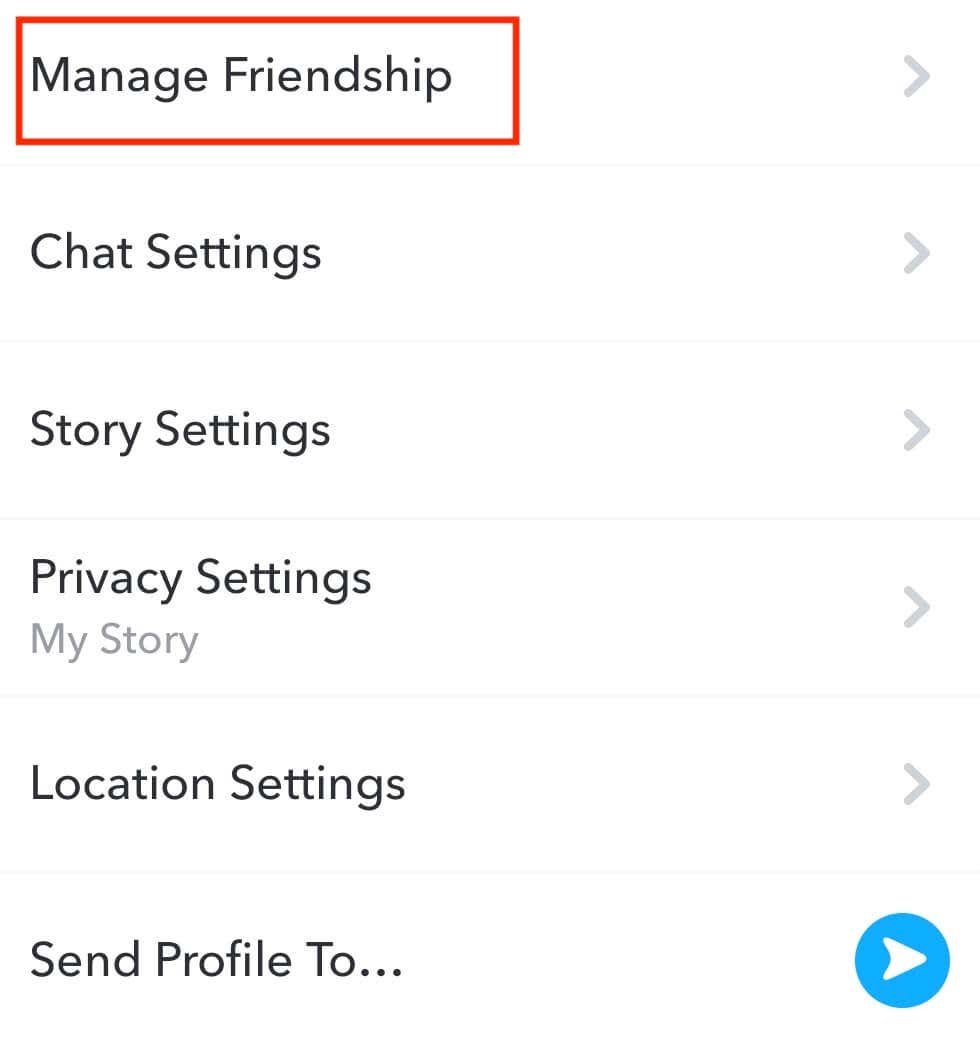
- From the menu, select Block. In the pop-up, select Block to confirm.
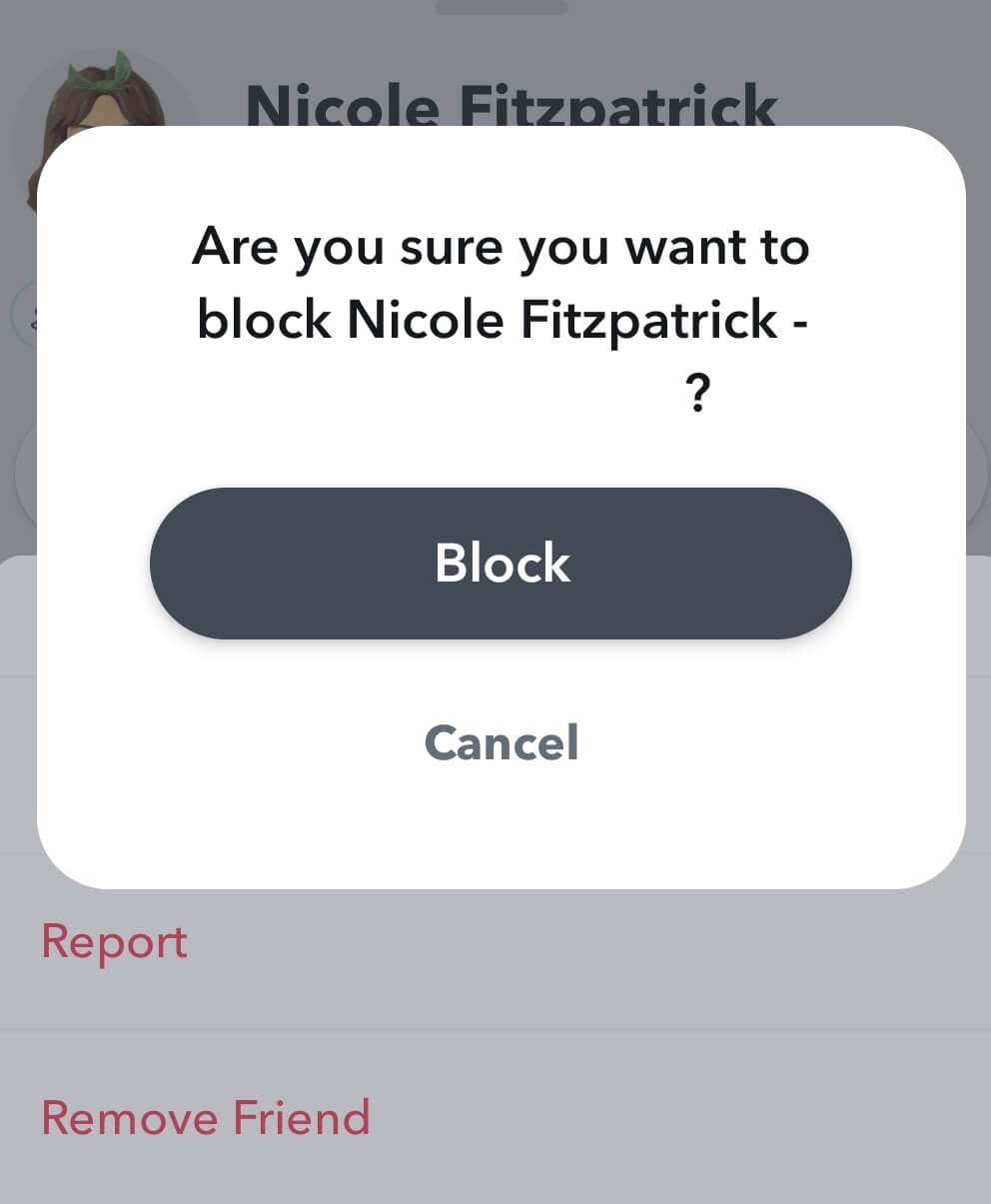
That’s it. The user is now blocked, and all traces of them will be removed from your messaging app. Your chat history will also be erased.
How to Unblock Someone on Snapchat
Blocking someone on Snapchat doesn’t just hide your account from them but also hides their account from you. If you decide to unblock them or send them a friend request, you won’t be able to just search for their username and find them. Instead, you’ll need to access the list of blocked users in your Snapchat settings.
To unblock a user on Snapchat, follow the steps below.
- Open Snapchat on your device.
- Select your profile icon or your bitmoji.
- In the upper-right corner, select the gear icon to open Settings.
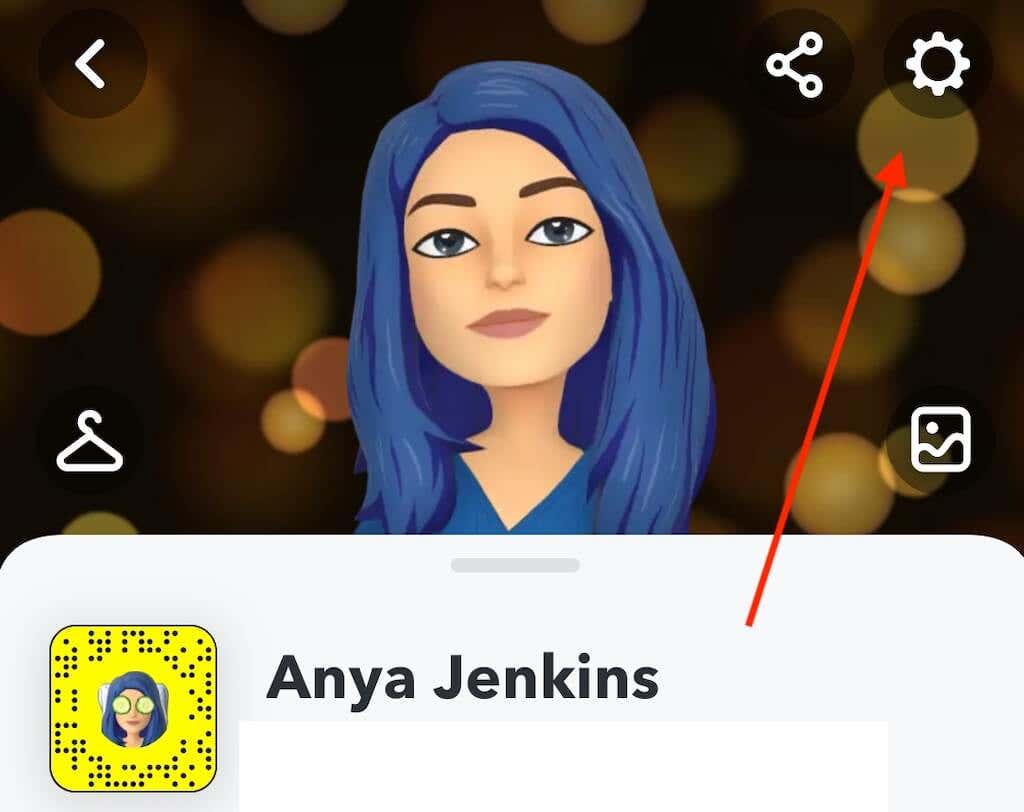
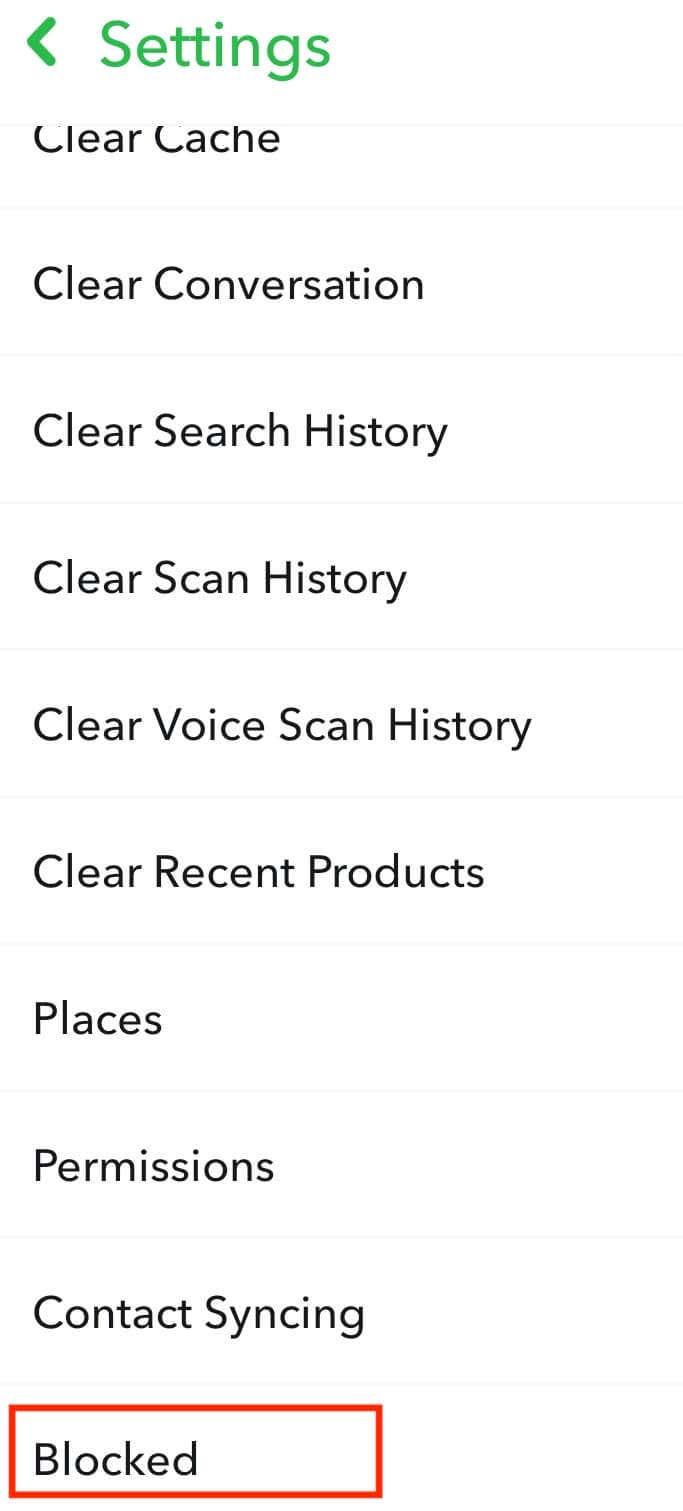
- Scroll down until you see the Account Actions section and select Blocked.
- You’ll see a list of people you’ve blocked on Snapchat. Find the person you want to unblock and select the X icon next to their name.
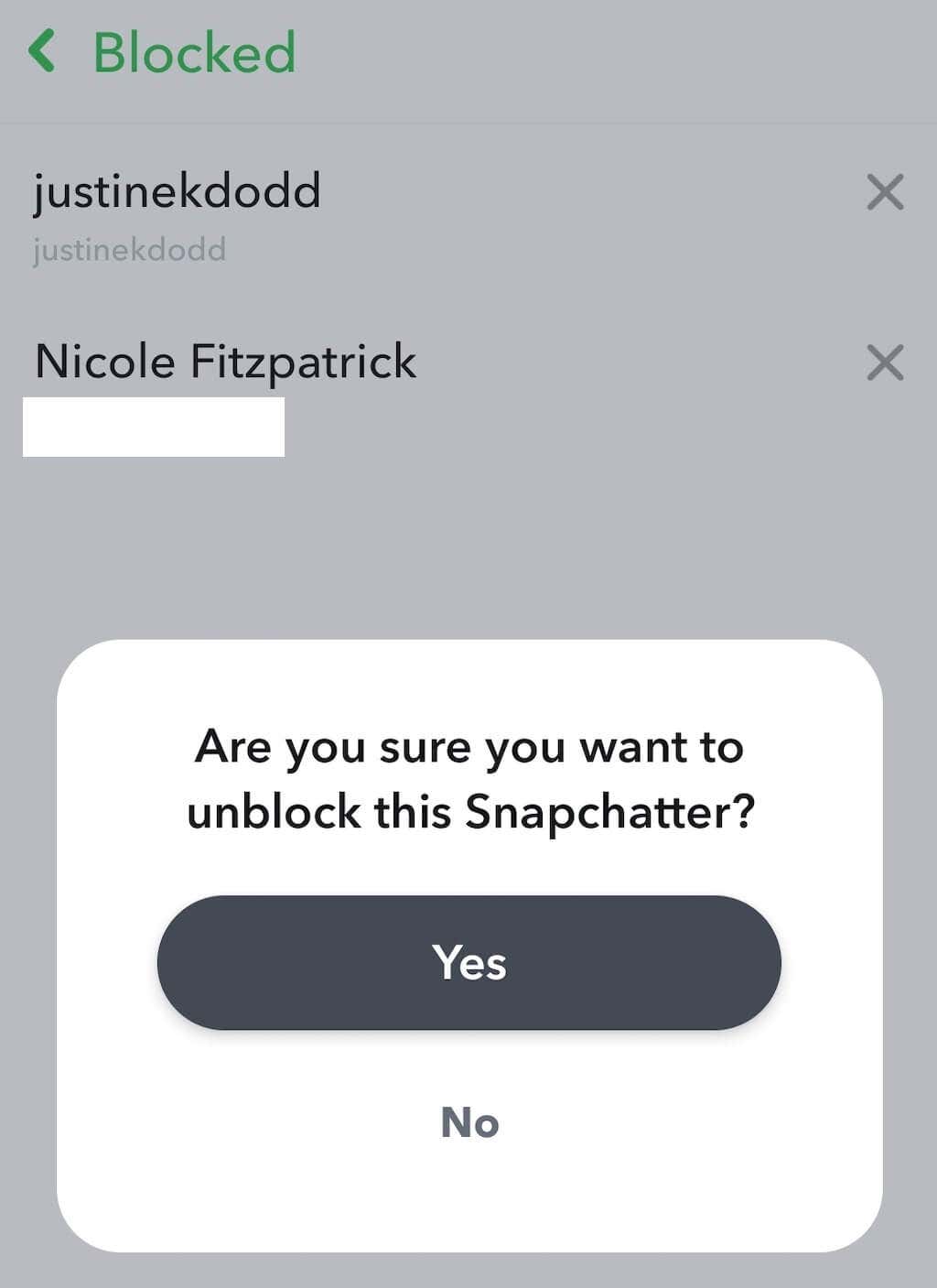
- Snapchat will prompt you to confirm your action. Select Yes to unblock this person.
After you unblock someone, their username will disappear from the Blocked list. Snapchat won’t notify the person when you unblock them. If you want them to be a part of your friends list again, you’ll have to search for their username on Snapchat and add them to your friends.
Remember that Snapchat recently added time restrictions on users who re-add friends they recently removed from their friends list or blocked. So if you block, unblock, and re-add someone in a short time, Snapchat might allow you to do it only after 24 hours have elapsed.
What Happens After You Block Someone on Snapchat
Blocking someone on Snapchat leaves you with plenty of questions. In this article, we already answered some of the popular ones, like whether Snapchat notifies the person when you block them and does blocking someone deletes your chat history with them.
If you have more questions about blocking or unblocking someone on Snapchat, check out our comprehensive guide on what happens after you block someone on this social network.