

With today’s blazing fast internet speeds and cutting-edge desktop hardware, choppy YouTube videos are supposed to be a thing of the past. Sadly, that’s just not the case. We’ll show you what to do to fix YouTube when that happens.
Does YouTube freeze or stutter while playing videos? Various reasons—such as spotty internet connectivity, misconfigured quality settings, and outdated video drivers—often cause that. Read on to learn how to fix choppy YouTube videos on the PC and Mac.
Check Your Internet Connection
First up, check that there’s nothing wrong with your internet. The best way to do that is to try using an alternative online video streaming service such as Vimeo or Netflix, or the YouTube app on your Android or iPhone. If you continue to experience jerky or buffering videos, try the following:
- Restart the router.
- Restart your PC or Mac.
- Connect to a different Wi-Fi or Ethernet connection.
If the issue persists, learn what else you can do to fix a slow Wi-Fi or Ethernet connection.
Check for Server-Side Issues
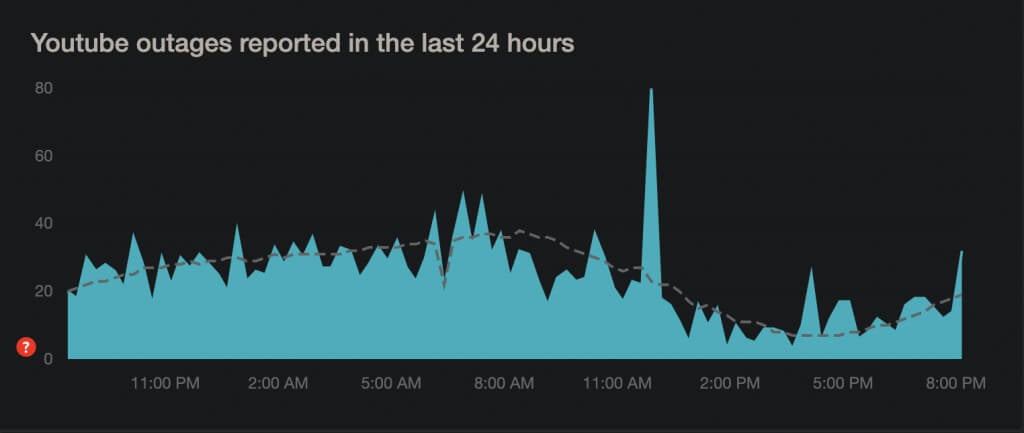
Choppy video playback could also be the result of server-side issues with YouTube. Although Google doesn’t offer a dedicated online portal to check that, you can always use a third-party tool such as DownDetector or IsItDownRightNow? to determine if YouTube’s going through any service outages.
Lower the Video Quality
Although YouTube is smart enough to adjust video quality automatically depending on the speed of your internet connection and hardware, that may not happen all the time. It can get stuck at a higher resolution than your internet connection or computer just can’t handle.
Try lowering the video quality manually. Select the cog-shaped Settings icon on the lower-left corner of the media player pane or screen while in fullscreen mode. Then, point to Quality, and select a sub-HD resolution (360p or 480p).
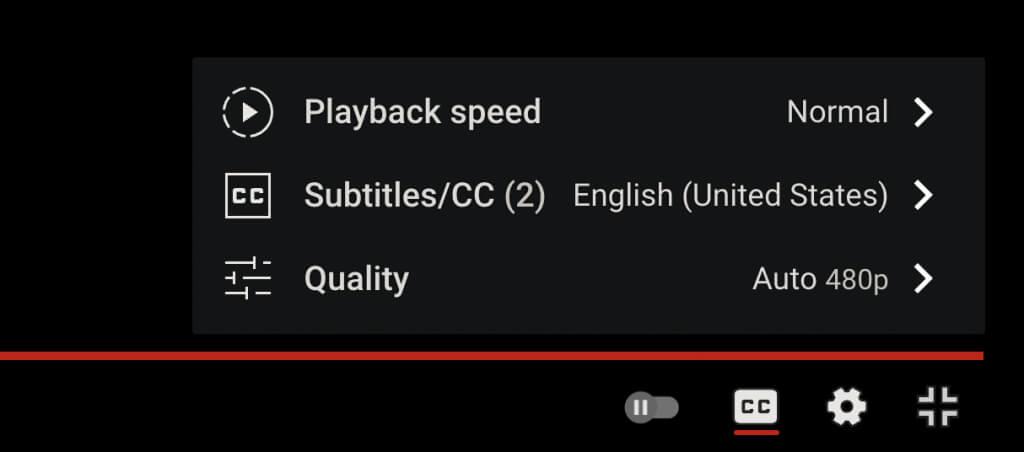
If that helps, gradually work your way up until you find a good balance between visual clarity and performance.
Update Your Web Browser
The following fix involves updating your web browser to resolve any known issues with the VP9 codec that YouTube relies on for video playback.
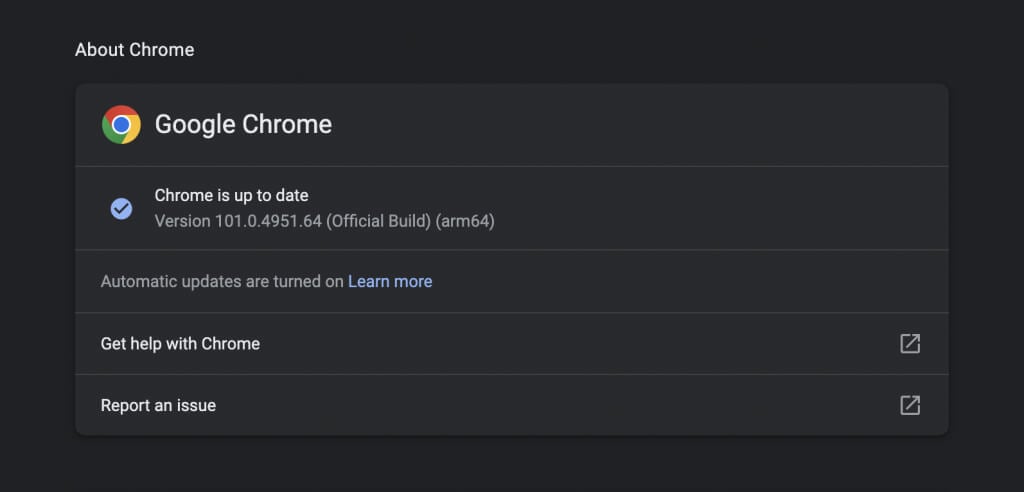
Web browsers tend to update themselves automatically, but it’s always good to perform a manual check just in case. For example, you can force-update Chrome by opening the Chrome menu and selecting Help > About Google Chrome.
Are you using Edge, Safari, or Firefox?
Note: YouTube no longer uses the Adobe Flash Player for video playback on modern HTML5 browsers. Contrary to what you may read online, you don’t need to install, update, or use any Flash plugins. Also, Flash is dead.
Clear the Browsing Data
Obsolete browsing data is a common reason for numerous issues, not just with YouTube stuttering but also problems with other sites in general. Clear your browser’s cache and check if that makes a difference.
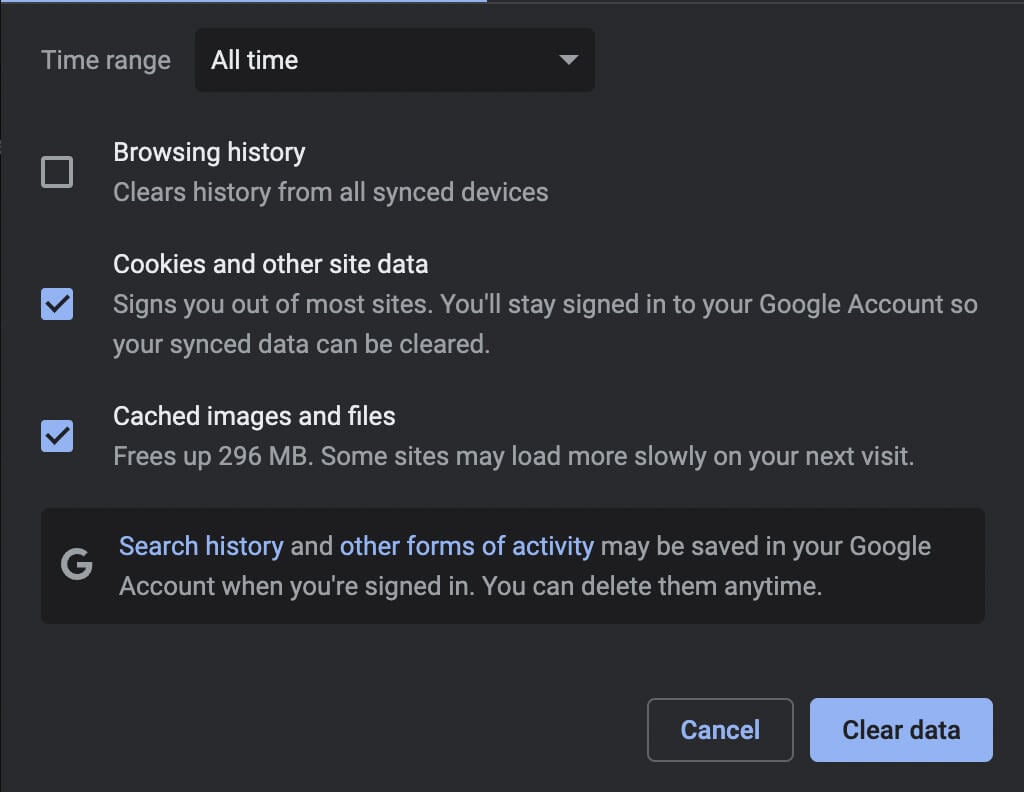
Again, taking Chrome as an example, type chrome://settings/clearBrowserData into a new tab and press Enter. Then, set the Time range to All time, pick the Cookies and other site data and Cached images and files categories, and select Clear data.
For more information, check out our guide to clearing the cache in any browser for PC and Mac.
Double-Check Your Add-ons
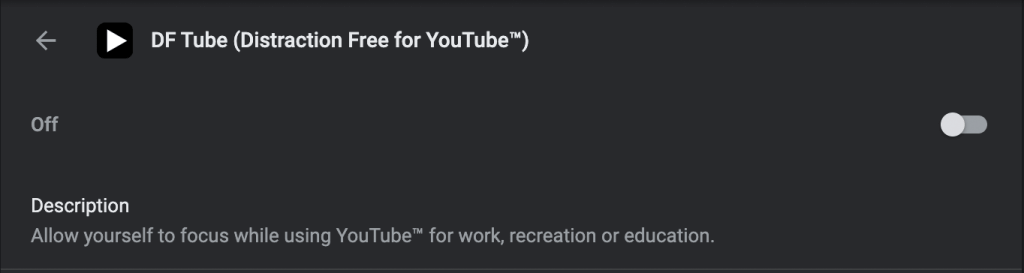
Browser extensions are another reason that results in choppy YouTube video playback. Try disabling any active add-ons (specifically, content blockers or extensions that claim to enhance YouTube) and check if that resolves the issue. You can then reactivate them one by one while reloading YouTube in a separate tab until you isolate the problematic item.
To enable and disable add-ons, you must get to your browser’s Extensions Manager. In Chrome, for example, just open the Chrome menu (select three dots to the right of the address bar) and select More Tools > Extensions.
Disable Hardware Acceleration
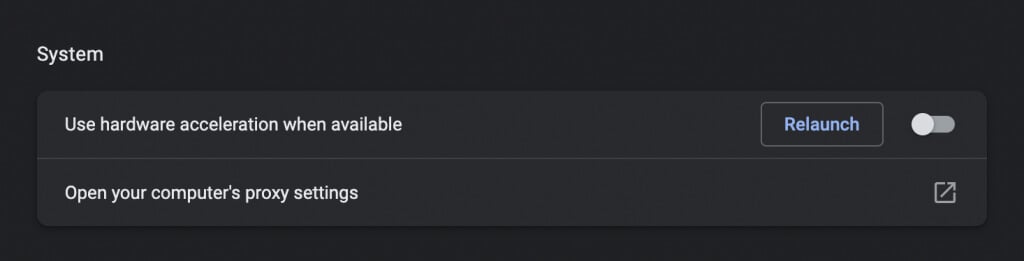
Hardware acceleration is a double-edged sword. It uses your computer’s hardware to improve rendering performance, but it can negatively affect some systems. Therefore, most browsers—excluding Safari—allow you to disable the feature.
In Chrome, open the Settings pane and go to Advanced > System. Then, turn off the switch next to Use hardware acceleration when available. You can use the same approach on other Chromium-based browsers such as Microsoft Edge and Opera.
On Firefox, go to Settings > General > Performance and uncheck the boxes next to Use recommended performance settings and Use hardware acceleration when enabled to disable hardware acceleration.
If that helps, you can continue troubleshooting by updating the video drivers and the system software on your PC or Mac.
Update the Video Drivers
Up-to-date graphics card drivers can help avoid performance issues, especially on the PC. Check your video card manufacturer’s website—NVIDIA, AMD, Intel—for any updates and install them. Or, here’s an even better idea—use a driver updater tool to auto-update all drivers on your computer.
If you use a Mac, updating the system software to its latest version will also update the graphics drivers (more on that next).
Update the System Software
Underlying problems with the operating system can also cause video playback issues. You can fix that by installing the most recent Windows or macOS update.
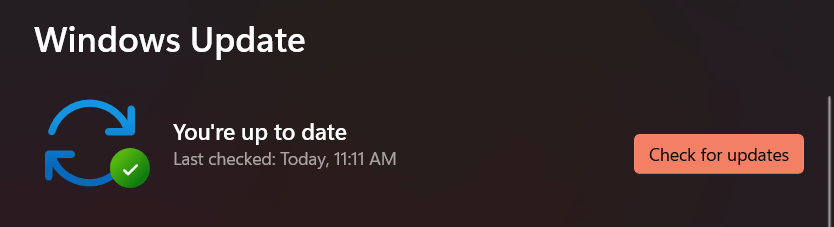
In Windows 10 and 11, open the Start menu and select Settings > Windows Update > Check for updates > Download and install. Additionally, select View optional updates and install any Microsoft-certified hardware drives, if available.
On the Mac, open the Apple menu and select System Preferences. Then, choose Software Update > Update Now to update macOS to its latest version.
Switch Browsers
If YouTube’s video stuttering or choppy playback issues linger, you may want to switch browsers as a last resort. YouTube works best on Chrome, which shouldn’t come as a surprise considering that Google is behind both.
So, if you use a browser such as Safari or Firefox, try watching YouTube on Chrome. If the issue occurs on Chrome, try using a different Chromium-based web browser such as Edge or Opera. You could always try factory resetting your browser before you do that.