

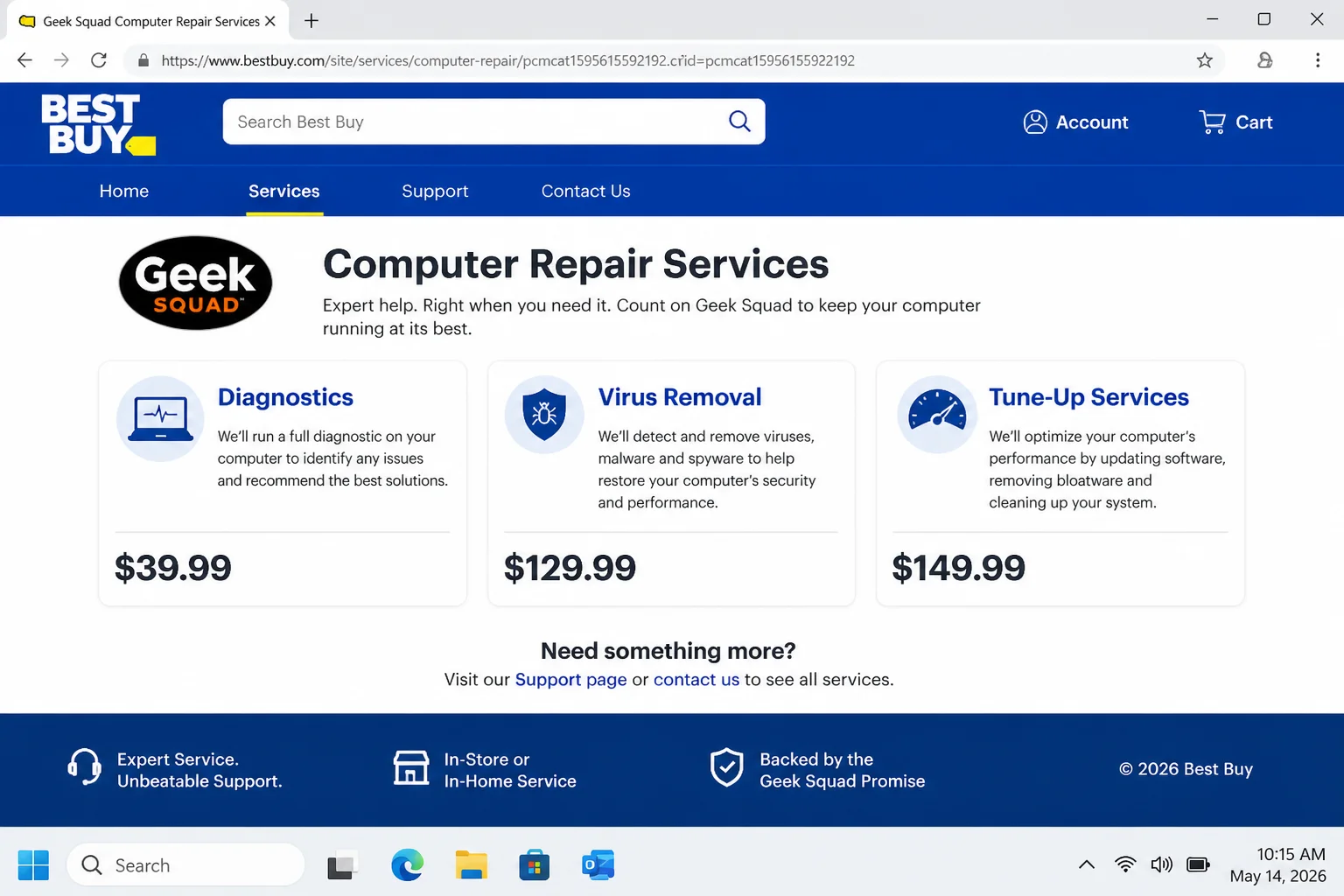
Got a computer that’s acting up and a quote from Geek Squad that made your eyes water? You’re not alone. Professional tech repair can get expensive fast. We’re talking $100+ just for a diagnostic in some cases. The good news is that in 2026, you have more options than ever to get your computer fixed without paying Best Buy prices.
Whether your machine is running slow, infected with malware, making strange noises, or just refusing to cooperate, this guide walks you through eight legitimate ways to solve the problem for less money, or even for free. We’ll start with the cheapest options and work our way up, so try them in order before reaching for your wallet.
1. Be Your Own Investigator First
Here’s something worth knowing before you do anything else: the majority of computer problems in 2026 are caused by software, storage, browser issues, or account problems, not broken hardware. That means there’s a solid chance you can fix this yourself without touching a screwdriver or spending a dime.
The trick is to diagnose before you repair. Work through this checklist in order:
- Back up your files first: Before you change anything, back up your important files to an external drive or cloud storage. This protects you no matter what happens next.
- Check the obvious stuff: Power cables, chargers, external devices, and whether the problem appeared right after a Windows Update or new software install.
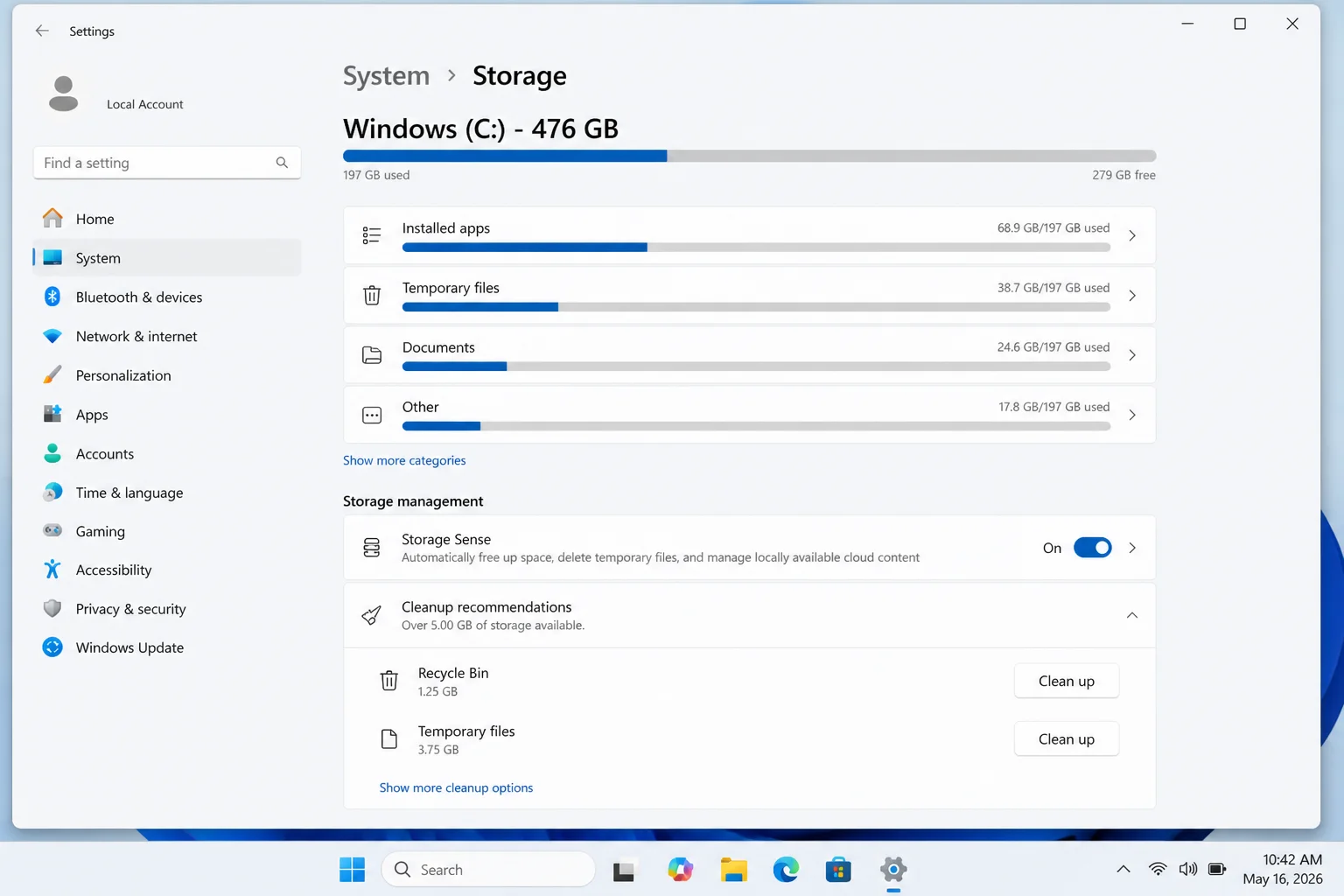
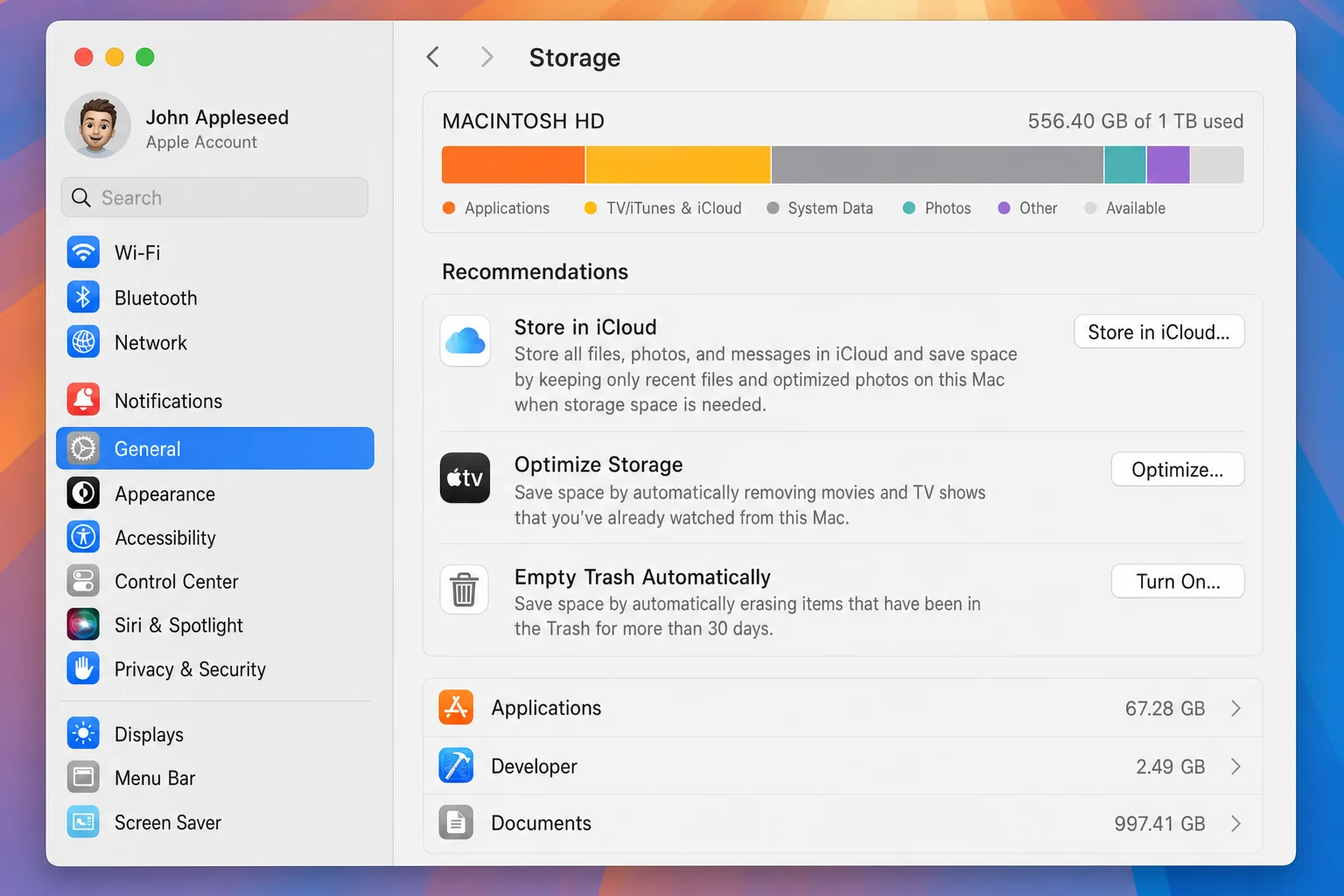
- Check your storage space: A nearly full drive can make a computer crawl. On Windows 11, go to Settings > System > Storage to see what’s eating space. On macOS Sequoia, open System Settings > General > Storage.
- Look at startup apps: Too many apps launching at startup is one of the most common causes of a slow PC. On Windows, press
Ctrl + Shift + Escto open Task Manager, then click the Startup apps tab. On macOS, go to System Settings > General > Login Items. - Run built-in security tools: On Windows 11, open Windows Security and run a full scan. On macOS, check for suspicious browser extensions and unknown login items before assuming you need paid help.
- Undo the last change: If the problem started after a specific update, driver install, or new app, try reversing that change first.
This isn’t an exhaustive list, but being systematic, going from broad possibilities to specific ones, will save you time and money. You might be surprised how often a restart, a storage cleanup, or disabling a rogue startup app is all it takes.
2. Check If You Already Have Free Tech Support
Before you pay anyone a single dollar, check whether free support is already included with something you own. This is probably the most overlooked option on this list.
Here are the most common sources of free tech support that people forget about:
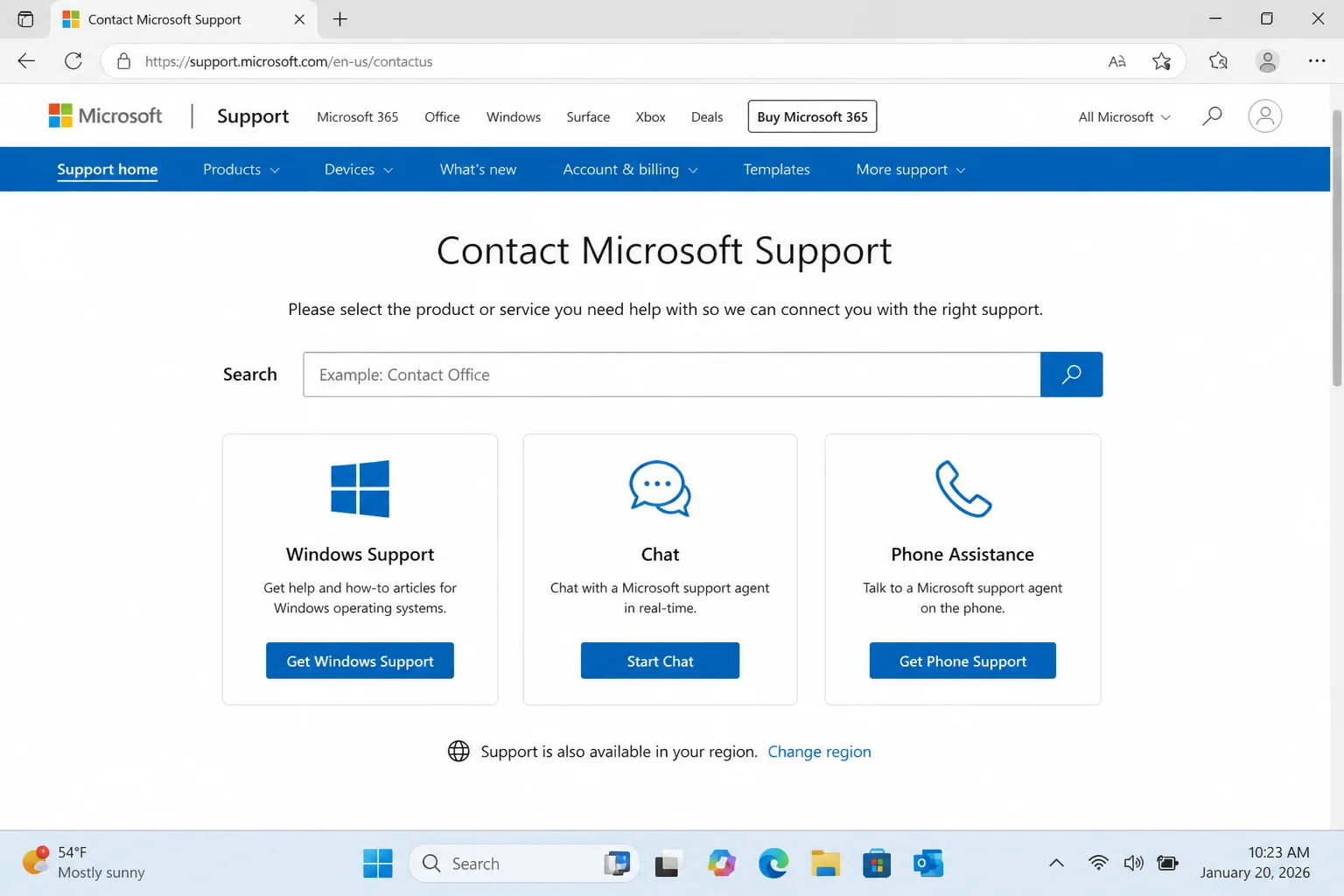
- Microsoft Support: If you’re running a licensed copy of Windows 11, you can get free support directly from Microsoft via chat or phone. Head to support.microsoft.com to get started.
- Apple Support: Mac users get access to Apple Support online, by phone, or at an Apple Store. If your Mac is under AppleCare, you’re covered for hardware and software issues.
- Manufacturer warranty: If your computer is still under warranty, which is often one to three years for new machines, the manufacturer should handle hardware problems for free. Always check this before paying anyone else.
- GPU and component support: Having driver or software issues with your graphics card or other hardware? NVIDIA, AMD, and Intel all have support teams and community forums. Email or chat support is usually free.
- Bundled support plans: Some retailers and device protection companies include tech support in their plans. Check your purchase receipts or device protection paperwork. You might have a year of support you’ve never used.
If your device is under warranty, this should genuinely be your first call. Letting the manufacturer handle it is almost always faster and cheaper than any third-party repair shop.
3. Search for the Answer Online
Here’s a little secret: when a Geek Squad technician sits down with your computer, there’s a good chance they’re Googling the exact same error message you saw. That’s not a knock on them. It’s just how tech support works. The internet is the world’s biggest troubleshooting database, and you have access to the same one they do.
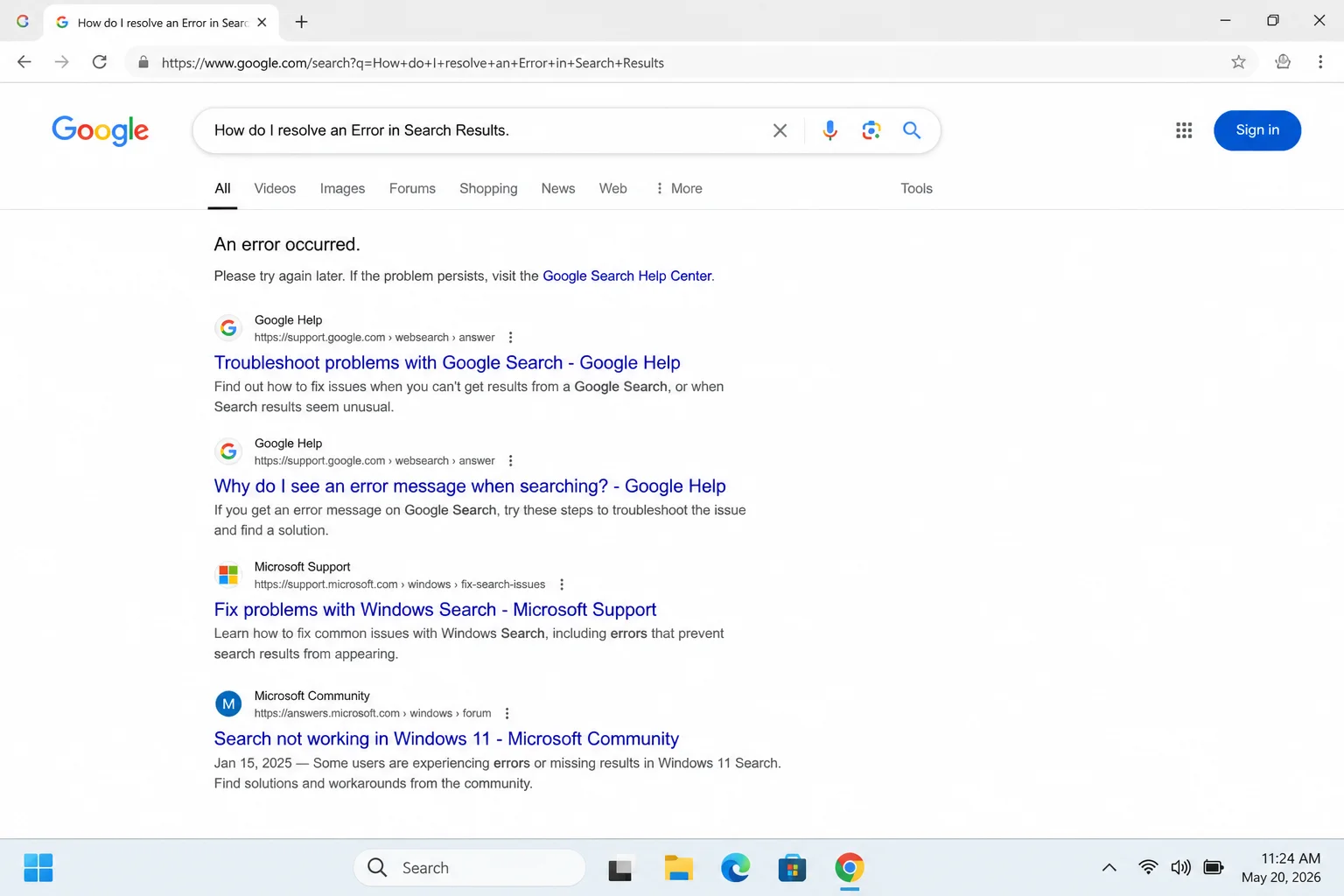
To make this work, you need to be specific. Here’s how to search effectively:
- Copy the exact error message: If you see an error code or message on screen, copy it word for word and paste it into Google. Something like “Windows 11 blue screen KERNEL_SECURITY_CHECK_FAILURE fix” will get you much further than “my computer crashed.”
- Include your OS and version: Add “Windows 11 24H2” or “macOS Sequoia” to your search to filter out outdated fixes.
- Look for recent results: Use Google’s search tools to filter results from the past year. Tech solutions go stale fast, and a fix from 2019 might not apply anymore.
- Check official support pages first: Microsoft’s support site, Apple’s support pages, and manufacturer knowledge bases are usually the most reliable sources.
4. Ask the Forums
If a Google search doesn’t turn up a clear answer, the next best thing is asking someone who’s been there. Tech forums have been around almost as long as the internet, and the communities are genuinely impressive. There are people out there who have seen every weird computer problem imaginable and love helping others fix them.
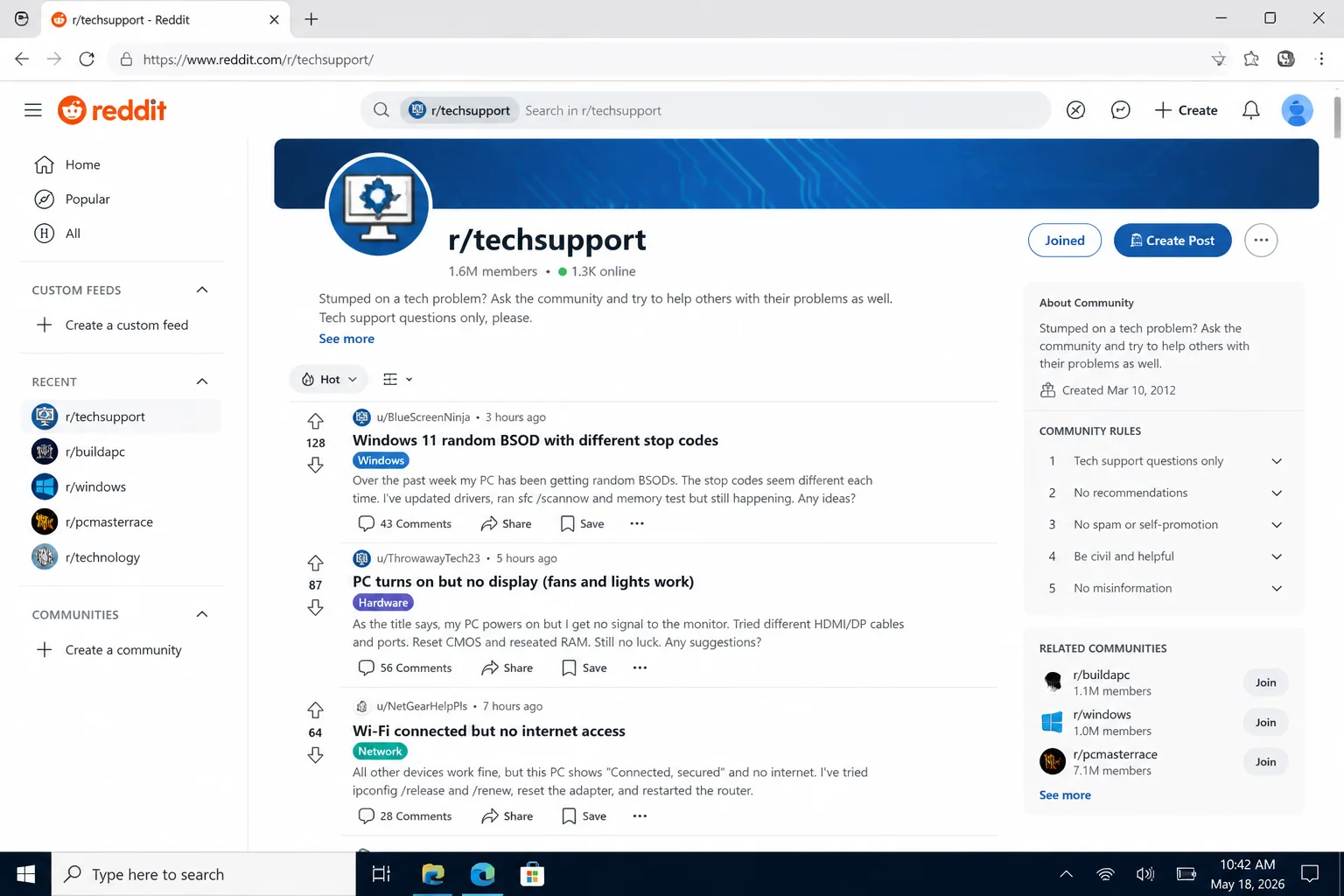
A few great places to ask for help:
- Reddit r/techsupport: One of the most active tech help communities online. Post your problem with as much detail as possible and you’ll usually get useful responses within hours.
- Microsoft Community: Microsoft’s official forums at answers.microsoft.com are monitored by Microsoft employees and MVPs (experienced volunteers).
- Apple Support Community: Apple’s own community forums are great for Mac, iPhone, and iPad issues.
- Tom’s Hardware and Linus Tech Tips forums: Both are excellent for hardware-specific questions.
One important note: nobody in these communities is being paid to help you, so be polite, be specific, and include details like your OS version, what you’ve already tried, and any error messages you’ve seen. The more information you give, the better the help you’ll get.
5. Try Remote Tech Support Services
This is one area that’s changed a lot since 2021. Remote tech support, where a technician connects to your computer over the internet and fixes the problem while you watch, has become one of the best Geek Squad alternatives out there. It’s often cheaper than in-store repair, and you don’t have to lug your computer anywhere.
A few services worth checking out in 2026:
- HelloTech: Offers both in-home and remote tech support with upfront pricing. Good option if you want a real human to handle the problem without the Best Buy markup.
- Asurion: Better known for device protection plans, but also offers on-demand tech support. Worth checking if you already have a protection plan through them.
- My Computer Works: Specializes in remote support, particularly popular with users who want a subscription-style support plan for ongoing help.
- Manufacturer remote support: Both Microsoft and Apple offer remote support sessions where a technician can access your computer directly, and for warranty issues, this is often free.
One thing to keep in mind: only use remote support services from reputable, well-reviewed companies. Unfortunately, remote support scams are real. If someone calls you out of the blue offering to fix your computer, that’s a red flag. Legitimate services don’t cold-call.
6. Ask a Tech-Savvy Friend
There’s probably someone in your circle, a friend, a family member, maybe a coworker, who’s the go-to person when something breaks. You know the one. Their phone is always running the latest software, they built their own PC, and they genuinely enjoy this stuff.

Asking for their help can work out really well, but go in with realistic expectations:
- Don’t expect it to be free: Even if they don’t charge cash, offer something, such as coffee, lunch, or a favor in return. Their time is worth something.
- Understand there are no guarantees: Unlike a professional repair shop, a friend working on your computer has no liability if something goes wrong. Make sure you’ve backed up your files first (see tip #1).
- Be specific about the problem: The clearer you can describe what’s happening, the faster they can help. “It’s slow” is much harder to work with than “it freezes for about 30 seconds every time I open Chrome.”
For software problems, this can be a great option. For hardware repairs, it really depends on your friend’s skill level, so be honest about that before handing over your machine.
7. Watch a YouTube Tutorial (Including Ours)
YouTube has become one of the best free tech support resources on the planet. Whatever your problem is, whether it’s a slow startup, weird noises from a hard drive, a cracked laptop screen, or a RAM upgrade, there’s almost certainly a step-by-step video walkthrough for it.
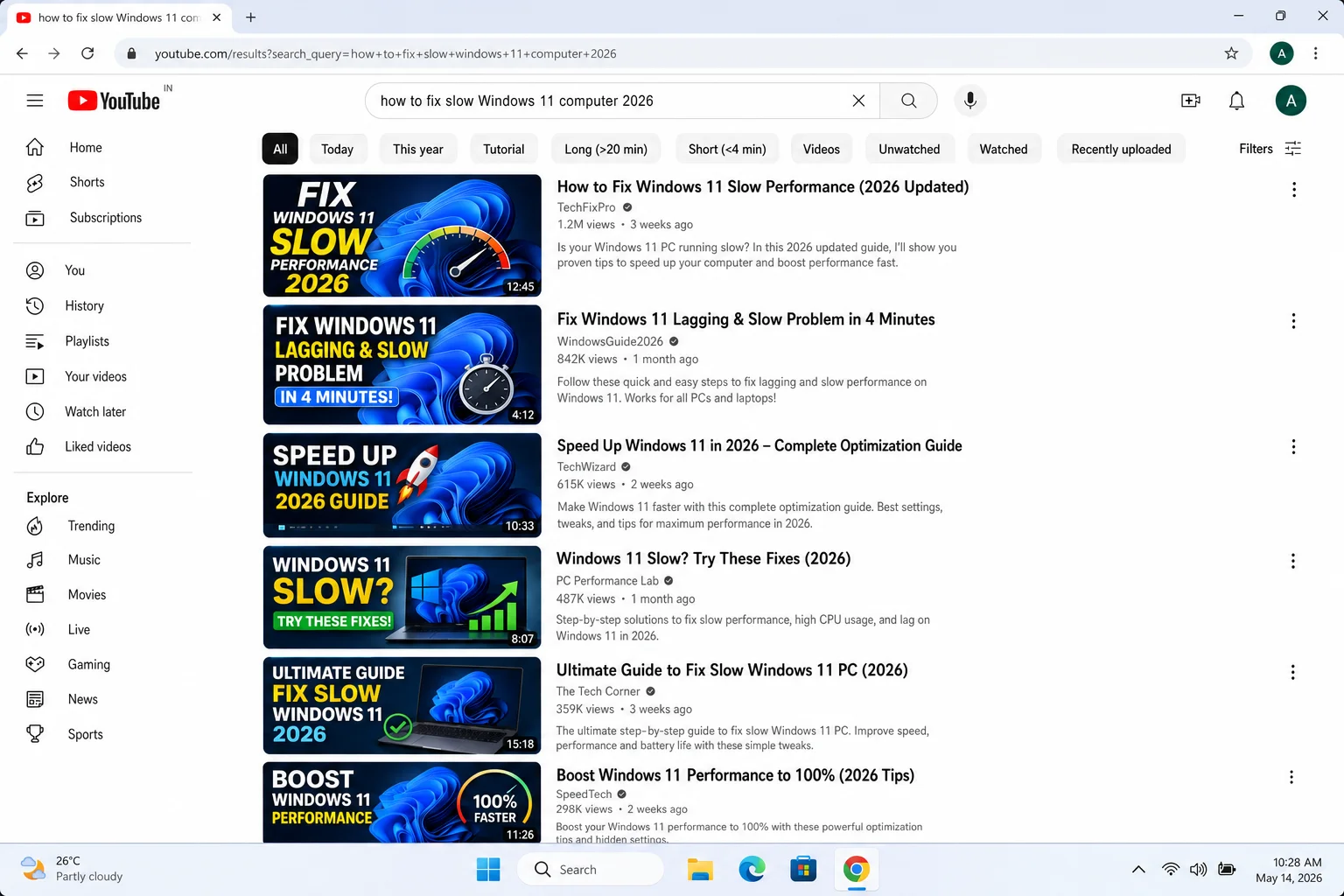
A few channels worth bookmarking:
- Online Tech Tips on YouTube: Our own channel has plenty of quick fixes, explainers, and how-to guides for everyday computer problems.
- Gamers Nexus: If you’re dealing with hardware questions, such as thermal paste, GPU issues, or PC building, this channel goes deep and is extremely reliable.
- Linus Tech Tips: Great for general PC troubleshooting and hardware topics.
- The PC Security Channel: Excellent for malware removal, security settings, and understanding what Windows Security tools actually do.
The key is to find a video that matches your exact setup. Search for your specific OS version (like “Windows 11 24H2”) and your exact problem. A video that matches your situation closely will save you a lot of trial and error.
8. Shop Around, Local Repair Shops Often Beat Geek Squad on Price
If you’ve worked through everything above and you genuinely need a professional, you still don’t have to pay Geek Squad rates. Local independent repair shops often charge significantly less than big-box retailers, partly because they don’t have the same overhead costs, with no massive mall rent bill to cover.
Here’s how to find a good one without getting burned:
- Search Google Maps for “computer repair near me”: Check the reviews carefully. Look for shops with a high volume of recent reviews, not just a five-star average from six people.
- Call ahead and ask for a quote: Describe your problem and ask what they’d charge for a diagnostic and repair. A good shop will give you a ballpark over the phone.
- Ask about their diagnostic fee policy: Some shops charge a flat diagnostic fee that gets applied to the repair cost if you proceed. Others charge it regardless. Know this upfront.
- Check if they offer remote support: Many local shops now offer remote support sessions for software issues, which can be faster and cheaper than bringing the machine in.
- Consider subscription support plans: If you find yourself needing tech help regularly, some local shops and services like My Computer Works offer monthly plans that can work out cheaper than paying per-incident.
One last thing: always remove or back up sensitive personal data before handing your computer to anyone for repair, even a reputable shop. It’s just good practice.
Wrapping Up
Paying Geek Squad prices is rarely your only option. In 2026, between built-in OS tools, free manufacturer support, remote tech services, and a thriving community of people who genuinely love helping others fix their computers, you have a solid toolkit to work through before spending big. Start with diagnosis, check your existing warranties, and only pay for repair when you’ve genuinely exhausted the free options.
Honestly, most computer problems, including slow performance, malware, and startup issues, can be solved without ever leaving your house. Give these alternatives a shot first, and save the Geek Squad visit for the situations that actually need it.
Quick Reference: Geek Squad Alternatives at a Glance
| Option | Best For | Typical Cost |
|---|---|---|
| DIY diagnosis | Software, storage, startup issues | Free |
| Manufacturer/warranty support | Devices under warranty | Free |
| Google & official support docs | Known error messages | Free |
| Tech forums (Reddit, Microsoft Community) | Unusual or specific problems | Free |
| Remote support services (HelloTech, Asurion) | Software issues without leaving home | $ |
| Tech-savvy friend | General troubleshooting | Free – $ |
| YouTube tutorials | Hardware and software how-tos | Free |
| Local independent repair shop | Hardware repairs, in-person help | $$ (less than Geek Squad) |