

Stuck with a username on Snapchat that you realize you don’t really like anymore? If you’ve tried going into your settings to change it, you might not have been able to find a way to do so. This is because, unfortunately, it’s not really possible.
Snapchat has said they don’t allow username changes due to security concerns, so there’s no way to do it from your account. However, there are a few workarounds you can try so you don’t have to feel stuck with a name you don’t like forever.
Change Your Display Name
The easiest way to hide your username is to create a display name. This is what will show up to your friends in chats, stories, and everywhere else your name appears. Although people can still see your username if they click on your profile, it will at least help to cover it up with something you like more.
To do this, tap your Bitmoji icon in the top left to access your profile. Then, tap the settings icon in the top right, which looks like a small gear.
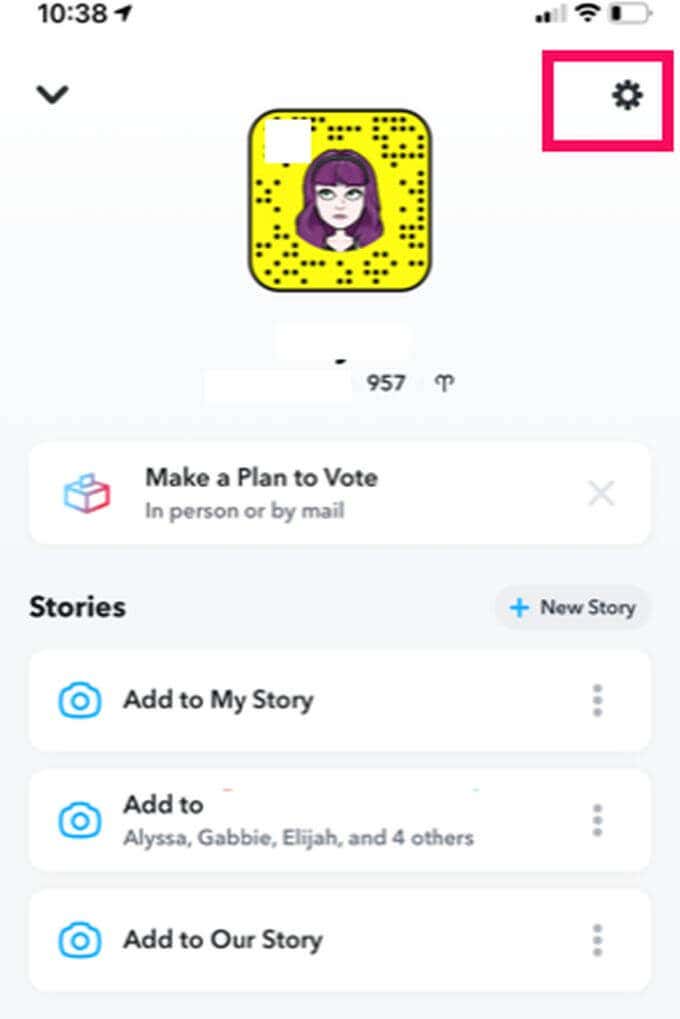
Under your settings, you’ll see the Name option. Tap on this and you’ll be taken to a page where you can change both your first and last name.
You don’t have to enter your real first or last name, and it’s not required to enter both. You can really make this name whatever you want it to be. You can even just add emojis if it suits you.
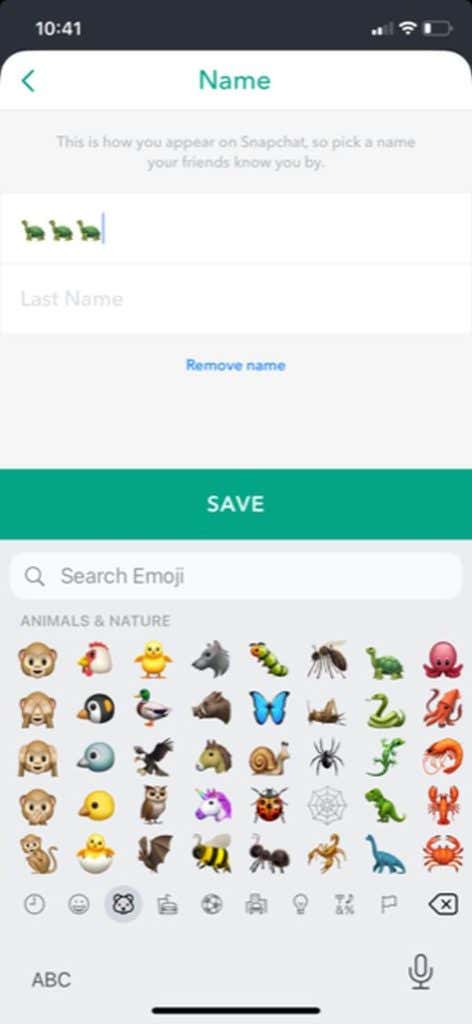
After you enter a name you like, tap the Save button at the bottom of the screen. Your display name will then be changed everywhere. The nice thing about this option is that you can go back and change it whenever you want, as many times as you want.
Create a New Account
Now, if you really, really don’t like your username, the only route you can take is to completely create a new profile. This wouldn’t be so bad if Snapchat allowed you to transfer your data from your old account, but again, they don’t for security reasons.
However, you can easily make a new account and still find your friends from your old account if you want a new username. Just make sure to not delete your old account until after you’ve finished creating your new one. Here’s the steps to do this correctly:
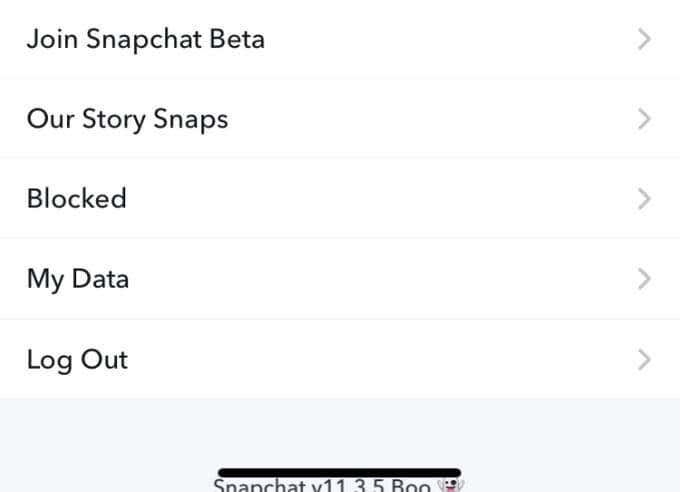
- Log out of your original Snapchat account by going to your profile, then Settings > Log Out. Opt to save your log-in information if you want to get back in easily.
- On the main Snapchat page, tap Sign Up in the bottom left. A screen will come up where you enter your First and Last name. This is what your display name will appear as, described above. Tap Sign Up & Accept to accept the Snapchat terms and conditions and continue the account creation.
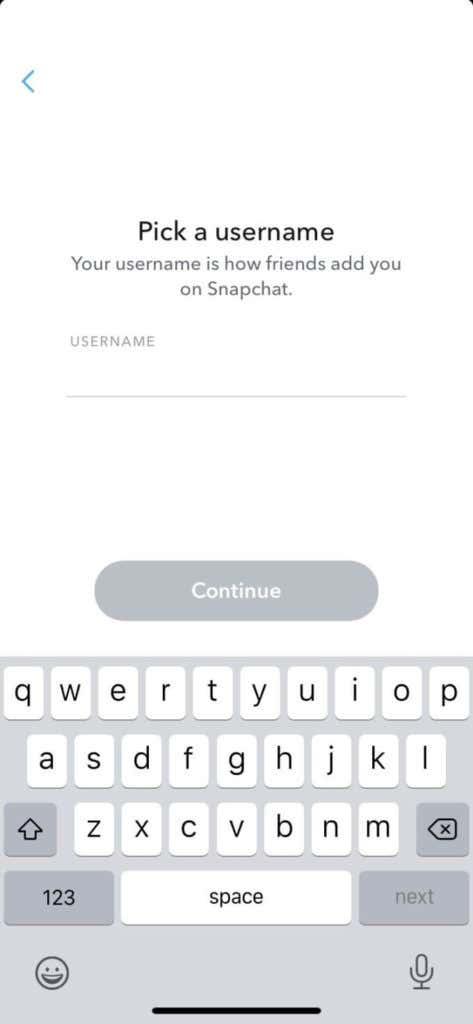
- Enter your birthday, and then you’ll be able to enter your username. Make sure you like it!
- You can then create a password, and enter your phone number or email in order to confirm your account.
Now that your account is created, you’ll want to re-add your friends. There are a few different ways you can do this. Right after you create your account, Snapchat will allow you to add your friends who you have in your phone contacts if you allow the app access to it.
Below will also be a Quick Add option, where you may find friends from your old account that you can add again. Once you’ve added the friends you can find here, continue to create a Bitmoji for your account.
Once you’re in your new Snapchat account, you can go to your profile and scroll down to the Friends section. Tap Add Friends to manually add anybody who didn’t show up in your contacts or Quick Add. This is where your old account may come in handy, to check the usernames of your friends.
Deleting Your Old Snapchat
Now that you’ve created a new Snapchat and a new username, you have a few ways to proceed. You can either delete your old account, or keep the multiple accounts on the app to log into whenever you wish.
Be warned that when you delete your old account, you won’t have a way to access any of the snaps or chat logs you have in it. So, you’ll want to save any memories you have on your old account to your phone. You can do this by swiping up on the camera, then clicking the checkmark icon in the top right to select multiple snaps. Then, tap Export to save these to your camera roll.
Once you have all the snaps you want to keep saved and all your friends added, you can delete your account if you wish by doing the following:
- Go online to Snapchat’s account portal. Enter the username and password for the account you want to delete. You may also need to enter a verification code through your phone or email.
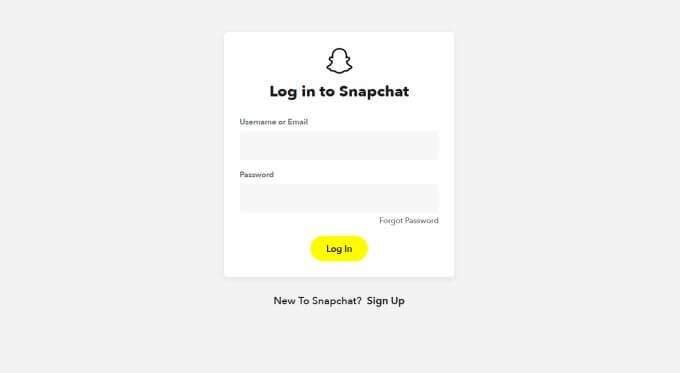
- After clicking Continue, your account will be deactivated for 30 days. During this time, your friends won’t be able to contact you through this account.
- After 30 days, if you don’t log into the account again, it will be permanently deleted. Any data, such as photos or videos, will be erased.
If you don’t want to be logged into your account but still want it available, you can always log out of it and choose to save your log-in info. Then, whenever you log out of your new account, you’ll still be able to log into your old one if you want to.