

WhatsApp is one of the most popular messaging apps with more than two billion users across the world. You can install the app for free and use it to make voice and video calls, share media files or documents, among other things.
In order to use all the WhatsApp features, you need to check whether your contacts are also using WhatsApp. Once you install WhatsApp on your tablet or phone, you can check to see who among your family or friends are already using the app.
However, not all your contacts will appear on the list, which could mean that they’re not using the app, or you probably haven’t added them to your phonebook yet.
We’ve put together this guide to help you add a contact on WhatsApp so you can connect with them, and start chatting right away.
How To Add a Contact On WhatsApp
You can add a contact on WhatsApp through your phone’s address book or through a contact card. If you received a message from someone who isn’t on your contacts list or phonebook, you can also add the contact directly through WhatsApp.

For this guide, we’re using a Samsung smartphone running Android 9 (Pie) but the instructions below should generally apply no matter who made your Android phone.
How To Add a Contact Through WhatsApp
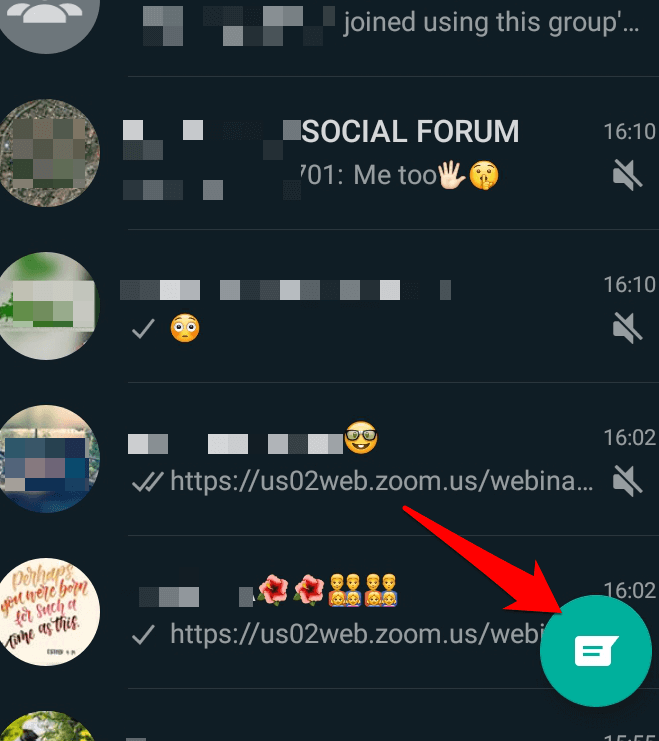
- To add a contact through WhatsApp, launch the app and tap the New Chat icon.
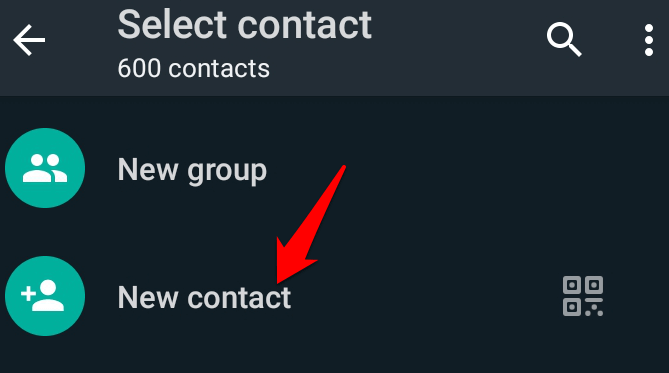
- Click New contact.
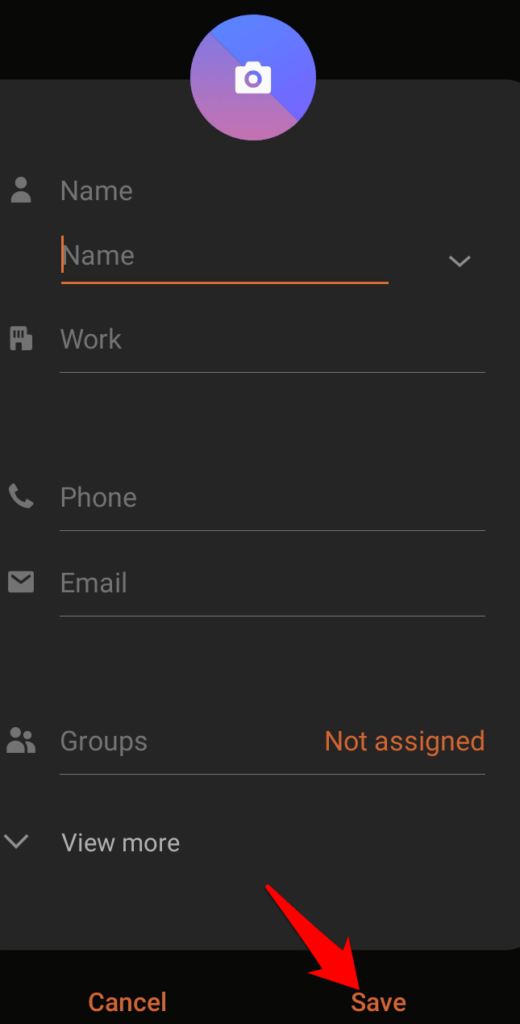
- Enter the contact’s name and phone number in the default phonebook screen and then click Save.
- The contact will be added to your phonebook and in your WhatsApp contacts list.
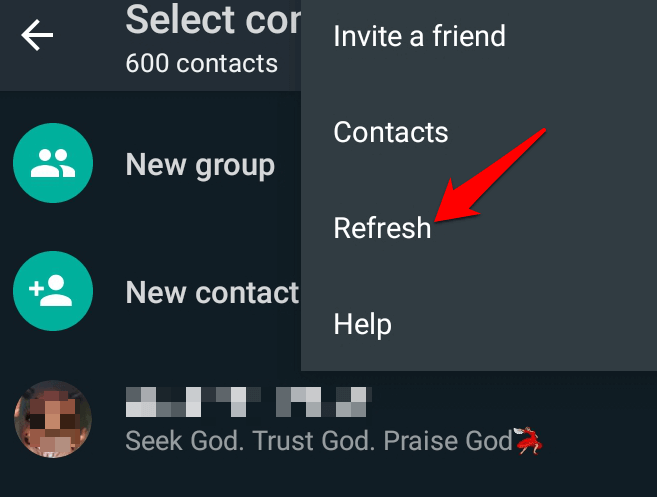
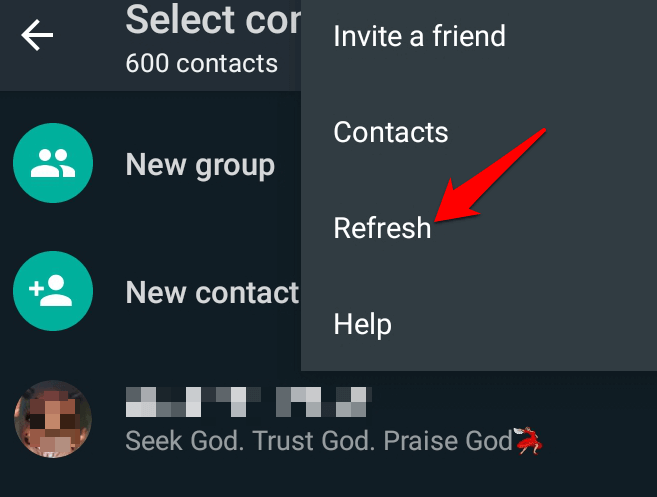
Note: If you don’t see the contact’s name on WhatsApp, press the New Chat icon, tap Options (three dots) at the top and then tap Refresh.
How To Add a Contact On WhatsApp For iOS
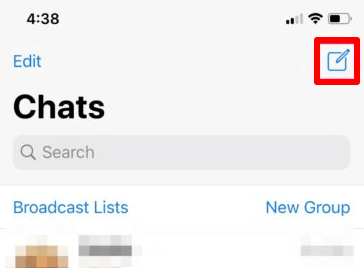
- To add a contact in WhatsApp for iOS, open the app and tap the chat icon in the Chats pane. Tap New Chat.
- Next, tap New Contact.
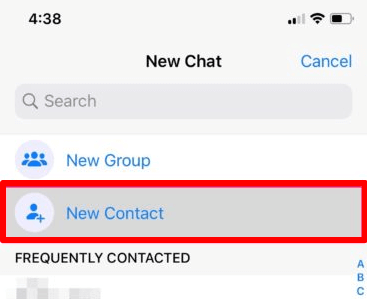
- Next, enter the name and phone number of the contact you want to add. The contact will appear in your phonebook and WhatsApp contacts list.
How To Add a Contact On WhatsApp From Your Phonebook
You can also add a contact on WhatsApp through your phonebook.
- To do this, press Contacts on your phone and tap the Add Contacts icon (plus).
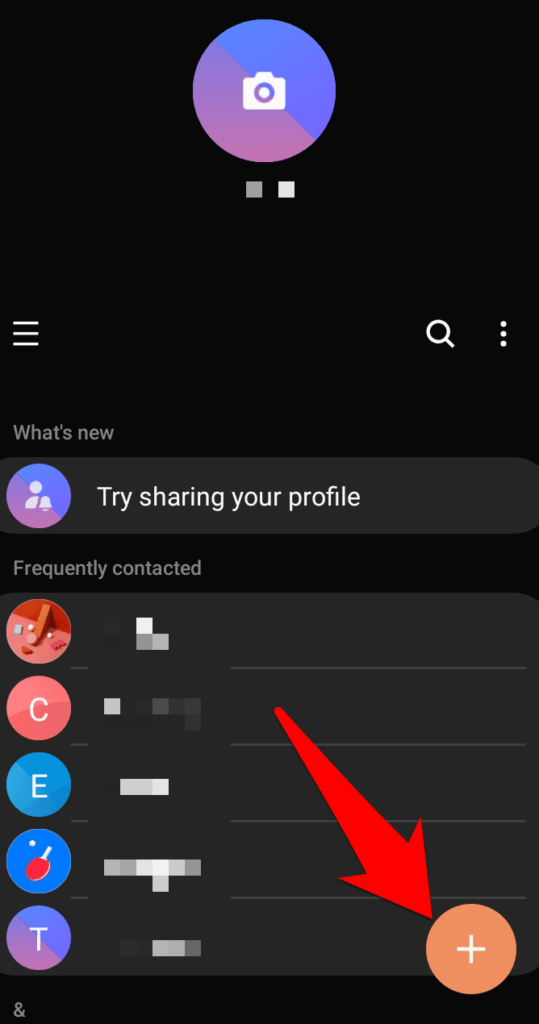
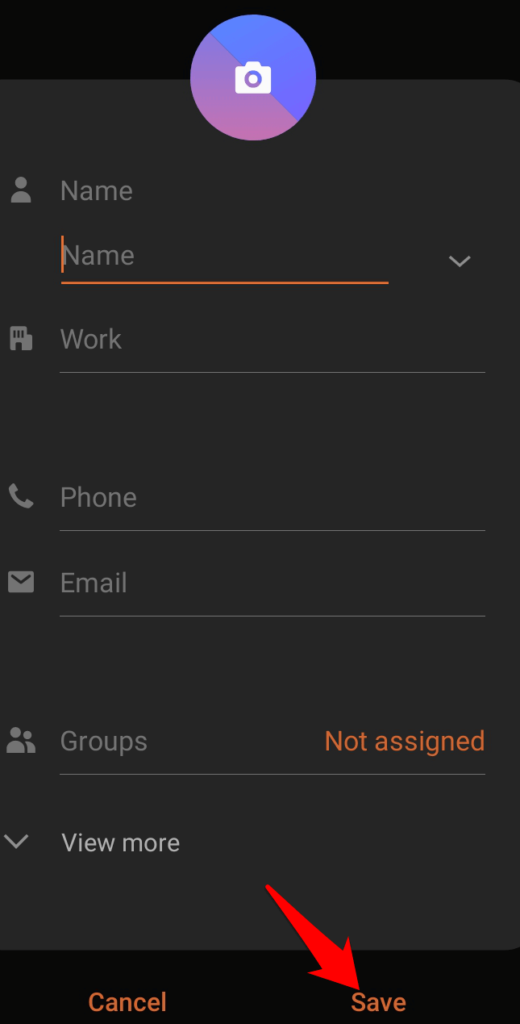
- Enter the name and phone number of the contact you want to add, and press Save.
Note: For international phone numbers, make sure you enter the plus sign followed by the country code, and then the full phone number.
- The contact should be in your WhatsApp contact list, but if it doesn’t appear, tap New chat > Options > Refresh.
How To Add a WhatsApp Contact Through a Contact Card
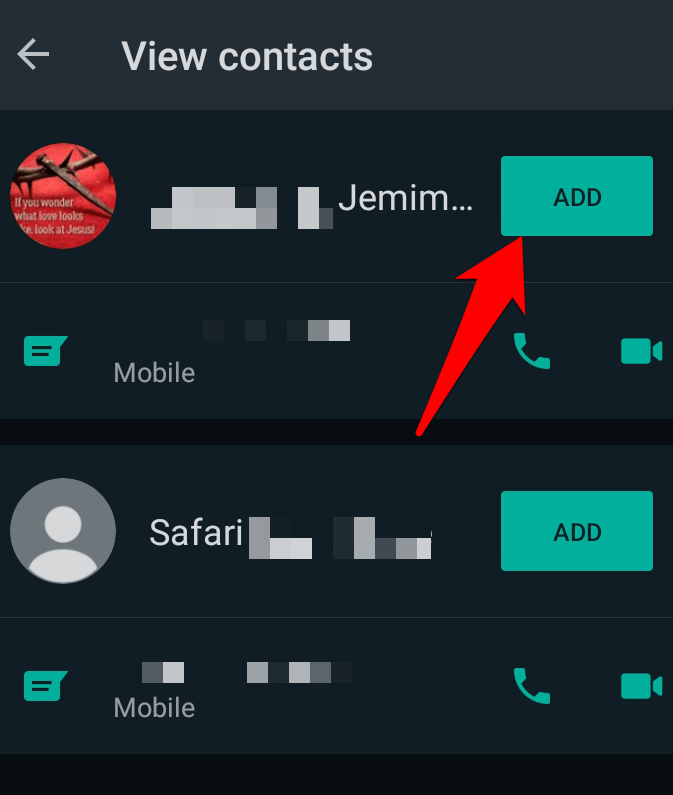
If someone sent you a contact card via SMS or via a WhatsApp message, you can add the contact on WhatsApp using that contact card.
- Tap on the contact card and select Add.
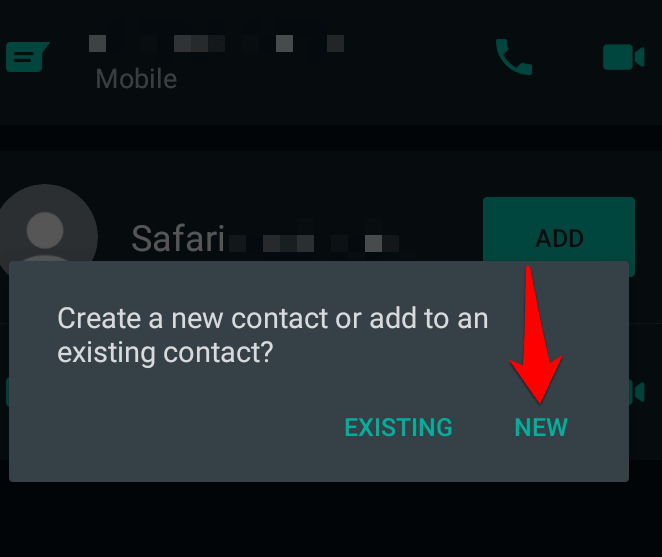
- Next, tap New to create a new contact.
- You’ll see the contact information already filled in, but you can edit or add more details if you want. Tap Save.
The contact will be added to your phonebook and your WhatsApp contacts list. You can click New Chat > Options > Refresh to update the WhatsApp contacts and check if the contact you’ve just added appears on the list.
How To Add A Contact On a WhatsApp Group
If you want to add a contact to a WhatsApp group and the person isn’t on your contacts list, you can do this in two ways:
- Add them to your phonebook and then add them to the WhatsApp group
- Invite them to join via a link to the WhatsApp group
How To Add a Contact On a WhatsApp Group Via Phonebook
- Open Contacts and create a new contact with the name and number of the person you want to add to the WhatsApp group. Tap Save.
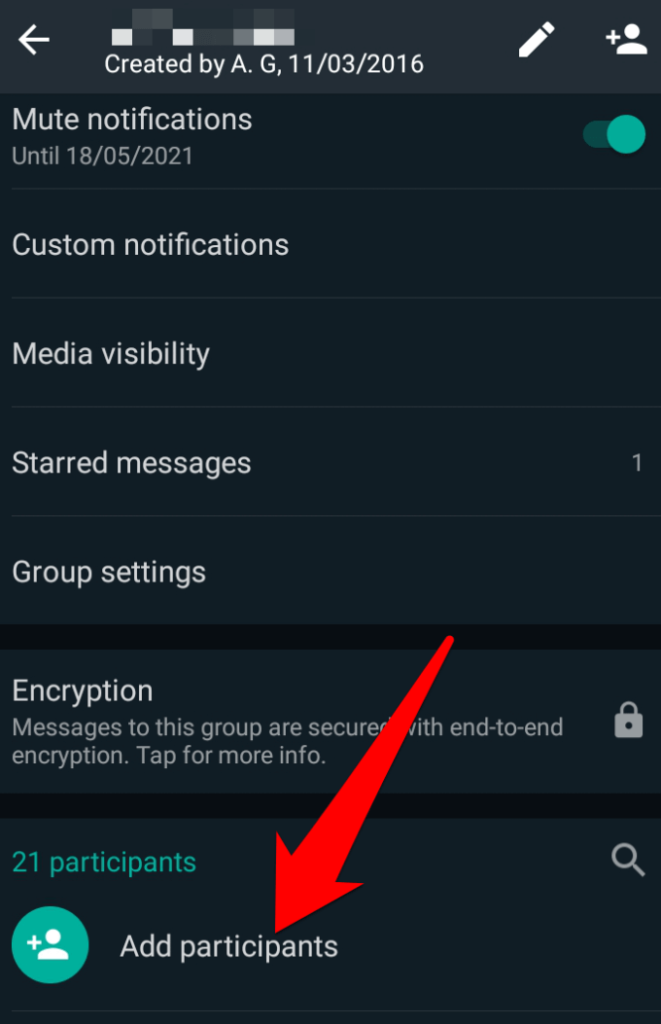
- Go to WhatsApp and open the group you’d like to add the contact to. Tap Add Participants.
- Find the name of the contact you’d like to add to the group and then tap the green check mark at the bottom of the screen.
How To Add a Contact On a WhatsApp Group Via Phonebook
- Open the WhatsApp group you’d like to add the contact to, and tap on the name of the group at the top.
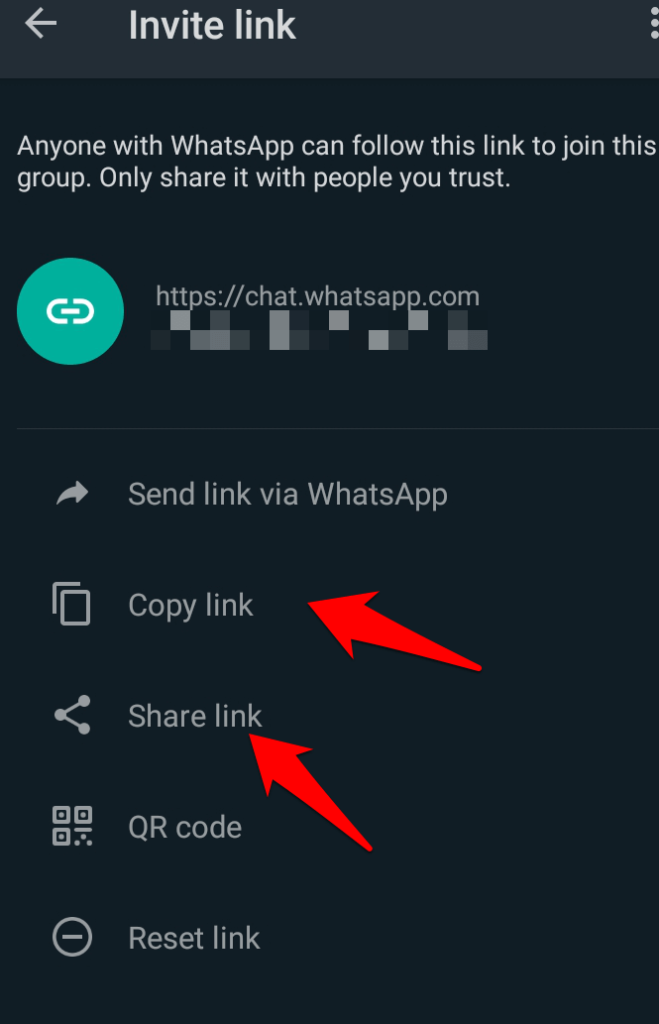
- Next, tap Invite via link.
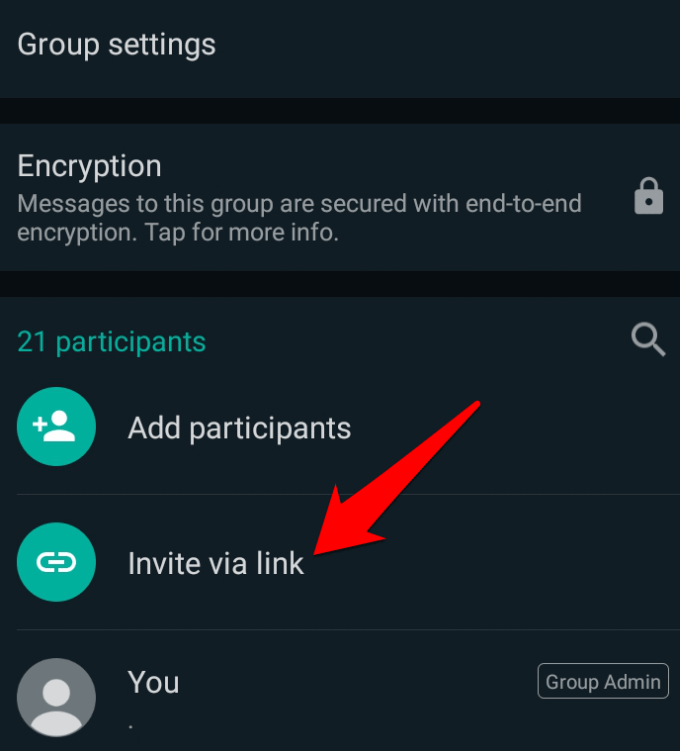
- Tap to copy the link or share it via an SMS message to the contact, and ask them to tap on the link to join the group.
How To Add a Contact On WhatsApp Using a QR Code
A WhatsApp QR code is an easier way to add contacts on WhatsApp. You can share your WhatsApp QR code with the contact you’d like to add, and they’ll simply scan the code to be added on your contact list.
Note: The WhatsApp QR code only expires if you reset it or if you delete your WhatsApp account. It’s important that you trust whoever you’ll share the QR code with because it’s possible for someone to share it with others who can add you as a contact by scanning the code.
- To view your WhatsApp QR code, open WhatsApp and tap Options > Settings.
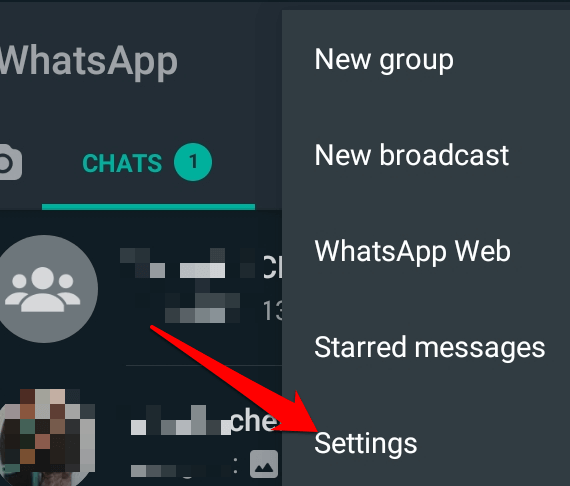
- You’ll see a QR icon at the top right side of the screen.
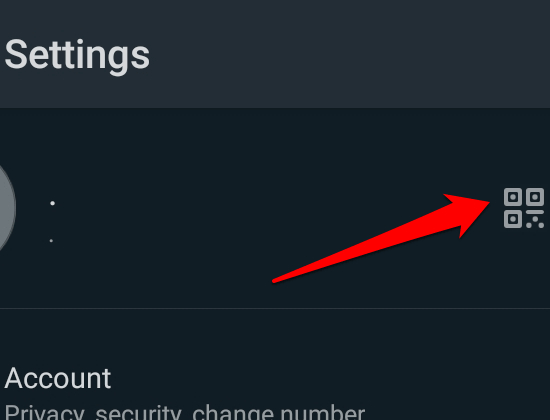
- Tap the icon to open it, and then tap the Share icon at the top right side of the screen to share it with others.
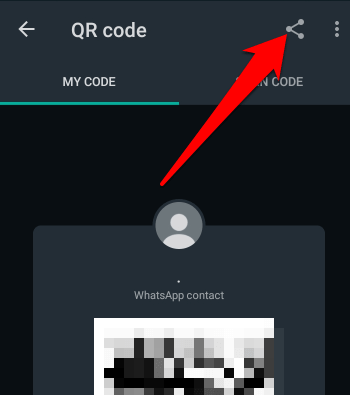
If you want to add a contact to your own phone, ask them to use the same steps to send you their QR code. Scan the code and the contact will be added to your phone.
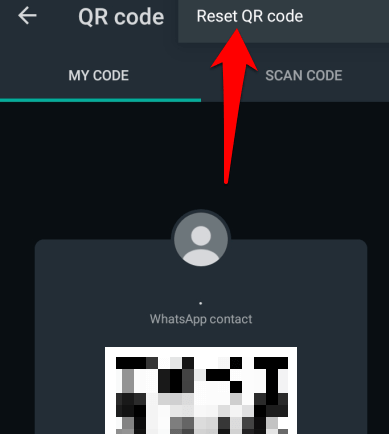
- To reset your WhatsApp QR code, open WhatsApp and go to Options > Settings and tap the QR icon next to your name. Tap More (three dots) and then tap Reset QR code.
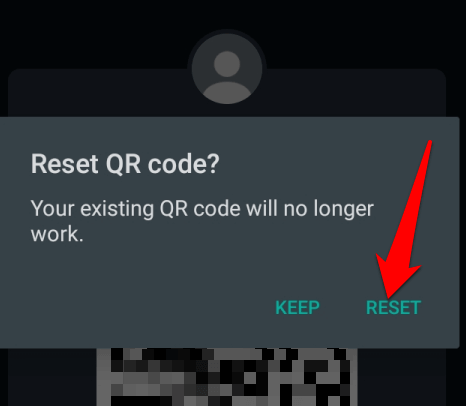
- Tap Reset.
How To Delete a Contact On WhatsApp
You can’t delete a contact from WhatsApp but you can delete it from your phone’s address book.
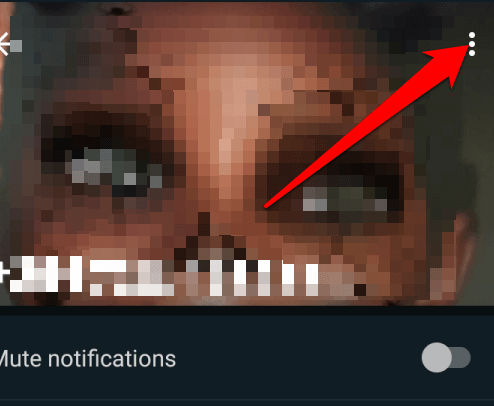
- To delete a contact via WhatsApp, launch the app, tap New Chat and tap the contact you want to delete. Tap the contact’s name at the top and then tap Options.
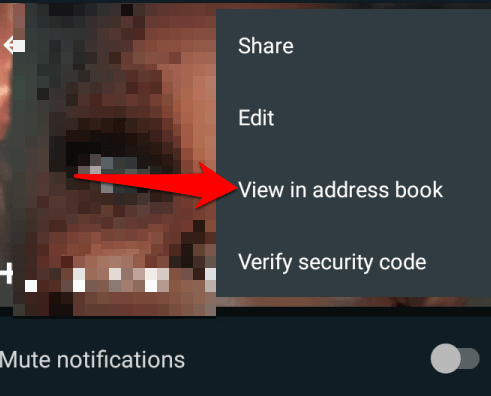
- Tap View in address book.
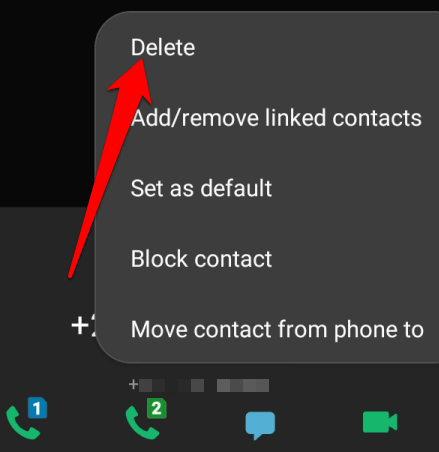
- In the default phone book window, tap the Options (three dots) and select Delete.
- Go back to WhatsApp and tap New Chat > Options > Refresh.
For iOS devices, open WhatsApp, tap the Chats tab and then tap New Chat. Tap the contact you want to delete and then tap their name at the top of the screen. Tap Edit at the upper right side of the screen and select Delete Contact.
Keep Your Contacts Close
WhatsApp is a great app for staying in touch with your loved ones wherever they are in the world. It’s not always easy to add your contacts within the app itself, but with these steps, you’ll have all your contacts at your fingertips without having to search for or import them.
If you have any questions or challenges with adding contacts on WhatsApp, share with us in a comment below.