

With 120.7 million users, Instagram is one of the largest social media platforms out there. If you’re not already on it, you might wonder what sets it apart from other social media like Facebook or Twitter.
Instagram is mainly based on posting and sharing pictures. This makes it ideal for sharing art and photography, as well as any everyday photo you feel like sharing. It became popular because of its focus on photos.
Because of this popularity, Instagram has become a great platform for people to market their businesses. It also connects people who have gained a mass of followers with brands who want to sponsor them. This is one way social media “influencers” make their money.
If you want to start using Instagram, for any reason, then knowing how the platform works will help you get the most out of your experience.
How To Post On Instagram
The most important thing to know about Instagram is how exactly to make a post. The platform has many options when creating a post, and there are some things you might miss that could really help you in posting something to your liking.
Here are the basics of making an Instagram post:
- Tap on the + icon on the bottom center of your screen. A new screen will open showing you your camera roll.

- Select a picture you would like to post. You can also tap on Camera Roll at the top of your screen to find a picture in a different album on your phone.
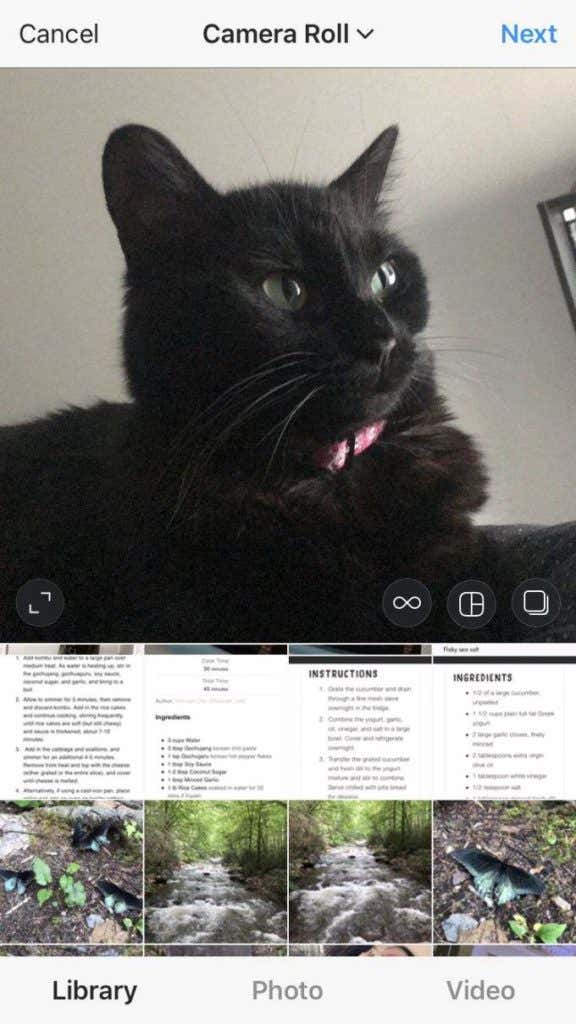
- On the picture you select, you will see some icons at the bottom. On the right, you have the options to use Boomerang, an app that creates a GIF-like picture, to create a collage, or to select multiple photos to post. After you’ve chosen what you want to post, select Next.
- You’ll now have the option to select a filter or edit your post yourself. Instagram provides a wide range of photo editing options you can use to make your picture look exactly how you want. When you’re done here, click Next.
- On the last screen, you’re able to add a caption that will be posted along with your photo. You can also tag other Instagram users by tapping Tag People. There’s also the option to add a location to your photo, which will also be posted. When you’re done and are happy with your photo and settings, tap Share to make your post public.
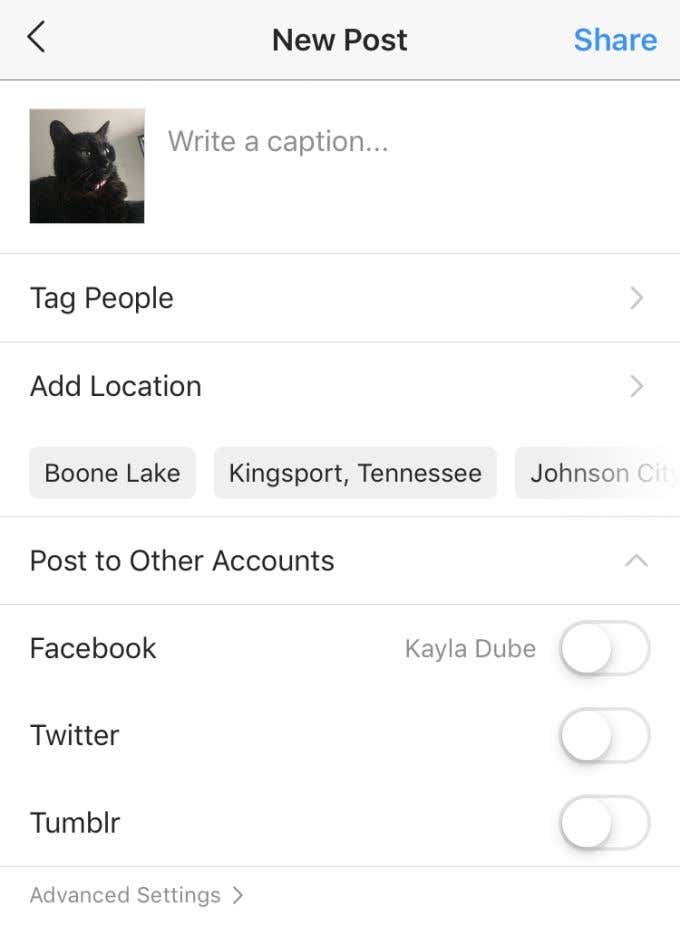
- If you want to wait until later to post, you can go back to the editing page and tap Cancel. A box will pop up asking whether you want to discard the post or save it as a draft. You can access your drafts along with the photos from your camera roll.
How To Use Instagram Stories
Another popular feature on Instagram are Stories. These are photos or videos you can post that last for 24 hours, then disappear. However, there is the option to save a Story as a highlight which can be saved to your profile.
Creating a Story on Instagram is easy:
- On your main feed, or on your profile, tap on your profile picture in the left corner to open your camera (you may need to give Instagram permission to use your camera and microphone).
- From here, you can take a picture or video, or use one of the other camera options Instagram provides. You can also add filters by tapping on one of them to the right of the shutter button.
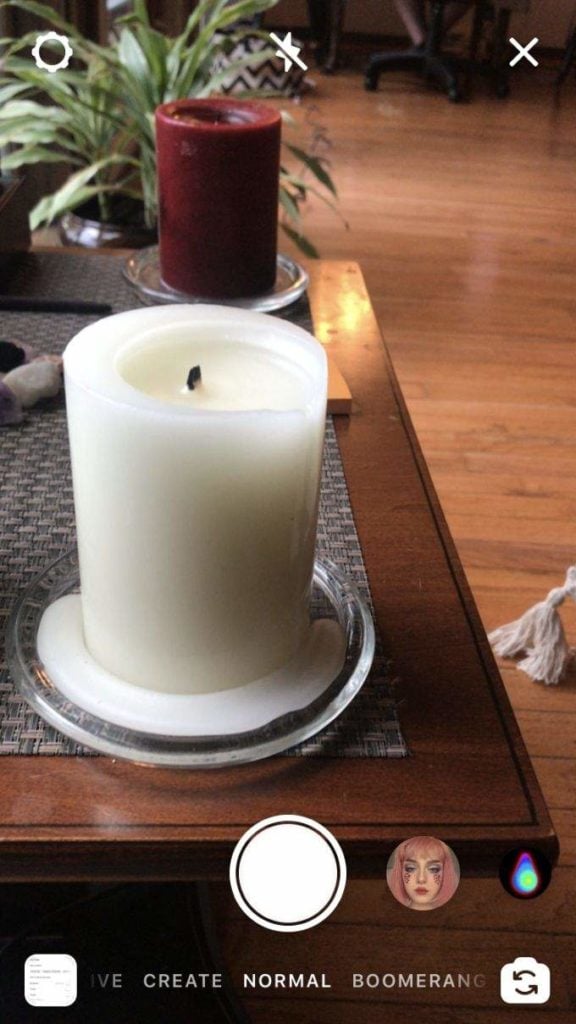
- Once a photo or video has been taken, you can click on Your Story in the bottom left corner of your screen to post it. There’s also the option to post it to a Close Friends story, which allows you to choose who can view it.
You can also go live from your phone on Instagram by choosing the Live option all the way to the left on the bottom of the screen. Doing this allows you to stream video from your phone camera, and your followers can watch you by tapping your Story icon.
How To Edit Your Profile Page & Create Highlights
You can see your own profile by tapping on the icon on the bottom right of your screen. From here, you might be wondering how you can personalize your profile to make it suit you.
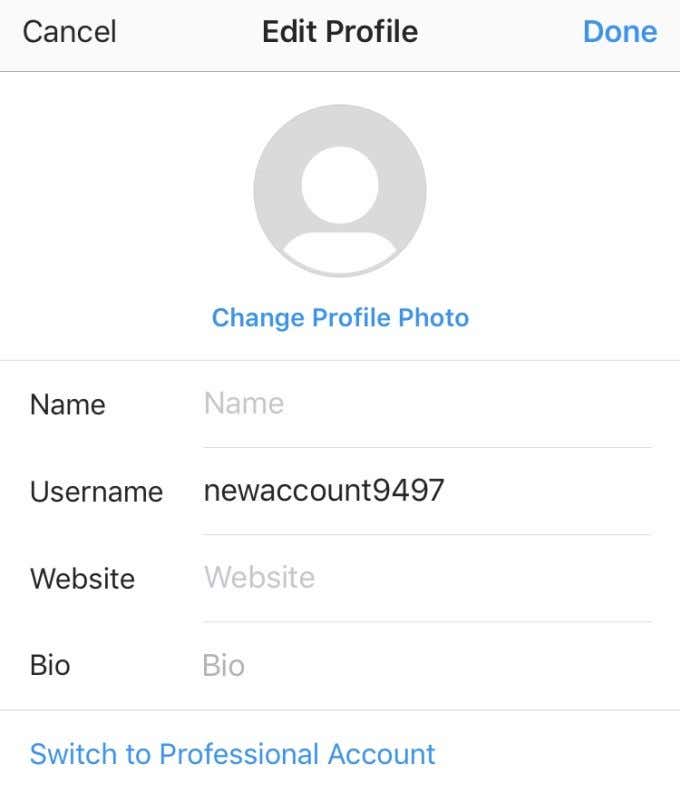
To change your profile, click Edit Profile just above where your photos are posted. From here, you can change your profile photo, your displayed name and username, create a short bio, and even put a link to a website that anyone can click on.
You also have the ability to put highlights on your profile. These are photos and videos you have saved from your Story that you’d like to display. In order to create a highlight, you need to tap the Highlight icon in the bottom right of your story. This will create a highlight if you have none created.
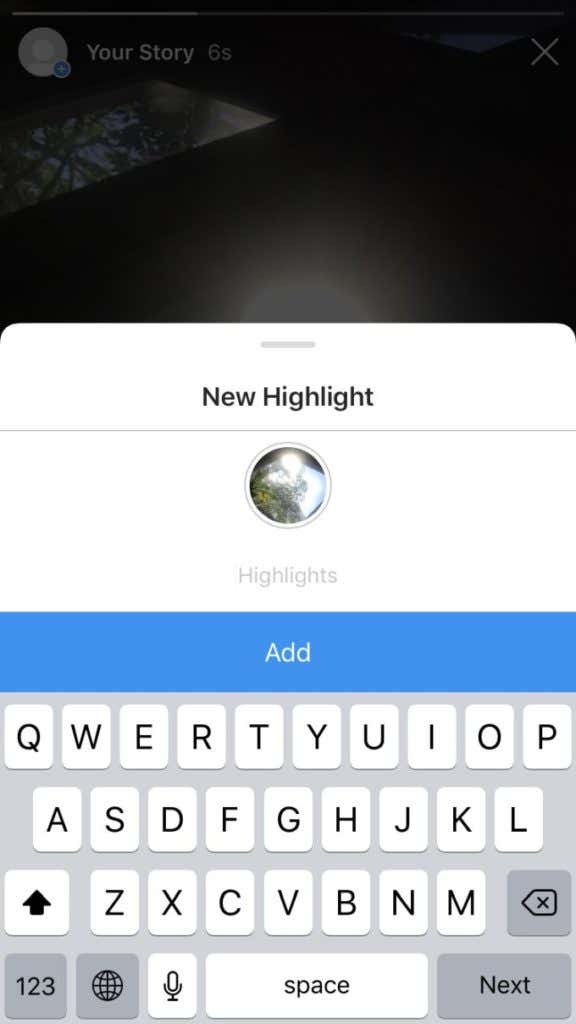
After that, you can go on your profile and select the New button beside your highlights to add new ones.
From here, you can select multiple photos or videos from past stories that you want included in your highlight. After you’ve chosen some, select Next. On this screen you can make a title for the highlight and choose a cover photo. All of your created highlights will be visible on your profile for anybody to view.
Related: You don’t always want people to know whether you’ve read their messages. Learn how to turn off Instagram read receipts.
Using Direct Messaging
In the top-right corner on your main Instagram feed, you should see an icon of a paper airplane. This is where you can tap to see your Direct Messages, or DMs.
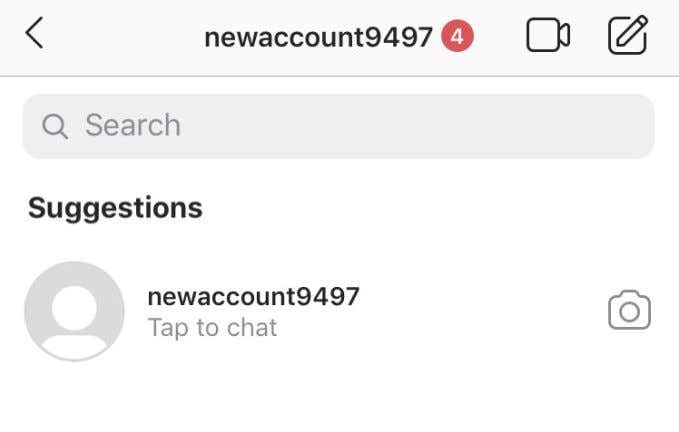
Here you can privately message or video chat with people, and you can even send them posts you see on Instagram. To start a new message, tap on the pencil icon in the top right and search for the username of who you’d like to start chatting with. If you want to find someone you’ve already talked to, you can use the search function above your messages.
If you’d like to send someone a post you see on Instagram, all you have to do is tap on the airplane icon underneath a post, choose who you want to send it to, then hit Send. You can also feature posts on your story this way.