
If you are hearing robotic or distorted voices on Discord, you may be hitting a problem with your network or the processing power on your computer. Most of the time, fixing voice issues can be quite easy, so we’ll guide you through everything you need to do to get your voice sounding smooth again.
This is a troubleshooting guide, so you’ll need to follow each step one by one until you have found a solution that works for you. We will start with the easiest solutions first and will leave the more difficult troubleshooting steps till last. Hopefully, you’ll have your issues solved before you finish the article.
How To Fix Robotic, Distorted Voices On Discord
Usually, Discord will hit these kind of robotic voice issues when your ping is too high to the server you’re speaking on. You can change your voice server to something that is closer to you so that ping is reduced.
To do this, you must be an admin of the server. If you aren’t the admin, send this article to an admin or moderator so that they can help you.
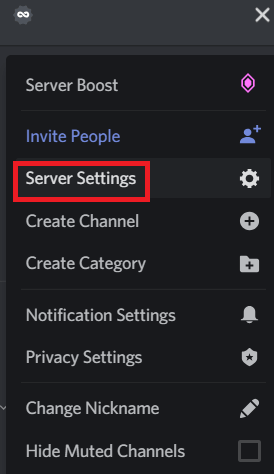
As a server admin, you can change your voice server location by following these steps.
- Once connected to your server, click your server name in the top left. Next, click Server Settings.
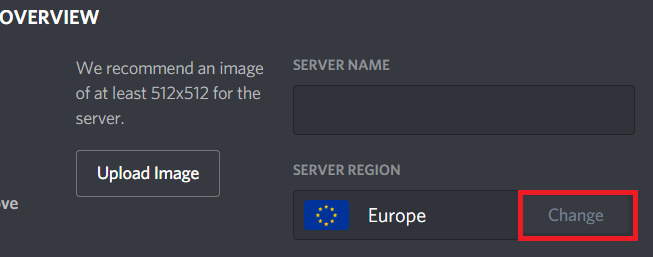
- On the following page, click Change under the server region box on the overview tab. You won’t see the ping for the regions, but you should choose whichever server is closest to the users of your server. If you have a wide range of users, try to find one that is geographically closest to the largest number of users.
- It can take some time for the region to change, so try again in a few hours to see if the problem is resolved. If the server is already the closest to your current physical location, try the next closest location instead.
Disable QoS In Discord
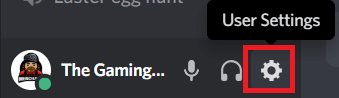
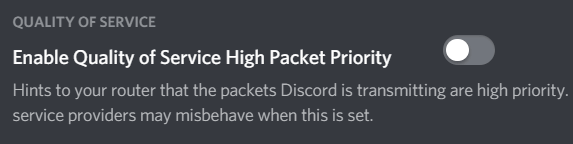
If this is an isolated issue that you are having trouble with, try switching off Quality of Service (QoS). The QoS feature in Discord won’t work as intended with some routers and it can cause issues with how you are hearing robotic voices in your server.
- To switch off QoS, first open Discord, then click the small cog at the bottom left, labelled User Settings.
- Under the App Settings section on the left, click Voice & Video.
- Next, scroll down and click to turn off Enable Quality of Service High Packet Priority.
Limit Background Network Usage
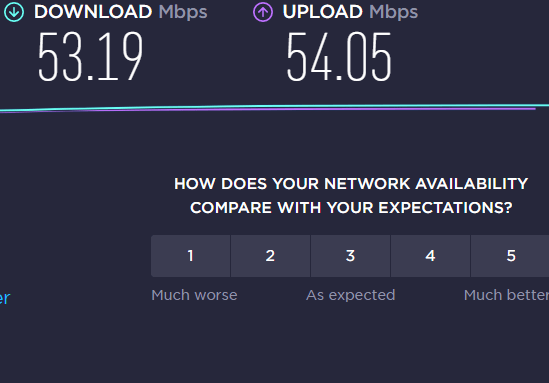
If server location and ping isn’t a concern, it may be related to local network problems. Run a speed test and see if your speeds are being throttled in any way.
If any of your speeds are very low, it may be because somebody on your network is downloading or uploading, which is using all of your bandwidth. If that is the case, try to set up an arrangement with those you share the network with to limit bandwidth.
You can use software like NetLimiter to limit bandwidth per PC, or set up quality of service on your router to determine bandwidth limits. You’ll need to contact your internet provider to learn more about quality of service on your particular router.
You should also restart your router. It can be surprising how often just resetting your router can resolve any potential internet issues like hearing robotic voices in Discord.
Check Performance In Task Manager
If you experience robotic, distorted voices at certain times, for example, when playing games or rendering 3D images, use CTRL + SHIFT + ESC any time you have issues. This will open Task Manager, and you’ll be able to see your current hardware usage.
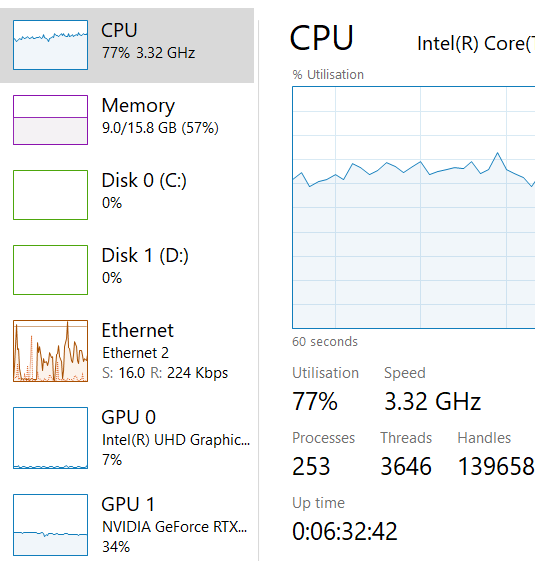
In Task Manager, click the Performance tab to see your hardware utilization. If anything is hitting 100%, you may need to upgrade that particular part.
Typically, issues related with voice may be due to your CPU hitting 100%. If you cannot upgrade your PC, you can try to limit other apps that are running in the background, or if you’re using Discord whilst gaming, reduce the graphics settings. Turning down things like render distance or effects detail can help to relieve the strain on your processor.
Upgrade To Nitro
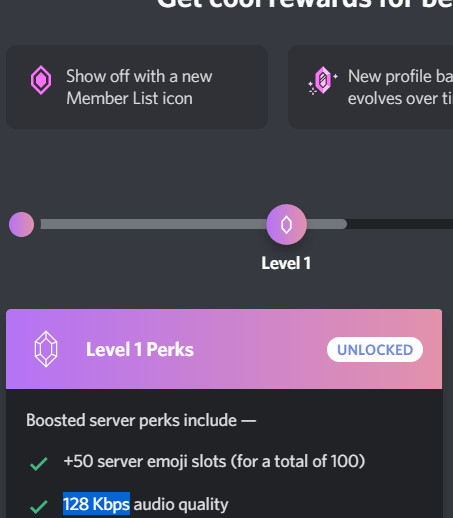
If your server is overloaded, it could simply be that there are too many users in the voice server and Discord is having difficulties. With a $9.99 monthly subscription, you can become a Discord Nitro member. This will give you a boost that can be used on your server to give it 128kbps audio quality. At 15 boosts, you will get access to 256kbps audio quality and at 30 boosts you can get 384kbps audio quality.
The upgrade to 128kbps audio is cheap, but the others aren’t so much, so if you aren’t willing to spend on this upgrade, you could always consider an alternative team chat app if your server has too many people in it, speaking at one time.