

Want to know how to download Twitter photos and videos? It’s actually quite straightforward. Read this guide to find out how.
We’ll split this guide into two sections – how to download photos and how to download videos on Twitter. Both options require different methods, but you’ll find the whole process quite easy, regardless.
Keep in mind that downloading this content does not give you the right to use the content you download freely. You should still respect copyright laws were applicable.
How to Download Images and Photos on Twitter
When you download an image on Twitter, it saves as a file that is usually unreadable by your computer by default. These files are often either .jpg-large or .png-large. Thankfully, it’s very simple to fix this issue. We’ll be explaining how you can do it below.
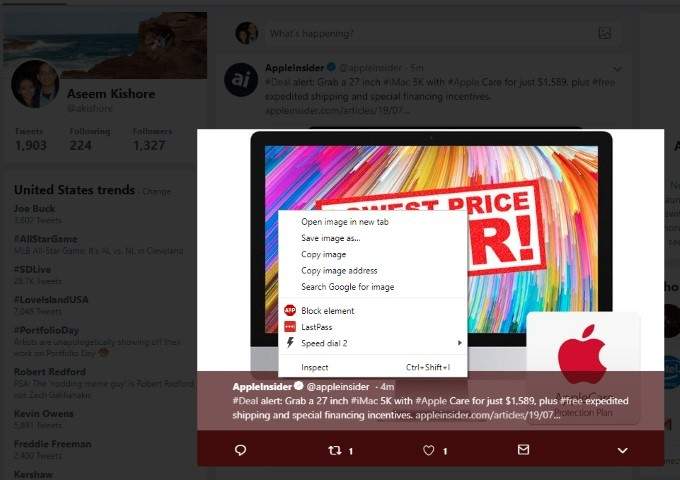
The guide we offer below will work on both Chrome and Firefox. For the most part the guide should be quite straightforward on other browsers so long as you know how to save images.
How to Download Twitter Images on Chrome and Firefox:
- Click on the image on Twitter
- Right click the image
- Click Save image as..
- Click the Save as type box
- Select All files
- Name the image and add .jpg to the end
- Click Save

That’s it for saving images on Chrome and Firefox. The guide above is for when an image defaults to .jpg-large. If it’s .png-large, you should add .png to the end instead.
How to Download Twitter Images from Within the Twitter App:
If you are in the Twitter app, saving an image is much easier. Simply tap on the image itself to bring it into full screen. Next, tap the three dots in the top right corner, and then tap Save. The image will save to a folder on your phone storage called Twitter.
How to Download Videos on Twitter for Desktop
When you try to use the same guide above for downloading videos on Twitter, it won’t quite work. If you right click a video and click save as, it will ask if you want to save the entire webpage instead.
Because of this, you’ll need to use a third party downloader to download the video. Before we begin, please keep in mind that you should be wary of using such services. Make sure you don’t click on any adverts or try to click any links besides the provided video download.
These websites usually work without any issue. A quick Google search will return a currently available Twitter video downloader. For example, we used DownloadTwittervideo.com. Once on the website, copy and paste the video link from Twitter. To get the full link, you need to click on the card to bring it into full screen view.
An example link would look like this – twitter.com/madebygoogle/status/1137751414116114434

You can then paste that link into the video downloader website, then click download. Once you click the download button, your browser will begin to download a .mp4 video file.
How to Download Videos from the Twitter App
Downloading videos from the Twitter app takes the same approach as above, but you’ll need to get the link through a different method. Follow the steps below to get the video link.
- Open Twitter on your phone
- Find the video you’d like to download
- Tap on the video itself to bring it into full screen view
- Tap the Share button
- Tap Copy to Clipboard
- Next, visit your browser
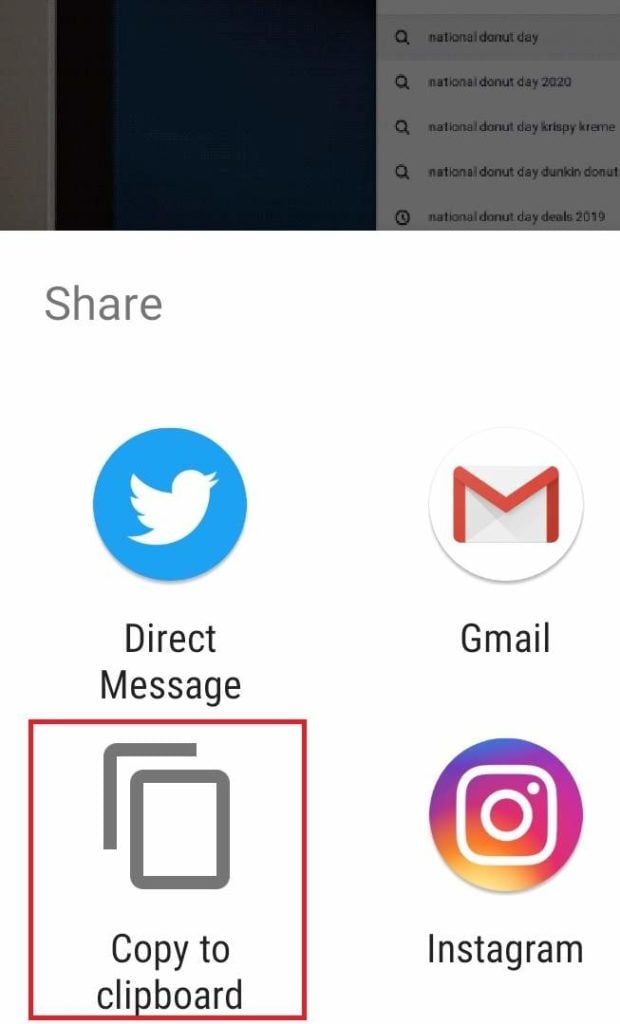
You can now search for a Twitter video downloader in Google and paste the link. The video will download to your downloads folder by default. Alternatively, you have options here just to send it directly through a number of apps instead.
Summary
That’s it – hopefully this guide has proven to be useful. There isn’t much more to it than that. Just remember that when downloading through a Twitter video downloader website, be wary of adverts and make sure to remember that the source of the video or the image still holds ownership over it.
Do you have any questions about this guide? If you do, make sure to leave them below and I’ll respond as soon as I can.