
So you’re sitting at your desk, Instagram open on your phone, and you’re thinking, there has to be a better way to do this on the actual big screen, right? It’s a fair question, and honestly, it’s worth a look, because the answer is a lot better than you might expect.
Back in the day, getting Instagram on your PC meant hunting down sketchy third-party apps and crossing your fingers that nothing weird happened to your account. But that was then. In 2026, Instagram’s desktop experience has genuinely caught up. You can post photos, send DMs, watch Reels, and manage your profile right from a browser or an official Windows app, no workarounds needed. Here are the three best ways to get it done on your PC or Mac.
Option 1: Instagram Web, the Official Browser Experience (Windows & Mac)
If you haven’t tried Instagram’s website lately, it’s genuinely worth checking out. It’s come a long way. Just open any browser, head to instagram.com, and log in. That’s really all there is to it.
Here’s what you can actually do from the desktop website right now:
- Browse your feed, Stories, and Reels
- Post photos and videos directly from your computer
- Send and receive Direct Messages
- Search and explore accounts
- Follow and unfollow accounts
- Reply to comments and manage your profile
Just keep in mind that desktop Instagram doesn’t have full feature parity with the mobile app. Certain camera effects and some creation tools are still mobile-only for now. But for everyday browsing, posting, and messaging, the web version handles things smoothly.
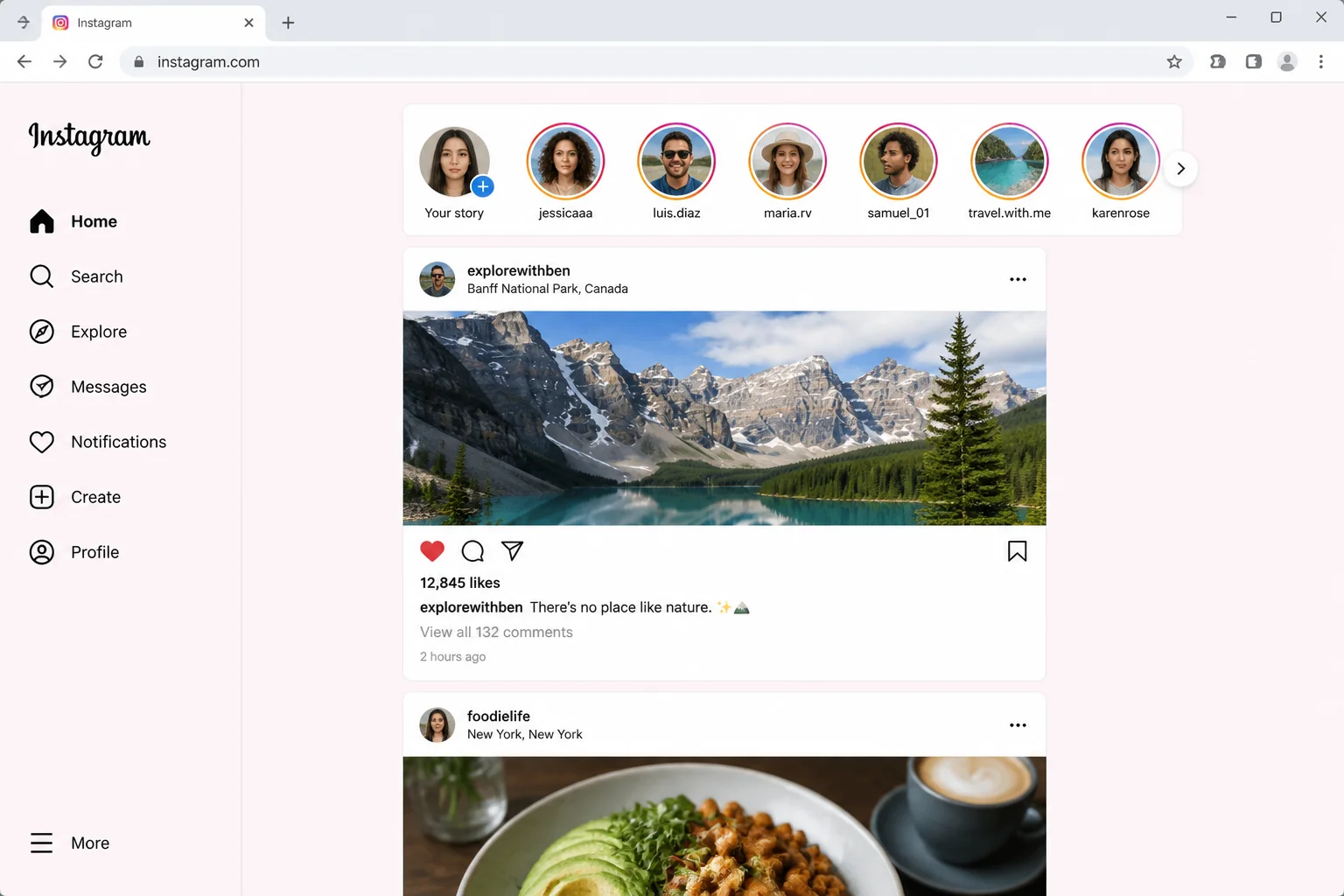
How to Post a Photo from Instagram Web
- Go to instagram.com and sign in to your account.
- Click the Create icon (the plus sign) in the left navigation sidebar.
- Click Select from computer to pick a photo or video from your files.
- Make any edits (crop, filters, adjustments), then click Next.
- Add a caption, tag people, or drop a location pin. Click Share when you’re ready.
Bonus: Turn Instagram Into Its Own Desktop App
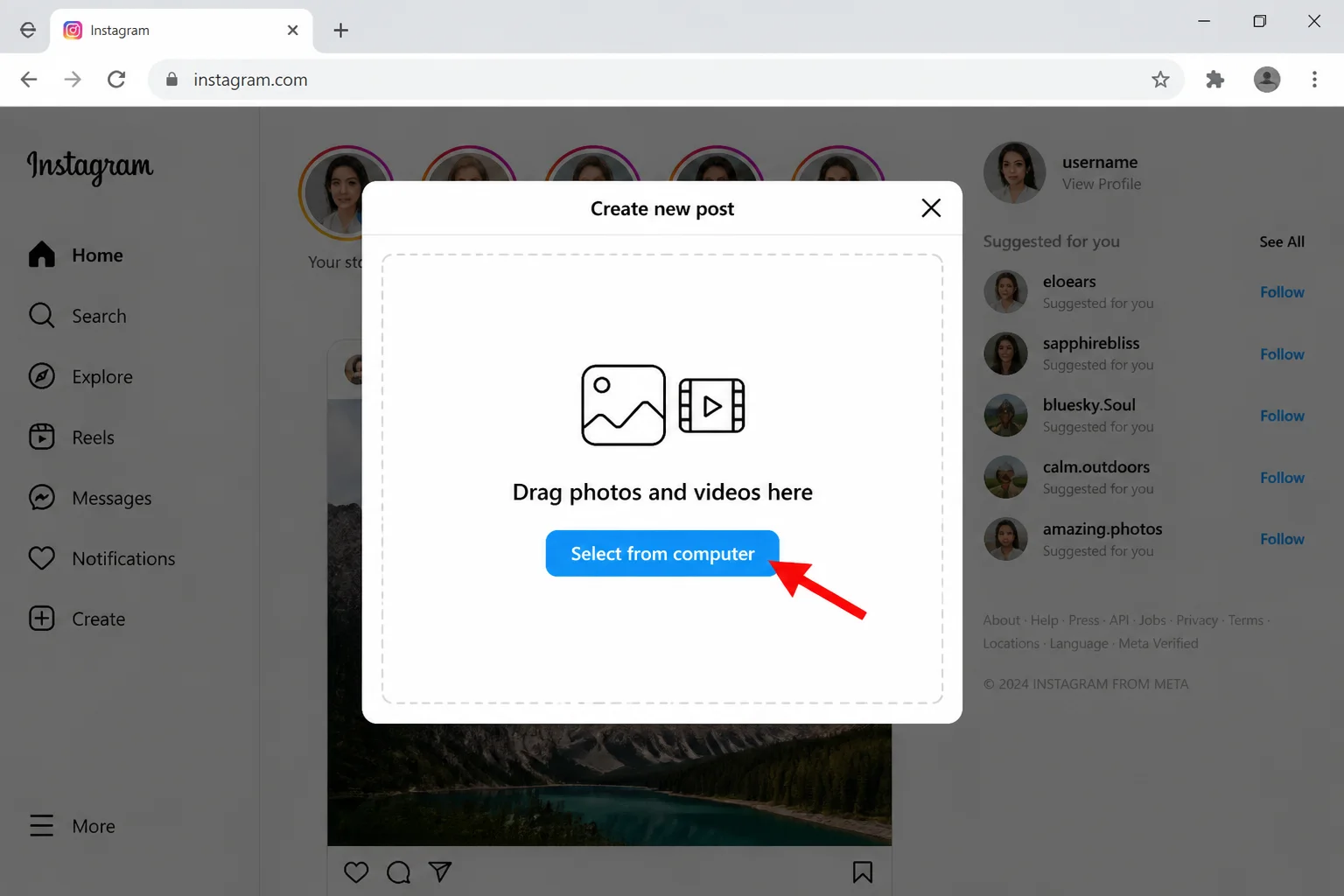
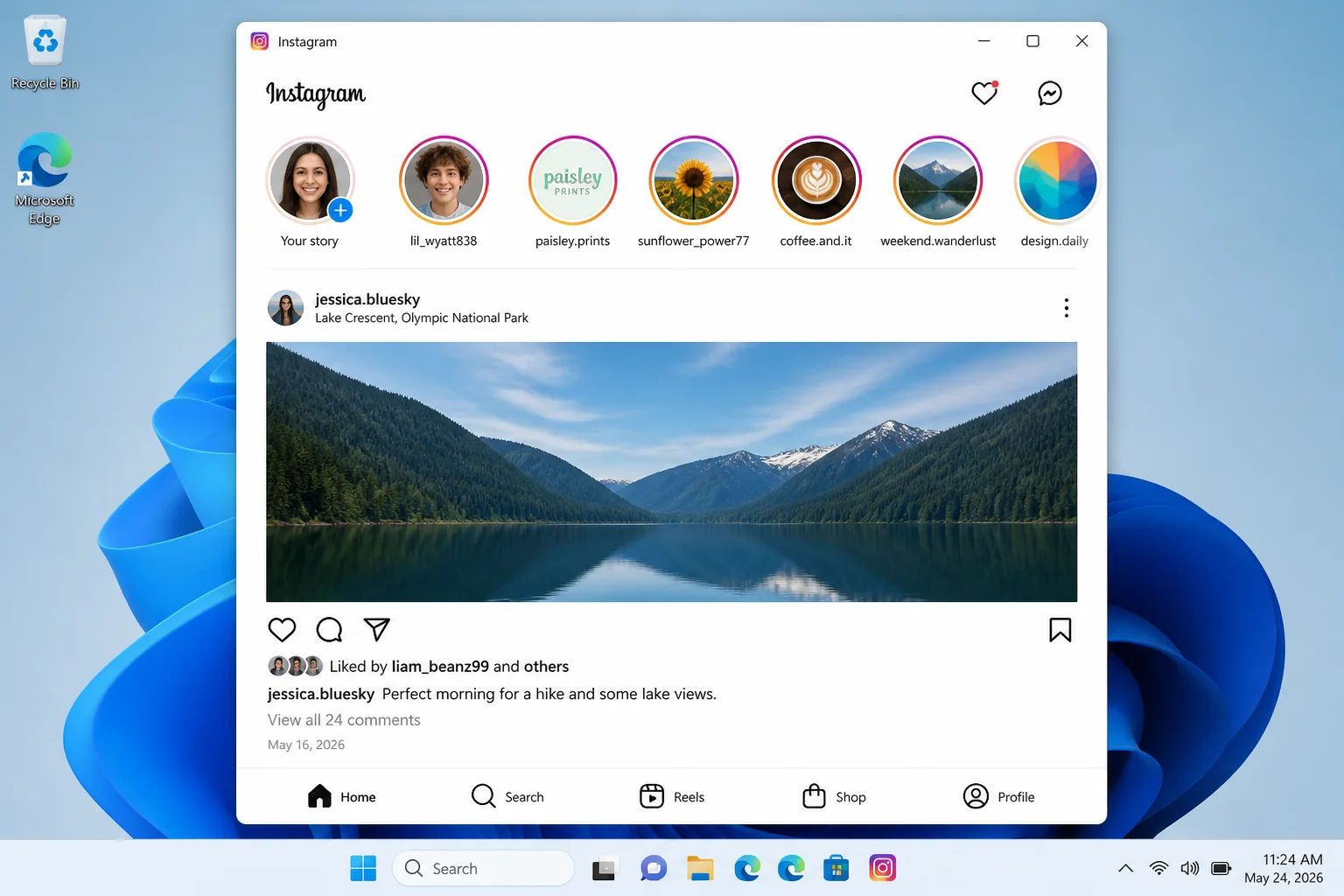
Rather not keep Instagram buried in a browser tab? You can create a desktop shortcut that opens Instagram in its own window. No address bar, no other tabs, just Instagram. It behaves almost exactly like a native app, and it’s a surprisingly slick little setup.
In Google Chrome (Windows or Mac)
- Open instagram.com in Chrome and make sure you’re logged in.
- Click the three-dot menu in the top-right corner of Chrome.
- Select Save and share > Create shortcut.
- Check the Open as window box, then click Create.
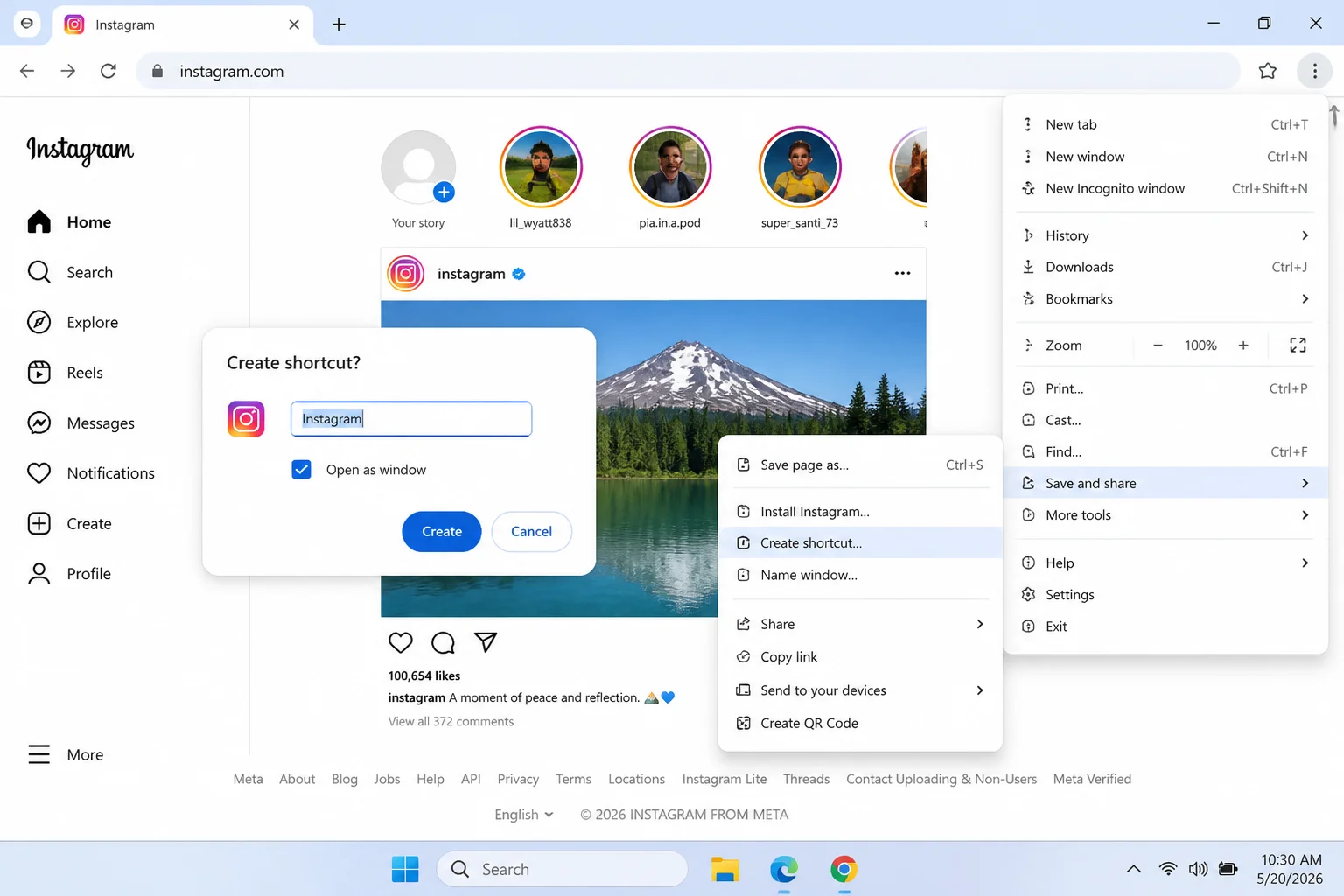
In Microsoft Edge (Windows)
- Open instagram.com in Edge and make sure you’re logged in.
- Click the three-dot menu in the top-right corner of Edge.
- Select Apps > Install this site as an app.
- Click Install to confirm.
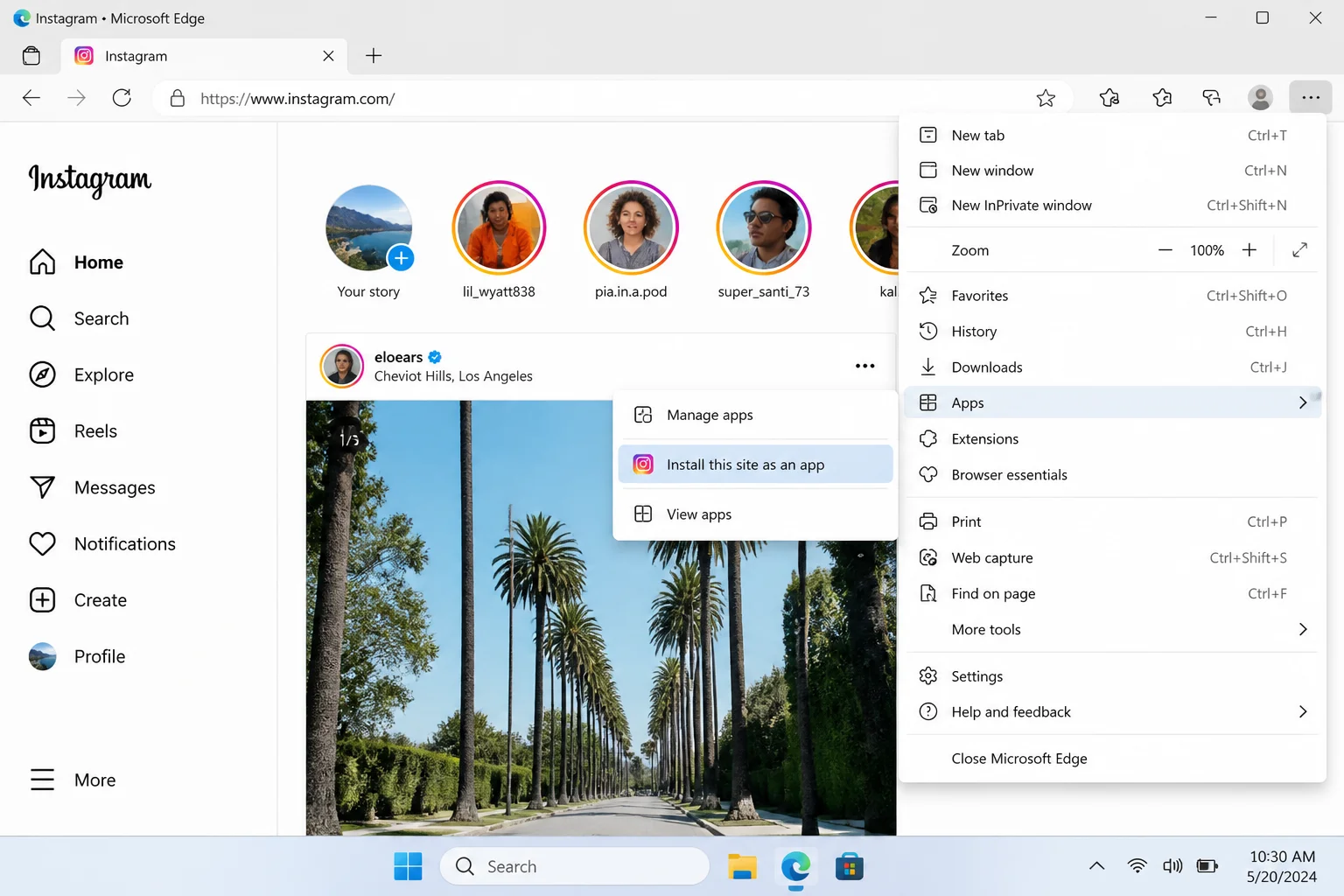
Once set up, Instagram launches in its own clean window with a taskbar icon you can pin for quick access. Honestly, you’d barely know it was just a website.
Option 2: Instagram for Windows, the Official Microsoft Store App
Windows users have one more great option: the official Instagram app in the Microsoft Store. It’s free, it’s from Meta (Instagram’s parent company), and it ties right into Windows, so you’ll get real notifications popping up in your Action Center the same way you would on your phone.
The layout mirrors the mobile app closely, which means everything is right where you’d expect it to be. Feed, Stories, Reels, DMs, posting tools. It’s all there and feels familiar from the first launch.
How to Install Instagram on Windows
- Click Start and open the Microsoft Store.
- Type Instagram into the search bar at the top.
- Click on the official Instagram app by Meta Platforms, Inc. and hit Install.
- Once installed, click Open and sign in to your account.
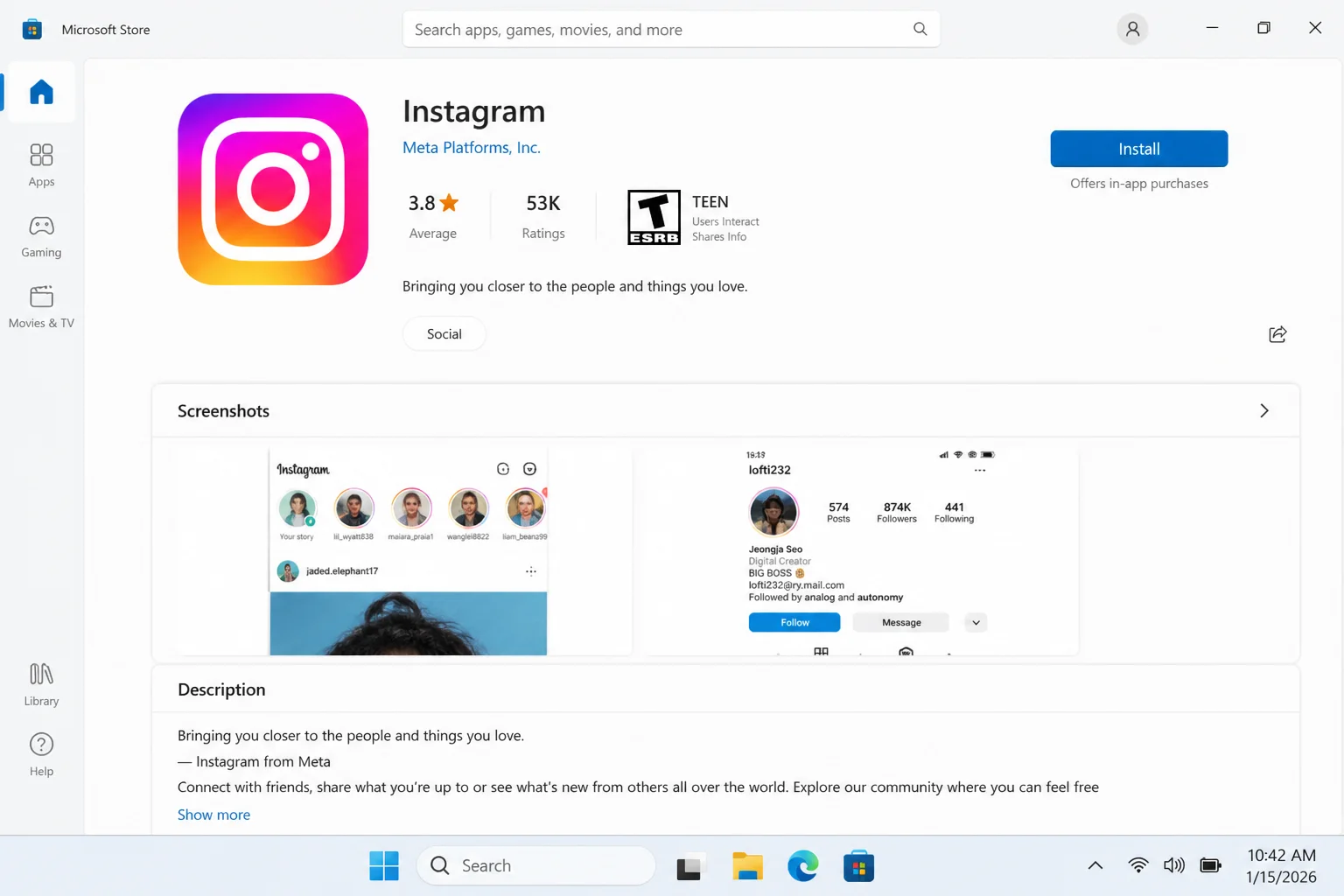
Once you’re in, posting is easy. Right-click the Instagram icon in your taskbar and you’ll see a New Post option that takes you straight to the upload screen. Nicely done, actually.
Note for Mac users: There’s no official Instagram app for macOS, but the web version works great, and the Chrome shortcut trick above gives you an app-like experience without installing anything. Bookmark instagram.com and you’re sorted.
Option 3: Shift, Best for Managing Multiple Instagram Accounts
Running a personal account and a business page? Managing Instagram for a client on top of your own? Shift is genuinely clever and caught my eye for exactly this reason. It’s a desktop workspace app that keeps you logged into multiple accounts at the same time, not just Instagram, but across dozens of other services like Gmail, Slack, and Facebook too.
Think of it as a control center for all your online accounts. Instead of logging in and out every time you need to switch between Instagram profiles, Shift keeps each one open in a separate tab and switches instantly. It works on both Windows and macOS, which is a nice bonus.
- Multi-account switching: Stay logged into multiple Instagram accounts simultaneously and flip between them with one click
- Unified notifications: See alerts from all your accounts in one spot, so there’s no more tab-jumping to check
- Cross-platform: Works on both Windows and macOS
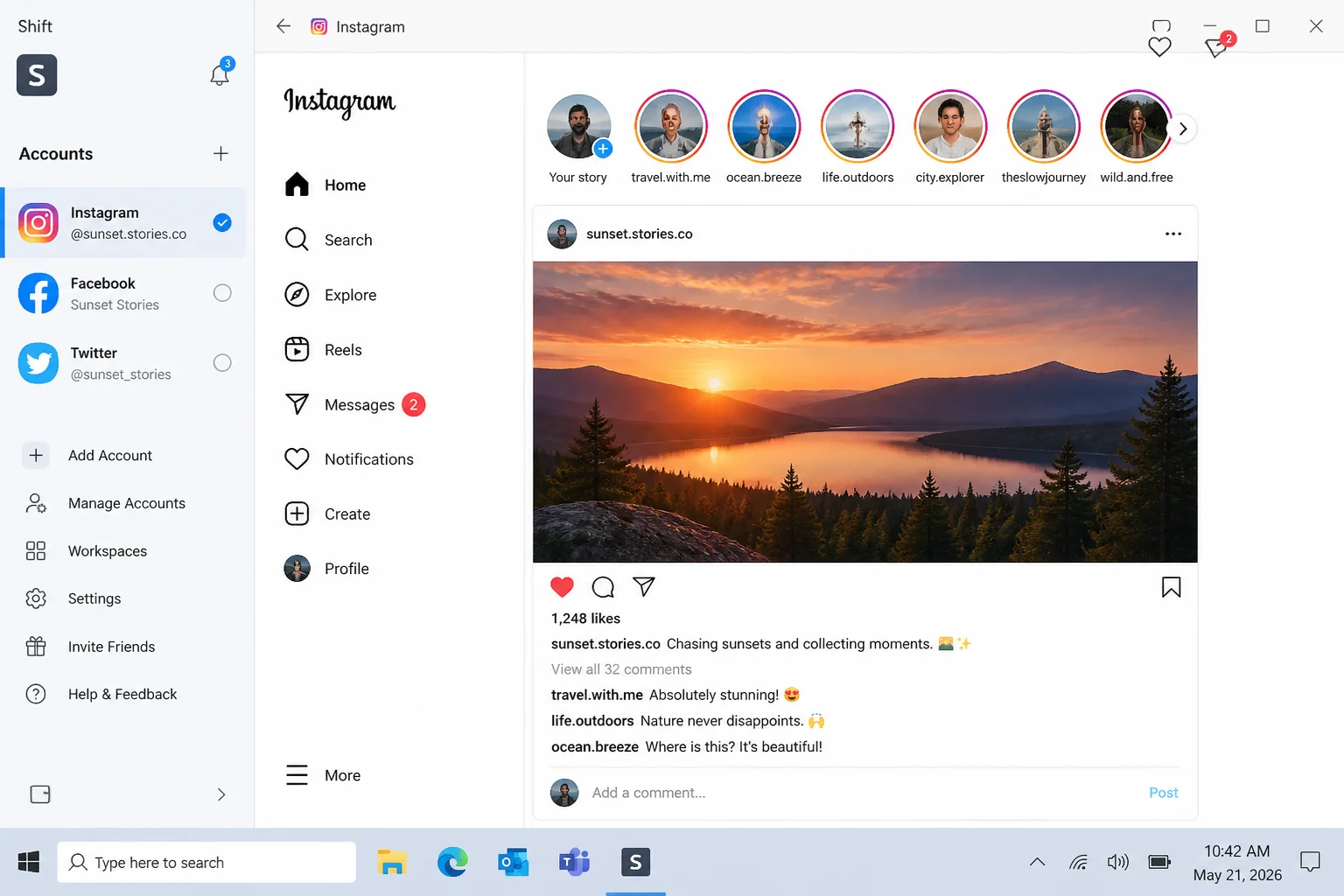
Shift has a free plan that covers the basics, and for most people who just need multi-account Instagram access, free is plenty. The paid plan adds features like advanced workspaces and deeper app integrations if you ever need them.
Which Option Is Right for You?
Not sure where to start? Here’s the quick breakdown:
| Option | Best For | Windows | macOS | Cost |
|---|---|---|---|---|
| Instagram Web (browser) | Everyone, the easiest starting point | ✅ | ✅ | Free |
| Desktop Shortcut (Chrome or Edge) | People who want an app-like feel without installing anything | ✅ | ✅ | Free |
| Instagram for Windows (Microsoft Store) | Windows users who want system notifications | ✅ | ❌ | Free |
| Shift | Managing multiple accounts in one place | ✅ | ✅ | Free / Paid |
Tips and Troubleshooting
Common Issues
Problem: The Create button isn’t showing up on Instagram Web
Make sure you’re signed in and using a current browser. Chrome, Edge, Firefox, or Safari all work. The Create icon should appear in the left sidebar once you’re logged in. If it’s missing, try a hard refresh (Ctrl + Shift + R on Windows, Cmd + Shift + R on Mac) or switch to a different browser to rule out an extension conflict.
Problem: The Windows Instagram app is running slowly or crashes on launch
This happens occasionally and is usually an easy fix:
- Go to Settings > Apps > Installed apps.
- Find Instagram, click the three-dot menu next to it, and select Advanced options.
- Click Repair first. If the problem keeps happening, click Reset (note: this will sign you out).
Problem: A feature I use on my phone isn’t available on desktop
Desktop Instagram still doesn’t match the mobile app feature-for-feature. Certain camera effects and some creation tools remain mobile-only for now. The gap is narrowing though; Meta is actively investing in desktop creation tools, so expect things to keep improving. In the meantime, use your phone for anything that’s still missing on desktop.
Pro Tips
- Pin it to your taskbar: Whether you’re using the Microsoft Store app or a browser shortcut, pin it to your taskbar for one-click access any time.
- Allow browser notifications: When Instagram asks to send you notifications in the browser, say yes. That way you’ll get DM and activity alerts without keeping a tab open all day.
- Post carousels from desktop: Instagram Web supports multi-photo carousel posts. When creating a post, look for the Select multiple option to add up to 10 images at once.
- Quick refresh shortcut: Press
F5(Windows) orCmd + R(macOS) to refresh your Instagram feed in the browser without reaching for the mouse.
Wrapping Up
Instagram on desktop is one of those things you don’t realize is actually great until you try it, and the web version alone handles everything most people need without downloading a single thing. If you’re on Windows and want something that feels more like a proper app, the official Microsoft Store version is a solid pick. And if you’re juggling multiple accounts, Shift is a genuine gem worth spreading the word about.
Pick the option that matches your setup and enjoy finally using Instagram on a screen you don’t have to squint at. For more on managing your online presence, check out our guide on what is catfishing and how to recognize it on social media, or explore social media alternatives to Facebook and Twitter.