
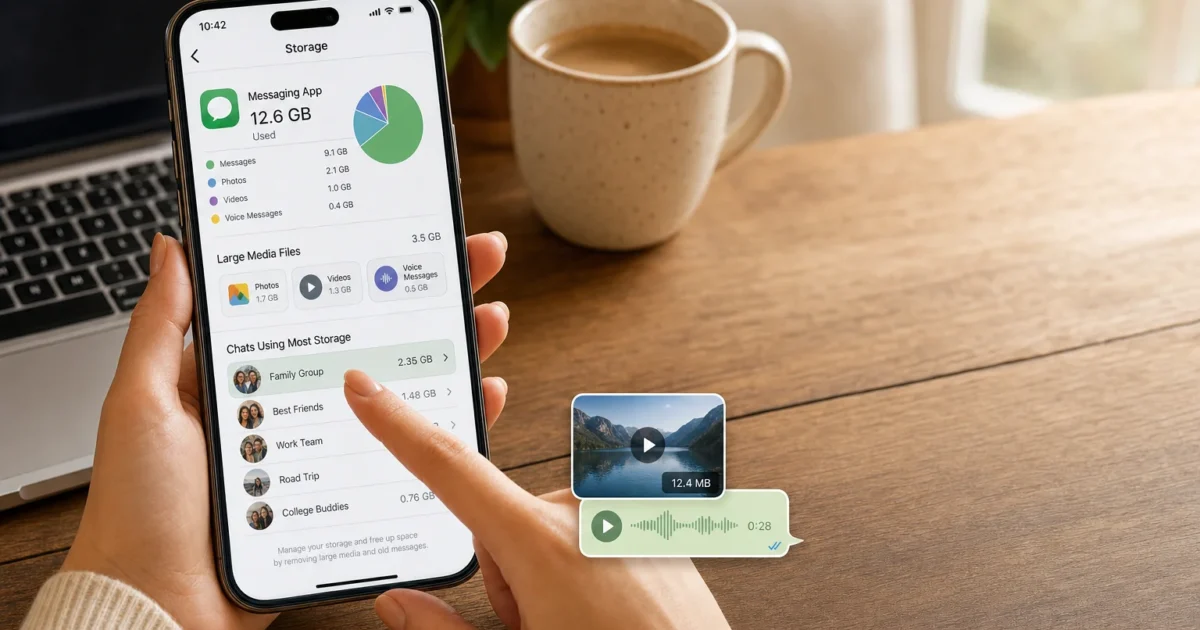
Check your iPhone storage right now and there’s a good chance WhatsApp is sitting near the very top of the list, quietly hoarding gigabytes of videos, photos, voice notes, and stickers from every group chat you’ve ever joined. Sound familiar?
The good news? WhatsApp’s storage tools have gotten really good in recent years. You can now drill down into exactly which chats are eating up the most space, bulk-delete the biggest files in seconds, and set things up so the problem doesn’t creep back. In this guide, you’ll learn how to do all of that, without losing a single text message if you don’t want to.
Why WhatsApp Takes Up So Much Space
WhatsApp stores every photo, video, voice message, document, and GIF that gets sent to you directly on your iPhone. If you’re in even a handful of active group chats, that adds up fast. One video-happy family group alone can chew through half a gigabyte in a few weeks. Add in the fact that WhatsApp may also be saving duplicates of everything to your Photos app, and suddenly you’re looking at several gigabytes gone, sometimes without even realizing it.
Step 1: Check How Much Space WhatsApp Is Actually Using
Before you start deleting anything, it’s worth seeing the full picture. iOS gives you a quick breakdown of exactly how much space WhatsApp is taking up at the system level.
- Open the Settings app on your iPhone.
- Tap General > iPhone Storage.
- Scroll down to find WhatsApp and tap it.
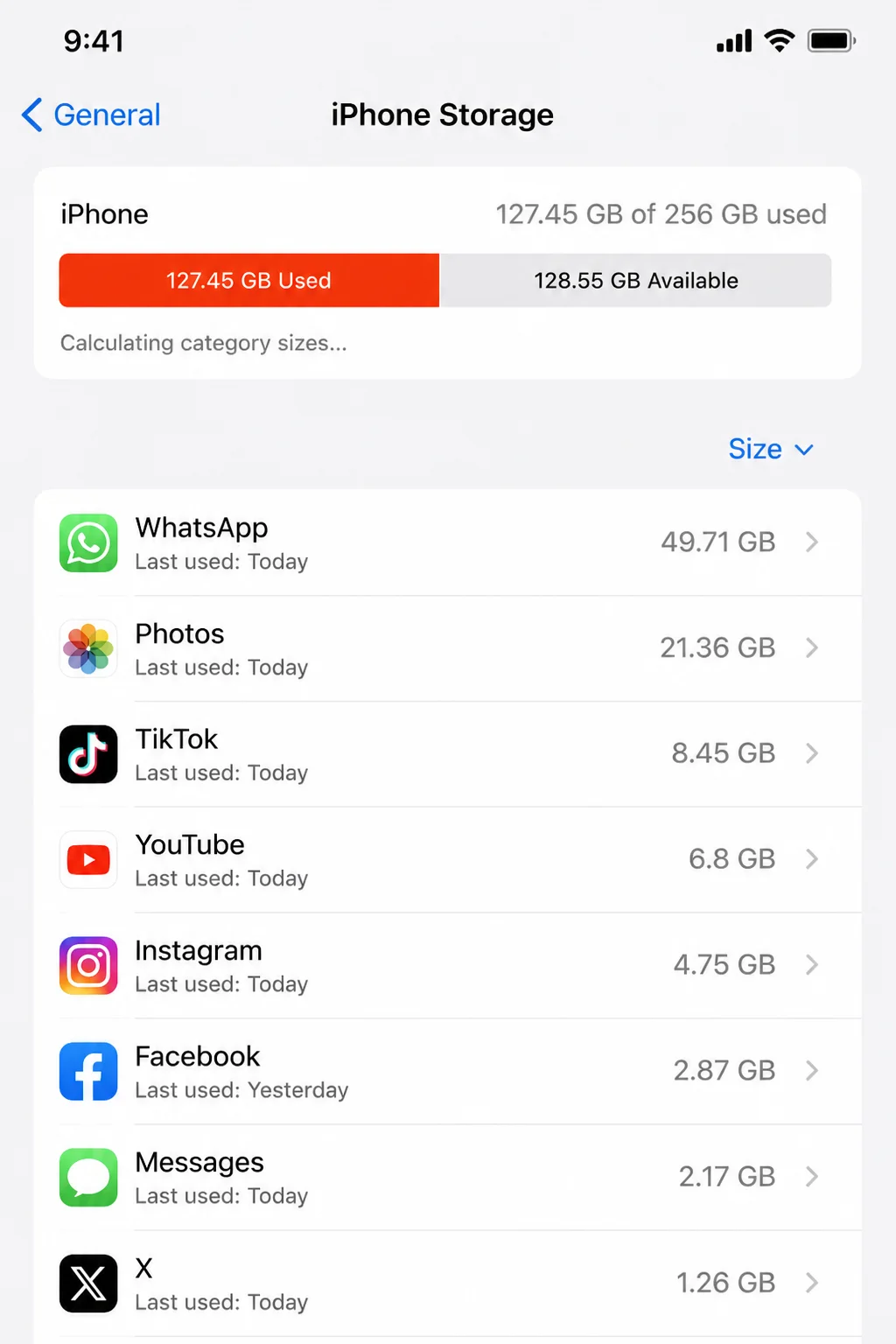
You’ll see the total app size alongside a “Documents & Data” figure. That Documents & Data number is where all your chat media lives. If it looks way bigger than what WhatsApp itself reports, don’t panic. We’ll cover that quirk in the troubleshooting section below.
Step 2: Use WhatsApp’s Built-In Storage Manager
This is where the magic happens. WhatsApp has a Manage Storage screen that shows you exactly which chats are hogging the most space and lets you clean them out without touching a single text message.
- Open WhatsApp on your iPhone.
- Tap your profile picture in the top-left corner to open Settings.
- Tap Storage and data.
- Tap Manage storage.
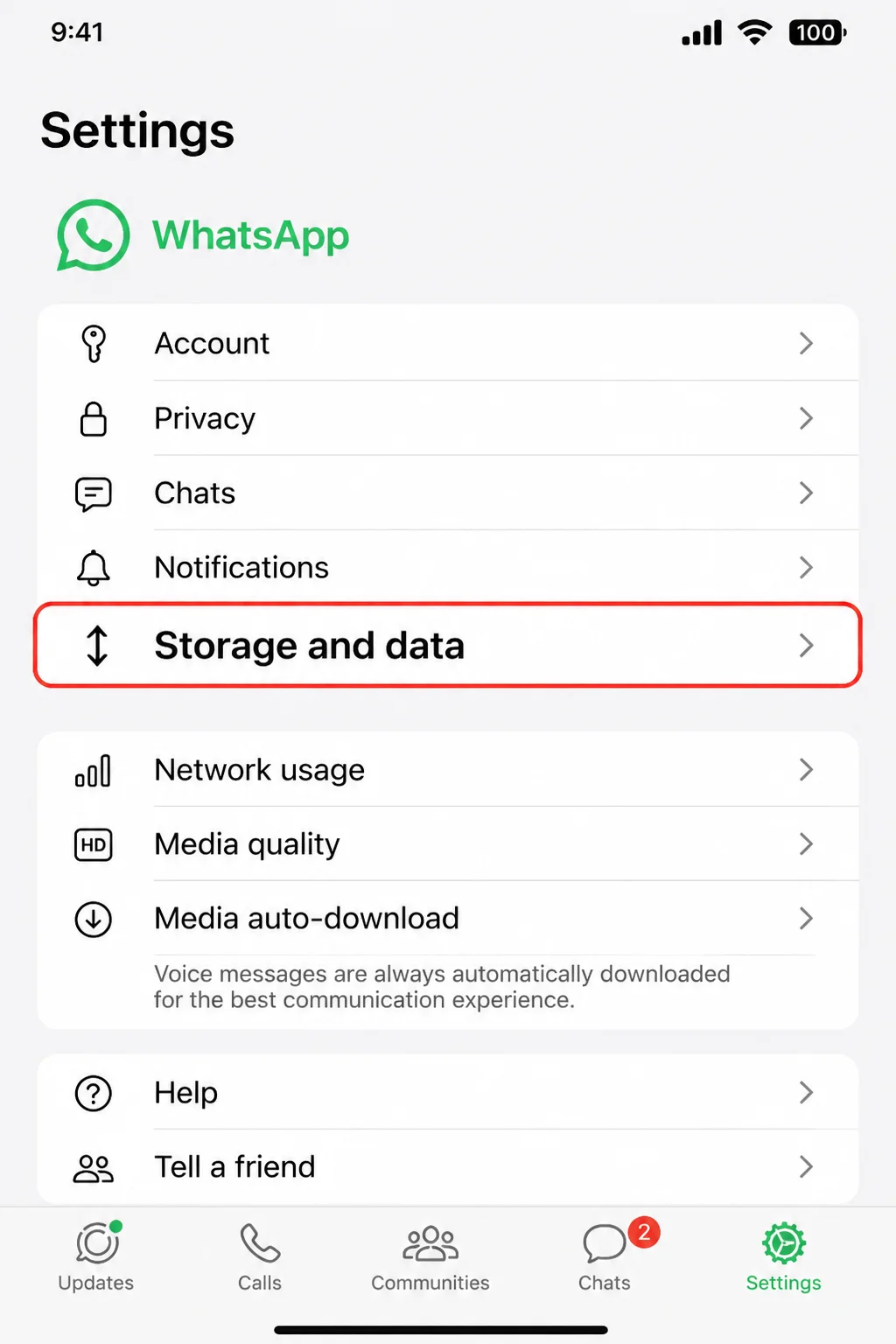
You’ll land on a screen with a storage bar at the top and a list of your chats sorted by how much space they’re using. There’s also a “Larger than 5 MB” section at the top, and that’s your best friend for a quick cleanup.
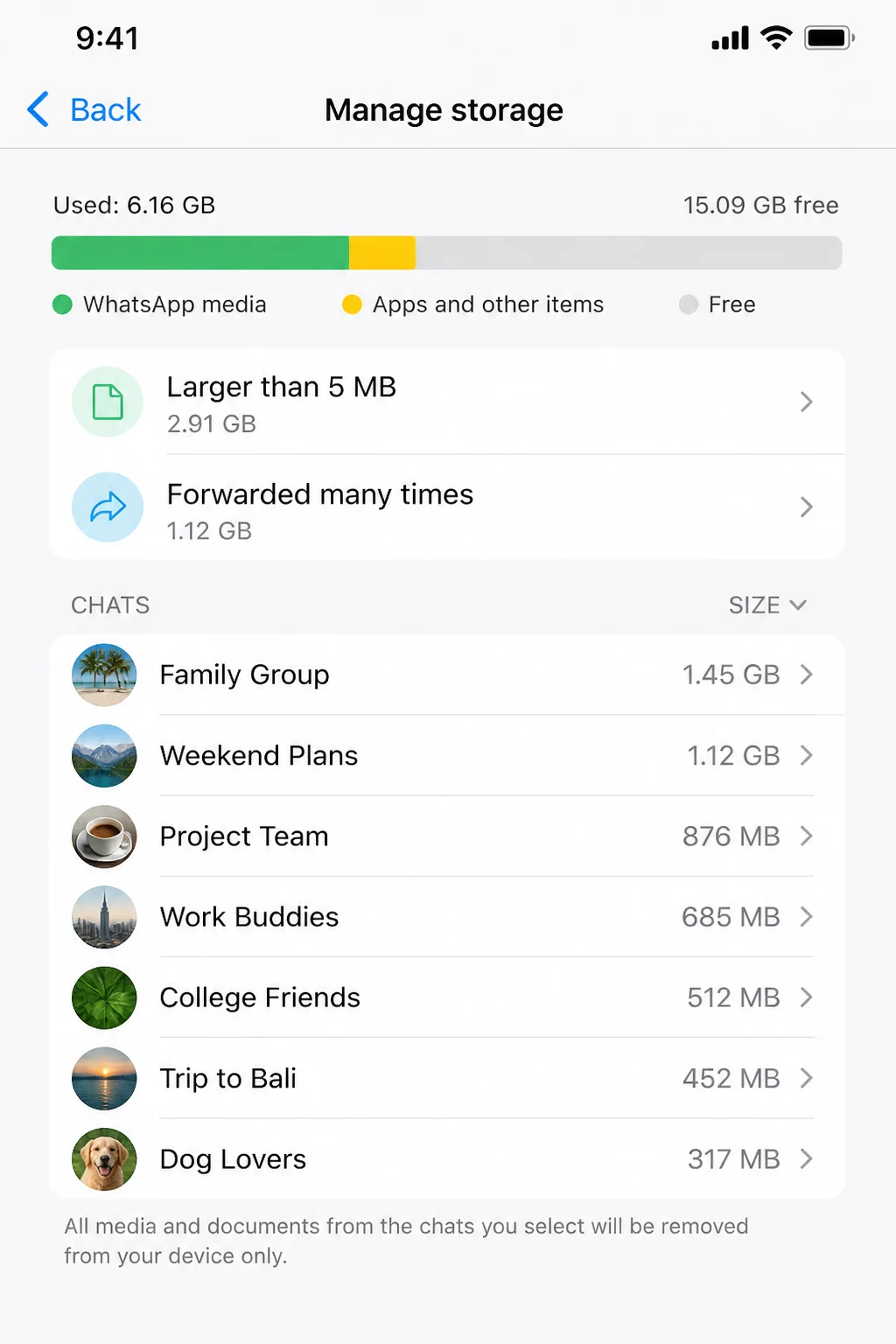
Delete Large Files in One Go
- On the Manage storage screen, tap Larger than 5 MB.
- Tap Select in the top-right corner.
- Tap Select All, or manually pick the files you want to remove.
- Tap the trash icon to delete them.
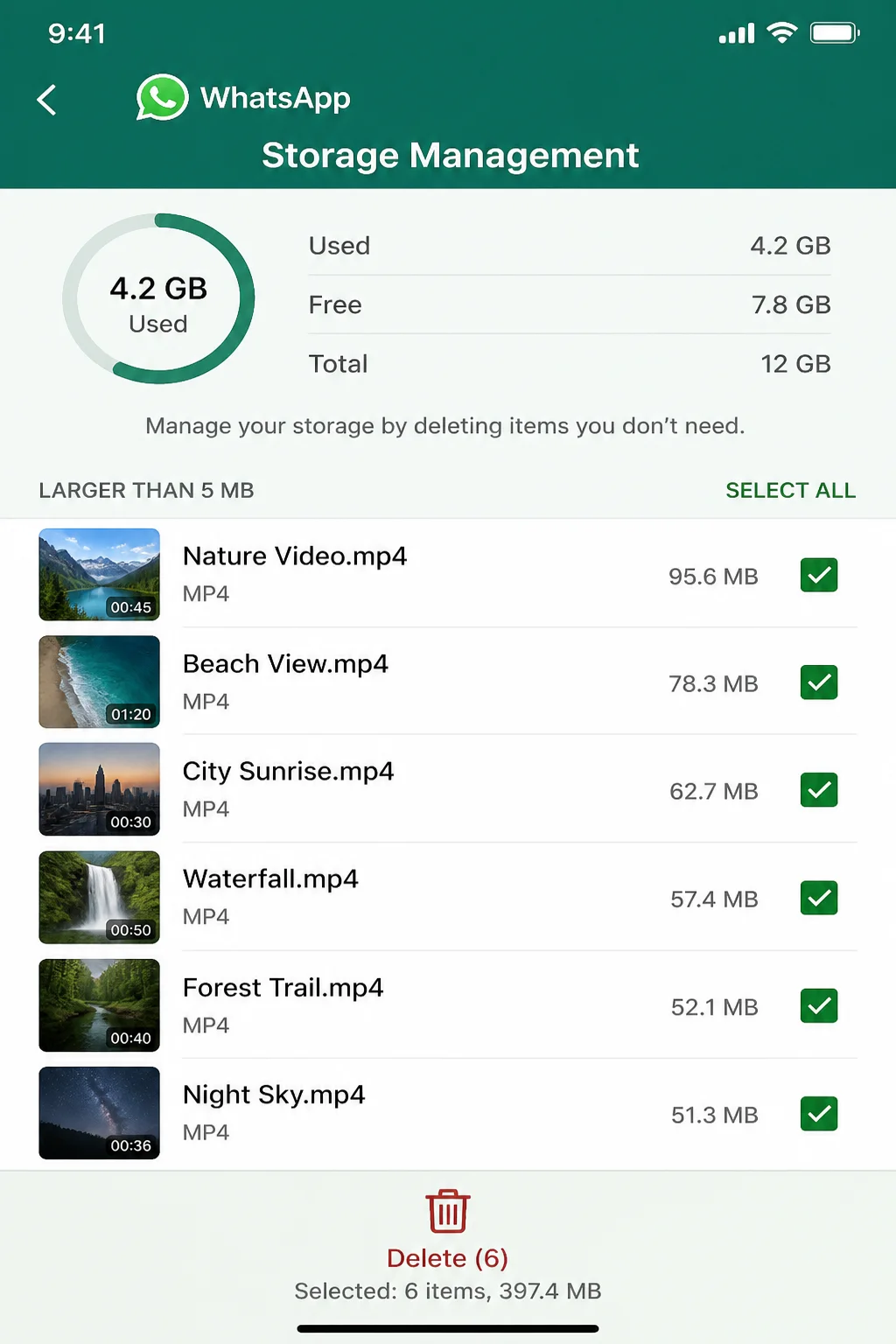
This alone can free up a surprisingly large chunk of space in under a minute. Nicely done, WhatsApp.
Clean Up Individual Chats
Back on the Manage storage screen, you’ll see a ranked list of your chats. Tap any chat to see all the media stored from that conversation, then select and delete what you don’t need. Your text messages stay completely untouched.
- Tap a chat from the list on the Manage storage screen.
- Tap Select, then choose individual items or tap Select All.
- Tap the trash icon to delete.
- If prompted, choose Delete items and any copies to also remove duplicates saved in your Photos app.
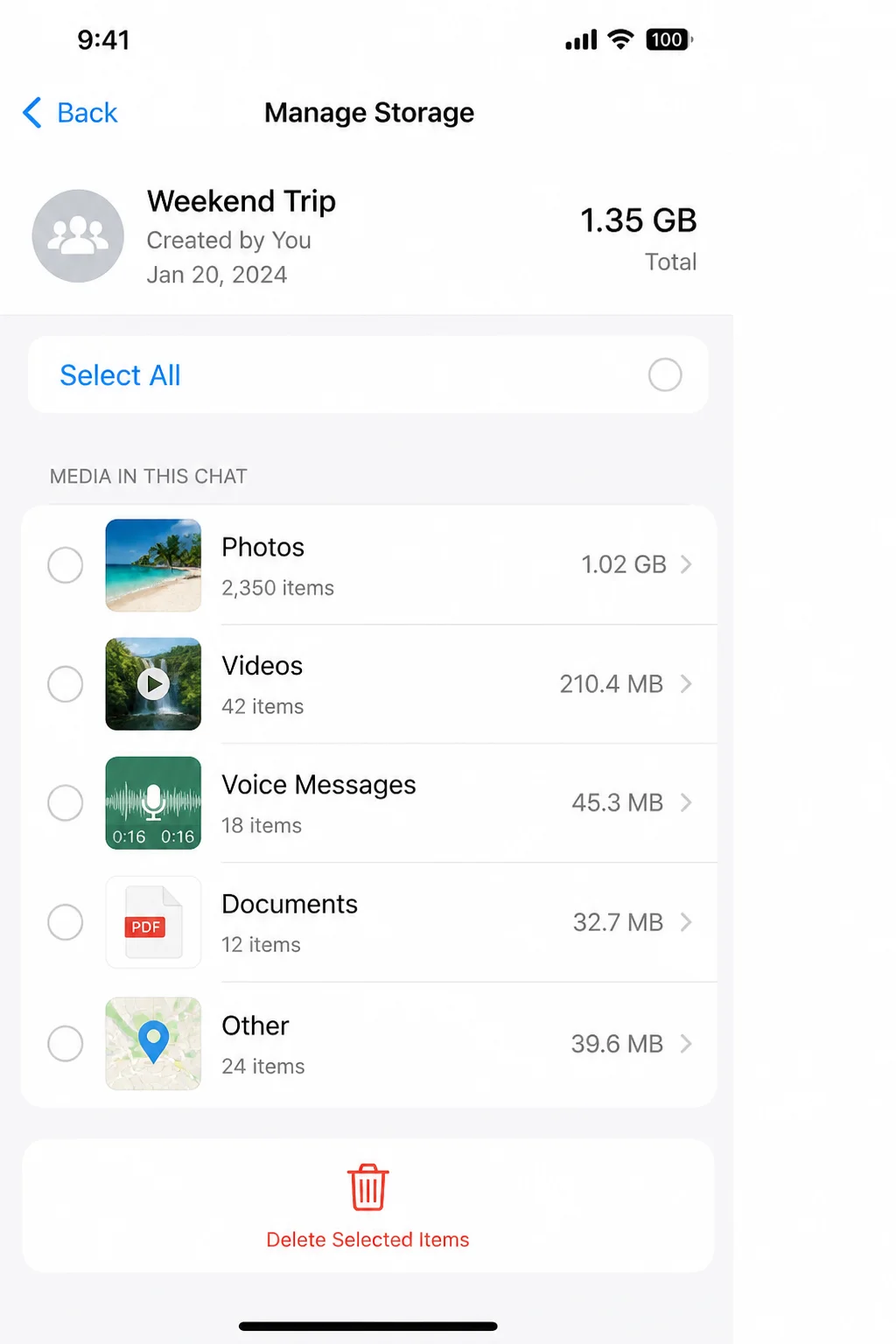
Pro tip: You can also get to this same screen from inside any chat. Just tap the contact or group name at the top, then tap Manage storage. Same result, different route.
Step 3: Stop WhatsApp from Saving Media to Your Photos App
Here’s a sneaky reason WhatsApp storage balloons so fast: by default, every photo and video sent to you gets saved to your iPhone’s Photos app in addition to staying inside WhatsApp. That means you’re storing everything twice. Turning this off is one of the best things you can do for your storage long-term.
- Open WhatsApp and go to Settings.
- Tap Chats.
- Toggle off Save to Photos.
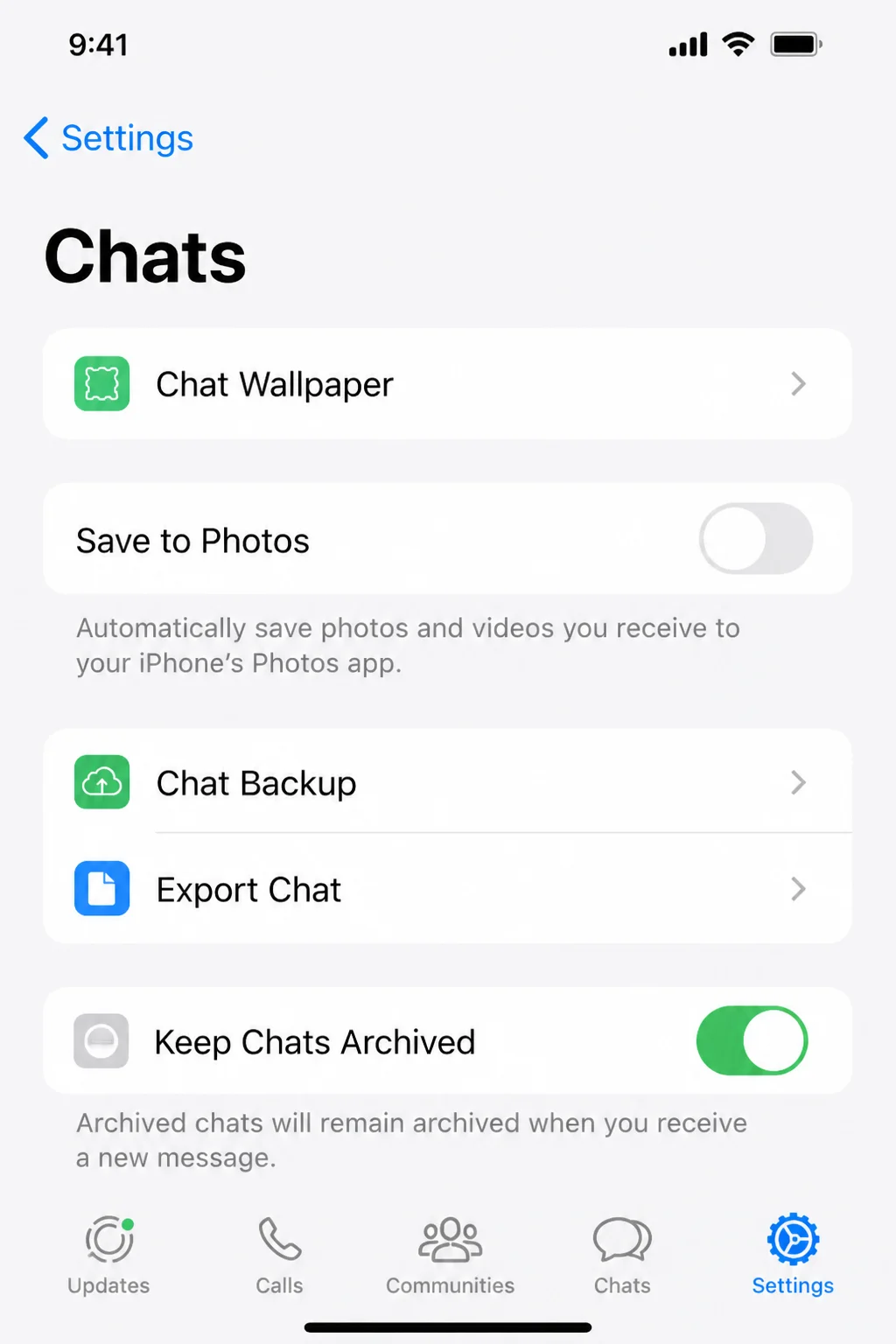
Already have a bunch of WhatsApp photos sitting in your Photos library? Open the Photos app, find the WhatsApp album, and delete anything you don’t need to keep. That’ll reclaim the duplicate copies.
Step 4: Limit What WhatsApp Auto-Downloads
Every time someone drops a video into a group chat, WhatsApp automatically downloads it to your phone, even if you never watch it. You can change this so WhatsApp only downloads media when you actually ask it to.
- Open WhatsApp and go to Settings.
- Tap Storage and data.
- Under Media Auto-Download, tap each category: Photos, Audio, Videos, and Documents.
- Set Videos and Documents to Never. For Photos, Wi-Fi only is a reasonable middle ground.
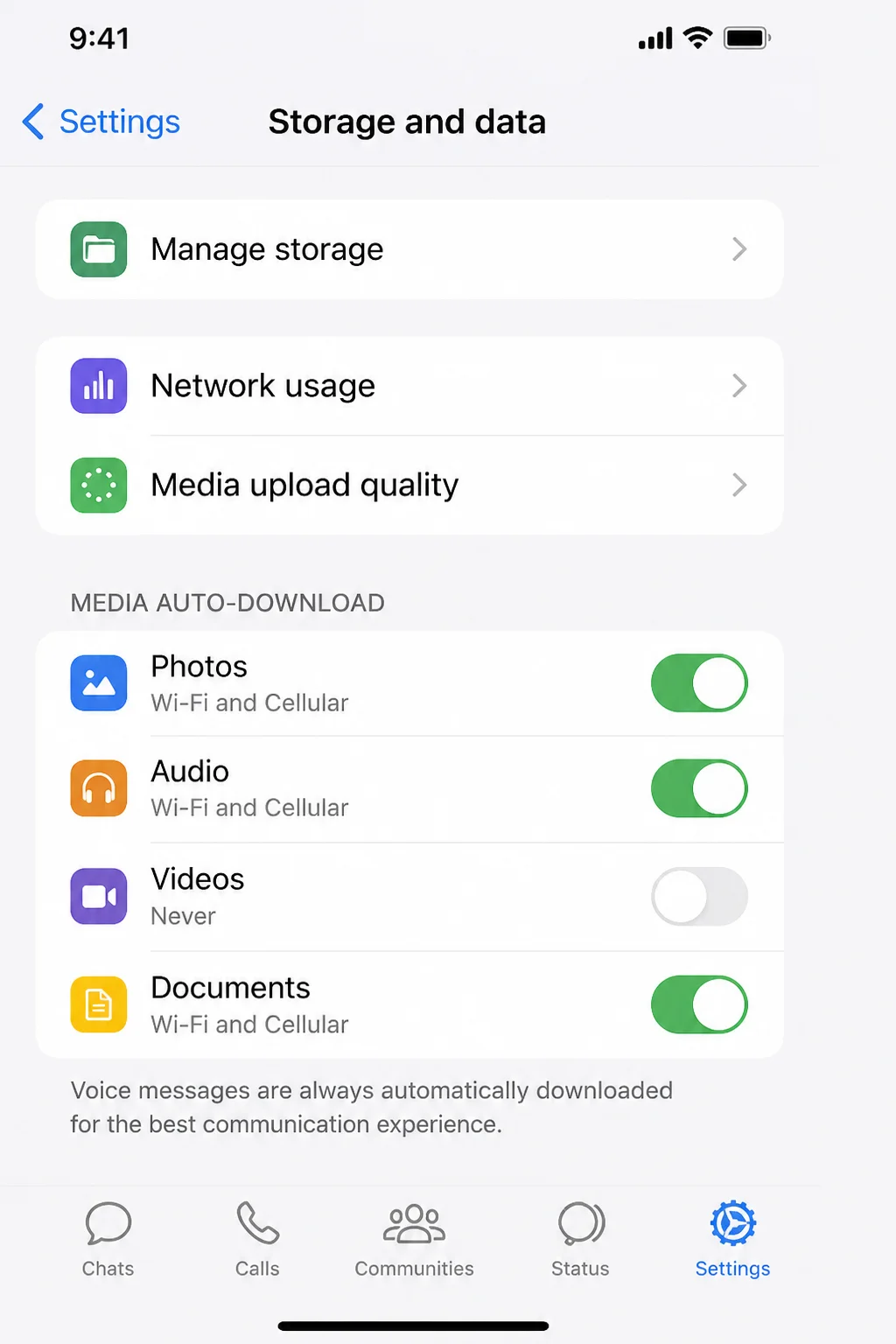
This won’t delete anything you already have, but it stops the pile from growing every time someone in your family group goes on a video-sharing spree.
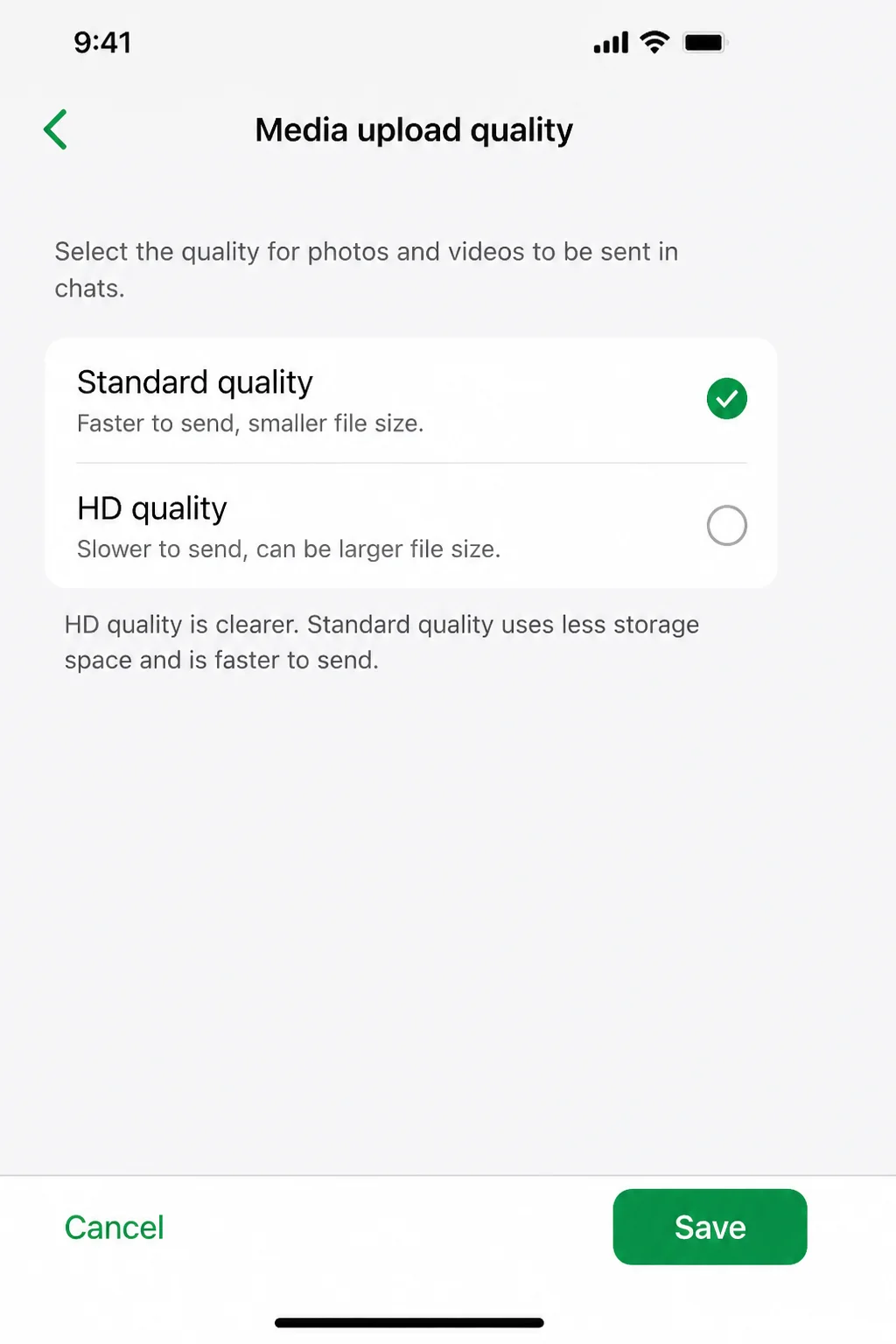
Step 5: Switch to Standard Upload Quality
WhatsApp now supports HD photo and video uploads, which look great but take up significantly more space. If storage is a concern, switching to Standard quality is an easy win.
- Open WhatsApp and go to Settings.
- Tap Storage and data.
- Tap Upload quality.
- Select Standard.
Step 6: Turn On Disappearing Messages
This is a newer WhatsApp feature that’s genuinely clever for keeping storage under control going forward. You can set a default timer so that new messages automatically delete themselves after 24 hours, 7 days, or 90 days, which works a bit like a self-cleaning inbox.
- Open WhatsApp and go to Settings.
- Tap Privacy.
- Tap Default message timer.
- Choose 24 hours, 7 days, or 90 days.
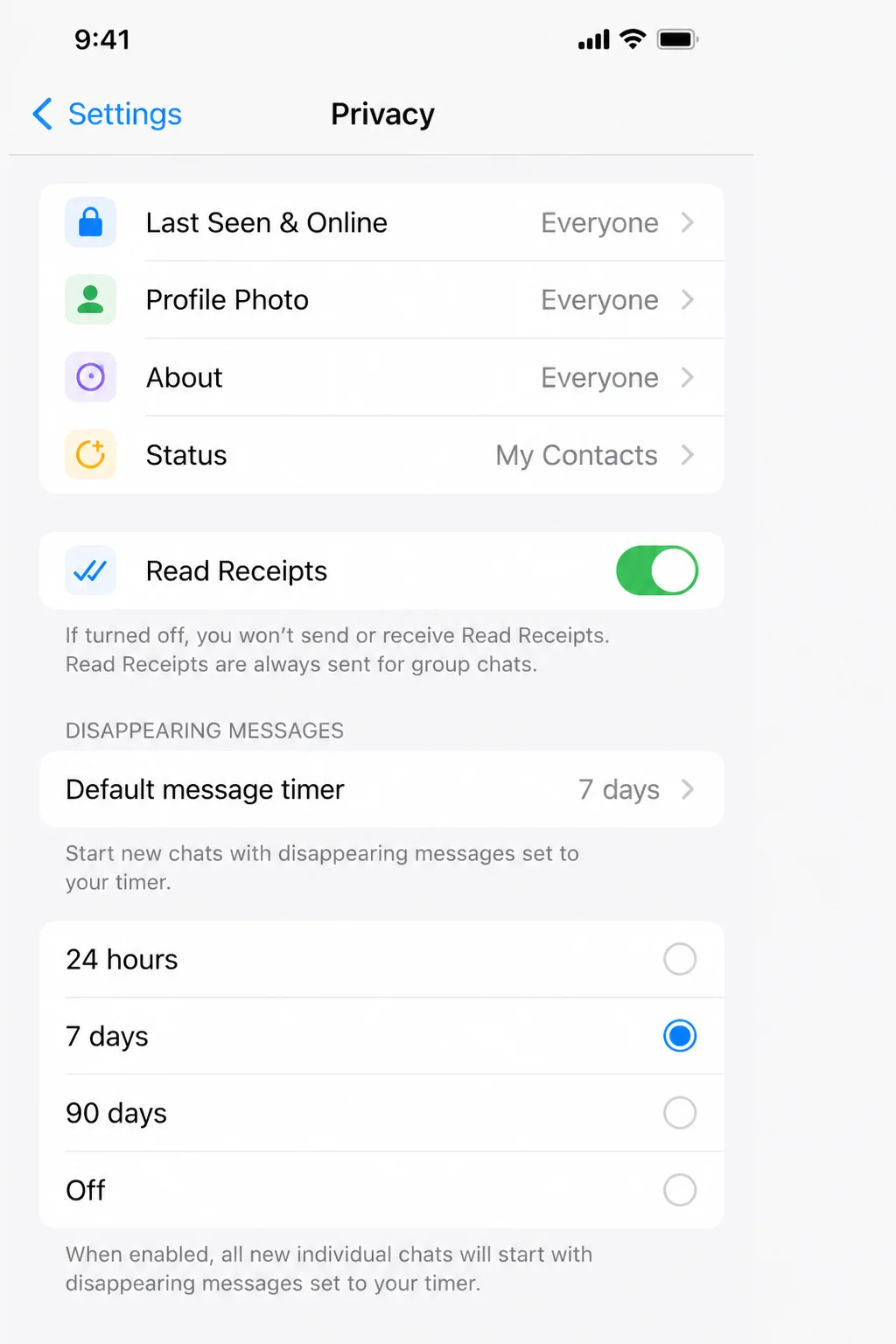
This only applies to new chats going forward, not existing ones. But it’s a great set-it-and-forget-it way to prevent the storage problem from coming back.
Step 7: Export and Clear Entire Chats (If Needed)
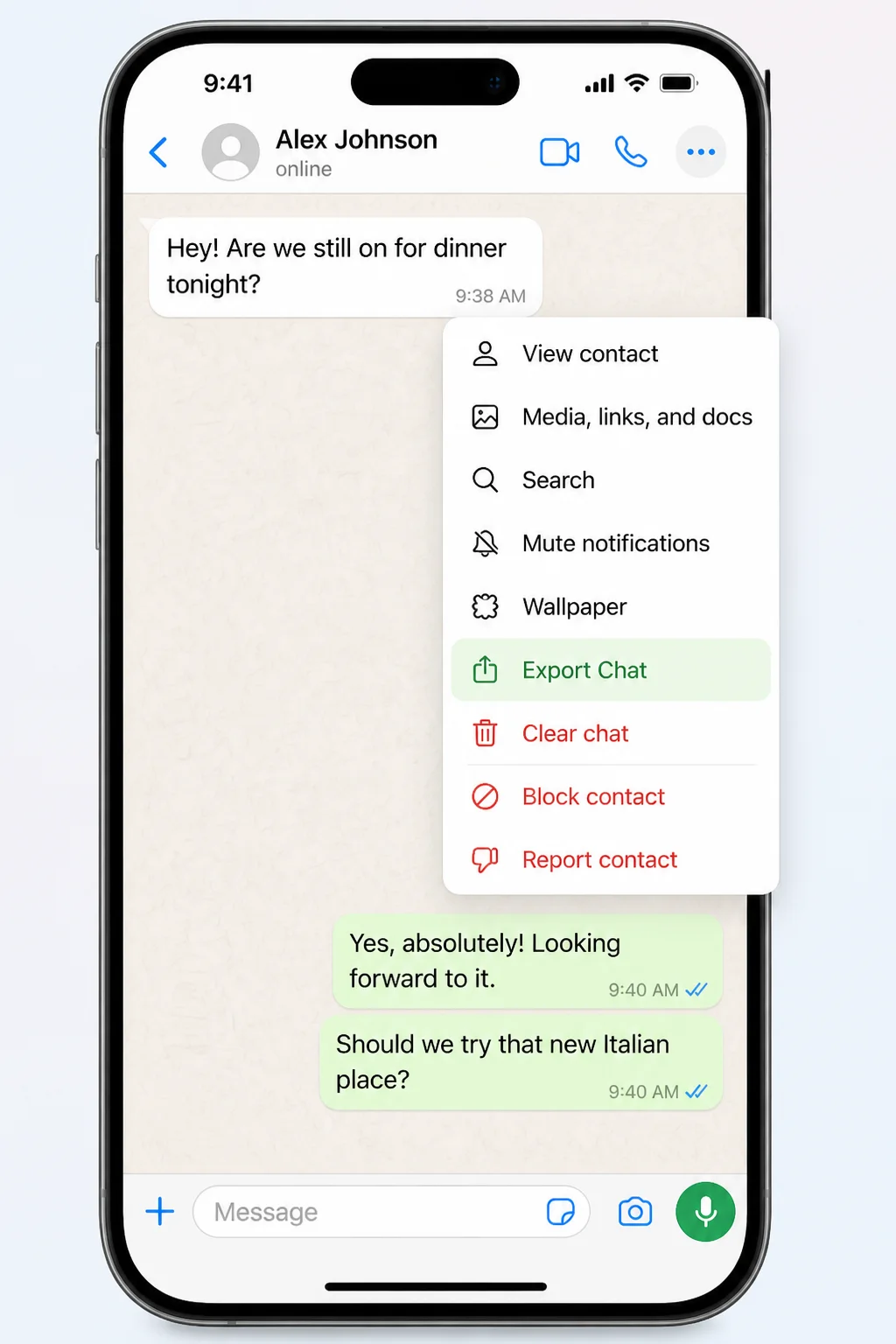
If you’ve gone through all the steps above and still want to free up more space, you can clear out entire chats. This removes all messages and media from a conversation, so you’ll want to export first if you care about keeping the history.
Export a Chat First (Optional)
- On the Chats tab, swipe left on the chat you want to export.
- Tap More.
- Tap Export Chat.
- Choose where to save it: iCloud Drive, Google Drive, Notes, or any app on your phone.
Clear a Chat
- Swipe left on the chat and tap More, or open the chat and tap the contact/group name.
- Tap Clear chat.
- Select the media categories you want to remove (Videos, Photos, Stickers, Documents, Audio).
- Optionally check Clear starred messages.
- Tap Clear media.
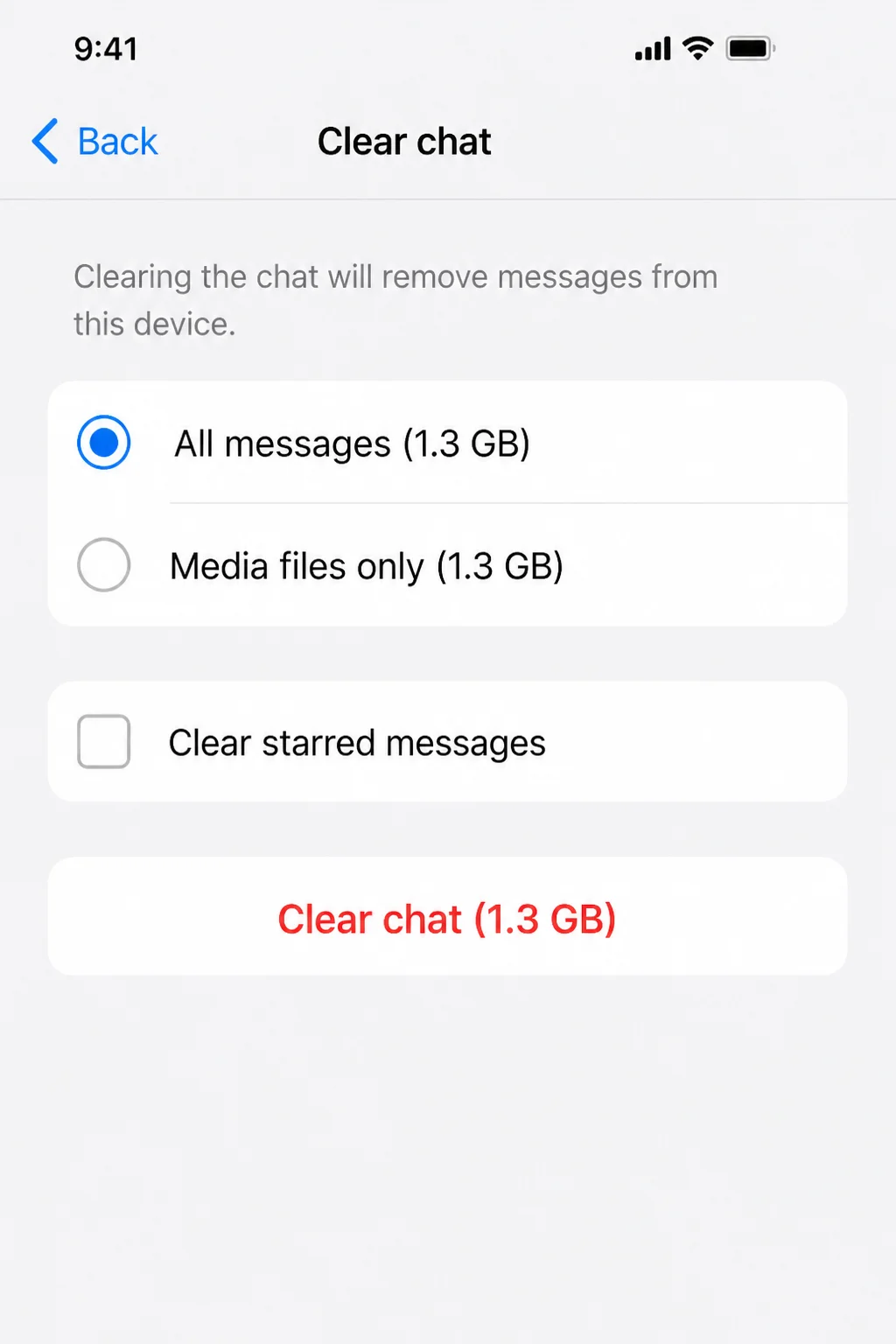
Clearing a chat removes the history but keeps the conversation visible in your Chats tab. Any new messages will start fresh. If you want the chat gone entirely, use Delete Chat instead. Just know that removes it from your list completely.
Clear or Delete All Chats at Once
If you want a full reset (and don’t mind losing everything), you can wipe all chats in one go:
- Open WhatsApp and go to Settings.
- Tap Chats.
- Tap Clear all chats or Delete all chats.
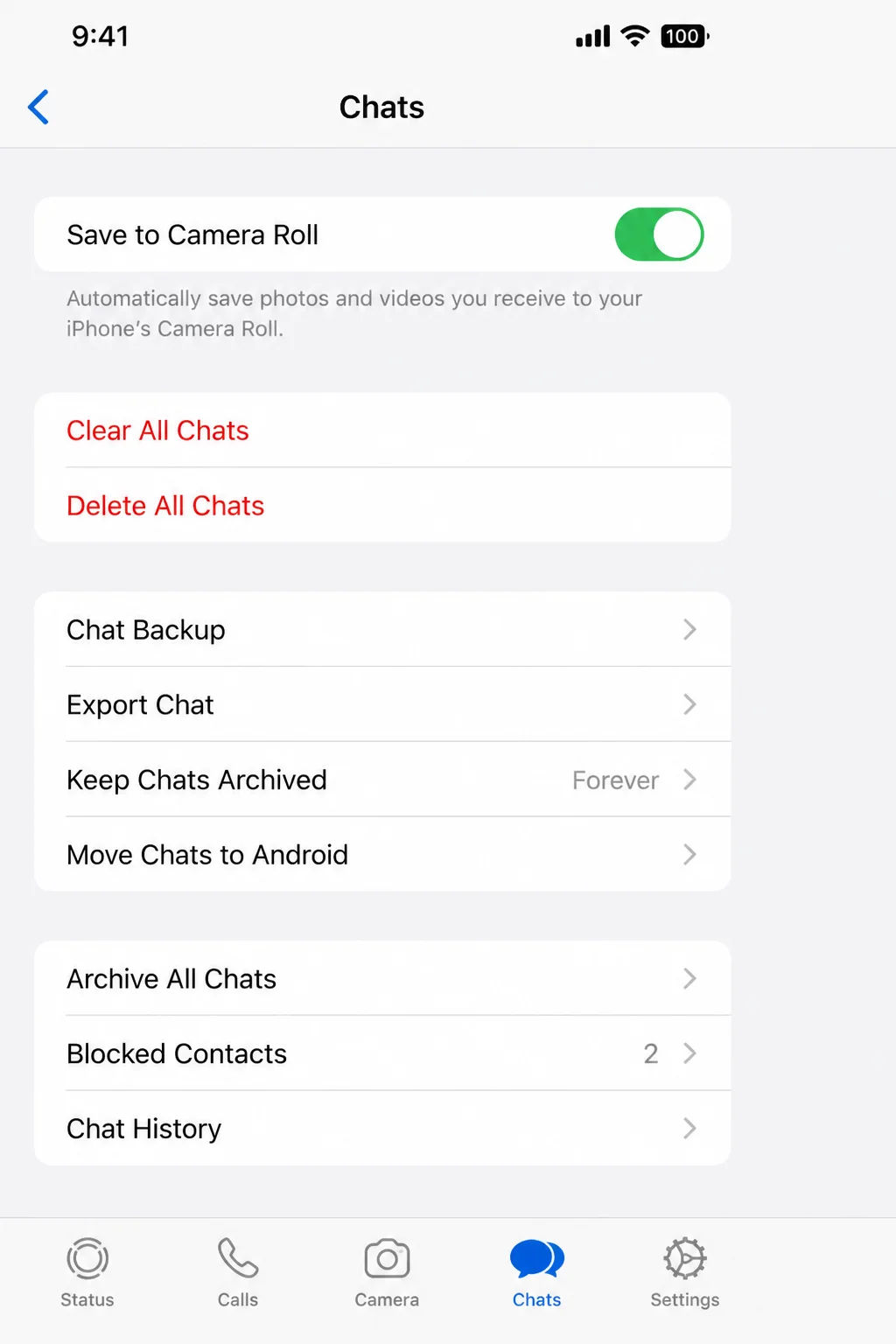
Honestly, this is the nuclear option. Only go here if you’re absolutely sure you don’t need any of your chat history.
Tips and Troubleshooting
Common Issues
Problem: iPhone Storage shows WhatsApp using 30+ GB, but WhatsApp’s own Manage Storage screen shows something much smaller.
This is a surprisingly common headache. iOS sometimes counts cached data, old backups, or unreferenced files that WhatsApp’s own storage screen doesn’t include. Here’s what to try:
- Use Manage storage inside WhatsApp to delete as much as possible.
- Wait a few minutes. iOS can be slow to update its storage figures.
- If the number is still way off, go to Settings > General > iPhone Storage > WhatsApp and tap Offload App. This removes the app itself but keeps your data, then reinstalls cleanly when you tap the icon again.
- Still no luck? Back up your chats via WhatsApp Settings > Chats > Chat Backup, then fully delete and reinstall WhatsApp from the App Store. This clears out any stubborn hidden caches. Just make sure your backup is fresh before you delete!
Problem: I deleted media in WhatsApp but it’s still in my Photos app.
WhatsApp and your Photos library are separate. Deleting something from one doesn’t automatically remove it from the other (unless you chose “Delete items and any copies” during the Manage Storage cleanup). Open the Photos app, go to the WhatsApp album, and delete from there too.
Problem: WhatsApp keeps filling up again after I clean it.
Three things to check:
- Make sure Save to Photos is turned off (Settings > Chats).
- Set Videos and Documents auto-download to Never (Settings > Storage and data).
- Consider turning on a Default message timer (Settings > Privacy) so messages auto-expire.
- Leave or mute any groups that constantly flood you with media you don’t need.
Pro Tips
- Leave unnecessary groups: The best way to stop media piling up is to stop it from arriving in the first place. If you’re in groups you never check, leave them.
- Use per-chat Manage Storage regularly: Tapping a group name > Manage storage takes about 30 seconds and can free up hundreds of megabytes from a single busy group.
- Check your iCloud backup size: Go to WhatsApp Settings > Chats > Chat Backup to see how much iCloud space your WhatsApp backup is using. Clearing old chats will shrink this too.
- Set a calendar reminder: Do a quick Manage Storage cleanup once a month and you’ll never end up in “storage full” panic mode again.
Wrapping Up
WhatsApp doesn’t have to be a storage black hole. With the built-in Manage Storage screen, you can wipe out the biggest files in under a minute, clean up per-chat media without losing any messages, and set things up so the problem doesn’t sneak back up on you. The combination of turning off Save to Photos, restricting auto-downloads, and enabling a disappearing message timer is honestly a game-changer. Set it once and forget it.
If you’re still seeing a huge WhatsApp number in iPhone Storage after all of this, the offload-and-reinstall trick usually sorts it out. A little maintenance goes a long way!