

Is Firefox crawling along when it used to zip? Pages taking forever to load, tabs freezing up, or the whole browser just feeling sluggish? You’re definitely not alone, and the good news is, most Firefox slowdowns are totally fixable without any tech wizardry.
Firefox has changed a lot over the years (way more than most people realize), and a bunch of the old “speed hacks” floating around the internet are not only outdated. They can actually make things worse. In this guide, we’ll walk through what actually works in 2026 to get Firefox running fast again, starting with the easy stuff and working up to some power-user tricks if you want to go deeper.
Before You Begin
Make sure you have:
- Firefox installed and updated to the latest version (we’ll cover how to check)
- A computer running Windows 10/11 or macOS Ventura or later
- About 15 minutes, most of these fixes are quick
Step 1: Update Firefox First
This sounds obvious, but it’s the single most impactful thing you can do. Firefox releases updates roughly every four weeks, and each one includes performance improvements and bug fixes. Running an old version is like driving on flat tires; everything just feels harder than it should.
On Windows
- Click the hamburger menu (the three horizontal lines ☰) in the top-right corner of Firefox.
- Click Settings.
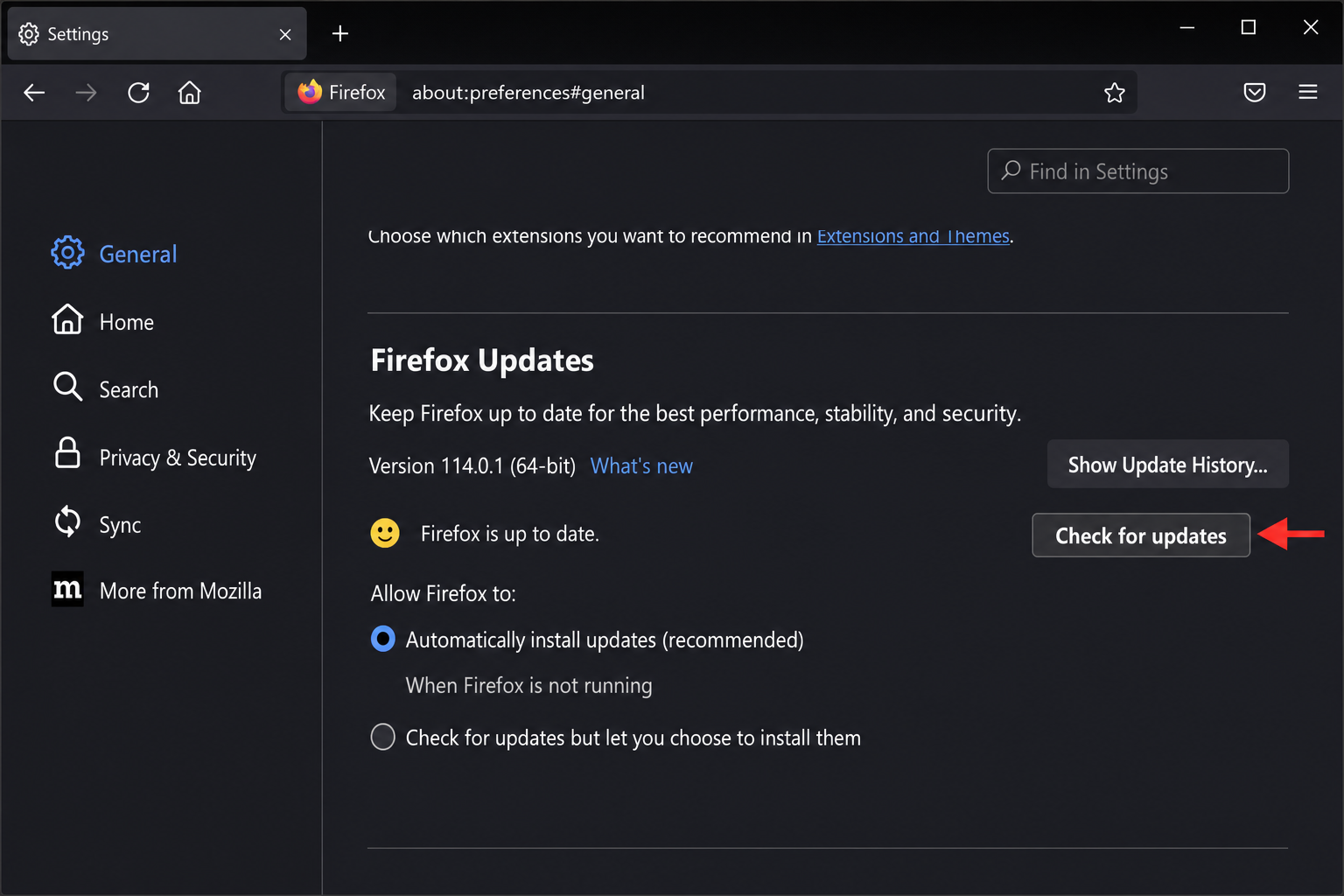
- Scroll down to the Firefox Updates section.
- Click Check for updates. If an update is available, Firefox will download and install it automatically.
- Restart Firefox when prompted.
On macOS
- Click Firefox in the menu bar at the top of your screen.
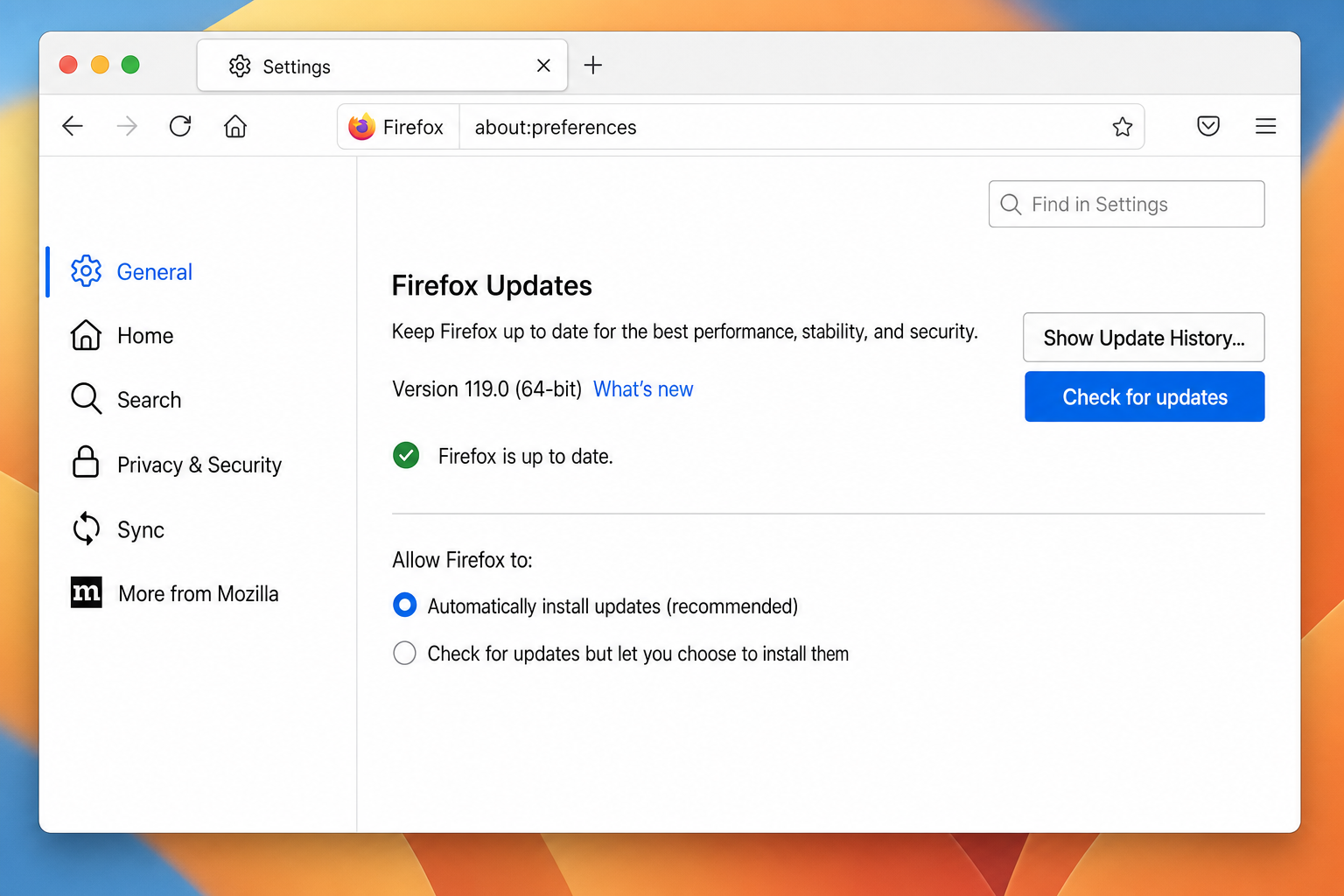
- Click Settings.
- Scroll down to Firefox Updates and click Check for updates.
- Restart Firefox if an update is found.
Step 2: Check Your Performance Settings
Firefox has a built-in Performance section in Settings that most people never touch, and it’s actually really useful. Here’s where you can tune things like hardware acceleration (which lets Firefox use your GPU to speed up rendering) and how many background processes Firefox runs.
- Open Settings (hamburger menu ☰ → Settings).
- In the General tab, scroll down until you see the Performance section.
- Uncheck Use recommended performance settings to reveal the advanced options.
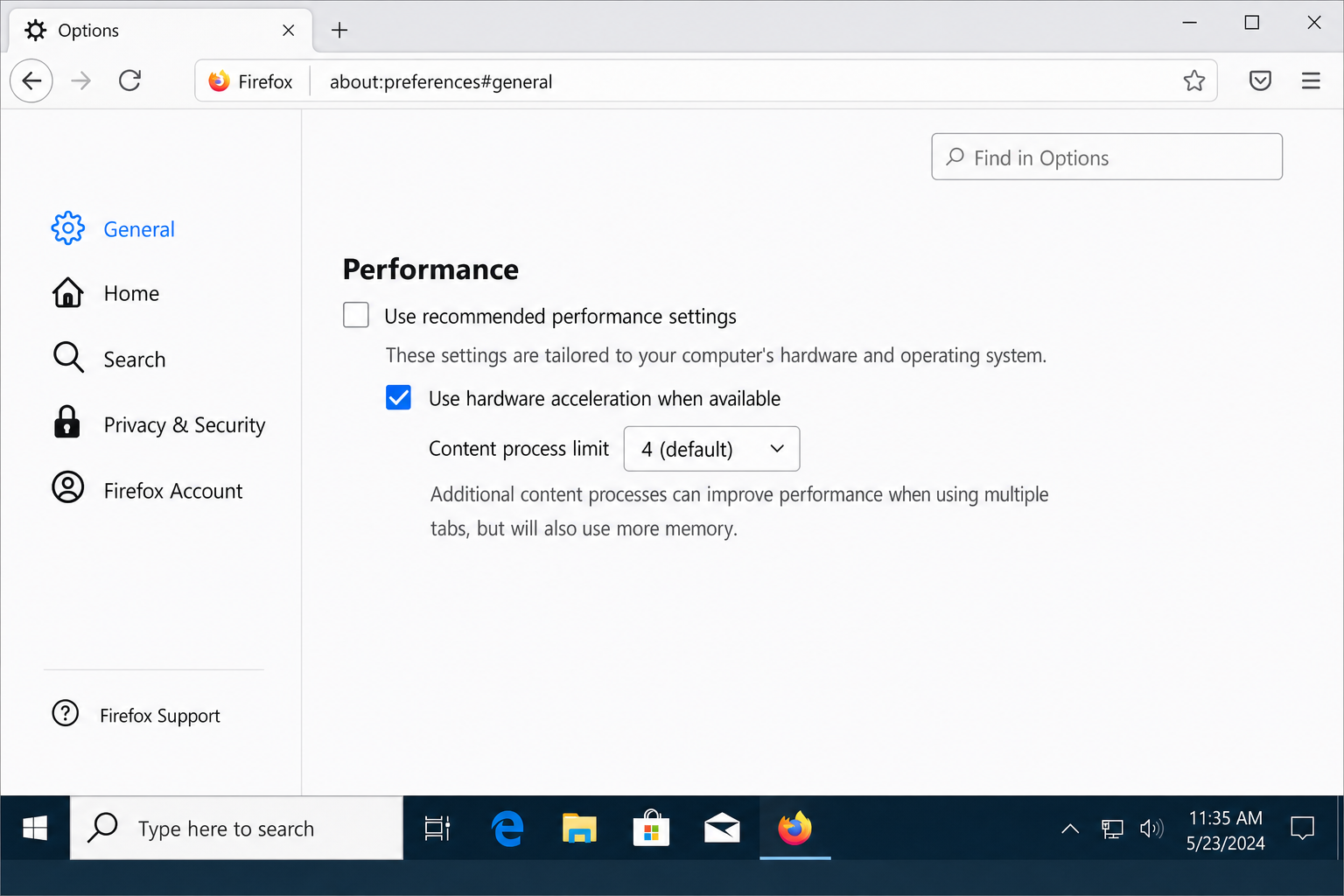
Now you’ll see two important settings:
- Use hardware acceleration when available: Leave this enabled for most people. It lets Firefox use your graphics card to render pages and videos, which is noticeably faster. The only time you’d want to turn it off is if you’re seeing screen tearing, video glitches, or Firefox keeps crashing. Then it’s worth toggling off to test.
- Content process limit: This controls how many background processes Firefox uses to handle open tabs (think of each process as a worker handling a few tabs at a time). The default is usually fine, but:
- If your computer has 4 GB of RAM or less, try lowering this to 2–4 to reduce memory usage.
- If you have 16 GB or more, the default setting is already optimal. Don’t overthink it.
Step 3: Use Firefox’s Task Manager to Find the Culprit
Did you know Firefox has its own Task Manager? It’s surprisingly handy for figuring out which tab or extension is hogging all your memory and CPU. This feature alone is worth knowing about; it’s genuinely clever.
- Click the hamburger menu ☰.
- Go to More tools → Task Manager.
- A new tab will open showing every tab and extension, along with how much memory and energy each one is using.
- Sort by Energy Impact or Memory to find the worst offenders.
- Close any tabs you don’t actually need, or note which extensions are consuming the most resources.
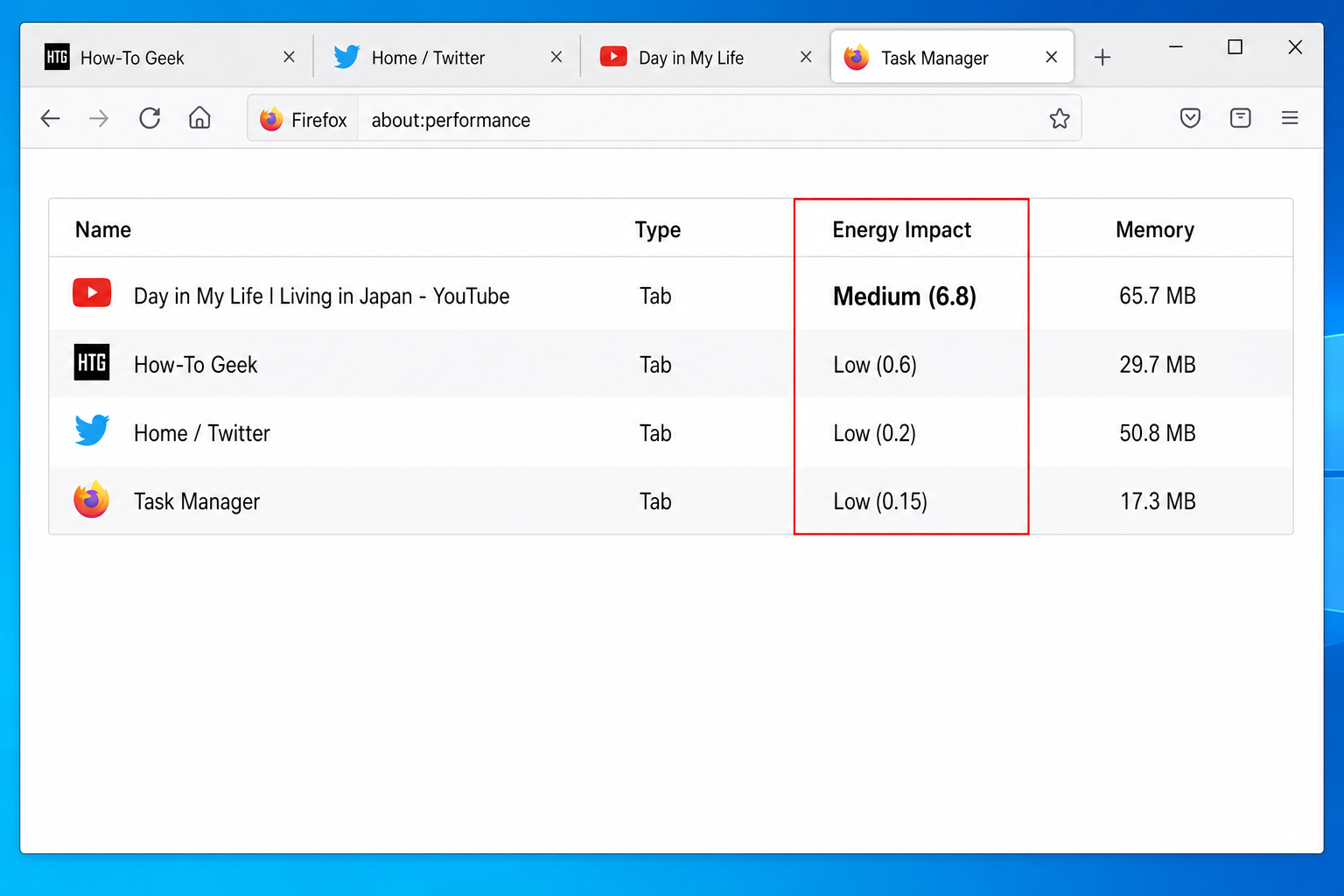
If a specific extension is consistently near the top of the list, that’s your sign to disable or remove it.
Step 4: Clean Up Your Extensions and Themes
Extensions are one of the biggest causes of a slow Firefox. Every extension you install adds a little overhead, and some of them run constantly in the background on every single page you visit. A couple of poorly written ones can drag the whole browser down.
Disable or Remove Extensions You Don’t Need
- Type
about:addonsin the address bar and pressEnter, or go to the hamburger menu ☰ → Add-ons and themes. - Click Extensions in the left sidebar.
- Go through your list and toggle off any extensions you don’t actively use.
- For anything you haven’t used in months, click the three-dot menu next to it and select Remove.
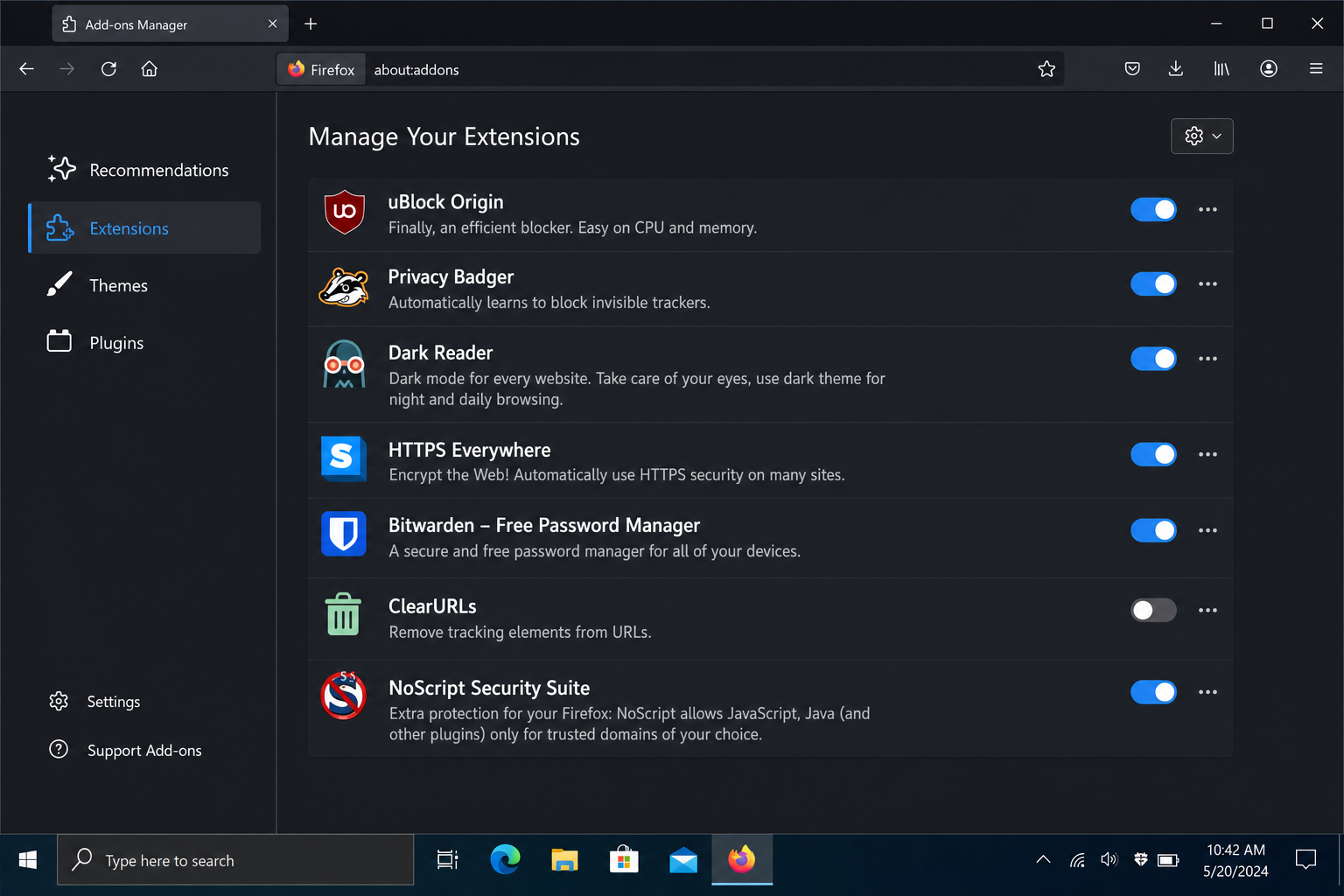
Pay special attention to:
- Security suite add-ons from antivirus software (these are notorious for slowing browsers down)
- Coupon finders, price trackers, and shopping helpers
- Video downloaders and tab managers that run on every page
Use Troubleshoot Mode to Confirm It’s an Extension
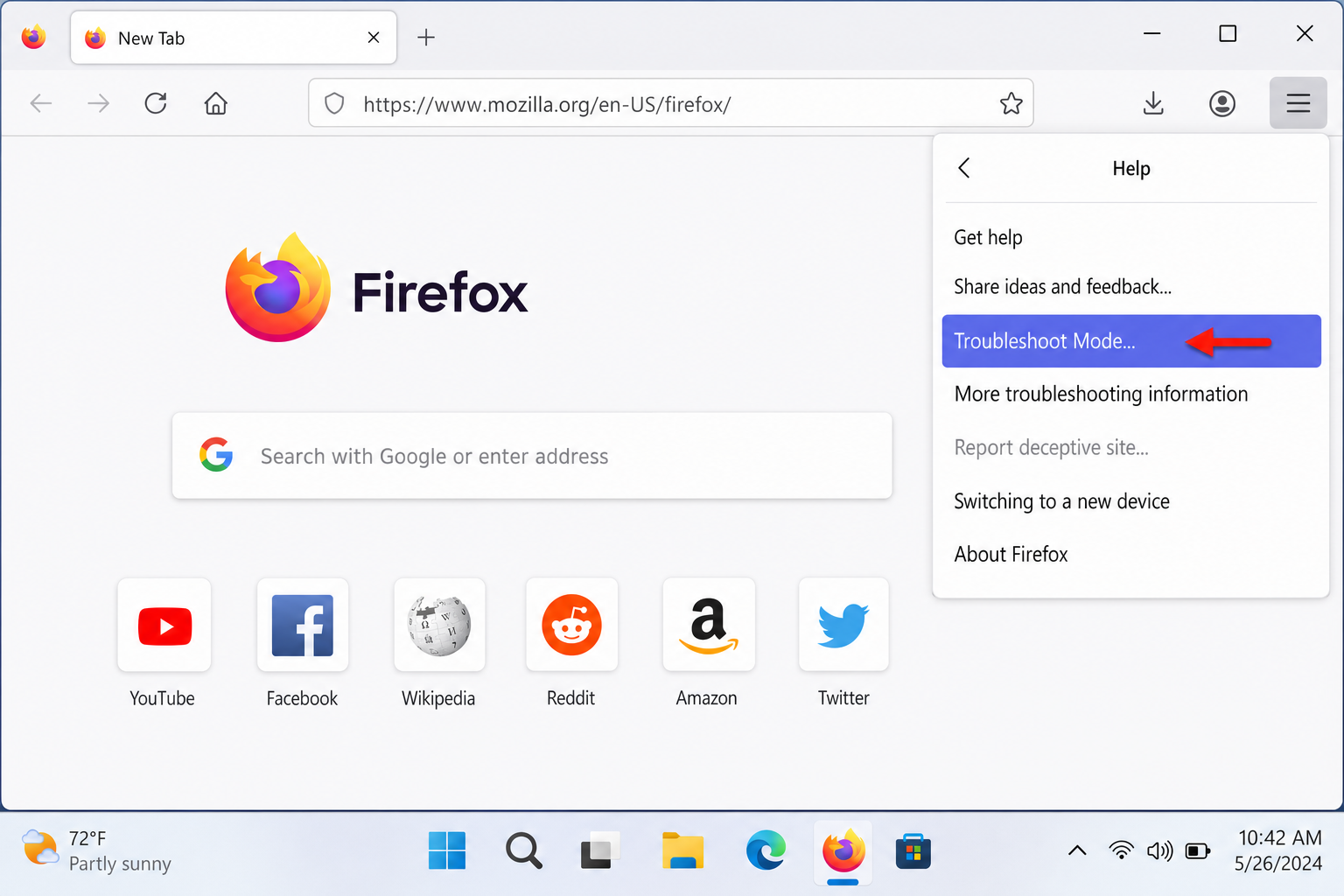
Not sure if an extension is causing the problem? Firefox’s Troubleshoot Mode temporarily disables all extensions so you can test. If Firefox feels dramatically faster in Troubleshoot Mode, you’ve found your culprit.
- Click the hamburger menu ☰ → Help → Troubleshoot Mode…
- Click Restart when Firefox asks to confirm.
- Browse normally for a few minutes. If things feel snappier, an extension is definitely the issue.
- Restart Firefox normally, then go back to
about:addonsand disable extensions one by one to find the specific problem.
Switch to the Default Theme
Heavy animated or custom themes can also affect performance, especially on older hardware. To switch back to the default:
- Go to
about:addons→ Themes. - Click Enable next to Firefox (default) or System theme.
Step 5: Clear Your Cache and Site Data
Think of Firefox’s cache like a junk drawer. It stores bits of websites you’ve visited so they load faster next time, which is great in theory. But over time it can get bloated and actually start slowing things down instead of speeding them up. Clearing it out every few months is good browser hygiene.
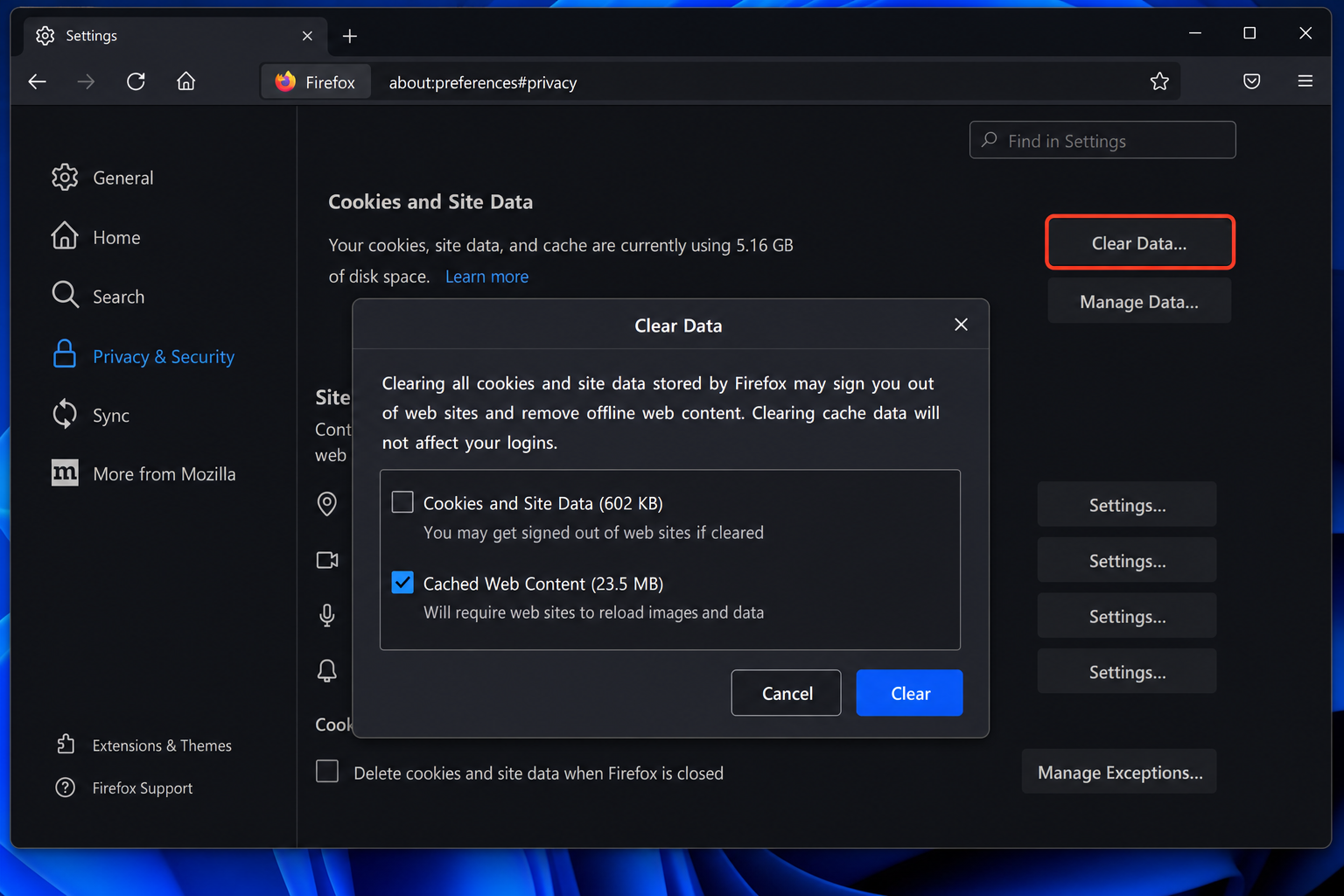
- Click the hamburger menu ☰ → Settings.
- Click Privacy & Security in the left sidebar.
- Scroll down to Cookies and Site Data.
- Click Clear Data…
- Check Cached Web Content (you can leave Cookies and Site Data unchecked unless you want to sign out of everything).
- Click Clear.
You can also clear your browsing history from the same page by scrolling down to History and clicking Clear History….
Step 6: Free Up Memory with about:memory
If Firefox has been running for a while with lots of tabs open, it can start to accumulate memory it’s not really using anymore, like a browser that forgot to clean up after itself. There’s a handy built-in tool to fix this on the spot.
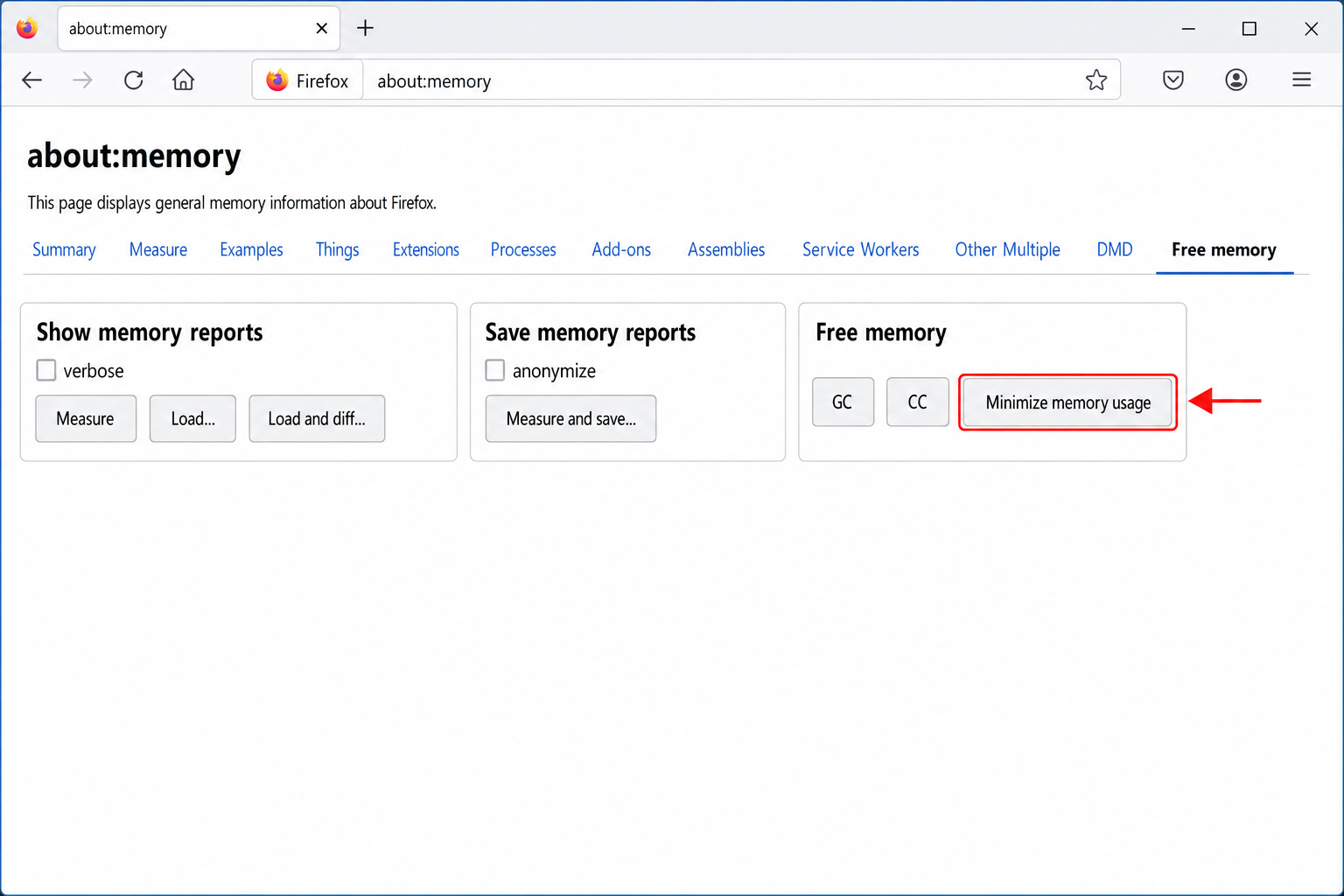
- Type
about:memoryin the address bar and pressEnter. - Under the Free Memory section, click Minimize memory usage.
- Firefox will immediately try to free up unused RAM. You should notice things feeling a bit more responsive right away.
This is especially useful if you had a ton of tabs open earlier and closed most of them. Firefox sometimes holds onto that memory longer than it needs to.
Step 7: Block Ads and Trackers (This One’s a Game Changer)
Modern web pages are loaded with tracking scripts, ads, and third-party content that all have to load before you see the actual page. Blocking that stuff is one of the biggest practical speed boosts you can get, and it’s completely free.
Enable Enhanced Tracking Protection
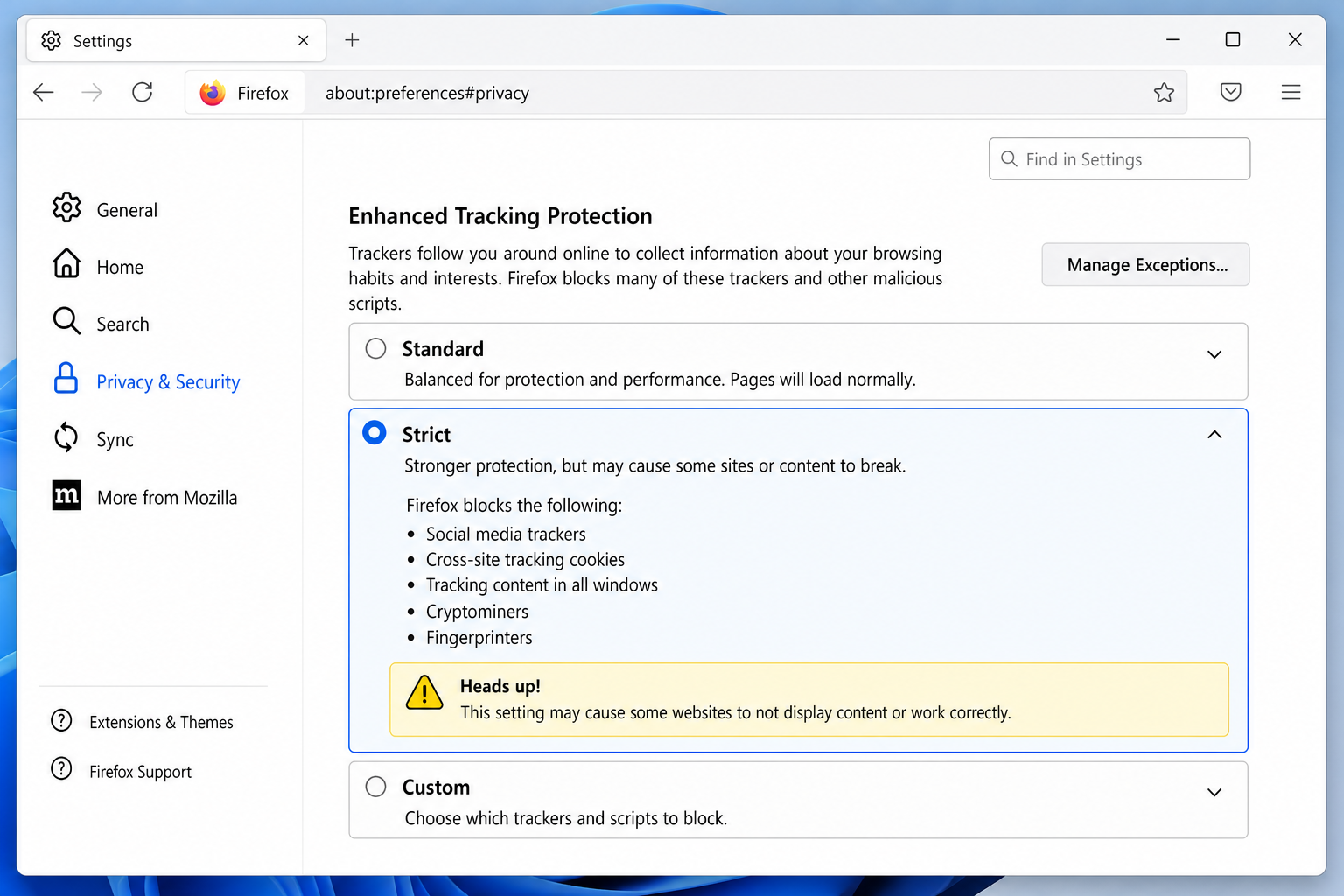
- Go to Settings → Privacy & Security.
- Under Enhanced Tracking Protection, select Strict for the best performance boost. (Stick with Standard if you notice any sites breaking.)
Install uBlock Origin
For even better results, install uBlock Origin. It’s a lightweight, open-source content blocker that’s widely considered the best option for performance. It blocks ads and trackers without slowing Firefox down the way some older ad blockers do.
- Go to addons.mozilla.org and search for uBlock Origin.
- Click Add to Firefox.
- That’s it, the default settings work great for most people.
Step 8: Refresh Firefox (The Nuclear Option)
If you’ve tried everything above and Firefox is still dragging, the Refresh Firefox feature is essentially a clean slate. It resets Firefox to its default state while keeping the stuff that matters: your bookmarks, history, passwords, and saved form data. What it removes: extensions, themes, custom settings, and toolbar tweaks.
Think of it as a factory reset for your browser. It sounds drastic, but it’s surprisingly effective, and you can always reinstall the extensions you actually want afterward.
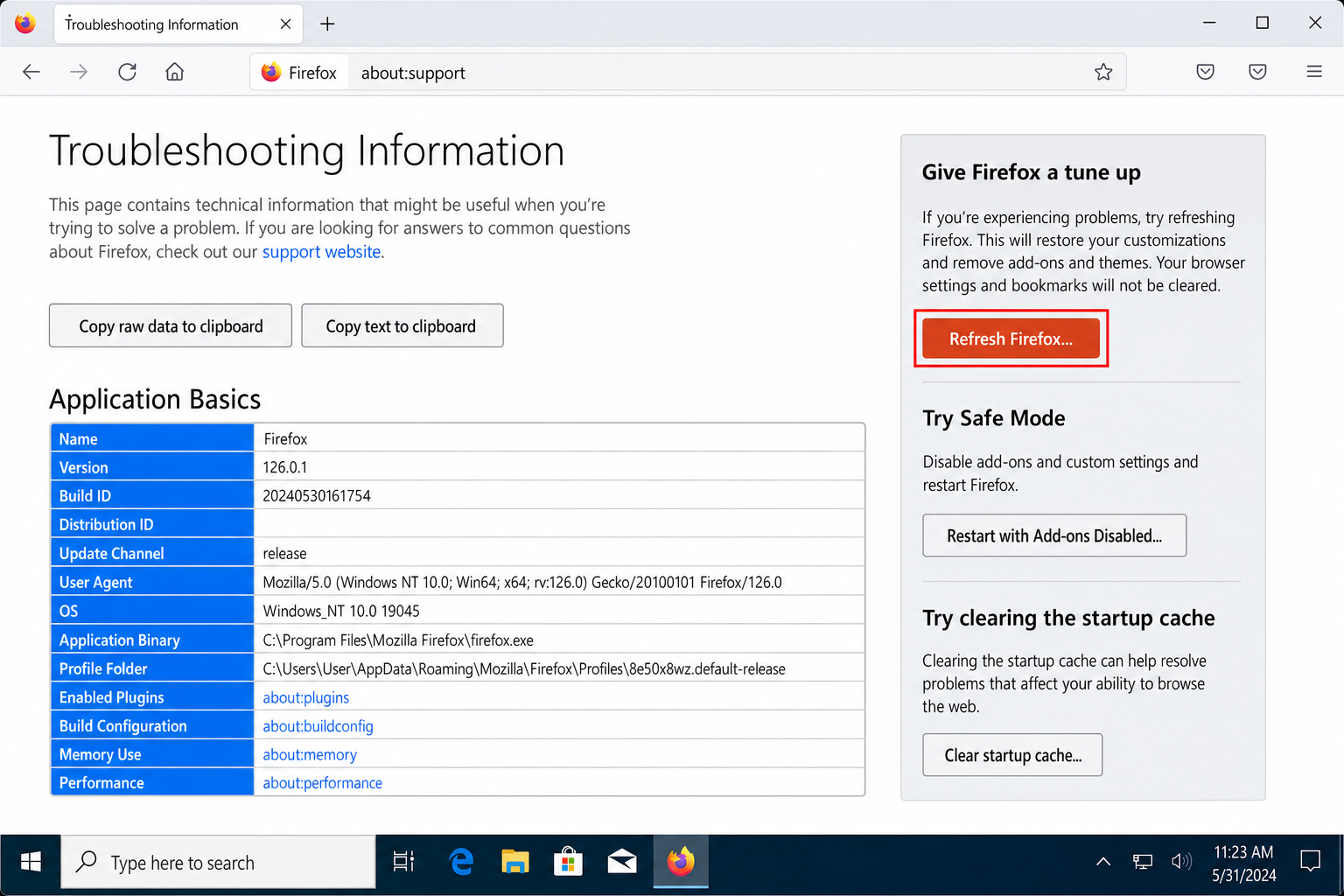
- Type
about:supportin the address bar and pressEnter. - On the Troubleshooting Information page, click Refresh Firefox… in the top-right corner.
- Click Refresh Firefox again to confirm.
- Firefox will restart and walk you through a quick import process to restore your saved data.
Advanced: about:config Tweaks (For Power Users)
The about:config page gives you access to hundreds of hidden Firefox settings. A quick warning before we dive in: changing the wrong setting can cause problems, so only touch what’s listed here, and double-check before you save anything.
To open it, type about:config in the address bar, press Enter, and click Accept the Risk and Continue.
Tab Unloading (Low-RAM Systems)
If you’re on a computer with limited RAM and you tend to keep a lot of tabs open, you can tell Firefox to automatically “suspend” inactive tabs to free up memory:
- Search for
browser.tabs.unloadOnLowMemoryand set it to true. - Optionally, search for
browser.tabs.min_inactive_duration_before_unloadand set it to 3600000 (that’s 1 hour in milliseconds). Tabs inactive for that long will be unloaded from memory.
Disk Cache (Advanced)
By default, Firefox automatically manages its disk cache, and for most people that’s perfectly fine. But if you’re on a slow hard drive and want to try using memory-only caching instead:
- Set
browser.cache.disk.enableto false. - Make sure
browser.cache.memory.enableis set to true.
This keeps cached data in RAM rather than writing it to disk, which can feel faster, but it also means the cache is cleared every time you close Firefox.
WebRender (Linux / Older Hardware)
On Linux or if you’re having graphics-related slowness, you can force Firefox to use specific rendering modes:
gfx.webrender.all= true, forces GPU-accelerated rendering (good for modern hardware).gfx.webrender.software= true, forces software rendering (useful if your GPU drivers are causing problems).
What NOT to Change (Outdated Advice to Ignore)
You’ll find a lot of older guides recommending these settings, but they’re outdated and can actually cause issues in modern Firefox:
- HTTP pipelining settings (
network.http.pipelining, etc.): These are obsolete. Modern Firefox uses HTTP/2 and HTTP/3, which handle multiple connections automatically. Don’t touch these. - Cranking up max connection counts (
network.http.max-connectionsto 256+): Firefox’s defaults are already well-tuned. Setting these too high can actually hurt performance on normal connections. browser.cache.use_new_backend: This old setting no longer exists in modern Firefox. Ignore any guide that mentions it.
Tips and Troubleshooting
Common Issues
Problem: Firefox uses too much RAM
This is the most common complaint, and it usually comes down to too many tabs plus Firefox’s multi-process architecture. Try these in order:
- Lower the Content process limit in Settings → General → Performance.
- Go to
about:memoryand click Minimize memory usage. - Close tabs you’re not actively using, or install a tab suspender like Auto Tab Discard.
- Check Firefox Task Manager for memory-hungry extensions.
Problem: Firefox feels laggy or the UI is slow to respond
This is often a hardware acceleration issue. Go to Settings → General → Performance and toggle Use hardware acceleration when available off, then restart Firefox and see if it feels better. If it does, your GPU drivers may need an update.
Problem: Videos stutter or drop frames
Same fix as above. Try toggling hardware acceleration. Also make sure your graphics drivers are up to date. On Windows, you can check this through Device Manager; on macOS, graphics drivers update automatically through System Updates.
Problem: Firefox gets slower over time but speeds up after a restart
This is memory fragmentation, basically Firefox accumulating memory junk over long sessions. Use about:memory → Minimize memory usage without restarting, or just get in the habit of restarting Firefox every day or two. Also check for extensions that might be leaking resources via the Task Manager.
Problem: Firefox is slower than Chrome or Edge
This is often about extension differences or tracking protection levels, not Firefox itself. Make sure you have uBlock Origin installed and Enhanced Tracking Protection set to Strict. Also check that you’re not running more extensions in Firefox than in the other browser. That’s usually the real culprit.
Pro Tips
- Jump straight to cache clearing: Press
Ctrl + Shift + Delete(Windows) orCmd + Shift + Delete(macOS) to open the Clear Data dialog instantly. - Check your system too: Sometimes “Firefox is slow” is actually your whole computer being overloaded. On Windows, press
Ctrl + Shift + Escto open Task Manager and check if another process (antivirus scans, Windows Update, etc.) is eating your CPU. On macOS, open Activity Monitor from Spotlight. - Don’t auto-restore hundreds of tabs: If Firefox opens 50+ tabs every time you launch it, that’s a huge performance hit right from the start. Consider using a session manager extension to save tab groups instead of restoring everything automatically.
- Skip FasterFox and similar extensions: These old-school “optimizer” add-ons mostly just change the same settings covered in this guide, and they add another extension to your browser in the process. Not worth it.
Quick Reference: Firefox Speed Fixes at a Glance
| Fix | Where to Find It | Best For |
|---|---|---|
| Update Firefox | Settings → Firefox Updates | Everyone |
| Adjust Performance settings | Settings → General → Performance | Everyone |
| Firefox Task Manager | ☰ → More tools → Task Manager | Finding heavy tabs/extensions |
| Clean up extensions | about:addons | Everyone |
| Troubleshoot Mode | ☰ → Help → Troubleshoot Mode | Diagnosing extension issues |
| Clear cache | Settings → Privacy & Security → Clear Data | Everyone |
| Minimize memory usage | about:memory | Long sessions with many tabs |
| Enhanced Tracking Protection | Settings → Privacy & Security | Everyone |
| Install uBlock Origin | addons.mozilla.org | Everyone |
| Refresh Firefox | about:support | Last resort / persistent slowness |
| Tab unloading (about:config) | about:config | Low-RAM systems, power users |
Wrapping Up
Honestly, Firefox in 2026 is in great shape. It’s fast, well-optimized, and totally competitive with Chrome and Edge when it’s configured properly. Most slowdowns come down to a handful of fixable things: too many extensions, a bloated cache, or performance settings that haven’t been tuned. Work through the steps above from top to bottom and you’ll almost certainly notice a real difference.
If you’ve tried everything and Firefox is still dragging, the Refresh Firefox option is a genuine gem. It’s saved more than a few “my browser is broken” situations. Give it a shot before you consider switching browsers. And if you’ve got a tip that works for you that we haven’t covered, drop it in the comments! If you’re also experiencing issues with other browsers not loading correctly, we’ve got guides for those too.