
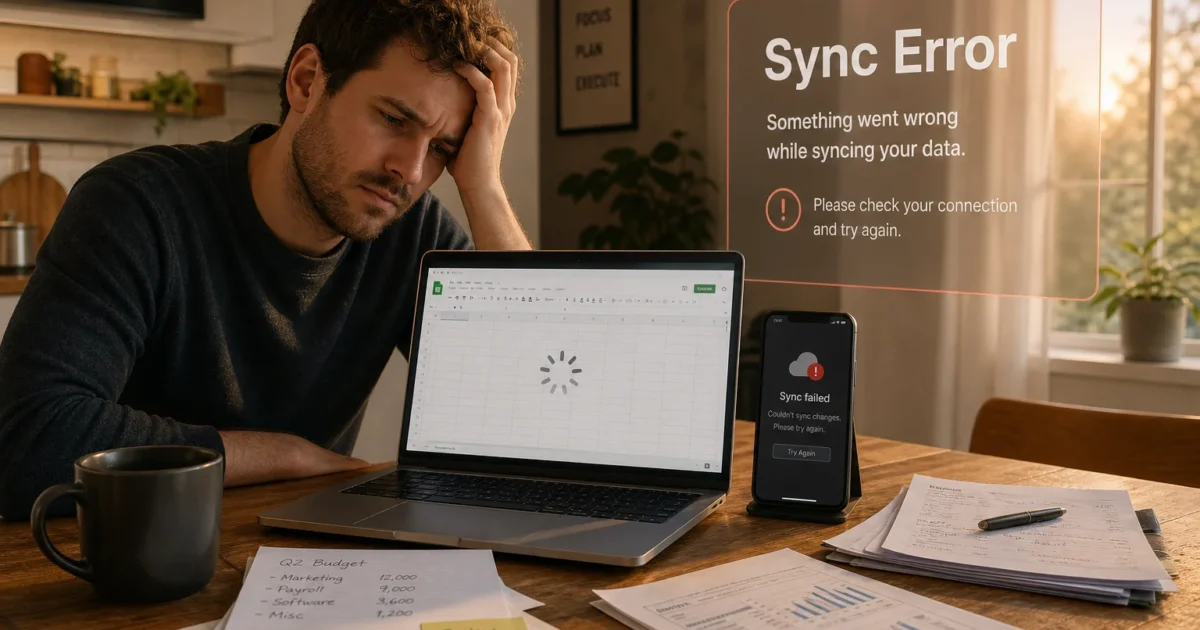
What’s more annoying than opening Google Sheets and watching it spin forever? Losing edits comes close. These problems often come from a weak connection, old browser data, an extension, offline editing, or one troublesome file.
Start with the quick checks below, then find the section that matches your problem. Before clearing data, removing an app, or closing a stuck file, copy any work that may not have synced. That small step can prevent a much bigger headache.
Quick Fixes to Try First
Try these checks before changing any settings. They fix a surprising number of Sheets problems (restarting and refreshing still earn their keep).
- Protect visible unsaved work: Select important cells and copy them into a temporary document. On Windows, press
Ctrl+C; on macOS, pressCommand+C. On mobile, take screenshots if you can’t safely copy the data.
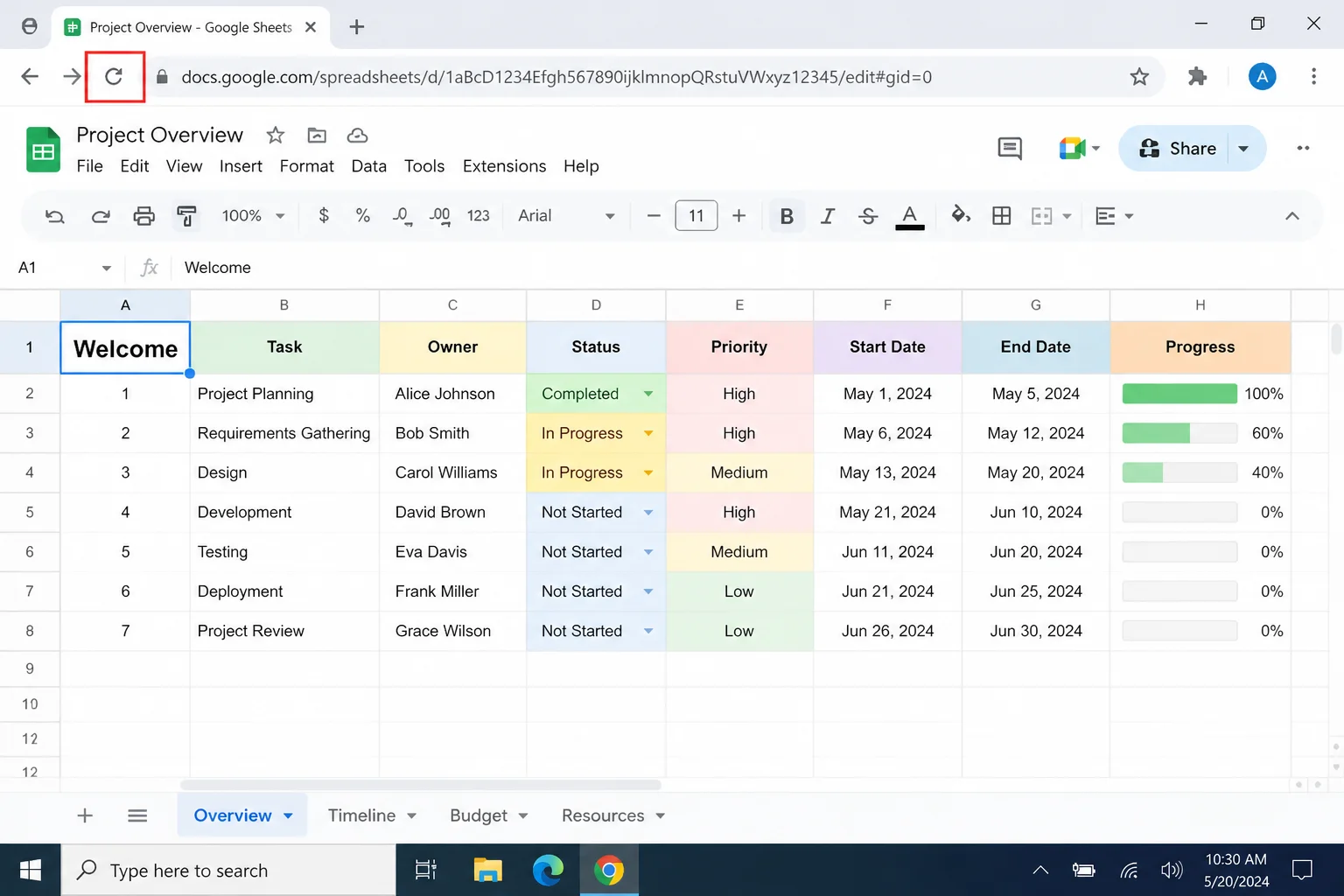
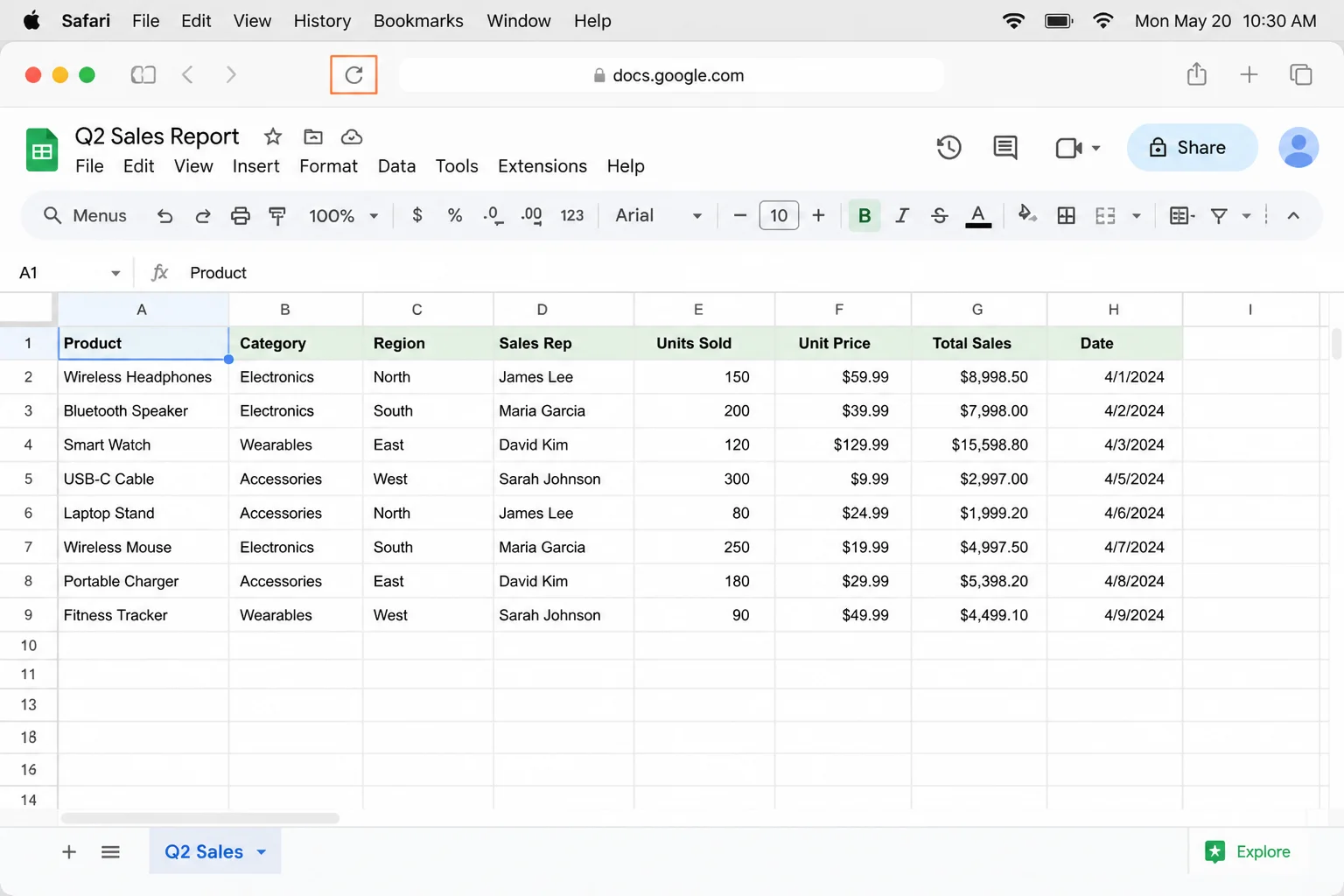
- Refresh Google Sheets: Click your browser’s refresh button. You can also press
Ctrl+Ron Windows orCommand+Ron macOS.
- Check your connection: Open another current website in a new tab. If that also fails, reconnect to Wi-Fi or try another network. Don’t make more edits until the connection settles down.
- Check the signed-in account: Select your Google profile picture. Make sure you’re using the account that owns the file or has editing access.
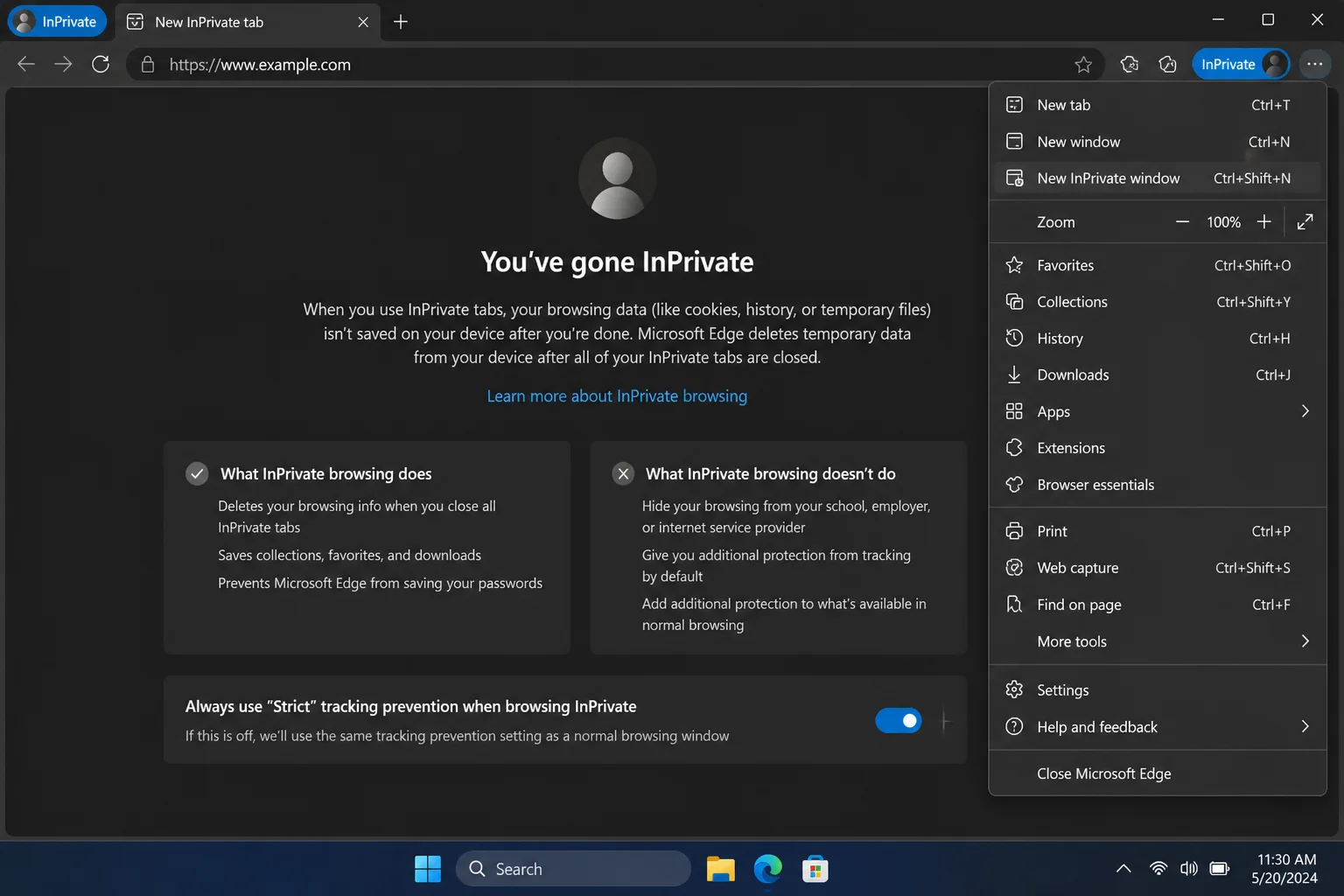
- Test a private window: Open the spreadsheet in an Incognito or private-browsing window. If it works there, saved browser data or an extension is probably in the way.
– Chrome or Edge on Windows: Press Ctrl+Shift+N.
– Chrome on macOS: Press Command+Shift+N.
– Safari on macOS: Select File > New Private Window or press Command+Shift+N.
– Firefox on Windows: Press Ctrl+Shift+P.
– Firefox on macOS: Press Command+Shift+P.

- Try another file: Open a blank spreadsheet from the Google Sheets home page. If it works, the original file is likely causing the trouble.
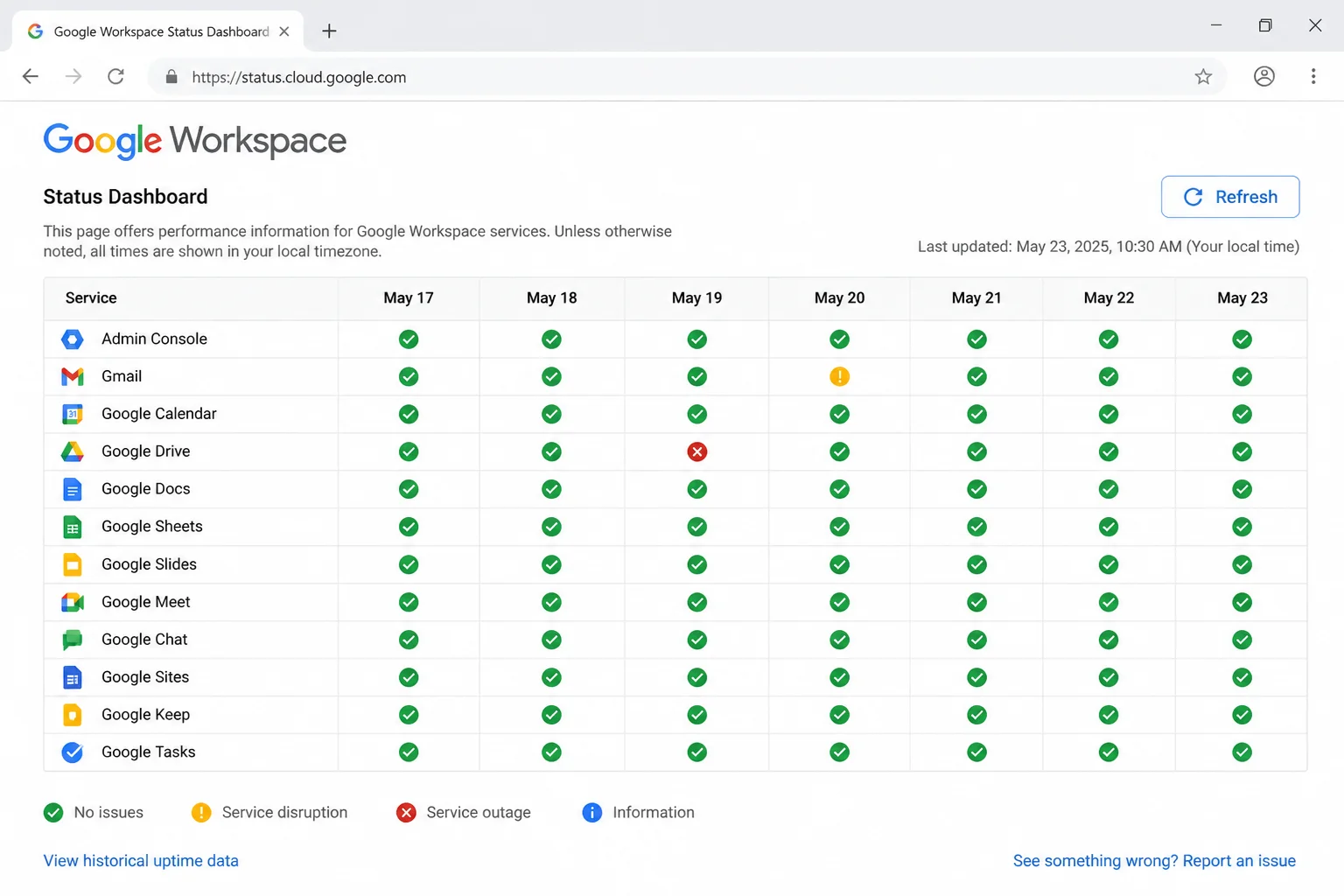
- Check Google’s service status: Visit the Google Workspace Status Dashboard and find Google Sheets. If there’s an incident, the problem may be on Google’s end.
Quick Diagnosis
Match your symptoms to the best place to start.
| Symptom | Likely cause | First thing to try |
|---|---|---|
| Every spreadsheet hangs | Connection, browser data, extension, or outage | Open a private window |
| One spreadsheet fails | Large, complex, or damaged file | Test another spreadsheet |
| Edits remain pending | Lost connection or offline mode | Copy important work and reconnect |
| Others can view but you cannot edit | Permission or account mismatch | Review Share access |
| Devices show different versions | Offline edits, different accounts, or delayed sync | Stop editing and compare accounts |
| The mobile app closes unexpectedly | App, device storage, or OS problem | Reopen the app and restart the device |
| One formula shows an error | Formula syntax, data, or cell-reference problem | Read the cell’s error message |
| Many formulas stay stale | Recalculation settings or circular references | Check spreadsheet calculation settings |
| Everyone has the same problem | Google-side disruption | Check the status dashboard |
Common Issues and Solutions
Problem: Google Sheets Will Not Open or Finish Loading
Symptoms:
- A blank page appears.
- The loading indicator keeps spinning.
- Menus or cells don’t respond.
- Google Sheets opens in a private window but not a normal one.
- One spreadsheet hangs while other files work.
Why it happens: Your connection may have dropped, saved site data may be old, or an extension may be blocking part of Sheets. If one file fails, its formulas, imported data, size, or add-ons may give the browser too much work.
Fix:
- Refresh the page once and give it time to finish.
- Open another website to check your internet connection.
- Open a blank spreadsheet. If that also fails, continue with the browser checks.
- Test Sheets in a private window. If that works, suspect browser data or an extension.
- Update your browser through its About or update screen, then restart it.
- If one file fails, close its other open tabs. Ask a collaborator whether it opens for them.
- If you own the file and its menus work, select File > Make a copy. Keep the original until you’ve checked the copy.
- For a very large file, move old sheets into another spreadsheet. Replace whole-column formulas such as
A:Awith smaller ranges when practical.
Verify the fix: Reload the spreadsheet and enter a harmless value in an empty cell. Then wait for the saved-status indicator.
Problem: Browser Cache or Site Data Is Blocking Sheets
Symptoms:
- Sheets works in a private window.
- The page looks incomplete or acts strangely.
- Signing out and back in doesn’t help.
- One browser fails while another works.
Why it happens: Browsers save website files and account data to speed things up. Usually, that’s useful. Eventually, though, old data can resemble a junk drawer that refuses to close.
Warning: Copy unsynchronized work somewhere safe first. Removing Google site data may sign you out and erase locally stored offline data.
On Chrome or Edge for Windows and macOS
- Open the problem spreadsheet.
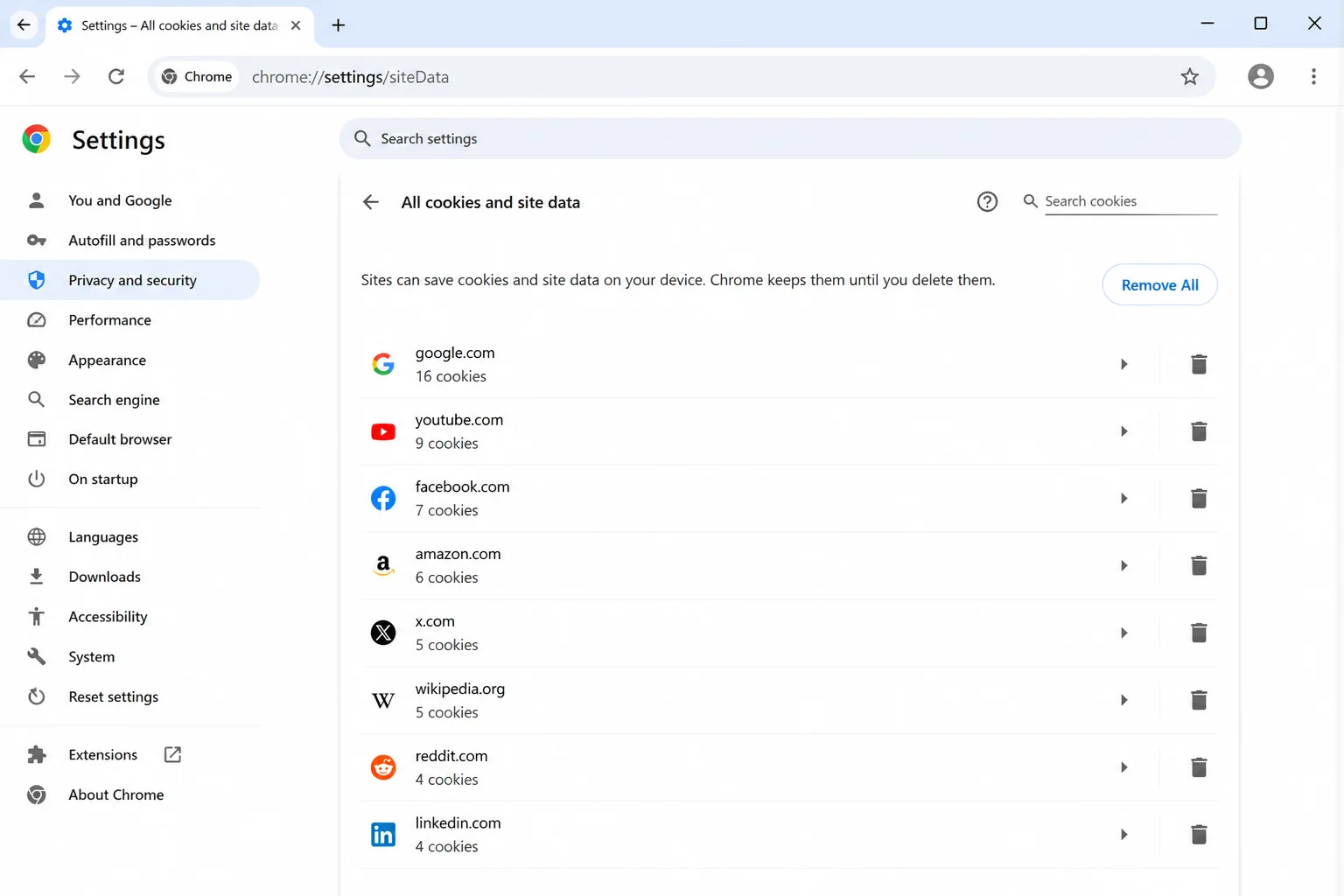
- Select the site controls icon to the left of the address.
- Open the site settings or cookies/site-data controls.
- Remove data only for the related Google Sheets or Google Docs sites when possible. I’d skip clearing all browsing data unless this targeted reset fails.
- Close every Sheets tab.
- Reopen the browser, sign in, and test the spreadsheet.
On Safari for macOS
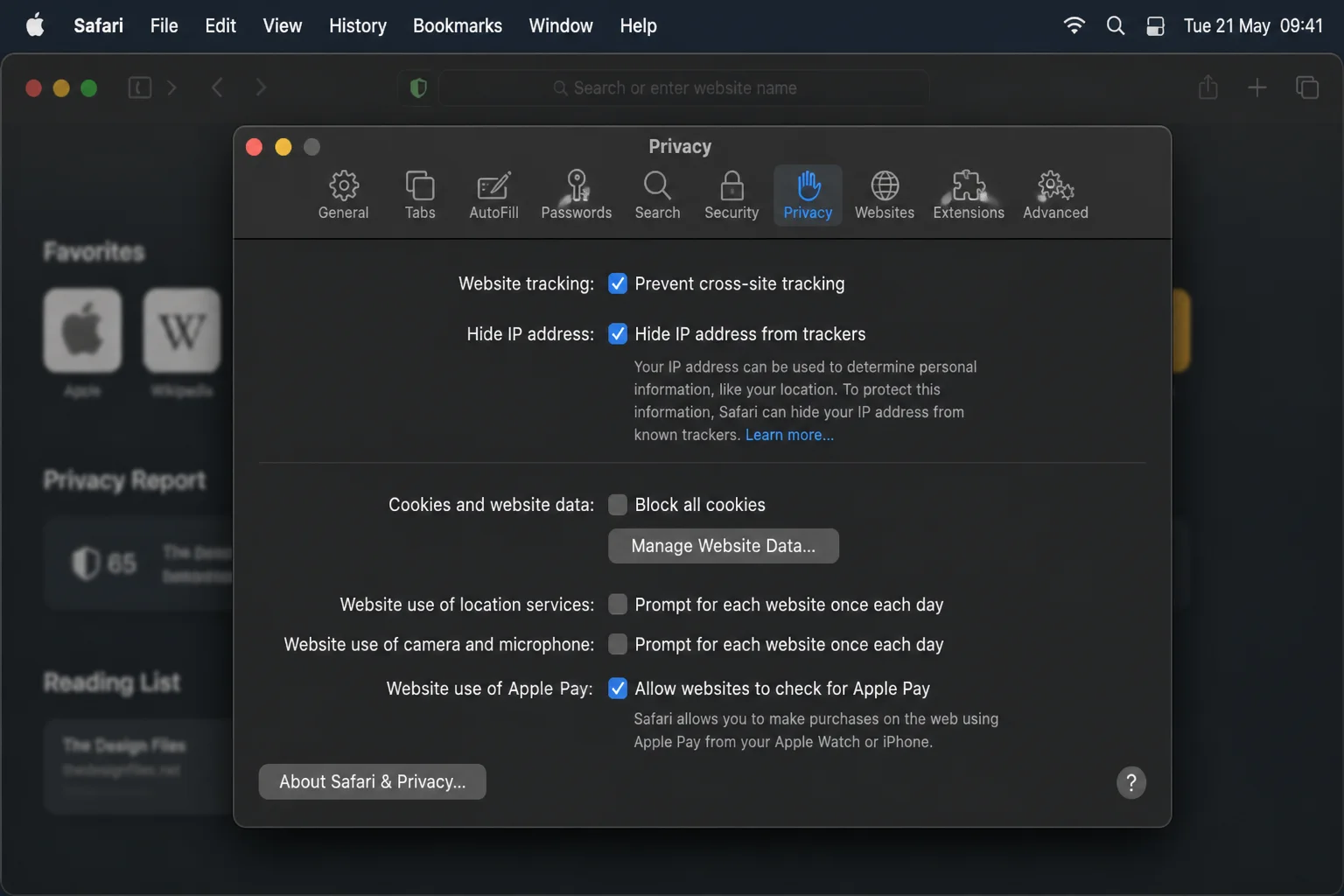
- Select Safari > Settings.
- Select Privacy.
- Select Manage Website Data.
- Search for the related Google entries.
- Remove only the related site data after protecting offline work.
- Close and reopen Safari, then test Sheets.
Verify the fix: Open Sheets in a normal window. If it now works like the private window, old site data was the culprit.
Problem: A Browser Extension Conflicts With Google Sheets
Symptoms:
- Sheets works in Incognito or private mode.
- Clicking cells or menus does nothing.
- Typing is delayed.
- Copying, pasting, or shortcuts act oddly.
- The issue started after an extension was installed or updated.
Why it happens: Ad blockers, privacy tools, grammar checkers, and clipboard managers can change web pages. Private windows often turn off some extensions. That makes them a handy test (and can expose the troublemaker right away).
Fix:
- Save or copy any visible work.
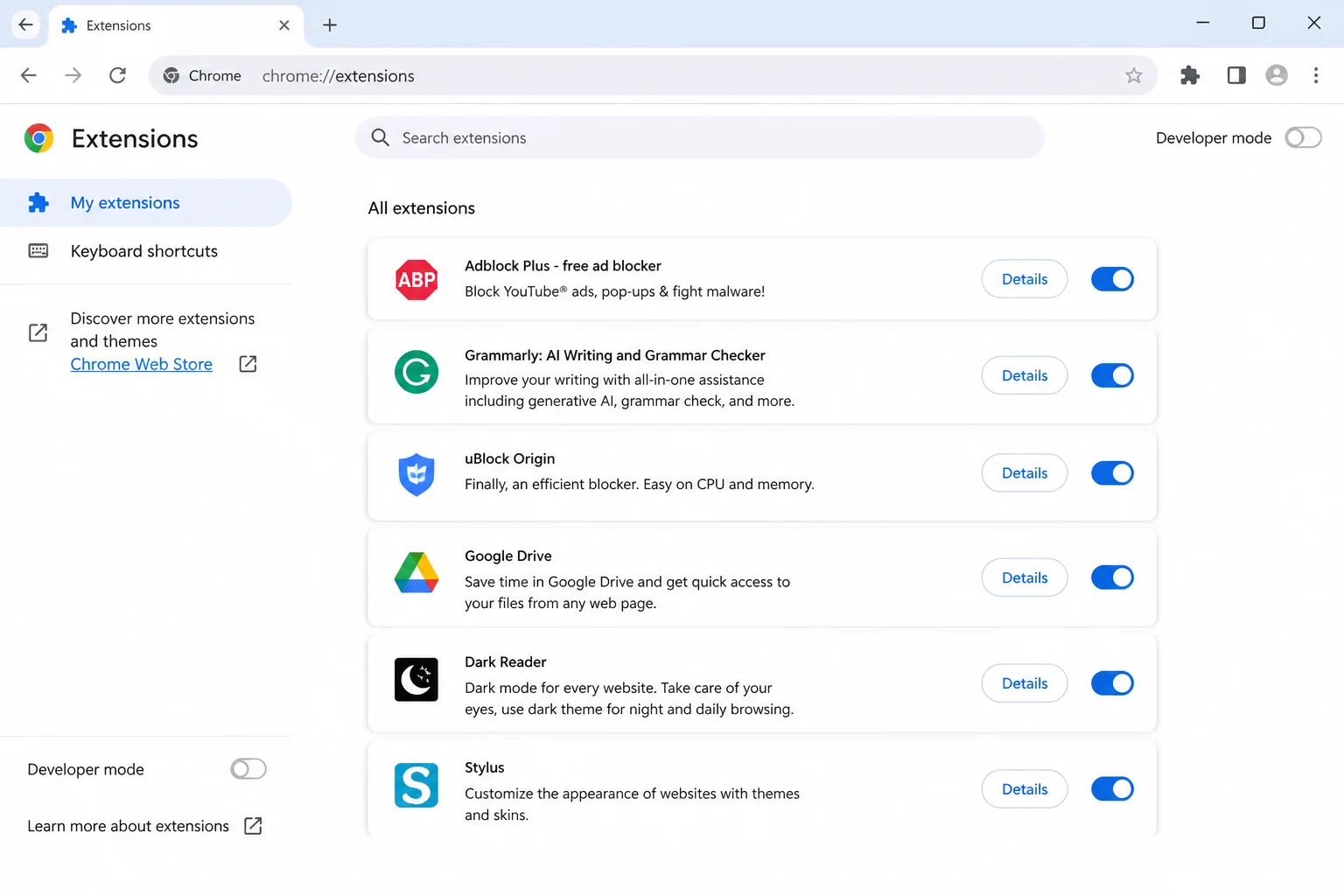
- Open your browser’s extension manager:
– Chrome: Select the three-dot menu, then Extensions > Manage Extensions. – Edge: Select the three-dot menu, then Extensions > Manage extensions. – Safari: Select Safari > Settings > Extensions. – Firefox: Select the menu button, then Add-ons and themes > Extensions.
- Turn off extensions that affect page content, privacy, ads, spelling, or the clipboard.
- Restart the browser and test Sheets.
- If Sheets works, turn extensions back on one at a time.
- Reload the spreadsheet after each one until the problem returns.
- Leave the problem extension off for Sheets, update it, or remove it.
Verify the fix: Use Sheets in a normal window for several minutes. Test typing, menus, copying, pasting, and one harmless edit.
Problem: Only One Spreadsheet Is Not Working
Symptoms:
- Other spreadsheets open normally.
- One file freezes or loads slowly.
- A certain tab makes the browser stop responding.
- Trouble starts after adding a formula, import, chart, or add-on.
Why it happens: That spreadsheet may have too many calculations, huge imports, a circular reference, or a troublesome add-on. Lots of people editing at once can also make a heavy file wheeze.
Fix:
- Close duplicate tabs containing the file.
- Ask other editors to pause briefly.
- Open another spreadsheet to confirm Sheets works.
- If the file opens, select File > Make a copy.
- Open the tab changed shortly before the problem started.
- Remove or simplify the newest large formula, chart, conditional-formatting rule, or imported range.
- If an add-on is involved, disable or remove it through Extensions > Add-ons > Manage add-ons. Menu wording may vary by account and interface.
- If the file still won’t open, ask its owner or a Google Workspace administrator to check version history and access settings.
Verify the fix: Close and reopen the repaired copy. Visit several tabs and make a small test edit.
Problem: Changes Are Not Saving
Symptoms:
- The saved-status message never confirms completion.
- An edit disappears after a refresh.
- Sheets says you’re offline or reconnecting.
- You can view the file but can’t edit it.
- The same spreadsheet is open in several tabs.
Why it happens: Sheets needs a working connection to save to Google’s servers. View-only access, the wrong account, or several open copies can also cause trouble.
Fix:
- Do not refresh yet if unsaved work remains visible.
- Copy affected cells into a temporary local document. For complex sheets, take screenshots that show row and column positions.
- Make sure another current website loads.
- Check the spreadsheet’s status area for saving, saved, offline, or reconnecting wording.
- Select Share and review your access. You need editing permission to change the original.
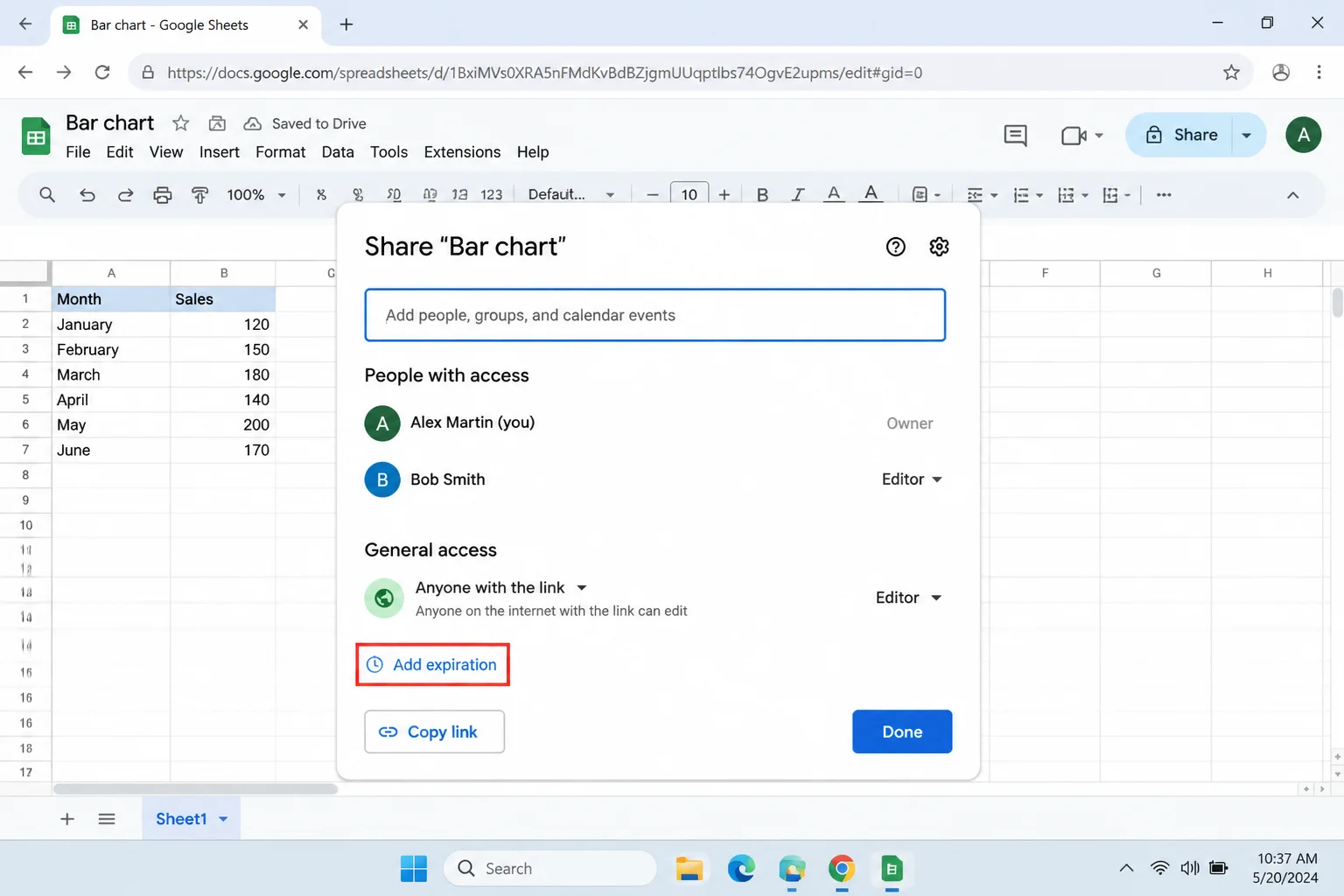
- Select your profile picture and make sure the correct Google account is active.
- Close duplicate tabs and windows. Keep the tab showing the newest work.
- Wait for the connection to return, then make one small test edit.
- If you have viewing access, request edit access. You can also use File > Make a copy if copying is allowed.
Verify the fix: Wait until the status confirms your test edit has saved. Reload the file and check that the value remains.
Problem: Google Sheets Is Out of Sync Between Devices
Symptoms:
- Your phone shows an older version than your computer.
- Recent rows appear on one device only.
- An offline edit doesn’t appear after reconnecting.
- Two copies contain different changes.
Why it happens: A device may still be offline, use another account, or have edits waiting to upload. Sheets usually handles several open copies, but slow connections can turn them into a guessing game.
Fix:
- Stop editing on every device.
- Keep any device showing unique work open.
- Copy unique unsynchronized values into a local note or document.
- Make sure every device has a working connection.
- Make sure every device uses the same Google account.
- On the device with the newest work, reopen Sheets and wait for syncing.
- Check the file from one other device without editing.
- If versions still differ, open File > Version history > See version history on the web.
- Re-enter missing values only after finding the current version.
Can multiple tabs cause conflicts? Sheets usually merges online edits. Trouble begins when a tab loses its connection, an old copy stays open, or several devices keep editing offline. During recovery, one active editing tab per file is safest.
Verify the fix: Enter a unique test word on one device. Wait for it to save, then reopen the file on another device and check for it.
Problem: Offline Mode Is Confusing or Does Not Work
Symptoms:
- Sheets says you’re offline while Wi-Fi is connected.
- A file works offline on one device but not another.
- Edits remain local after the connection returns.
- The offline option is missing.
Why it happens: You need to set up offline access ahead of time. Each file may also need offline access turned on. Account rules, browser settings, storage, and app problems can affect it.
Fix on the web:
- Protect edits that haven’t synchronized.
- Reconnect to the internet.
- Open the Google Drive settings page.
- Review the Offline control. Don’t change it until you’ve checked for unsynchronized local files.
- If your account allows it, enable offline access and follow the prompts.
- Return to Drive or Sheets and mark important files for offline use through their file menus.
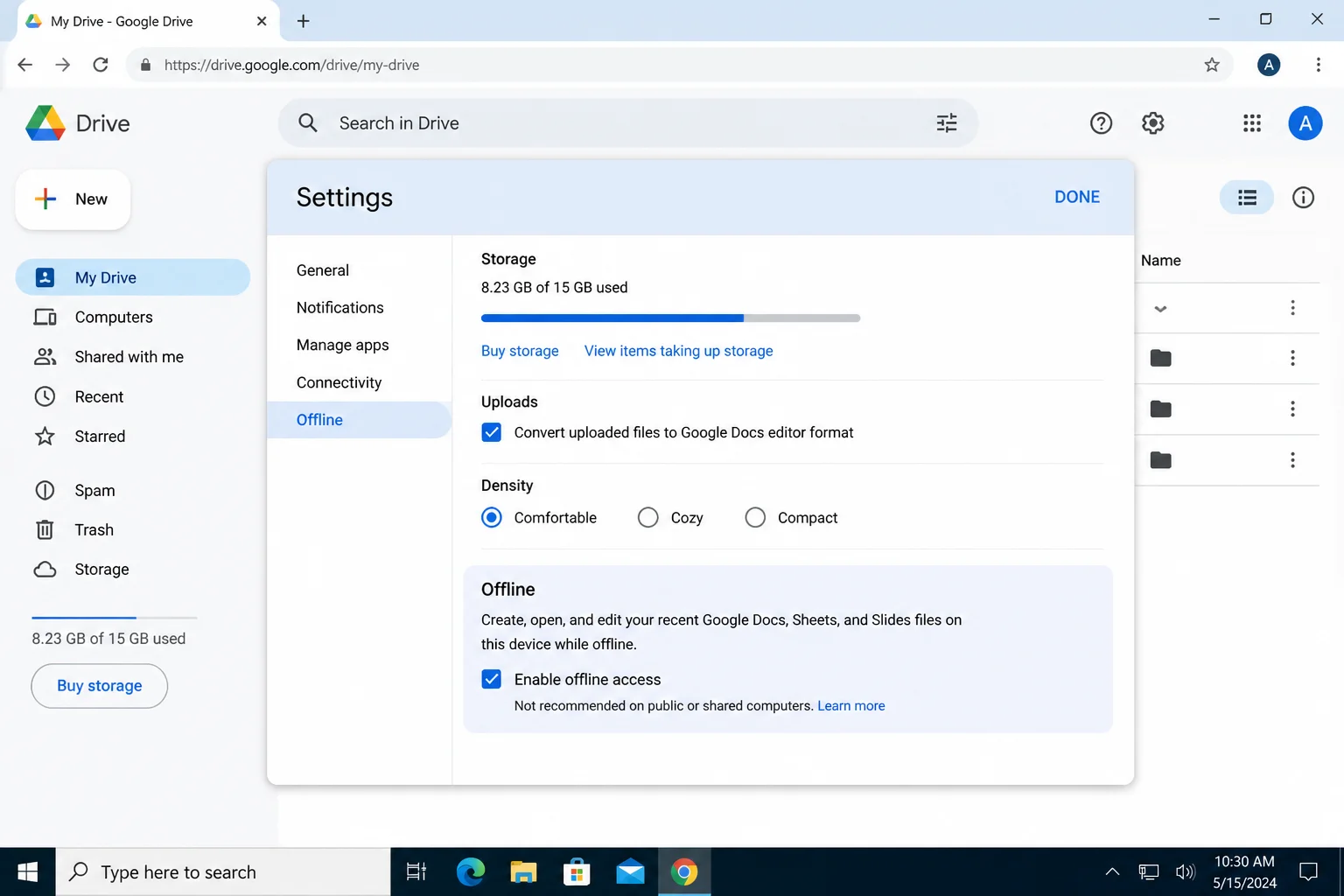
How to tell whether you’re editing offline: Check for an offline or reconnecting message, then test another live website. Treat the file as unsynchronized until Sheets confirms it’s saved.
Verify the fix: While online, make a small edit and wait for it to save. Make sure the file is available offline before disconnecting.
Platform-Specific Fixes
On the Web
Google Sheets runs mainly in a browser on Windows and macOS. Your best checks are refreshing, testing a private window, turning off extensions, and clearing related site data.
On Windows
- Press
Ctrl+Rto refresh.
- Press
Ctrl+Shift+Nin Chrome or Edge to open a private window.
- Try another browser if the private-window test doesn’t help.
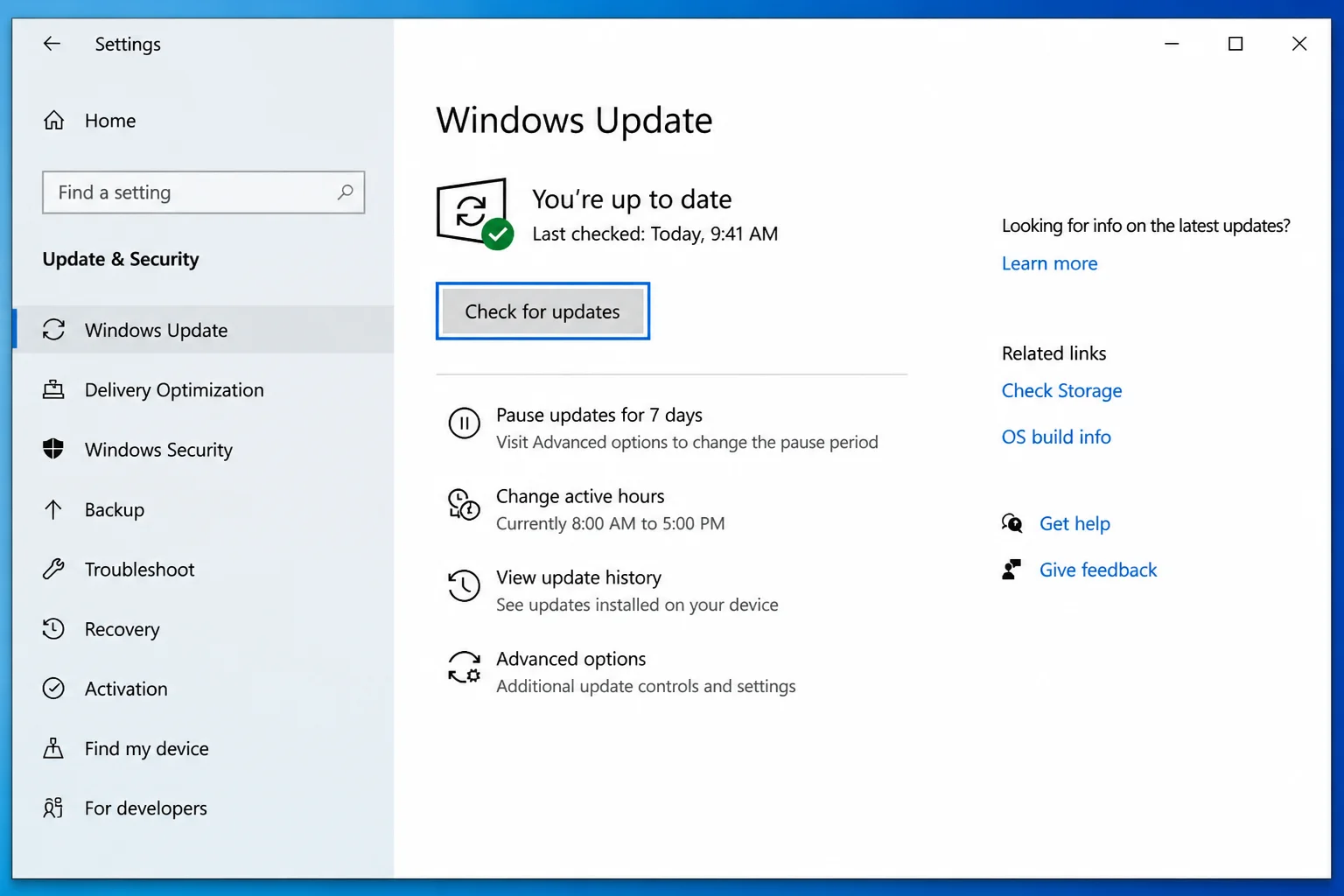
- Select Start > Settings > Windows Update, then check for updates if several apps have connection or stability problems.
On macOS
- Press
Command+Rto refresh.
- Press
Command+Shift+Nto open a private window in Safari or Chrome.
- Try another browser. This test can separate a browser problem from an account or file problem.
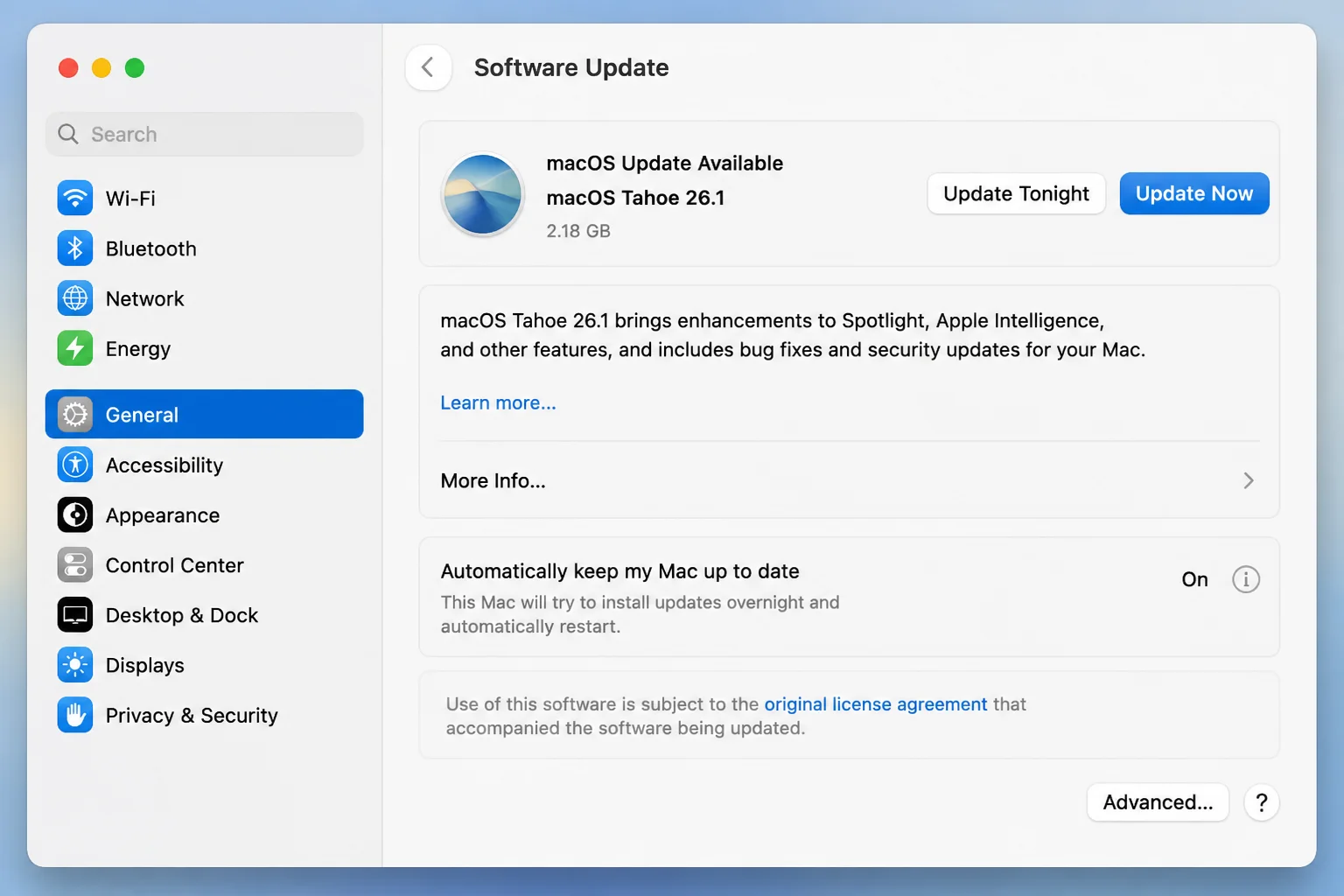
- Select Apple menu > System Settings > General > Software Update if several apps have browser or network trouble.
On iPhone or iPad
Problem: The Google Sheets App Keeps Crashing
Symptoms:
- The app closes after launch.
- One file crashes when opened.
- The app freezes during editing.
- Changes don’t appear elsewhere.
Why it happens: The app may be stuck, old, low on storage, or wrestling with a large spreadsheet. A poor connection can also make syncing look frozen.
Fix:
- Copy or screenshot visible unsynchronized work.
- Open the app switcher and close Google Sheets.
- Reopen Sheets and test a small spreadsheet.
- Restart the iPhone or iPad (an old favorite for good reason).
- Open the App Store, select your profile picture, and install an available Sheets update.
- Open Settings > General > Software Update and install an appropriate iOS or iPadOS update.
- Open Settings > General > iPhone Storage or iPad Storage and check for free space.
- If one file crashes, open it in a browser or on another device. Reduce large formulas, images, or charts.
- Reinstall only as a last resort. First make sure important changes have synced, since removing the app can erase local offline data.
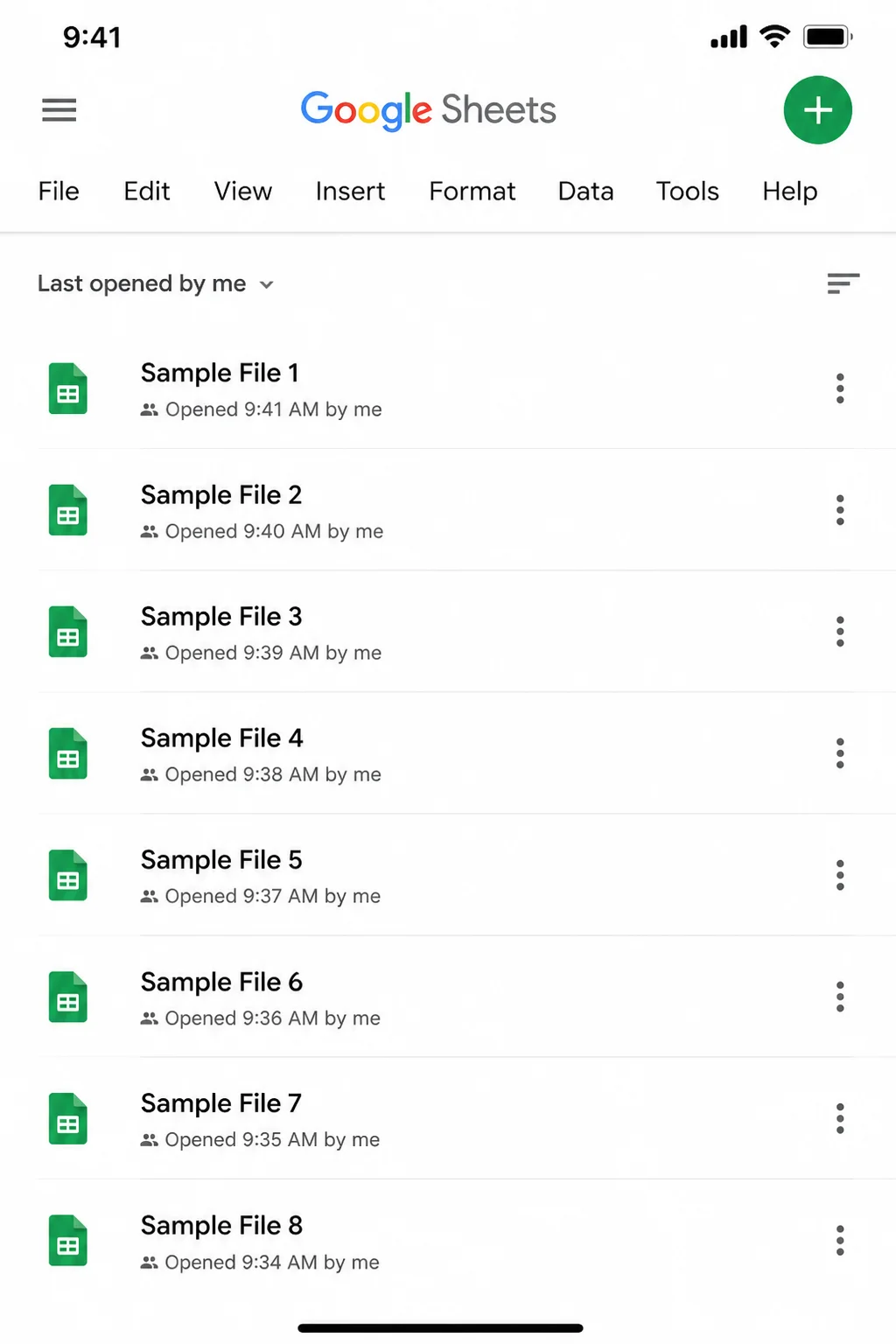
Verify the fix: Open the app twice, edit a disposable file, and check on the web that it synchronized.
Problem: Offline Editing Does Not Work on iOS
- Connect the device to the internet.
- Open the Google Sheets file list.
- Select the file’s three-dot menu.
- Review the control for making the file available offline.
- Wait for the download to finish before disconnecting.
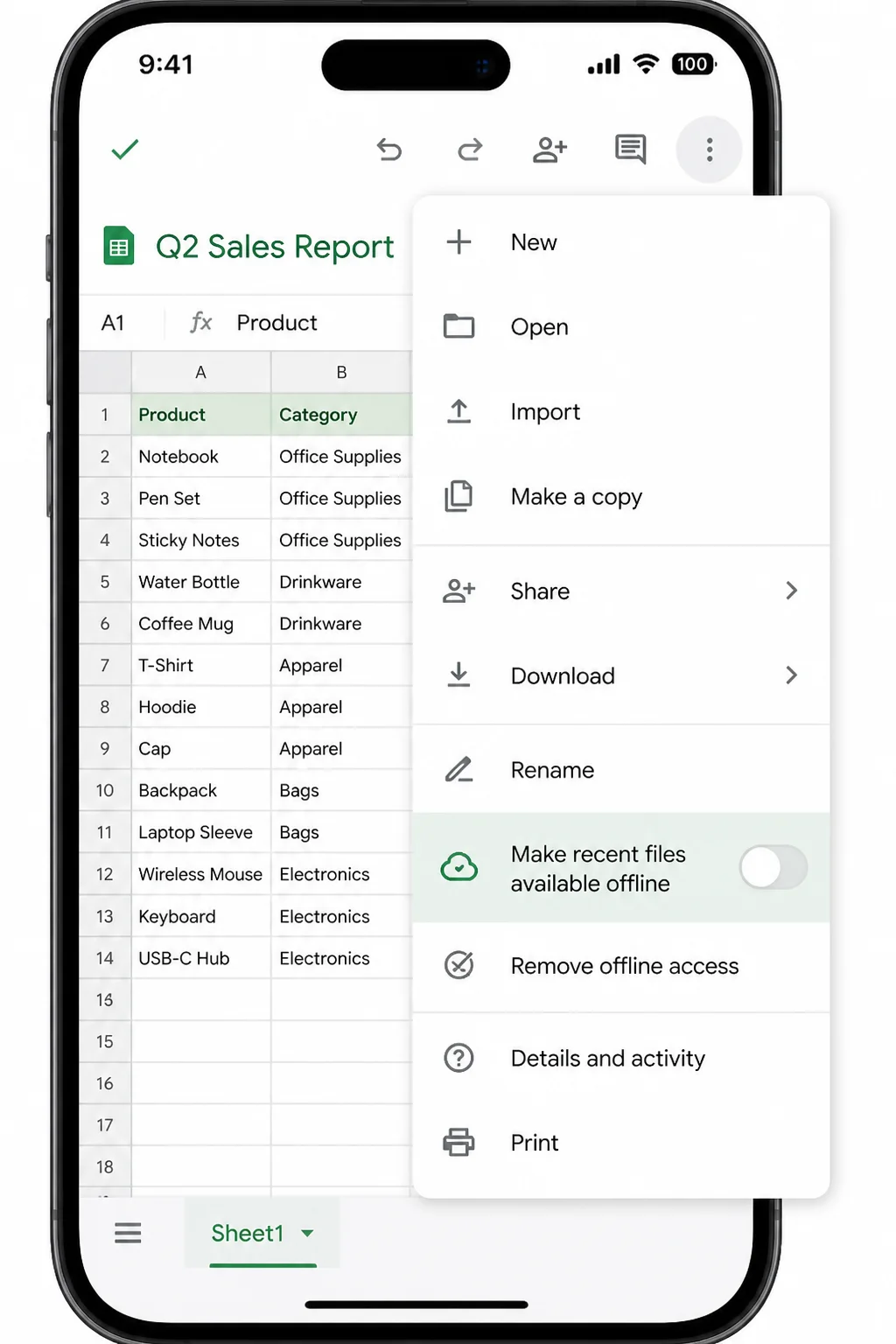
Verify the fix: Disconnect briefly, open the sample file, and make a harmless edit. Reconnect and check that it appears on the web before trusting offline mode with important work.
On Android
Problem: The Google Sheets App Keeps Crashing
Symptoms:
- Sheets closes or freezes.
- Files stay stuck while loading.
- Edits don’t synchronize.
- Offline files are unavailable.
Why it happens: A stuck process, low storage, an old app, or a difficult spreadsheet can cause crashes. Android also lets you clear temporary cache files without deleting all app data right away.
Fix:
- Copy or screenshot visible unsynchronized work.
- Open recent apps and close Google Sheets.
- Reopen the app and test another spreadsheet.
- Restart the device (yes, this trick again).
- Open Google Play, find Google Sheets, and install an available update.
- Check the device’s system-update settings. The path varies by phone maker.
- Open Settings > Apps > Sheets > Storage & cache.
- Select Clear cache, not Clear storage or Clear data. Clearing storage may remove offline files and unsynchronized work.
- Check that the device has enough free storage.
- Reinstall Sheets only after making sure important changes have synchronized.
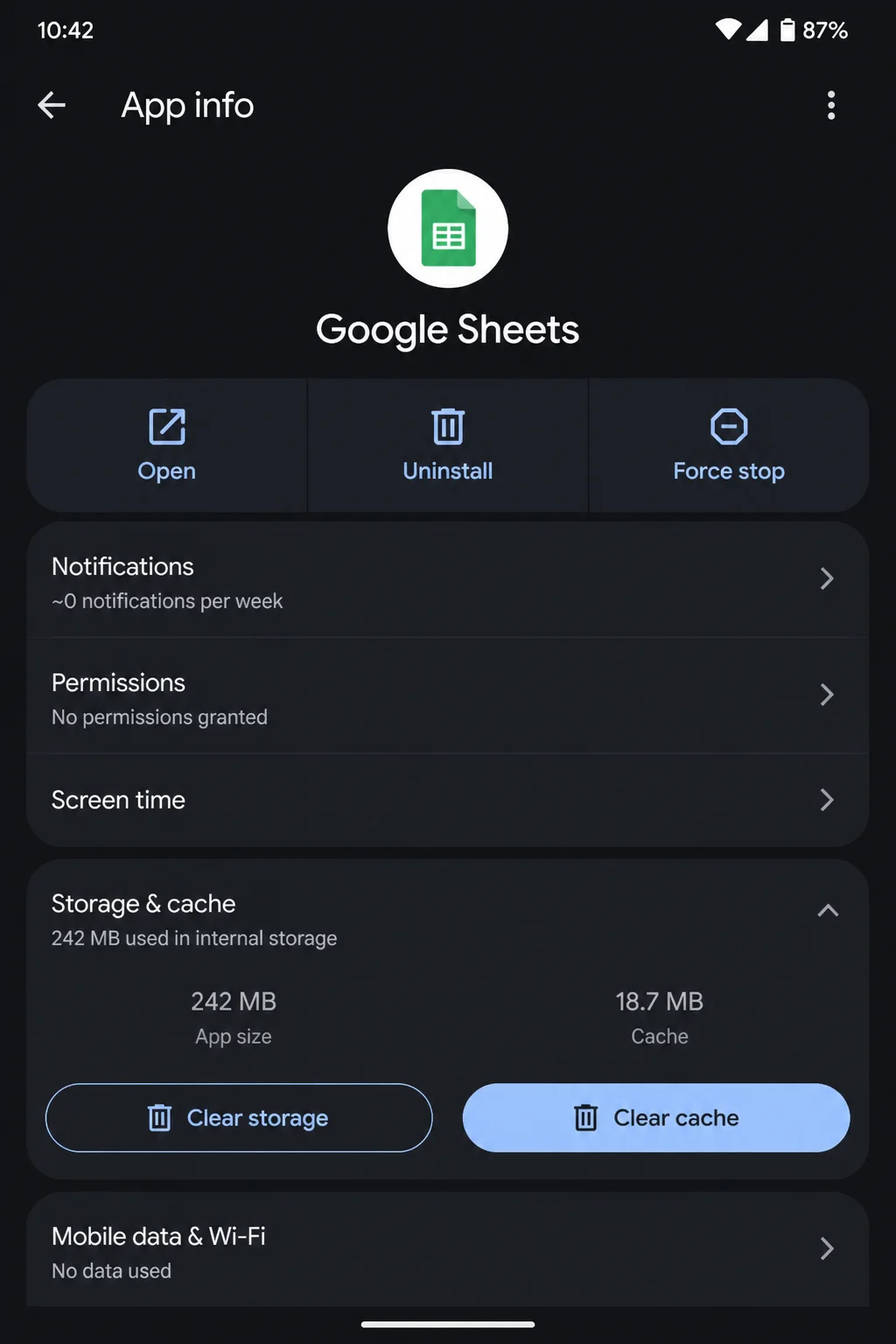
Verify the fix: Edit a disposable file and check from another device that the change appears.
Problem: Offline Editing Does Not Work on Android
- Connect to the internet.
- Open the Google Sheets app.
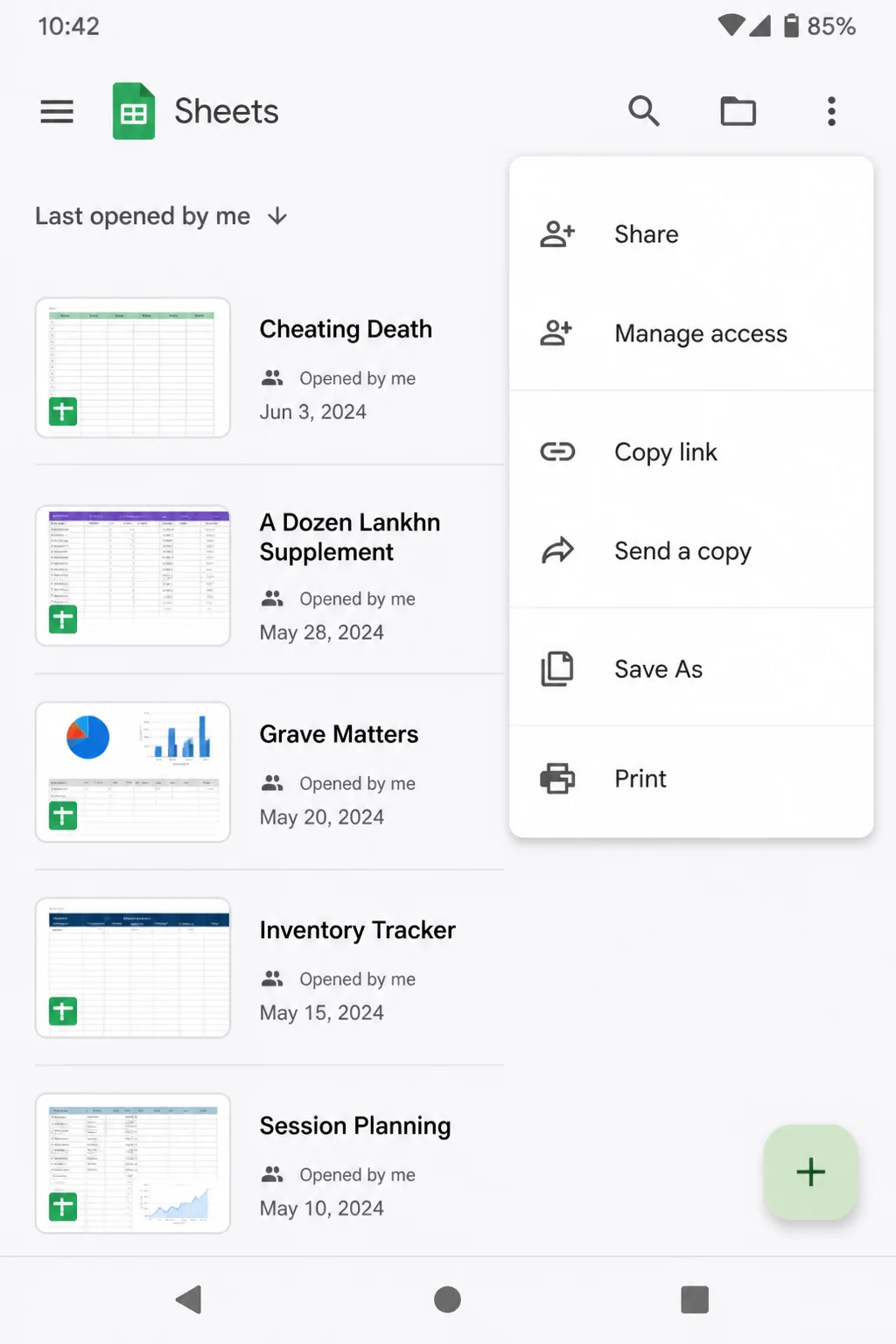
- Select the three-dot menu beside the file.
- Review the option for making it available offline.
- Wait for offline preparation to finish.
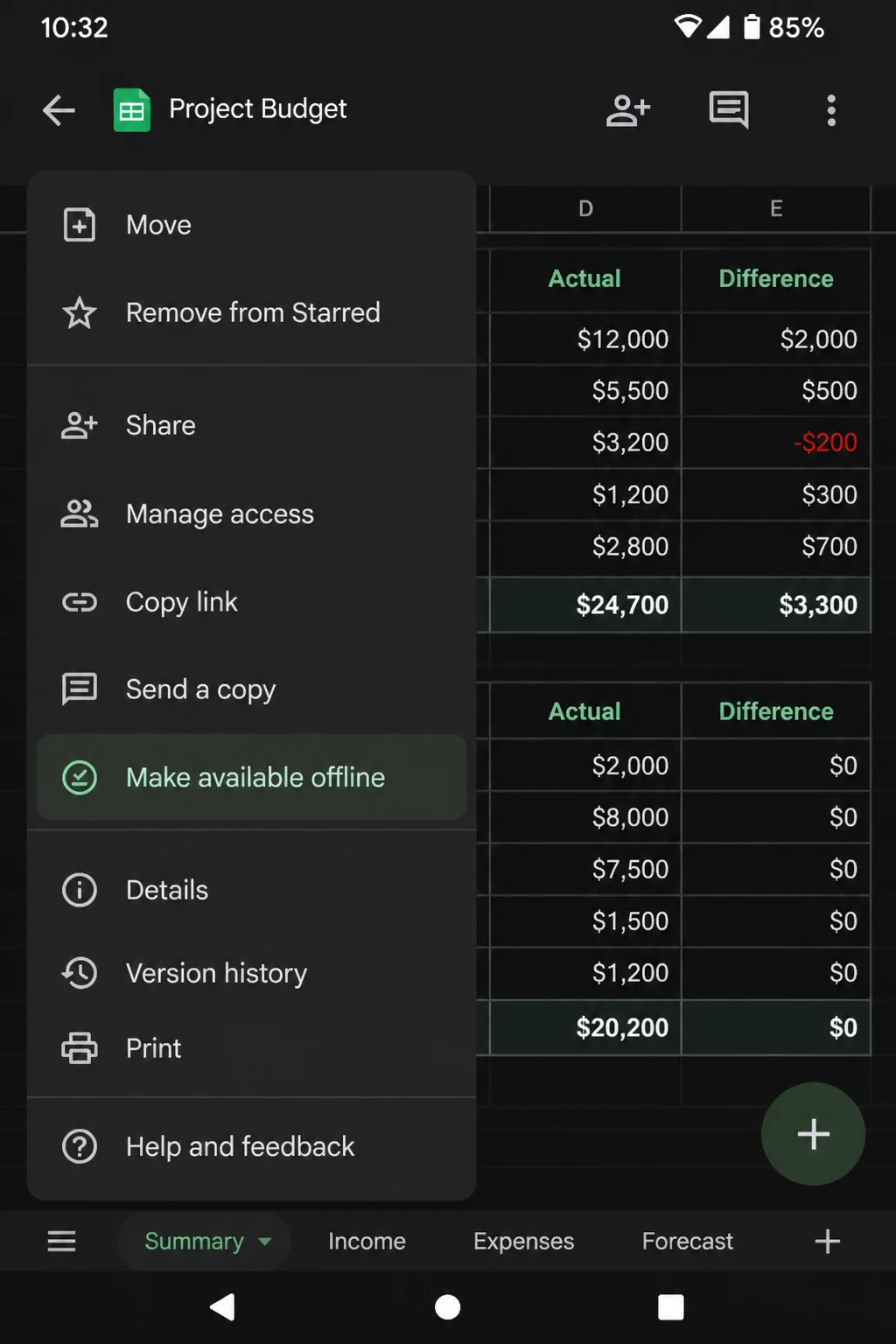
Verify the fix: Open the file without a connection and make a harmless edit. Reconnect, then check that the edit synchronizes.
Formula Errors and Calculation Problems
Problem: A Formula Shows an Error
Symptoms:
- A cell shows
#REF!,#VALUE!,#DIV/0!, or another error. - Formula text appears instead of a result.
- A formula works in one row but not another.
- A result changes after rows or columns are removed.
Why it happens: Formula errors point to missing references, wrong values, invalid names, or math problems. Sheets often tells you where it’s unhappy, so read the cell’s explanation first.
Fix:
- Select the error cell.
- Read the error message or tooltip.
- Double-click the cell and inspect highlighted references.
- Check separators, quotation marks, parentheses, and ranges.
- Make sure numbers are stored as numbers instead of text.
- Undo a recent row, column, or sheet deletion if it broke a reference.
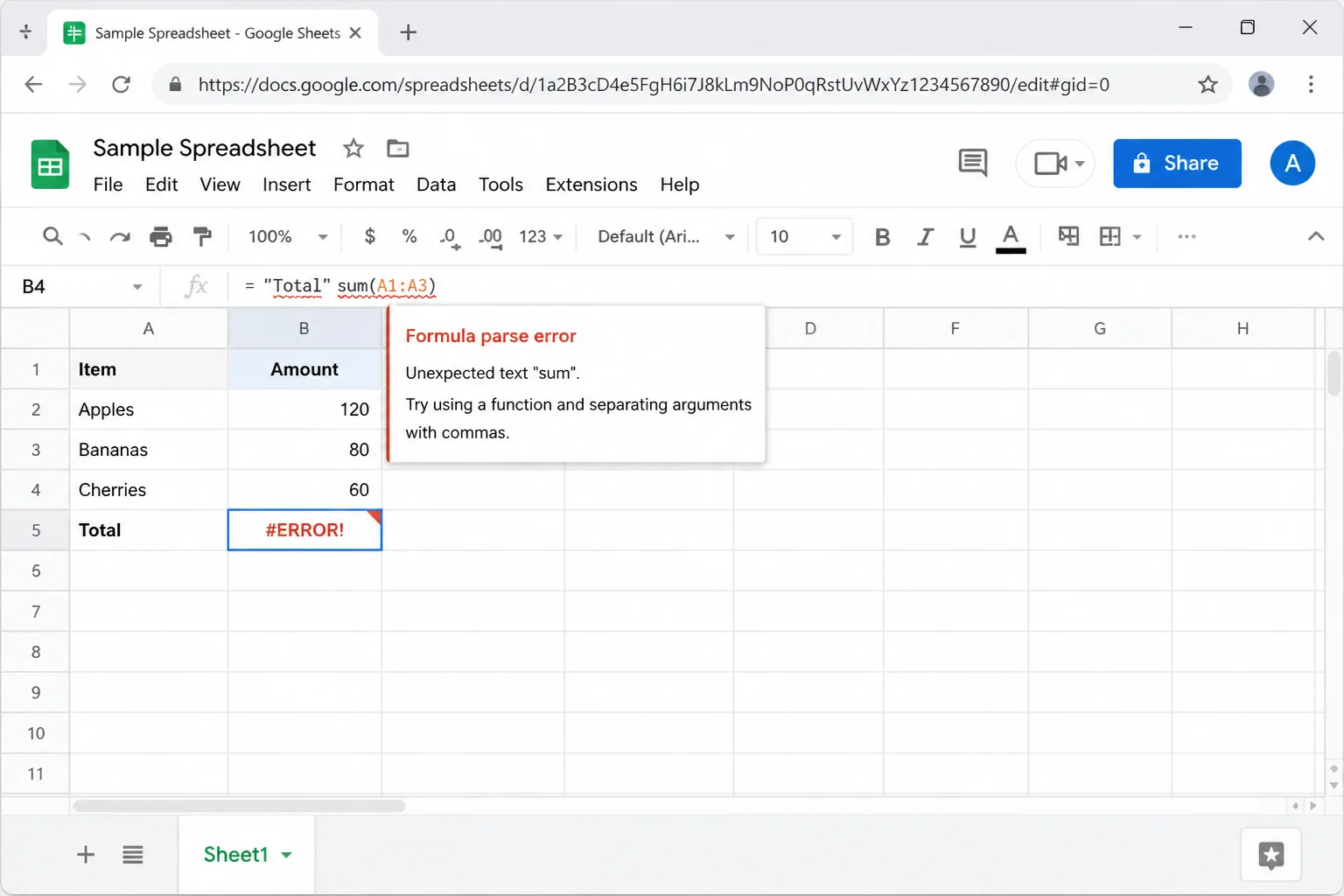
Verify the fix: The error disappears, and the result matches a quick manual check.
Google Sheets Error Messages Explained
| Error | What it means | What to check |
|---|---|---|
#DIV/0! | The formula divides by zero or a blank cell | Check the divisor and empty inputs |
#N/A | A requested value was not found or is unavailable | Check lookup values, spaces, and ranges |
#NAME? | Sheets does not recognize part of the formula | Check function names and named ranges |
#NULL! | The formula uses an invalid range intersection | Check range separators and references |
#NUM! | A number or calculation is outside an accepted range | Check arguments and extreme values |
#REF! | A cell or range reference is invalid | Restore deleted cells or repair the reference |
#VALUE! | The formula received the wrong type of data | Check for text where a number is expected |
#ERROR! | Sheets cannot parse the formula | Check punctuation, parentheses, and separators |
| Circular dependency detected | A formula directly or indirectly refers to itself | Remove the loop or configure intentional iteration |
| Formula parse error | The formula’s structure is invalid | Check syntax and regional separators |
| Loading… | External or complex data has not finished processing | Check the connection and simplify the formula |
| You need permission | Your account cannot access the file or referenced data | Request access or switch accounts |
| Working offline | Edits are being stored locally for later sync | Protect work and reconnect before closing |
| Trying to connect | Sheets cannot currently reach Google | Check the network and service status |
Problem: Formulas Do Not Recalculate
Symptoms:
- Inputs change while results stay the same.
- Date or time formulas look stale.
- Calculations update only after reopening.
- One spreadsheet behaves differently from another.
Why it happens: Every spreadsheet has calculation settings. Circular references can block normal calculations. Heavy add-ons and large imported ranges may also slow updates.
Fix:
- Protect unsaved work, then refresh.
- Test a simple formula in an empty area.
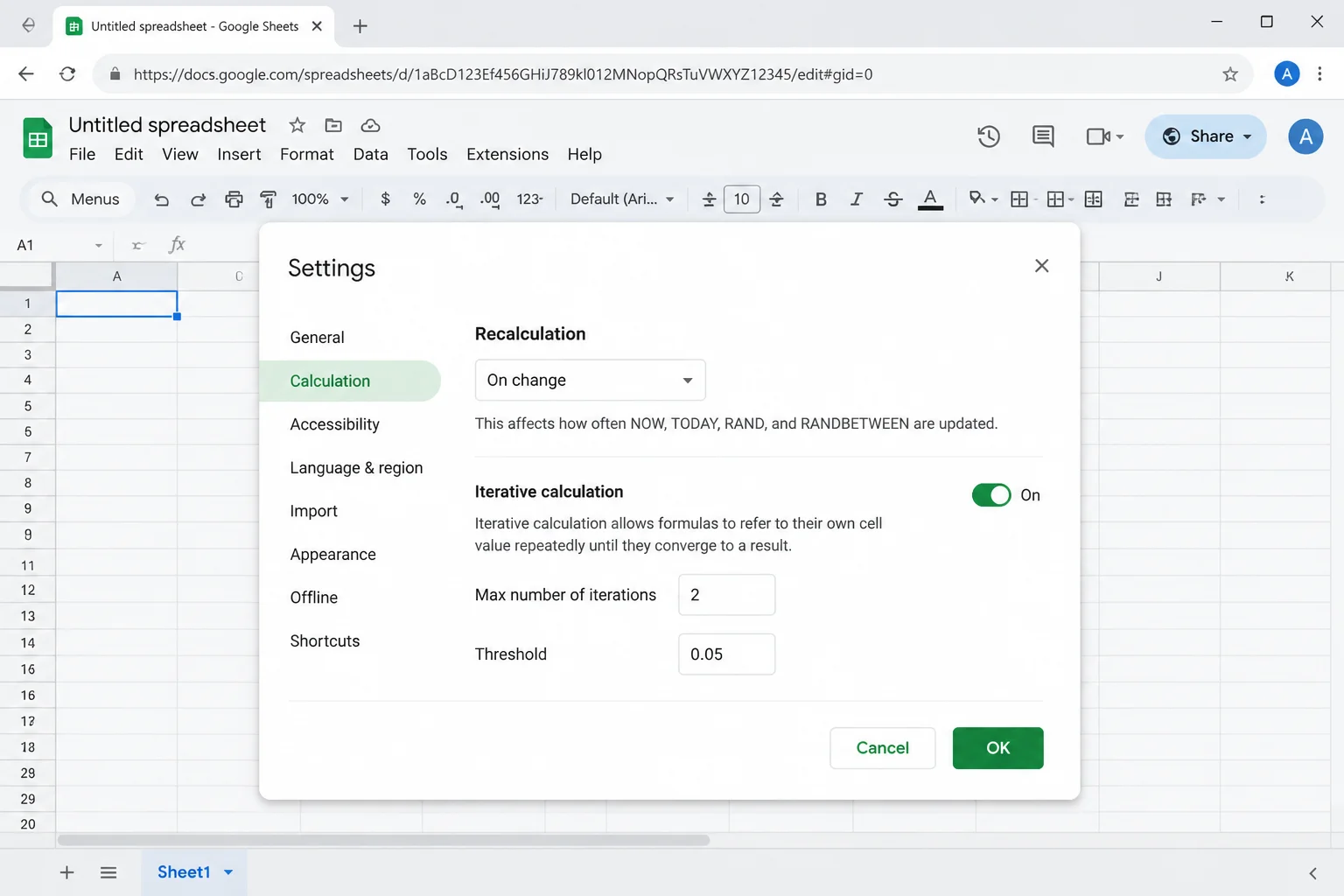
- Open File > Settings.
- Open Calculation.
- Review Recalculation and choose an interval that suits the file. Frequent recalculation can slow a large spreadsheet.
- Check whether the formula refers to its own cell.
- Follow the reference chain if several formulas point back to one another.
- Temporarily turn off add-ons tied to calculations or imported data.
- Test again before turning on add-ons one at a time.
Verify the fix: Change a source value and check that the result updates based on your recalculation setting.
Configuration Issues to Check
Small setup mistakes can make Sheets look broken. These settings deserve a quick check.
| Setting | Correct setup | Common mistake |
|---|---|---|
| Google account | Use the account with edit access | Opening a shared link under a personal account instead of a work account |
| Permission | Editor access is required to change the original | Assuming comment or view access permits editing |
| Offline availability | Prepare important files while connected | Expecting every file to open offline automatically |
| Recalculation | Choose a suitable option under File > Settings > Calculation | Expecting volatile formulas to update constantly |
| Circular calculations | Leave iterative calculation off unless the workbook intentionally needs it | Enabling iteration to hide an accidental circular reference |
| Browser extensions | Enable only extensions that work reliably with Sheets | Running several page-modifying extensions at once |
| Open copies | Use one active editing tab during recovery | Editing stale offline copies on several devices |
| Regional settings | Use separators and date formats that match the spreadsheet locale | Copying a formula that uses another locale’s separators |
A simple formula begins with an equals sign:
=SUM(B2:B10)Avoid direct circular references. Entering this in cell A1 asks A1 to calculate itself:
=A1+1If the spreadsheet uses iterative calculation on purpose, write down why. Otherwise, fix the reference instead of turning on iteration to hide the warning.
How to Tell Whether Google Sheets Is Down
If Sheets fails on several devices or networks, spare yourself a grand tour of browser settings. Check Google’s service status first.
- Open the Google Workspace Status Dashboard.
- Find the Google Sheets row.
- Compare its status with the dashboard legend.
- Open any listed incident for updates.
- If no issue appears, test Sheets on another network or device.
- Ask another user whether they can open a different spreadsheet.
Trouble across several accounts, devices, and networks points toward Google. Trouble with one browser, account, or file points toward that setup.
Getting Help
Google Sheets doesn’t offer a simple consumer log file worth digging through. The useful clues are the ones you can see and describe.
Before asking for help, collect:
- The exact error message.
- Whether every spreadsheet or one file is affected.
- When the problem started, including your time zone.
- Your device model and operating-system version.
- Your browser or Google Sheets app version.
- Whether the file works in a private window.
- Whether another account, device, or network works.
- Whether the Workspace Status Dashboard shows an incident.
- A screenshot with names, email addresses, financial figures, and other private data hidden.
Use the in-product Help menu, the Google Docs Editors Help Center, or the Google Docs Editors Community. Google Workspace users can contact their organization’s administrator for account-specific support.
Contact the file owner if you can’t edit a shared spreadsheet. Contact an administrator when several people in the same organization have the same access or syncing problem.
Prevention Tips
- Wait for saving to finish: Don’t close the tab right after a major edit.
- Keep one active copy open: Several online tabs usually work, but one editing tab reduces confusion on a poor connection.
- Prepare offline files early: Mark important files for offline use while your connection is stable.
- Keep a safety copy: Before major formula or structure changes, use File > Make a copy.
- Use version history: Named versions make milestones easier to find.
- Update browsers and apps: Older versions tend to have more compatibility and stability problems.
- Limit extensions: Keep only the browser extensions you trust and use.
- Watch spreadsheet size: Move old data out of active work when a file slows down.
- Avoid broad formulas when possible: A range such as
B2:B5000often needs less work than a whole column.
- Document intentional circular calculations: Another editor won’t mistake the loop for an error.
- Check access before travel: Open shared files and check offline access before leaving a reliable connection.
- Protect recovery work: Don’t clear app storage, remove offline files, or reinstall Sheets until important changes have synced or been copied.
Frequently Asked Questions
Why Will Google Sheets Not Load?
Common causes include a weak connection, old browser data, an extension conflict, or one troublesome spreadsheet. Refresh the page, test another website, and open the file in a private window. Then check the Google Workspace Status Dashboard.
Why Are My Changes Not Saving?
Your device may be offline, the wrong account may be active, or you may lack edit access. Duplicate tabs and old offline copies can also muddle things. Copy unsaved work before refreshing or closing anything.
Why Is Google Sheets Out of Sync Between Devices?
One device may still hold offline edits. Different accounts can also show different copies or permissions. Stop editing, protect unique work, reconnect each device, and compare the file one device at a time.
How Can I Tell Whether I Am Editing Offline?
Check the spreadsheet’s status area for an offline or reconnecting message. Open another current website to test your connection. Treat the edit as local until Sheets confirms it has saved.
Why Are Formulas Showing Errors?
The error code explains what Sheets couldn’t do. Select the cell and read its message. Then check punctuation, data types, range references, and recently deleted rows or columns.
Why Are Formulas Not Recalculating?
Check File > Settings > Calculation, then inspect the sheet for circular references. Large formulas, imported data, and add-ons may also delay updates.
Can Opening the Same Spreadsheet in Multiple Tabs Cause Conflicts?
Sheets usually merges online edits, but several tabs become confusing when one loses its connection or holds an older offline version. During troubleshooting, keep the tab with the newest work and close the others.
Wrapping Up
Protect unsynchronized work first. Then refresh, check your connection, try a private window, and check Google’s status. Those steps fix plenty of cases without disturbing offline data or saved settings.
My strong preference is caution here: copy first, reset second. A temporary document full of rescued cells looks messy, but it beats losing your only good edits during a “fresh start.”
| Step | Action | Applies To |
|---|---|---|
| 1 | Copy unsynchronized work | All devices |
| 2 | Refresh and check the connection | Web, iOS, Android |
| 3 | Test a private window | Windows, macOS |
| 4 | Check permissions and account | All devices |
| 5 | Review offline and calculation settings | Web and mobile |
| 6 | Check Google’s status dashboard | All devices |
Last updated: August 2, 2026 | Applies to Google Sheets on the web, macOS, Windows, iOS, and Android