
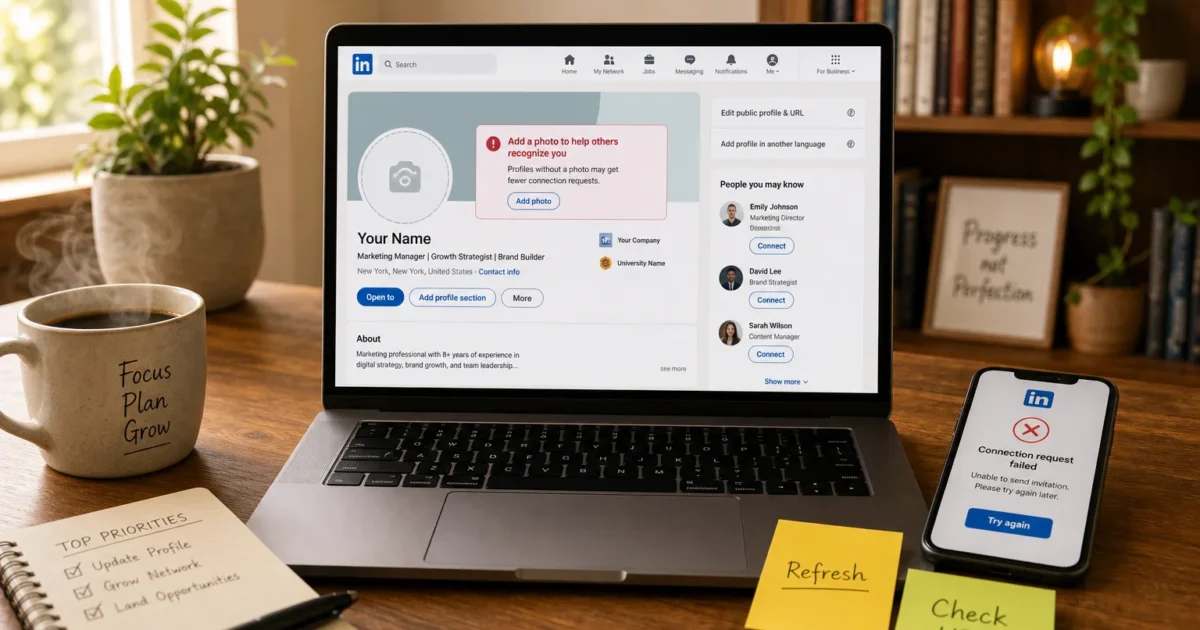
What’s more annoying than opening LinkedIn for one quick task and finding a missing photo, frozen feed, rejected URL, or dead Connect button? It can make the whole site feel broken.
The cause is usually small: an odd setting, old browser data, an account limit, or a LinkedIn delay. Try the quick checks first. Then skip to the problem that’s giving you grief.
Quick Fixes to Try First
Before changing account settings, try these basics. They’re quick, and one may save you a longer hunt.
- Refresh LinkedIn: Press
Ctrl + Ron Windows orCommand + Ron macOS.
- Perform a hard refresh: Press
Ctrl + Shift + Ron Windows orCommand + Shift + Ron macOS. This makes the browser download a fresh copy of the page.
- Check another website: Make sure your internet connection works normally.
- Open a private window: Use an Incognito or InPrivate window and sign in to LinkedIn. If the problem disappears, saved browser data or an extension is probably causing it.
- Try another browser: Test LinkedIn in a current version of Chrome, Edge, Firefox, or Safari.
- Sign out and back in: This starts a fresh account session. It can clear brief loading errors (a classic fix, but often a useful one).
- Check for an outage: If the feed, messages, photos, and settings all fail together, LinkedIn may be down.
Symptoms and Quick Fixes
| Symptom | Likely Cause | Quick Fix |
|---|---|---|
| Profile photo is blank or outdated | Visibility setting, cache, or upload problem | Check photo visibility, then hard-refresh |
| Custom URL says it is already taken | Another account owns that address | Add an initial, word, or number |
| Custom URL will not save | Invalid characters or a brief session error | Use letters and numbers, then try another browser |
| Feed repeats the same posts | Cached page or interrupted connection | Clear LinkedIn site data |
| Recent posts are missing | Feed ranking or hidden content preferences | Switch feed sorting options where available |
| Connection invitation will not send | Weekly limit, pending invitations, or restriction | Review and withdraw old sent invitations |
| Several LinkedIn features fail together | LinkedIn-wide outage | Check outage reports and wait |
| Problem occurs in only one browser | Cache, cookies, or extension conflict | Test a private window and disable extensions |
Common Issues and Solutions
Problem: Your LinkedIn Profile Photo Is Not Showing
Symptoms:
- Your photo appears blank or shows the default silhouette.
- You see the new photo, but other people still see the old one.
- The photo appears while signed in but not on your public profile.
- A newly uploaded image vanishes after you save it.
Why it happens: LinkedIn may hide the photo because of its visibility setting. Your browser can also show an old saved copy. Browsers keep this page data to help sites load faster. After an upload, LinkedIn may need time to send the image across its network. A file that’s too large or unsupported can also fail during processing.
This one’s especially confusing because the photo can look fine to you while everyone else gets the gray silhouette. LinkedIn is basically showing two different storefront windows.
Fix:
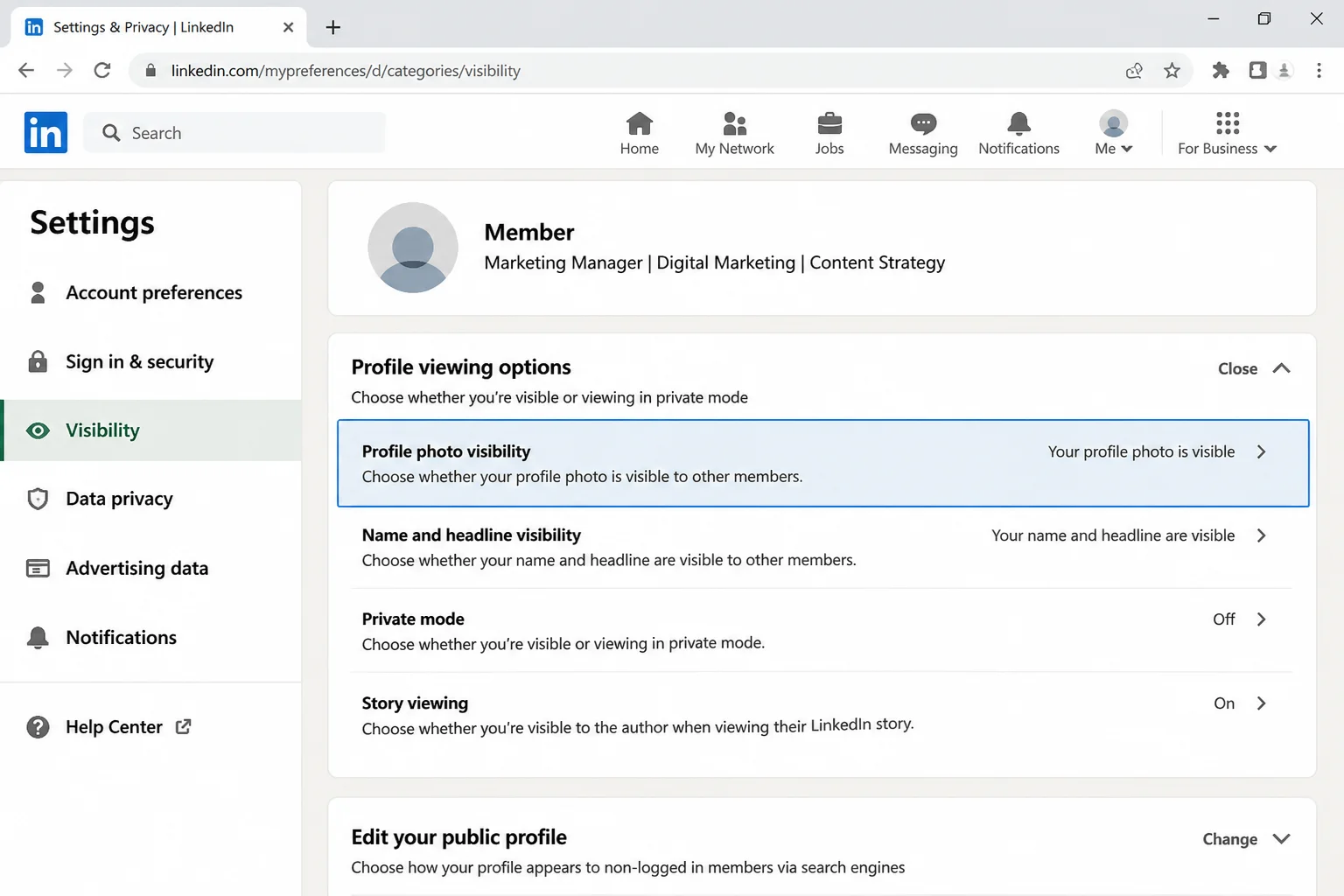
- Select Me at the top of LinkedIn.
- Select Settings & Privacy.
- Open Visibility.
- Find the profile photo visibility control under Visibility of your profile & network.
- Choose the audience that should see your photo. The wording can vary by account, but make sure the audience isn’t narrower than you intended.
- Open your profile in a private browser window. This shows what another visitor can see.
- If the photo is still missing, hard-refresh the profile with
Ctrl + Shift + Ron Windows orCommand + Shift + Ron macOS.
- Re-upload the image if needed. Use a clear JPG or PNG that meets the rules in LinkedIn’s upload window. A square image is easiest to crop, though the original file doesn’t need to be perfectly square.
- Wait a few minutes, then check again. Photo updates can take a while to fully propagate across LinkedIn’s network — LinkedIn doesn’t publish an exact timeframe, so treat a few hours as a rough estimate rather than a guarantee.
Verification: Open your public profile in a private window, or ask a trusted connection to view it. The same photo should appear in both places.
Tip: If the photo appears in one browser but not another, the upload worked. Clear the affected browser’s cache instead of uploading the image again and again.
Problem: Your Custom LinkedIn URL Will Not Save
Symptoms:
- LinkedIn says the URL is already taken.
- The Save button does nothing.
- The old URL returns after you refresh.
- LinkedIn rejects the text entered in the URL field.
Why it happens: Every custom LinkedIn URL must be unique. Another member may own the address even if their profile doesn’t appear in a normal search. LinkedIn can also reject spaces, unsupported punctuation, or a name outside its current length rules. Sometimes an old login session keeps a valid change from saving.
The “already taken” message is probably the most annoying part. You can stare at that perfect URL all afternoon, but LinkedIn won’t budge if another account claimed it first.
Fix:
- Select Me > View Profile.
- Select Edit public profile & URL. LinkedIn normally opens this page in a new browser tab.
- Find Edit your custom URL and select the pencil icon.
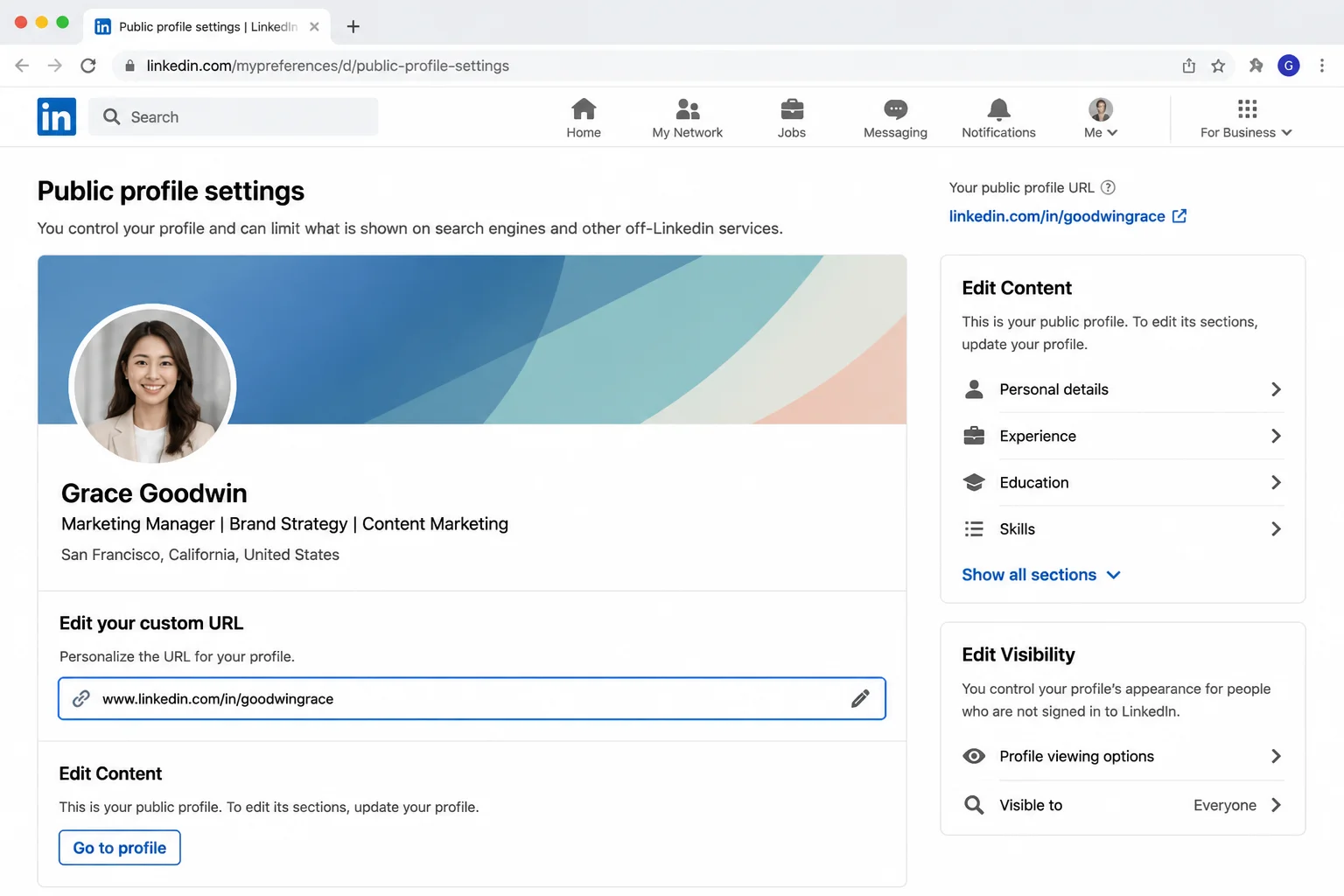
- Enter a URL ending that uses simple letters and numbers. Avoid spaces, symbols, and accented characters if LinkedIn rejects them.
- If you see an “already taken” message, try a small change such as a middle initial or short number.
yourname2026
- Select Save once. Repeated clicks won’t make an unavailable address work.
- If nothing happens, sign out and close the LinkedIn tab.
- Open LinkedIn in a private window, sign in, and try saving the URL again.
- Test another browser if the private window doesn’t help.
Verification: Copy the full URL and open it in a private window. It should load your public profile instead of an error page.
Important: Changing your custom URL breaks bookmarks and outside links that use the old address. Update them after you’ve confirmed the new URL works.
Problem: Your LinkedIn Feed Is Frozen or Not Updating
Symptoms:
- The same posts appear after every refresh.
- The loading spinner never disappears.
- The page becomes blank while scrolling.
- New posts or followed content seem to be missing.
- Buttons in the feed don’t respond.
Why it happens: Your browser may have saved a damaged or old copy of LinkedIn’s site data. Ad blockers, privacy tools, script blockers, or a shaky connection can stop the feed from loading. Sometimes the feed works, but LinkedIn’s ranking system puts older posts first.
A frozen feed feels a bit like opening the fridge three times and finding the same leftovers. Start by making LinkedIn fetch a clean copy.
Fix:
- Open the LinkedIn home feed and perform a hard refresh.
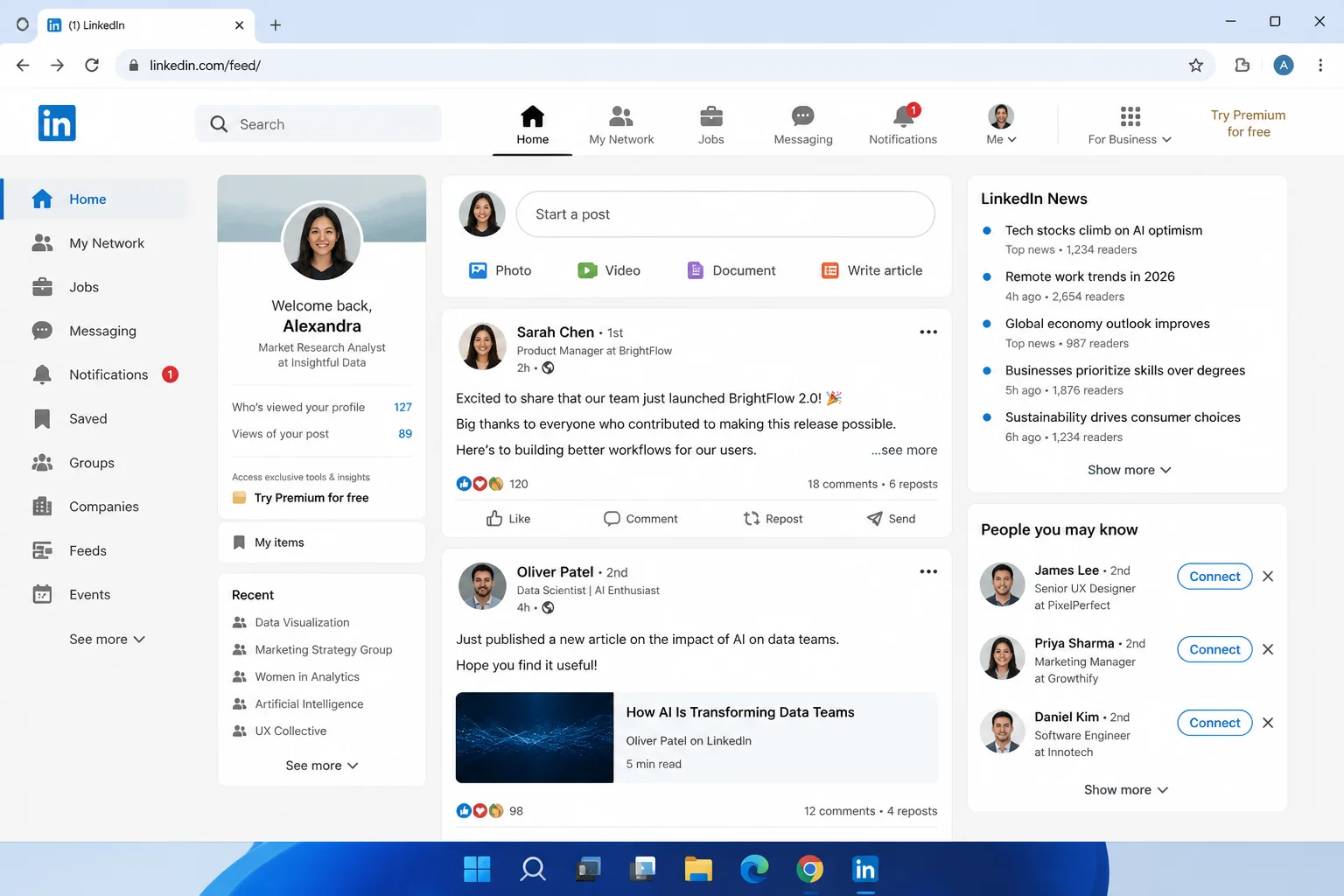
- Open a private browser window and load the feed there.
- If the private window works, turn off extensions that block ads, trackers, scripts, or cookies for a moment.
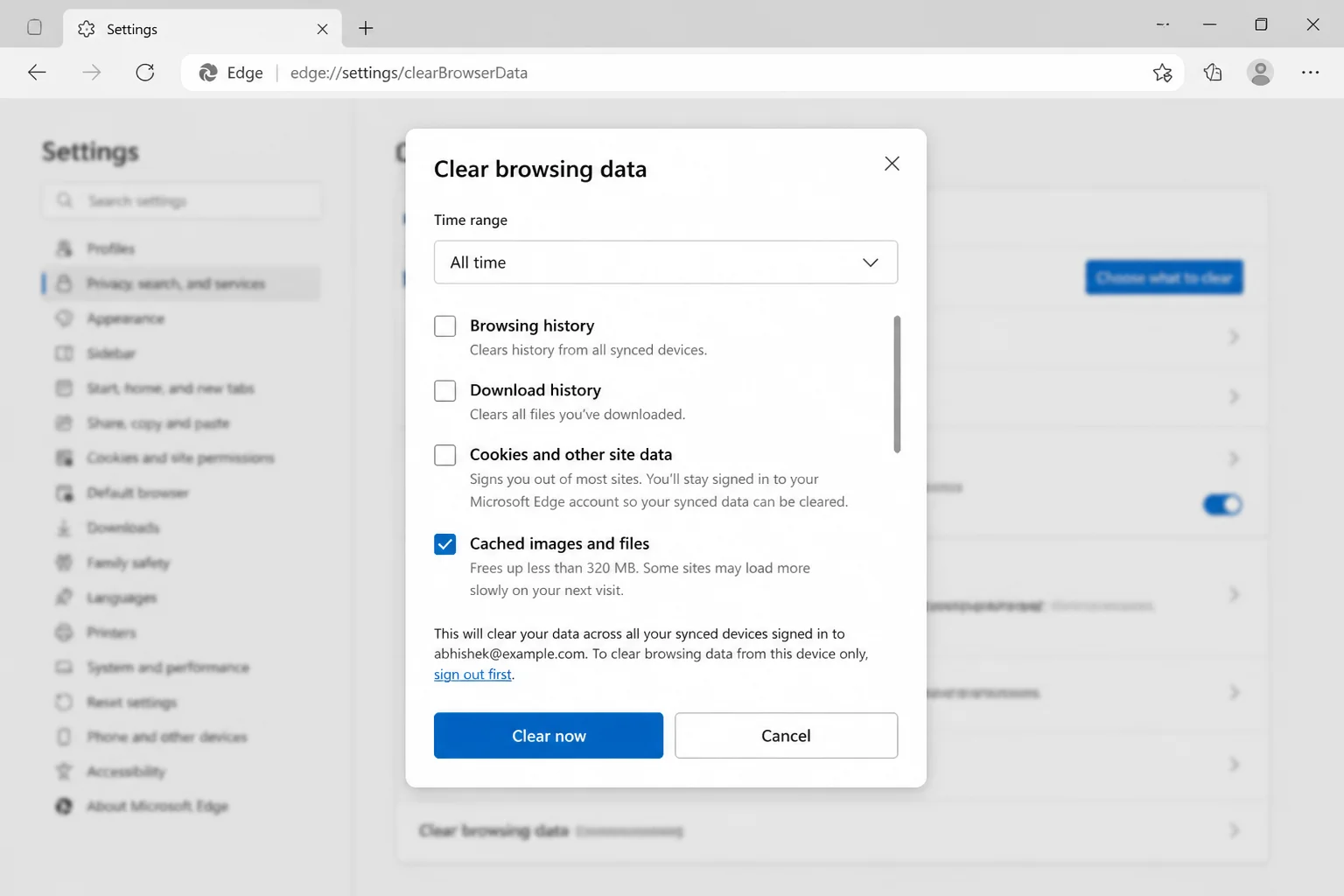
- Clear LinkedIn’s saved site data. In Chrome or Edge, open Settings > Privacy and security > Delete browsing data.
- Select Cached images and files. Select cookies only if you’re comfortable signing back into websites.
- Choose Delete data or Clear now, depending on your browser.
- Restart the browser and sign back into LinkedIn.
- Check the feed’s sorting control, if your account has one. Choose the option that favors recent posts when you want newer updates.
- Test LinkedIn on another network, such as a trusted home connection, if pages still load slowly.
I’d avoid clearing every cookie at first. That empties the browser’s whole key ring and signs you out of other sites. LinkedIn’s cache may be the only problem.
Verification: Refresh the feed, scroll through several posts, and open one. The spinner should finish, buttons should work, and more content should load as you scroll.
Problem: LinkedIn Connection Requests Will Not Send
Symptoms:
- Selecting Connect produces no visible result.
- LinkedIn displays an invitation limit warning.
- The invitation immediately disappears.
- The Connect option is missing from several profiles.
- LinkedIn says your account is restricted.
Why it happens: LinkedIn limits how many invitations an account can send within a rolling weekly window — a reputation-based cap tied to your account’s standing, not your subscription tier, that resets on its own schedule rather than something you can raise in Settings. Separately, LinkedIn also tracks unanswered and rejected requests, and a large pile of pending invitations can block new ones even if you’re under the weekly cap. Account restrictions, identity checks, and the recipient’s own invitation settings (some people limit who can send them requests) can produce the same “won’t send” symptom for reasons that have nothing to do with the weekly limit.
Those pending requests can build up like mail in a forgotten drawer. A short cleanup may help, but a weekly limit still has to expire on LinkedIn’s schedule.
Fix:
- Select My Network at the top of LinkedIn.
- Select Manage beside your invitations.
- Open the Sent tab.
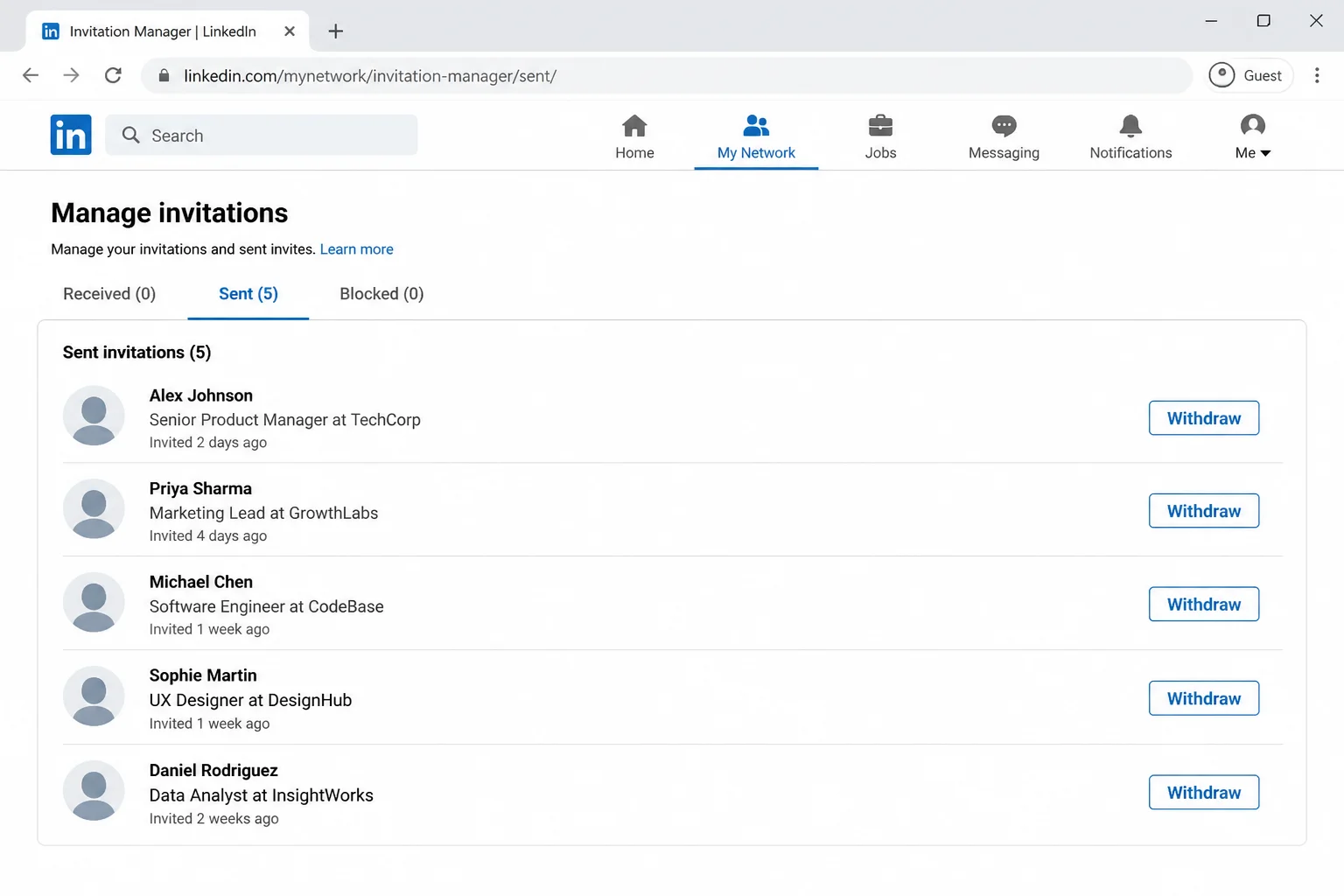
- Review old requests that are still pending.
- Select Withdraw beside an invitation you no longer need.
- Confirm the withdrawal. Don’t quickly withdraw a large batch and resend the same requests right away.
- If LinkedIn says you’ve reached a weekly invitation limit, wait for it to reset. LinkedIn controls this limit, and you can’t raise it in settings.
- If a restriction notice appears, follow the steps inside it. LinkedIn may ask you to verify your identity or secure your account.
- Check the LinkedIn Help Center if the request still fails after the stated waiting period.
Verification: Send one invitation to someone you know. Return to My Network > Manage invitations > Sent and make sure it appears as pending.
LinkedIn Error Messages Explained
LinkedIn’s error messages can be frustratingly vague (yes, “Something went wrong” wins no prizes). This table turns the common ones into useful next steps.
| Error message or behavior | What it usually means | What to do |
|---|---|---|
| “This custom URL is already taken” | Another member owns the URL | Enter a unique variation |
| “Something went wrong” | Brief server, session, or browser error | Refresh, sign in again, then try another browser |
| “You’ve reached the weekly invitation limit” | LinkedIn paused new outgoing requests | Wait for the limit to reset |
| “Your account has been restricted” | LinkedIn detected activity that needs review | Follow the verification steps in the notice |
| “Unable to connect” | Network interruption or LinkedIn outage | Test another site and check outage reports |
| Endless loading spinner | Cached data, blocked scripts, or server trouble | Use a private window and clear site data |
| Saved change returns to its old value | Save failed or hasn’t reached all LinkedIn servers | Wait, refresh, and retry once |
| Invitation disappears after sending | The service blocked, withdrew, or didn’t accept the request | Check the Sent invitations tab |
Is LinkedIn Down for Everyone or Just You?
When one feature fails, start with that feature’s settings. When the feed, messages, photos, and profile editor all stop together, an outage is more likely.
- Open two unrelated websites. If they also fail, fix your internet connection first.
- Open LinkedIn in a private window. If it works there, the problem lives in your regular browser.
- Try another device on the same network. If only one device fails, check that device or its browser.
- Try another network. If LinkedIn works there, your normal network, DNS service, or workplace filter may be involved.
- Check a public outage tracker for a sudden spike in LinkedIn reports.
- Visit the LinkedIn Help Center or LinkedIn’s official support channels for a service notice.
- If lots of users report the same problem, stop clearing settings and wait. Local changes can’t fix a LinkedIn-wide outage.
Think of these checks as swapping one piece at a time: browser, device, then network. The first swap that fixes LinkedIn points you toward the actual troublemaker.
Platform-Specific Fixes
On Windows
- Test LinkedIn in an Edge InPrivate window with
Ctrl + Shift + N.
- If that works, open Edge Settings > Privacy, search, and services > Clear browsing data.
- Check the computer’s date and time under Settings > Time & language > Date & time. The wrong time can interfere with secure website sessions.
Windows usually sets the clock by itself, but it sometimes wanders off (because apparently clocks need troubleshooting too). Turn automatic time back on if the displayed date or time is wrong.
On macOS
- Test LinkedIn in a Safari Private Window by selecting File > New Private Window.
- If that works, select Safari > Settings > Privacy > Manage Website Data.
- Search for LinkedIn, remove its saved data, and sign in again.
Removing only LinkedIn’s data keeps the cleanup tidy. You won’t toss every other website’s saved session into the bin.
On Managed Work Computers
Company security tools can block scripts, cookies, uploads, or social networking features. If LinkedIn works on a personal device or another network, contact your workplace IT team. Don’t turn off company security software yourself.
Work computers often have rules you can’t see, much like a landlord controlling the thermostat. Your IT team can check whether a filter blocks LinkedIn without weakening the computer’s protection.
LinkedIn Configuration Issues to Check
These settings and habits cause plenty of repeat problems:
- Photo audience is too narrow: Open Settings & Privacy > Visibility and review who can see your profile photo.
- Public profile is disabled: Open Edit public profile & URL and make sure public visibility matches what you expect.
- Custom URL contains invalid characters: Use a simple ending made from letters and numbers. If needed, add hyphens only where LinkedIn accepts them.
- Too many invitations remain pending: Review My Network > Manage invitations > Sent and withdraw requests you no longer need.
- Browser blocks required site data: Allow LinkedIn to use cookies and JavaScript. Blocking either can break the feed and settings pages.
- An extension changes page content: Test a private window, then turn off extensions one at a time until you find the conflict.
I’d check these before reinstalling a browser or changing network settings. They’re the LinkedIn version of checking whether the lamp is plugged in: basic, slightly dull, and surprisingly useful.
Getting Help
LinkedIn doesn’t give regular web accounts access to log files. You can still collect details that make a support request far more useful:
- The exact error message.
- The affected page’s URL.
- The date and time the problem occurred.
- Your browser name and version.
- Your operating system.
- Whether the problem occurs in a private window.
- Whether it occurs in another browser, device, or network.
- A screenshot that hides email addresses, messages, and other private details.
Start at the official LinkedIn Help Center. Search for the exact feature or error. Then use the support choices offered for your signed-in account. Don’t post account IDs, identity documents, or private screenshots in public forums.
Support can do more with “Chrome 140 on Windows 11, failed at 3:15 p.m. in a private window” than “LinkedIn’s broken.” Specific details give them a trail to follow.
Prevention Tips
- Keep your browser current: Browser updates fix security and compatibility problems that can break web apps.
- Avoid repeated uploads and saves: Make one change, wait, and check it. Fast retries make it hard to tell which version LinkedIn accepted.
- Use a supported image file: Stick with a standard JPG or PNG and check the upload window for LinkedIn’s current size limit.
- Review pending invitations: Withdraw old requests you no longer need instead of leaving a huge pending list.
- Use extensions carefully: Script blockers and strict privacy extensions can interfere with menus, feeds, and save buttons.
- Save your custom URL: Keep a copy after changing it so you can test outside links later.
A little housekeeping goes a long way here. Browsers collect old site data like a junk drawer collects mystery cables, and LinkedIn doesn’t always handle that mess well.
Frequently Asked Questions
Why isn’t my LinkedIn profile photo showing up?
The usual causes are a narrow visibility setting, an old saved image, a processing delay, or a file LinkedIn couldn’t process. Check Settings & Privacy > Visibility, hard-refresh the page, and upload a standard JPG or PNG again if needed.
Why can’t I save or change my LinkedIn custom URL?
The URL may belong to another account, contain unsupported characters, or fall outside LinkedIn’s current length rules. Try a unique version made from letters and numbers. If a valid URL still won’t save, use a private window or another browser.
Why is my LinkedIn feed frozen or not updating?
Saved site data, a shaky connection, or a browser extension can stop the feed from loading. Hard-refresh LinkedIn, test a private window, and clear LinkedIn’s site data. If the feed loads but shows older posts, check its sorting options.
Why won’t my LinkedIn connection request send?
You may have reached LinkedIn’s weekly invitation limit, built up too many pending requests, or received an account restriction. Check the Sent invitations tab, withdraw old requests, and follow any restriction notice LinkedIn displays.
How do I know if LinkedIn is down for everyone or just me?
Check LinkedIn in another browser, on another device, and through another network. A spike on an outage tracker plus several broken LinkedIn features points to a wider outage. If LinkedIn works in a private window, your browser data or an extension is probably responsible.
How long does it take for LinkedIn changes to show after saving?
Text and URL changes often appear within minutes. Saved profile pages and photos can take longer to propagate — LinkedIn doesn’t publish an exact window, so give it a few hours before assuming something’s wrong. Check in a private window before editing the same item again. If it hasn’t updated after 24 hours, contact LinkedIn Support.
Wrapping Up
LinkedIn problems usually come from visibility settings, old browser data, account limits, or an outage. A private window is my favorite first check because it quickly shows if your everyday browser needs cleaning.
Work down the table one step at a time, and stop when the problem clears. There’s no prize for emptying every browser setting when one hard refresh did the job.
| Step | Action | Applies To |
|---|---|---|
| 1 | Hard-refresh the page | Photos, URLs, feed |
| 2 | Test a private window | All browser issues |
| 3 | Review LinkedIn settings | Photos, URLs |
| 4 | Check sent invitations | Connection requests |
| 5 | Check outage reports | Multiple broken features |
| 6 | Contact LinkedIn Support | Restrictions and persistent errors |
Last updated: July 27, 2026 | Applies to LinkedIn on the web
For more information on optimizing your LinkedIn profile, consider checking out Audit, Publish, and Maintain Your AI-Optimized LinkedIn Career-Change Profile or How to Use AI to Optimize Your LinkedIn Profile for a Career Change: Setup & Strategy.
You can also explore other social media alternatives by reading 8 Best Social Media Alternatives to Facebook and Twitter.
Additionally, if you’re experiencing issues with unknown callers, you may want to check out How to Identify Unknown Callers: The Best Apps and Tools.
For more general tech tips and tricks, visit Online Tech Tips.
If you’re looking for a VPN solution, consider reading PrivadoVPN Review: Everything You Need to Know.
Lastly, for tips on improving your writing, check out 12 Best Grammarly Alternatives to Improve Your Writing.