

Quick Fixes to Try First
Instagram bouncing you back to your home screen mid-Reel is one of the most annoying things a phone can do to you. Take a breath, though. This isn’t a sign your phone is dying. It’s almost always something boring and fixable: an outdated app, a stuffed cache, low storage, or a fresh update that’s still working out its bugs.
Fixing it doesn’t take any special skill. Below is a troubleshooting path that starts with the quickest fixes and works down to the deeper stuff, for both iPhone and Android, plus what to do if none of it works.
Run through this checklist before anything else. It solves most Instagram crashes in under five minutes, and there’s a decent chance you can stop right here.
- Force-close and reopen Instagram: Clears whatever temporary glitch just happened.
- Restart your phone: Wipes out memory clutter and background processes fighting Instagram for resources.
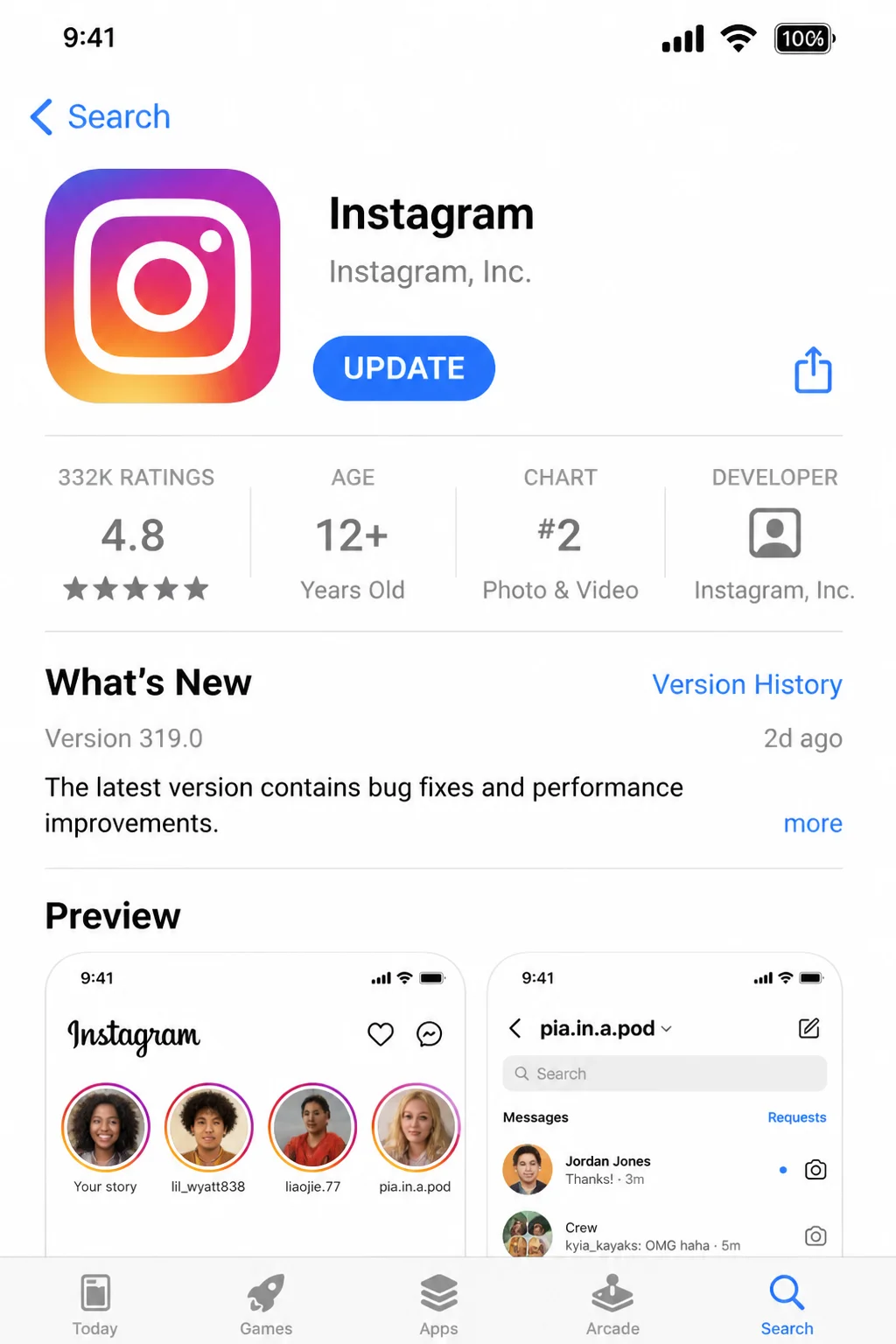
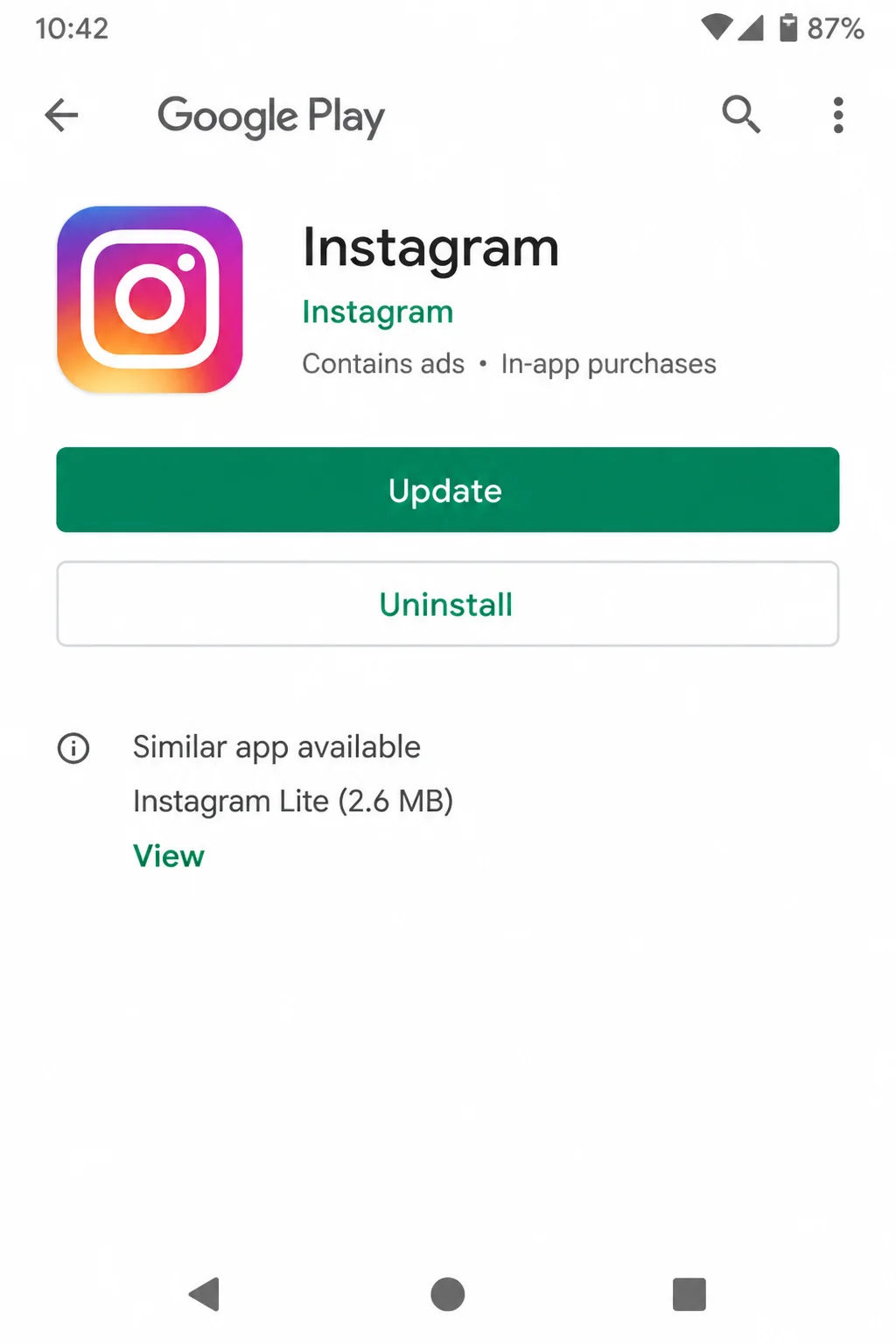
- Update Instagram: An outdated version is the single most common cause of random crashes.
- Check your internet connection: Switch between Wi-Fi and mobile data to rule out a network hiccup.
- Clear Instagram’s cache: Frees up space and clears out corrupted temporary files (Android does this directly; iPhone uses Offload App).
- Check free storage space: Instagram needs breathing room to load photos and video.
- Confirm app permissions: Missing Camera or Photos access can crash specific features like posting.
- Reinstall Instagram: The nuclear option, but safe, and it won’t delete your account or photos.
Already tried a couple of these? Skip ahead to whichever problem below matches what you’re seeing.
Quick Diagnosis: Is It Your Phone or Instagram’s Servers?
Before you troubleshoot your device, rule out an Instagram-wide outage. No amount of cache-clearing fixes a problem sitting on Meta’s servers.
- Check whether other people are also reporting Instagram being down (search “Instagram down” on social media or a status-tracking site).
- Open a different app that uses the internet, like a browser, to confirm your own connection is working.
- Try loading Instagram on Wi-Fi and then on cellular data to see if the issue follows the network or stays with the app.
If Instagram is down everywhere, there’s nothing to fix on your end. Just wait it out. If it’s just you, keep reading.
Common Issues and Solutions
Instagram Crashes Immediately When You Open It
Symptoms:
- The app opens for a split second, then bounces back to your home screen
- You never even see the login or feed screen
- It happens every single time you tap the icon
Why it happens: This is almost always an outdated app version, a corrupted cache, or a version of iOS/Android that Instagram no longer fully supports.
Fix:
- Open the App Store (iPhone) or Play Store (Android) and update Instagram if an update is available.
- Restart your phone completely, not just the app.
- Reopen Instagram.
- If it still crashes, clear the cache (Android) or offload the app (iPhone); see the platform-specific steps below.
Tip: Turn on automatic updates in your app store settings so you’re never stuck on a buggy old version without realizing it.
Instagram Freezes While Scrolling the Feed, Stories, or Reels
Symptoms:
- Video stutters or freezes on a single frame
- The feed stops responding to swipes
- Reels take forever to load or lock up entirely
Why it happens: Feed and Reels are the most media-heavy parts of Instagram. A bloated cache or too many background apps eating up memory leaves Instagram without enough resources to keep media loading smoothly.
Fix:
- Close every other app running in the background.
- Clear Instagram’s cache (see the platform steps in the next section).
- Restart your phone.
- Reopen Instagram and test the feed and Reels again.
Tip: If freezing only happens on Reels specifically, it’s often a device with limited RAM struggling with video decoding; keeping your OS updated helps, since updates often improve app memory handling.
Instagram Crashes Only When Using the Camera or Posting
Symptoms:
- The app is fine until you tap the camera icon or “New Post”
- Uploads hang at 0% or fail partway through
- Crash happens specifically during video recording or when adding a photo
Why it happens: This is usually missing Camera or Photos permissions, low storage space, or a weak connection struggling to upload larger video files.
Fix:
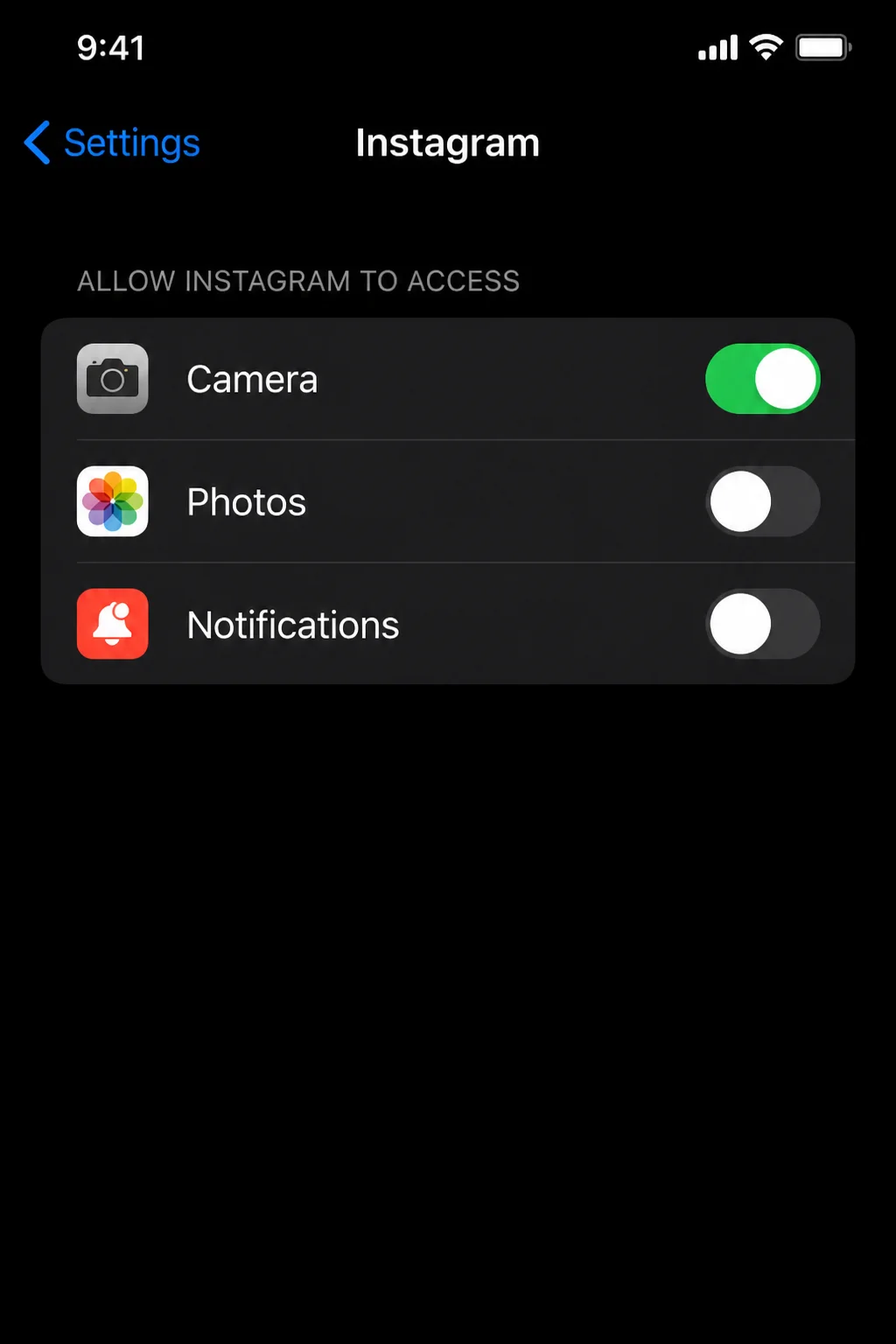
- Check that Instagram has Camera, Photos, and Microphone permissions enabled (see the Configuration Issues section below).
- Free up storage space if your phone is nearly full.
- Switch to a stronger Wi-Fi connection before posting, especially for video.
- Try posting a smaller photo first to confirm the app itself is working, then retry the original upload.
Instagram Shows a Blank White Screen or Gets Stuck Loading
Symptoms:
- The app opens but shows a blank or white screen
- A loading spinner never finishes
- Content partially loads, then stalls
Why it happens: This points to either a temporary server-side hiccup on Instagram’s end, a shaky network connection, or corrupted local app data.
Fix:
- Check your internet connection (try switching between Wi-Fi and mobile data).
- Force-close and reopen the app.
- Clear the app’s cache/storage if the blank screen keeps coming back.
- Wait 10–15 minutes in case it’s a short-lived server issue on Instagram’s end.
“Instagram Keeps Stopping” Error (Android)
Symptoms:
- A pop-up reading “Instagram keeps stopping” appears
- The app crashes back to the app drawer or home screen right after
- It happens repeatedly, sometimes within seconds of reopening
Why it happens: This standard Android error means the app crashed unexpectedly, most often due to low storage or a corrupted cache.
Fix:
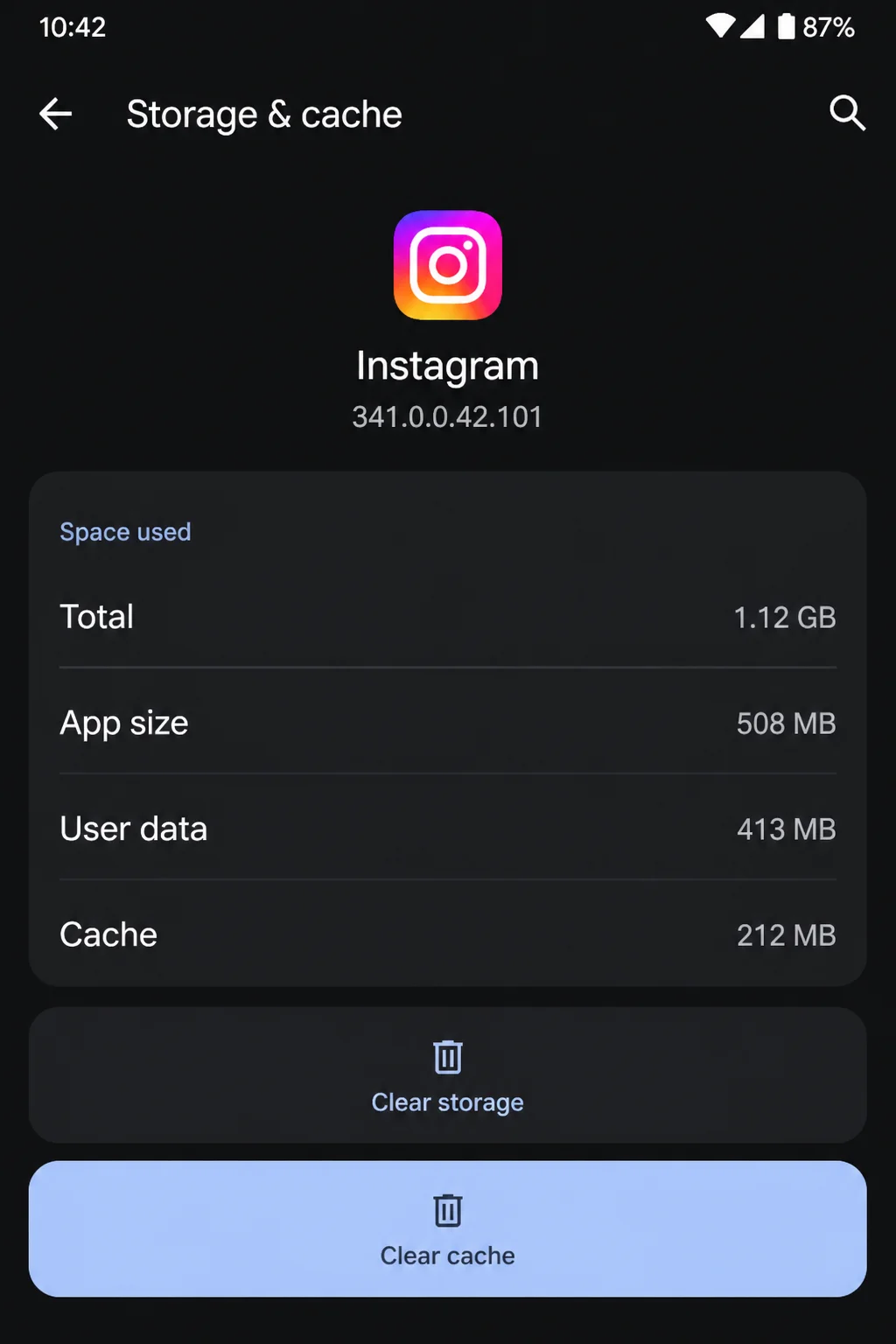
- Go to Settings > Apps > Instagram > Storage & cache.
- Tap Clear Cache first and reopen Instagram.
- If the error continues, go back and tap Clear Storage, which resets Instagram completely (you’ll need to log back in).
- Restart your phone.
- If it’s still stopping, uninstall and reinstall Instagram from the Play Store.
Instagram Is Slow or Laggy but Doesn’t Fully Crash
Symptoms:
- Everything takes a beat longer to load than it used to
- Typing in comments or DMs feels delayed
- The app doesn’t crash, but it’s clearly straining
Why it happens: Usually low available storage, too many apps running in the background, or an older device struggling to keep up with a newer, heavier Instagram update.
Fix:
- Free up phone storage, aim for at least a few gigabytes of headroom.
- Restart your phone regularly instead of just closing apps.
- Keep both Instagram and your phone’s OS updated to the latest version your device supports.
- Limit how many apps run in the background at once.
Instagram Crashes Right After a New Update
Symptoms:
- The app worked fine yesterday, crashes today
- Crash started right after you noticed an update was installed
- Other people online are reporting the same thing
Why it happens: Occasionally, a freshly released Instagram update ships with a bug that affects certain devices or OS versions. Not your fault, not your phone’s fault, just bad luck on timing.
Fix:
- Check the App Store or Play Store for a follow-up bug-fix update — Meta typically ships a patch once a widespread issue is confirmed, though there’s no fixed or guaranteed timeline.
- If no fix is available yet, try offloading and reinstalling the app (iPhone) or clearing cache/reinstalling (Android).
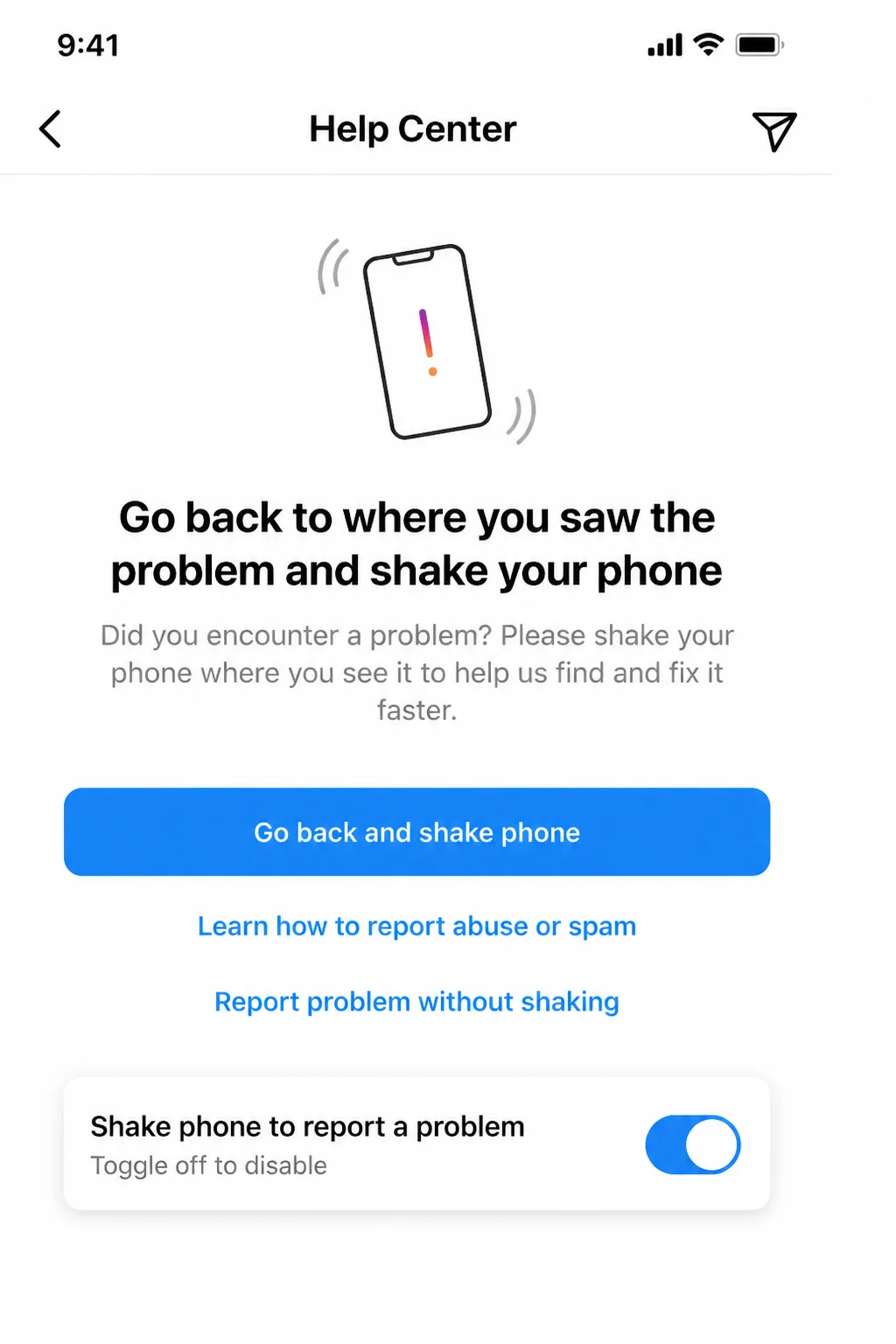
- Report the bug through Instagram’s in-app Report a Problem tool so Meta knows about it.
Error Messages Table
| Error Message | What It Means | Quick Fix |
|---|---|---|
| Instagram keeps stopping | Android detected an app crash | Clear cache & storage, restart phone, reinstall if it continues |
| Couldn’t refresh feed | Network or server connectivity issue | Check Wi-Fi/data, force-close and reopen |
| Something went wrong. Try again. | Generic error, often server-side or a bad request | Wait a few minutes, force-close, retry |
| No internet connection | Phone lost network access, or Instagram can’t reach it | Toggle Wi-Fi/data, check airplane mode, restart router |
| Upload failed | Poor connection or file too large/corrupted during posting | Switch to stronger Wi-Fi, free up storage, retry |
| App not responding / frozen screen | Memory overload from cache or background apps | Force-close, clear cache, restart phone |
Platform-Specific Fixes
On iOS (iPhone)
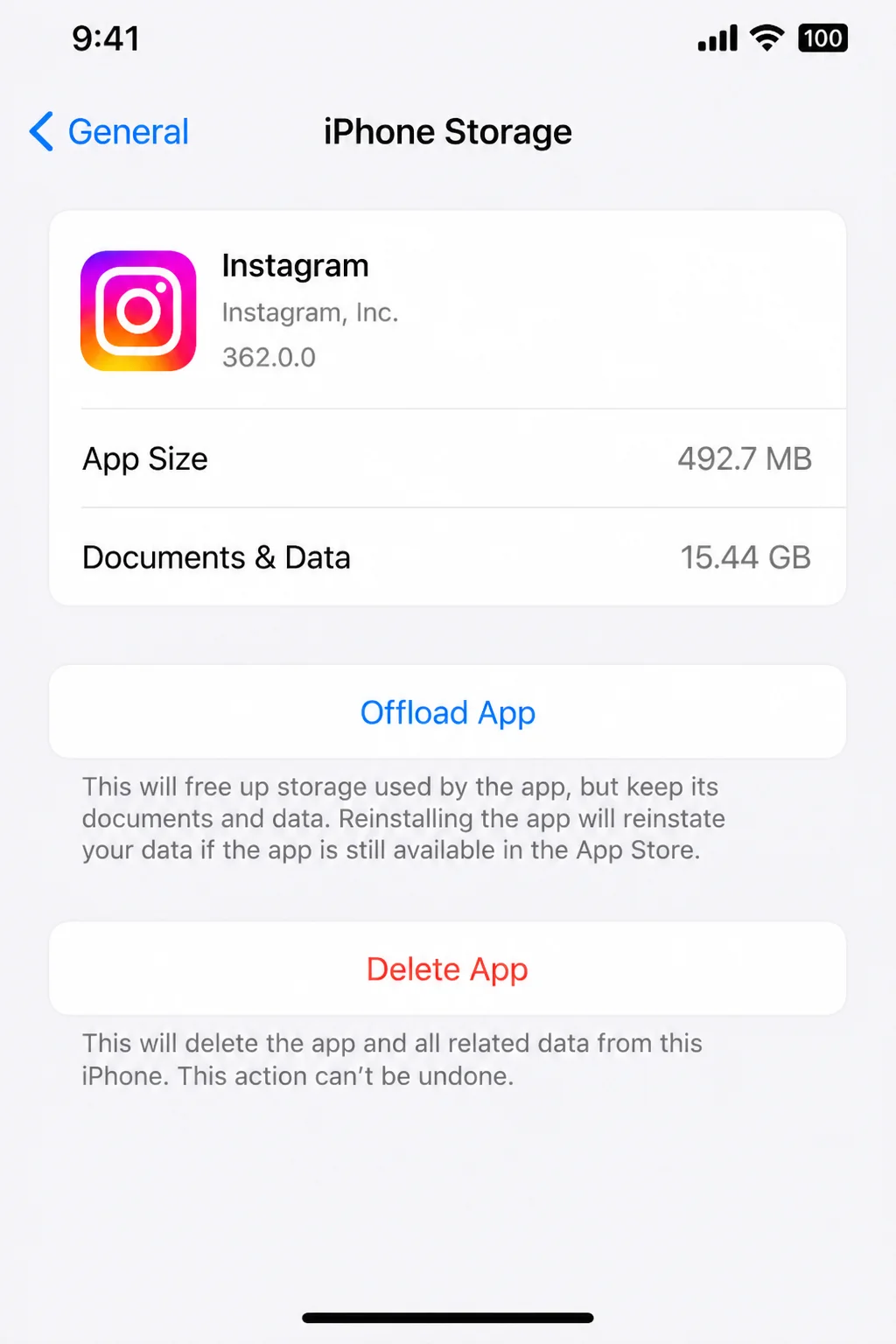
Apple doesn’t give apps a direct “Clear Cache” button the way Android does. The closest equivalent is Offload App, which removes the app and its cached data but keeps your documents and settings intact.
- Go to Settings > General > iPhone Storage.
- Tap Instagram in the app list.
- Tap Offload App. This clears cached data without touching your account.
- Reinstall from the App Store when prompted, then log back in.
For permissions, go to Settings > Instagram and confirm Camera, Photos, Microphone, and Notifications are all switched on if you use those features.
For updates, open the App Store, tap your profile icon top-right, and scroll to see if Instagram has a pending update.
On Android
Android gives you a direct cache-clearing option, which is worth using before a full reinstall.
- Go to Settings > Apps > Instagram > Storage & cache.
- Tap Clear Cache to remove temporary files without losing your login.
- If problems persist, tap Clear Storage, which fully resets the app and signs you out.
- Reopen Instagram and log back in.
For updates, open the Play Store, tap your profile icon, go to Manage apps & device, and update Instagram if it’s listed.
Settings to Check
These settings are commonly involved in Instagram crashing or freezing issues:
- App permissions (Camera, Photos, Microphone, Notifications): Go to your phone’s app settings for Instagram; missing permissions can cause the camera or posting to crash silently.
- Background App Refresh (iOS) / Background data (Android): Found in your phone’s general settings; turning this off for unused apps can free up memory, though it may delay notifications.
- Automatic app updates: Set in the App Store or Play Store settings, which keeps Instagram current so you’re not stuck on a buggy version.
- Storage & cache: Found in each app’s settings; check periodically so Instagram’s cache doesn’t quietly balloon over time.
Configuration Issues
A few common setup mistakes cause avoidable crashes, and they’re worth double-checking even if you think you already got this right:
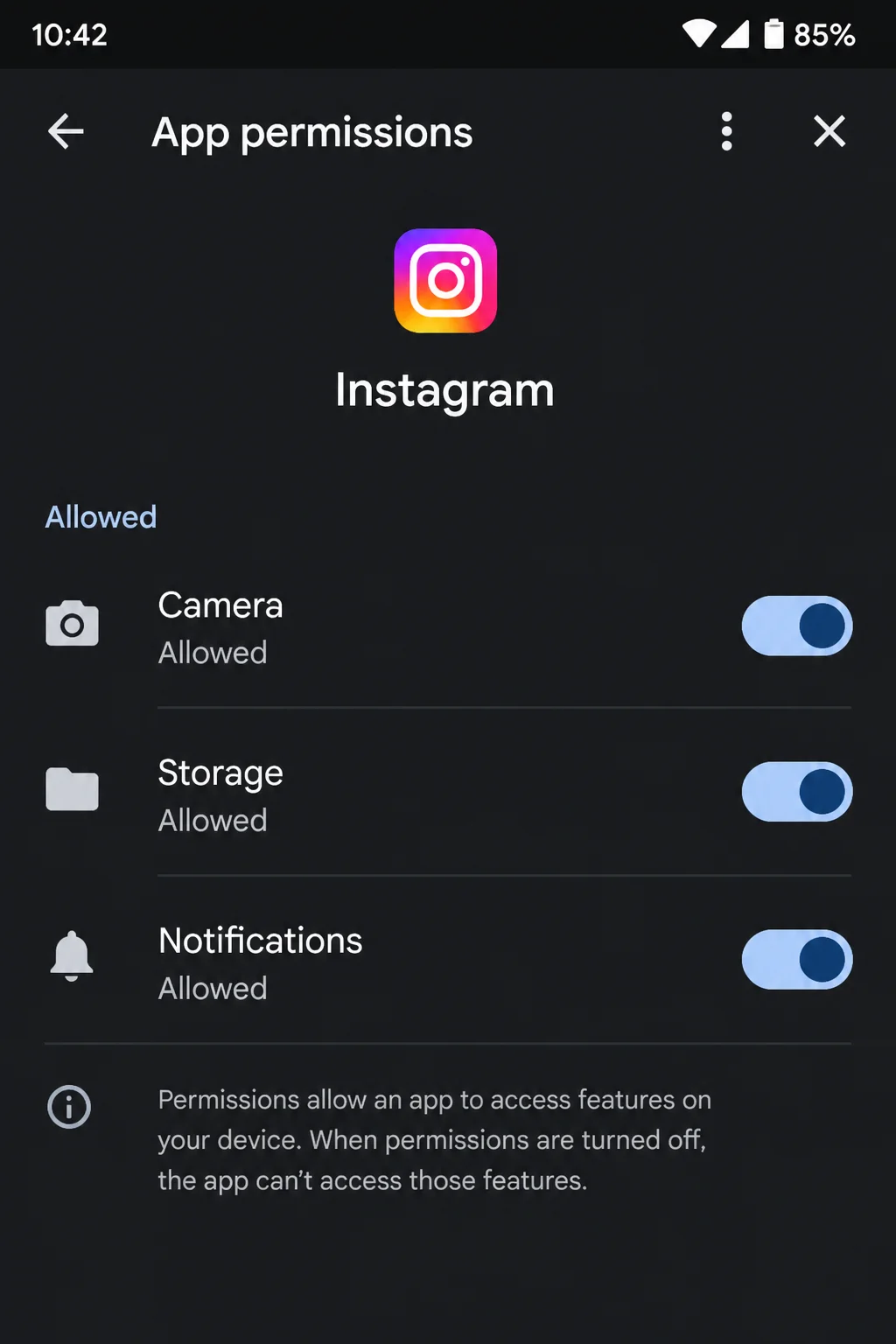
Mistake: Leaving Camera or Photos permission denied, then wondering why posting crashes the app. Correct setup: On iPhone, go to Settings > Instagram and toggle Camera, Photos, and Microphone on. On Android, go to Settings > Apps > Instagram > Permissions and set Camera, Microphone, and Photos/Media to Allow.
Mistake: Letting automatic updates stay off, so Instagram silently falls weeks behind and hits an unsupported version. Correct setup: Enable automatic app updates in the App Store (Settings > App Store > App Updates) or Play Store (Profile icon > Settings > Network preferences > Auto-update apps).
Mistake: Running Instagram on a phone that’s stuck on an old OS version no longer supported by the app. Correct setup: Check for a pending OS update under Settings > General > Software Update (iOS) or Settings > System > System update (Android), and install it if your device supports it.
When to Escalate
If you’ve worked through the steps above and Instagram still won’t behave, stop guessing and loop in official support. Reach out when:
- The crash happens on multiple different apps, suggesting a broader phone issue rather than an Instagram-specific one.
- You’ve reinstalled Instagram and the exact same crash happens immediately, every time, on a fully updated phone.
- Other users are reporting the identical crash after a new Instagram update, meaning it’s a bug on Meta’s end.
- You’ve checked storage, permissions, cache, and connection, and nothing changes.
How to get help:
- In the Instagram app, go to your profile, tap the menu icon, then Settings and privacy > Help > Report a problem.
- Visit the Instagram Help Center to search known issues or submit feedback.
- For OS-level issues, check Apple Support or Google’s Android support if the problem seems tied to your phone’s software rather than Instagram itself.
Prevention Tips
A little maintenance now saves you from repeating all of this later:
- Keep Instagram and your OS updated: Most crashes trace back to outdated software on one side or the other.
- Clear cache periodically: Don’t wait for a crash; check Instagram’s storage usage every month or two.
- Manage phone storage: Keep a few gigabytes free at all times; Instagram (and your phone in general) runs better with breathing room.
- Limit background apps: Fewer apps competing for memory means fewer freezes during heavy scrolling or video.
- Review permissions after updates: Occasionally an update resets a permission; a quick check saves a confusing crash later.
Frequently Asked Questions
Does reinstalling Instagram delete my account or photos?
No. Your account, followers, and posts live on Instagram’s servers, not on your phone. Reinstalling just gives you a fresh copy of the app; you’ll simply need to log back in.
How much storage does Instagram need to run properly?
There’s no hard minimum, but Instagram runs noticeably better when your phone has at least a few gigabytes of free storage overall, since it needs room to cache photos and video temporarily.
Is it my phone or Instagram’s servers causing the problem?
If other apps and websites work fine and only Instagram misbehaves, it’s most likely local: cache, storage, or permissions. If other people are reporting issues too, it’s likely a server-side problem on Instagram’s end.
How do I report a crash or bug to Instagram?
Open Instagram, tap your profile picture, go to the menu icon, then Settings and privacy > Help > Report a problem, and describe what happened.
Wrapping Up
Most Instagram crashes come down to the same handful of culprits: an outdated app, a full cache, low storage, or a permission that got switched off somewhere along the way. Work through the quick fixes first, and you’ll clear up the vast majority of crashes without ever needing to reinstall.
A five-minute cache clear or update check really does save you a headache later. It’s worth doing every so often, even before anything breaks.
| Step | Action | Applies To |
|---|---|---|
| 1 | Force-close and restart the app | iOS & Android |
| 2 | Restart your phone | iOS & Android |
| 3 | Update Instagram from the app store | iOS & Android |
| 4 | Clear cache (Android) or offload app (iOS) | Platform-specific |
| 5 | Check storage space | iOS & Android |
| 6 | Verify Camera/Photos permissions | iOS & Android |
| 7 | Reinstall Instagram | iOS & Android |
| 8 | Report the bug if it persists | iOS & Android |
Last updated: July 20, 2026 | Applies to Instagram on iPhone and Android