

Steam has long been a cornerstone platform for accessing a vast library of games, connecting with friends, and diving into immersive gaming experiences. However, encountering errors such as “Something Went Wrong While Displaying This Content” can quickly put a damper on your gaming session.
Whether you’re in the middle of a highly anticipated game launch or simply browsing the Steam store for your next adventure, this frustrating message can disrupt your gaming experience. But don’t worry, in this article, we’ll delve into the common causes behind this error and provide you with a comprehensive guide on how to troubleshoot and fix it in no time.
What’s Causing the Error
What you have here is a JavaScript error and it usually happens as soon as you launch the Steam app. That’s because the first thing the Steam app opens is the Steam web page. If the in-app browser has a faulty JavaScript code, it won’t be able to handle the content of that page. In turn, this will influence your games, chats, screenshots, and all other features of the Steam app. That said, the error typically shows up after a big Steam update and here’s what you can do to fix it.
1. Disable GPU Accelerated Rendering
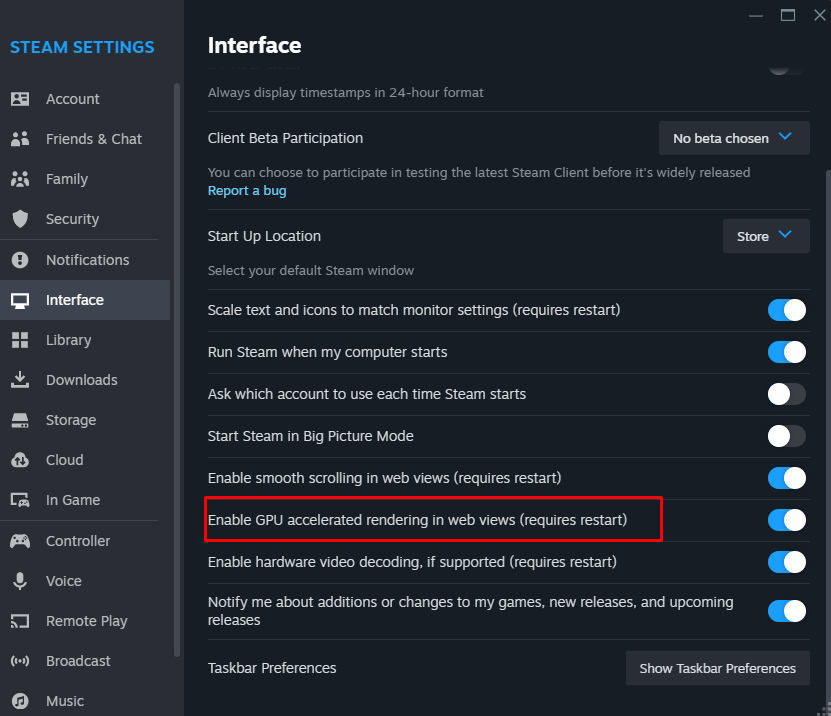
The most common solution to this issue is to disable the GPU Accelerated Rendering within the Steam app. Many users claim this is what helped them when they faced the same Steam error. That’s why this should be the first thing you try if your screen displays the error message when you launch Steam.
Follow these steps to disable GPU Accelerated Rendering:
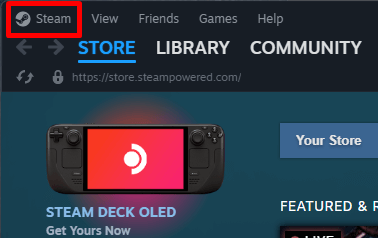
- Launch the Steam app and go to Steam in the top left corner of the app’s window.
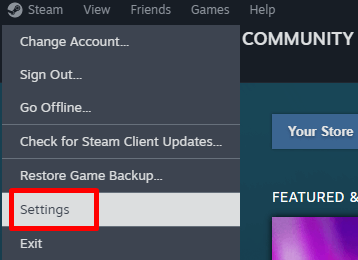
- Select Settings from the drop-down menu.
- Choose Interface from the left panel menu.
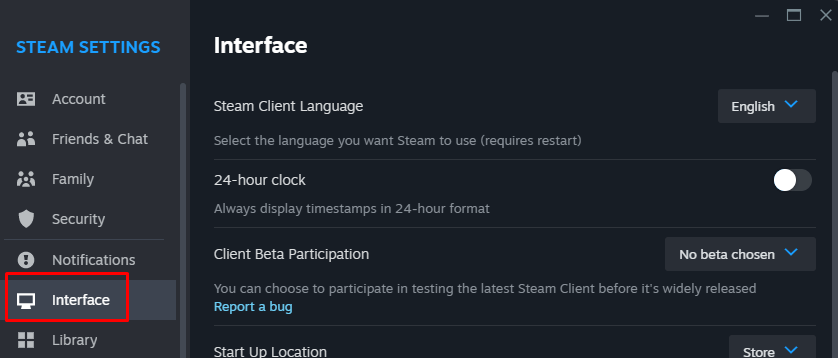
- Find Enable GPU Accelerated Rendering in the main menu and uncheck the box next to it.
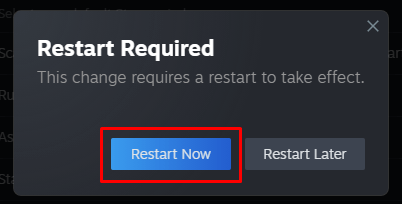
- When prompted, select the Restart Now button.
If this doesn’t help don’t, try the next step.
2. Run Steam as an Administrator
Sometimes, fixing the error is as simple as running the Steam app as an administrator on your PC. To do that:
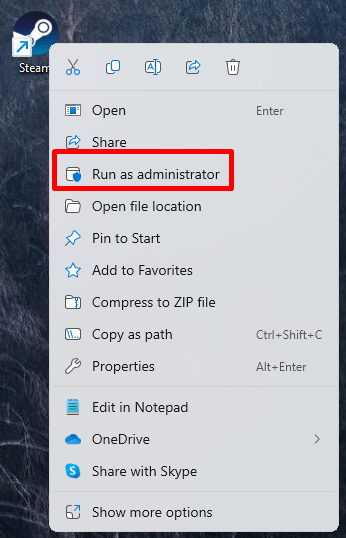
- Right-click on the Steam app icon on your desktop.
- Select “Run as Administrator” from the dropdown menu.
- If prompted, enter your administrator password.
And that’s all. See if you still get the message. If you do, continue reading this article to find out what else you can try to fix it.
3. Clear Steam Cache Files
The next thing you should try is clearing the Steam Cache. Cache files are stored on your device after you visit websites. These files help your computer run the websites faster the next time you visit them. But it’s also these files that can easily get corrupted and influence how your apps and browsers work.
Deleting Steam cache files won’t make you lose any of the data you keep within the app. Game progress, screenshots, and chats, all will be preserved. It’s advisable to occasionally clear the app cache just to prevent possible errors.
Follow these steps to clear Steam cache files:
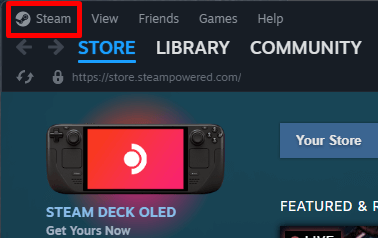
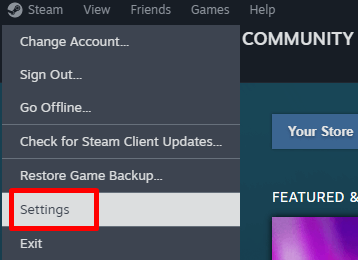
- Launch the Steam app and select Steam in the top left corner of the window.
- Select Settings from the drop-down menu.
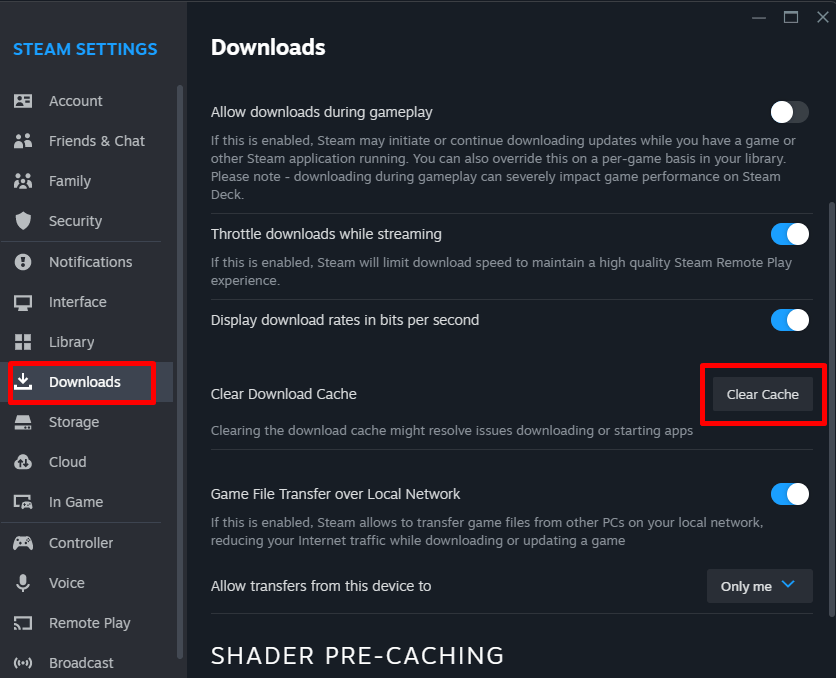
- Select Downloads from the left-hand menu and then select Clear Download Cache from the right-hand menu.
- Restart the Steam app.
Once Steam launches, check if you’re still getting the error message.
4. Clear Browser Cache Files
Since this is a JavaScript code error, it’s natural to presume the corrupted cache files that are causing it are within the browser. So why not go ahead and clear the browser cache files too? However, you should consider doing this step only if you’re trying to access Steam through a browser and not the app itself.
How to clear browser cache files will depend on the browser you’re using, but the principle behind it is always the same. Let’s see the steps you need to take for Mozilla Firefox, Google Chrome, and Microsoft Edge.
Clear Cache from Mozilla Firefox:
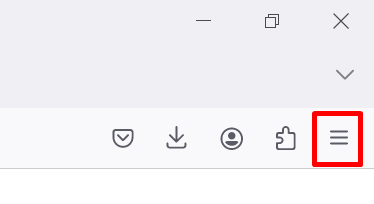
- Launch your browser and click the three-line menu at the top right corner of the window.
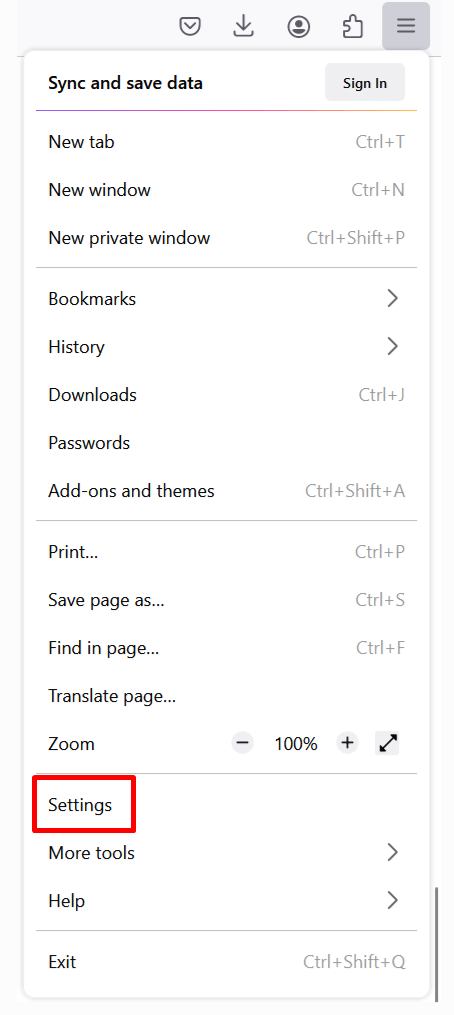
- Go to Settings.
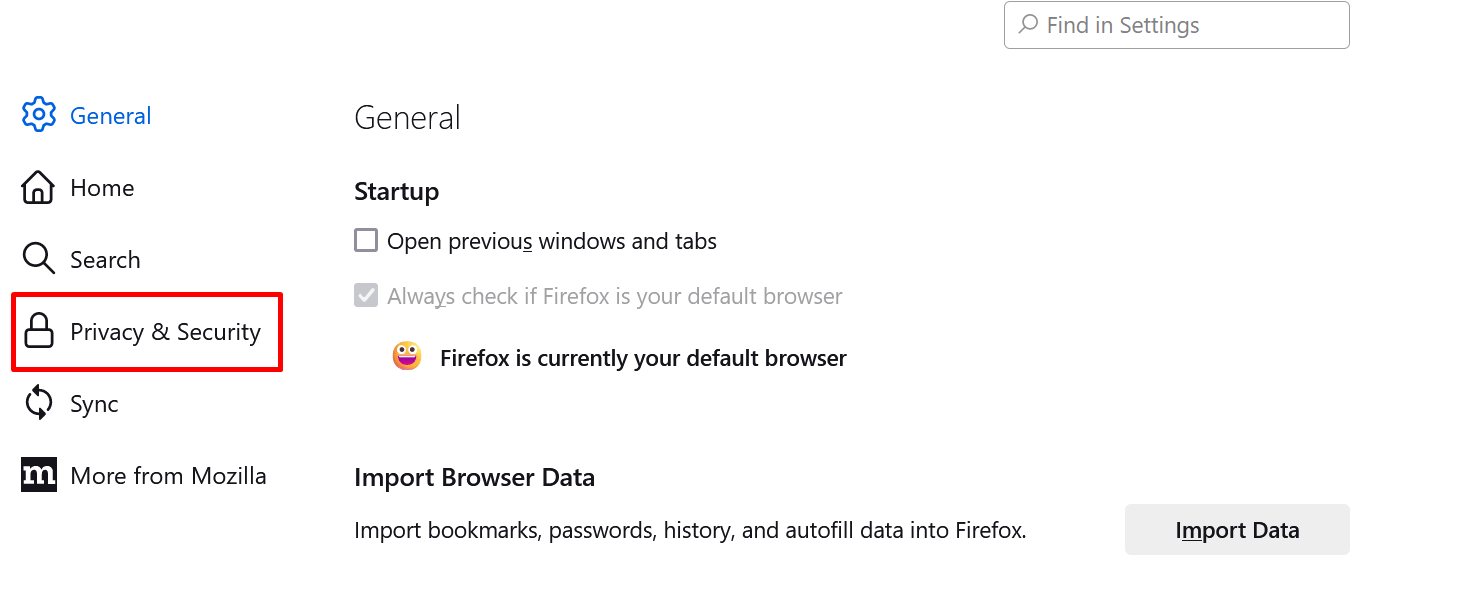
- Select Privacy & Security from the left-hand menu.
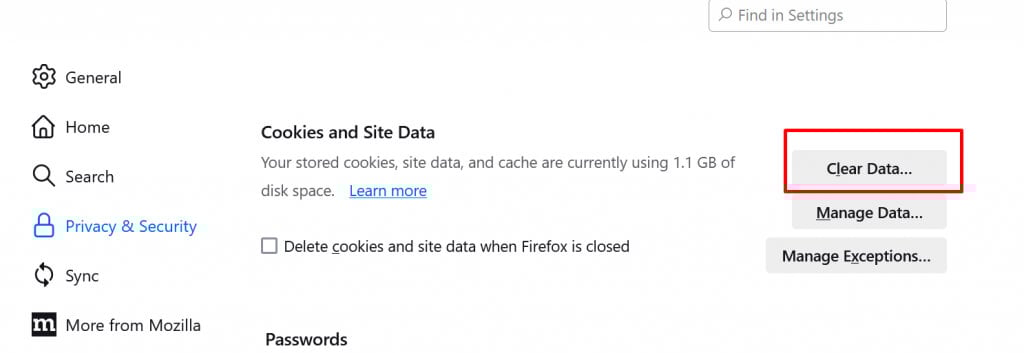
- Select Clear Data from the right-hand menu. You’ll find it under the Cookies and Site Data section.
Clear Cache from Google Chrome:
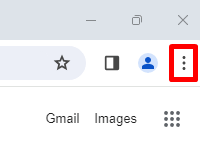
- Launch the browser and click on the three dots menu in the top right corner of the window.
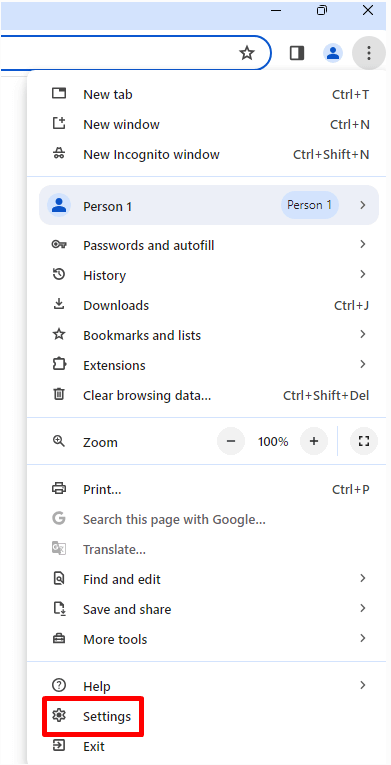
- Select Settings from the drop-down menu.
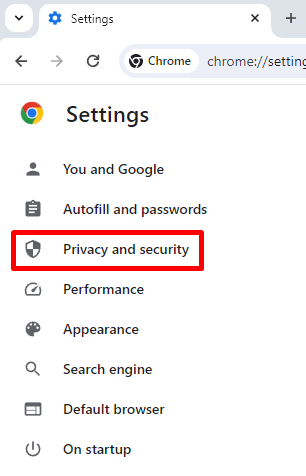
- Select Privacy and Security from the left side menu.
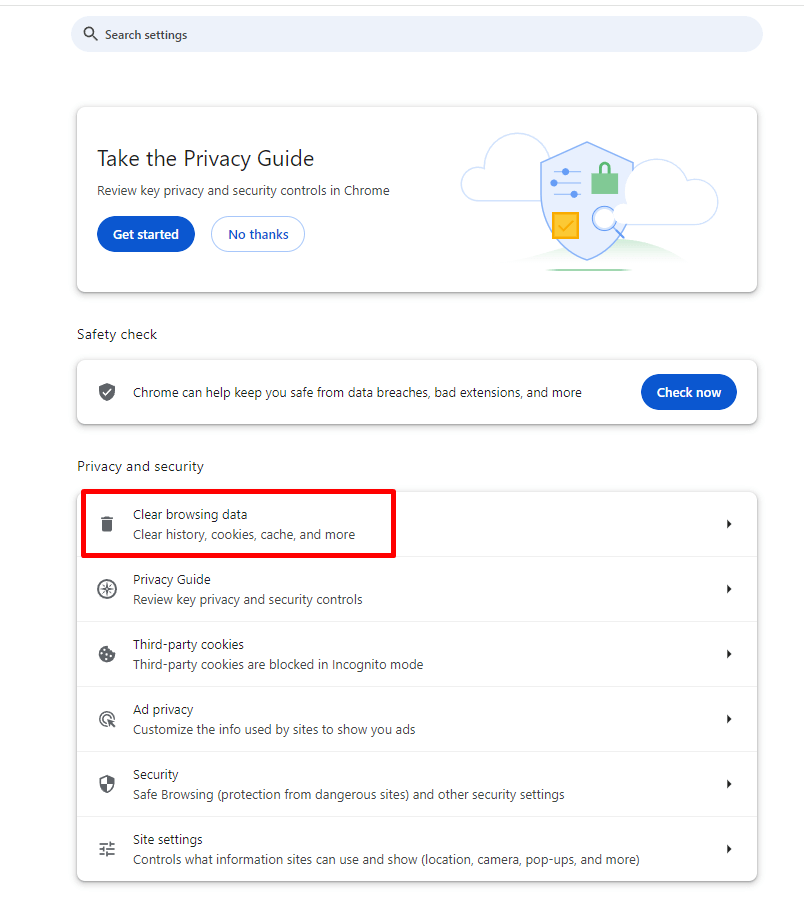
- Select Clear browsing data from the middle of the screen.
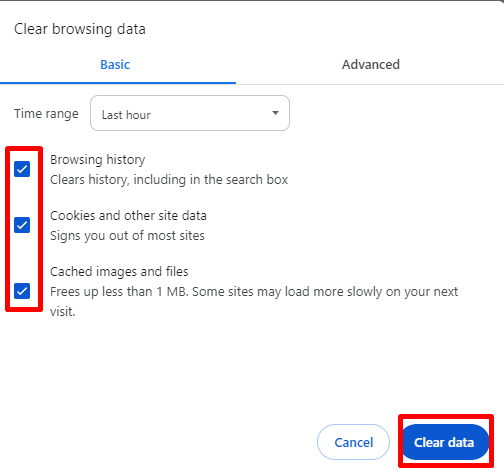
- A new prompt will open. Make sure that all three options (browsing history, cookies and other site data, and cached images and files) are checked. Then select the Clear Data button on the prompt.
Clear Cache from Microsoft Edge:
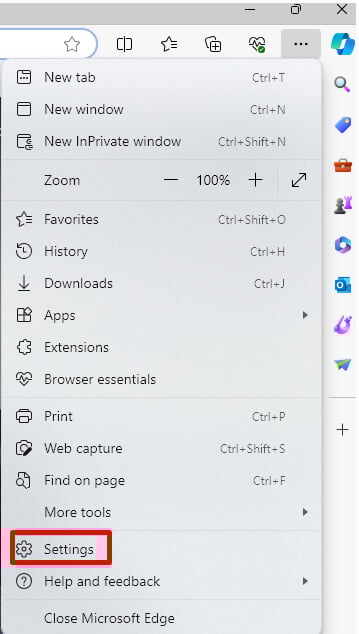
- Launch the browser and hit the three-dot menu in the top right corner.
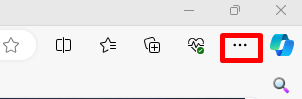
- Select Settings from the drop-down menu.
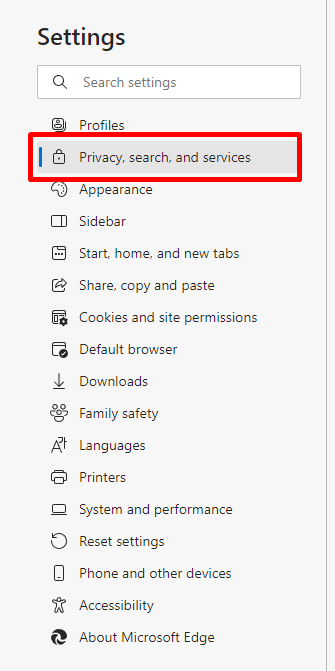
- Select the Privacy, Search, and Services option from the left-hand menu.
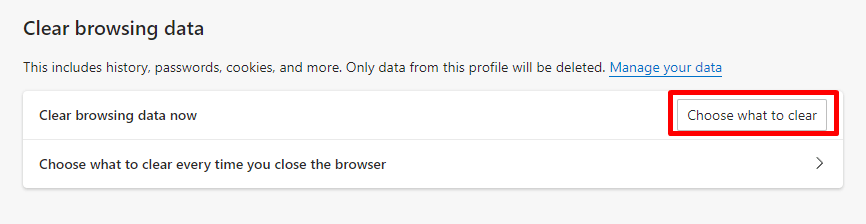
- Under the Clear browsing data section, select Choose what to clear.
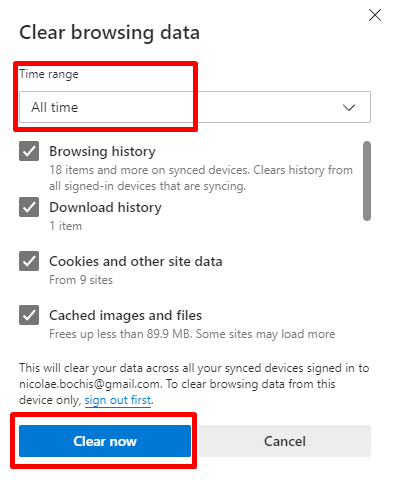
- When a prompt opens, select All Time from the drop-down menu. Make sure all four checkboxes are ticked, and select the Clear now button.
5. Check Your PC’s GPU
Perhaps it’s your computer’s GPU that’s causing the problem. To check it:
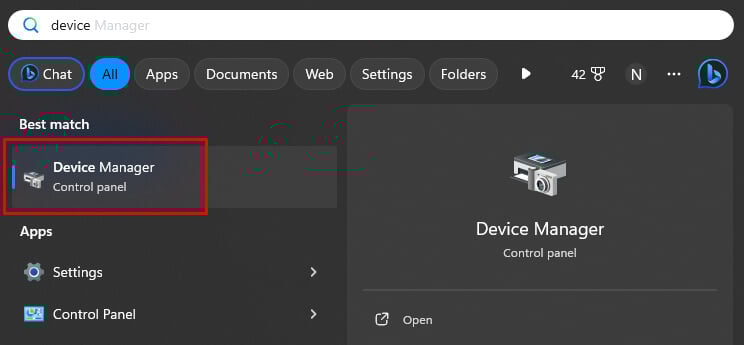
- Type Device Manager in the Windows search bar and open the app.
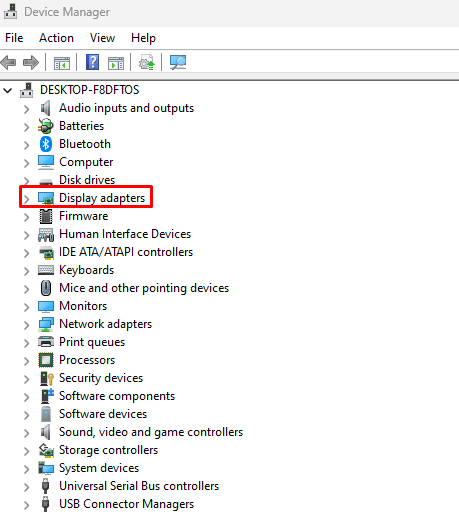
- Select the arrow next to Display Adapters to open up its option.
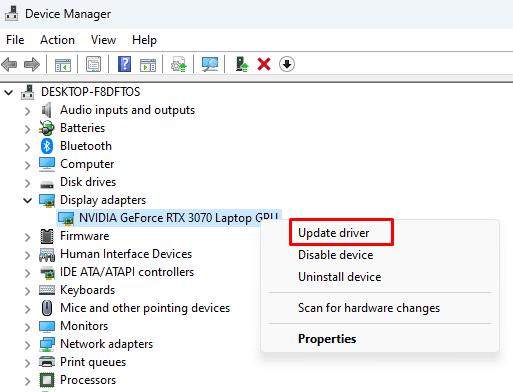
- Right-click on your GPU and select Update Driver.
- Follow the on-screen instructions to complete the installation process.
- Restart your PC.
Launch Steam to see if this fixed the issue.
7. Wait it Out
If none of the steps described above helped, all you can do is wait. It is a temporary error and Valve usually solves it with quick hotfixes. If enough users complain, the Steam developers will issue an update for the mainline client, which should fix the problem.
While waiting, you should report the problem to Valve so they know it and start working on the hotfix as soon as possible. Just be patient and methodical as you work through the troubleshooting process, and don’t hesitate to reach out to Steam support, online communities and our own comment section below for further assistance if needed.