
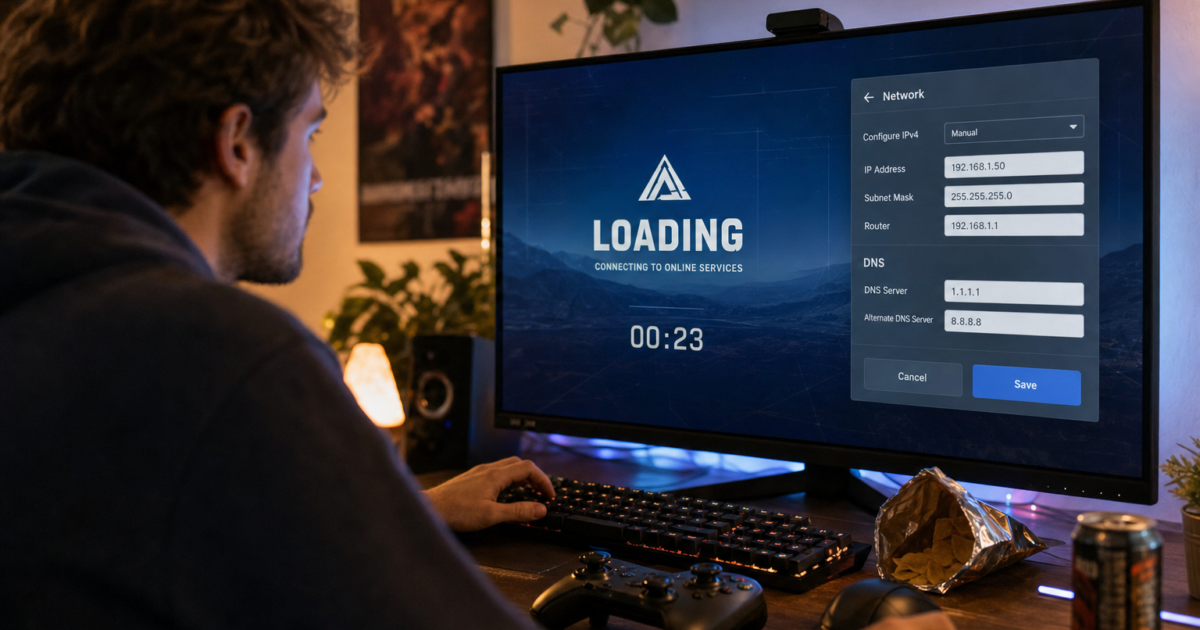
Hoping a DNS change will magically fix your lag? Well, let’s be realistic here: DNS servers won’t turn your potato internet into fiber, but they might help with those annoying delays when connecting to new game servers. Here’s what actually works in 2026.
Before we dive in, let’s set expectations. Your DNS server is just one small piece of the gaming performance puzzle. Your internet speed, the game’s server capacity, and your PC settings matter way more. But hey, if you’re already doing everything else right, why not squeeze out every bit of performance you can get?
What Is a DNS Server (And Why Should Gamers Care)?
DNS (Domain Name System) is basically the internet’s phone book. When you type “steam.com” or connect to a game server, your computer needs to convert that friendly name into an actual IP address like 192.168.1.1. That’s what DNS servers do.
Key things DNS affects for gaming:
- Initial connection speed: How fast you connect to new servers for the first time
- Website loading: Browsing game stores, forums, and downloading updates
- Security: Some DNS servers block malicious sites that could mess with your gaming setup
- Privacy: Who gets to see which servers you’re connecting to
Here’s the thing though, once you’re connected to a game server, DNS is out of the picture. Your computer caches that server’s address, so subsequent connections skip the DNS lookup entirely. This means DNS mainly helps with connecting to new servers, not your ongoing ping or frame rate.
The 5 Best DNS Servers for Gaming in 2026
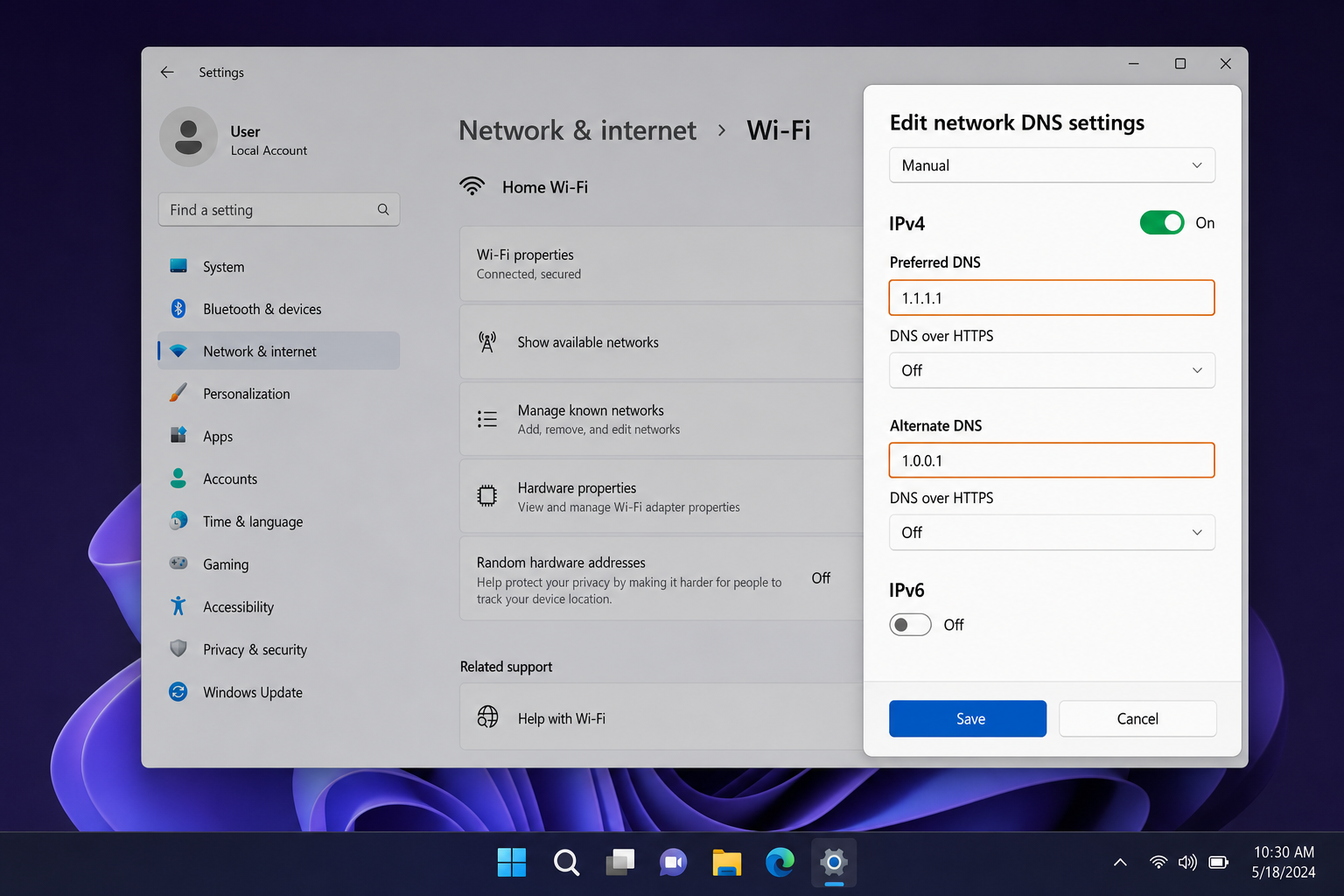
1. Cloudflare DNS (1.1.1.1 / 1.0.0.1)
Cloudflare consistently ranks as the fastest DNS service, and for good reason. They’ve got data centers everywhere, so you’re usually connecting to a server that’s geographically close to you.
Why gamers like it:
- Speed: Consistently the fastest query responses across most regions
- Privacy-focused: They don’t sell your data and purge logs within 24 hours
- Free encryption: Supports DNS-over-HTTPS and DNS-over-TLS
- No content filtering: Won’t block gaming-related sites
The trade-off: While Cloudflare is blazing fast, it’s not as strong on malware blocking compared to security-focused alternatives. If you’re clicking sketchy download links for game mods, you might want extra protection.
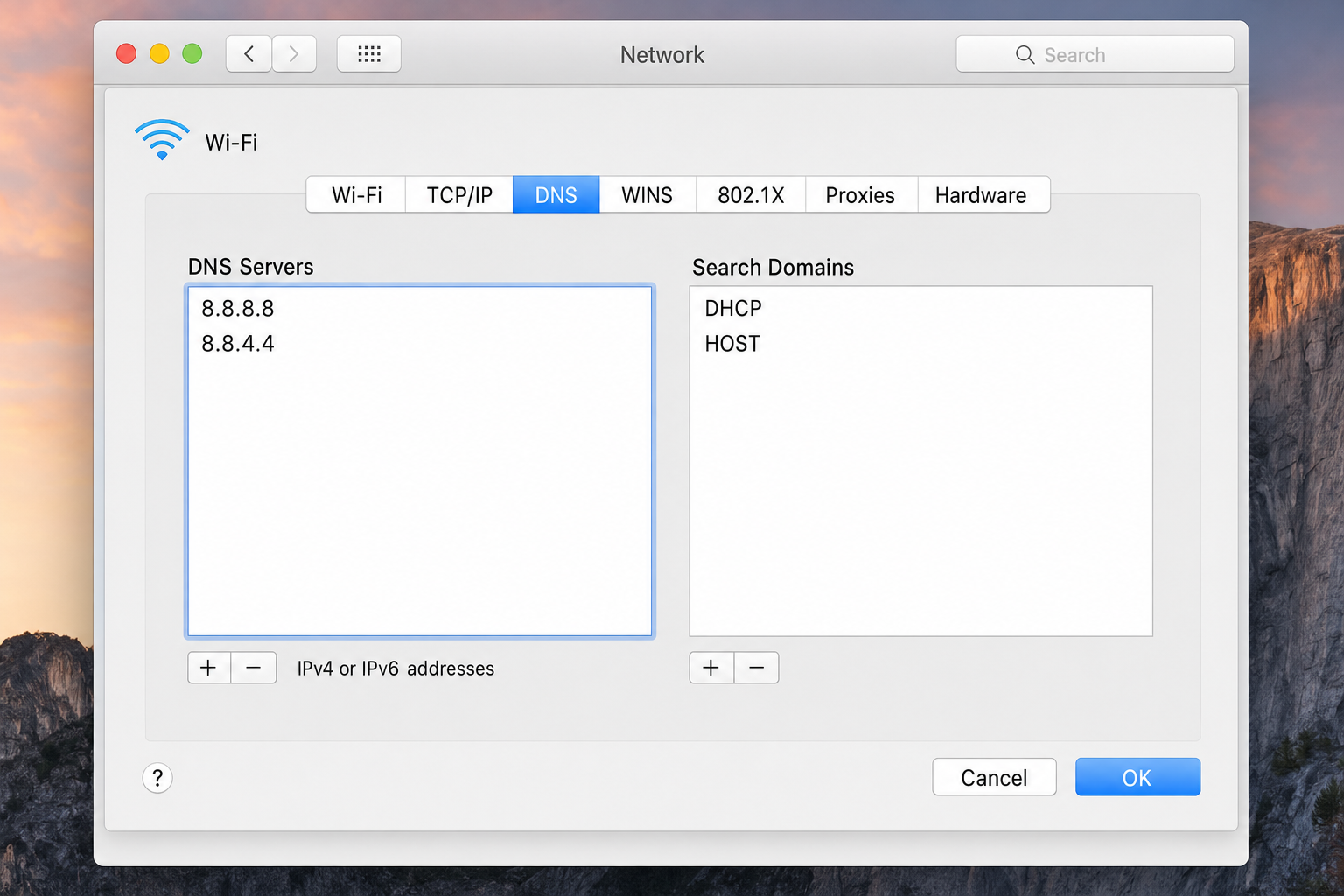
2. Google Public DNS (8.8.8.8 / 8.8.4.4)
Google’s DNS isn’t always the fastest, but it’s incredibly reliable. When Cloudflare has a bad day, Google’s infrastructure keeps chugging along.
Why it’s solid for gaming:
- Rock-solid reliability: Google’s massive infrastructure means consistent uptime
- Global coverage: Works well no matter where you’re gaming from
- Familiar and trusted: Easy to remember addresses
- Good performance: Not the fastest, but consistently good
The privacy catch: Google logs your IP address, ISP info, and location data. If you’re privacy-conscious, this might bug you. But if you’re already using Google services everywhere, it’s probably not a big deal.
3. Quad9 (9.9.9.9 / 149.112.112.112)
Quad9 is the security-first option. It automatically blocks connections to known malicious websites, which is handy if you’re downloading game mods or browsing sketchy gaming forums.
Security benefits for gamers:
- Malware blocking: Stops connections to known bad sites before they start
- Phishing protection: Helps prevent fake gaming sites from stealing your accounts
- Privacy-focused: Doesn’t log your personal data
- Decent speed: Not as fast as Cloudflare, but still better than most ISP defaults
The speed trade-off: Security features add a tiny bit of latency. We’re talking milliseconds, but speed demons might notice.
4. OpenDNS (208.67.222.222 / 208.67.220.220)
Owned by Cisco, OpenDNS offers solid performance with optional content filtering. It’s particularly good if you want to block certain types of sites without affecting gaming performance.
What makes it gaming-friendly:
- Reliable performance: Especially strong in North America and Europe
- Customizable filtering: Block social media during gaming sessions (if you’re into that)
- Phishing protection: Keeps your gaming accounts safer
- Good uptime: Cisco’s enterprise-grade infrastructure
OpenDNS also offers more advanced filtering options if you sign up for a free account, but the basic service works great without any registration.
5. Control D (76.76.2.0 / 76.76.10.0)
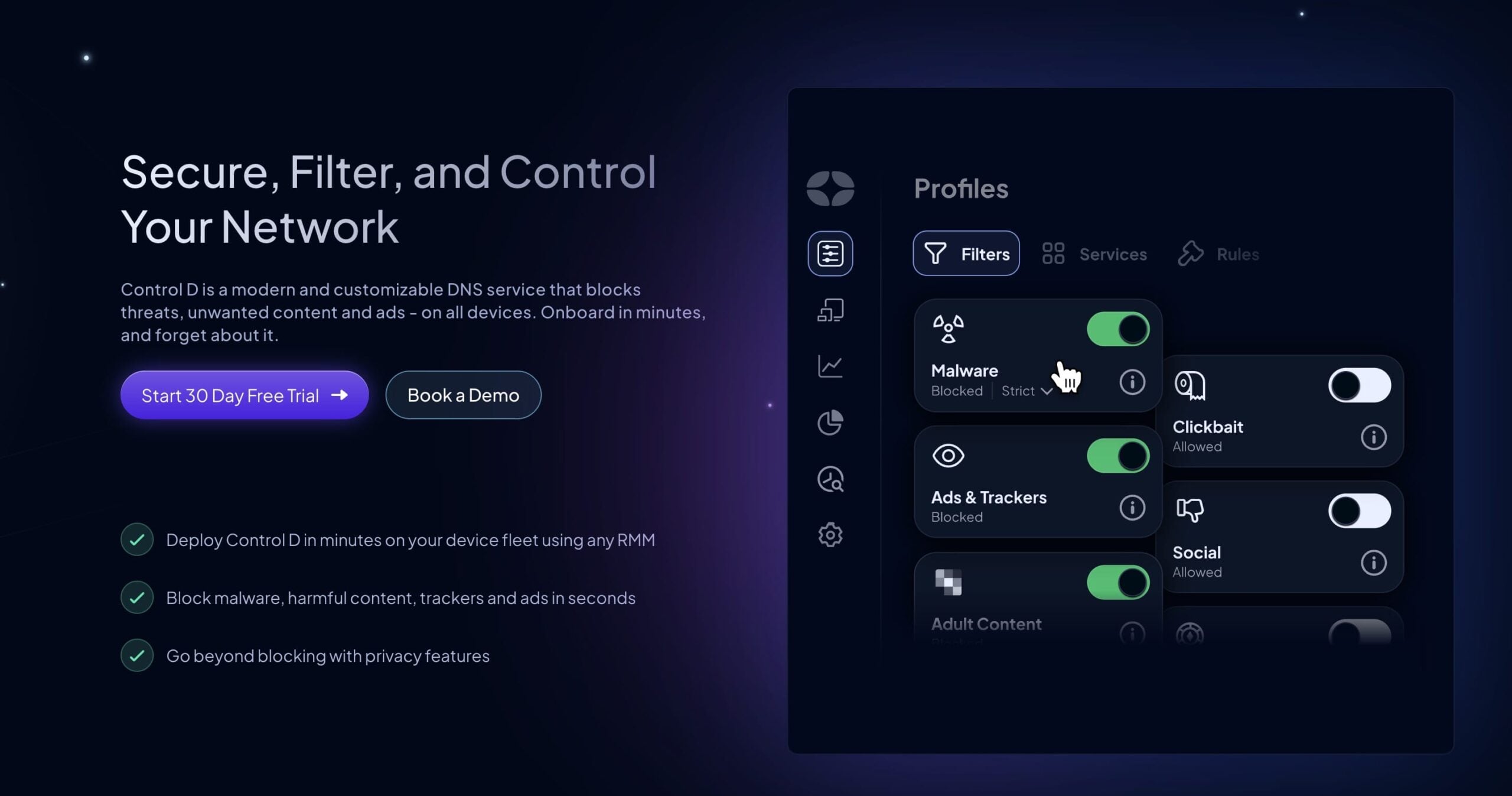
Control D is the newcomer that’s been getting attention in 2026. It’s designed for users who want more control over their DNS experience.
Why it’s gaining traction:
- Impressive speed: Reportedly ranks #1 in some 2026 speed tests
- High customization: Detailed filtering rules and usage statistics
- Server reliability: Strong uptime and consistent performance
- Gaming-focused features: Reportedly includes options specifically designed for low-latency gaming
The premium catch: The best features require a paid subscription, but the free tier is still competitive with other options on this list.
How to Change Your DNS Server for Gaming
Switching DNS servers is pretty straightforward, but the steps vary depending on your platform. Here’s how to do it on the most common gaming setups:
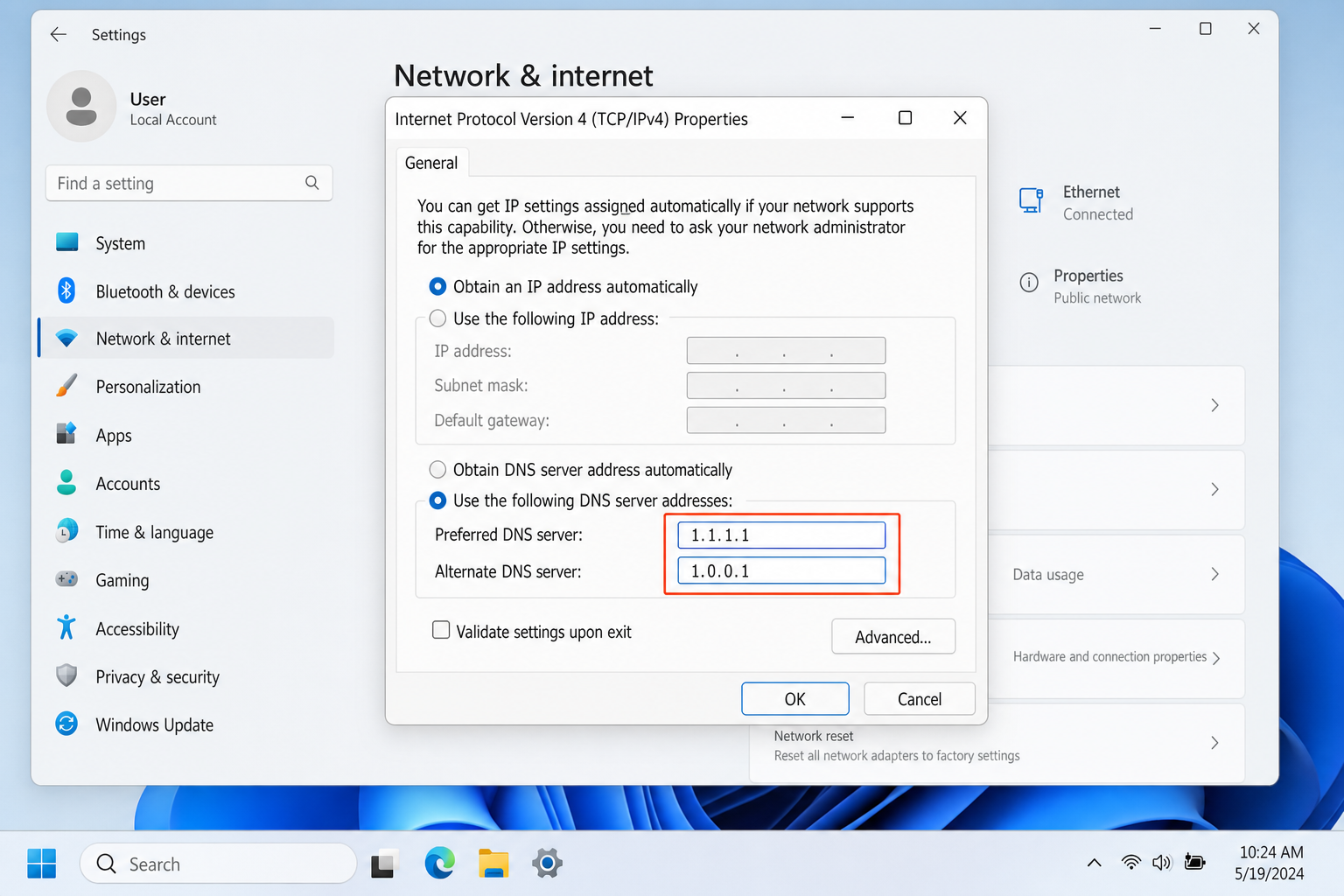
On Windows 11
- Right-click the network icon in your system tray and select Network and Internet settings.
- Click Advanced network settings, then More network adapter options.
- Right-click your active connection (Wi-Fi or Ethernet) and select Properties.
- Select Internet Protocol Version 4 (TCP/IPv4) and click Properties.
- Select Use the following DNS server addresses and enter your preferred DNS servers.
- Click OK to save the changes.
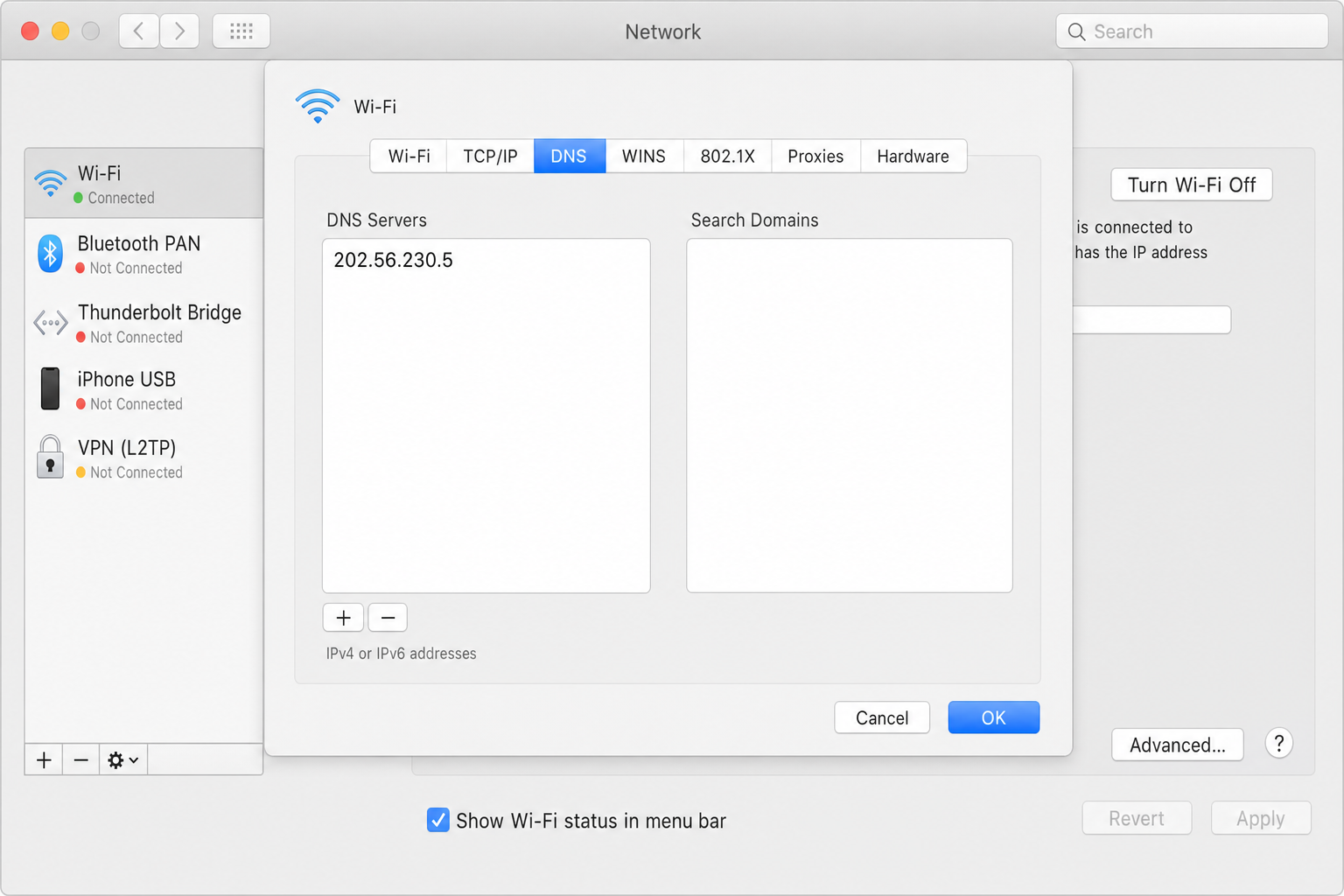
On macOS
- Open System Settings from the Apple menu.
- Click Network in the sidebar.
- Select your active connection (Wi-Fi or Ethernet).
- Click Details, then go to the DNS tab.
- Click the + button and add your preferred DNS servers.
- Click OK to save.
On Gaming Consoles
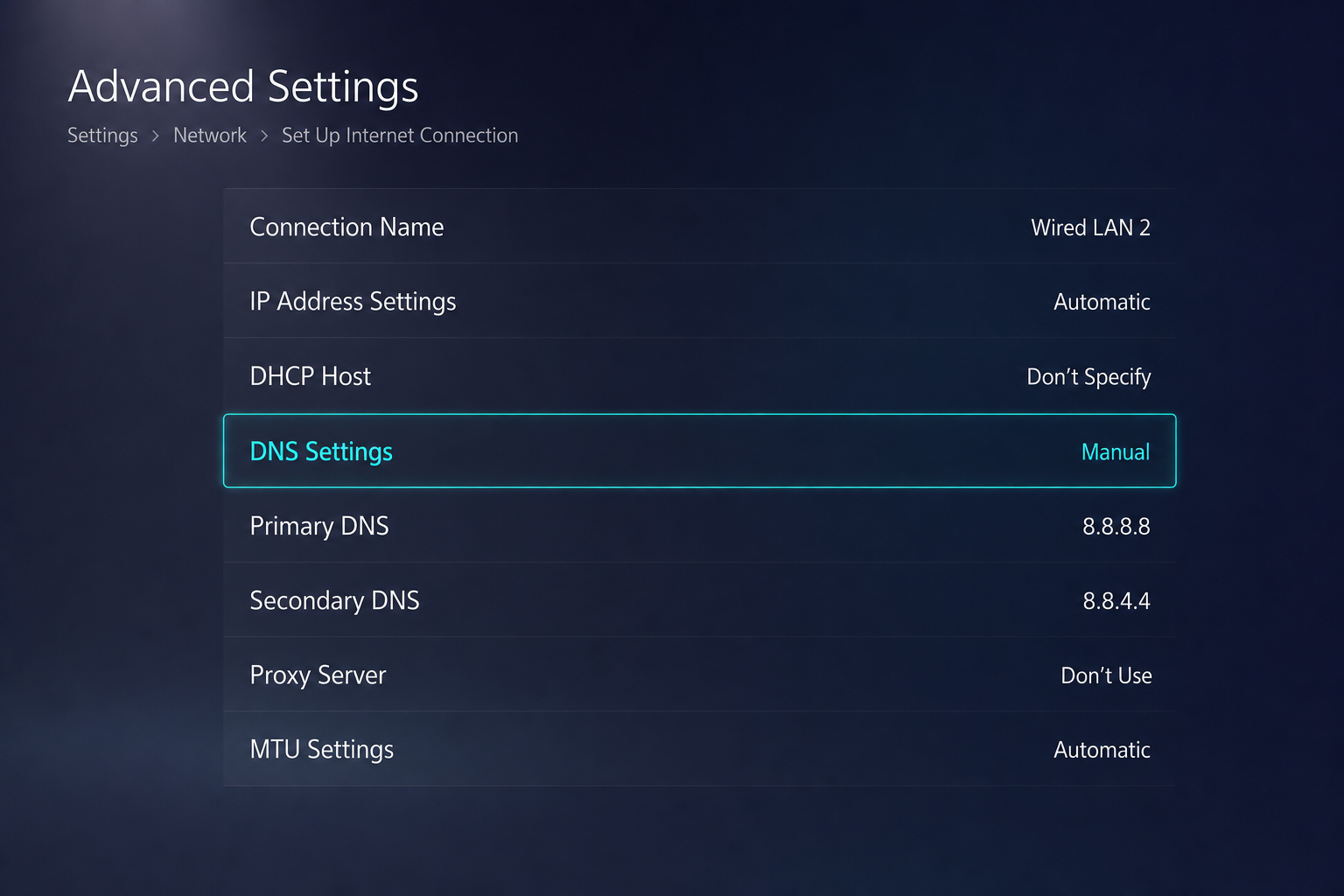
PlayStation 5:
- Go to Settings > System > Console Information > Network.
- Select Settings > Set Up Internet Connection.
- Choose your connection method and select Advanced.
- Set DNS to Manual and enter your preferred servers.
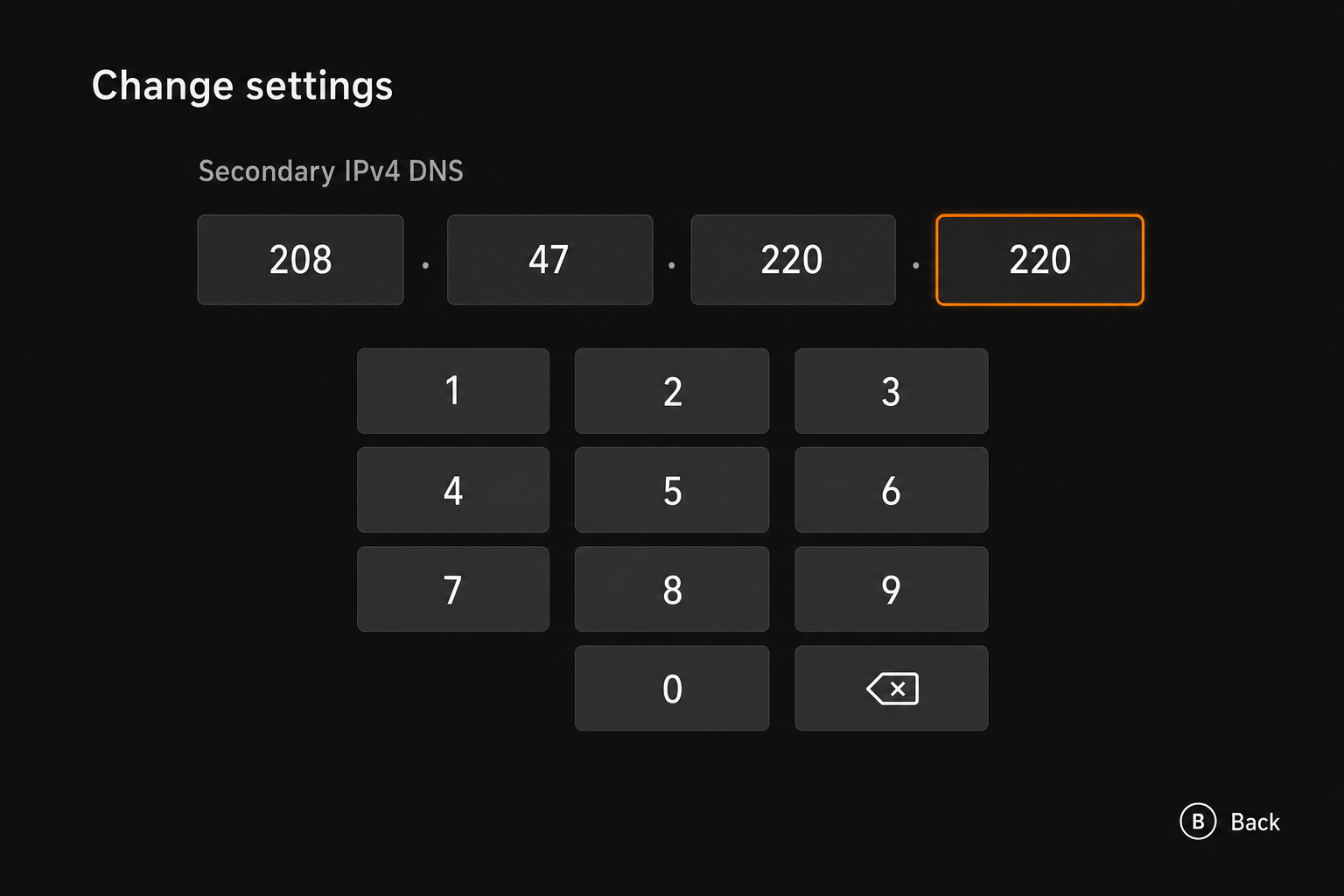
Xbox Series X/S:
- Press the Xbox button and go to Settings > Network.
- Select Advanced settings > DNS settings.
- Choose Manual and enter your DNS servers.
- Restart your console to apply changes.
Tips and Troubleshooting
Common Issues
Problem: Games won’t connect after changing DNS
Sometimes your computer holds onto old DNS information. To fix this:
- Open Command Prompt (Windows) or Terminal (macOS) as administrator
- Type
ipconfig /flushdns(Windows) orsudo dscacheutil -flushcache(macOS) - Restart your router and computer
Problem: Some websites are blocked after switching to Quad9
Quad9’s security features might block legitimate sites occasionally. Try switching to their unfiltered version at 9.9.9.10 / 149.112.112.10.
Pro Tips
- Test your speeds: Use tools like DNSPerf.com to see which server actually performs best from your location
- Mix and match: You can use different DNS servers as primary and secondary (like Cloudflare primary, Google secondary)
- Router-level changes: Change DNS on your router to affect all devices at once
- Gaming-specific optimization: Some routers have “Gaming Mode” DNS settings that prioritize low latency
The Bottom Line: Do DNS Servers Actually Help Gaming?
So far so good with our testing. DNS changes do make a difference, just not the dramatic one some people expect. You’re looking at maybe saving a few hundred milliseconds when connecting to new servers, not transforming your entire gaming experience.
The real benefits are more subtle: faster browsing of gaming sites, better security when downloading mods, and slightly quicker connections to new game servers. If you’re already running a solid internet connection and optimized gaming setup, DNS is just one more small optimization that’s worth doing.
Our recommendation: Start with Cloudflare (1.1.1.1) for pure speed, or Quad9 (9.9.9.9) if you want security features. Both are free, both work well, and you can always switch back to your ISP’s DNS if something breaks. Google DNS (8.8.8.8) remains the reliable fallback option that just works everywhere.
Just remember, if you’re dealing with serious lag or connection issues, your time is probably better spent checking your internet plan, updating network drivers, or optimizing your router settings. DNS is the cherry on top, not the whole sundae.