

Been struggling with sensitive WhatsApp messages cluttering your phone or worried about privacy? WhatsApp’s disappearing messages feature solves both problems by automatically deleting your chats after a set time. You can choose from three timer durations — 24 hours, 7 days, or 90 days — giving you flexible control over how long messages stick around.
Think of disappearing messages like putting an expiration date on your texts. Once the timer runs out, messages vanish from both your device and the recipient’s phone. It’s perfect for sharing temporary info, keeping private conversations secure, or just freeing up storage space on your device.

What Are WhatsApp Disappearing Messages?
Disappearing messages is a privacy feature that automatically deletes WhatsApp messages after a specific time period. You can set messages to vanish after 24 hours, 7 days, or 90 days.
Key Features:
- Three timer options: Choose from 24 hours, 7 days, or 90 days
- Works everywhere: Available on iPhone, Android, WhatsApp Web, and WhatsApp Business
- Keep important messages: You can prevent specific messages from disappearing by “keeping” them
- Default settings: Set all new chats to automatically use disappearing messages
- Group chat support: Admins can control who can change the settings
The feature works best for temporary conversations, sensitive information, or when you want to keep your chat history clean. Plus, it helps free up storage space on devices with limited memory.
How to Enable Disappearing Messages on iPhone and iPad
You can turn on disappearing messages for individual chats, group conversations, or set it as the default for all new chats on iPhone and iPad. Here’s how to do each one.
For Individual Chats
Step 1: Open WhatsApp and go to the Chats tab. Tap the conversation you want to modify.
Step 2: Tap the contact’s name or phone number at the top of the screen.
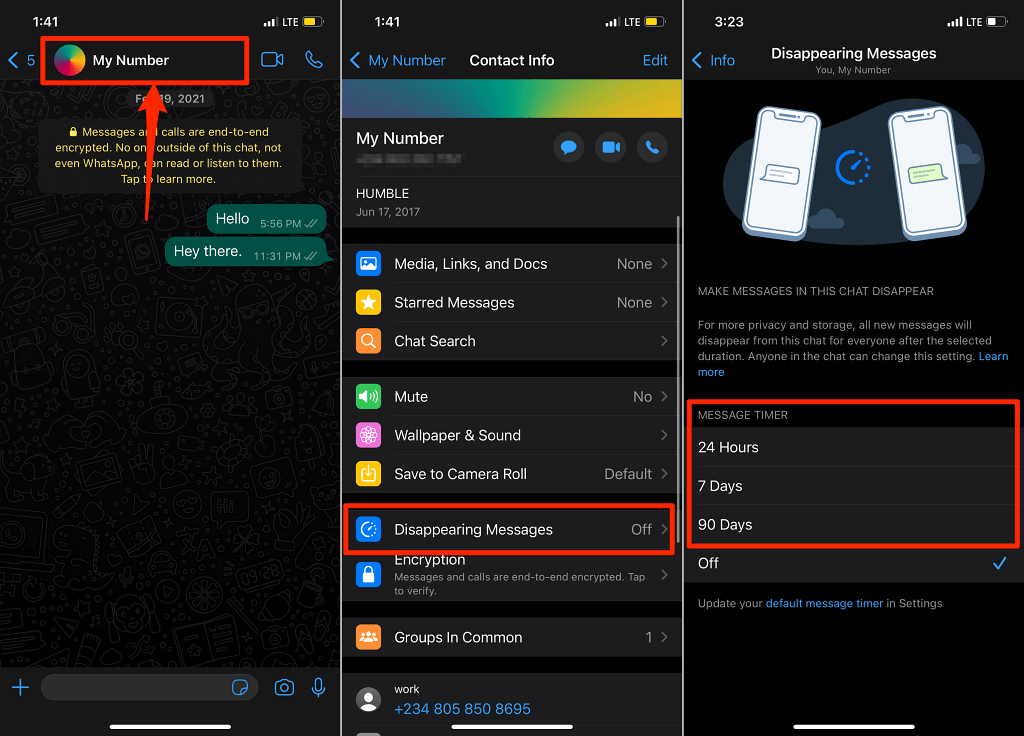
Step 3: Scroll down and tap Disappearing Messages.
Step 4: Choose your preferred timer from the available options:
- 24 hours – Great for temporary updates and daily chats
- 7 days – Ideal for project discussions or short-term coordination
- 90 days – Best for important info you might need to reference for a while
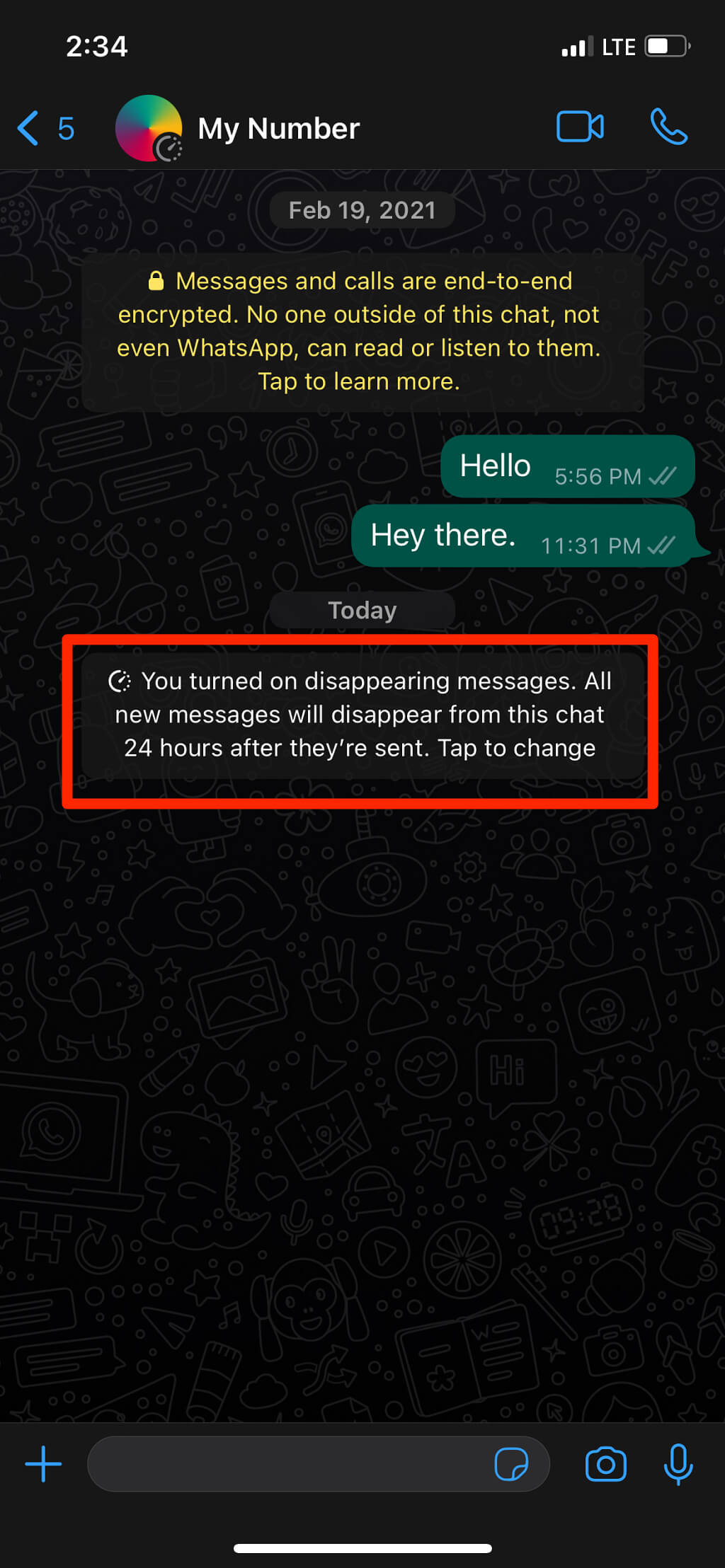
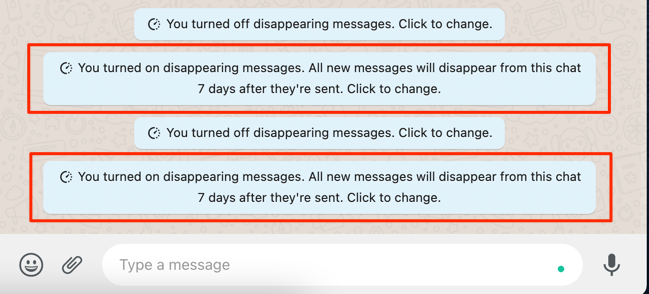
You’ll see a notification in the chat confirming that disappearing messages is now active. Only new messages sent after enabling this feature will disappear, older messages stay put. The other person will also get notified that you turned on disappearing messages.
Pro tip: Tap the notification message to quickly jump back to the disappearing messages settings if you want to change the timer or turn it off.
For Group Chats
Group chats work similarly, but with some extra admin controls.
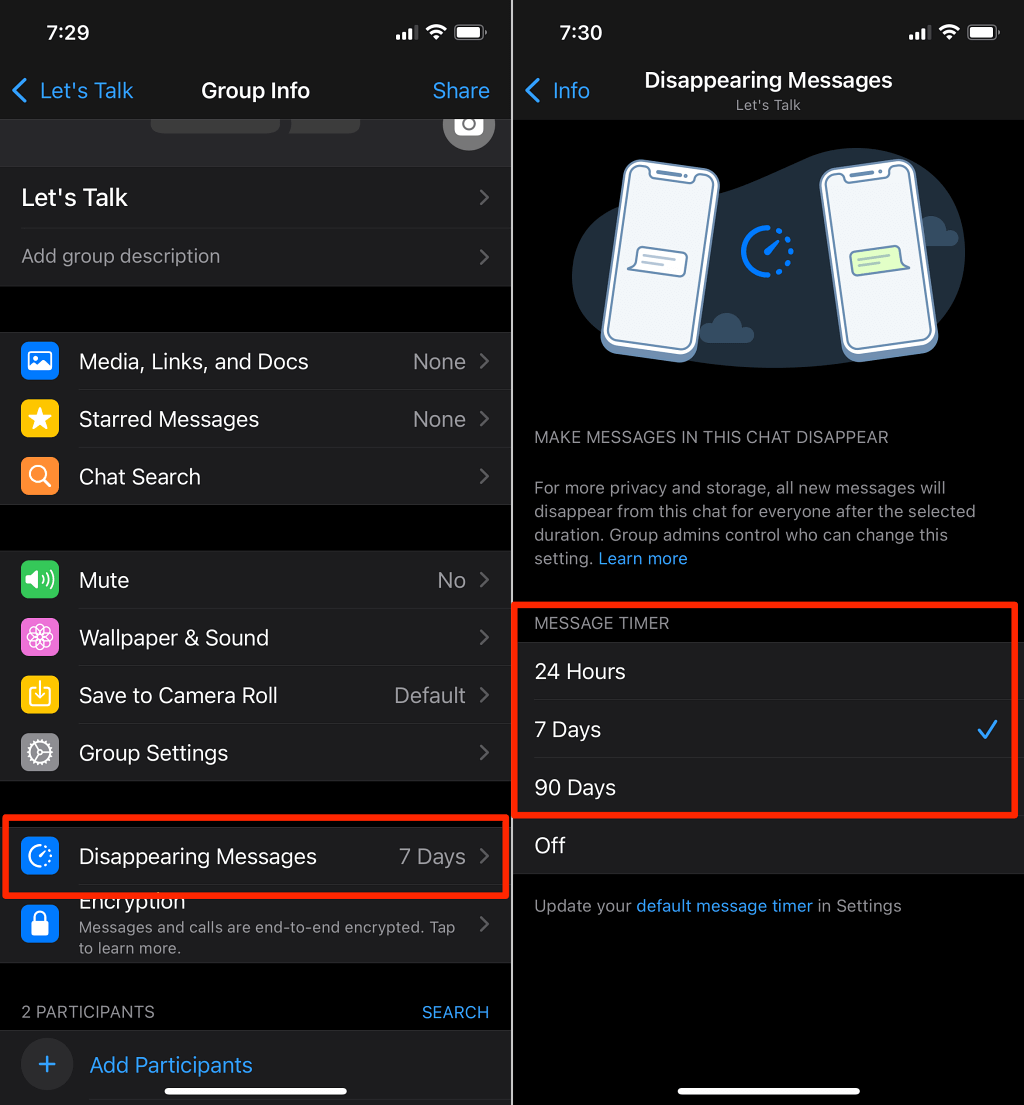
Step 1: Open the group chat and tap the group name at the top.
Step 2: Scroll down and tap Disappearing Messages.
Step 3: Choose your preferred timer duration.
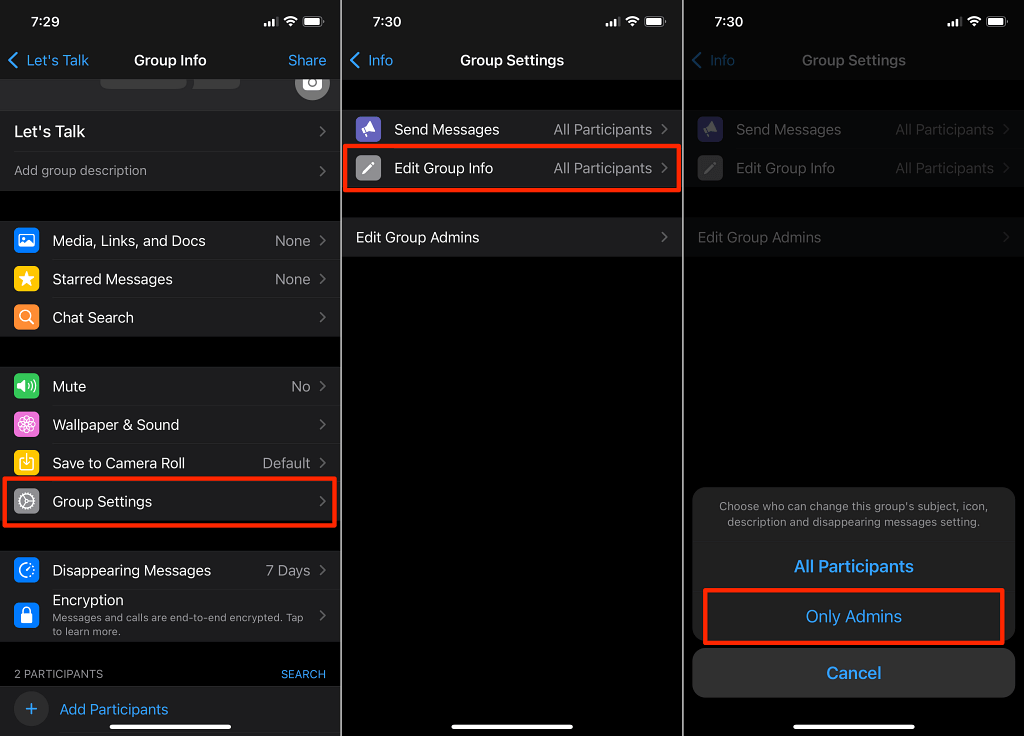
By default, any group member can change the disappearing messages settings. If you’re a group admin and want to prevent this, go to Group Settings > Edit Group Info and select Only Admins.
Set Default Timer for All New Chats
Tired of enabling disappearing messages for every single conversation? You can set a default timer that automatically applies to all new chats you start.
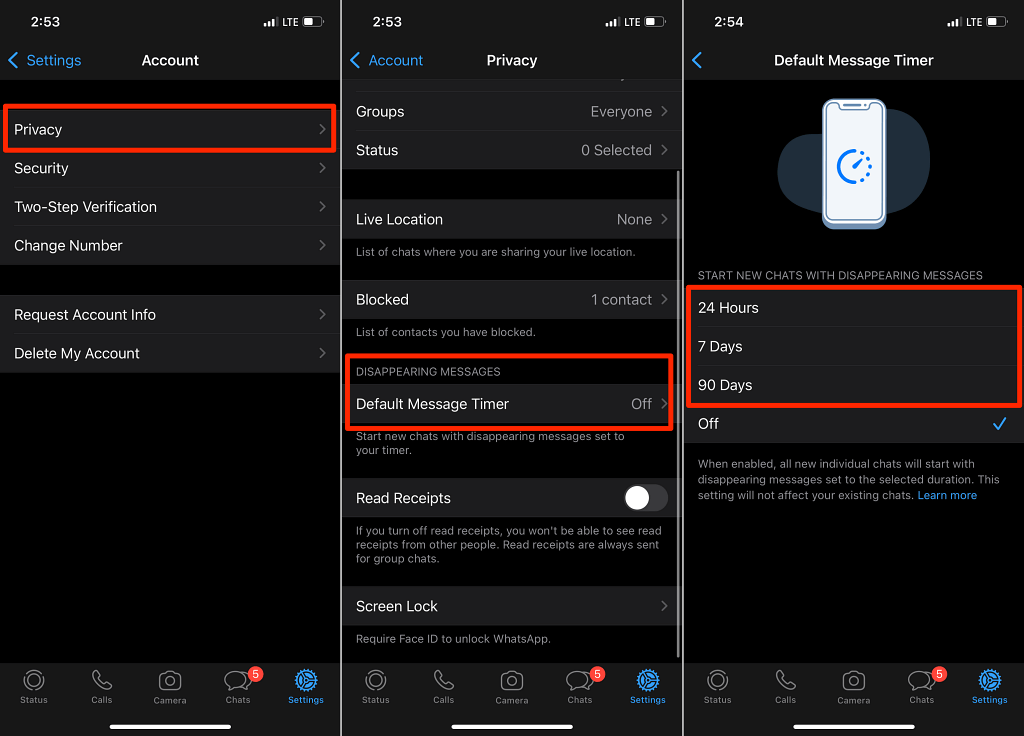
Step 1: Go to WhatsApp Settings > Account > Privacy.
Step 2: Tap Default Message Timer in the Disappearing Messages section.
Step 3: Choose your preferred duration.
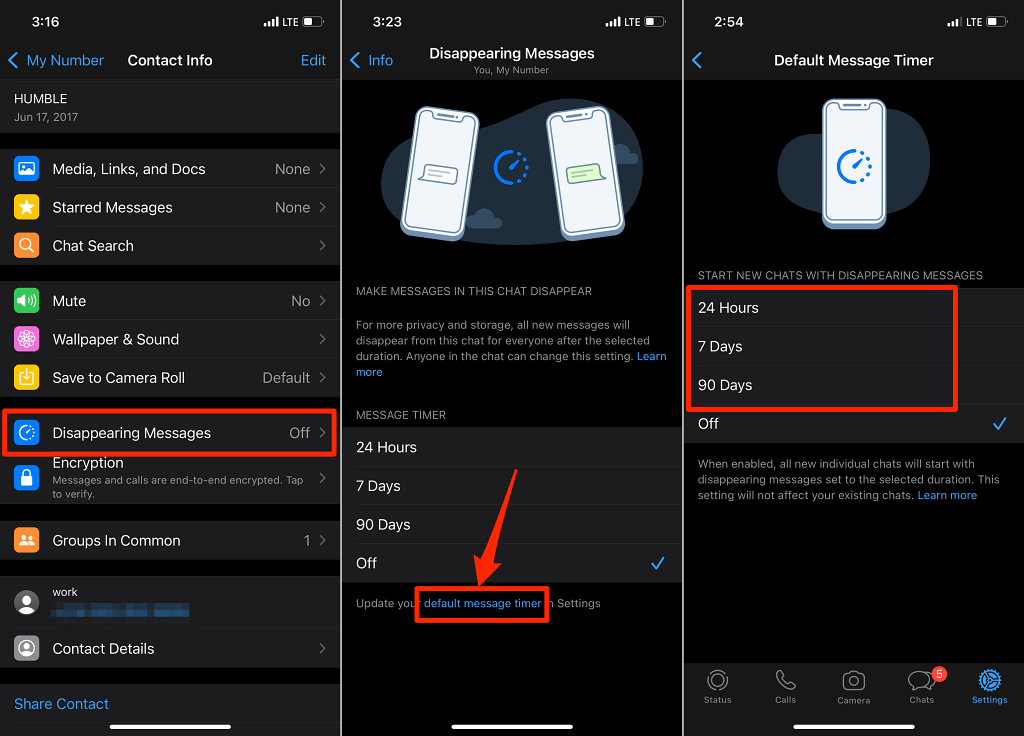
You can also access this setting from any individual chat. Just tap Disappearing Messages and look for the default message timer link at the bottom of the screen.
How to Enable Disappearing Messages on Android
The process on Android is nearly identical to iPhone, with the same timer options and settings locations.
For Individual Chats
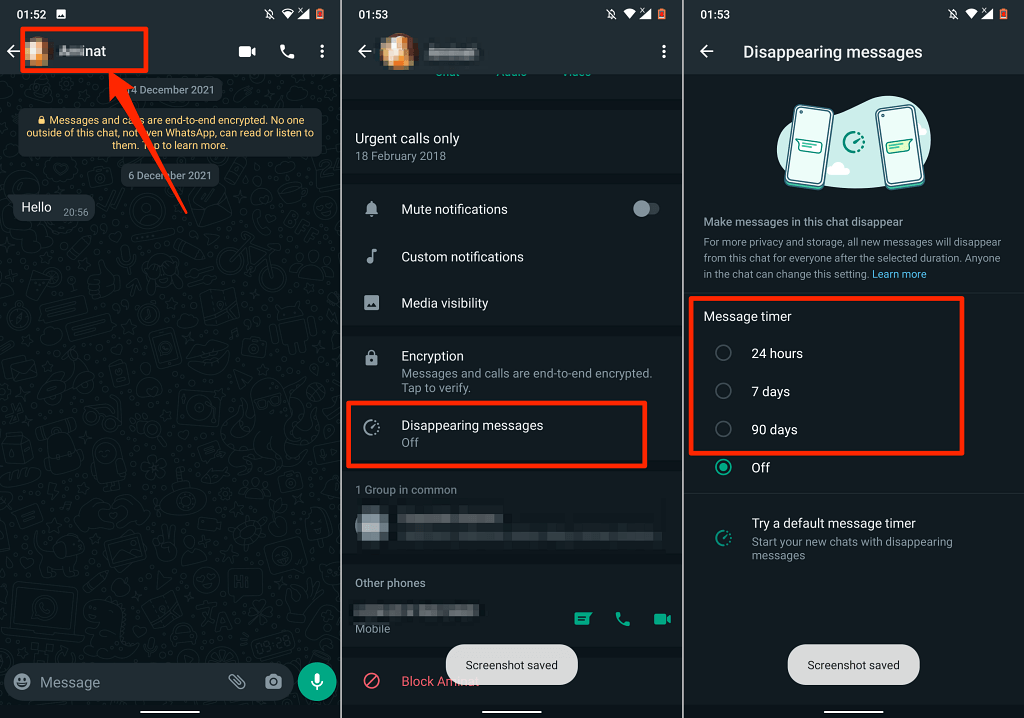
Step 1: Open WhatsApp and select the chat you want to modify.
Step 2: Tap the contact’s name or phone number at the top.
Step 3: Select Disappearing messages.
Step 4: Choose your preferred timer from the available options (24 hours, 7 days, or 90 days).
Just like on iPhone, both you and the other person will see a notification that disappearing messages is now active.
For Group Chats
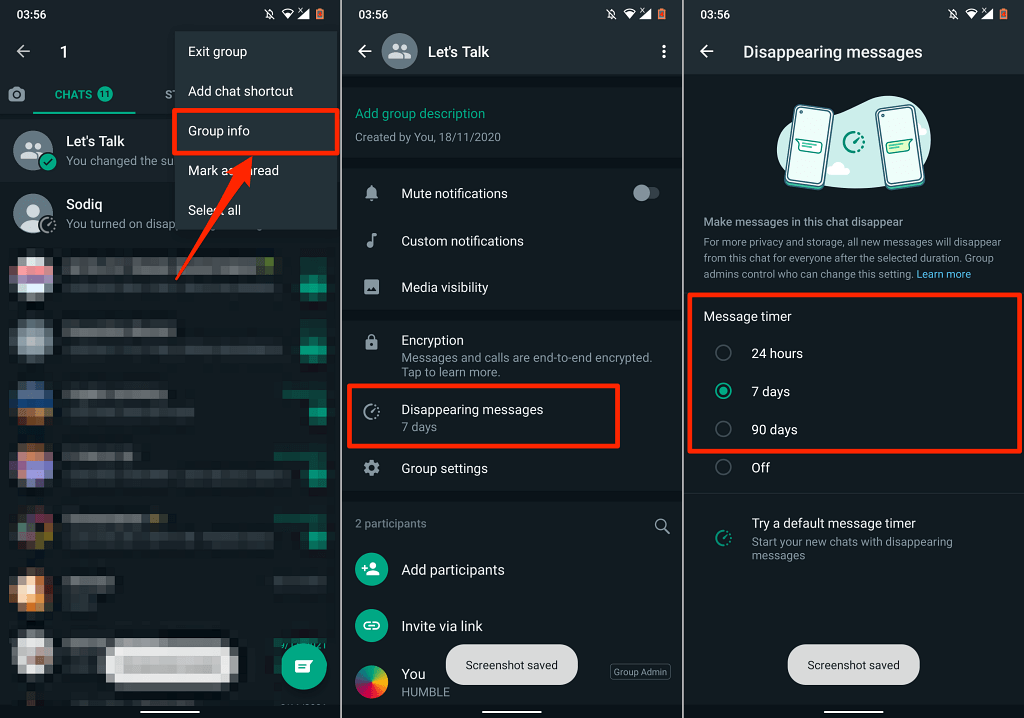
Step 1: Long-press the group chat, tap the menu icon (three dots) in the top-right corner, and select Group info.
Step 2: Tap Disappearing messages.
Step 3: Choose how long you want messages to stick around before they’re deleted.
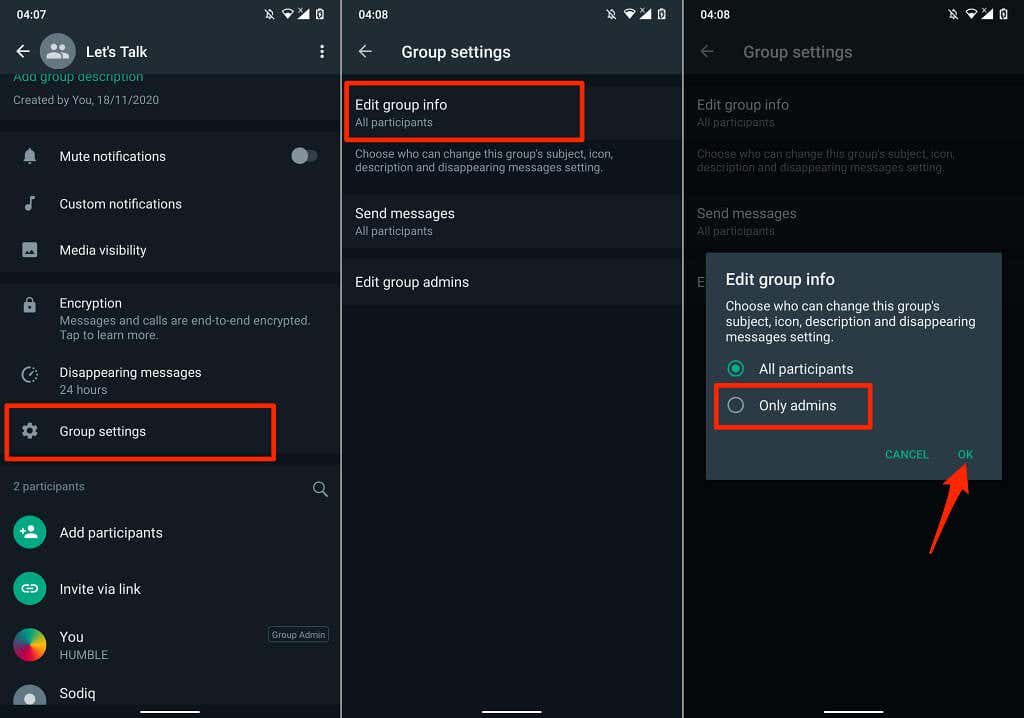
To prevent regular group members from changing these settings, go to Group settings > Edit group info > Only admins and tap OK.
Set Default Timer for All New Chats
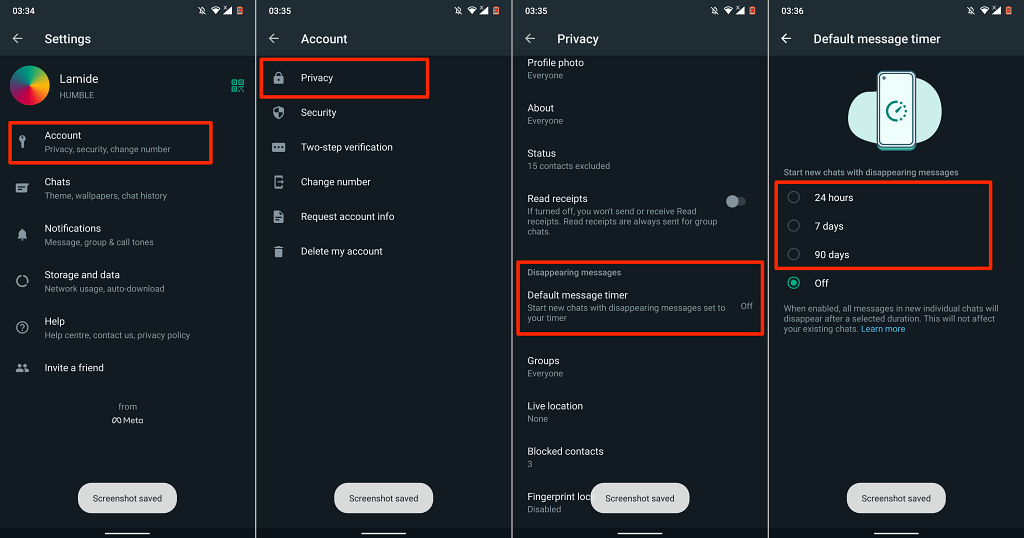
Step 1: Open WhatsApp Settings > Account > Privacy.
Step 2: Tap Default message timer.
Step 3: Select your preferred duration for all future conversations.
How to Enable Disappearing Messages on WhatsApp Web
WhatsApp Web supports the full disappearing messages feature with the same timer options as the mobile apps.
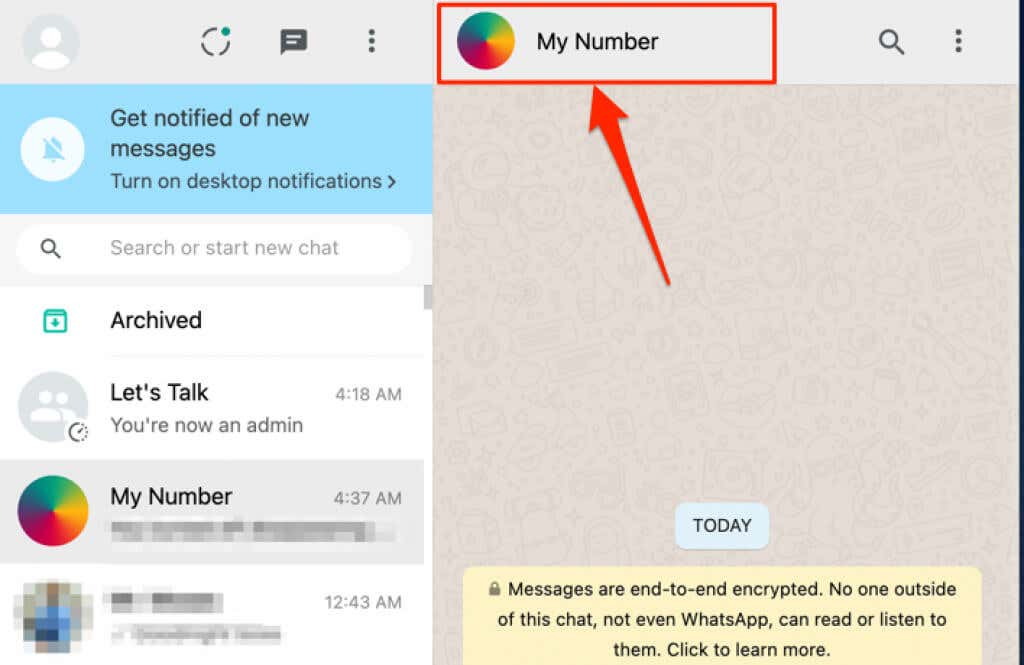
Step 1: Open WhatsApp Web in your browser and select the chat you want to modify.
Step 2: Click the contact’s name or phone number at the top of the chat.
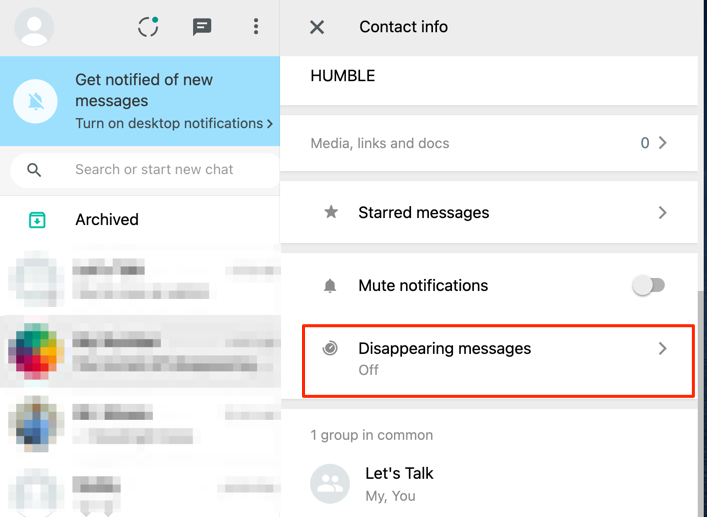
Step 3: Click Disappearing messages.
Step 4: Choose from the available timer options (24 hours, 7 days, or 90 days).
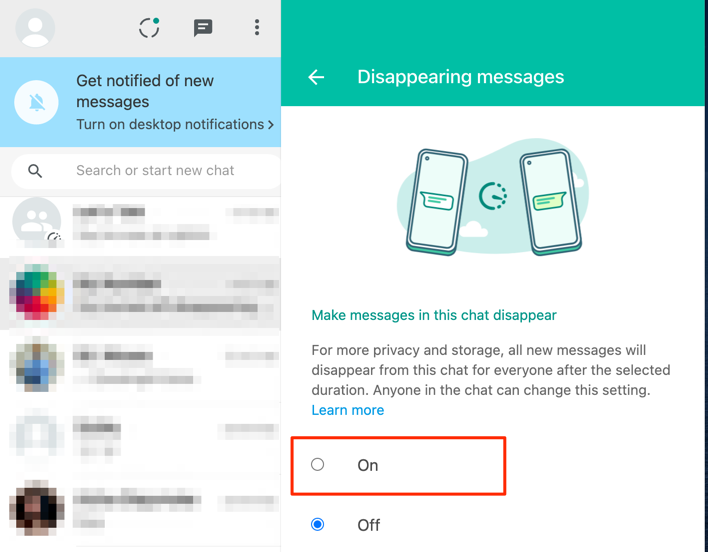
The same process works for group chats. Just open the group info and click Disappearing messages.
Tips and Troubleshooting
Important Things to Know
Messages can still be saved: Even with disappearing messages on, people can screenshot, copy, forward, or quote your messages before they vanish. Only use this feature with people you trust.
Backups and auto-downloaded media may retain copies: Disappearing messages may still appear in cloud or device backups (such as Google Drive or iCloud) that were created before the deletion timer runs out. Additionally, if the recipient has media auto-download enabled, photos and videos sent in a disappearing chat may be saved to their device gallery outside of WhatsApp. To reduce this risk, ask recipients to disable auto-download in WhatsApp Settings > Storage and Data > Media Auto-Download.
Only new messages disappear: Enabling disappearing messages doesn’t affect older messages in the conversation, only new ones sent after you turn it on.
Default timer applies to new chats only: When you set a default timer, it only affects conversations you start after that point. Your existing chats keep their current settings.
You can “keep” important messages: If someone sends something important in a disappearing chat, you can long-press the message and select “Keep” to prevent it from vanishing. Keep in mind that WhatsApp notifies the sender when you keep their message, and the sender may be able to unkeep their own message — so keeping is not a guaranteed permanent override.
Common Issues
Problem: I don’t see all the timer options
Update WhatsApp from the App Store (iPhone) or Google Play Store (Android). WhatsApp currently offers 24 hours, 7 days, and 90 days as disappearing message durations — make sure you’re on the latest version to see all available options.
Problem: Group members keep changing the disappearing messages settings
If you’re a group admin, go to Group Settings > Edit Group Info > Only Admins to restrict who can modify these settings.
Problem: Messages aren’t disappearing
Check that both you and the other person have updated versions of WhatsApp. Messages may fail to disappear properly if either participant is using an outdated version of WhatsApp. The feature needs to be supported on both ends to work properly.
Pro Tips
- Use 24-hour timer for sensitive info: Perfect for sharing passwords, addresses, or other temporary details that you only need briefly
- 7-day timer works great for short-term coordination: Meeting details, event logistics, or project updates that are relevant for the week
- Set 24 hours as your default: Good balance between privacy and practicality for most conversations
- Keep the 90-day option for important group projects: Gives you time to reference information without permanent storage
Which Timer Should You Choose?
Here’s a quick guide to help you pick the right disappearing message timer:
| Timer | Best For | Example Use Cases |
|---|---|---|
| 24 hours | Sensitive or temporary info | Passwords, addresses, daily updates, casual conversations |
| 7 days | Short-term project discussions | Work coordination, event planning, trip logistics |
| 90 days | Important but temporary | Long-term projects, reference information you’ll need for a while |
Wrapping Up
WhatsApp’s disappearing messages feature has expanded over time — starting with just a 7-day option, then adding 24-hour and 90-day durations. Today you get three solid timer choices that cover most privacy and storage needs. The feature works consistently across iPhone, Android, and WhatsApp Web, so you can keep your conversations clean no matter which device you’re using.
For most people, the 24-hour timer hits the sweet spot: sensitive info disappears quickly without you having to think about it. Just remember that disappearing messages aren’t foolproof — people can still screenshot or copy important stuff before it vanishes, and media may linger in backups or device galleries, so only use it with folks you trust.