
Ever tried to connect a friend’s device to your WiFi, only to realize you have absolutely no idea what your password is? You’re definitely not alone. Most of us enter that password once and never think about it again, until we need it.
The good news? Your Android phone has been quietly saving all those WiFi passwords for you. Whether you’ve got the latest Pixel or an older Samsung Galaxy, there’s a way to dig up that password without downloading questionable apps or doing anything too technical.
What Are Saved WiFi Passwords?
When you connect to a WiFi network, Android automatically stores the network name and password so you don’t have to re-enter it every time. Think of it like your browser remembering website passwords, but for WiFi networks.
Key Features:
- Automatic saving: Every network you connect to gets stored
- Cross-device sync: If you have Google backup enabled and are signed into the same Google account on multiple devices, WiFi passwords can sync between your Android devices
- Security protection: Passwords are encrypted and require authentication to view
- QR code sharing: Modern Android versions can generate QR codes for easy sharing
How to Find WiFi Passwords on Modern Android (Android 10+)
If you’re running Android 10 or later (which covers most phones from 2019 onward), this is surprisingly easy. The exact steps vary slightly depending on your phone manufacturer, but the general process is the same.
On Google Pixel and Stock Android
Google Pixel phones and devices running stock Android make this the most straightforward:
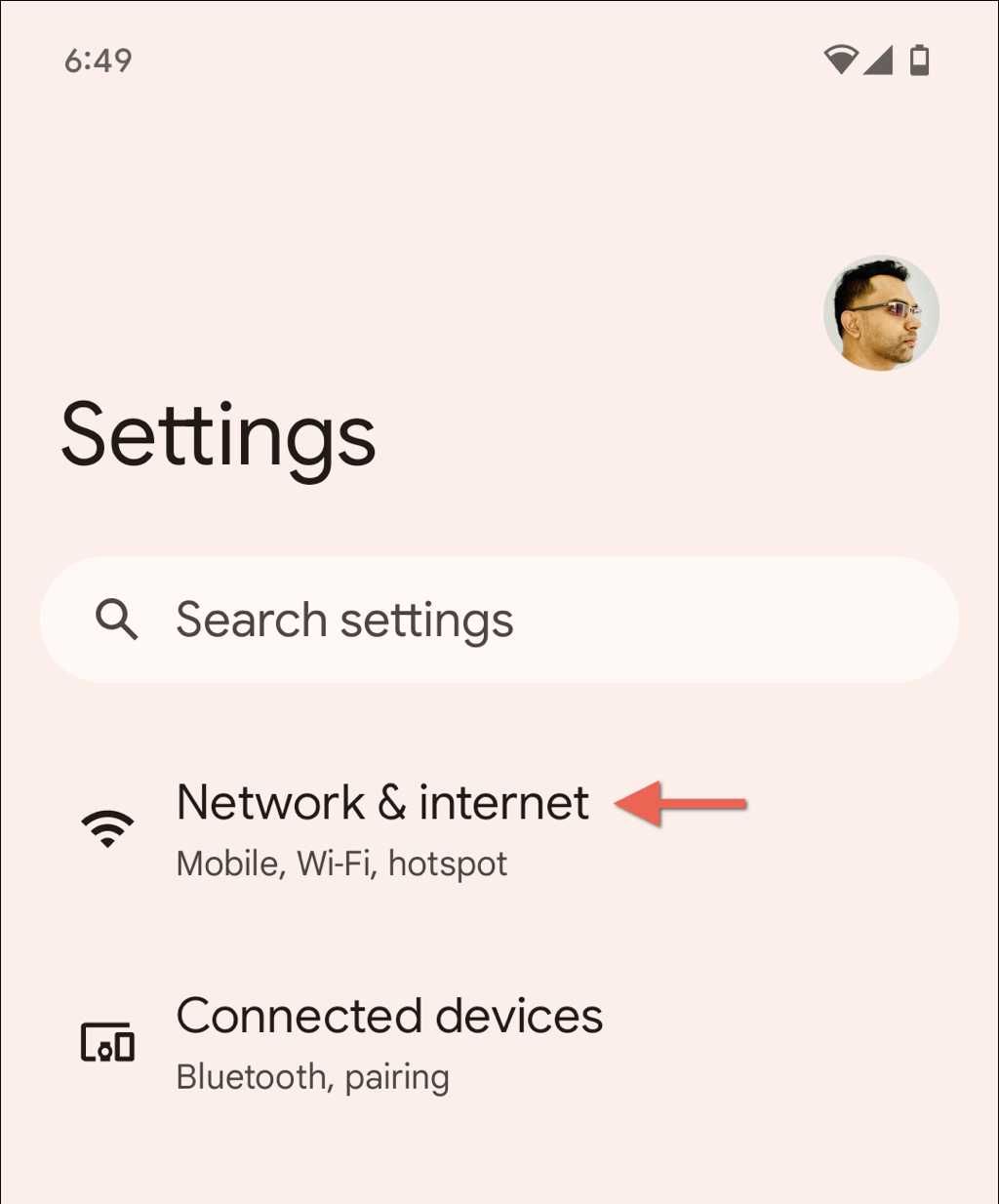
- Open Settings and tap Network & internet.
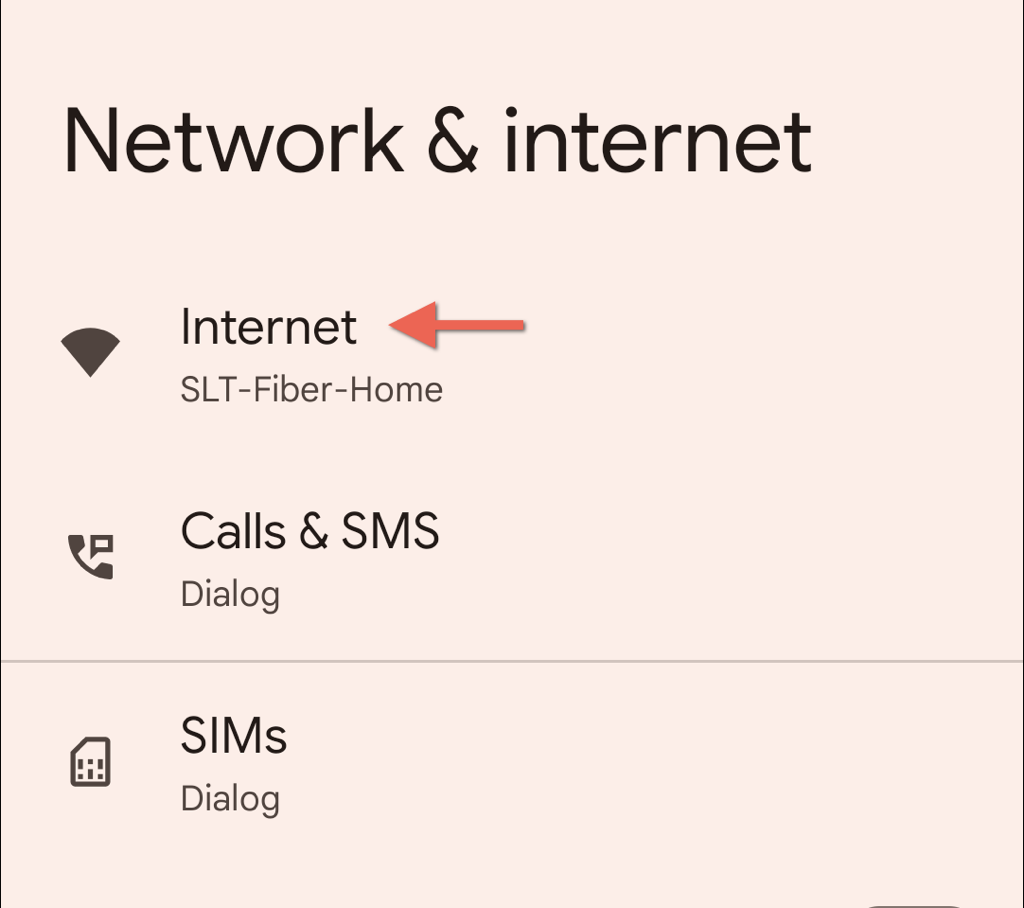
- Tap Internet.
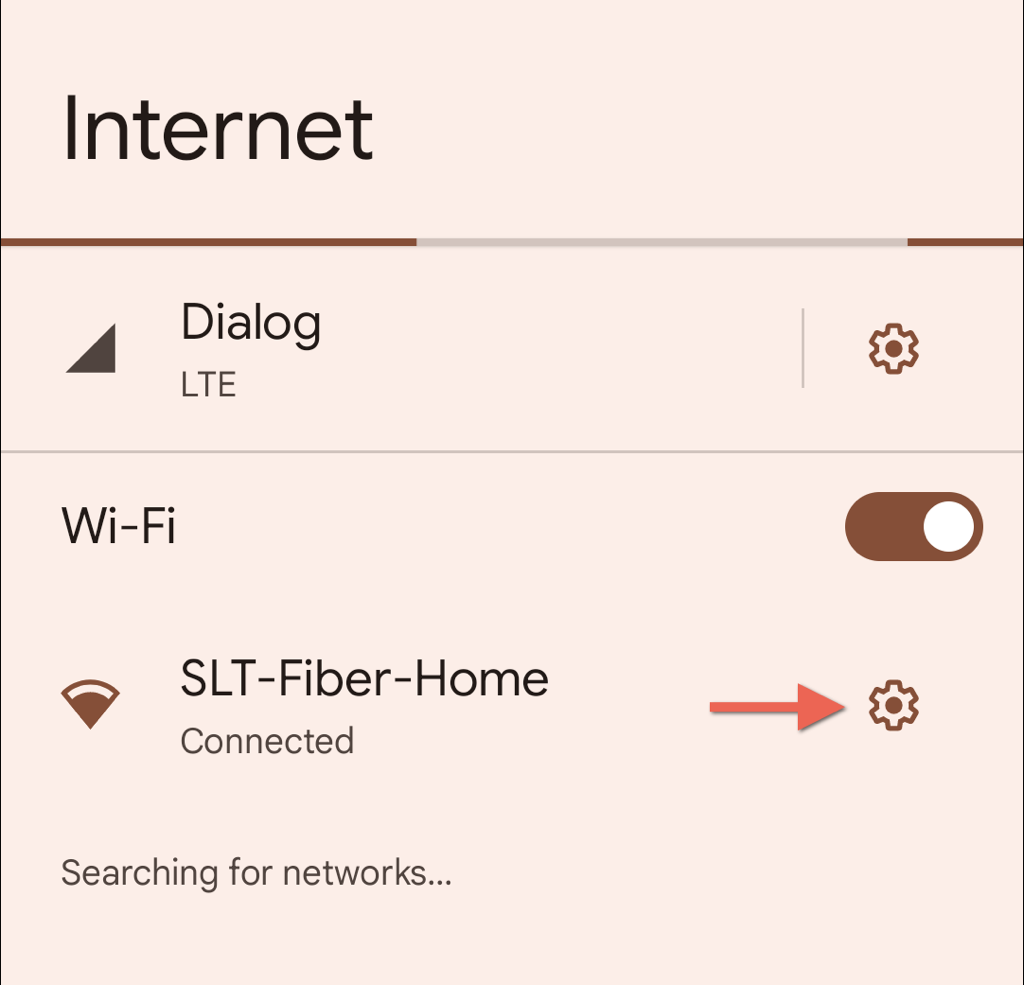
- Find the WiFi network you want the password for and tap the gear icon next to it.
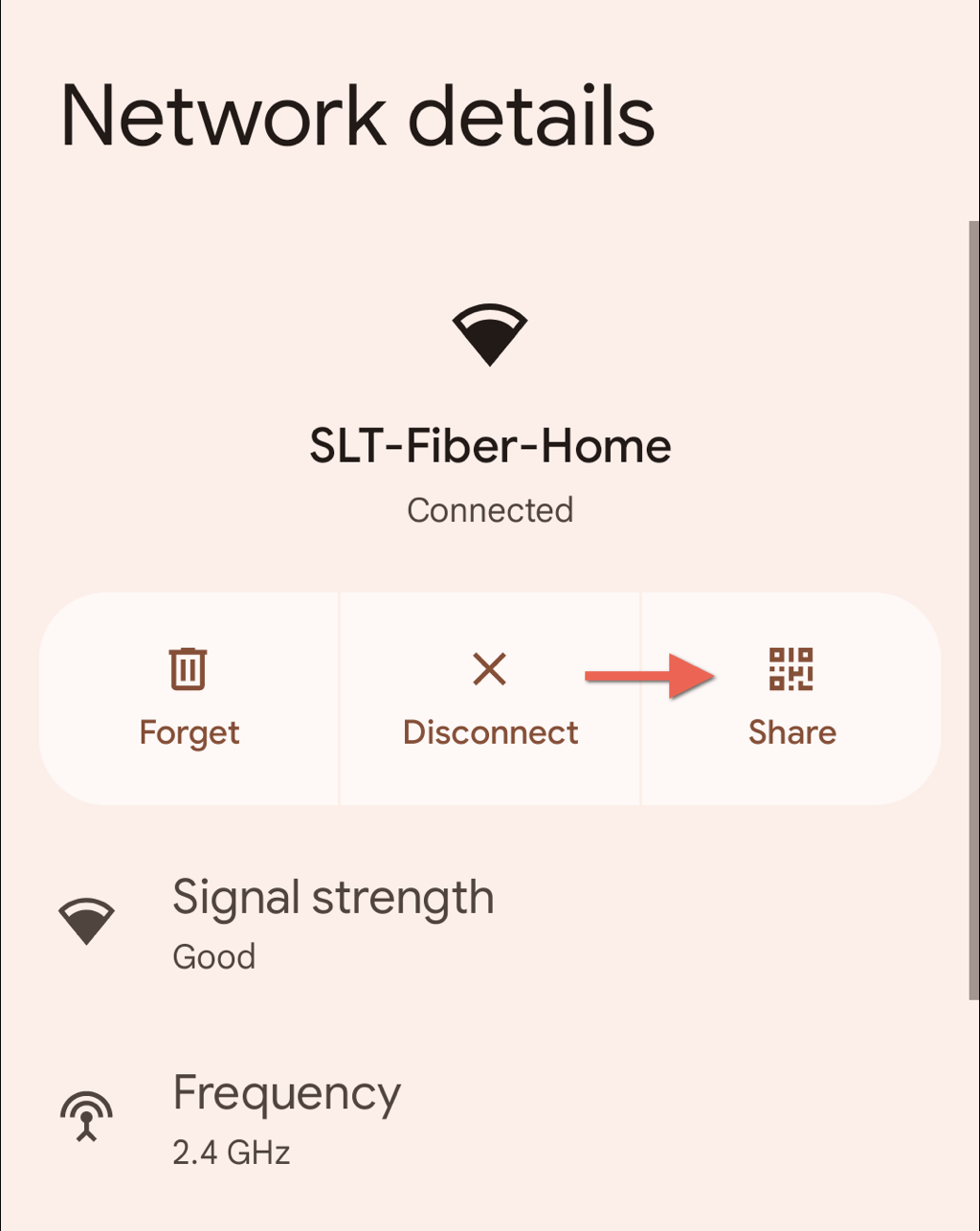
- Tap the Share button. Your phone will ask you to verify your identity with a fingerprint, PIN, or pattern.
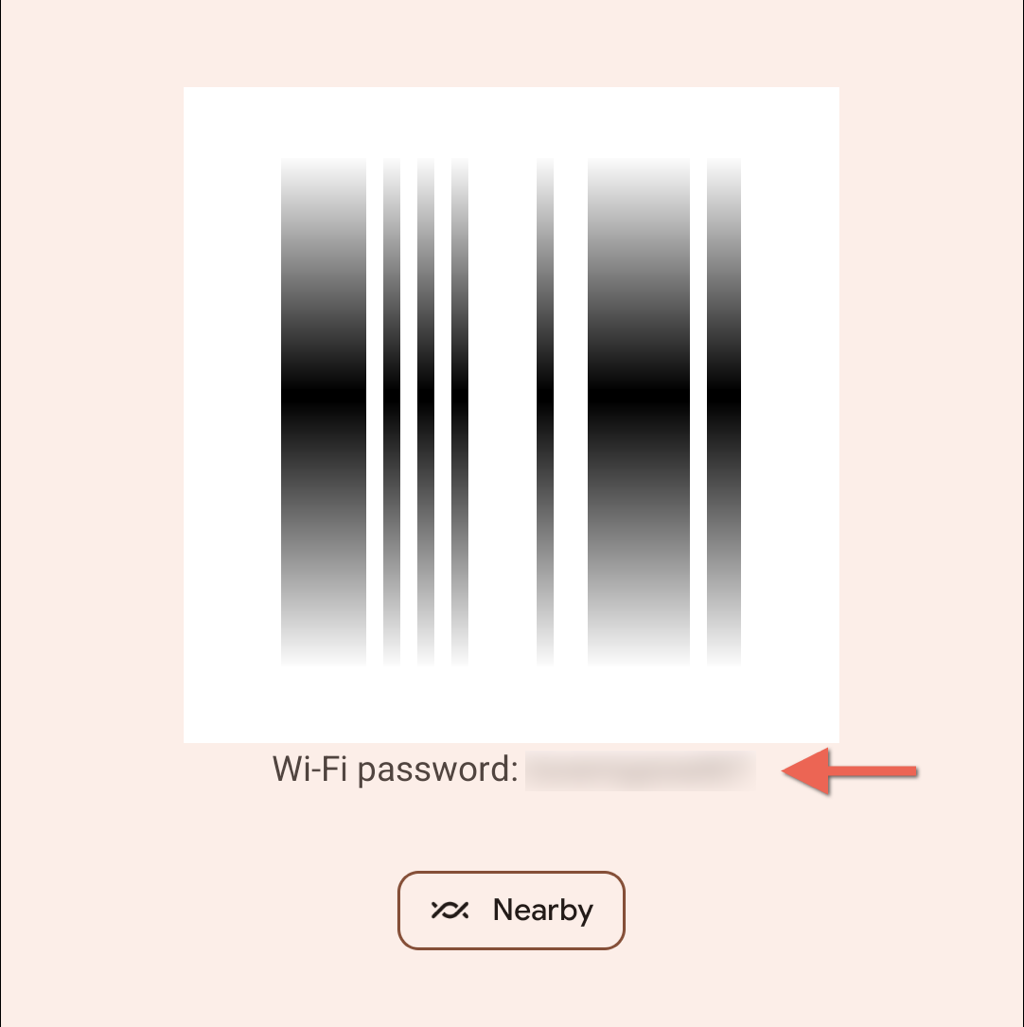
- Boom! Your phone displays a QR code with the password written in plain text right below it. On many modern Android phones, you’ll also see a Nearby Share (or Quick Share) option on this same screen — tap it to send the WiFi credentials directly to a nearby device without anyone needing to scan the QR code manually.
Need the password for a network you’re not currently connected to? On the Internet screen (step 2), look for a Saved networks option. Tap it to see all previously connected networks, select the one you need, and then follow the same Share/QR steps above.
On Samsung Galaxy and Other Android Phones
Samsung and other manufacturers sometimes organize their settings differently, but the end result is the same. Here’s how it typically works:
- Open Settings and look for Connections or Network & internet.
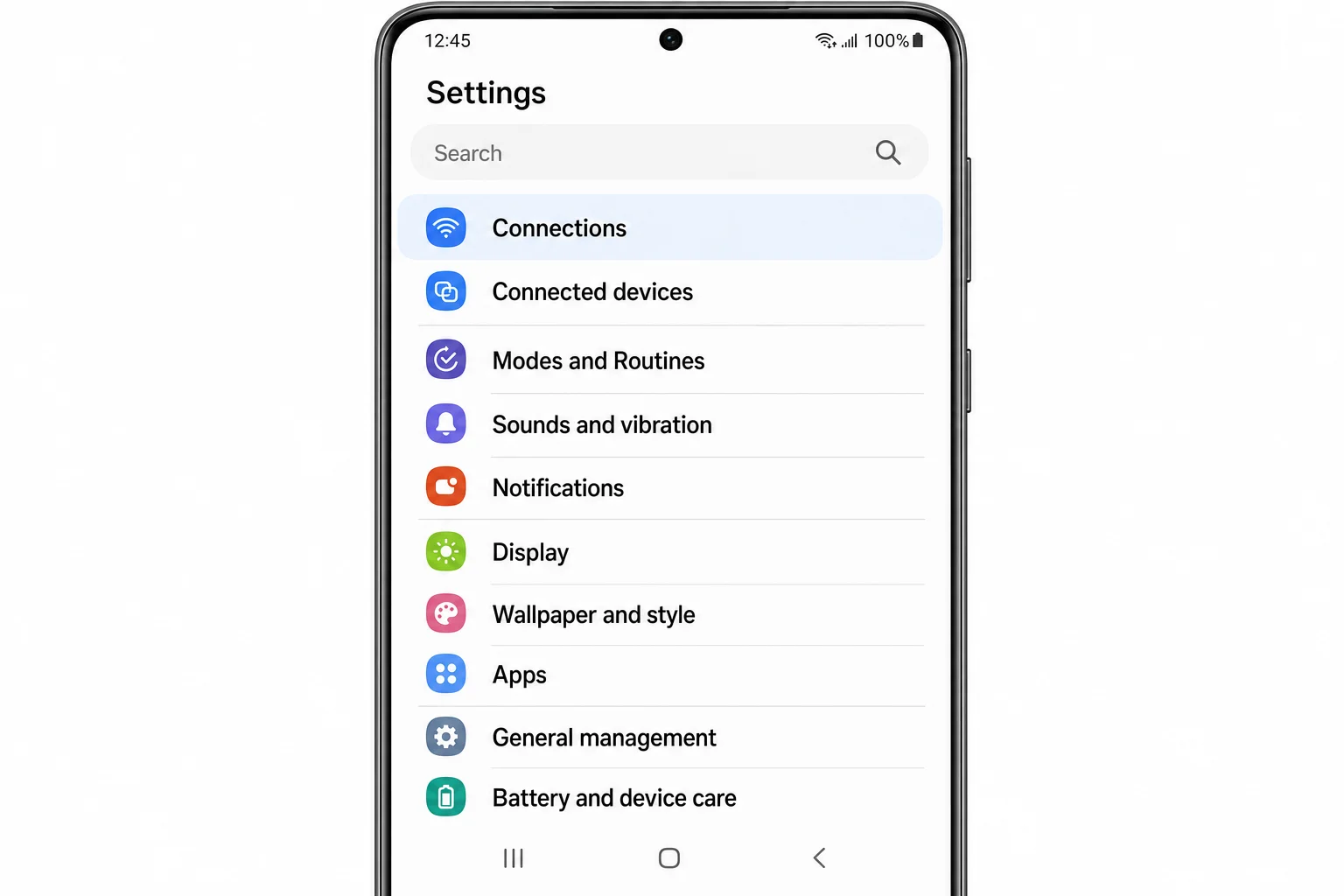
- Tap Wi-Fi.
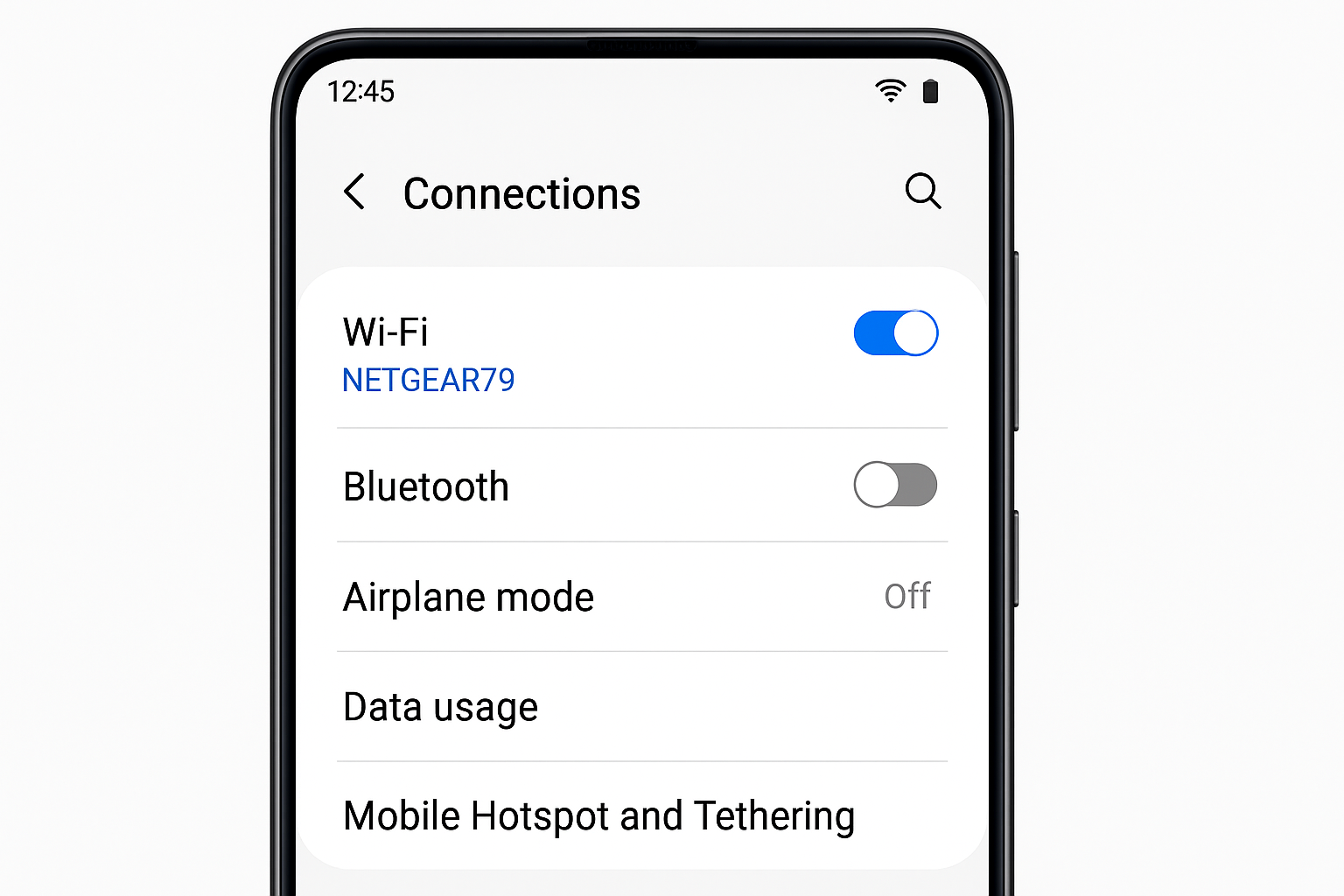
- Find your network and tap the gear icon next to it, or look for a QR code button at the bottom of the screen.
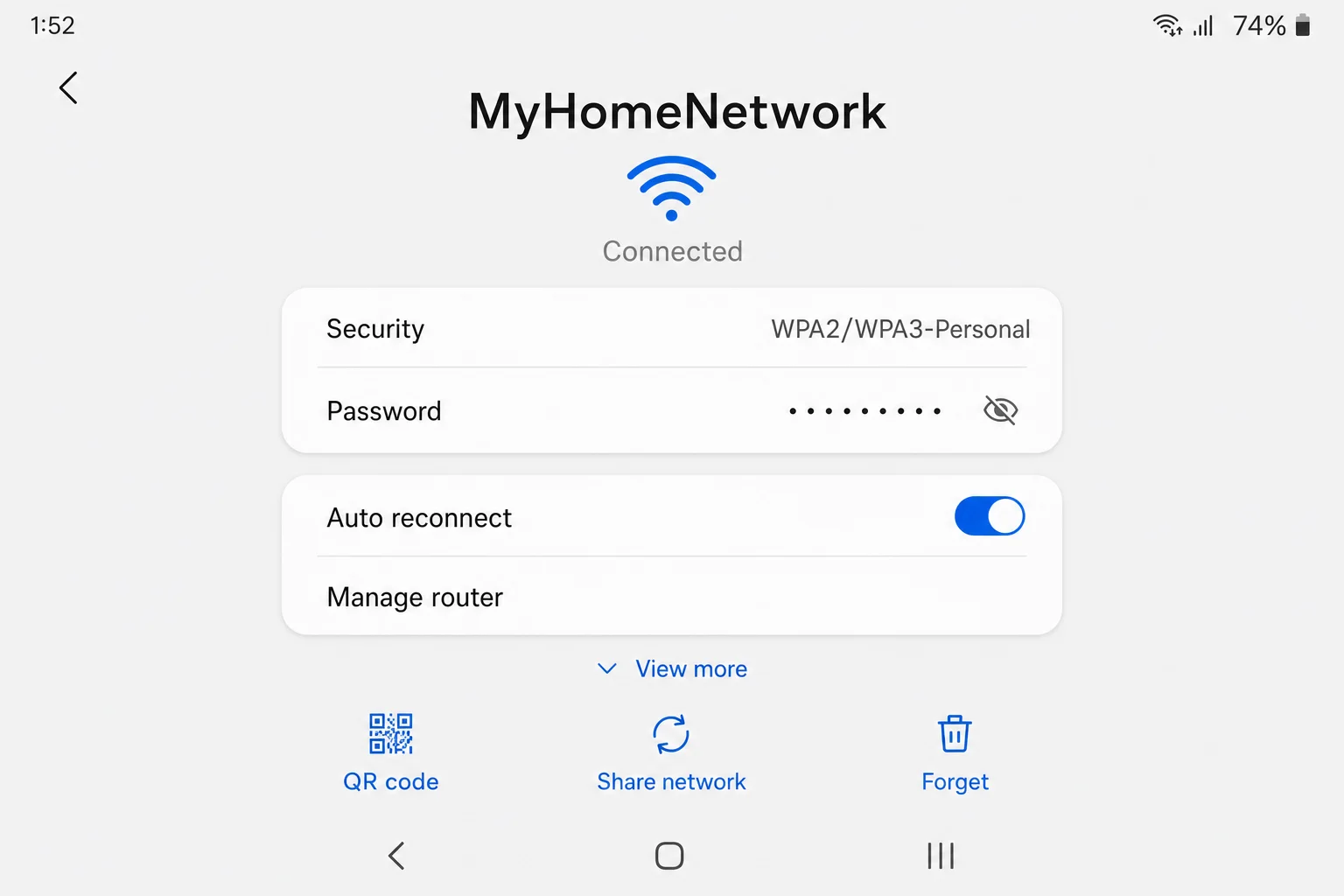
- If you see a QR code directly, you’ll need to scan it with another device or QR scanner app to decode the password. If you see network details, look for a Share button.
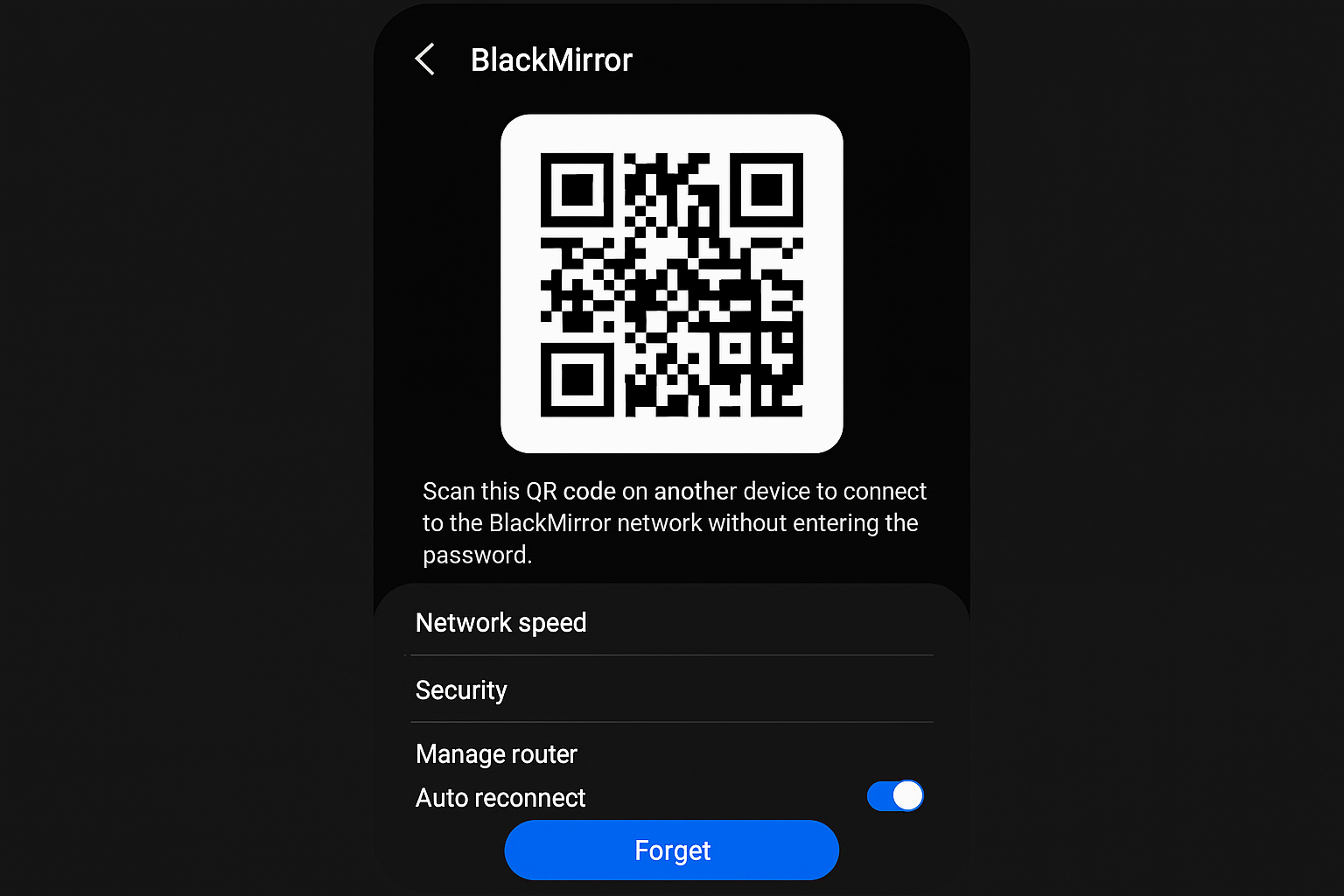
Pro tip: If your phone only shows a QR code without the password in plain text, you can use Google Lens (built into most Android cameras) to scan the QR code and reveal the password. You can also use TrendMicro’s QRScanner for this purpose.
For Older Android Versions (Android 9 and Earlier)
If you’re stuck with an older Android version, things get trickier. The built-in password viewing feature wasn’t available yet, so you’d need to either root your device (which we don’t recommend) or use alternative methods.
Why we don’t recommend rooting:
- Security risks: Rooting removes important security protections
- Warranty void: Most manufacturers void warranties for rooted devices
- Bricking risk: You could permanently damage your phone if something goes wrong
- Banking apps break: Many banking and payment apps refuse to work on rooted devices
Instead, try these safer alternatives:
Check Your Router
- Look for a sticker on your router with the default password (usually labeled as “WiFi Password,” “Network Key,” or “WPA Key”).
- Open a web browser and go to your router’s admin page (usually
192.168.1.1or192.168.0.1). - Log in with the admin credentials (often printed on the router or in the manual).
- Navigate to wireless settings to view or change the password. You can learn how to reset the Wi-Fi password on your router if needed.
Check Other Connected Devices
If you have a Windows PC or Mac connected to the same network, you can view the WiFi password from there. It’s often easier than messing with your phone.
Should You Use WiFi Password Apps?
You’ll find plenty of “WiFi password recovery” apps in the Google Play Store, but honestly? Most of them are sketchy at best. Here’s why we’d avoid them:
- Fake reviews: Many have suspiciously glowing reviews that seem manufactured
- Still require root: Despite claims of working without root access, most still need it
- Privacy concerns: Do you really want to give a random app access to all your WiFi passwords?
- Unnecessary: The built-in Android method works better and is completely safe
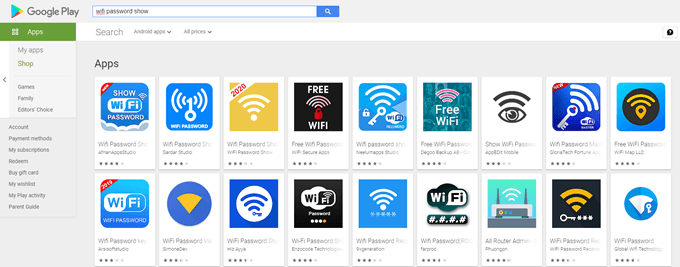
Stick with the built-in Android features, they’re safer, more reliable, and don’t require downloading anything suspicious.
Tips and Troubleshooting
Common Issues
Problem: I don’t see a Share button or QR code option
This usually means your Android version is too old or your phone manufacturer removed this feature. Try checking your router directly or use another connected device to find the password. You can also refer to Google’s official support page for more details.
Problem: The authentication keeps failing
Make sure you’re using the correct fingerprint, PIN, or pattern. If you’ve recently changed your lock screen security, you might need to restart your phone for the changes to take effect.
Problem: I can only see a QR code, not the actual password
Some manufacturers only show the QR code. Use Google Lens or your camera app to scan the QR code, and it should reveal the password in the scan results. For a visual guide, check out this short video on our YouTube channel.
Pro Tips
- Enable Google backup: Go to Settings > Google > Backup and make sure backup is turned on and you’re signed into the same Google account on all your devices — this automatically syncs your WiFi passwords across your Android devices
- Screenshot the QR code: Save it to your photos so you can easily share your WiFi with guests later
- Use a password manager: Apps like Bitwarden or 1Password can store your WiFi passwords along with all your other credentials
When All Else Fails
If none of these methods work for your specific phone or situation, you’ve got a few backup options:
- Reset your router password: Most routers have a reset button that restores factory settings, including the default password
- Contact your ISP: If you rent your router from your internet provider, they can help you recover or reset the password
- Ask the network owner: If it’s not your network, the polite thing is to ask whoever owns it for the password
Wrapping Up
Finding your saved WiFi password on Android is way easier than it used to be, especially if you’ve got a phone from the last few years. The built-in sharing feature is honestly pretty slick. Just tap a few buttons and boom, there’s your password.
Skip the sketchy apps and stick with Android’s native features. They’re safer, work better, and won’t try to harvest your data. And hey, now you’ll never have to do that awkward dance of trying to remember if your password has capital letters or numbers at the end!