
Recently I wrote an article on how to right-click using your keyboard and many people found it useful. However, I kept getting more questions asking me how they could control the mouse cursor using the keyboard. If your touchpad dies on your laptop or your mouse stops working on your desktop, it’s worth knowing how to move the mouse cursor around until you can get your system back to normal.
Obviously, the first step to navigating without a mouse is using the arrow keys and pressing Enter and Tab to move between and open items. ALT + TAB will also allow you to switch between programs and get back to the desktop. ALT + F4 will allow you to close programs.
For example, when you’re on the desktop, pressing TAB will move you to the Start button where you can then press Spacebar or Enter to open the Start Menu. If you keep pressing tab, it will move you to the items pinned to the taskbar and then finally over to the notification area before going back to the desktop icons. You can then use the arrow keys to move around.
Now that you can navigate around a bit, let’s talk about controlling the mouse with the keyboard.
Option 1: MouseKeys
Thankfully, there is a feature built into Windows called Mouse Keys that allow you to use the numeric keypad on your keyboard to move your mouse around the screen. It even allow you to simulate a right-click, double-click and left-click. On desktops, you will use the keypad at the far right of the keyboard. On laptops, you will probably have to enable Num Lock or press and hold the function key before pressing the numbers.
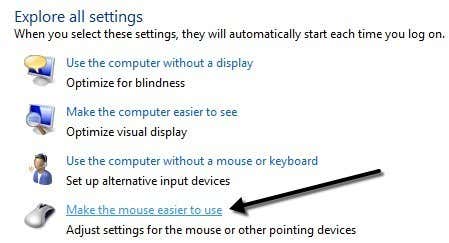
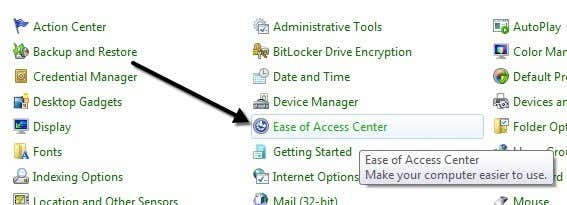
To enable Mouse Keys in Windows, open the Control Panel and click on Ease of Access.
Towards the bottom under Explore all settings, you will see a link called Make the mouse easier to use.
Now click on the Turn on Mouse Keys box. This will enable Mouse Keys in Windows. You can also enable Mouse Keys without having to go through the Control Panel by pressing ALT + Left SHIFT + NUM LOCK at the same time. Note that you have to use the left SHIFT key as the right one will not work.
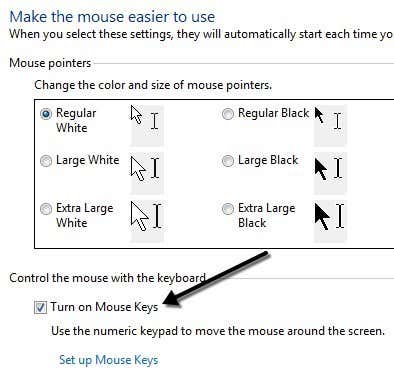
Click on Set up Mouse Keys to configure all the options and settings. You can adjust the pointer speed if you find it too slow or fast and you can also check a box to use CTRL and SHIFT to make the cursor move faster or slower, respectively.
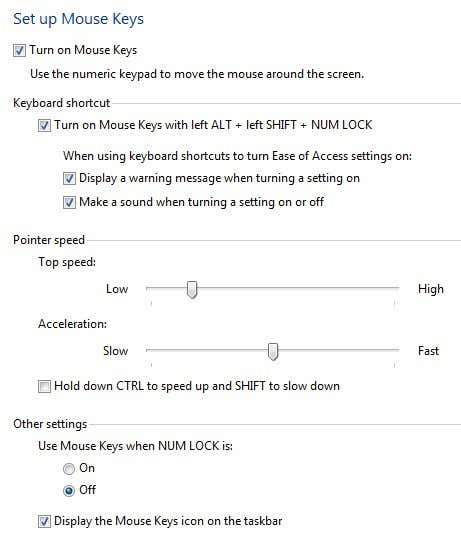
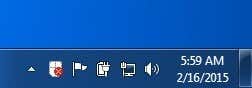
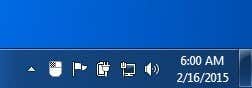
The other main setting to note is under Other Settings. By default, Mouse Keys will work only when NUM LOCK is On. You can change this to Off if you like. If Mouse Keys is being used, you should see a small little mouse icon in the system tray, otherwise it will have a red X over the mouse.
Here are the controls, provided that you have a numeric keypad, to run Mouse Keys. You should now be able to move the cursor around with just the keyboard. In order to click on something, you first press /, –, or * to select the appropriate button on the mouse. Then press 5 to either click or right-click depending on which button you chose.
To double-click on something, you have to select the left mouse button (/) and then press the + (plus) sign. You can also drag and drop items by first moving the mouse cursor over the item and then pressing 0 to start the drag and . (period) to drop it.
- 2 = Move Down
- 8 = Move Up
- 4 = Move Left
- 6 = Move Right
- 7 = Move Diagonally Top Left
- 9 = Move Diagonally Top Right
- 1 = Move Diagonally Bottom Left
- 3 = Move Diagonally Bottom Right
- 5 = Once Button Selected, will
- / = Select Left Mouse Button
- – = Select Right Mouse Button
- * = Select Both Buttons
Option 2: NeatMouse
By far the best option for controlling your mouse is Mouse Keys since you don’t have to install anything and it pretty much lets you fully control the mouse. However, if for some reason you don’t like Mouse Keys or can’t get it to work, you can download and install a third-party program called NeatMouse.
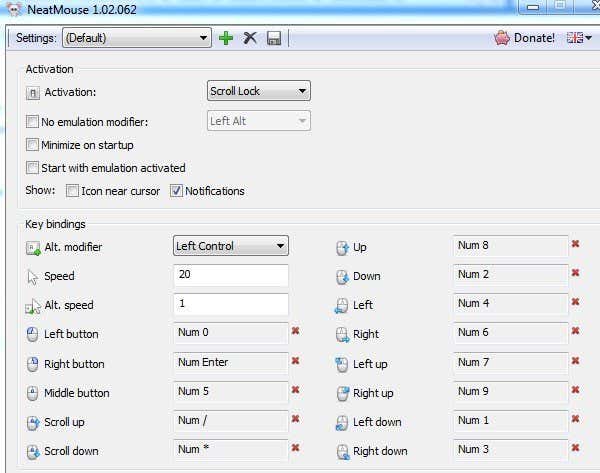
I’ve already mentioned this program in my list of tools to tweak your mouse, so I won’t go into much detail here about it. It basically works exactly like Mouse Keys except that you can change the hotkeys to something else if you like. It also has a keyboard modifier for scrolling, which Mouse Keys does not have.
So the next time you are stuck without a mouse, no need to worry! You can easily control your mouse pointer using the number keys on your keyboard. If you are having any issues using Mouse Keys, feel free to post a comment. Enjoy!