How to record cassette tapes to PC/Computer

Posted on March 6, 2008 at 6:44 am

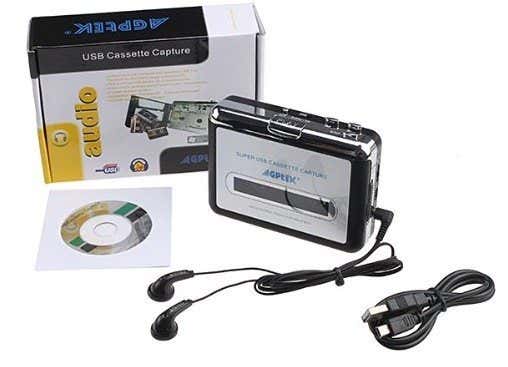
So you have a bunch of old audio cassettes that you want to copy or transfer to your computer? There are many programs out there that you can buy which will help to try and make the process as simple as possible! However, since I’m a techie and my blog is all about easy to understand computer tips, I’m going to try and teach you how you can transfer audio cassettes to your computer for free!

What you’ll need before you can copy cassettes to your computer or PC:

1. Audacity – Free recording and editing software
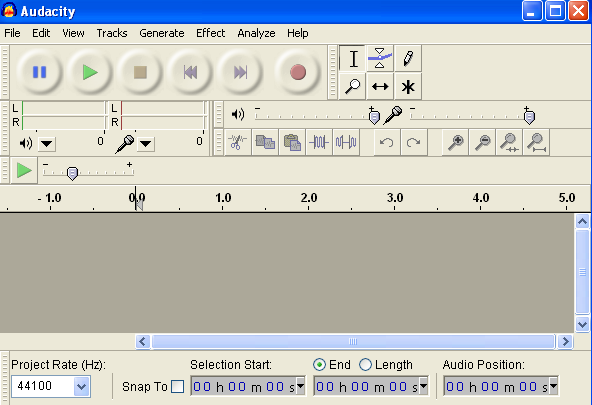
audacity

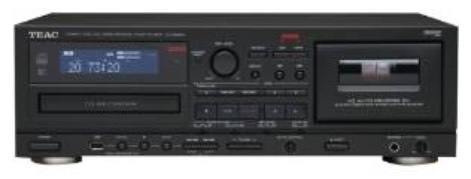
2. Cassette Tape Deck with RCA output jacks

cassette tape deck

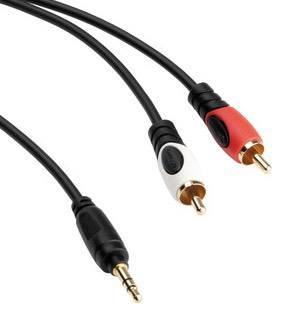
3. Stereo RCA cable with mini-jack connector

stereo rca jack

4. Sound card with line-in jack (usually in blue)
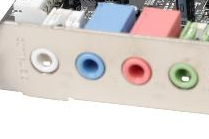
line in jack

Step 1: Connect tape deck to computer

The first thing you’ll need to do in order to record the audio from a cassette tape is to connect the tape deck to the computer itself. You’re going to need the Stereo RCA cable with mini-jack for this step.

Go ahead and connect the male RCA side of the cable (red and white) into the female RCA connectors on the tape deck. Make sure that the RCA jacks on the tape deck say “Line Out” or “Audio Out“.
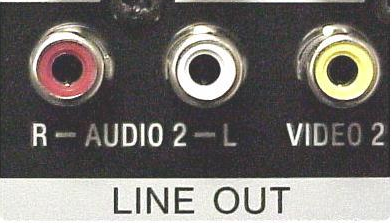
cassette deck line out

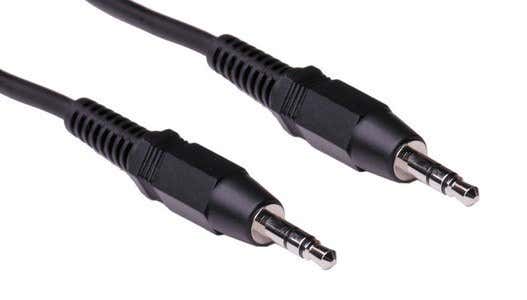
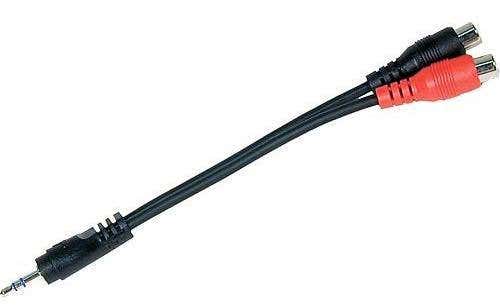
Now it’s time to connect the other end of the cable to your computer. If you’re using the RCA cable with mini-jack connector on the other end, then simply plug it into the female Line-In jack on the back of your computer (the blue one out of the three). However, if you have an RCA cable that has red and white RCA connectors on both ends, you’ll need to buy a mini-jack stereo adapter shown below.

mini jack stereo adapter

However, if you’re going to be buying this, you may as well buy a cable with the mini-jack already on the other end! Using an adapter may cause a loss of audio quality.
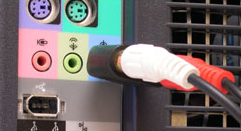
line in

If you’re using a Dell, it should be color coded, which makes it much easier to figure out where to connect it to. Basically, it’s the blue colored jack that is your Line In.

Step 2: Record audio from cassette tape using Audacity

Now that you have your cassette tape deck connected to the computer, we can use the open-source audio recording and editing software Audacity to capture the audio.

Firstly, open Audacity and click on Edit and then Preferences way at the bottom. If it’s not already there, click on Audio I/O in the left hand menu. This is where you can select the Input Source that you want to record sound from. You should see a section heading called Recording and under that a drop down menu called Device.

audacity preferences

Make sure that you do NOT pick Microsoft SoundMapper if you’re on a Windows machine. It should be something similar to what you see above or something like “Line-In:Realtek HD Device“, etc. You can try all of the options in the drop down until you actually get the sound to record, one of them will work.

Now you simply need to adjust the volume for your recording by clicking on the downward pointing arrow on the right hand (red) VU recording level meters.
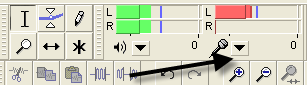
record sound

Now click on Monitor Input or Start Monitoring. Now when you begin recording by clicking the Record button, if you see the sound is going too far to the right (red bars), then you can adjust the input volume level by dragging the slider to the left in the Mixer Toolbar (which is slightly lower and to the left of the recording levels meters.

input volume[6]

When you are finished recording, go ahead and click the Stop button (yellow color) and go to File and choose Save Project As. This is will save it as a Audacity project so that you can come back and edit it later.

To export the final edited version of your recording to MP3 or WAV format, click on File and choose Export As. You can then take these MP3s and burn them to CD or import then into iTunes. You can choose between WAV, AIFF, OGG, FLAC, and MP2 format for exporting.

Remember you can always pause the recording at any time if there are parts of the cassette tape you don’t want transferred to your computer. Otherwise, you should now a digital version of your audio cassettes! If you have a question, post a comment! Enjoy!

[tags]cassette to computer, cassette tape to computer, record cassette to computer, audio cassette to computer[/tags]

» Filed Under Computer Tips

Related Posts

Comments

67 Responses to “How to record cassette tapes to PC/Computer”

  1. P.Kandaswamy said on :

    A very good guide useful for beginners like me.


  2. akishore said on :

    Hi, I’m glad the article helped. Were you able to convert your audio cassette tapes to CD or get them onto your computer?


  3. Mr. Ariel Aponte said on :

    You have to show presentations in our Audiovisual Departments.
    I like to be one of the new users. Send me more information.
    Spanish details would be interesting.


  4. Nestkeeper said on :

    Hey, this is great. Thank you for taking the time to write this. I was having a heck of a time trying to copy a cassette of my son singing when he was a baby. This priceless tape was degrading. You helped me save a precious memory. Sincere Thanks.


  5. V'nath said on :

    Ah! This is what I call a “foolproof” thing. Thanks for the beautiful description.


  6. Will said on :

    Iguess I still don’t get it? I cannot export as an MP3 or a wav. I must be doing something wrong.


  7. Michael said on :

    Thanks for easy to read post, been a while since I transferred tapes/vinyl to PC using cool edit pro 2. I thing I recall is to remember to copy the sound channel to the other channel(e.g. L/H to R/H), if the original tape only had sound on one channel…


  8. ron powell said on :

    Thanks for this post. This is just what I was looking for when I did the search. Maybe now I can record and get rid of all those old tapes that are taking up half my office.


  9. akishore said on :

    Michael & Ron, good luck with the audio tape conversions to digital format! If you run into any issues or problems, do post a comment!


  10. Reid said on :

    Good afternoon,
    I have a noise problem when using Audacity. While recording from an audio source i.e., radio, tape drive, etc., I get computer hash along with the audio. It is not a ground hum but sounds like it is being generated by the computer and introduced via the cable connection into the mic input jack. I am using a 1 year old lap top. Any suggestions for a fix??

    tnx Reid


  11. Andy said on :

    Hello! I’ve hooked my tape deck up to my PC through the Line-In, sounds great wile it’s playing. The recorded Audacity track, however, sounds terrible!

    I selected the correct device from the Audio I/O > Recording > Device pull-down and boosted the recording level in Audacity. I can see the track recording, and even with the Microphone turned all the way up, it’s still REALLY low. Sounds bad when played back, too. Is there something simple I’m missing? Please help, if you get a second to respond, and thank you!


  12. carlos javier said on :

    como puedo bajar el sower a mi memoria usb para poder intalarlo a mi pc


  13. fernado said on :

    lo necesito por tengo unos casset de predicaciones y la tecnologia va avanzado todos los dias

    gracias
    se que no me desfraudaran bendiciones


  14. roberto said on :

    hò riscontrato un problema nella registrazione, l’ audio mi è uscito in mono, cosa può essere successo. ciao


  15. jagoto said on :

    A mas de convertir los casetes de musica a
    MP3 en mi computadora, como puedo limpiarlos de los ruidos del caset, y como mejorar el sonido. Gracias por su ayuda.


  16. Rajesh Kumar Duggal said on :

    I worked the same as you stated, but it did not work. The sound quality recorded is very bad. Nevertheless, Thanks.


  17. Mike89 said on :

    A Really great set of instruction for a complete non techie like me. Thanks for writing this guide in a really easy to understand way


  18. Mac said on :

    Thanks a lot for your clear and beautiful explanations


  19. Peter said on :

    I only have the option to use the “Headphone” output on me cassette player. It’s not recording. Any advise?


  20. Dagmar said on :

    Hi !

    Can I use the microphone LINE – IN instead of the souncard – LINE IN ?


  21. Joice said on :

    “Ah! This is what I call a “foolproof” thing. Thanks for the beautiful description.”

    Excatly!!!!

    Thank You so Much!


  22. Cia Nie said on :

    Thanks very much, it works. I can have my favorite old songs in my ipod now. it’s really very easy and simple way to record cassette.


  23. Dave said on :

    Hi, I have a Dazzle adaptor that connects to the PC by usb. Can I us it to convert my cassette tapes to my pc using the audacity? Or is ther another way to use the Dazzle?

    You have a really neat website. Many Thanks. Dave M.


  24. akishore said on :

    @Dave – Yes you can use the Dazzle adapter to record cassette tapes to your computer as long as the adapter has an audio input jack. Audacity should be able to detect the sound input, but you might have to mess around with the settings.


  25. Ken Klug said on :

    How about to my laptop? I don’t have the line in, but would it work off the microphone jack? An options for a USB port or HDMI?


  26. joel said on :

    Many thanks for this. Simple and efective. My gratitude to you :)


  27. mike said on :

    why is there nothing in the dropdown menu under device??when i press record it says check input device settings and project sample rate


  28. Andy said on :

    Took me a while to figure it out, but one of the keys to reconfiguring Audacity for cassette recording is simply opening & closing the program.

    After you choose the recording device in Edit>Preferences, close Audacity and open it back up. THEN you can choose devices from a drop-down menu. Weird glitch, but it works!


  29. Bobby Sowell said on :

    I followed your above intsructions, however I still can’t get the sound to play on my speakers. I connected it using the right cable from my cassete tape deck to the blue line in but still no sound? I conncected it the same way I did with my XP and windows98 but for some reason, with this new vista I can’t get it to work? I get other sounds work fine but not from the tape deck?

    Is there anything I’m missing?


  30. Bobby Sowell said on :

    OK, I finally can hear my recording after I finished recording it using Goldwave software. But, I would like to be able to hear my cassette tapes on my speakers when I push PLAY on the tape deck like I did on my XP and 98.

    Thank you for your help!


  31. sILenT_cHaOs said on :

    Very informative! Had already referred to other sites for audio editing, butt since this has a graphical presentation, it helped in understanding the process in minutes….Can u suggest software other than Audacity…


  32. david s said on :

    My tape player does not have RCA connectors for output, only in. Can I use the earphone jack to the computer’s sound card line-in jack?


  33. Lisa said on :

    I’m not electronic savy but I’m trying to record from cassette player on turntable to pc/laptop. The problem, I don’t have In/Out Line from cassette player but I do have microphone insert. Help, with such old school equipment will I be able to copy from cassette to high-tech pc/laptop?


  34. Kit Owens said on :

    I still come back here time after time because you communicate well and what you say is very helpful. You’ve probably covered it and I just missed it but when I end up with a WAV file of about 600MB after exporting it with Audacity, I burn it to CD by right-clicking the file, use the “send to” command, click on the prompt, and tell my CD burning client to burn the file. Problem is, my Windows XP CD burning client uses Windows Media Player to play the WAV and it refuses to burn the CD until it knows how long the file is. So far, the only way I’ve found to do this is by playing the file real-time. Once I do this, the file burns just fine to the CD. Surely there’s a workaround so I don’t have to spend a full hour just to let Windows Media Player know how long my WAV file is. Suggestions?


  35. Brian G. Baxter said on :

    I downloaded Audacity. However, in order to get it to work, I have to register it. In order to register it, I have to buy a subscription. What am I missing because your directions do not say anything about having to buy a subsctiption.


  36. Kate said on :

    Hi,
    Your description is great – but I’ve been trying to get this to work for WEEKS now without success (I can’t get it to record anything). I’ve followed all the steps above, but I have a few questions I hope somebody can help me with:
    A. The “L” and “R” sockets on my cassette player are marked “CD/LINE IN” – not “CD/LINE OUT” as mentioned in your instructions (there are no outputs marked “LINE OUT”). Is this the same thing, or what?
    B. In Edit, Preferences, the dropdown only gives two choices: “RealTec AC97 Audio” and “Microsoft Sound Output”. Which do I select?
    “Device” gives the same two dropdown options. Again, which do I select?
    C. On the Audacity dropdown is listed: Line In, Microphone, CD/Video In, Aux Line In 2, Stereo Mix and Audio Mix. Which of these do I select?
    Thanks for any help you can give (it’s driving me nuts).


  37. judith hahn said on :

    How do I get the “effects” to work? It says to click on audio, but I can’t find anywhere to do that. Help?!


  38. John said on :

    Thanks for the great insight….I know nothing about doing this type of thing, and your step by step directions got me to exactly where I need to be.

    Thanks for helping out!
    John


  39. David said on :

    Kate, it does take some getting used to. But pingbacks comment is important “read all the instructions and tutorials”.
    Also, you must have a “line out” in order for it to work.
    Because if the sound can’t leave the cassette player through the jack port to the computer, then guess what, not sound.
    Look on all areas of your cassette player. If you don’t have one, then you need to get a player that does.
    Also, research other web sites on how to do it, because they give extra information.
    Check out:
    http://www.online-tech-tips.co.....-computer/

    http://www.nsftools.com/misc/TapeToCD.htm

    http://www.wikihow.com/Transfe.....o-Computer

    http://www.audacityteam.org/wi.....ate_tracks

    I have done a lot so far and they work great. Just have to have the right equipment and knowledge.

    Hope it helps.


  40. Dan said on :

    I have tried the directions above, but I have not had any success. I am not using a tape deck but rather a walkman style player. I have just one tape I need to preserve in digital format from when my brother was in a rock band. My system setup is as follows:
    Core2Quad Q9450
    Creative X-Fi Xtreme Audio
    4GB Kingston HyperX DDR2 PC6400
    Gigabyte EP35C-DS3R
    Please help, I have been trying for years with no success.


  41. John Vanderheyden said on :

    Someone/David said…

    32. david s said on : March 4th, 2009 at 4:56 pm
    My tape player does not have RCA connectors for output, only in. Can I use the earphone jack to the computer’s sound card line-in jack?

    …was ther an answer to that question?

    John V.


  42. pech said on :

    I just cannot thank you enough. My mom spoke to me on several cassette tapes 30 years ago and now that she is gone, i would like to share these with my family living all over the world. This has helped me to do this. thank you so much


  43. Linda said on :

    Hello
    I am trying to download and get the software to work. I am using a “boom” box. I have the cables installed. When I try to play the recording the green and red bars are moving, but there is no sound. I think I am missing something.


  44. Theresa said on :

    Trying to convert dication cassettes to electronic files. Sony BM-246. There are no RCA jacks, just a headphone jack that I have tapped into as the line out. Using the line in on the computer. Using audacity and have adjusted the settings accordinly. The tape speed on playback is set at normal. Nothing but noise is recorded. What am I doing wrong? Can dictation tapes be transferred in this manner, or does it require specialzed software.

    Thanks!


  45. carlos schell said on :

    I have a Sony TC-110A cassette player. It has 3 input ports & a ‘Monitor’ output port. Can I connect an audio transfer cable to the monitor port on the cassette player to play from the cassette & record to the line-in or microphone ports


  46. mike said on :

    Hi, this was very helpful
    I have a big collection of tapes that I have accumulated over the years, I am talking about many hundreds tapes… and it is an overwhelming Job. is there some way to use high speed dubbing? I need my tapes and I don’t care though if I even have to buy something. I just need a little help… Thanks


  47. dave said on :

    I am trying to copy some cassettes, quick question. I have a mono cassette player that is a combo radio. it only has a single line out, like for headphones and i have a laptop computer (dell) that looks like it has a single line in (like for a microphone). will that work? also, i plan to copy some vinyl records as well. the process is very similar. my turn table is connected to an old fisher receiver/amp that has a record out jack. should i use that? thanks for your help.


  48. ajay said on :

    I did everything but only record a hissing sound. I’ve converted it to mp3 file too, but still the sound is only a hiss.


  49. Dave said on :

    From Audacity how can i get it burned to a CD? Thnx in advance.


  50. Luis said on :

    THANKS A LOT! Following your instructions I was able to transfer the audio from some old cassette tapes to my computer! Hit a few roadblocks here and there, but overall it worked…


  51. Asish said on :

    Tnx to the programmer who hve done really gr8 job for the users as well as to those who wanted to save there audio cassettes to MP3 format,gr8 job done, again tnx


  52. Rob said on :

    Thanks for the write up and sharing your knowledge on the Audacity software. It worked well, I have been copying cassettes of the Silva Mind Control course I purchase back in 1985.
    Cheers
    Rob


  53. antonio said on :

    If my cassette deck has two RCA jacks for 2 speakers, ie 2 channel that is two wires need 2 pairs of red-white for a channel and a red-white for the other channel, can I connect this to my pc? thanks.


  54. Maria said on :

    sorry I wrote in spanish , It is a good guide but I use a walkman radio- cassette and I have only a line out, but I don’t know how to connect it to my computer mic. What kind of cable do I need? how can i make the connection to get it to work?


  55. Carlos said on :

    Thank you very much. I followed your steps and was able to transfer my tapes/cassettes to my computer. Thank you!


  56. Neil Sheppard said on :

    Thanks for your recording tips. I have some old songs of mine on cassette that I needed to get onto digital format. Some are the only remaining copies the masters were lost-destroyed etc!

    I followed your instructions and after several attempts finally got a signal, which I recorded. However on playback it sounds like it went through a heavy reverb or tape echo which I can’t seem to locate let alone remove through the settings.

    Since I am new to the PGM perhaps you could tell me what’s happening here.
    Thanks

    Neil S,


  57. Bryan said on :

    Thanks ever so much for this guide it was really useful in helping me transfer lecture recordings from tape.


  58. hector said on :

    Does it matter what kind of computer you have in order to record cassettes to a PC? I do not have a very modern computer and am not sure if this would work. Thanks.


  59. Sam said on :

    I have a number of language audio tapes I would like to transfer to digital files. Do I need to stay with the machine at all times or does the transfer to the computer stop when the tape stops in the tape player? Thanks for the info.


  60. Edward G said on :

    I have not attempted the record/transfer of my audio materials yet. I am convinced that your instruction are sound and will definitely work. However, I have AUDACITY Ver 1.3.10 (Beta) and the “Preference” does not have Audio I/O. Please advise. Thank you.


  61. Larry said on :

    I read your article with great interest. However, I have the same problem as Edward G. eg, I haven’t been able to select the I/O device under “Preference” because it’s not showing!

    I am using Audacity version 1.2.6, I had intended to D/load the Beta version but I shalln’t be bothering now that Edward G has the same problem. Instead I shall try the other S/ware you wrote about in your earlier reports. Best wishes. L.


  62. Ravi said on :

    Thank you very much, very nicely written article. I was able to follow your instructions and transfer cassettes to my PC.


  63. Richard Turner said on :

    Excellent, clear, well written help. Thanks for taking the time to do this.


  64. Brian Levin said on :

    I am exploring how to copy tapes and have not yet downloaded Audacity (I have similar software in the PC and am afraid of the programs clashing). My comment is that I see a lot of questions on this site. but very few answers. Do you answer the questioners by email? If so I think this would be a pity because I and many others would like to see them too. Thank you.


  65. Rick T. said on :

    I will try Audacity to move my cassettes. The problem I experience is when I go to record, I only get the right side, not the left and it does not record in stereo. Any advice? Thanks


  66. Rick T. said on :

    I have downloaded Audacity but have not tried it yet. The problems I’ve experienced in the past are only capturing one side. I only seem to get the right side not the left, so the cd’s I burn are not stereo. Any suggestions?


    Pingbacks
  1. How to capture, save, record or download streaming audio for free Says:

    [...] Make sure to read other posts from the Audio Tutorials series!How to capture, save, record or download streaming audio for freeHow to extract audio from AVI, WMV, MPEG, FLV, MOV video files for freeHow to rip an audio cd and convert WMA files to MP3 for freeHow to recover the volume or sound icon to your Windows taskbarHow to record cassette tapes to PC/Computer [...]

Please post your comments/suggestions!