
There was a time not too long ago that it was rare for a household to have even one computer. The idea that each person would have a computer would have seemed laughable in the early days of the PC revolution. Now, most people are armed with multiple powerful computing devices, both on their person and when at home.
If you have multiple computers in your home, do you really need to move between them to use them all? The answer is of course no. You can use a single mouse, keyboard and monitor setup to control several computers.
The exact solution for you will depend on the configuration of your computers. Are they side-by-side on the same desk? Are they in different rooms? The various methods of controlling multiple computers from a single set of monitors and controls below cater for virtually any mix of multi-computer setups.
Connect Two Computers to One Monitor with Multiple Ports
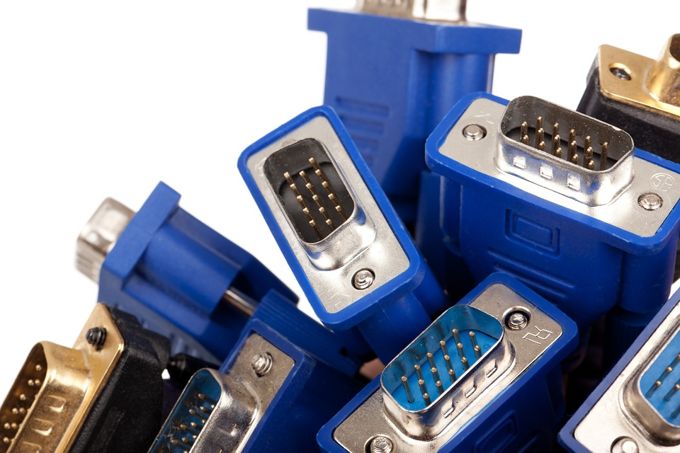
The first answer comes from modern computer monitors themselves. Most good monitors now have multiple inputs, just as televisions do. Two HDMI or Displayport sockets is fairly common, but you may also have a monitor with a mix of VGA, DVI and HDMI. It all depends on its age and model.
In order to switch between the two different computers with one monitor, you need to access the internal menu of the monitor and change the input.
The main advantage of this approach is that you can probably use the monitor you already have. The main downside is that you still need two sets of input devices or will have to manually plug your keyboard and mouse into the other computer each time you switch. For a computer you only occasionally need to take control of, such as a home media server, this is a quick and affordable approach, but it’s not ideal for other situations.
Certain ultrawide screens can display the input from two different computers at the same time, in a split-screen configuration. Which obviously has its own uses, but unless you already own an ultrawide monitor, it’s not worth going out and buying one for this reason alone.
Hardware KVM Switches
“KVM” is short for Keyboard, Video and Mouse. A hardware KVM switch is a physical device that can accept connections from multiple computers and then output to a single monitor, while accepting input from a single keyboard and mouse.
KVM switches vary significantly in both price and functionality. You can get a basic 2-port VGA model for about twenty dollars, or spend hundreds of dollars on a high-end 4K 4-port unit with rather fancy features such as picture-in-picture options.
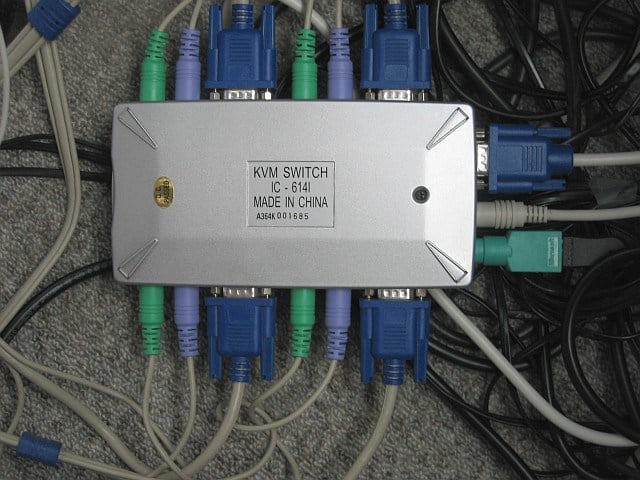
The big advantage of a KVM switch is that they are straightforward to use. Just plug everything in and use each computer with no performance penalty or potential for software glitches causing downtime.
There are plenty of downsides too however. For one thing, all of your computers need to be physically connected to the KVM switch. All display and USB cables have length limits before you need to start buying a signal repeater or simply live with all of your hardware within a few feet of you.
KVM switches can also be slow to actually make the switch, depending on the specific hardware you are using. It might take a few seconds to change between computers and if you have to do so constantly that can be a bit of a pain.
Software KVM Switches
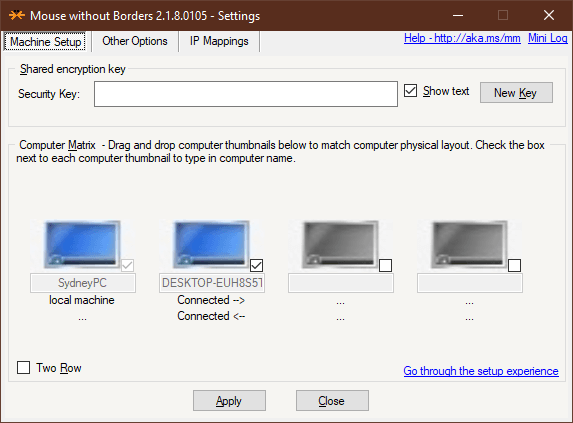
Software KVM switches are actually not the equivalent of hardware KVM switches in most cases. What you actually get is a software solution that lets you use multiple computers with the primary computer’s mouse and keyboard.
Each computer still needs to have its own monitor and be in the room with you. Examples of these software packages include:
- Synergy (one-time purchase)
- ShareMouse (free for personal use)
- Input Director (free for personal use)
- Microsoft Garage Mouse Without Borders (free!)
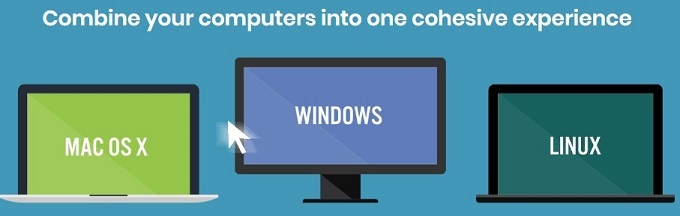
So these are actually software “KM” switches and don’t really solve our problem at all. However, if you combine a software KM switch with our first solution where we plug two computers into one monitor, you effectively get a KVM switch without paying anything extra!
There are true software KVMs as well, such as Stardock Multiplicity (30-day trial). Unfortunately that product is not free, although you can try it out to see if it works for you. However, compared to the price of a hardware KVM, Multiplicity is a real bargain and adds many advantages. Such as a lack of cabling and the ability to KVM computers that are very far away.
Software KM switches such as Mouse Without Borders even lets you seamlessly use the clipboard and drag files between machines as if they were one.
Remote Desktop Solutions
If you need to control two computers using one monitor and a hardware KVM switch is out of the question, what can you do? Especially if you aren’t willing to shell out for a professional software KVM switch.
The optimal answer is to use a remote desktop client and server application. Basically you run the client app on the computer you will physically be sitting at and run the server application on the second computer you want to control.
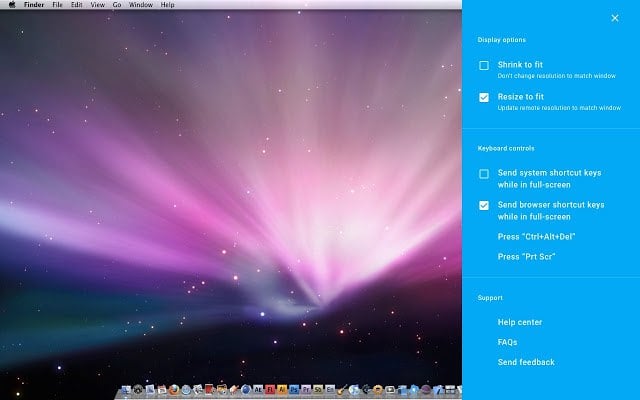
The screen of the remote computer exists as a window on your primary machine. You can maximize it at any time, in which case using it is just like sitting in front of the machine itself.
There are plenty of free remote desktop clients to choose from as well, so really it seems like using a remote desktop app is the best solution of all, right? Well, there are plenty of potential flies that could end up in this multi-computer ointment.
Since you are relying on a network connection, any problems with that connections can be an issue. No network means no control of the other machines. A poor connection can lead to bad performance, including audio and video lag. Additionally, if the remote machine hangs or has any sort of problem that needs a physical fix, you can’t just reach out and fix it.
Of course, there’s no reason you can’t use remote desktop technology with a machine that’s right there. In fact, with a little meddling under the hood, you can connect two computers together directly with an ethernet cable and run the remote desktop software over that connection, which will be nearly 100% reliable and more than fast enough.
There are many good options, but VNC Viewer and Chrome Remote Desktop are both excellent choices and free!