
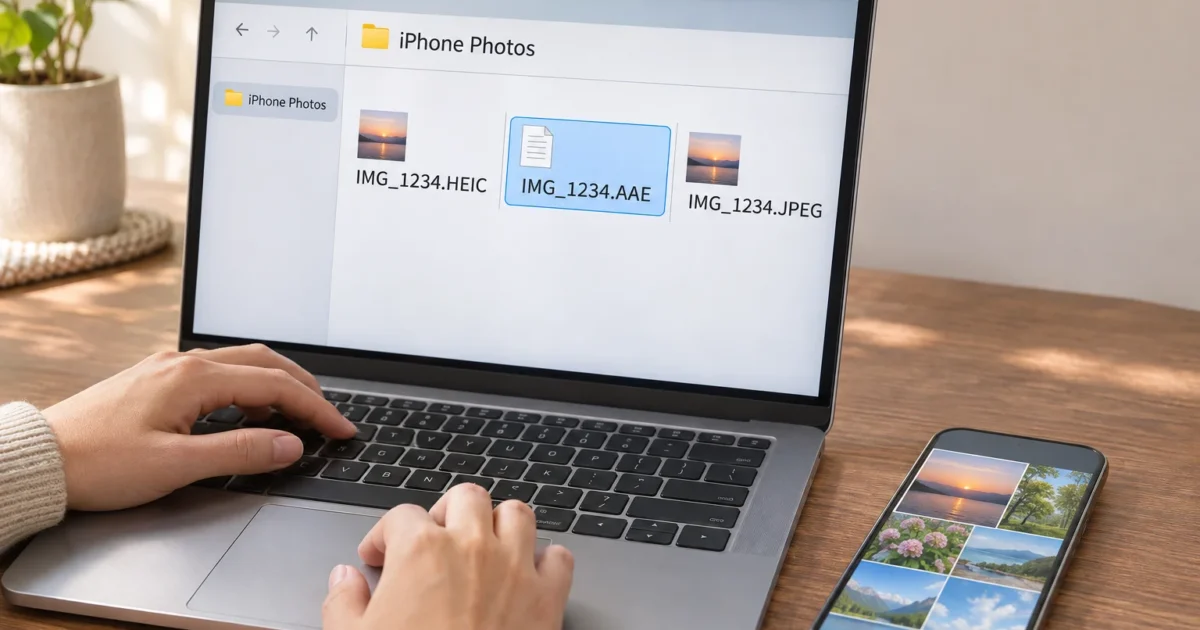
Maybe someone emailed you an AAE file, or you copied a folder of iPhone photos to your PC. Now Windows asks which app to use, and nothing you pick works. You’re not alone. AAE files confuse almost everyone the first time they show up.
There’s a simple reason for that. An AAE file holds a short list of edit instructions for a photo, written as plain text. The picture itself lives in a separate file with the same name. This guide shows you how to open an AAE file on Windows or Mac, how to get the actual photo onto your PC, and when it’s safe to delete those little files.

How to Open an AAE File (Quick Answer)
To open an AAE file, use a text editor. On Windows, right-click it and choose Open with > Notepad. On a Mac, use TextEdit. You’ll see lines of XML text describing the edits, but no picture. To see the photo, open the matching JPEG or HEIC file that has the same name, such as IMG_1234.HEIC next to IMG_1234.AAE.
| Method / Fix | Best For | Quick Steps / Key Detail |
|---|---|---|
| Open in Notepad (Windows) | Reading the edit data | Right-click > Open with > choose Notepad (the “choose another app” label varies) |
| Open in TextEdit (Mac) | Reading the edit data | Control-click > Open With > TextEdit |
| Apple Devices app + Windows Photos | Getting the real photos onto a PC over USB | Install Apple Devices, connect the iPhone, tap Trust, import with Photos |
| Google Drive upload | Moving photos without a cable | Upload from the Drive app on iPhone, download on your PC |
| Export from Photos or Preview (Mac) | Saving the edited look as a JPEG | File > Export, then pick JPEG or PNG |
What Are the AAE Files, and Where Do They Come From?
An AAE file is a small sidecar file. That’s a helper file that sits next to a photo and stores extra information about it. Apple’s photo apps create AAE files in some workflows to record edits you made to a picture. The extension is commonly expanded as “Apple Aperture Edits,” named after Apple’s old Aperture photo app. Apple doesn’t publish a full specification for the format, though. It just documents how its apps behave.
Inside, an AAE file is written in XML (Extensible Markup Language). XML is plain text with labels around each piece of data, a bit like a recipe card with headings. The recipe here describes your edits. It holds no pixels at all.
Key Features:
- Edit instructions only: It records changes like cropping, exposure, contrast, or saturation.
- Nondestructive editing: Your original photo stays untouched, so Apple Photos can undo or tweak edits later.
- Matching names: It pairs with a photo of the same base name, like
IMG_1234.JPGandIMG_1234.AAE. - Tiny size: It’s text, so it takes up almost no space.
Here’s why the sidecar exists. Apple Photos leaves your original picture alone and keeps your edits as a separate set of instructions. When you open the photo on an Apple device, Photos reads those instructions and applies them on the fly. Change your mind next week? Photos just rewrites the instructions, and the original is still there.
You’ll usually run into AAE files after copying photos from an iPhone, iPad, or Mac to a non-Apple computer. Whether one appears depends on the app, your software version, and how you exported or transferred the photo. Not every edit produces a visible AAE file.
The matching photo can be a JPEG or a HEIC/HEIF image. HEIC is Apple’s default space-saving photo format. Apple says HEIF support is built into iOS 11 and later and macOS High Sierra and later. Your iPhone saves JPEGs instead if you set the camera to Most Compatible. Some sharing and transfer methods convert photos to JPEG automatically, too.
One more thing to keep in mind. An AAE file is only useful with its matching photo. If you have the AAE file and no image, there’s nothing for Windows to show you.
How to Open AAE Files in Windows
Windows can open an AAE file as text. That lets you read the XML, but it won’t display or edit the photo. Notepad comes with both Windows 10 and Windows 11, so you don’t need to install anything. Microsoft has a Notepad help page if you’ve never used it.
Step 1: Turn On File Extensions (Optional but Handy)
Windows hides file extensions by default, so IMG_1234.AAE and IMG_1234.HEIC can look like the same file. In File Explorer on Windows 11, click View > Show > File name extensions. On Windows 10, click the View tab and tick File name extensions. The exact menu placement can vary a little by build.
Now you’ll see the full name of every file. Telling the AAE file apart from the photo becomes much easier.
Step 2: Right-Click the AAE File and Choose Open With
Find the AAE file in File Explorer, right-click it, and select Open with.
Step 3: Pick Another App
Notepad might already show in the list. If it doesn’t, look for an option like Choose another app or Choose an app on your PC. The wording depends on your Windows build. Microsoft explains how Open with works in its guide to file name extensions in Windows.
Step 4: Select Notepad and Confirm
Click Notepad. Then choose Just once, or Always if you want AAE files to open in Notepad every time. Older dialogs show an OK button instead.
Step 5: Read the XML
Notepad opens the file and shows the XML text. You’ll see tags and values describing the edits.
So what does that get you? Honestly, not much. Notepad won’t render the edited photo, apply the edits, or rebuild a missing image. The XML wasn’t designed for people to read, so most of it looks like gibberish. Apple Photos uses the file quietly in the background, and you never have to open it yourself.
Code editors like Notepad++ or Visual Studio Code also open AAE files, with nicer color-coding. I’d skip installing one unless you already use it. Notepad does the job fine.
Can You Convert an AAE File to JPG?
No. You can’t convert an AAE file to JPG, HEIC, or any other image format. The file holds edit instructions and no pixels, so there’s no picture inside to convert.
Renaming IMG_1234.AAE to IMG_1234.JPG won’t help either. The contents are still XML text, and your image viewer will throw an error or refuse to open it.
I’d also steer clear of “AAE to JPG converter” websites. They can’t pull a photo out of a file that contains only edit data. Plus, you’d be uploading private photo details to a site you know nothing about.
What you actually want is to convert or open the matching photo. If you need the edited look saved permanently, export a fresh JPEG from Apple Photos. The next sections cover how.
How to Open AAE Files on a Mac
Macs handle AAE files more gracefully. Photos reads them automatically when your library includes the matching image. If you still want to see the raw XML, TextEdit opens it.
Read the AAE File in TextEdit
- Open Finder and find the AAE file.
- Control-click (or right-click) the file and choose Open With > TextEdit. If TextEdit isn’t listed, choose Other and pick it from Applications.
- TextEdit shows the XML text.
Export the Edited Photo as a JPEG
This is the best way to “bake in” your edits so any computer shows them.
- Open the photo in Photos or Preview.
- Click File > Export. In Photos, you may see Export 1 Photo in a submenu.
- Pick JPEG or PNG as the format and save.
Apple documents this Photos and Preview export method for turning HEIF images into JPEG or PNG. The exported file includes your visible edits, so you can share it with Windows users without any AAE file at all.
How to Open the Image File on Windows
To see the real photo on a PC, you need the matching JPEG or HEIC file. Apple’s official steps for moving photos to a Windows PC use the Apple Devices app and the Windows Photos app. You’ll need an iPhone or iPad, a Windows 10 or 11 PC, and a data-capable USB-C cable or Lightning cable.
Step 1: Install Apple Devices
Open the Microsoft Store, search for Apple Devices, and install it. This app gives Windows the drivers it needs to talk to your iPhone.
Step 2: Connect Your iPhone or iPad
Plug the iPhone into your PC with the cable. Wake the phone and enter your passcode so it’s on the Home Screen.
Step 3: Trust the Computer
Your iPhone asks whether to trust this computer. Tap Trust or Allow, then enter your passcode again if asked.
Step 4: Import With the Photos App
Open the Photos app on Windows. Click Import and choose your connected device. The label may read From a connected device or show your iPhone’s name, depending on your Photos version. Select the pictures you want and start the import.
Will Your Photos Become JPEGs?
Sometimes. Apple says HEIF photos imported to a PC might be converted to JPEG, but it isn’t guaranteed. A setting on your iPhone controls this.
- On the iPhone, open Settings > Apps > Photos. On some iOS versions, it’s just Settings > Photos.
- Scroll to the transfer-to-Mac-or-PC section.
- Choose Automatic to get compatible versions, or Keep Originals to get untouched files.
Want future photos saved as JPEGs from the start? Go to Settings > Camera > Formats and pick Most Compatible. New photos then use JPEG, and new videos use H.264. This only affects photos you take from now on. It won’t convert the HEIC photos already on your phone.
If Windows Won’t Open HEIC Files
Some Windows installations need extra HEIF and HEVC support to display Apple photos. Search the Microsoft Store for Microsoft’s HEIF and HEVC media extensions. Availability and pricing vary by PC. If that’s a hassle, use the Automatic transfer setting or switch your camera to Most Compatible instead.
How to Open the Image on Windows by Using Google Drive
Don’t feel like digging out a cable? Cloud storage works too. Google Drive and Dropbox both let you upload from your iPhone and download on your PC. Here’s the Google Drive version.
- On your iPhone or iPad, open the Google Drive app.
- Tap the Add (plus) button.
- Tap Upload and select your photos.
- Wait for the upload to finish. Keep the app open for big batches.
- On your PC, open Google Drive in your browser, or use Google Drive for desktop.
- Download the photos and open them in the Photos app.
Keep in mind that Google Drive is plain storage. It doesn’t convert AAE files, and it won’t reliably turn HEIC into JPEG. Whatever format you upload is usually what you get back. If the downloaded file is HEIC, see the HEIC tip in the previous section.
You can also download photos from iCloud.com or iCloud for Windows if you already use iCloud Photos.
What about uploading to Facebook or Instagram and downloading again? I’d treat that as a desperate last resort. Social networks shrink and recompress photos, strip details like date and location, and can shift colors. It’s fine for a quick look, but terrible for keeping a good copy.
Should AAE Files Be Deleted?
Usually, deleting an AAE file is harmless. It won’t delete the photo itself. It only removes the instructions Apple software uses to rebuild your edits.
It’s generally safe to delete one when:
- You’ve already exported an edited copy with the changes baked in.
- You’ve kept both the original and edited versions as separate files.
- The AAE file has no matching photo anymore.
- You don’t plan to keep editing in Apple Photos.
There’s a catch, though. If your edits exist only in that AAE file, deleting it may mean Apple Photos can’t rebuild them. That depends on whether you exported the photo and whether iCloud Photos synced the edit. If you spent an hour perfecting a shot, keep the AAE file to be safe.
Name matching matters too. Apple software links the photo and its AAE file by their shared base name, like IMG_1234.HEIC and IMG_1234.AAE. Rename one without the other, or move them to different folders, and the edits won’t connect.
Before deleting anything, follow this quick routine:
- Keep the original photo.
- Export an edited JPEG or PNG if the look matters to you.
- Open the exported copy and confirm the edits show up.
- Keep the AAE file next to the original if you might edit again later.
Don’t expect much free space from cleaning these up. AAE files are tiny, so deleting them is more about tidiness than storage. If you’re archiving a big photo library, copy the photos and their AAE files together to an external hard drive.
Are AAE Files Safe?
A normal AAE file is safe. It’s plain XML text, meant to be read as data, and it can’t run like a program. Seeing a bunch of them after copying iPhone photos is completely normal.
That said, a file extension is no guarantee. Anyone can rename a file, so treat unexpected AAE attachments from strangers with the same caution as any other attachment.
- Open, don’t run: If you want to check one, open it in Notepad or TextEdit.
- Stay updated: Keep Windows and your antivirus up to date.
- Watch for oddities: If the text has scripts, strange web addresses, or anything unrelated to photo edits, delete it and scan the source.
- Skip sketchy converters: Don’t upload private photos or AAE files to random conversion sites.
When the Standard Steps Fail
Problem: Notepad isn’t in the Open With list
Click Choose another app or Choose an app on your PC, then scroll the full list. If Notepad still isn’t there, look in C:\Windows\System32 for notepad.exe and select it. On some PCs, Notepad is an optional feature. Search the Microsoft Store for Windows Notepad and install it.
Problem: You can’t tell which file is the AAE file
File extensions are hidden. Turn them on with View > Show > File name extensions in Windows 11 File Explorer.
Problem: The iPhone doesn’t show up, or the Trust prompt never appears
Your PC can’t see the phone. Try these in order:
- Install or update the Apple Devices app.
- Wake the iPhone, enter your passcode, and keep it on the Home Screen.
- Try a different cable. Some cheap cables only charge and can’t carry data.
- Plug directly into your PC instead of a USB hub, or try another port.
- Restart both your iPhone and PC (and you know how often a restart fixes things on Windows!).
Problem: Some photos are missing from the import
If iCloud Photos is on, the full-size originals might live only in iCloud. Apple says the originals need to download to your device before importing to a PC. Connect the iPhone to Wi-Fi, make sure it has free storage, and give Photos time to download. Keep the phone awake during big imports. The Windows Photos app also skips photos it thinks you’ve already imported.
Problem: The AAE file showed up without a photo
Search the folder for the same base name with .JPG, .JPEG, .HEIC, or .HEIF at the end. If there’s no match, the AAE file can’t recreate the photo. Re-import from the iPhone, or download the photo from iCloud.com.
Problem: The photo opens, but the edits are missing
Windows apps don’t read AAE files, so they show the unedited original. Export a new JPEG from Apple Photos on your iPhone or Mac to bake in the edits. Or switch the transfer setting to Automatic, which sends compatible, edited versions.
Wrapping Up
So basically, the AAE file is the recipe and the photo is the meal. You can read the recipe in Notepad or TextEdit, but you’ll never see the picture there. Grab the matching JPEG or HEIC instead. Use Apple Devices and Windows Photos for USB transfers, and export a JPEG from your Mac or iPhone when you want edits locked in.
My take? AAE files mostly cause confusion and almost never cause real trouble. If you don’t edit in Apple Photos, ignore or delete them. If you do, keep them next to the originals and stop worrying.
| Step | Action | Applies To |
|---|---|---|
| 1 | Open the AAE file in Notepad or TextEdit to read its XML | Windows, macOS |
| 2 | Find the matching photo with the same base name | Windows, macOS |
| 3 | Import photos with Apple Devices and the Photos app | Windows |
| 4 | Set Automatic or Keep Originals for transfers | iPhone, iPad |
| 5 | Export a JPEG from Photos or Preview to bake in edits | macOS |
| 6 | Keep AAE files with originals, or delete them once edits are exported | Windows, macOS |