
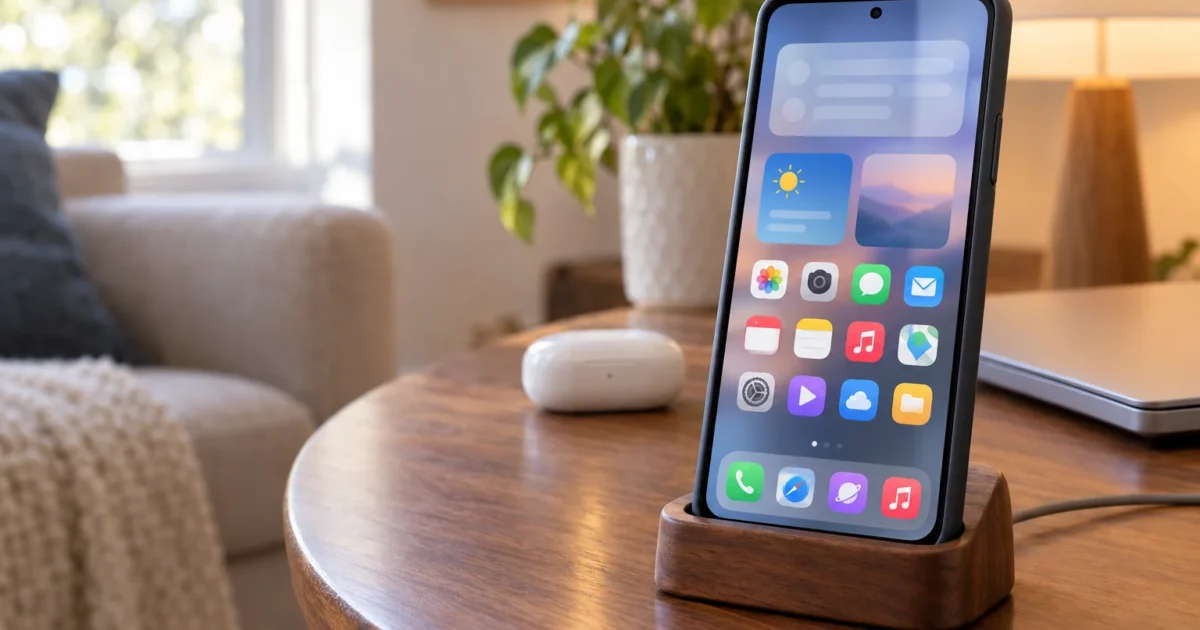
If you’ve ever used a friend’s iPhone for five minutes and quietly thought “okay, that home screen actually looks great,” you’re not alone. iPhones have a visual consistency that a lot of Android users quietly appreciate, even if they’d never swap hardware (or that hardware cost) to get it.
Good news: you don’t have to. A handful of free Android apps can transform your home screen to look and behave a lot like iOS. The current crop of iOS-style launchers is genuinely good: swipe-down Control Center panels, an App Library, Spotlight-style search, and icon grids that pass a casual glance test. (Extras like an iOS-style lock screen usually come from separate companion apps.) If you’ve been curious but skeptical, the options in 2026 are worth a look.
What an iOS Launcher Actually Does
A launcher is an app that replaces the home screen layer of your Android, the icon grid, the app drawer, the dock, and sometimes the lock screen. Install one, set it as your default Home app, and the visual change happens right away.
The home screen is where the transformation happens, though. Your system apps, Settings menu, and notification shade still look like Android underneath. Think of it like renovating the entryway of a house, you see it every time you come and go, and it genuinely changes how the place feels, even though the rooms behind it are untouched. That’s fine, because you keep Android’s flexibility while getting iOS’s visual style.
Before You Begin
Make sure you have:
- An Android phone running a reasonably recent version of Android (each app’s Play Store listing shows whether it’s compatible with your device)
- Access to the Google Play Store
- About five to ten minutes for setup and customization
The Best iOS-Style Launchers for Android
Launcher OS 27 (formerly Launcher iOS 26)

Developer: LuuTinh Developer Price: Free (contains ads and in-app purchases) Play Store rating: 4.7 stars, 10M+ downloads Last updated: October 2026 (version 8.8.6 at the time of writing) Download: Google Play
This is one of the most popular full iOS clone launchers on the Play Store, and it’s updated often. The developer renamed the listing from Launcher iOS 26 to Launcher OS 27 and added Liquid Glass styling in its latest update, so it’s keeping pace with current iOS design language rather than being frozen imitating a version from years ago. You may still see “Launcher iOS 26” inside the app and in search results. The home screen is clearly targeting the look of a current iPhone, and it gets surprisingly close.
You get an iOS-style icon grid, a dock, rounded-corner icons, a swipe-accessible Control Center, an App Library, and Spotlight-style search. An iOS-style lock screen isn’t built in: the same developer offers it as a separate app (Lock Screen & Notifications iOS 26), which some reviewers find confusing. First impressions are solid. The home screen passes a casual glance test for anyone who’s spent time with a recent iPhone.
One thing to know before you install: getting the Control Center and gesture features to work properly requires granting notification access, and sometimes accessibility permissions too. That’s standard for launchers that try to replicate iOS-level behavior, but I’d skip the accessibility permission if you only care about the home screen look, the icon and layout experience works fine without it.
Best for: Anyone who wants the closest visual match to current iOS on Android.
Launcher OS 2026
Developer: Revoto Price: Free Play Store rating: about 3.6 stars, 1M+ downloads Download: Google Play
Launcher OS 2026 leans hard into customization. Alongside the iOS-style home screen, it adds an App Library with custom groups, a swipe-down search for apps, contacts, and files, a big library of themes and icon packs, and iOS-style widgets (battery, calendar, clock, weather, and photo widgets). Its themes cover the lock screen wallpaper as well as the home screen.
There’s more to tinker with than in a simpler launcher, which is the point if you like to tweak every detail. Its Play Store rating is more mixed than Launcher OS 27’s, so skim the most recent reviews to make sure it runs well on your phone before you commit.
Best for: Users who want extensive home screen customization and don’t mind a more involved setup.
Smart Launcher + an iOS Icon Pack
Price: Free (Pro version available) Download: Available on Google Play, search “Smart Launcher”
Smart Launcher is a well-regarded Android launcher, fast, clean, and reliable, that pairs well with a free iOS icon pack from the Play Store. The combination gives you a home screen that looks like iOS without the permissions overhead that comes with a full clone app.
If you’re not comfortable granting accessibility access to a launcher you just found on the Play Store, this is the smarter approach (pun intended). Download Smart Launcher, search for an iOS icon pack, apply it through the launcher’s icon settings, throw on an iOS-style wallpaper, and you’ve got something that looks the part. The layout is your own rather than a strict iPhone clone, which a lot of people find they prefer anyway.
Best for: Anyone wary of granting heavy system permissions, or anyone who wants the iOS aesthetic without the full clone experience.
Niagara Launcher + an iOS Icon Pack
Price: Free (Pro version available) Download: Available on Google Play, search “Niagara Launcher”
Niagara takes a completely different approach. It’s minimal and fast in a way most launchers aren’t. Apply an iOS icon pack on top and you get a home screen that looks clean and polished. Niagara’s layout is distinctly its own rather than a pixel-for-pixel iPhone grid, so think of it as iOS-inspired rather than iOS-identical.
If your main frustration with Android is that it feels cluttered and busy, Niagara is one of the best fixes around, regardless of whether you care about looking like iOS. A good option if you’re iOS-curious but open to something refined rather than an exact copy.
Best for: Users who want a polished daily driver more than a perfect iPhone imitation.
How to Set Up an iOS Launcher on Android
The steps are nearly the same regardless of which launcher you choose.
Step 1: Install the Launcher
Open the Play Store, search for your chosen launcher, and tap Install.
Step 2: Open the App and Follow the Setup Wizard
Open the launcher after installation. Most iOS-style launchers walk you through a setup wizard that applies the theme, icons, and widgets automatically. Follow the prompts to get the basic layout in place.
Step 3: Review and Grant Permissions
The launcher will ask for permissions, read each one before tapping Allow. Notification access lets the app show iOS-style notification badges. Accessibility access enables gesture shortcuts and Control Center features, but it’s optional if the home screen look is all you’re after.
Step 4: Set the Launcher as Your Default Home App
This is the step people miss most often. Installing a launcher doesn’t replace your home screen automatically, you have to tell Android to use it.
Go to Settings > Apps > Default apps > Home app, then select your new launcher from the list. The exact path varies by Android version and phone brand (Samsung in particular likes to nest this a few menus deep), but it’s always somewhere in Apps or Default apps.
Step 5: Customize the Layout
Once the launcher is running, open its settings to adjust the icon grid size, wallpaper, and widgets. Most launchers have a settings option accessible by long-pressing on the home screen.
Tips and Troubleshooting
Common Problems
Problem: The home screen looks exactly the same after installing the launcher
You need to set it as the default Home app, that’s Step 4 above. Go to Settings > Apps > Default apps > Home app and select the launcher you installed. The exact path varies by device, but it’s always in that general area.
Problem: Control Center or gesture shortcuts aren’t working
These features need accessibility or overlay permissions. Open the launcher’s settings, find the Permissions section, and grant the permission each feature requires. If you’re not comfortable with accessibility access, you can skip it, the home screen and icon features work without it.
Problem: The home screen looks like iOS but the rest of the phone doesn’t
Expected behavior. A launcher changes the home screen and some UI elements, but your system apps, Settings menu, and notification shade are still Android. The change is cosmetic, not a system-level swap.
Problem: Battery life got worse after installing the launcher
Some heavier launchers run more background processes. If you notice a drain, try Smart Launcher or Niagara, both are known for being lightweight, even on older phones.
Pro Tips
- Try Before You Commit: Use the new launcher for a week before deciding. Switching back is easy, just change the default Home app back to your original in Settings > Apps > Default apps > Home app.
- Capture Your Layout First: Some launchers don’t preserve your existing icon arrangement. Take a screenshot of your current home screen before you switch, so you can recreate it if you need to.
- Mix and Match: A lightweight launcher for the home screen plus a separate iOS-style Control Center app often produces a cleaner result than relying on a single all-in-one clone.
- Check Recent Reviews: Filter Play Store reviews by “Most Recent” before installing anything, so you can spot compatibility issues on current Android versions before you commit.
Wrapping Up
Making your Android look like an iPhone is achievable in 2026, and you’ve got real options depending on how deep you want to go. Launcher OS 27 (formerly Launcher iOS 26) is the strongest starting point for a full iOS clone: it’s actively updated and gets surprisingly close to the real thing. Launcher OS 2026 is the pick if you’d rather spend time on themes, icon packs, and widgets. And if the full-clone route feels like more than you want to manage, Smart Launcher or Niagara with an iOS icon pack gets you most of the iPhone aesthetic with far less complexity.
| Launcher | Best For | Price |
|---|---|---|
| Launcher OS 27 (formerly Launcher iOS 26) | Full iOS clone home screen + Control Center | Free |
| Launcher OS 2026 | iOS home screen + themes, icon packs, widgets | Free |
| Smart Launcher + icon pack | Clean iOS look, minimal permissions | Free / Pro |
| Niagara + icon pack | Minimal, fast, polished daily driver | Free / Pro |
And if you ever decide plain Android is great after all, switching back to your original home screen takes about 30 seconds in Settings. Worth trying.
For more on customizing your Android experience, consider exploring other launchers or learning how to add apps to your home screen. If you encounter issues, check out our guide on fixing app crashes. For iOS users looking to switch, we have a comparison of iPhone vs. Android. External resources like YouTube tutorials or Uptodown’s launcher reviews can also be helpful.