

Switching from Firefox to Chrome but dreading the thought of losing all your carefully organized bookmarks? I get it, you’ve probably spent years building up that collection and the idea of starting over feels overwhelming.
The good news? Moving your bookmarks between browsers is way easier than it used to be. Chrome can now import directly from Firefox without any fuss and there’s still the trusty HTML export method if you need a backup. Let’s walk through both options so you can get back to browsing without missing a beat.
What Are Browser Bookmarks?
Bookmarks are saved links to websites you want to visit again. Think of them as digital sticky notes that help you quickly jump back to your favorite sites, work resources, or that recipe you’ve been meaning to try.
Key Features:
- Organized folders: Group related bookmarks together (like “Work,” “Recipes,” or “News”)
- Bookmarks toolbar: Quick access to your most-used sites right below the address bar
- Cross-device sync: Access your bookmarks on any device when signed into your browser account
- Import/export: Move bookmarks between different browsers easily
Method 1: Direct Import (Easiest Option)
Chrome’s built-in import feature is the fastest way to grab your Firefox bookmarks. It’ll pull over your bookmarks, saved passwords, and browsing history all at once.
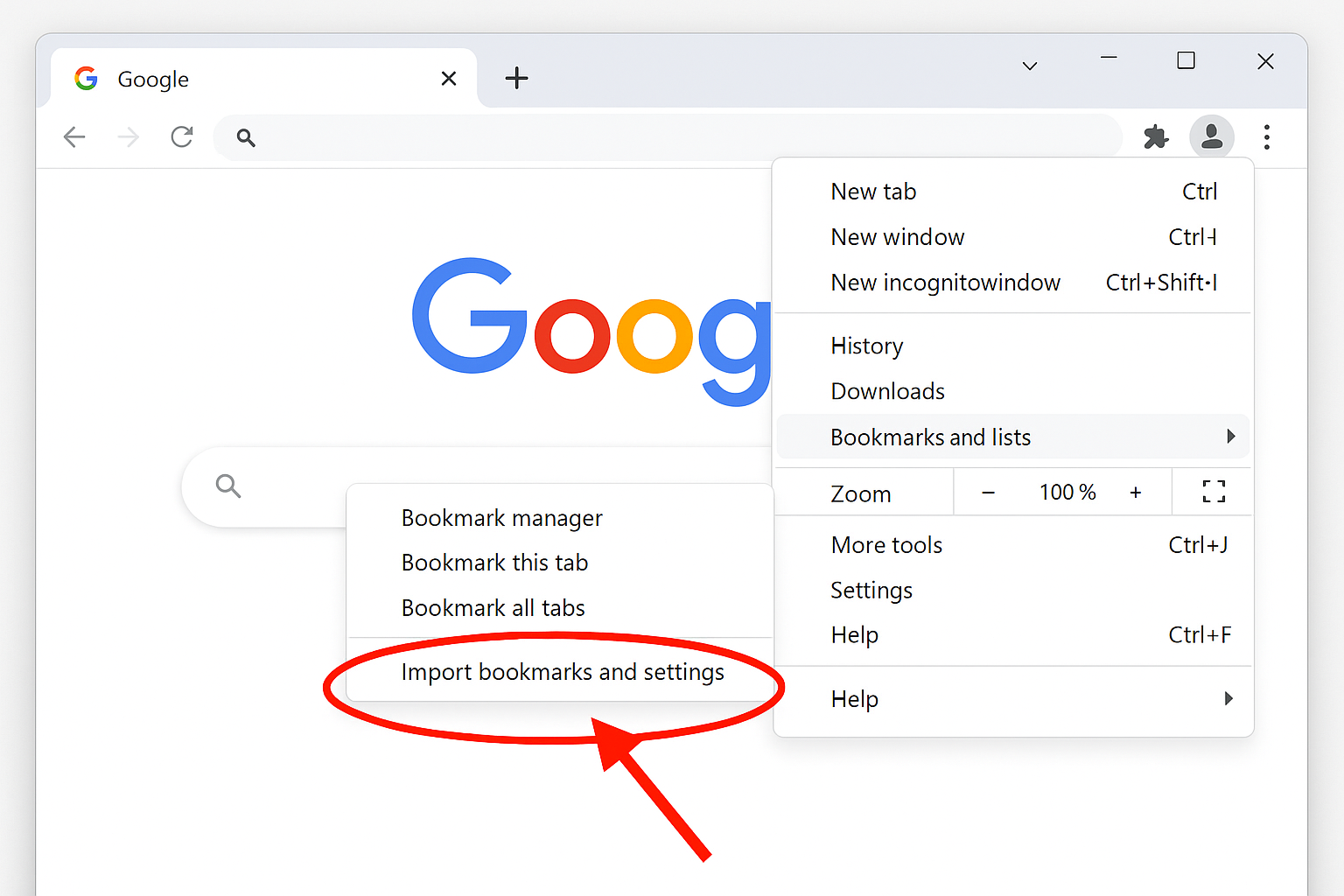
Step 1: Open Chrome’s Import Settings
Click the three-dot menu in the top-right corner of Chrome, then go to Bookmarks and lists > Import bookmarks and settings.
Step 2: Select Firefox as Your Source
In the import dialog, choose Mozilla Firefox from the dropdown menu. You’ll see checkboxes for what to import: bookmarks, saved passwords, search engines, and browsing history.
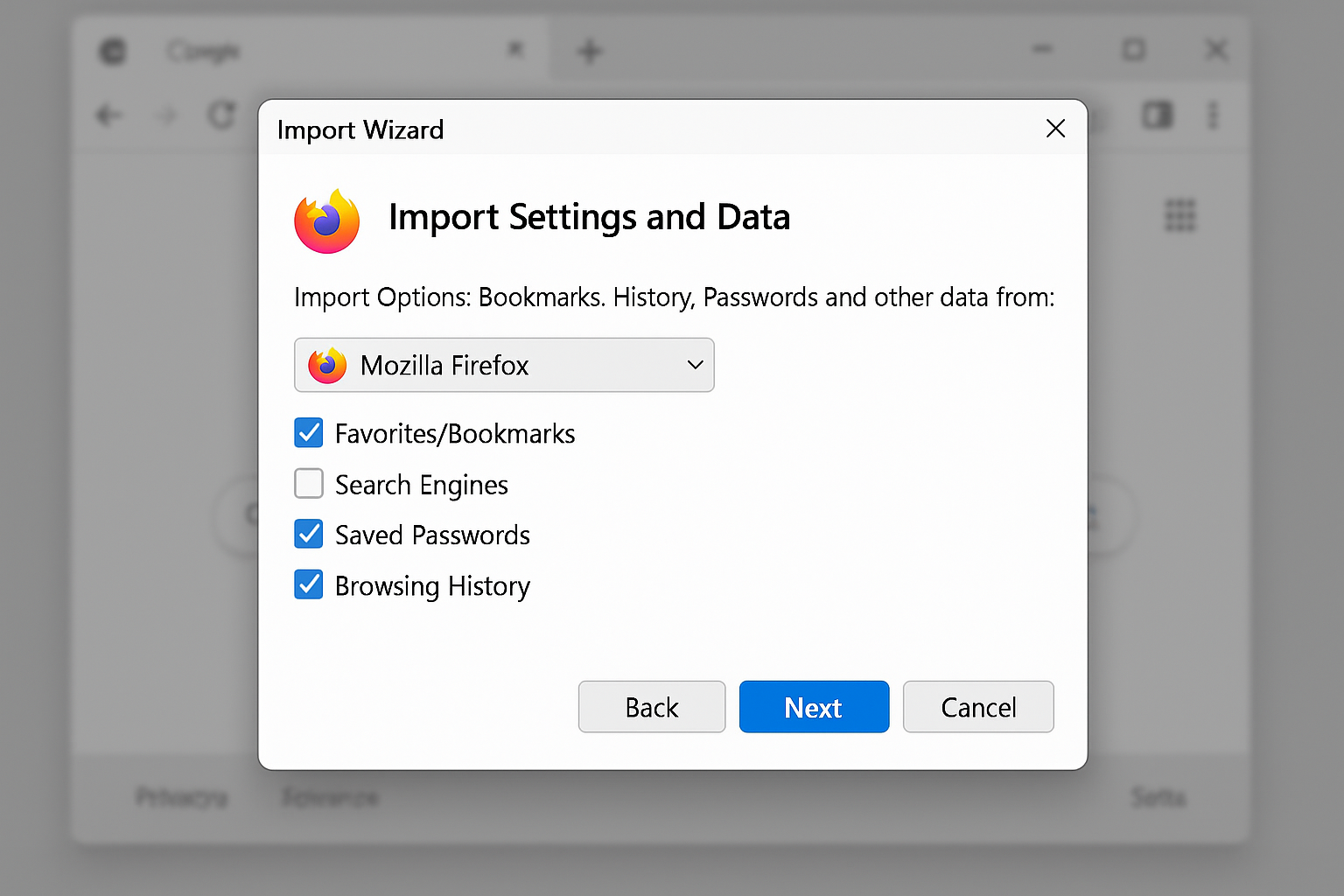
Step 3: Choose What to Import
Check the boxes for what you want to bring over. I’d recommend at least selecting Favorites/Bookmarks and Saved passwords (if you’re not using a password manager already).
Step 4: Complete the Import
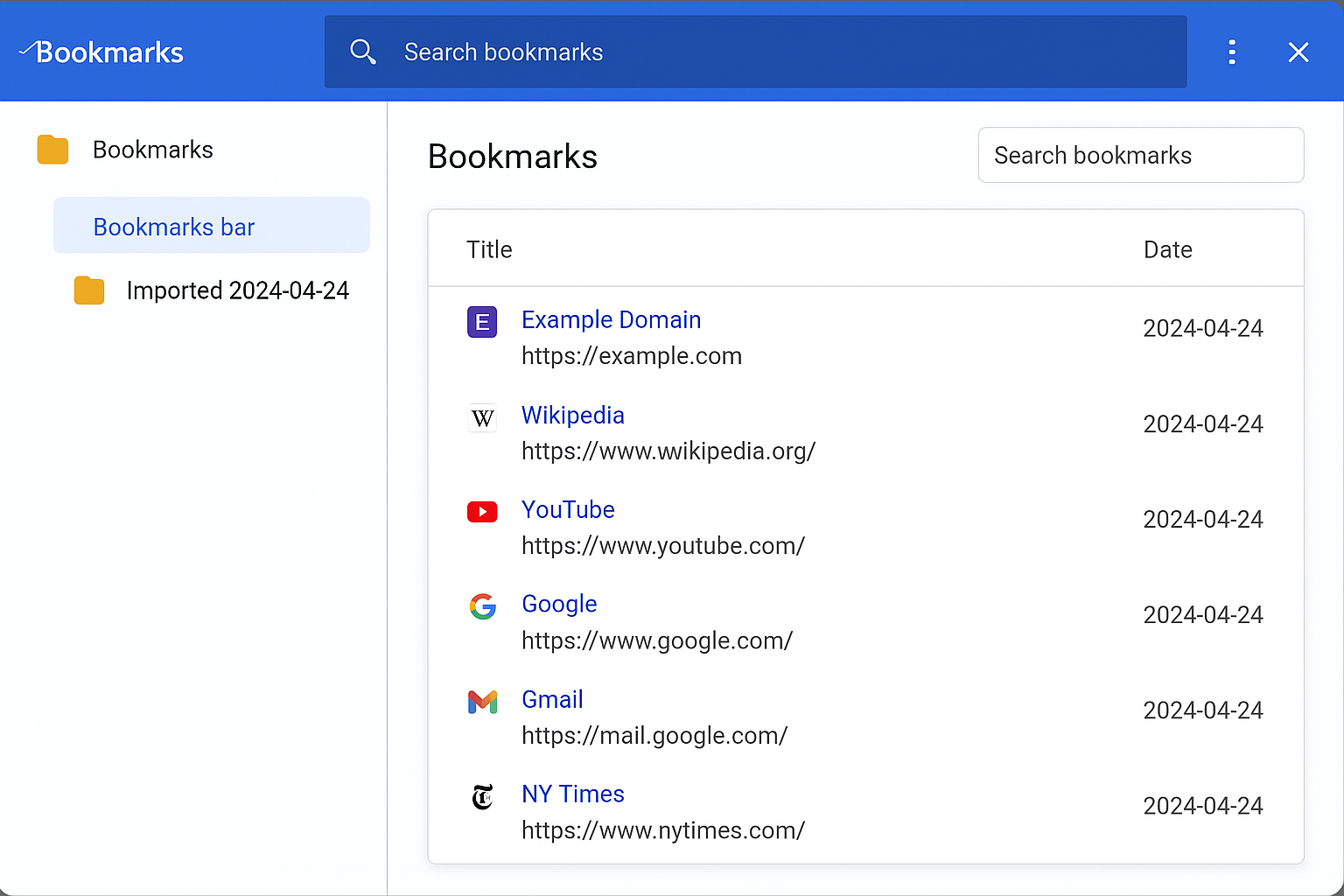
Click Import and Chrome will do its magic. Your Firefox bookmarks will appear in Chrome’s bookmark manager, usually in a folder labeled with today’s date.
Method 2: HTML Export (The Backup Method)
Sometimes the direct import doesn’t work perfectly, or you want more control over the process. The HTML export method is your reliable backup plan as it’s been working the same way for years.
Export from Firefox
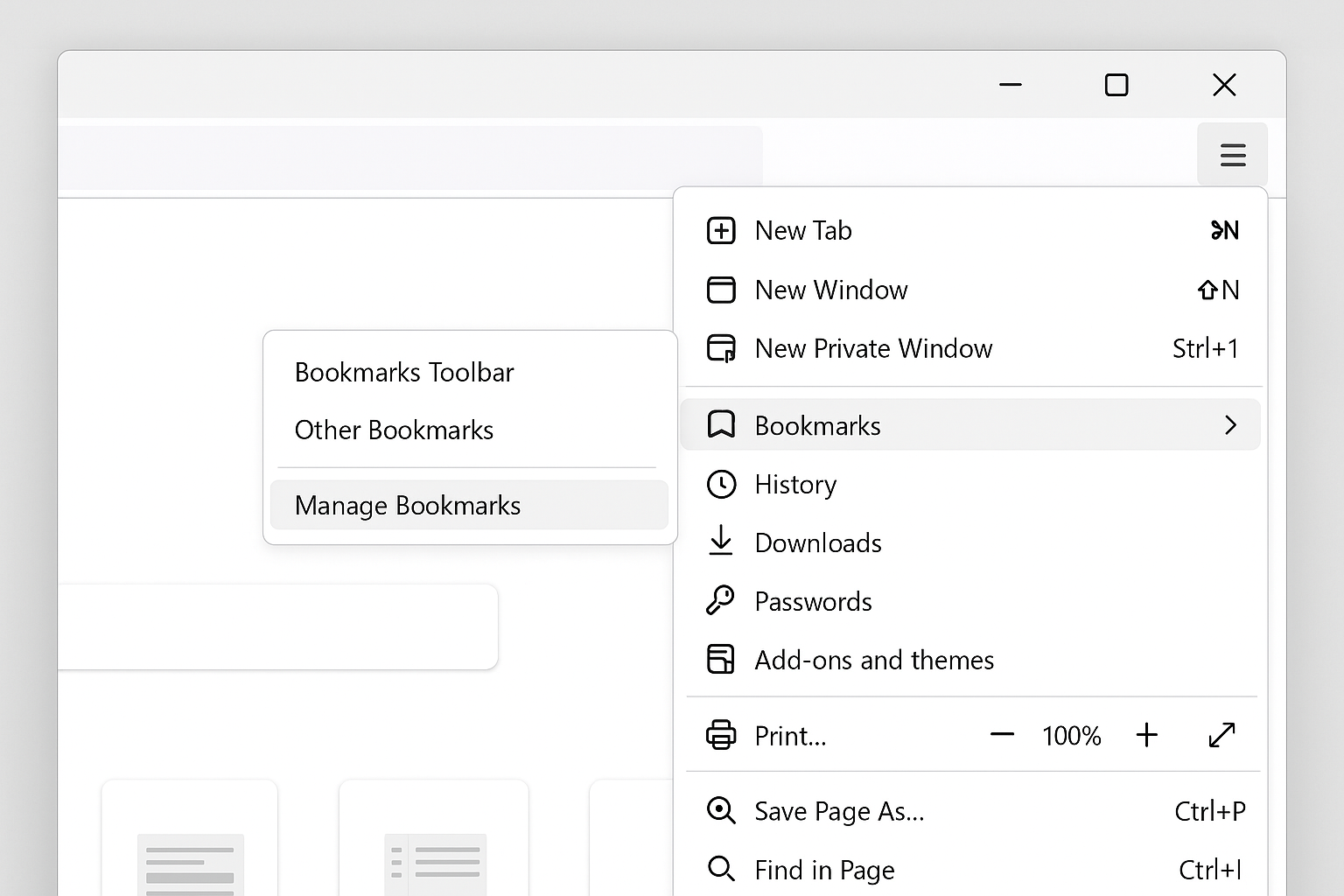
Step 1: Open Firefox’s Bookmark Library
In Firefox, click the menu button (three horizontal lines) in the top-right, then select Bookmarks > Manage Bookmarks. You can also use the keyboard shortcut Ctrl + Shift + O (Windows) or Cmd + Shift + O (macOS).
Step 2: Export Your Bookmarks
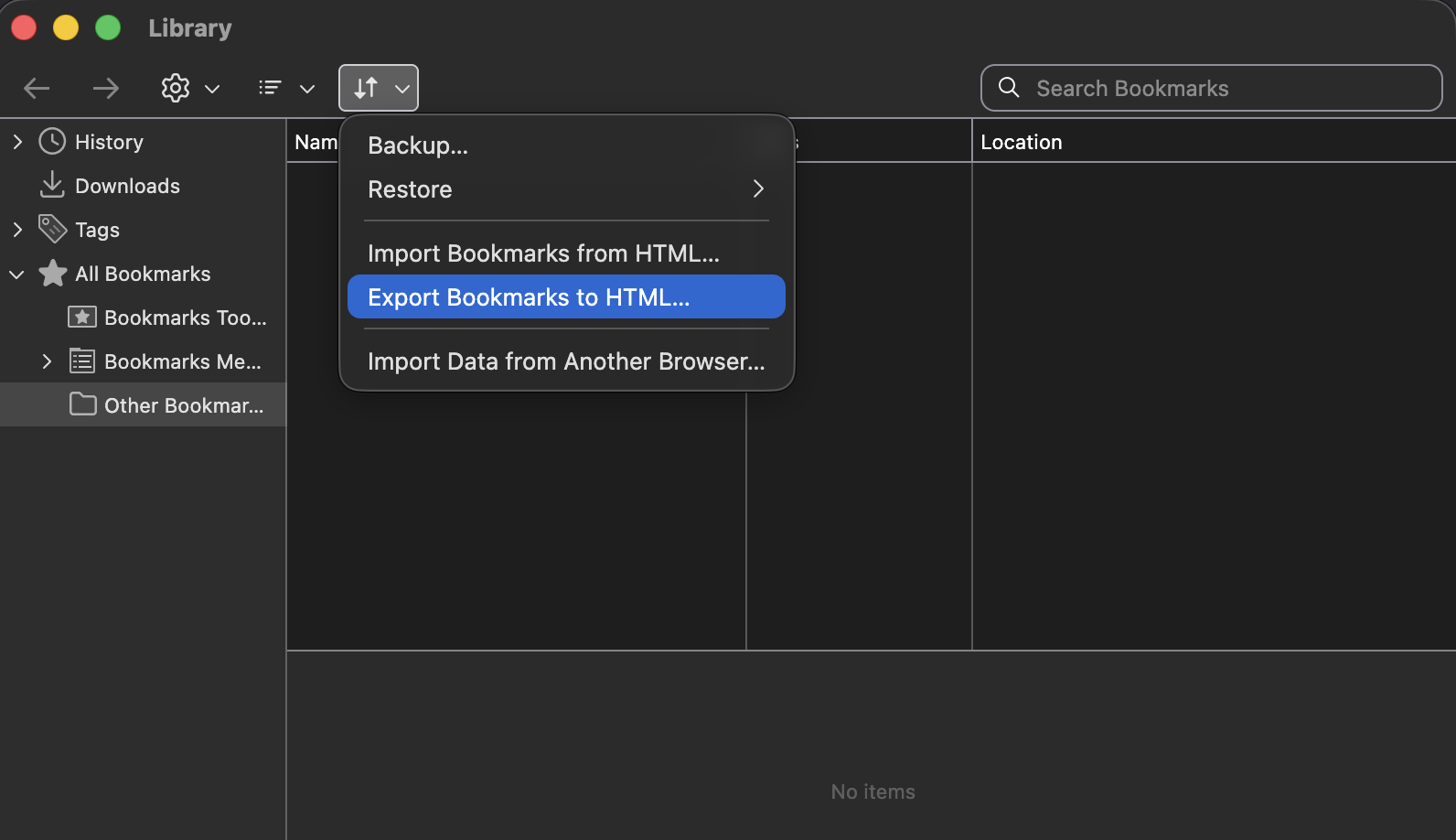
In the Library window, click Import and Backup in the toolbar, then choose Export Bookmarks to HTML.
Step 3: Save the HTML File
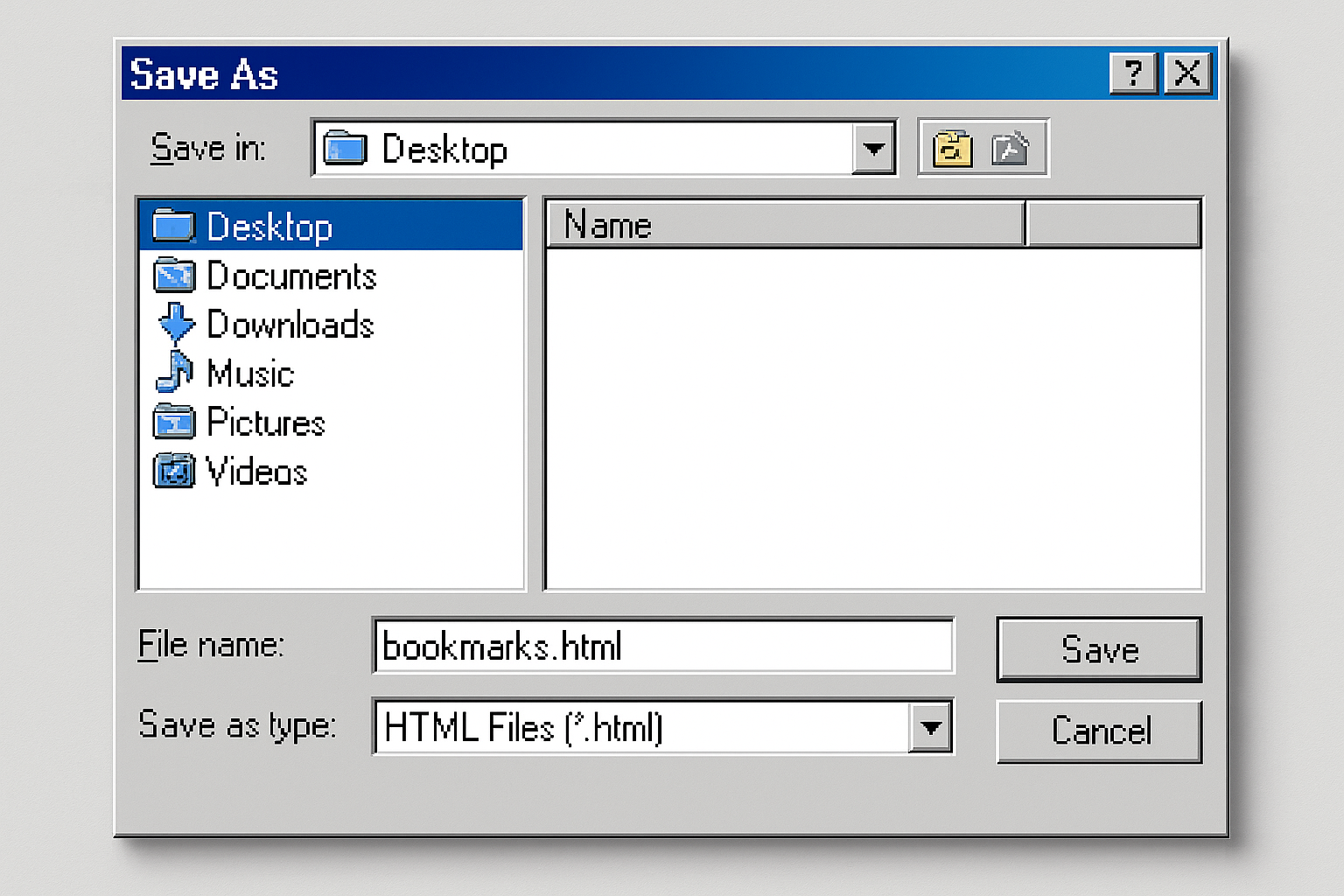
Choose where to save your bookmarks file (I’d suggest your Desktop for easy access) and click Save. The file will be named something like bookmarks.html.
Import to Chrome
Step 4: Open Chrome’s Bookmark Manager
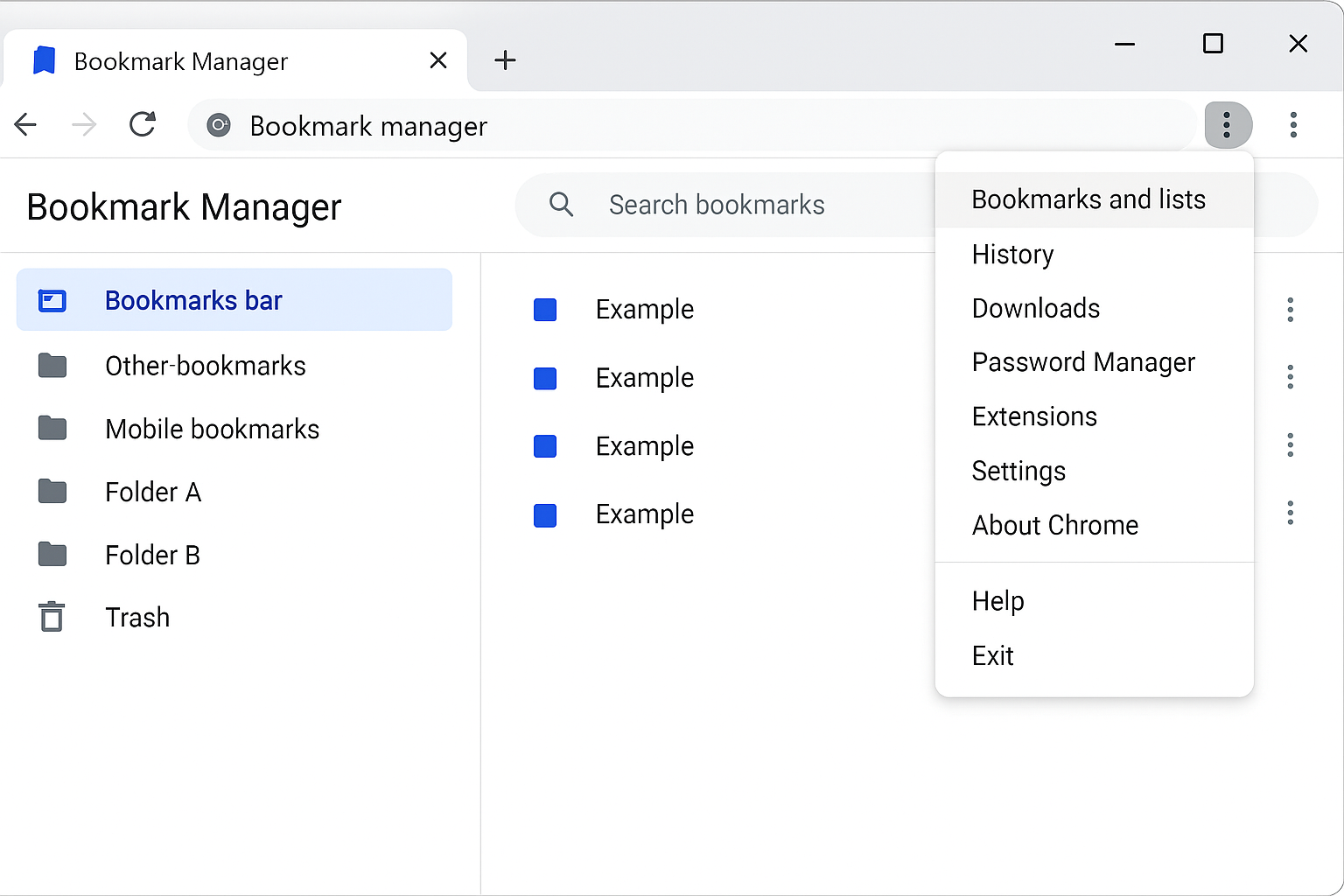
In Chrome, click the three-dot menu > Bookmarks and lists > Bookmark manager. Or use the shortcut Ctrl + Shift + O (Windows) or Cmd + Shift + O (macOS).
Step 5: Import the HTML File
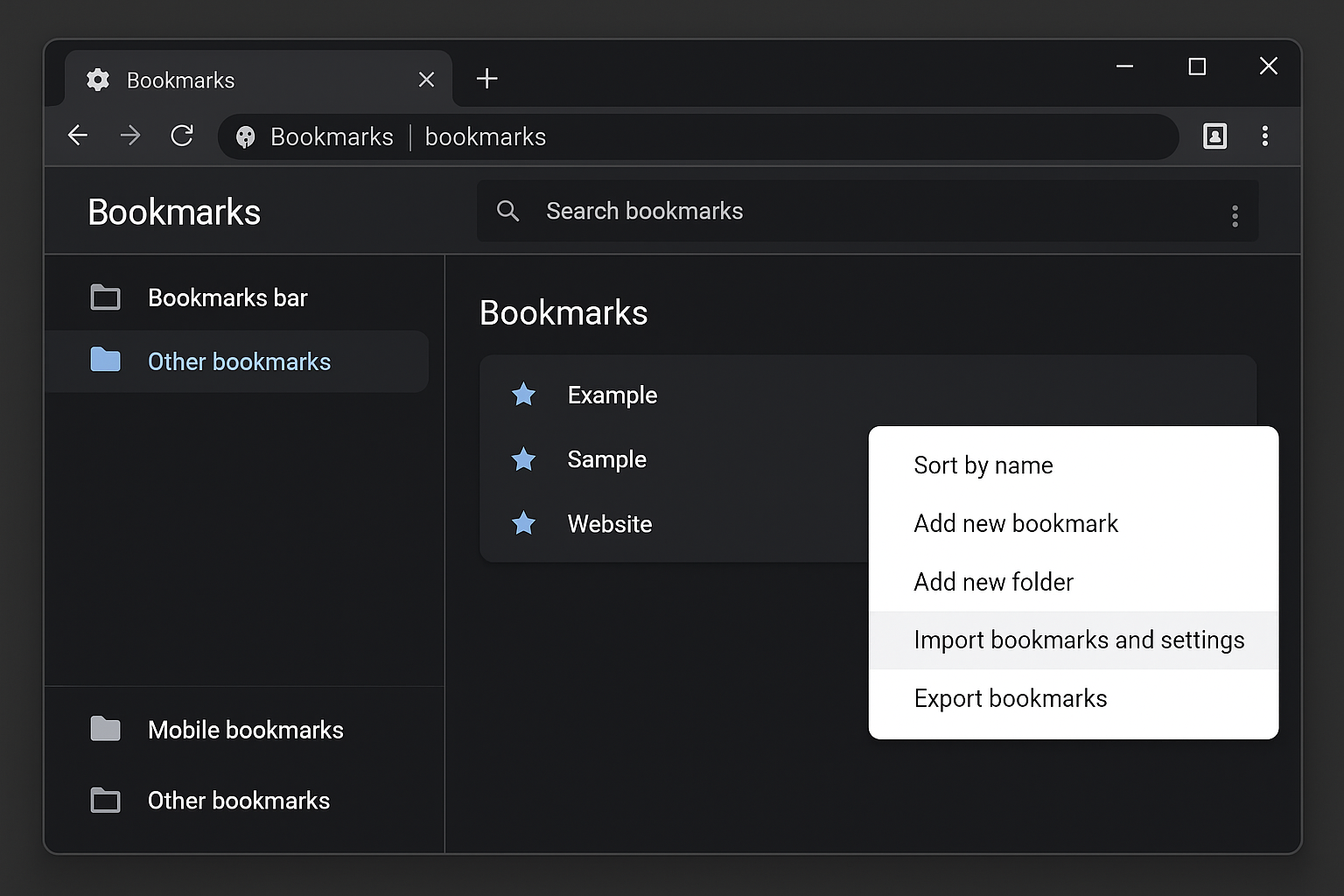
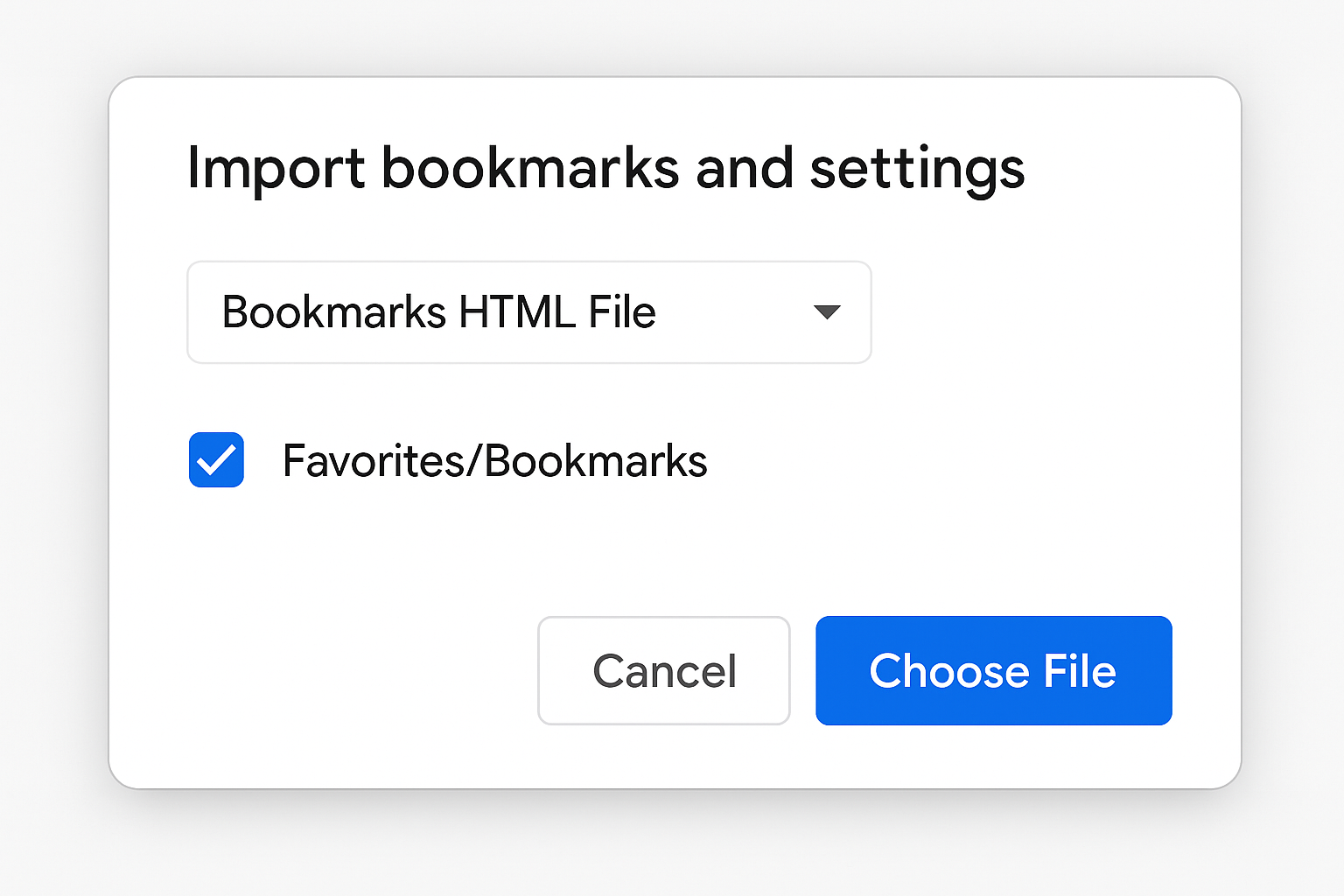
Click the three-dot menu in the bookmark manager (not the browser menu), then select Import bookmarks and settings.
Step 6: Choose Your HTML File
Select Bookmarks HTML File from the dropdown, then click Choose file and navigate to where you saved your bookmarks.html file. Click Import when you’re ready.
Organizing Your Imported Bookmarks
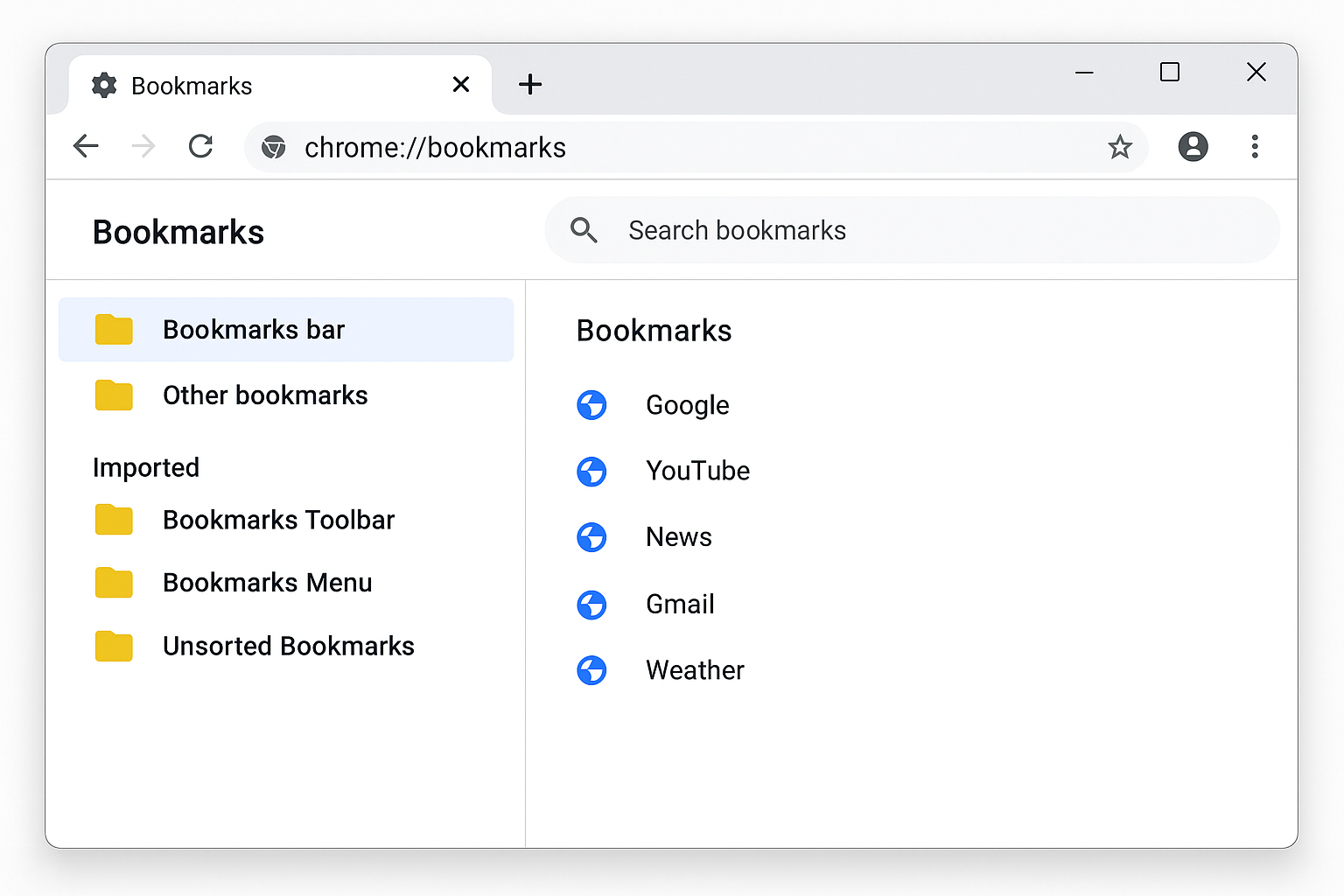
After importing, your Firefox bookmarks will likely end up in a new folder (something like “Imported” or today’s date). Here’s how to get them organized:
Moving Bookmarks to Your Toolbar
If you want your Firefox bookmarks toolbar items to show up in Chrome’s bookmarks bar, just drag the folder from the bookmark manager to the Bookmarks bar section.
Enabling the Bookmarks Toolbar
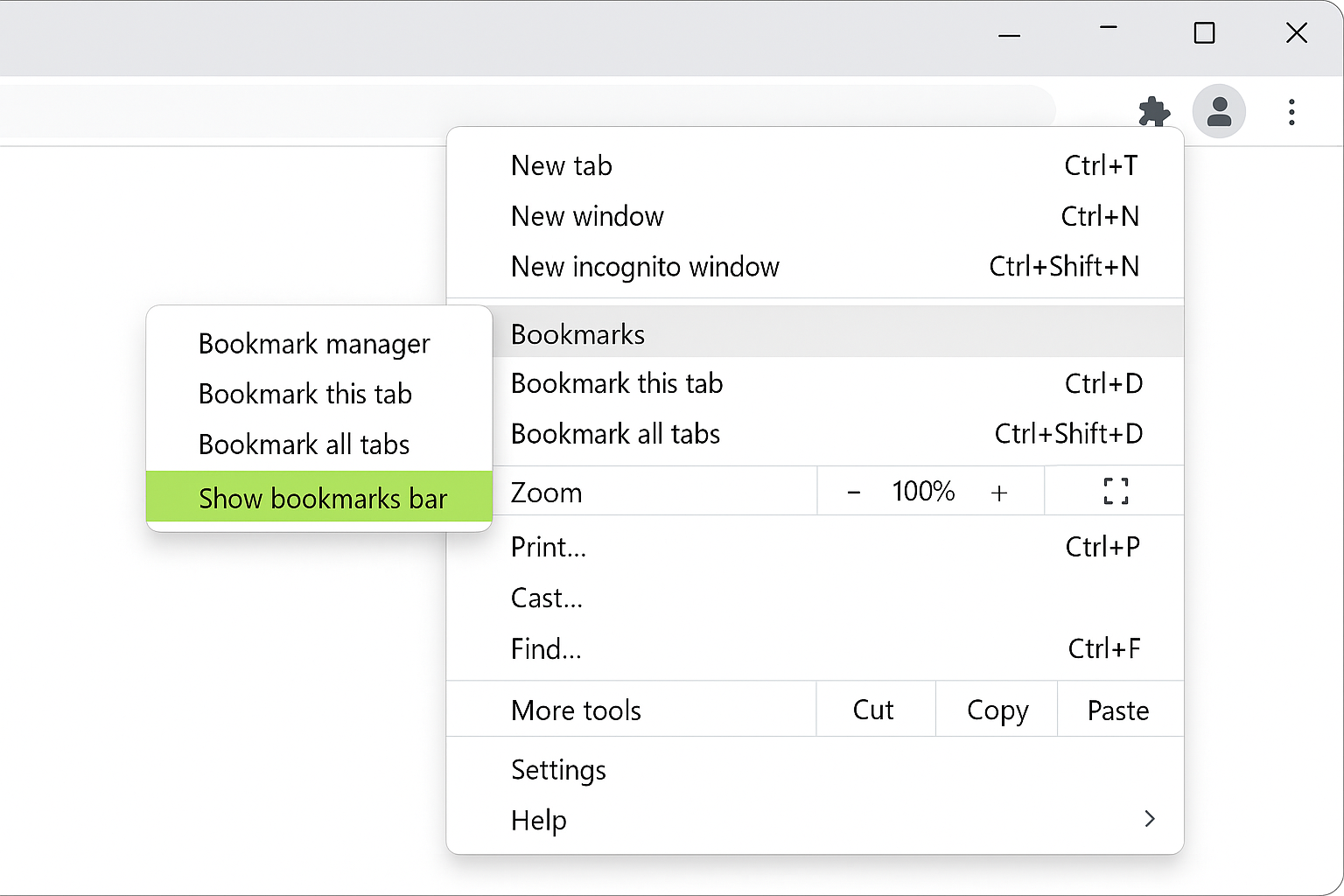
If you don’t see the bookmarks bar in Chrome, click the three-dot menu > Bookmarks and lists > Show bookmarks bar.
Tips and Troubleshooting
Common Issues
Problem: Direct import isn’t working or showing Firefox as an option
Make sure Firefox is completely closed before trying to import. Chrome needs exclusive access to Firefox’s profile files. If that doesn’t work, try the HTML export method instead.
Problem: Bookmarks imported but passwords didn’t
On Windows and Linux, Chrome sometimes skips password imports from Firefox. You can export your passwords from Firefox as a CSV file (in Firefox: Settings > Privacy & Security > Saved Logins > Export) and import them manually into Chrome.
Problem: Duplicate bookmarks everywhere
This usually happens if you import multiple times or have browser sync enabled. Check your imported folders and delete duplicates manually. Use Chrome’s bookmark manager search (press Ctrl + F) to find duplicates quickly.
Problem: Bookmarks are there but not showing in the toolbar
Your bookmarks imported successfully but ended up in a folder instead of the toolbar. Drag individual bookmarks or folders from the imported section to the “Bookmarks bar” in the bookmark manager.
Pro Tips
- Try direct import first: It’s faster and usually grabs everything in one go
- Keep the HTML file: Even if direct import works, save an HTML backup for future use
- Clean house first: Consider cleaning up your Firefox bookmarks before importing — delete old or broken links
- Enable sync: Once you’re set up in Chrome, sign in with your Google account to sync bookmarks across all your devices
Alternative: Browser Sync Services
If you’re planning to use both browsers or switch between devices frequently, consider using each browser’s sync service instead:
- Firefox Sync: Sign into Firefox with a Mozilla account to sync bookmarks across devices
- Chrome Sync: Use your Google account to keep Chrome bookmarks synced everywhere
- Third-party options: Services like Bitwarden or Raindrop.io work across all browsers
Wrapping Up
Moving your bookmarks from Firefox to Chrome doesn’t have to be a headache. The direct import method works great most of the time, and the HTML export is there as your reliable backup plan. Either way, you’ll have all your favorite sites back in just a few minutes.
I’d recommend trying the direct import first as it’s faster and usually grabs your passwords too. But honestly, keeping that HTML backup around isn’t a bad idea for the future. You never know when you might want to switch browsers again!