

YouTube has a surprising number of shortcuts built straight into it that many people don’t know about. If you want to know what tips exist for YouTube, read through this guide. You can treat this guide as the ultimate tips, hacks, and shortcuts list for everybody’s favorite video content platform.
Some of these shortcuts and tips are available through YouTube natively, whilst others are available through your browser or via your computer through other means. Alright, let’s jump straight in.
YouTube Video Playback ShortcutsI

Perhaps the most useful shortcuts are focused on video playback controls. Many people are aware that pressing the spacebar will pause or play a video. You can also press K. But there are many more shortcuts for video playback, too. Here is a full look at what’s available.
For example, pressing the left arrow will jump back 5 seconds. Alternatively, the right arrow will jump forwards 5 seconds. Want to go further? Use J and L to jump back 10 seconds or forward 10 seconds, respectively.
More navigation options are available for quick skipping, too. 0 or Home will take you to the beginning. End will take you to the end of the video. The numbers 1-9 will take you through even increments through the video. For example, 5 would take you to 2 minutes through a 4 minute video.
If you’d rather speed things up instead of skipping, you can do that too. Simply use Shift + > or Shift + < to speed up or slow things down. The speed ranges from 0.25x to 2x.
Finally, you can move frame by frame by using ‘.’ or ‘,’ when the video is paused. This may be useful for getting screenshots at specific moments or catching any small details you may otherwise miss in a video.
Want to increase or decrease the volume on the fly? The up and down arrows will incrementally increase or decrease the YouTube player’s volume by 5%. You can mute or unmute the video with m too.
Want to change the scale of the video? You can do that too. Pressing f will take you to fullscreen, and pressing ESC will leave fullscreen.
Alternatively, press i to create a small picture in picture video that lets you keep browsing whilst you view. Pressing i will return you back to the video page. Finally, press t to go into theater mode.
Here are some more: Turn captions on/off with c, cycle through caption background color options with b, and move to new videos in a playlist with SHIFT + p for previous, or SHIFT + n for next.
Useful YouTube Search Commands
Let’s take a look at some other useful YouTube commands, tips, and tricks you can use to quickly navigate the website. Specifically, YouTube search commands.
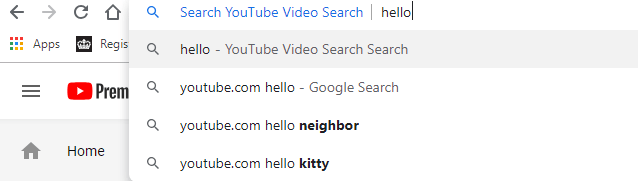
If you’re on YouTube already, you can press / to quickly jump to the search bar. Not on YouTube? Simply type youtube.com in the URL then press TAB. Next, type what you want to search and you’ll be taken straight to the YouTube search results.
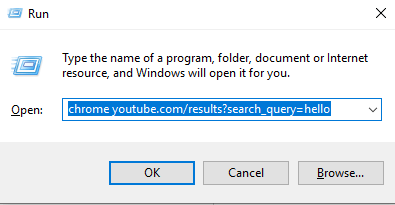
Or, what about searching straight from the desktop? Press Windows Key+R to open the Run box, then type chrome youtube.com/results?search_query=SEARCH’. Remove the parentheses and replace ‘SEARCH’ with your search term. A new tab will immediately open on Chrome with your chosen search terms.
If you don’t use Chrome, you can replace chrome in the command above with ‘firefox’, ‘iexplore’, or ‘microsoft-edge’.
There are also some search tips you can use to further define what you are searching for. I’ve provided some examples below.
You can remove terms or filter out words with ‘+’ or ‘-‘. For example, let’s say you want to learn about the city Bangalore in India. A search of Bangalore on YouTube will show all sorts of content unrelated to the city with the same names. In this example, more specifically from a game called Apex Legends.
You can remove the term Apex Legends by searching Bangalore -apex -legends.
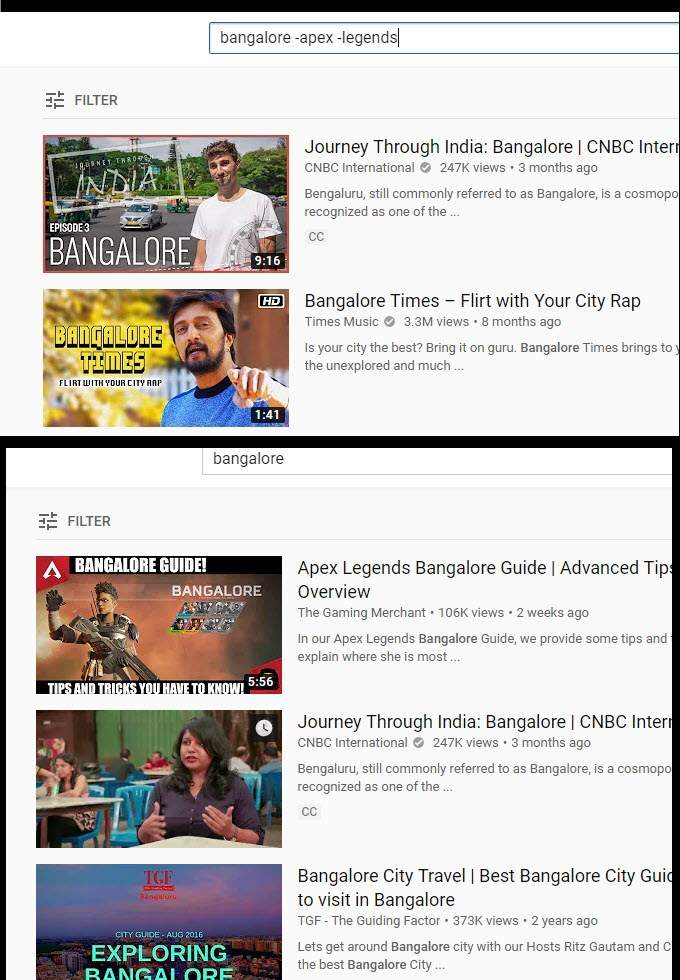
Above is an example of the two search results and how they differ. You can use this in many different ways to remove videos that you don’t want to see in your search results. A lot of the same search operators that work on Google.com will work here too.
You can force specific terms in your search by using the ” ” marks over any term. As an example, let’s say you want to find a travel vlog of a country in a specific month to see what the weather may be like.
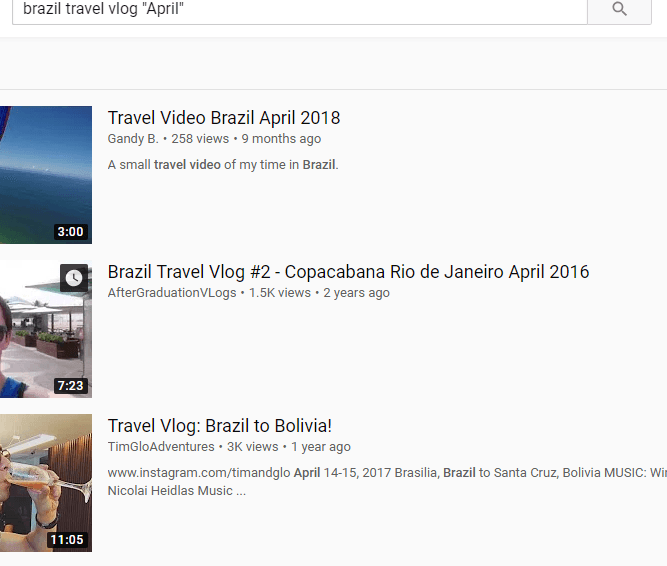
Searching for Brazil travel vlog “April” would bring back results that include April in their title. As you can see in the image above, this can be an effective way to search for specific terms.
More YouTube Tips Hidden within menus
You can find a number of useful YouTube tips within the different menus and UI panels, too. Here are some of my favorites.
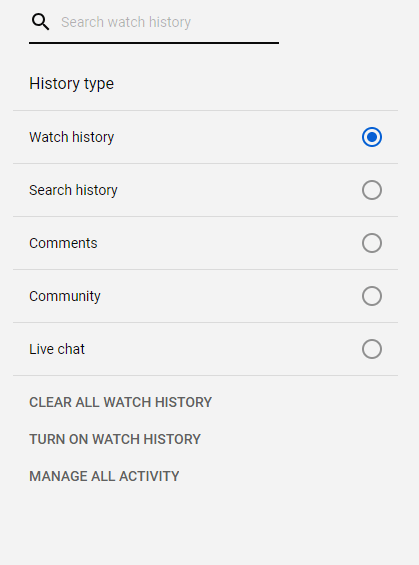
Firstly, if you accidentally close your window down, or want to rewatch a video you remembered in the past, you can click on history on the tab on the right side of the home page. You can scroll through your history and even search through it, which makes finding a particular video very easy. This also allows you to quickly find videos when moving between devices.
Make sure to click Turn on watch history on this page so that your history is recorded. This tip won’t work for finding any videos that you viewed whilst watch history is turned off.
If you watch or like a lot of videos and want to save a video for later, you can leave a comment and then use the comment history tool on this page to find it later, too. You can even find detailed information here about your past searches.
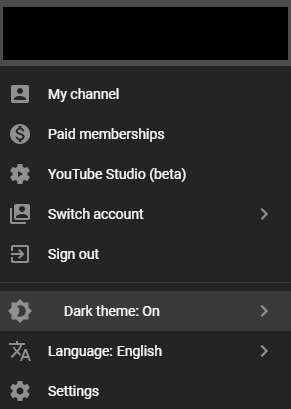
Want to reduce strain on your eyes? YouTube has a dark mode. To turn it on, click your profile picture in the top right. Next, click on Dark theme: off in the dropdown menu that appears. Click to turn on dark mode.
Summary
Thanks for taking the time to read our tips and tricks for using YouTube. In this guide we covered the following:
- Unique search features
- Playback shortcuts
- The top features hidden within menus
Which of these features did you like the most? Let me know. If you have any of your own tips, feel free to share them over Twitter. I’d love to hear what you have to suggest. Enjoy!