

Copying a bunch of files in Windows and watching that progress bar crawl along at a snail’s pace? I stumbled upon this problem recently when trying to back up 50GB of photos, and it got me curious about whether there were better options than the built-in Windows file copier.
Turns out, there are some genuinely good third-party tools that can speed things up dramatically. While Windows 11 has improved a lot since the Windows 7 days (remember those terrible progress dialogs?), it’s still not the fastest option when you’re dealing with thousands of files or network transfers.
What Makes File Copying Slow in Windows?
Windows Explorer uses a single-threaded approach for most file operations, which means it processes files one at a time. That’s fine for copying a few documents, but when you’re moving thousands of photos or backing up entire folders, it becomes a bottleneck.
Common Windows copying issues:
- Network throttling: Windows limits network transfer speeds to prevent overwhelming your connection
- Single-threading: Only one file gets processed at a time, even on modern multi-core systems
- No resume capability: If something goes wrong, you start over from scratch
- Poor error handling: One corrupted file can halt the entire operation
The Best File Copy Tools for Windows
After testing these tools with everything from single large files to folders with 10,000+ small files, here are the ones that actually work well and are worth downloading.
For Speed: FastCopy
FastCopy has been the speed champion for years and it’s still blazing fast in 2026. This thing can move files at near-hardware limits, especially on SSDs.
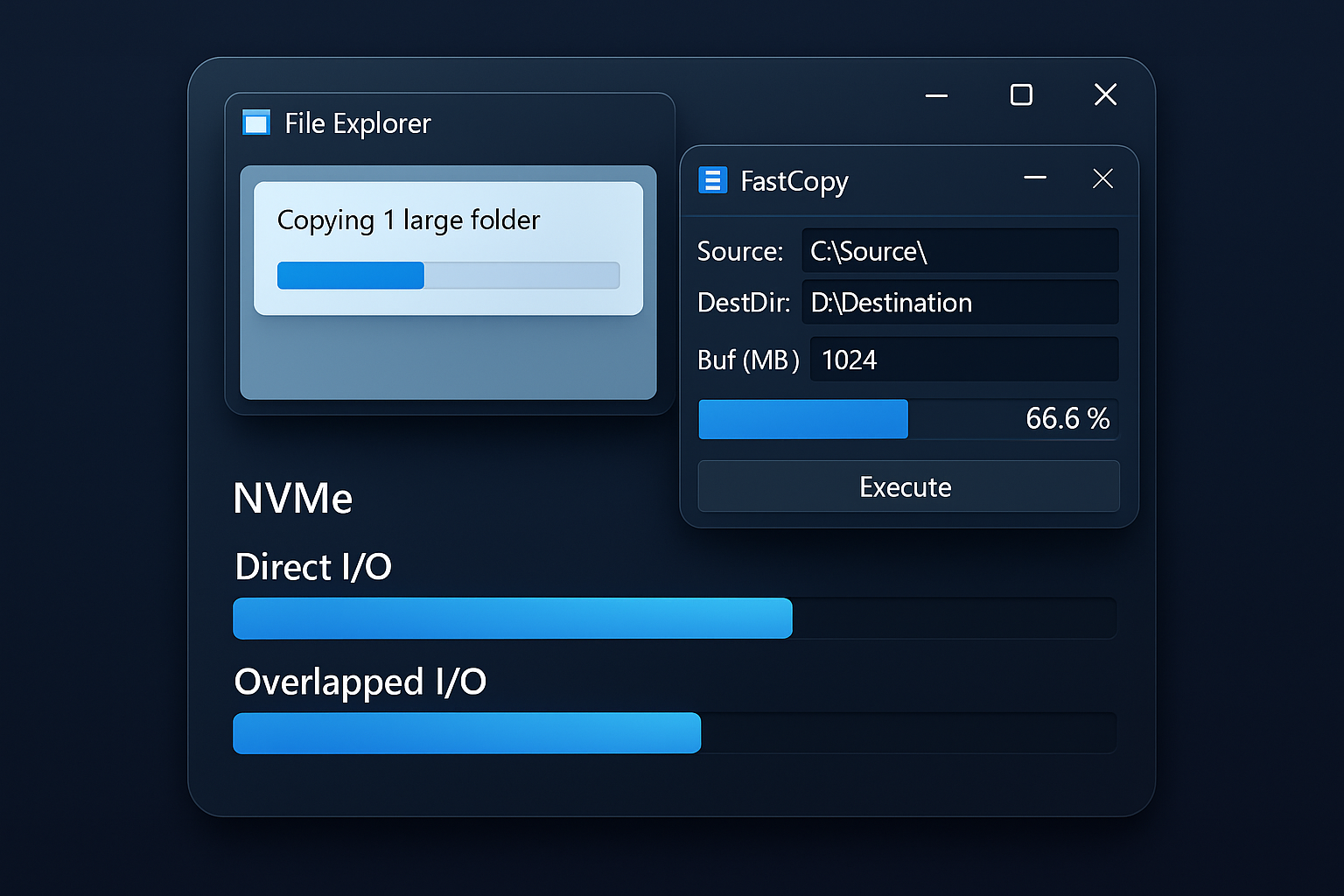
What makes it fast:
- Multi-threading: Uses multiple CPU cores to process files simultaneously
- Direct I/O: Bypasses Windows file caching for large files
- Optimized algorithms: Different copying methods for different file types and sizes
- Long path support: Handles file paths longer than 260 characters (a Windows limitation)
Downsides: The interface looks like it’s from 2005 and you can’t pause transfers mid-operation. But if you just want raw speed, this is your tool.
For Reliability: TeraCopy
TeraCopy is the Swiss Army knife of file copiers. It’s not the absolute fastest, but it’s got every feature you’d want and actually integrates nicely with Windows Explorer.
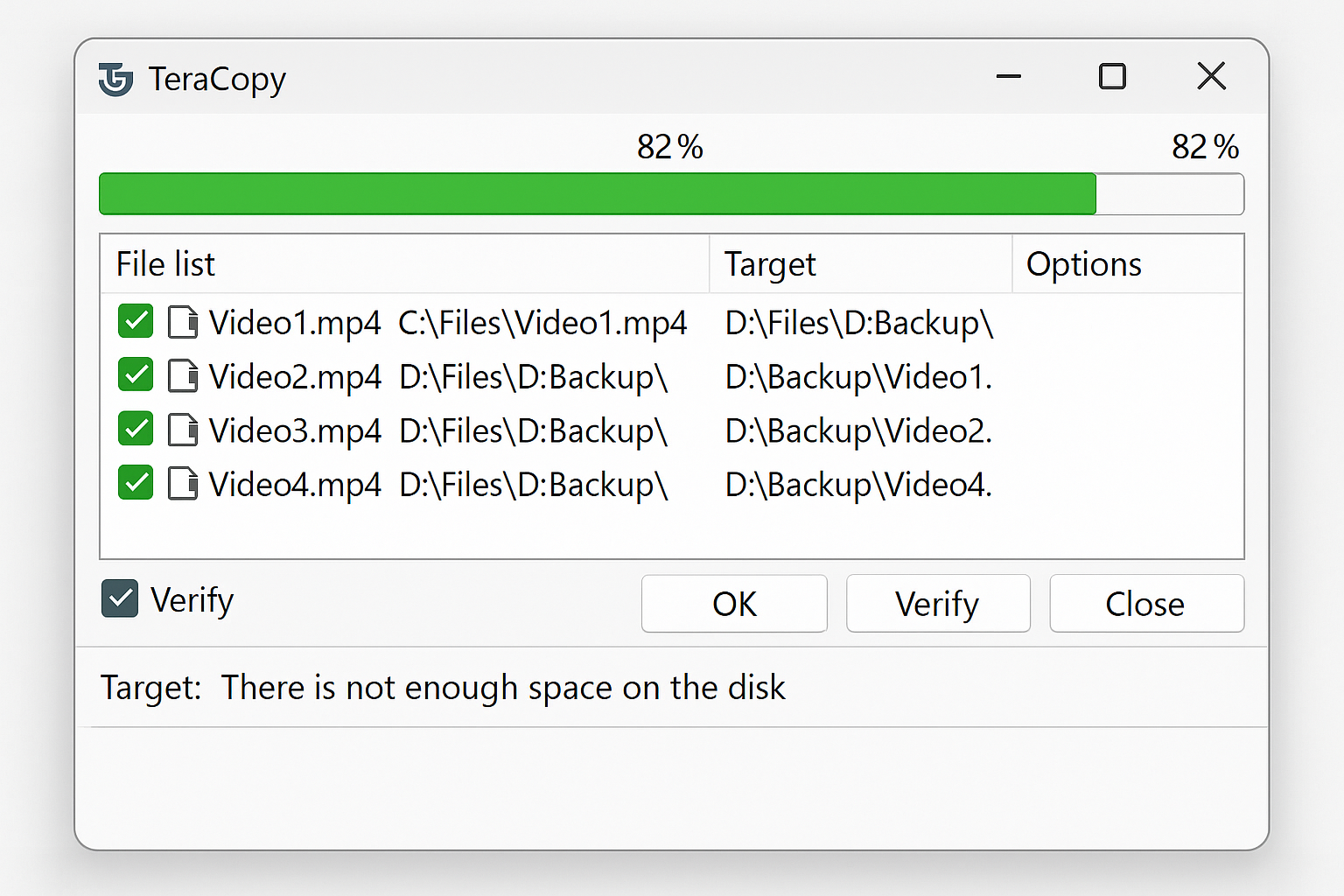
Key features:
- Pause and resume: Stop a transfer and pick up where you left off
- File verification: Automatically checks copied files using CRC checksums
- Error recovery: Skips problematic files and shows you a list at the end
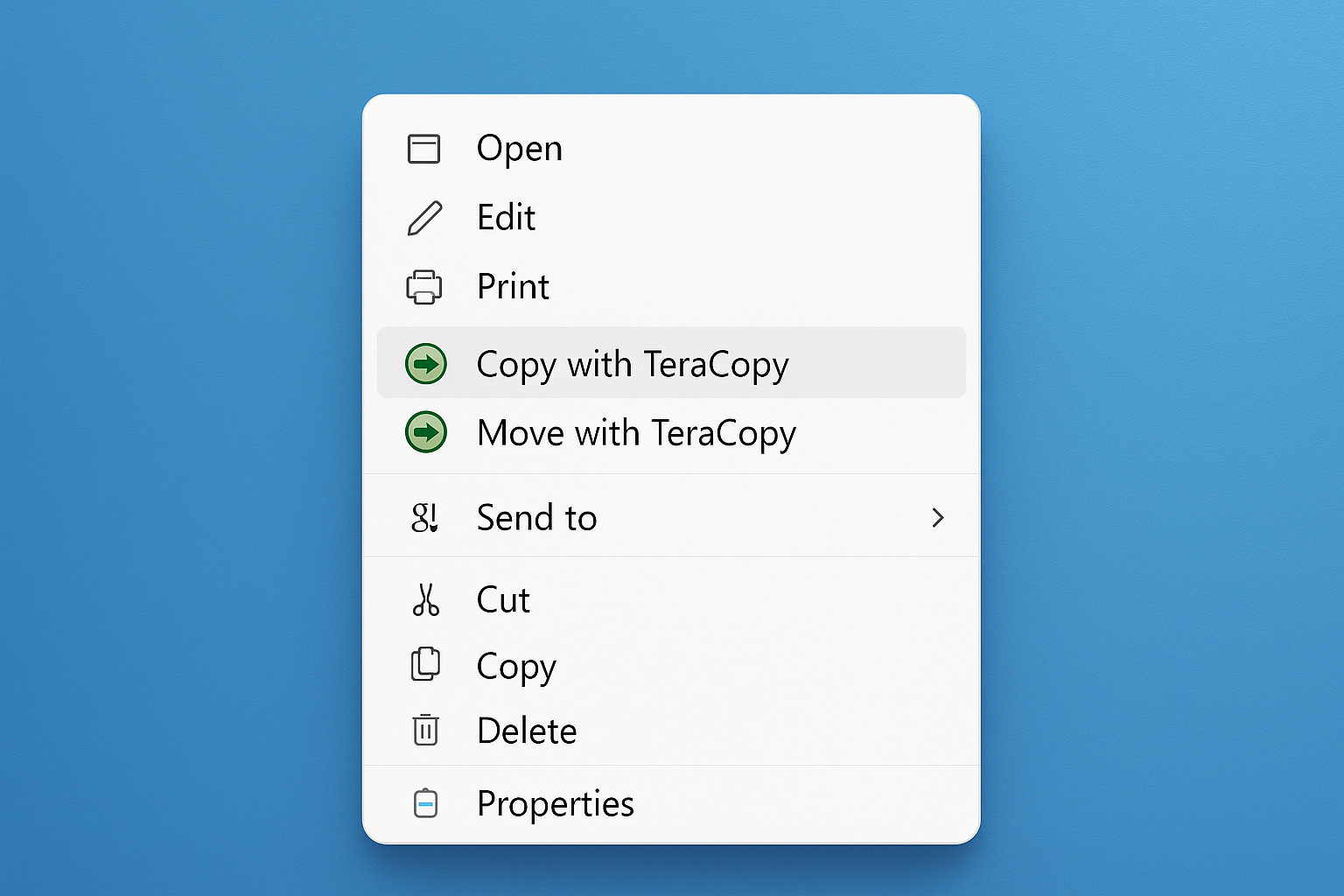
- Explorer integration: Right-click any file and choose “Copy with TeraCopy”
- Queue management: Line up multiple copy jobs to run automatically
The free version handles most tasks perfectly. The Pro version adds some extra verification options, but honestly, the free version is all most people need.
For Network Transfers: Ultra Fast Copy
If you’re copying files over your home network or to a NAS drive, Ultra Fast Copy is optimized specifically for network performance. It’s basically a modernized version of the old RichCopy tool that Microsoft used internally.
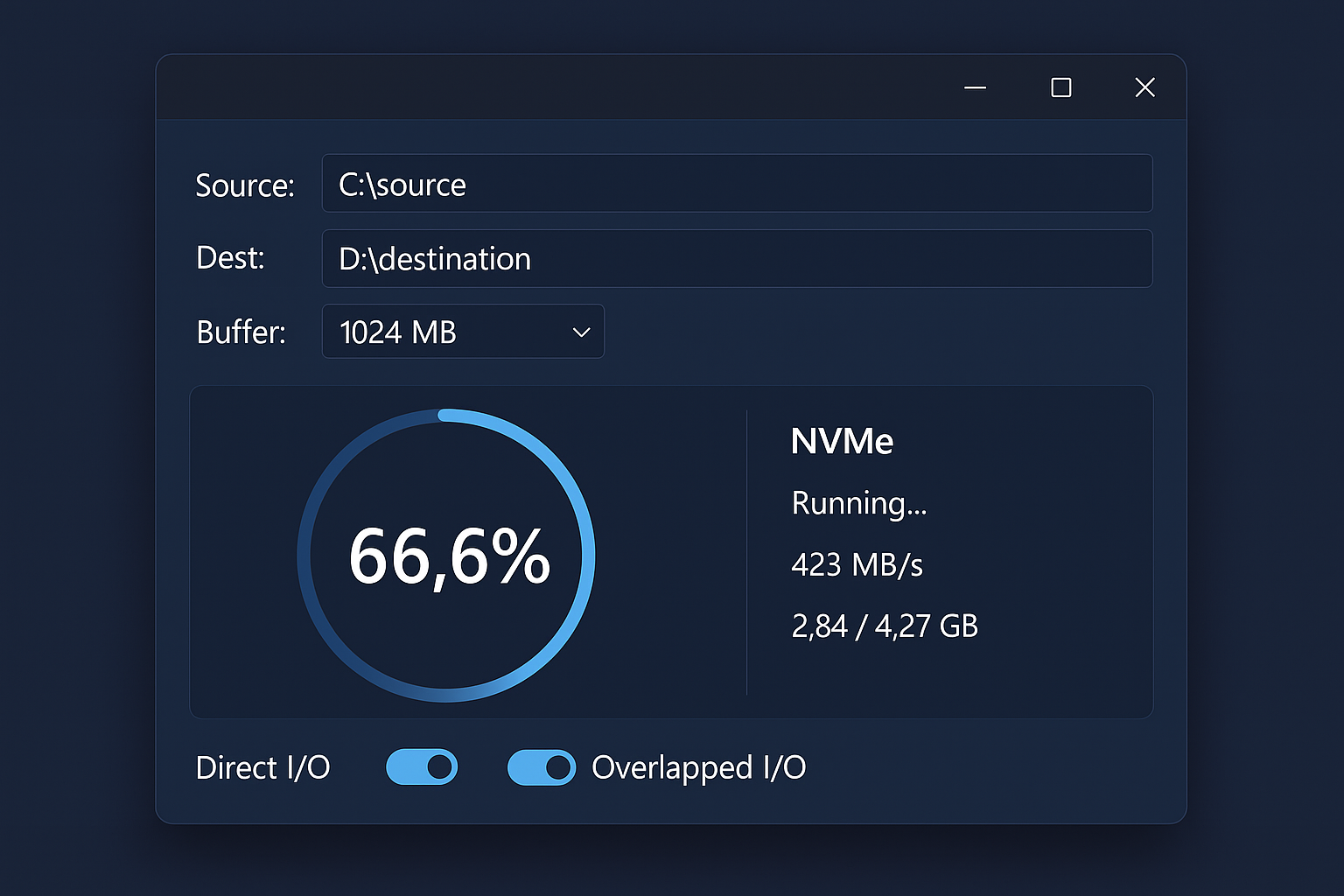
Network optimizations:
- Multiple connections: Opens several simultaneous connections to the destination
- Smart buffering: Adjusts buffer sizes based on network conditions
- Resume on disconnect: Picks up where it left off if your Wi-Fi drops
- SMB optimization: Works better with Windows file sharing than Explorer does
Download Ultra Fast Copy (Free)
For Corrupted Files: Unstoppable Copier
Got a failing hard drive or scratched disc? Unstoppable Copier is designed to recover as much data as possible, even when files are partially corrupted.
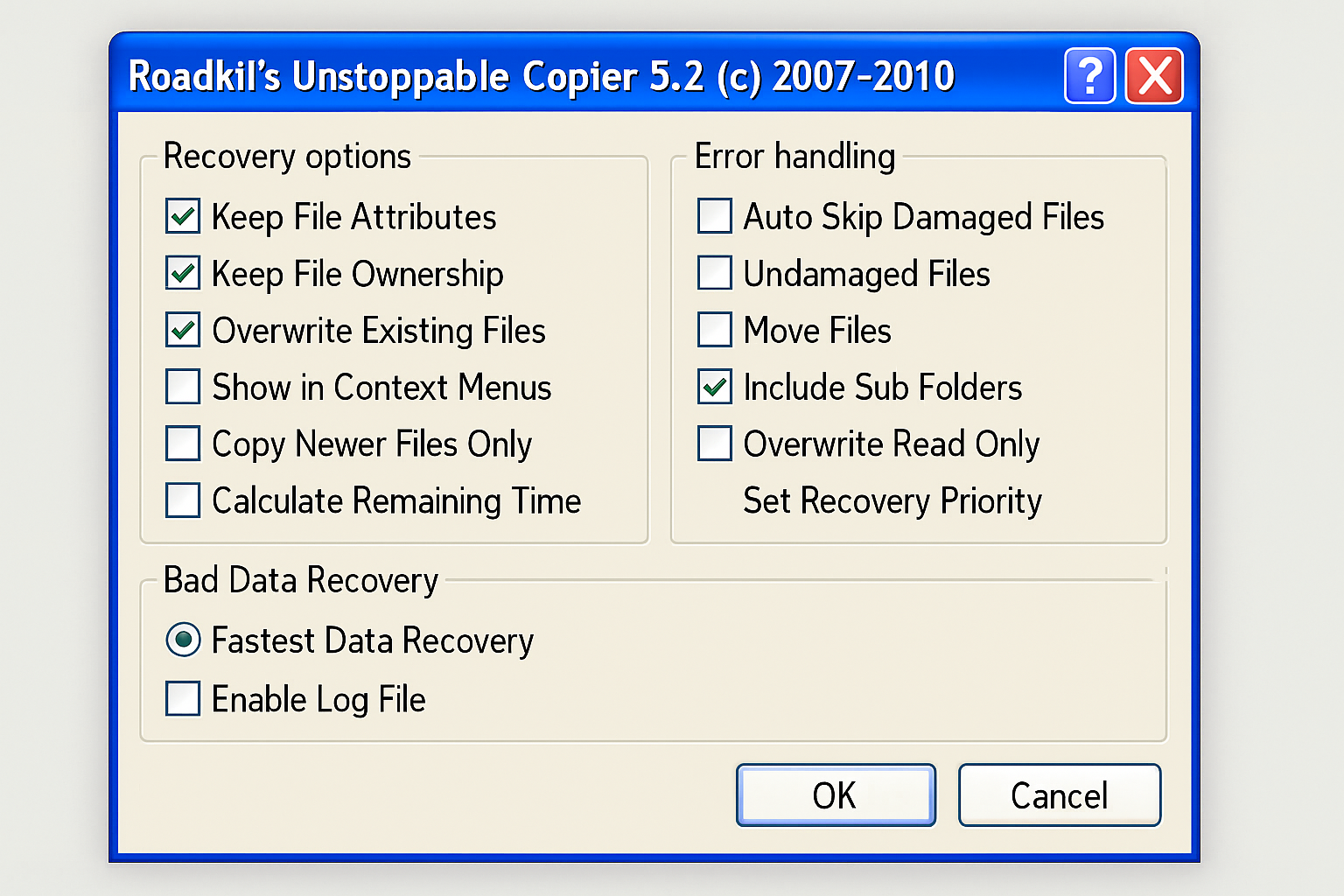
It’s slow compared to the speed-focused tools, but that’s because it tries multiple recovery methods when it hits bad sectors or read errors. Think of it as data recovery software that happens to copy files.
Recovery features:
- Multiple read attempts: Tries different methods when files won’t copy normally
- Partial file recovery: Saves whatever portions of corrupted files it can read
- Bad sector handling: Works around damaged areas of hard drives
- Detailed logging: Shows exactly what went wrong with each file
Download Unstoppable Copier (Free)
For Synchronization: FreeFileSync
Sometimes you don’t want to copy everything — you just want to sync changes between two folders. FreeFileSync compares folders and only copies what’s actually different.
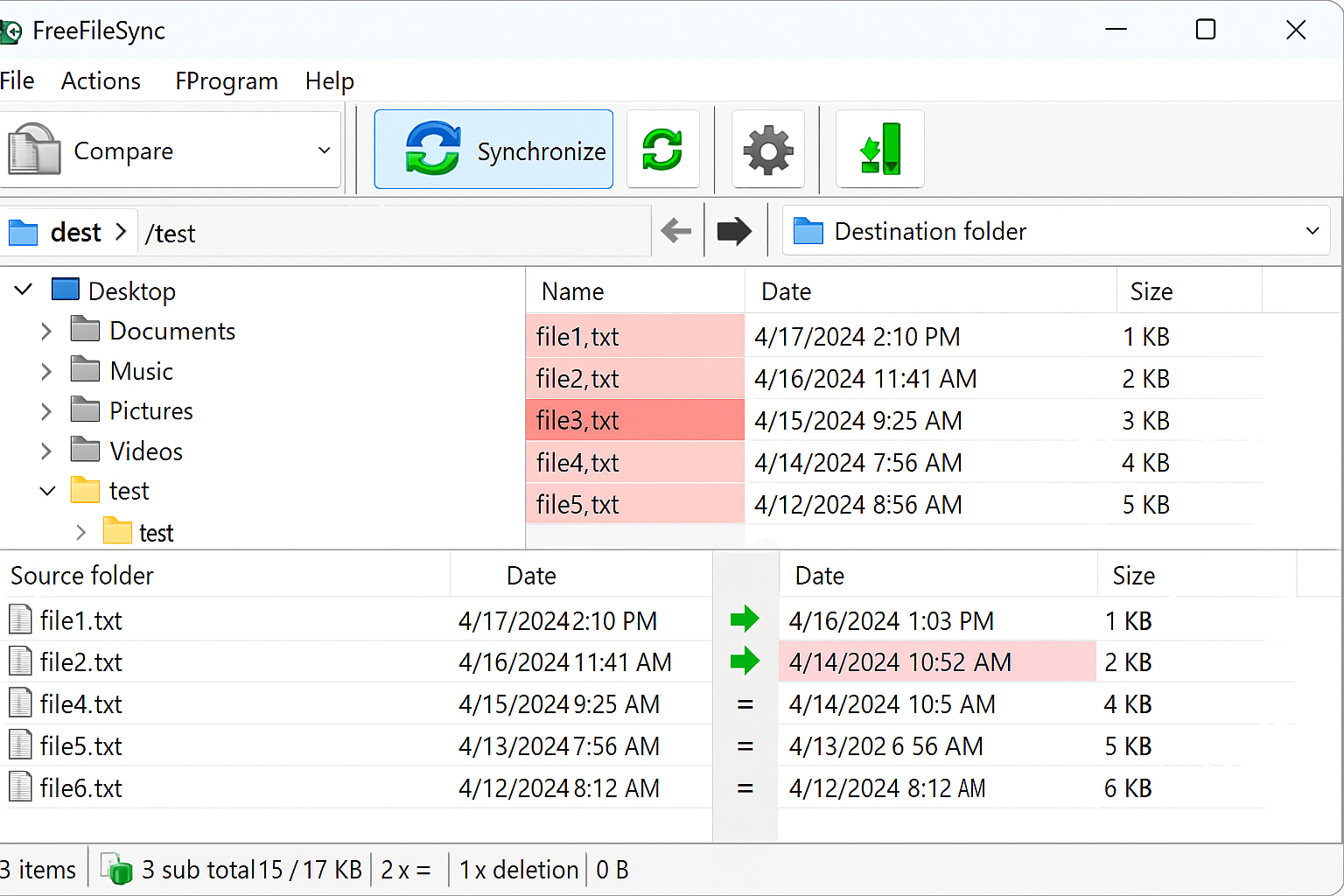
Sync capabilities:
- Folder comparison: Shows exactly what files are different between locations
- Multiple sync modes: Mirror, update, or two-way synchronization
- Scheduled syncing: Set up automatic backups to run regularly
- Network support: Works with FTP, SFTP, and cloud storage
This is perfect for keeping your documents folder synced between your laptop and desktop, or maintaining backups that only update changed files.
How to Choose the Right Tool
Here’s my honest take on when to use each tool:
| Situation | Best Tool | Why |
|---|---|---|
| Copying large files locally (movies, ISOs) | FastCopy | Fastest raw speed, especially on SSDs |
| Network transfers to NAS/other PCs | Ultra Fast Copy | Optimized for network performance |
| Regular backups and file management | TeraCopy | Best balance of speed, features, and reliability |
| Recovering from damaged drives | Unstoppable Copier | Only tool designed for data recovery |
| Keeping folders in sync | FreeFileSync | Only copies what’s actually changed |
Setting Up TeraCopy (Recommended for Most Users)
Since TeraCopy offers the best combination of speed and features, here’s how to set it up to replace Windows’ built-in file copying:
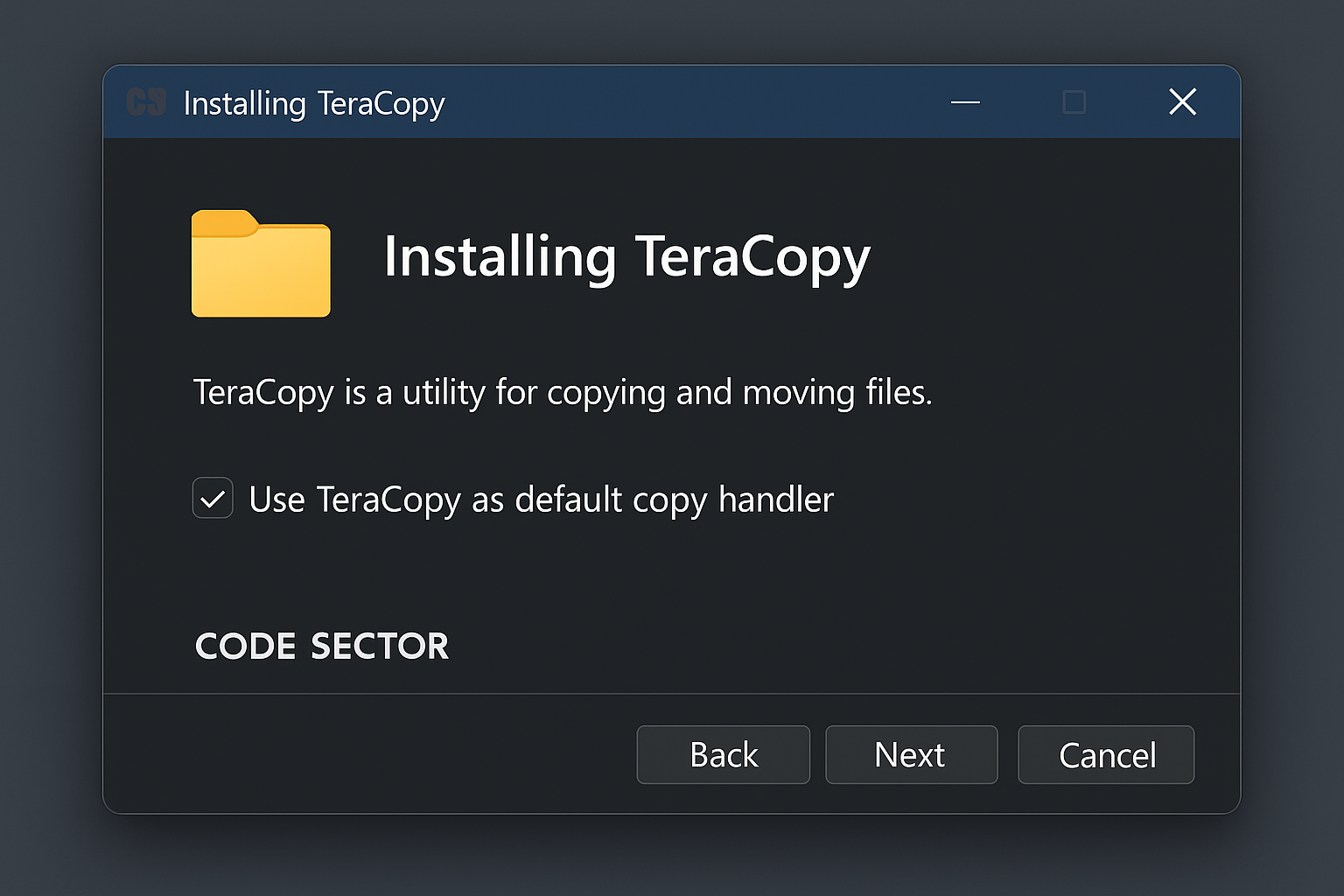
Step 1: Download and Install TeraCopy
Download TeraCopy from the official website and run the installer. During installation, make sure to check the box that says “Use TeraCopy as default copy handler”.
Step 2: Configure Integration Settings
After installation, right-click any file and you’ll see new “Copy with TeraCopy” and “Move with TeraCopy” options in the context menu.
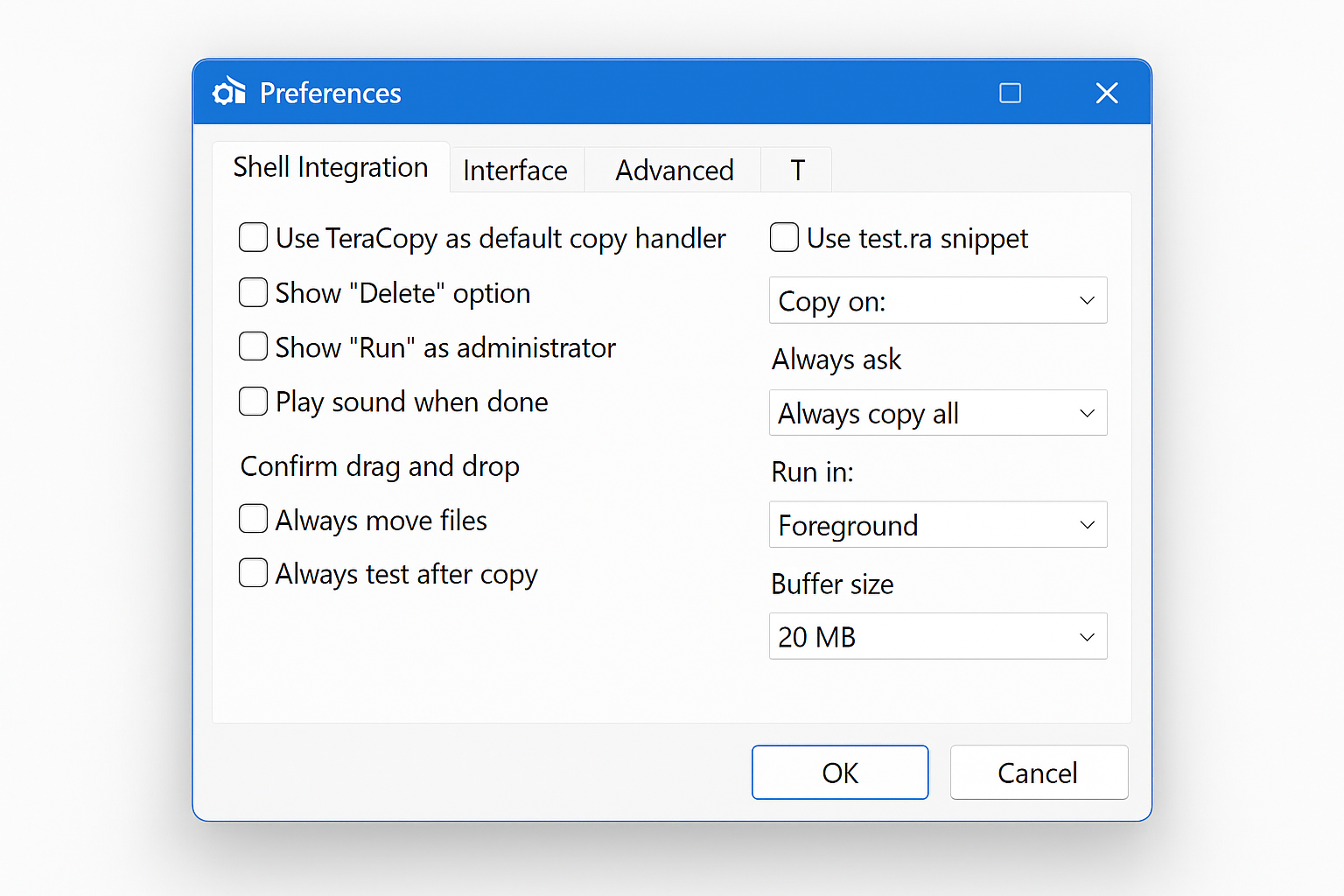
To make TeraCopy handle all copy operations automatically:
- Open TeraCopy from the Start menu
- Click Options in the top menu
- Check “Always test after copy” for file verification
- Set “When done” to “Close” so it doesn’t clutter your taskbar
Step 3: Test the Setup
Try copying a folder with a few hundred files. You should see TeraCopy’s progress window instead of the standard Windows dialog, complete with speed graphs and the ability to pause the operation.
Tips and Troubleshooting
Common Issues
Problem: Third-party copier is slower than Windows Explorer
This usually happens with very small files (under 1KB each). Windows Explorer is actually optimized for tiny files, while tools like FastCopy shine with larger files. For mixed file sizes, TeraCopy handles both scenarios well.
Problem: “Access denied” errors during copying
Right-click the copying tool and choose “Run as administrator”. This gives it permission to access system files and protected folders. You can also add the tool to your antivirus exclusions if it’s being blocked.
Problem: Network copies keep timing out
Try Ultra Fast Copy or adjust TeraCopy’s network settings. In TeraCopy’s options, increase the “Buffer size” to 32MB or higher for network transfers.
Pro Tips
- Speed up SSD transfers: For FastCopy, use the “Diff (No Overwrite)” mode when copying to SSDs — it skips files that already exist and are identical
- Verify important copies: Always enable file verification in TeraCopy when copying irreplaceable files like family photos
- Queue multiple jobs: In TeraCopy, you can line up several copy operations to run one after another — perfect for overnight backups
- Use keyboard shortcuts: Most tools support
Ctrl + CandCtrl + V, but they also work faster than dragging and dropping
Wrapping Up
After testing all these tools, TeraCopy really is the sweet spot for most people as it’s significantly faster than Windows Explorer, has great error handling, and integrates seamlessly with your normal workflow. FastCopy is the speed demon if you just need raw performance, but TeraCopy’s pause/resume and verification features make it more practical for everyday use.
The best part? All of these tools are free (or have excellent free versions), so you can try them out risk-free. I’d recommend starting with TeraCopy and seeing how much faster your file operations become. Once you experience copying files at 200+ MB/s instead of Windows’ typical 50-80 MB/s, you’ll wonder why Microsoft hasn’t improved their built-in copier more aggressively.