

When Discord was released, it changed the concept of instant messaging and group chats forever. A decade before it existed, you might have found yourself using AOL Instant Messenger, MSN Messenger, or the newer Skype—two of which no longer exist, and the latter of which has suffered greatly from Discord’s popularity.
Before Discord, we never knew what it was like to have a messaging service permanently store our conversation history in the cloud. To locally store running logs on AIM or MSN, you’d need some sort of a third-party plugin. On Skype, text logs are now kept in the cloud for just 30 days.
To some, holding onto message history forever is a great thing. For others, it’s a nightmare. In January of 2017, Discord outlined how they’re able to store billions of messages in a blog post, and it seems like this policy won’t be changing any time soon. Discord also offers no way for users to mass delete their DM history on Discord.
So, what happens if you’ve sent thousands of direct messages and decide you no longer want them to exist forever? There are several solutions, but none of them are perfect.
Deleting Discord DM History on Discord With Hotkeys
The most intuitive way to delete a Discord message is by
- hovering over it to reveal the right-side hamburger menu icon.
- clicking on the icon.
- selecting Delete.
- confirming the deletion by clicking the Delete button.
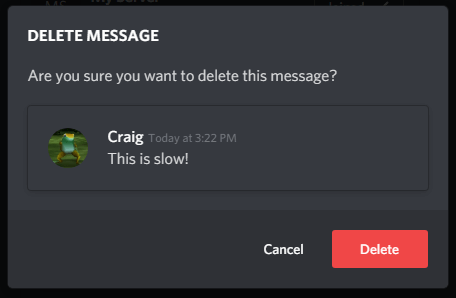
However, this requires consistent use of the mouse, slowing down the process tremendously. Therefore, you should know about the sequence of keyboard commands that mimic this procedure.
Here’s a breakdown of the sequence:
- Go into a Discord DM.
- Press Up once to select your most recent message.
- Press Up again to activate the editor.
- Press Ctrl + A to select all of the text in the field.
- Press Backspace to delete the text.
- Press Enter once to confirm the edit.
- Press Enter again to confirm deletion on the prompt.
This seems like a long and exhausting process, but in practice, you get into a rhythm, and deleting each message takes only a second. It requires much less of a steady hand than constantly moving your cursor to different areas of the screen to click multiple different buttons.
Deleting Discord DM History With AutoHotkey
Now that we’ve established that DMs can be deleted without using the mouse, that opens up the possibility of automating the process with a simple AutoHotkey script.
We’ve covered AutoHotkey in the past, such as our HelpDeskGeek article on five of the most useful AutoHotkey scripts, and installing the application is free and only takes a minute. However, this option is only available to Windows users as AutoHotkey does not currently work on macOS.
Ideally, you’ll want the following things from your AutoHotkey script:
- A toggle key for turning it on and off
- The full keyboard sequence with pauses in between each step
- A way to continuously load earlier messages
Here is an example script I’ve written:
F1::
Toggle := !Toggle
loop {
if not Toggle
break
if WinExist(“ahk_exe discord.exe”)
WinActivate
SendInput {Up}
Sleep 100
SendInput {Up}
Sleep 100
SendInput ^a
Sleep 100
SendInput {Backspace}
Sleep 100
SendInput {Enter}
Sleep 100
SendInput {Enter}
Sleep 100
SendInput {WheelUp}
Sleep 200
}
return
This script uses the F1 key as a toggle to enable or disable message deletion. For this to work, you need to already be in an active DM window before toggling the script on. The pauses (Sleep) between each keypress are so that machines with less processing power don’t get ahead of themselves and skip a key. If you find that this script runs but is behaving strangely, try increasing the value of each Sleep at increments of 50.
There is a caveat to this script though, which is that it will break upon reaching a Discord call message. Here is what those look like:

Reaching one of these messages will prevent you from pressing the Up key to select your previous messages before it. However, improvements to the script may be possible that allow a workaround for this.
Deleting Discord DM History With Bots
Let us first clarify that we will not be providing instructions on how to use a Discord bot to delete your DM history, but we are letting readers know that this is possible.
In the past few years, Discord has gone from discouraging the use of self-bots to outright labeling it as a violation of its terms.
That being said, using self-bots puts your account at risk of termination, so we cannot suggest doing it. However, many users report that using self-bots for purposes that aren’t public, disruptive, or harmful has never led to reprimand from Discord. Make a decision at your own discretion.
A self-bot is simply a user account running on a Discord API token. Today, Discord requires that bots are tracked and tagged through its Developer Portal. A self-bot circumvents this and gives a standard user account access to making API requests, allowing them to automate a wide range of tasks. Deleting messages is one of them.
The Discord API currently supports a POST request that fires a Message Delete Bulk gateway event, allowing bots to quickly delete all messages that are less than two weeks old. Older messages can be queued and deleted individually (at a rate limit).
With Discord seemingly content with storing our messages forever, it’s on us to come up with solutions to mass delete them and preserve our privacy. The above three options are all a bit shoddy, but it’s the best we have until Discord offers a solution.