

WhatsApp is quite possibly the biggest and most popular instant messaging app in the entire world. Used by everyone and their grandmother, its acquisition by Facebook has concerned many, but it has also given the messaging platform a serious injection of cash and improvement to its infrastructure.
One of the things it is most used for is its groups feature. Any WhatsApp user can set up a group and then invite other WhatsApp users to that group to discuss anything under the sun.
My brother-in-law had one set up for his wedding planning last year, which cut down on unnecessary emailing and crossed wires. Families can set them up to share pics and chat. Businesses can set one up for customer support queries. The possibilities are endless.
If it is not a private discussion, you can publicize a clickable invite link which will enable anyone in the world to join the group instantly from their phone or desktop computer.
Setting Up a Group On WhatsApp
Here is how to set up a group on WhatsApp. We will be looking at how to do it on the desktop app as it is much easier. The new groups will then instantly synchronize with your phone.
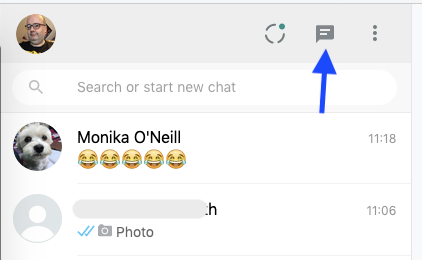
- When you have logged into the WhatsApp desktop app, click on New Chat in the left-hand contacts column.
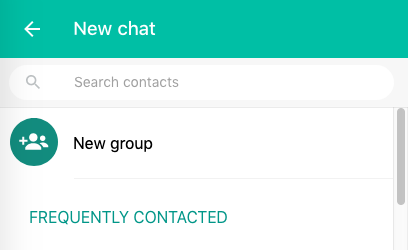
- You will now see an option for New Group. Click on that.
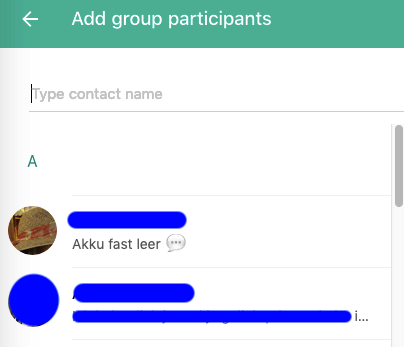
- Start typing the names of the people you want to add to the group. You must add at least one person other than yourself to open a group. If the person you want is on WhatsApp but you cant find them, make sure you have their correct phone number listed in your phone.
Note: anyone added to a new group will be automatically notified by WhatsApp and the group will immediately appear in their contacts list.
- Once you have added at least one other group participant, the group will open up ready for chatting. If you click on the group title at the top, you can make some customizations and tweaks. This includes changing the title of the group, adding an avatar, adding a description, and designating certain group members as admins.

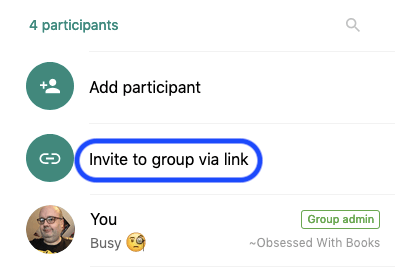
- If you scroll further down that list, you will see this option. This is where you can make a clickable invite link for the group if the discussions are not private.
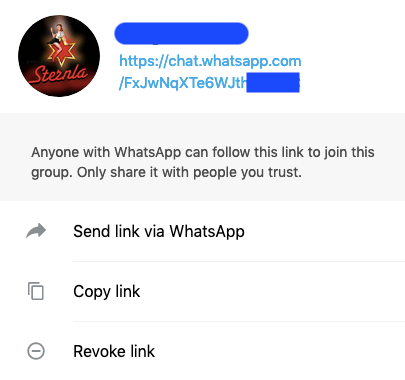
- You will then get an encrypted link which you can share around. Since this is a private group, I have obscured the last few digits to keep out the riff-raff.
- By this point, your new group will have appeared on your WhatsApp-registered mobile phone. If not, shut down WhatsApp on your phone and restart it.
If your group starts to get pretty busy, you might want to consider muting the sound so your phone is not always pinging. You can find the mute function in the same area where you can customize your new group. You will still get new message notifications but only the number of unread notifications next to the WhatsApp logo. You can then read the messages at your leisure.