
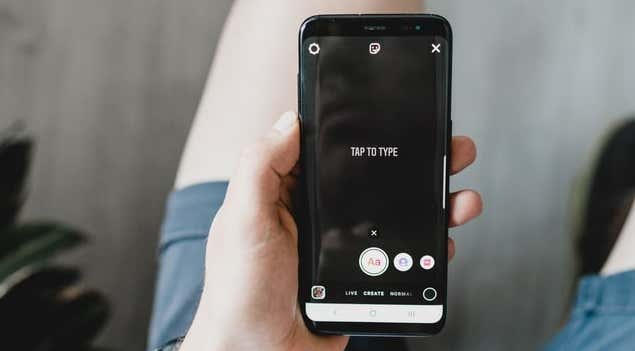
Instagram lets you share short-lived and interactive content to your audience via Stories. Photos, videos, music, polls, quizzes, you name it can all be shared. You can even share other people’s Stories to your Story. But unlike reposting regular posts from your feed, reposting a Story is a lot more complicated.
The whole existence of social media borders around sharing. So, what’s the fun in viewing a breathtaking picture or a funny video on someone’s Instagram Story and not being able to repost?
In this tutorial, you’ll learn the conditions attached to reposting Stories on Instagram and how to repost a Story—whether you were tagged or not.
Note: The methods, tricks, and tools listed in this tutorial are applicable to both Android and iOS users.
How to Repost Stories You’re Tagged In
When someone tags you on an Instagram post, you’ll get a notification in the Activity tab. Things work differently with Stories. If one of your followers tag you on their Story, Instagram sends the notification via your Direct Message (DM) thread with that follower.
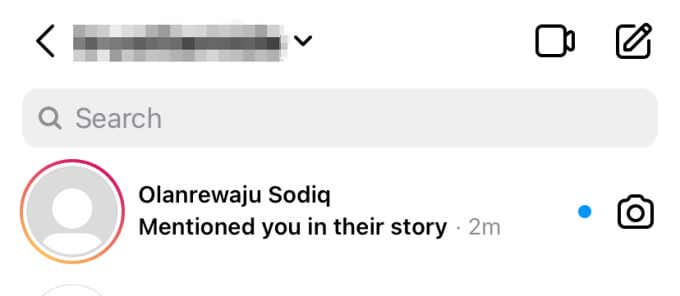
You’ll also get the option to share the Story (that you were tagged in) on your Story for up to 24 hours. Instagram calls this “@mention Sharing.”
Here’s how it works:
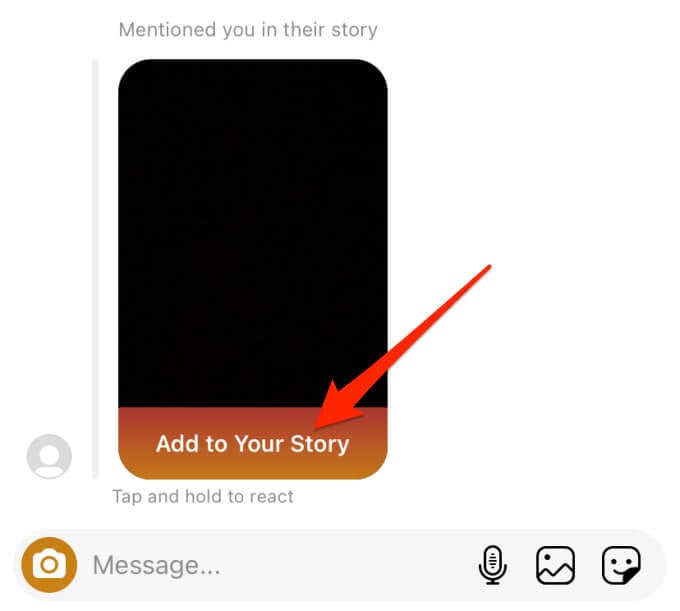
1. When you get a notification that someone mentioned you in their Story, open the DM and tap the Add to Your Story option just below the Story.
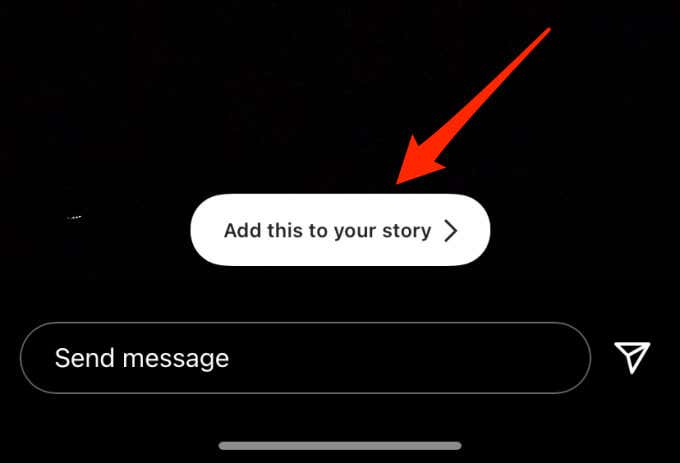
2. Alternatively, open the Story and tap the Add this to your story button.
3. Proceed to adorn the story with texts, filters, stickers, poll, quiz, etc.
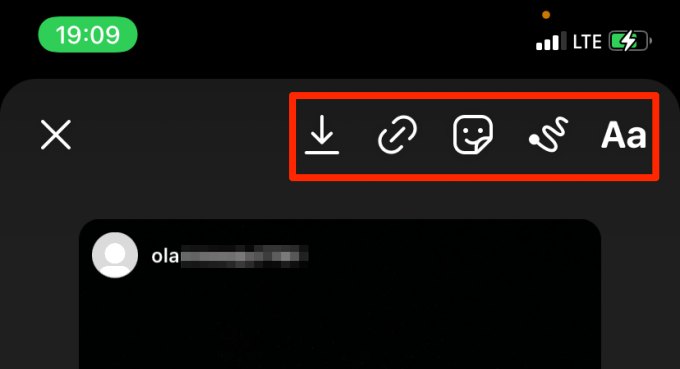
4. Tap the Send to button when you’re done editing the story to your taste.
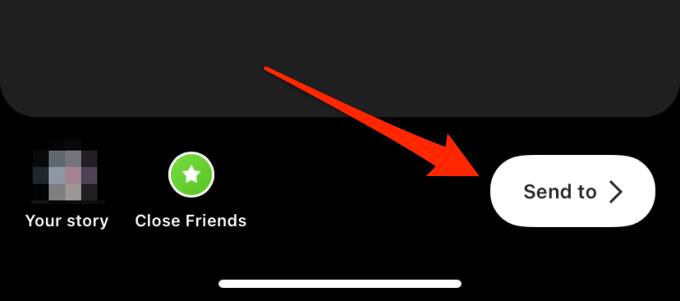
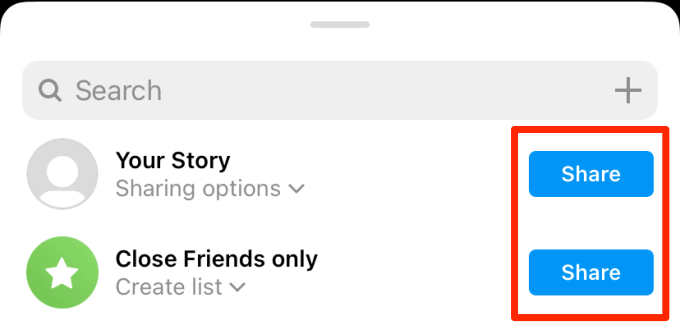
5. Finally, proceed to (re)share the newly-created content to Your Story, Close Friends, or to select followers.
Things to Note
- You can only repost a Story that you were tagged in or mentioned.
- You cannot reshare a Story from a private account, except the person’s privacy settings allows for resharing of stories.
- Instagram will notify the original poster that you reposted their Story.
How to Repost Instagram Story When Not Tagged
You can repost anyone’s Instagram posts, Reels, and IGTV videos on your Story even if you weren’t mentioned or tagged. Instagram treats Stories differently. As mentioned above, Stories only support @mention sharing; it’s impossible to repost a random Story you weren’t tagged in. But there’s a workaround.
It involves saving the Story to your device (using a third-party tool) and reposting the content as your Story. It requires some effort but it’s the closest you can get to reposting a Story on Instagram when not tagged. Here are the steps involved:
1. Note the Instagram username of the person who shared the Story you want to repost. For this tutorial, we’ll be reposting a Story from @fcbarcelona on Instagram.
2. Visit InstaDP on your web browser (works on mobile or PC) and go to the Stories section.
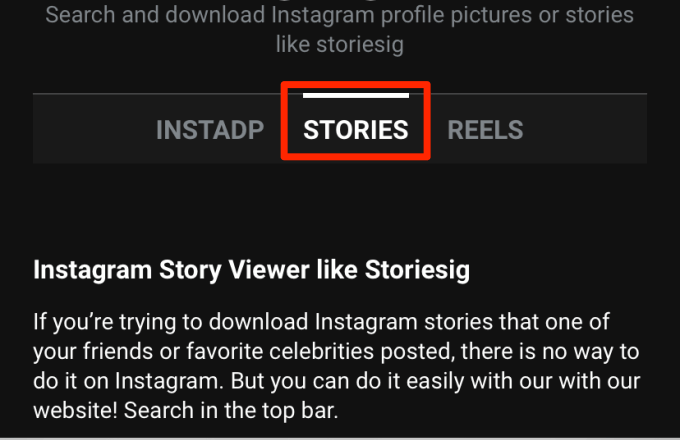
3. Enter the Instagram username (in #1) and tap the search button.
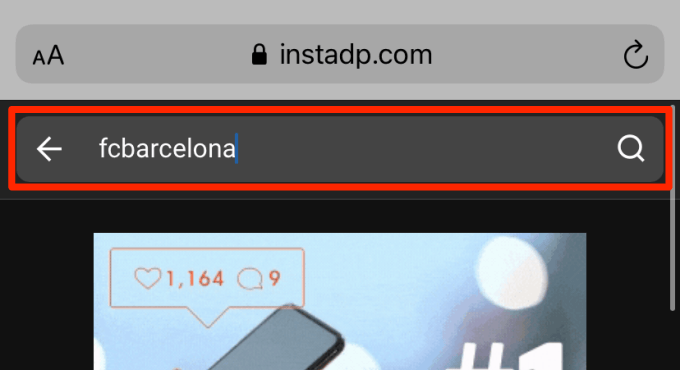
4. Select the account from the search result.
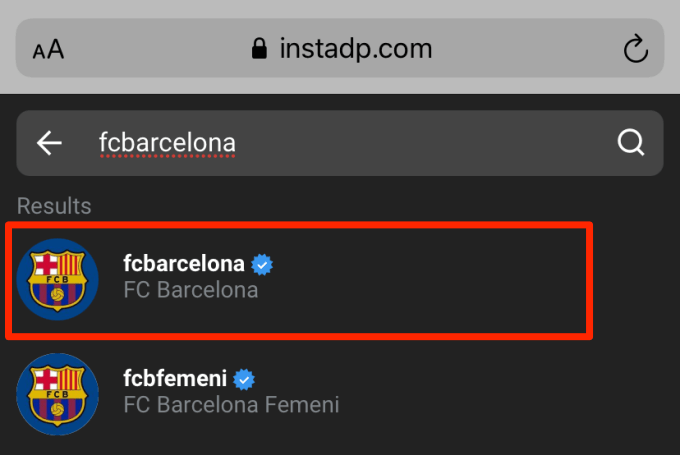
InstaDP will display the stories (photos and videos) shared by the account in the last 24 hours.
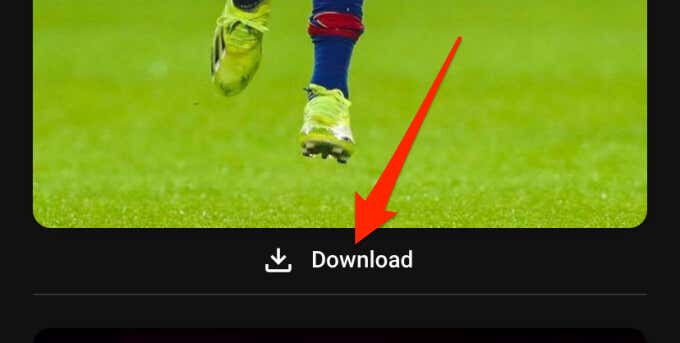
5. Tap the Download button to save the Story you want to repost.
6. Launch Instagram and tap the camera icon at the top-left corner of the app to go to the Story section.

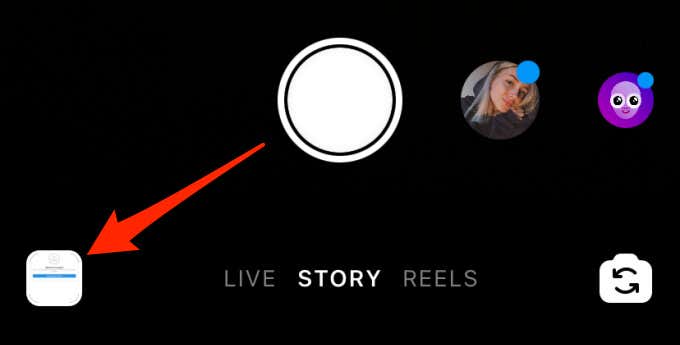
7. Tap the square card at the bottom-left corner and select the downloaded Story from your gallery.
8. Pinch-in the corners or sides of the Story to resize it to your preference. Tap and move the Story to adjust it to your preferred position. You could also repost the Story in its original size; it’s totally up to you.
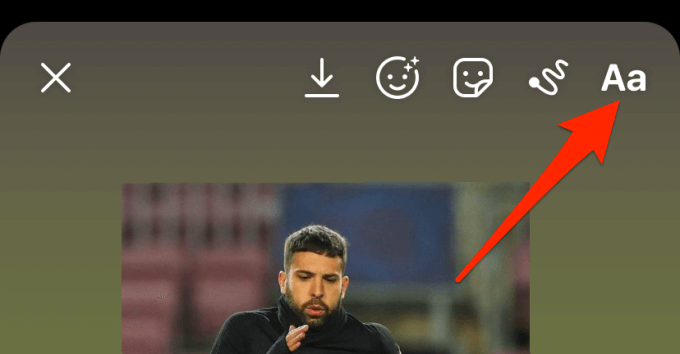
Although this isn’t compulsory, we strongly recommend that you tag the original poster of the content. Tap the text tool at the top-right corner and type the Instagram username (remember to add the @ symbol) of the original poster.
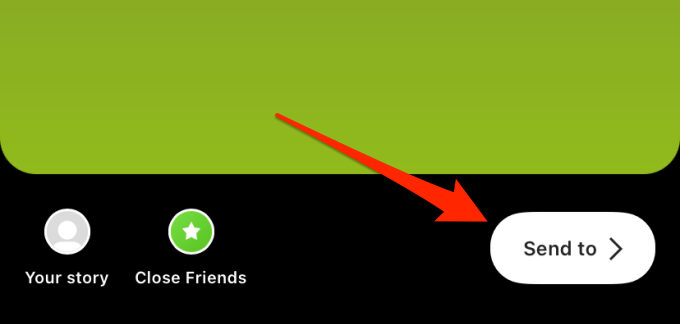
9. Tap the Send to button when you’re done editing the repost.
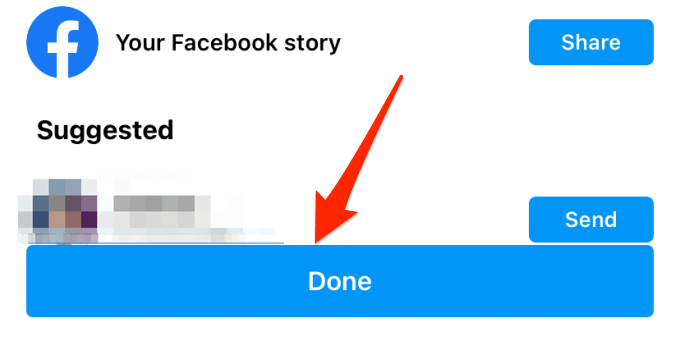
10. Share to Your Story or Close Friends list and tap Done.
Repost Without Limitations
The key takeaway is that Instagram Story only supports mentioned sharing. The only time you can repost a Story on Instagram is when the original poster mentions you in the Story. To repost a random Story you weren’t tagged in, you’d have to save the Story to your device and manually post on your Story.
That’s the only workaround—at least for the time being. If you don’t want to use a third-party platform to save the Story, you could take a screenshot (for pictures) or screen-recording the Story (for videos). The drawback, however, is that you may have to edit the screenshots and recordings to remove on-screen elements like battery icon, network signal, notification icons, etc.
We recommend InstaDP because it outperformed all the Instagram Story downloaders that we tested. Plus, it’s free. It’s also important to note that you cannot use the tool to download stories from private Instagram accounts.