

Ever searched for flights and then spent the next week seeing hotel ads everywhere you go online? That’s browser cookies at work, and while they’re not always the bad guys, they can feel a little creepy when they follow you around the internet. The good news is that managing cookies in 2026 is easier than ever, and you have way more control than you probably realize.
In this guide, you’ll learn exactly what cookies are, how to clear them in Chrome, Edge, Firefox, and Safari, and more importantly, how to stop unwanted tracking before it even starts. Whether you just want to clean things up or you’re serious about locking down your privacy, we’ve got you covered.
What Are Browser Cookies?
A browser cookie is a tiny text file that a website saves on your computer when you visit. Think of it like a sticky note a website leaves on your browser so it can remember who you are next time.
There are two main types worth knowing about:
- First-party cookies, Set by the website you’re actually visiting. These are generally helpful: they keep you logged in, remember your shopping cart, and save your preferences.
- Third-party cookies, Set by other companies (like advertisers) whose code runs on the page. These are the ones that track you across multiple websites. The good news? Most major browsers now block third-party cookies by default, and they’re largely being phased out across the web.
You should also know that not all cookies are equal in terms of purpose:
- Necessary cookies, Required for a site to function. Without them, you can’t log in or check out.
- Analytics cookies, Track how you use a site (page views, time spent, etc.) so the owner can improve it.
- Marketing/advertising cookies, Build a profile of your interests to serve you targeted ads.
That’s also why you see those cookie consent banners on almost every website now. Privacy laws like GDPR in Europe and CCPA in California require sites to get your permission before setting non-essential cookies. Annoying? Yes. But at least you can hit “Reject non-essential” and move on.
Before You Clear Everything: Know the Trade-Offs
Clearing all your cookies sounds satisfying, but it does come with some downsides. Here’s what to expect:
- You’ll get logged out of everything. Every site where you’re currently signed in, your email, banking, streaming services, will require you to log back in.
- Your preferences disappear. Saved settings, language preferences, and customizations will reset.
- Cookie banners come back. Since your consent choices are stored in cookies too, clearing them means every site will ask for your preferences again.
For most people, the smarter move is targeted cleanup, such as clearing cookies from sites you don’t trust or removing them for specific sites that are misbehaving, rather than wiping everything at once. That said, a full clear is great when you’re troubleshooting a broken login, using a shared computer, or just want a fresh start.
How to Manage Cookies in Google Chrome
Clear All Cookies
- Open Chrome and click the ⋮ (three-dot menu) in the top-right corner.
- Select Settings.
- In the left sidebar, click Privacy and security.
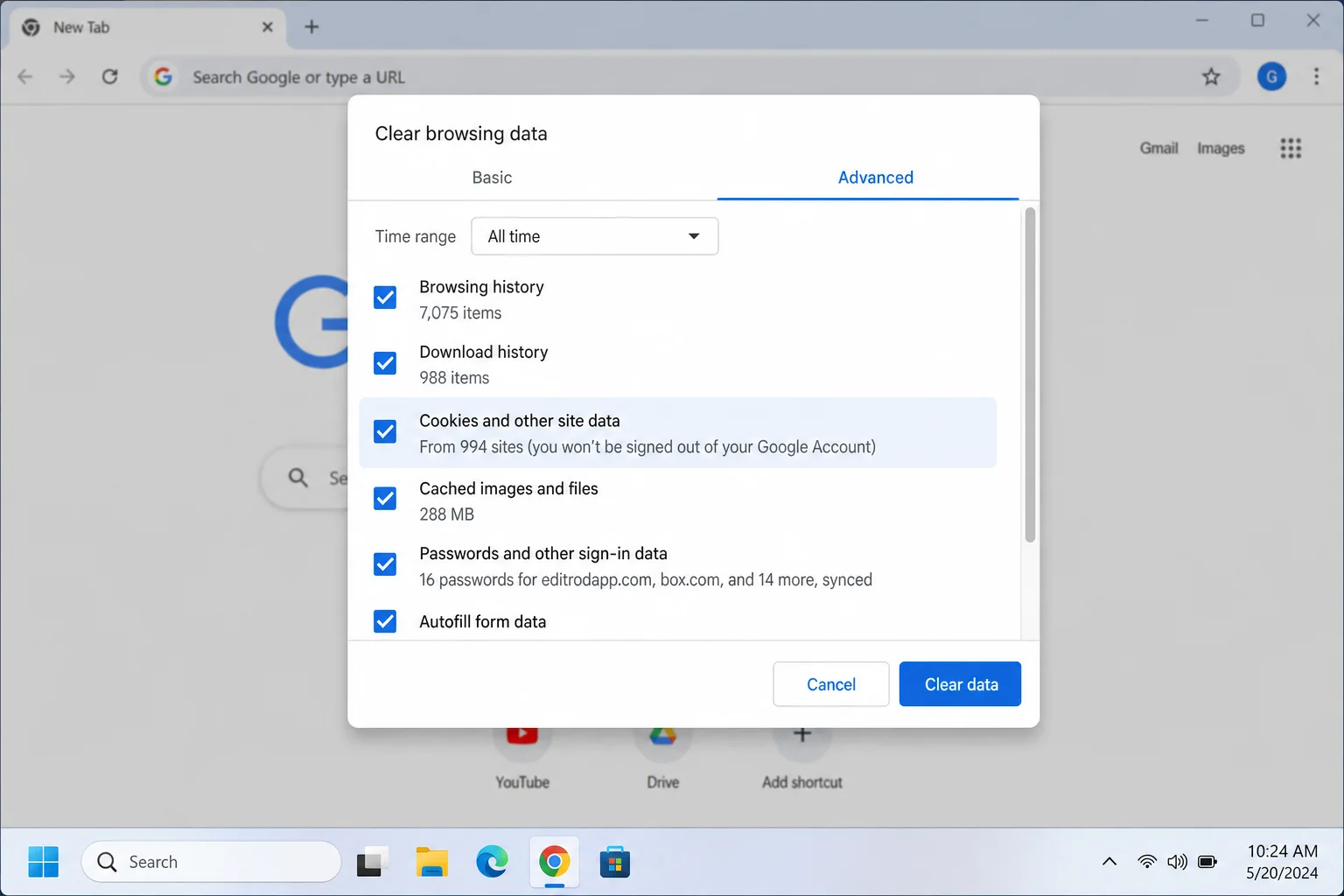
- Click Clear browsing data.
- In the popup, check Cookies and other site data. You can uncheck everything else if you only want to clear cookies.
- Set your preferred Time range, choose All time for a full wipe.
- Click Clear data.
Clear Cookies for a Specific Site
Don’t want to nuke everything? You can remove cookies from just one site.
- Go to Settings > Privacy and security > Cookies and other site data.
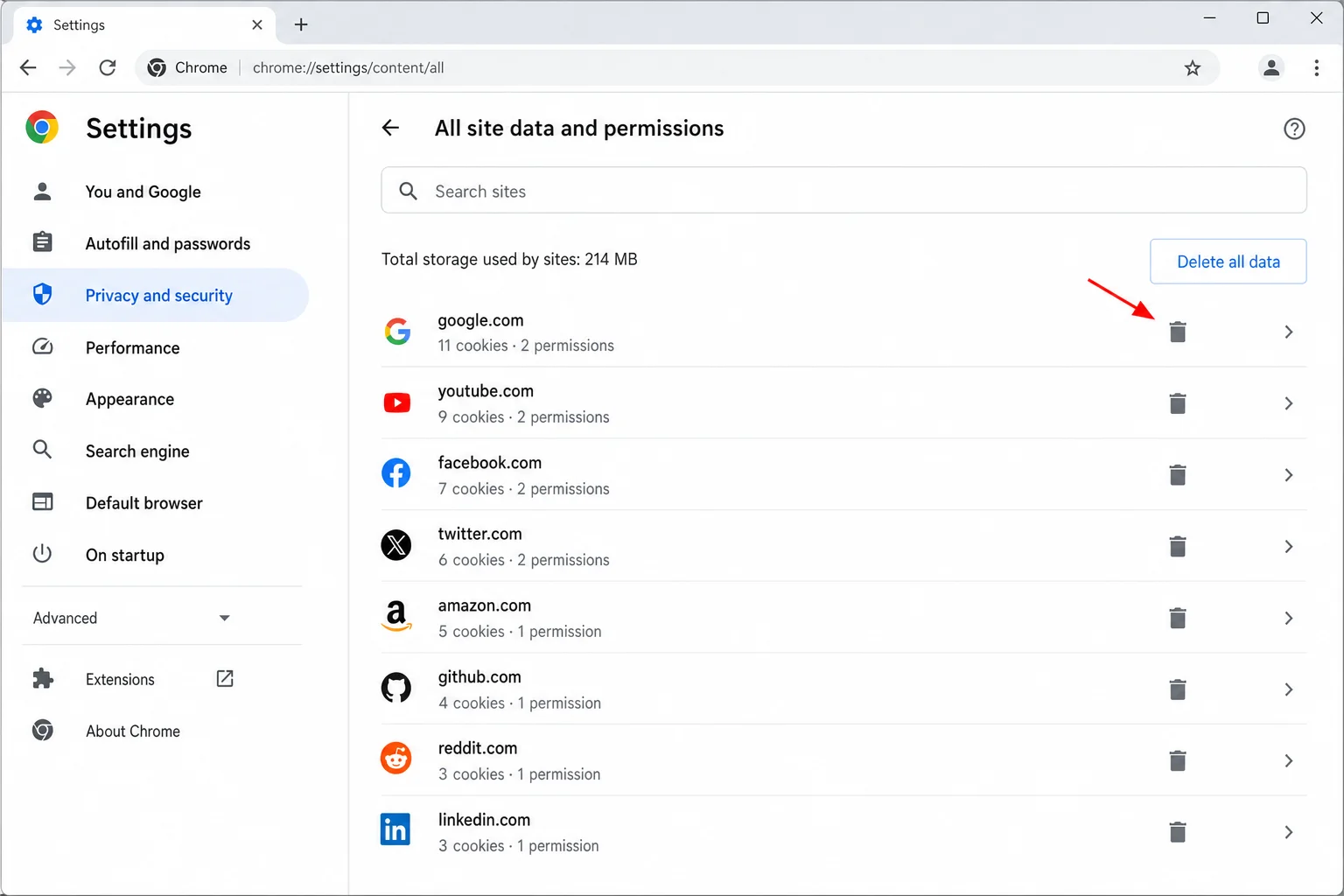
- Click See all site data and permissions.
- Use the search box to find the site you want.
- Click the trash icon next to it to remove its cookies.
Block Third-Party Cookies and Auto-Clear on Exit
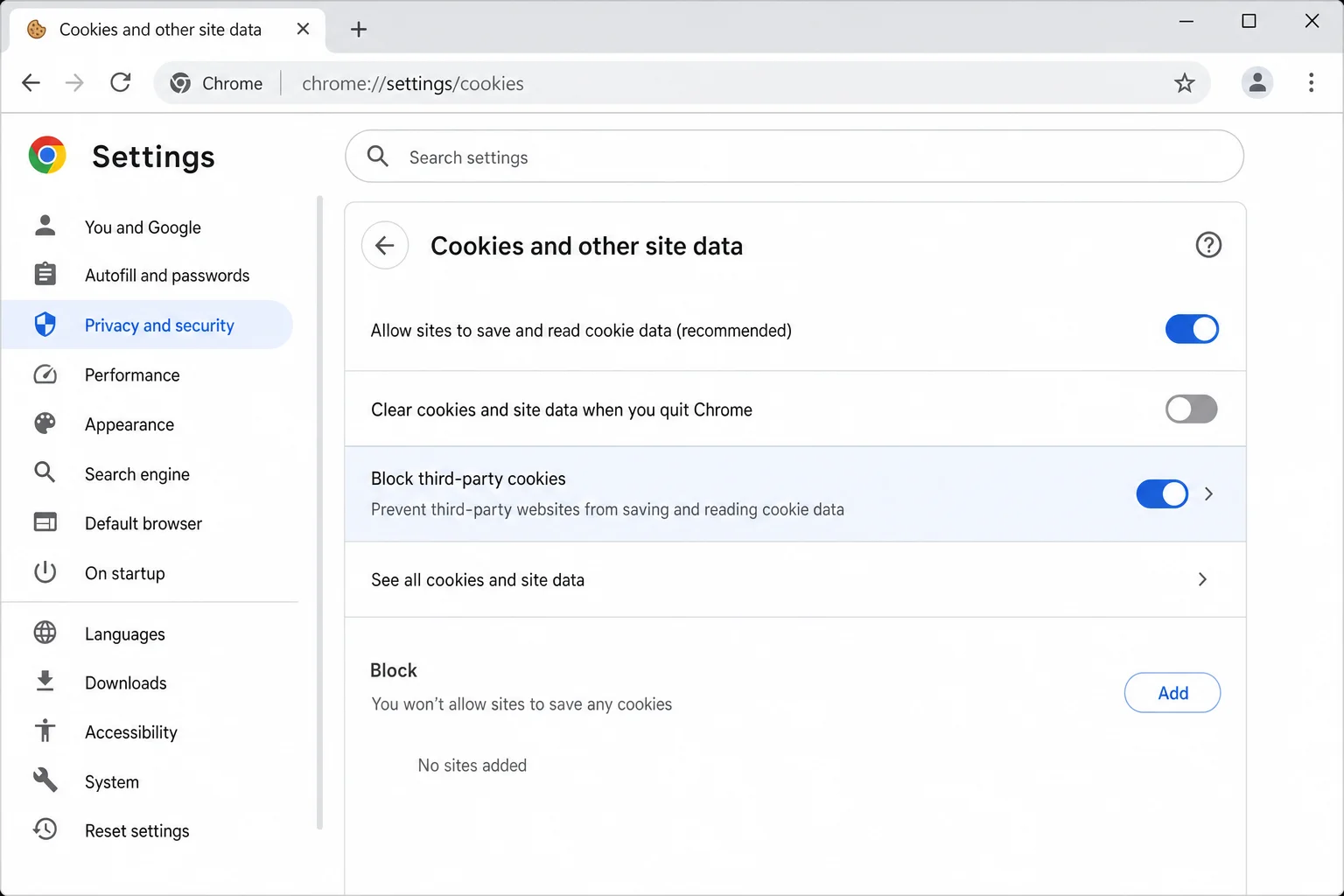
- Go to Settings > Privacy and security > Cookies and other site data.
- Select Block third-party cookies to stop cross-site tracking.
- To automatically clear cookies every time you close Chrome, turn on Clear cookies and site data when you close all windows.
Pro tip: If blocking third-party cookies breaks a site you use regularly, you can add it to the Sites that can always use cookies list on the same page.
How to Manage Cookies in Microsoft Edge
Edge is built on the same Chromium engine as Chrome, so the process feels very similar, just with slightly different menu names.
Clear All Cookies
- Open Edge and click the ⋯ (three-dot menu) in the top-right corner.
- Select Settings.
- In the left sidebar, click Privacy, search, and services.
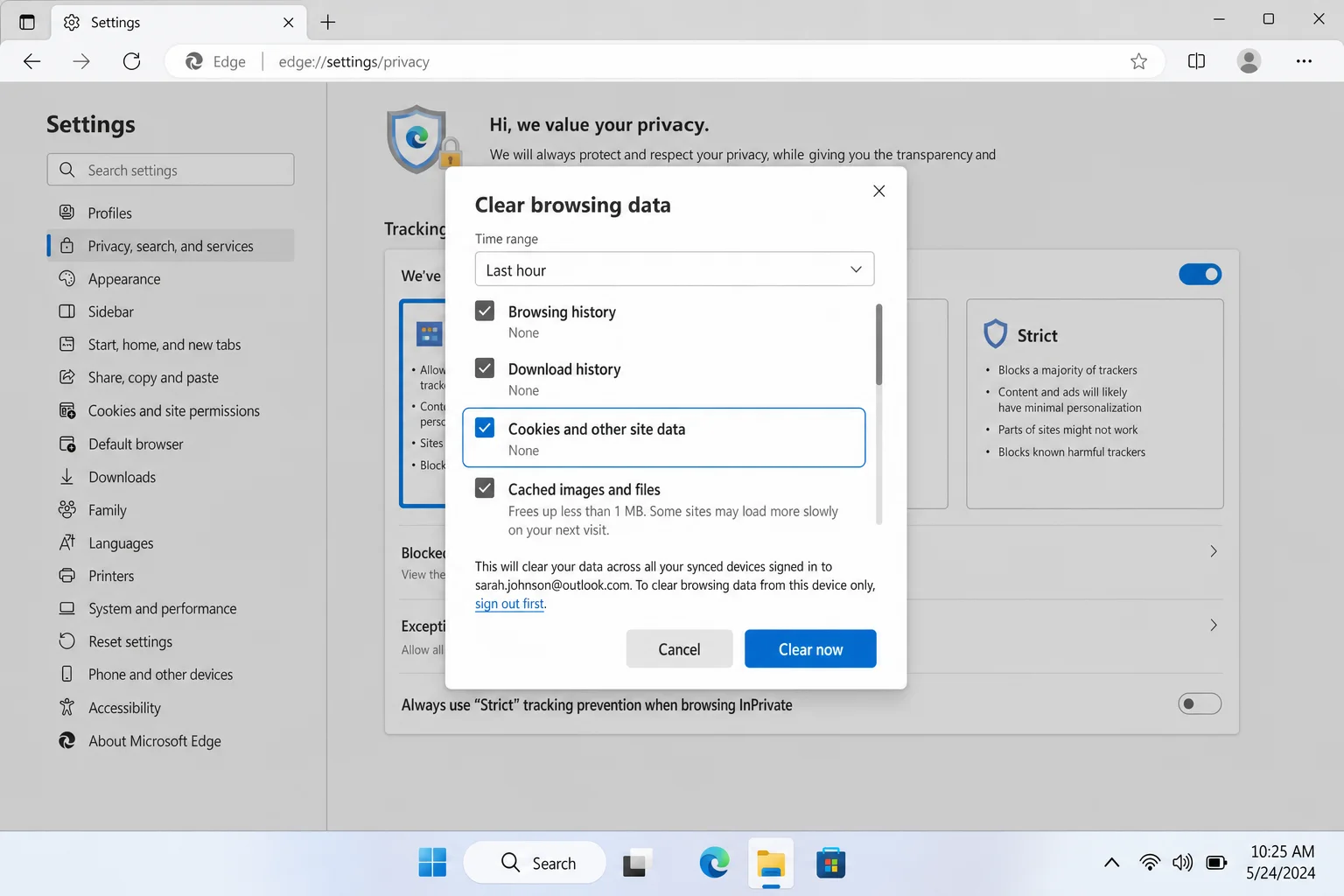
- Under Clear browsing data, click Choose what to clear.
- Set the Time range and check Cookies and other site data.
- Click Clear now.
Auto-Clear and Block Third-Party Cookies
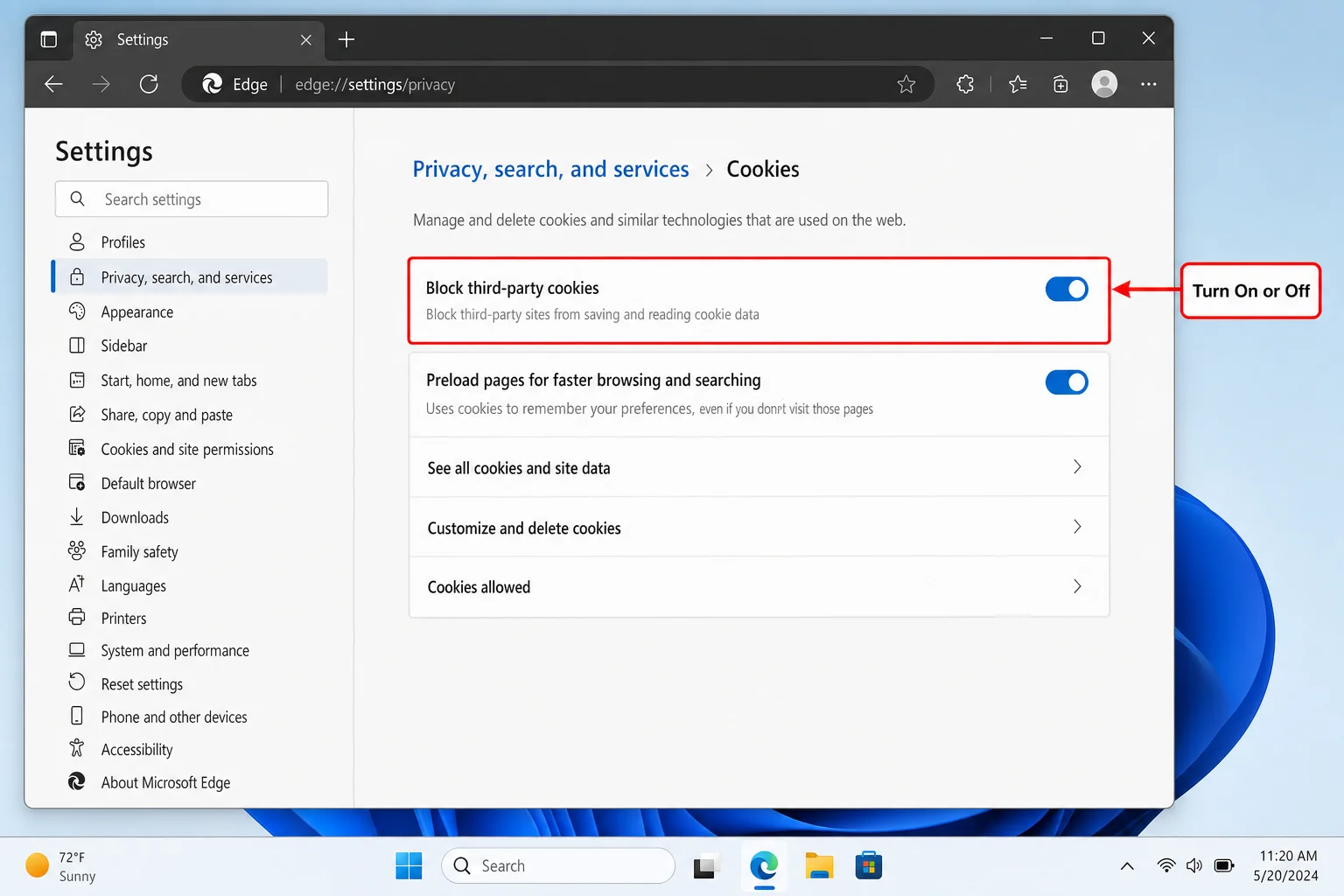
- In Privacy, search, and services, click Choose what to clear every time you close the browser and toggle on Cookies and other site data.
- Go to Cookies and site permissions > Manage and delete cookies and site data and turn on Block third-party cookies.
How to Manage Cookies in Mozilla Firefox
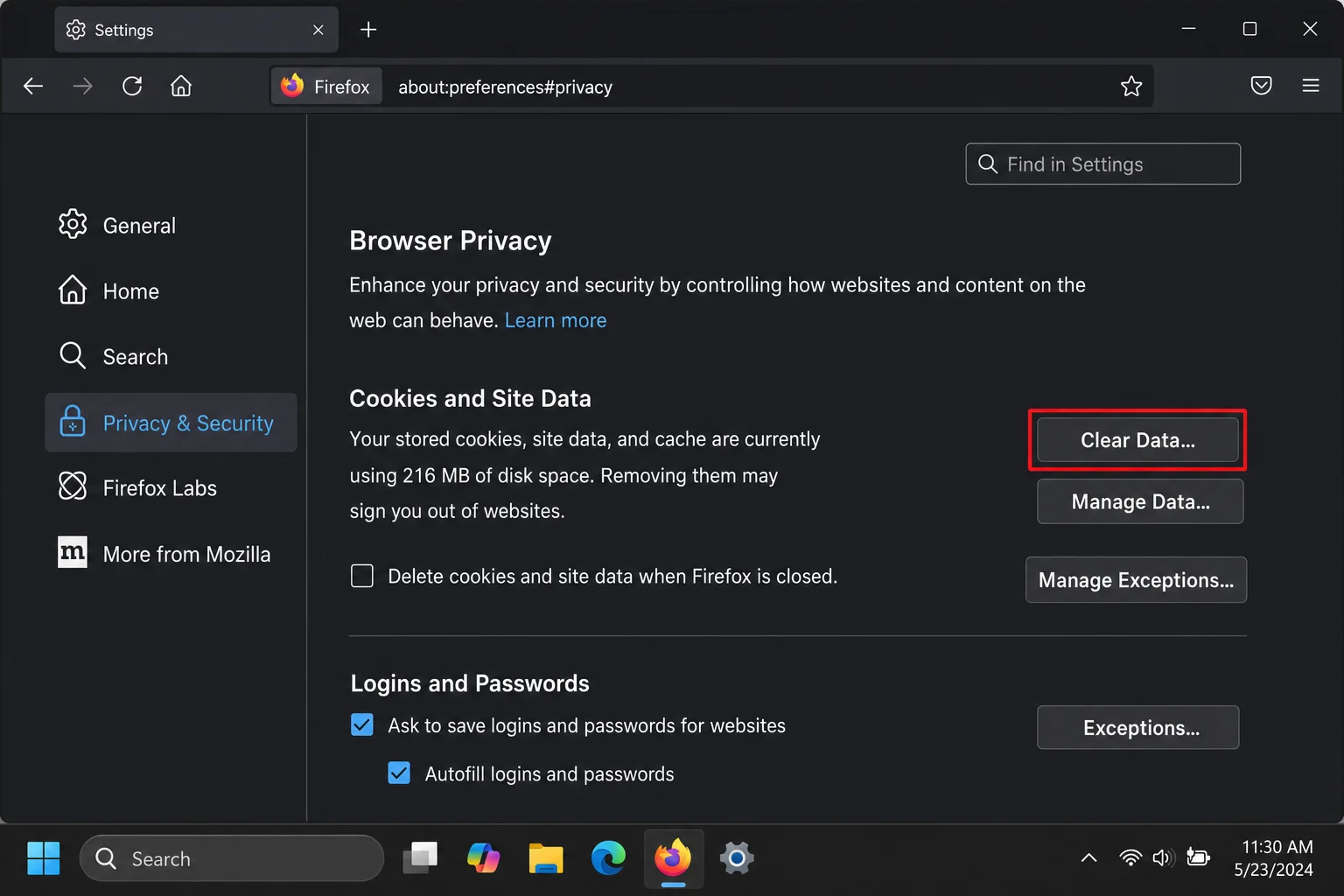
Clear All Cookies
- Click the ≡ (three-line menu) in the top-right corner and select Settings.
- In the left sidebar, click Privacy & Security.
- Under Cookies and Site Data, click Clear Data…
- Make sure Cookies and Site Data is checked, then click Clear.
Clear Cookies for a Specific Site
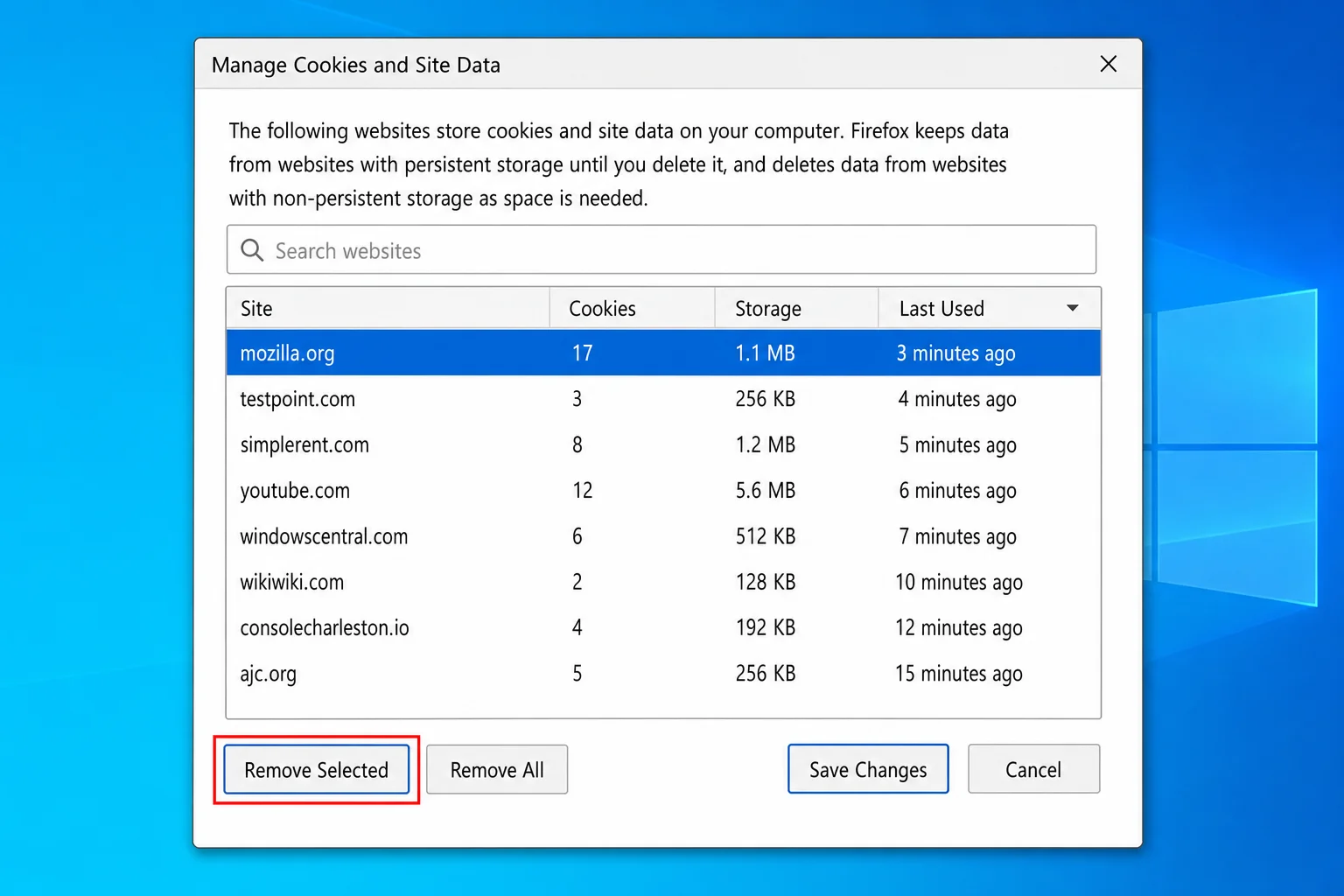
- Go to Settings > Privacy & Security.
- Under Cookies and Site Data, click Manage Data…
- Search for the site, select it, and click Remove Selected.
- Click Save Changes.
Enhanced Tracking Protection and Auto-Clear
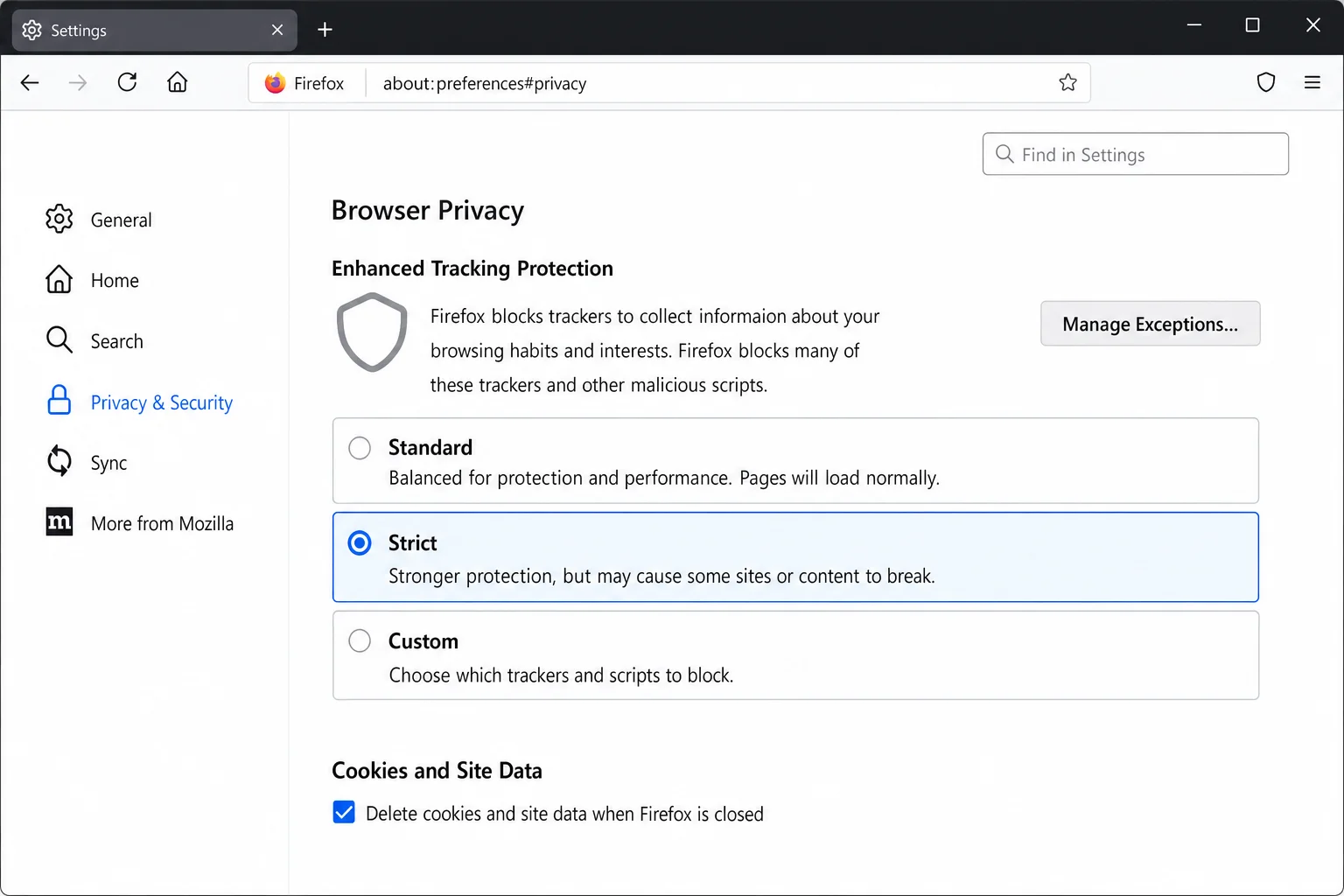
Firefox has one of the best built-in privacy setups of any browser. Here’s how to make the most of it:
- In Privacy & Security, find the Enhanced Tracking Protection section.
- Choose Strict to block the most trackers and third-party cookies. (Fair warning: this can occasionally break some sites, but it’s worth trying.)
- Under Cookies and Site Data, check Delete cookies and site data when Firefox is closed if you want auto-clearing on exit.
How to Manage Cookies in Safari
On macOS
- Open Safari and click Safari in the menu bar, then choose Settings…
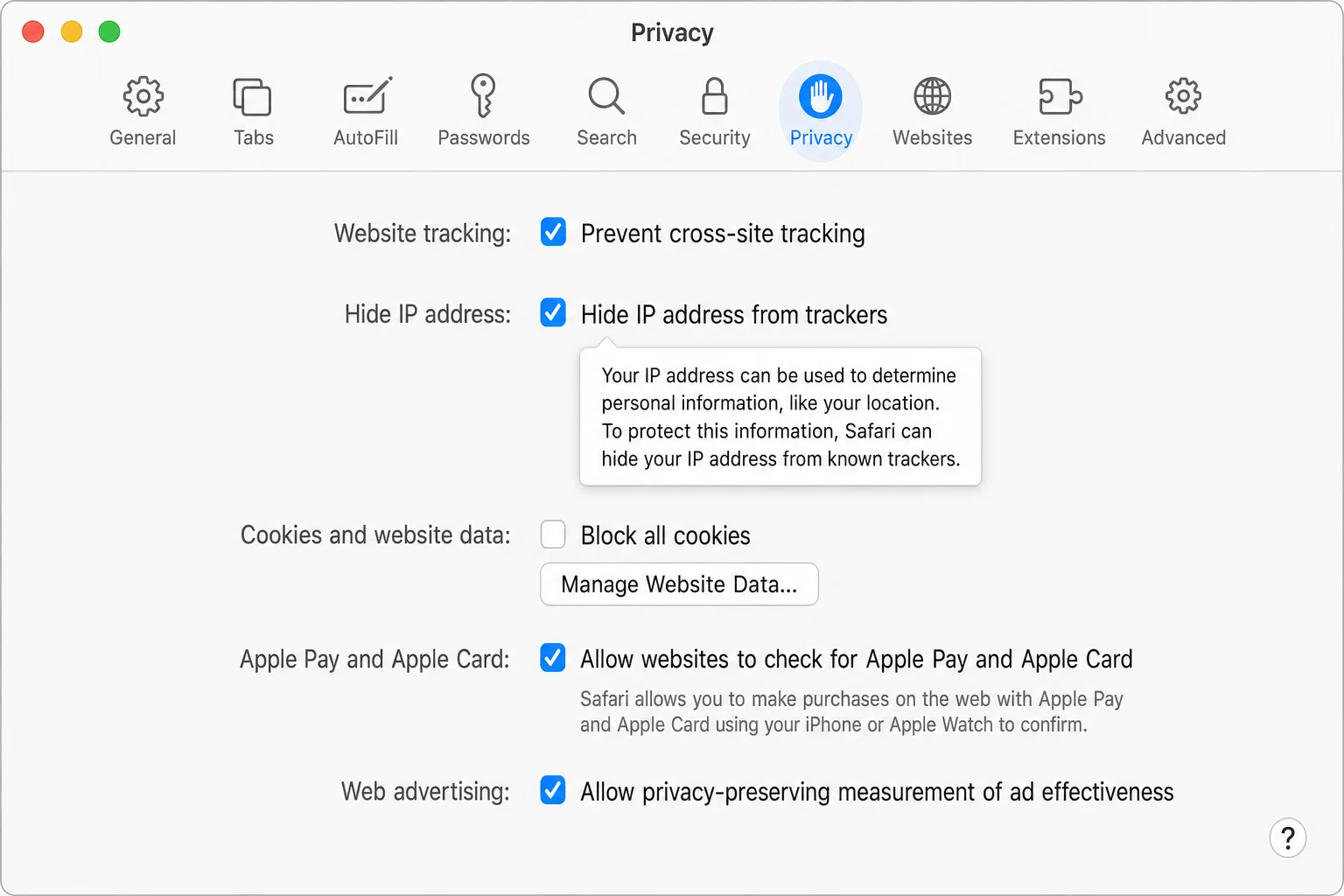
- Click the Privacy tab.
- Click Manage Website Data…
- You can either select individual sites and click Remove, or click Remove All to wipe everything.
- Click Done when finished.
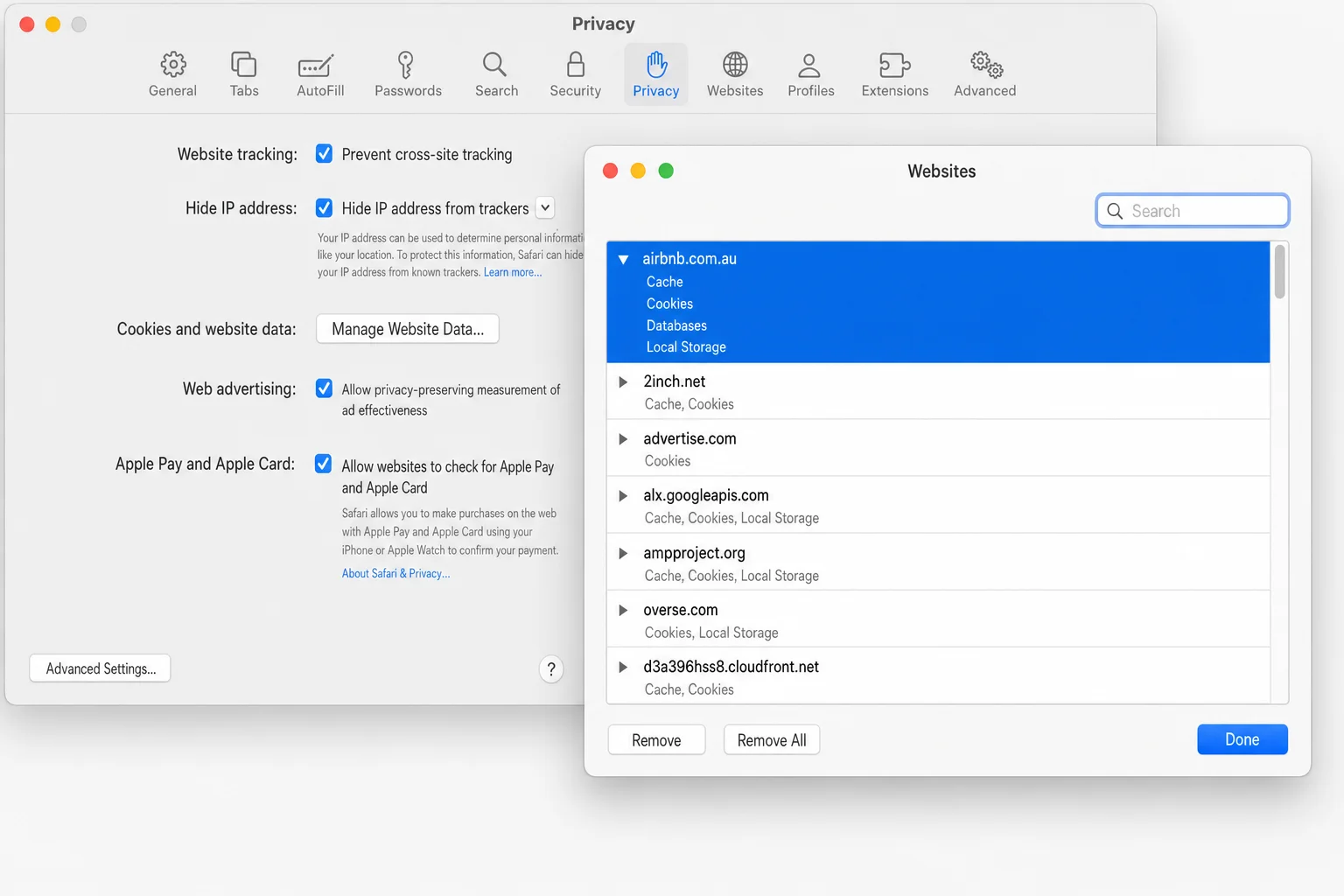
Safari also has Prevent cross-site tracking turned on by default. That’s Apple’s Intelligent Tracking Prevention doing its job. We’d recommend leaving that on. The Block all cookies option is available but not recommended, since it’ll break logins on most sites.
On iPhone or iPad (iOS/iPadOS)
Clear All Cookies and History
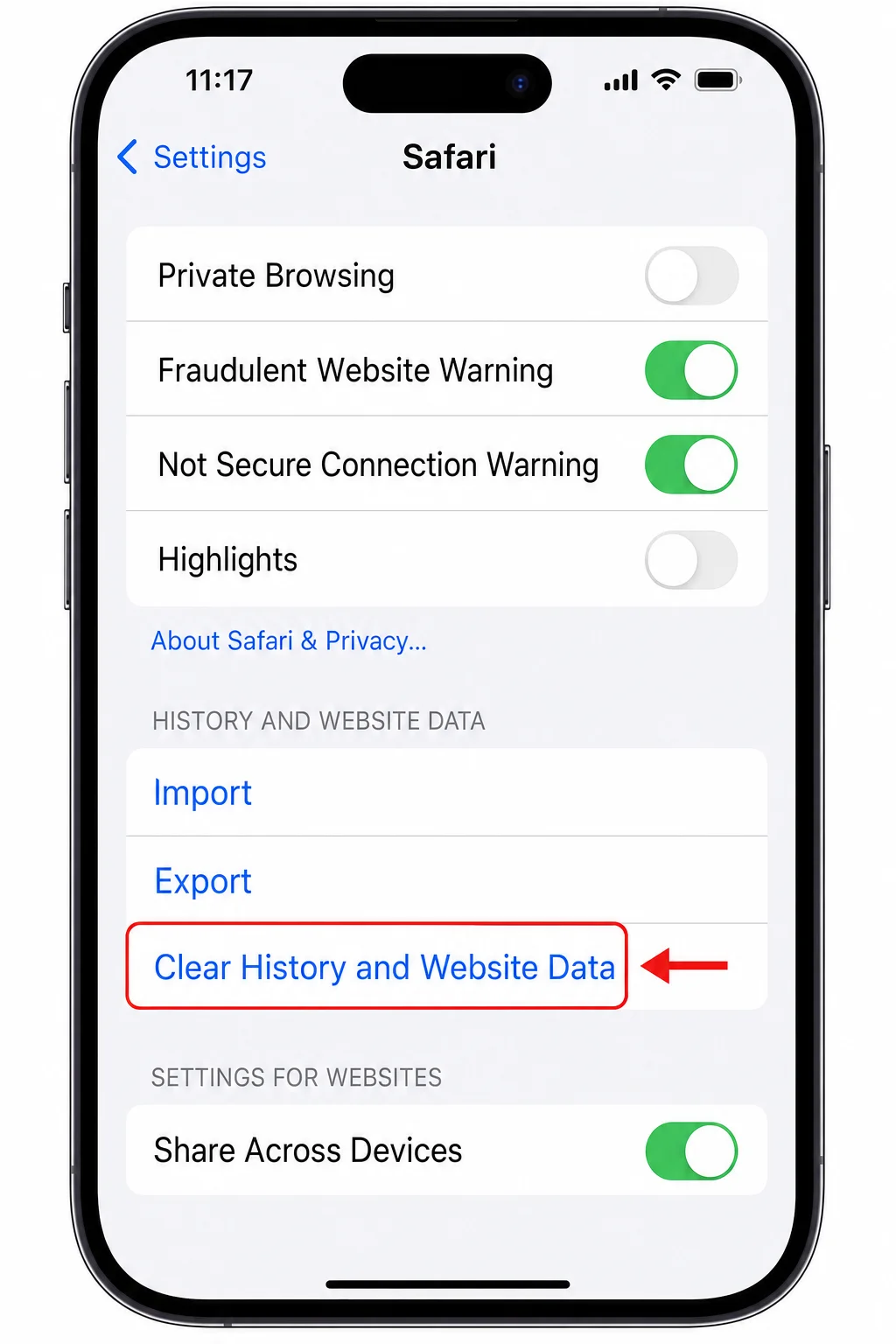
- Open the Settings app.
- Scroll down and tap Safari.
- Tap Clear History and Website Data.
- Confirm when prompted.
Remove Cookies for Specific Sites
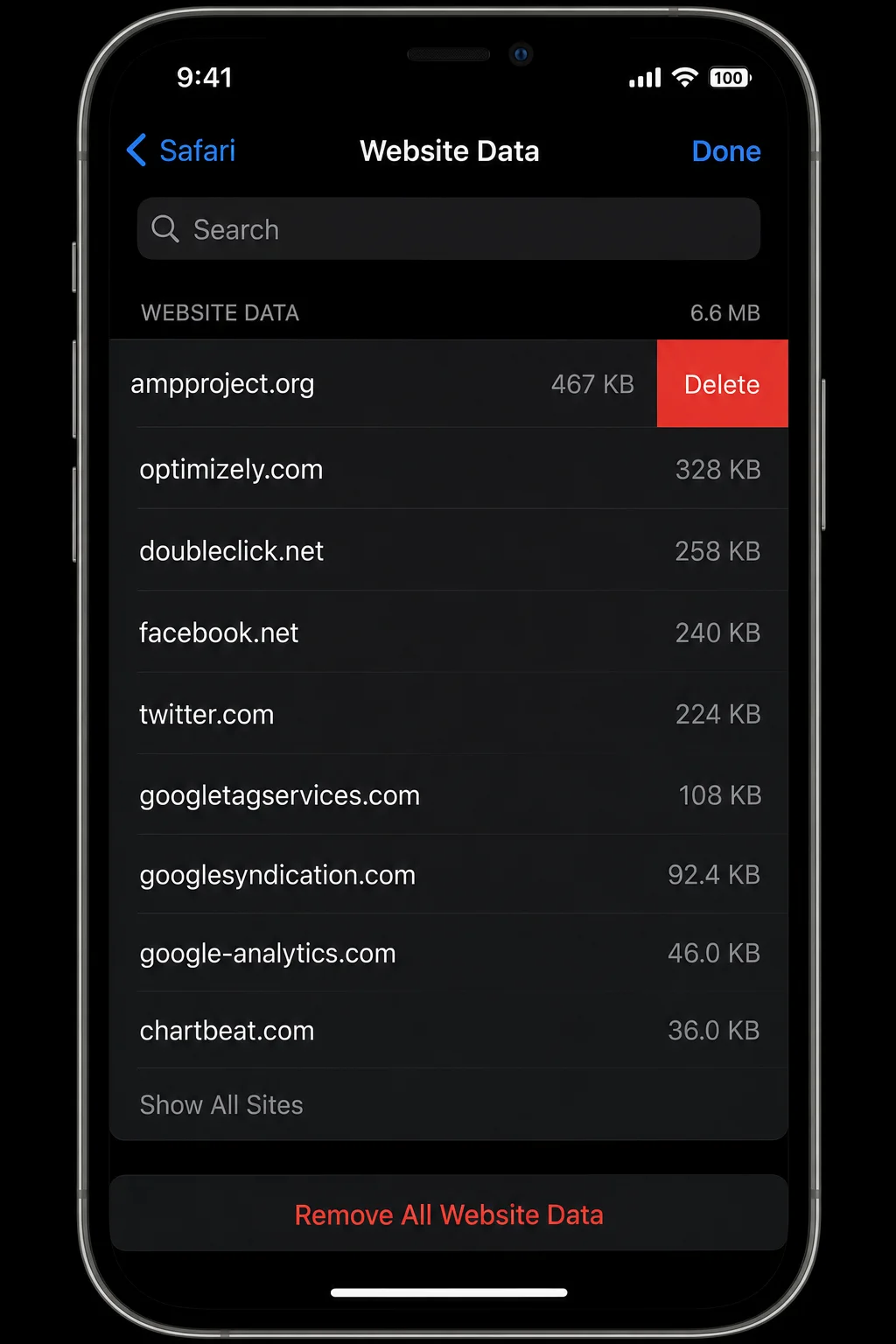
- Go to Settings > Safari.
- Scroll to the bottom and tap Advanced > Website Data.
- Swipe left on a specific site to delete it, or tap Remove All Website Data at the bottom.
Going Further: Block Tracking Before It Starts
Clearing cookies is reactive, as you’re cleaning up after the fact. The smarter long-term approach is to stop unwanted tracking before it happens. Here are a few solid options:
- Use a privacy-focused browser: Brave blocks trackers and third-party cookies by default and is worth trying if privacy is a priority. Firefox is also an excellent choice with its Enhanced Tracking Protection.
- Install a tracker-blocking extension: Extensions like uBlock Origin and Privacy Badger block tracking scripts before they even load. Just install them from your browser’s official extension store and stick to well-reviewed options.
- Use Private/Incognito mode for sensitive browsing: Private mode doesn’t save cookies after you close the window, so it’s great for one-off searches or using shared computers. Just know that the websites you visit can still see your activity, as it only protects your local device.
- Enable Global Privacy Control (GPC): Some browsers and extensions support GPC, which automatically signals to websites that you don’t want your data sold or shared. It’s not legally binding everywhere, but more sites are starting to honor it.
Tips and Troubleshooting
Common Issues
Problem: I keep getting logged out of sites after clearing cookies
That’s expected. Clearing cookies removes your login sessions. If you don’t want to lose them, use per-site deletion instead of clearing everything. You can also whitelist trusted sites (like your email or banking app) in your browser’s cookie settings so their cookies are never auto-deleted.
Problem: Cookie consent banners keep coming back
Your cookie preferences are stored as cookies. Clear them and the banners return. If you’re in the EU, sites are legally required to show them anyway, but you can click Reject all or Manage preferences on each one, and that choice will stick as long as you don’t clear cookies again.
Problem: A site breaks or won’t load after I blocked cookies
Blocking all cookies (including first-party) will break most sites. Instead, just block third-party cookies and use exceptions for sites that need more access. In Chrome and Edge, you can add specific sites to an “always allow” list in the cookie settings.
Problem: I blocked third-party cookies but I’m still seeing targeted ads
Cookies aren’t the only tracking method out there. Sites can also use browser fingerprinting, which identifies you by your device’s unique combination of settings, fonts, and hardware, as well as IP-based tracking. Clearing cookies helps, but it’s not a complete solution on its own. A reputable VPN can add another layer of protection at the network level.
Quick Reference: Cookie Management by Browser
| Browser | Clear All Cookies | Per-Site Deletion | Block Third-Party | Auto-Clear on Exit |
|---|---|---|---|---|
| Chrome | Settings > Privacy and security > Clear browsing data | See all site data and permissions | Yes (in cookie settings) | Yes (toggle in cookie settings) |
| Edge | Settings > Privacy, search, and services > Clear now | Cookies and site permissions > Manage | Yes (in cookie settings) | Yes (choose what to clear on close) |
| Firefox | Settings > Privacy & Security > Clear Data | Manage Data… | Yes (Enhanced Tracking Protection: Strict) | Yes (toggle in cookie settings) |
| Safari (macOS) | Safari > Settings > Privacy > Manage Website Data | Select site > Remove | On by default (Prevent cross-site tracking) | No built-in toggle |
| Safari (iOS) | Settings > Safari > Clear History and Website Data | Settings > Safari > Advanced > Website Data | On by default | No built-in toggle |
Wrapping Up
Managing your browser cookies in 2026 is less about the occasional big purge and more about setting things up so you’re protected on an ongoing basis. Block third-party cookies, use per-site deletion when something goes wrong, and consider a privacy-focused browser or extension if you want to go further. That combination will do a lot more for your privacy than just clearing everything once a month.
If you’re serious about online privacy, cookies are a solid place to start, and now you know exactly where to find the controls in every major browser. Pair that with a good tracker-blocking extension and you’re in pretty good shape.