

Snapchat is an extremely popular app used to connect with friends, quickly share images, and post stories to showcase on your profile. Just like any other app, though, Snapchat can run into issues. One of the more common problems Snapchat users run into is experiencing the app freezing. This is when you may get stuck on a screen in the app, can’t tap anything, or the screen goes black.
This can be very frustrating to experience, especially on Snapchat, where the app may not save the photos or videos you take before being sent. If you’re dealing with Snapchat freezes, there are quite a few things you can try to fix. Here are some easy ways to fix this problem.
1. Restart the App
When freezing occurs, try restarting the app. This is different from exiting your homescreen and tapping the app again. Follow these instructions to restart Snapchat.
On iPhone:
- Go to your app switcher screen by double-pressing the home button or swiping up from the bottom of your screen, depending on your iPhone model.
- Find the open Snapchat app, and swipe up to close it.
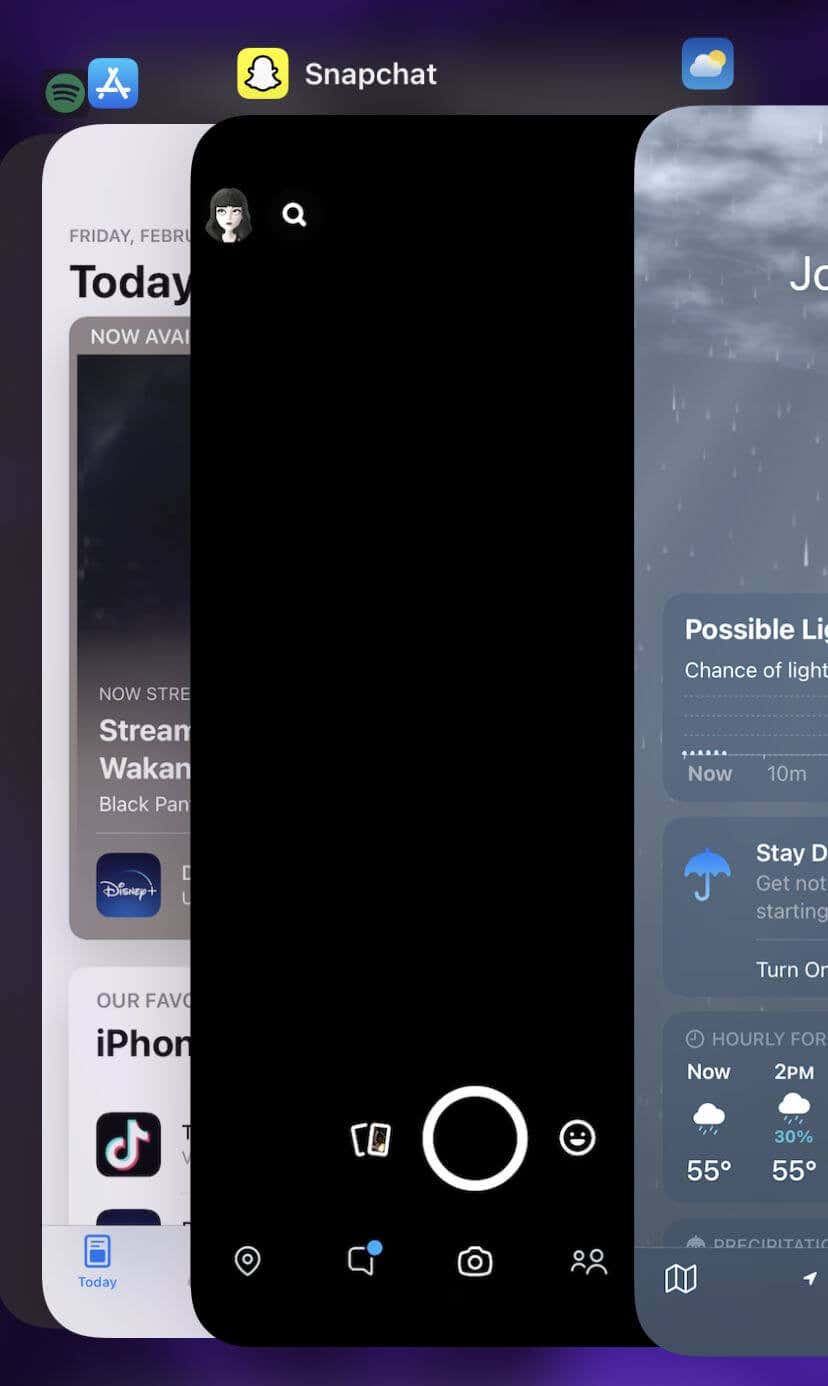
- Wait a few seconds, then tap on the Snapchat app to reopen it.
On Android:
- Go to Settings > Apps.
- Find the open Snapchat app and tap on it.
- Tap on Force restart and confirm.
- Return to your home screen and tap on the Snapchat app to restart it.
Now you should be able to use the app normally. If not, continue to the next fix.
2. Check for Updates
An outdated Snapchat app can freeze suddenly. You can quickly check if the app is outdated on your smartphone’s app store.
On iPhone:
- Head to the App Store and tap on the search function.
- Search for Snapchat, and find the app listing.
- Next to the app icon, you should see a blue button. If the app needs updating, it will read Update. Tap on this button to update the app.

On Android:
- Open the Google Play Store.
- Tap on your profile icon in the top right.
- Tap on Manage apps & device.
- Snapchat will appear if it has an available update.
- Tap Update to update Snapchat.
If this is a recurring issue for you, there is a way to have apps automatically update on both iPhone and Android. This can keep Snapchat running smoothly in the future.
On iPhone:
- Head to your Settings and tap App Store.
- Scroll down to Automatic Downloads.
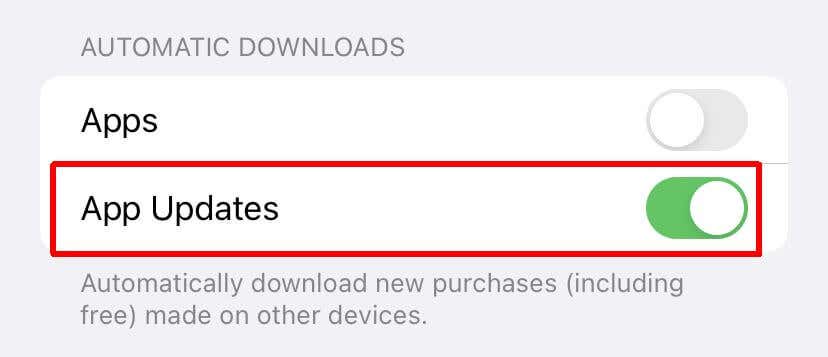
- Tap on the slider next to App Updates to have apps update automatically when one is available.
On Android:
- Go to the Google Play Store.
- Go to your profile and select Settings.
- Tap on Auto-updates.
- Choose how you want apps to update automatically, then select Done.
Updating Snapchat can fix a lot of issues. Having automatic updates is a good idea to avoid running into problems in the future.
3. Clear Your Cache
If your issues with Snapchat still haven’t cleared up, you may want to try clearing your cache within the app. Also, doing this won’t delete any of your saved photos or chats.
Here’s how to do this on Snapchat.
- Tap on your profile icon in the top left.
- Tap on the settings icon in the top right.
- Scroll down and select Clear Data > Clear Cache.
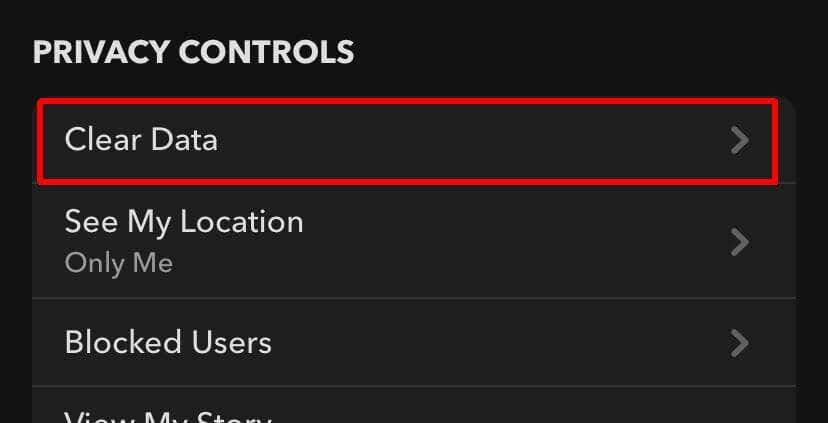
- On iPhone, select Clear. On Android, select Continue.
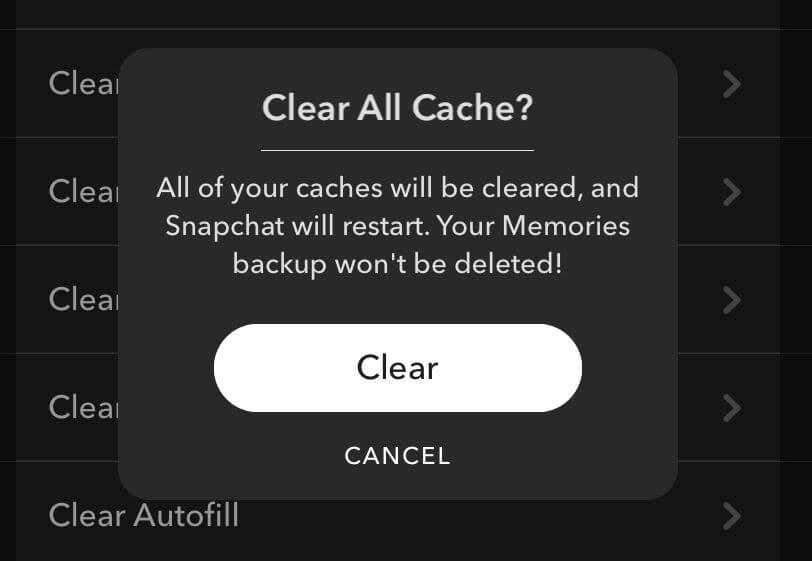
After this, Snapchat will clear your cache, and it will restart.
4. Uninstall and Reinstall
When the other methods aren’t working, uninstall and reinstall the app. This can help clear out any issues Snapchat may be running into on your phone.
On iPhone:
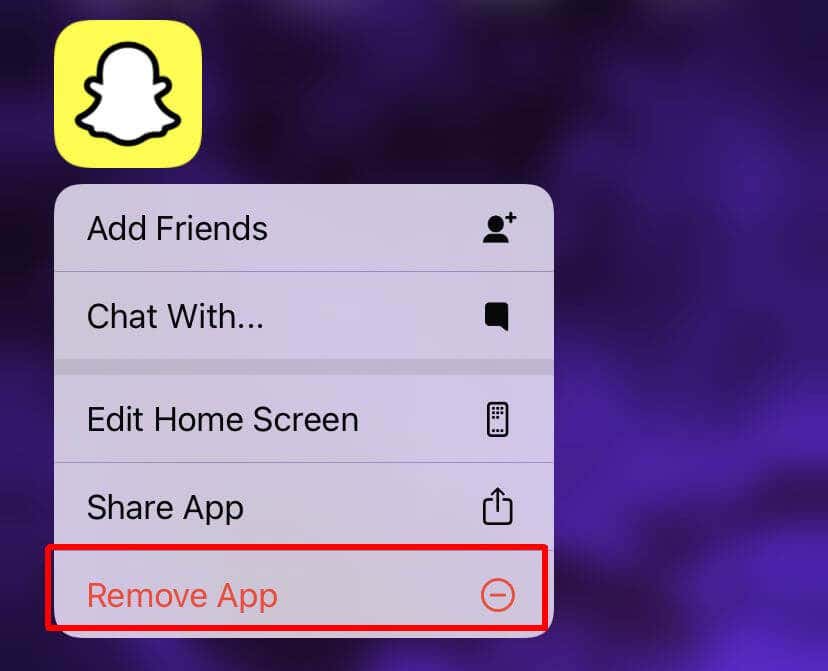
- On your home screen, find the Snapchat app. Tap and hold on it until it begins to move.
- Tap on Remove App and then Delete App.
- Once deleted, head to the App Store and tap on your profile icon in the top right.
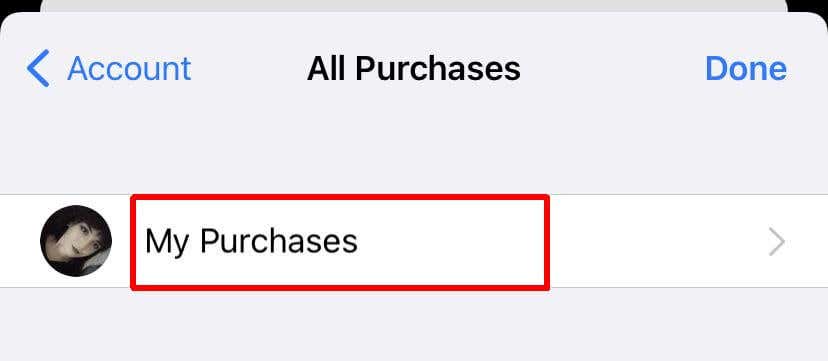
- Tap on Purchased > My Purchases.
- Search for Snapchat, tap the download icon, and wait for the app to download.
- Head back to your home screen and launch the app once downloaded.
On Android:
- Go to the Google Play store and tap on your profile.
- Tap Manage apps & devices > Manage.
- Tap on Snapchat, then tap Uninstall.
- Once the app is uninstalled, at the top of the screen tap on Installed > Not Installed.
- Find Snapchat and select Install.
Once Snapchat has reinstalled on your smartphone, you may need to log into your account again, so make sure you have your login information handy.
5. Restart Your Phone
Restarting your smartphone could also help with freezing issues on Snapchat, especially if the issue is less from the app itself and more of a problem with your phone. Here’s how to restart your phone for both iPhone and Android.
On iPhone:
- Go to Settings > General.
- Scroll down to Shut Down and tap on it.
- Wait for your iPhone to turn off, then wait about 10 seconds.
- Press and hold on the power button on the right side of your iPhone until the Apple logo appears.
- Wait for your iPhone to start up, then reopen Snapchat.
On Android:
- Press and hold on the power button until the power menu appears.
- Select the Restart option.
- Wait for your phone to shut down and restart, then reopen Snapchat.
Once you open Snapchat, ensure the freezing issues have subsided. Ensure you don’t reopen Snapchat too quickly after your phone starts up again, as you may notice some lagging. A good 30 seconds from the time your phone powers back on is a good rule of thumb.
6. Check Your Network Connection
Something else that could cause Snapchat to freeze on your smartphone is if you’re dealing with a bad internet connection. To fix this, reset your network connection. Before you do this, remember that you’ll need to make sure you have your network password so you can reconnect to it.
On iPhone:
- Go to Settings > General > Transfer or Reset iPhone.
- Tap on Reset > Reset Network Settings.
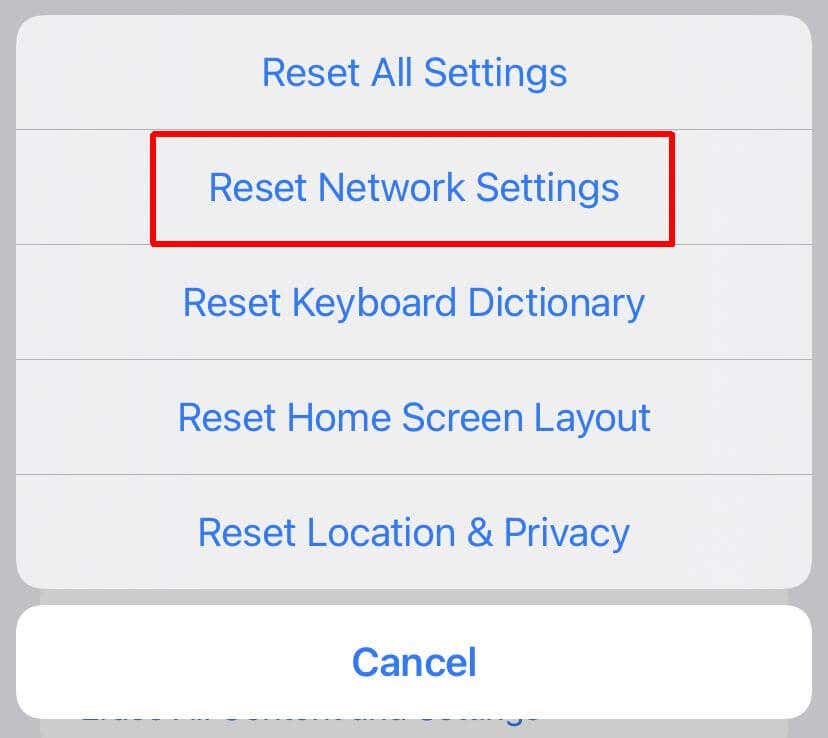
- Your network settings will be reset. Now, reconnect to your network by going to Settings > Wi-Fi.
On Android:
- Go to Settings > General Management or System.
- Tap on Reset > Reset Network.
- Confirm your choice to reset your network settings. Then, your phone will restart.
Once you reconnect to your network, open Snapchat and see if your problems are still occurring. If the network reset worked, you should have no more issues.
7. Check With Snapchat Support
If you’ve attempted everything on this list but are still experiencing freezing on Snapchat, your next step should be to contact Snapchat support. On the Support main page, you can select Contact Us to submit a request to the support team. From there, they can address your issues more specifically and get the app functioning normally.
Use Snapchat Again With These Fixes
Having difficulties occur when using Snapchat can be frustrating, but by going through each method outlined here, you should be able to fix the freezing problem. Then, if it ever happens again, you’ll know how to keep your app working smoothly.
What other kinds of issues have you run into using Snapchat? Tell us about them below.