

Students can save significantly with the Hulu + Spotify bundle, but wow, does the verification process trip up most applicants! Most get rejected for simple mistakes in documentation or account setup. It’s like trying to solve a puzzle where someone hid half the pieces.
This guide walks through every verification requirement and document preparation tip. Your application will succeed on the first try (finally!).
What is the Hulu + Spotify Student Bundle?
The Hulu + Spotify Student Bundle combines Spotify Premium, Hulu’s ad-supported streaming service, and Showtime. It’s heavily discounted for verified college students. Instead of paying for each service separately, eligible students get all three for $6.99/month in 2026.
The catch? You need to prove your student status through a verification service. This third-party verification system has strict documentation requirements and frequently rejects applications for minor issues – talk about frustrating!
Prerequisites
Before starting the signup process, make sure you have:
- [ ] Active enrollment at an accredited institution
- [ ] Valid .edu email address that you can access
- [ ] Government-issued photo ID (driver’s license, passport, or state ID)
- [ ] Recent enrollment documentation:
– Student ID card, OR – Official enrollment letter from your school, OR – Current class schedule, OR – Recent transcript
- [ ] Payment method (credit card or debit card)
- [ ] Mobile phone for verification texts
| Requirement | Details |
|---|---|
| Student Status | Currently enrolled at accredited institution |
| Active .edu email address | |
| Documentation | Student ID or enrollment proof |
| Payment | Valid credit/debit card |
| Phone | For SMS verification |
Important: If you already have individual Spotify or Hulu subscriptions, cancel them first. This prevents billing conflicts – trust us, dealing with duplicate charges is a headache you don’t need!
Step-by-Step Bundle Setup Guide
Step 1: Start Your Application on Spotify’s Student Portal
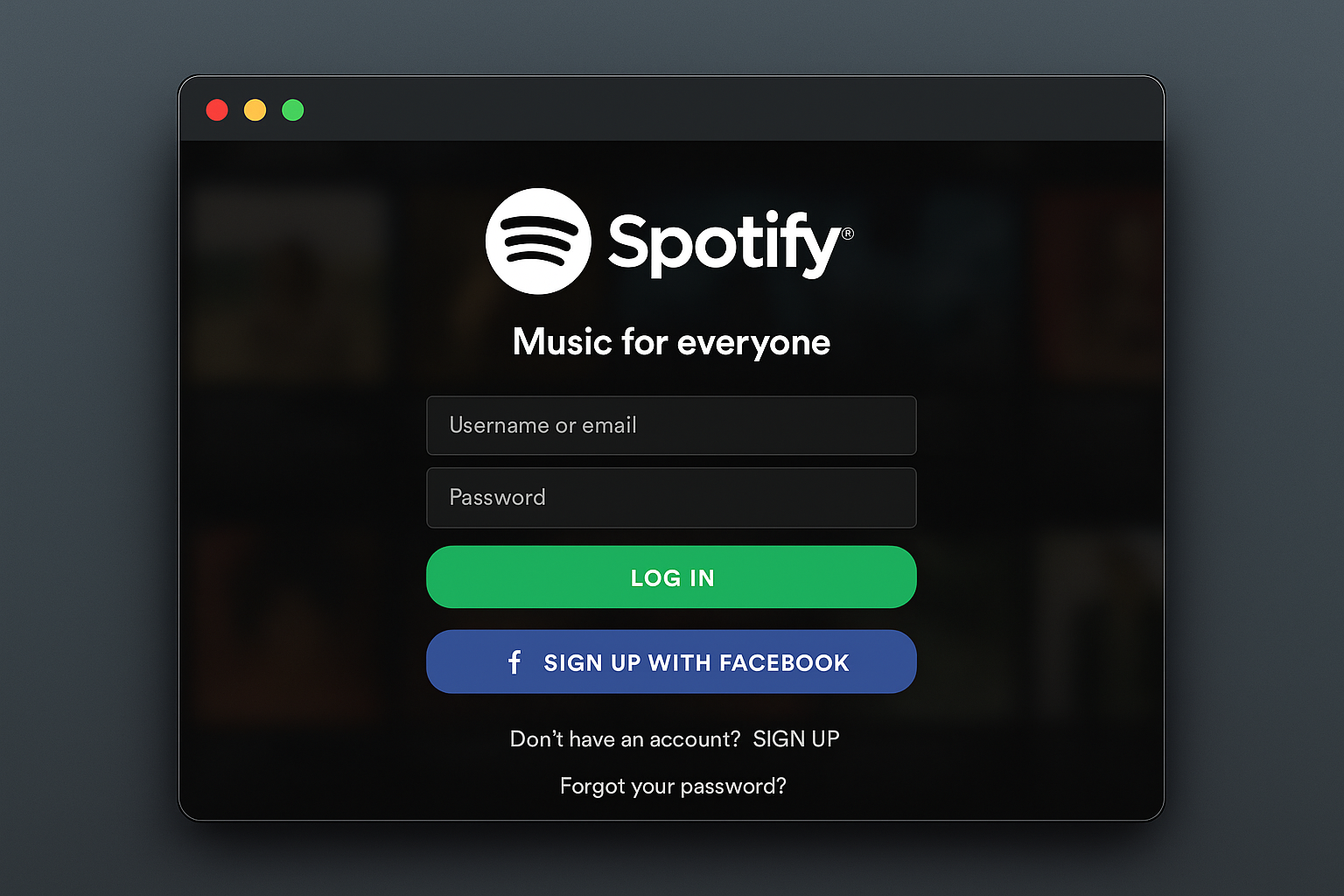
Go to spotify.com/us/student and click Get Started under the bundle option.
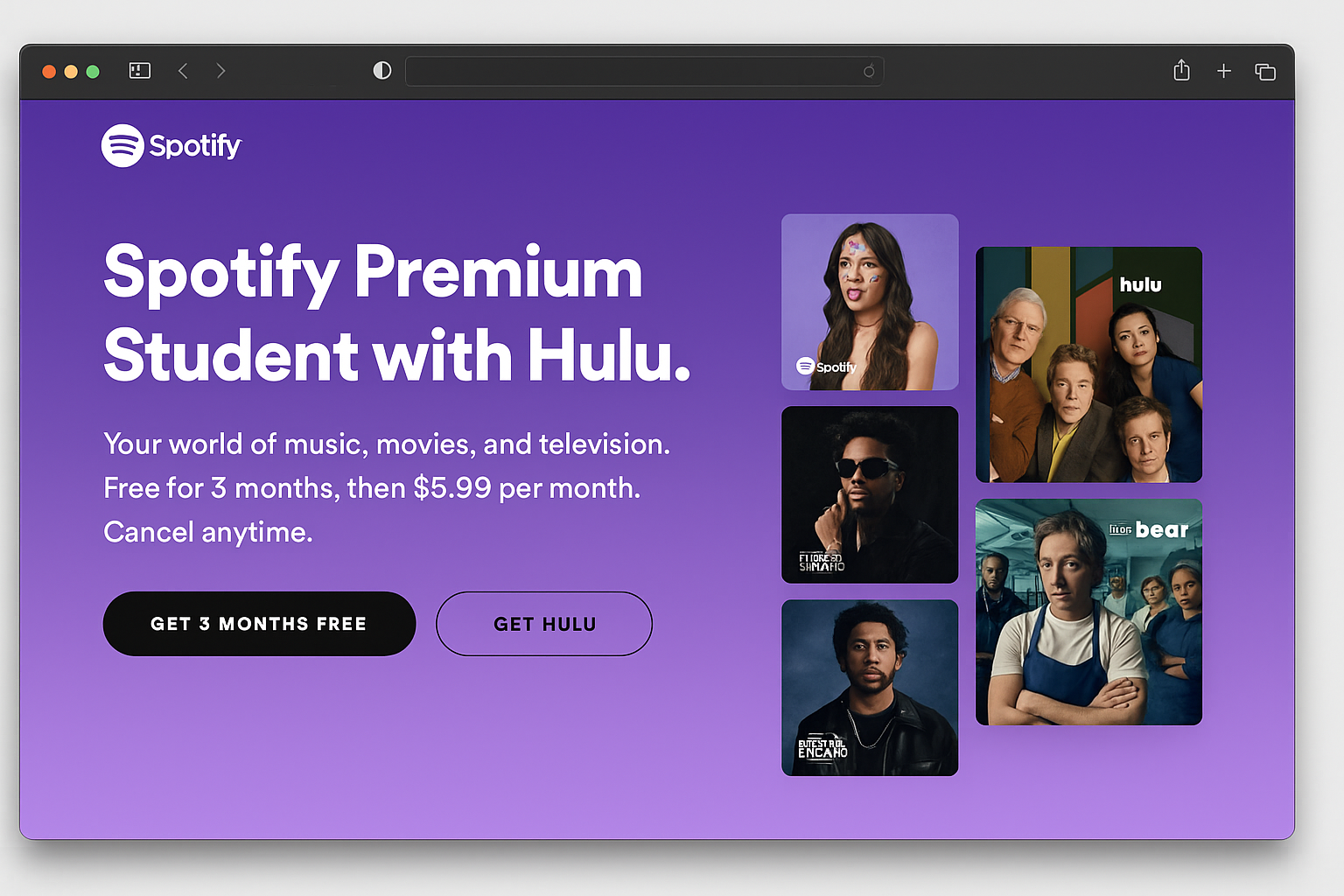
You’ll see the current bundle pricing and what’s included. Make sure you select the full bundle with Hulu and Showtime, not just Spotify Premium alone.
Step 2: Create Your Spotify Account (If Needed)
Don’t have a Spotify account? Click Sign Up and enter:
- Your .edu email address
- A strong password
- Your display name
- Your birth date
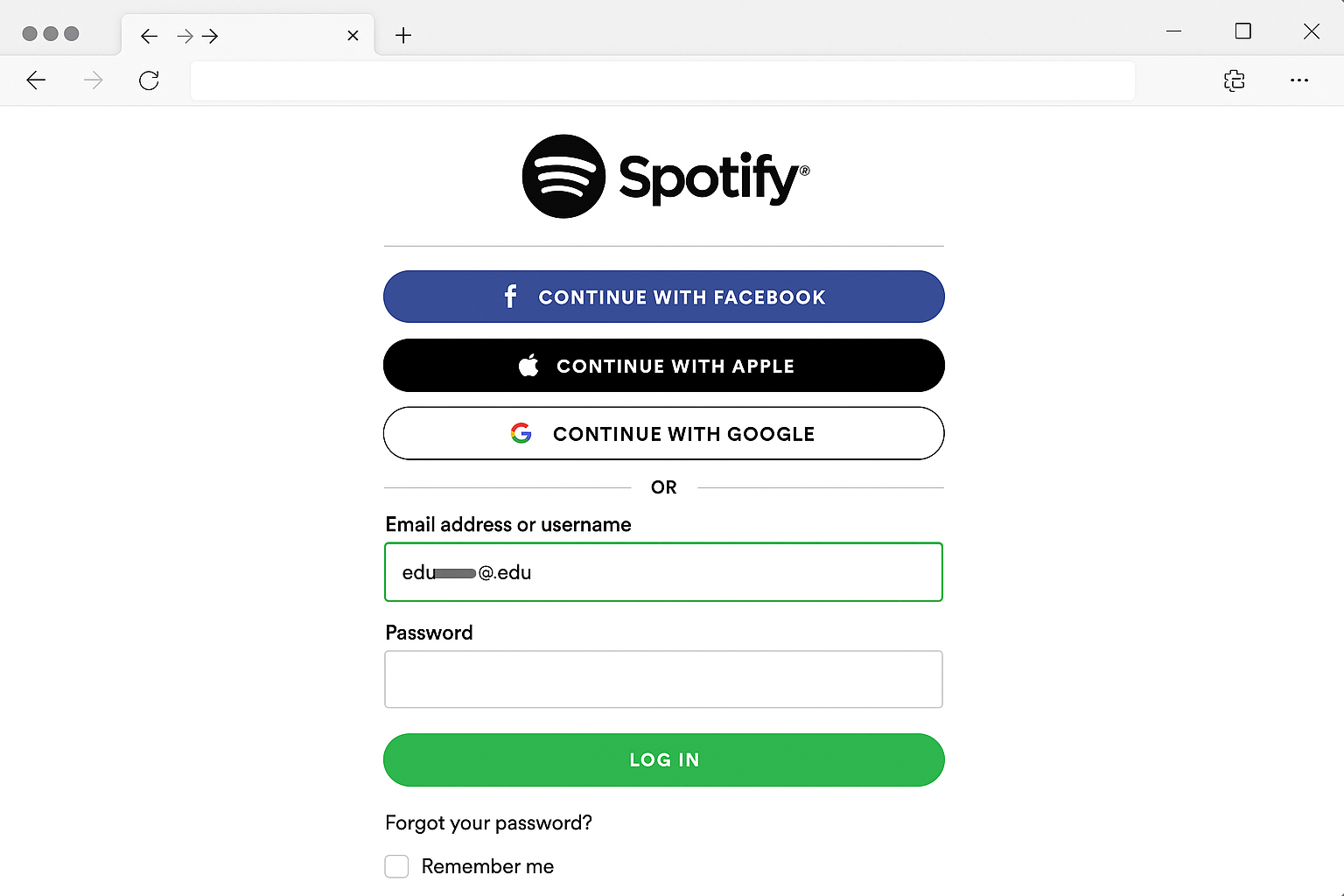
Already have a Spotify account? Click Log In instead. Use your existing credentials.
Step 3: Begin Student Verification
After logging in, you’ll be redirected to the verification system. This is where most people run into problems. Like hitting a brick wall when you’re just trying to save some money on streaming!
Enter your information exactly as it appears on your student ID:
- Full name (must match your ID exactly)
- Date of birth
- School name (search for your institution in the dropdown)
- Expected graduation date (month and year)
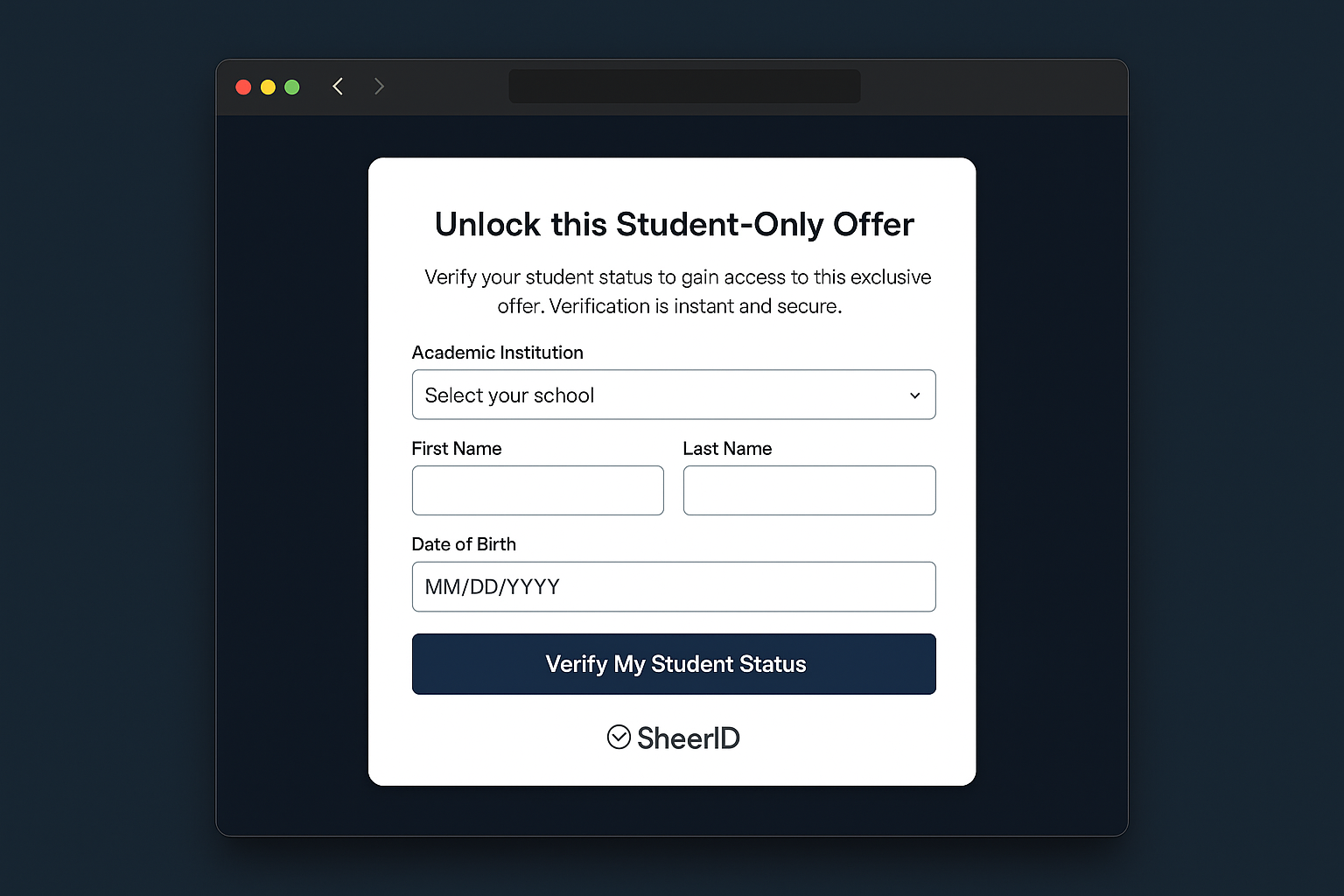
Tip: Use the search function to find your school rather than typing it manually. This ensures the exact name format the system expects because apparently “University of California” and “UC” are completely different things to computers!
Step 4: Upload Your Student Documentation
This step separates success from rejection. Take your time here as rushing through document upload is like trying to thread a needle in the dark.
Choose your verification method:
Option A: Student ID Card
- Take a clear photo of your current student ID
- Ensure all text is readable and the photo isn’t blurry
- Make sure your name and school name are clearly visible
Option B: Enrollment Documentation
- Upload your class schedule, enrollment letter, or transcript
- Document should be recent and official
- Official school letterhead or digital portal screenshots work best
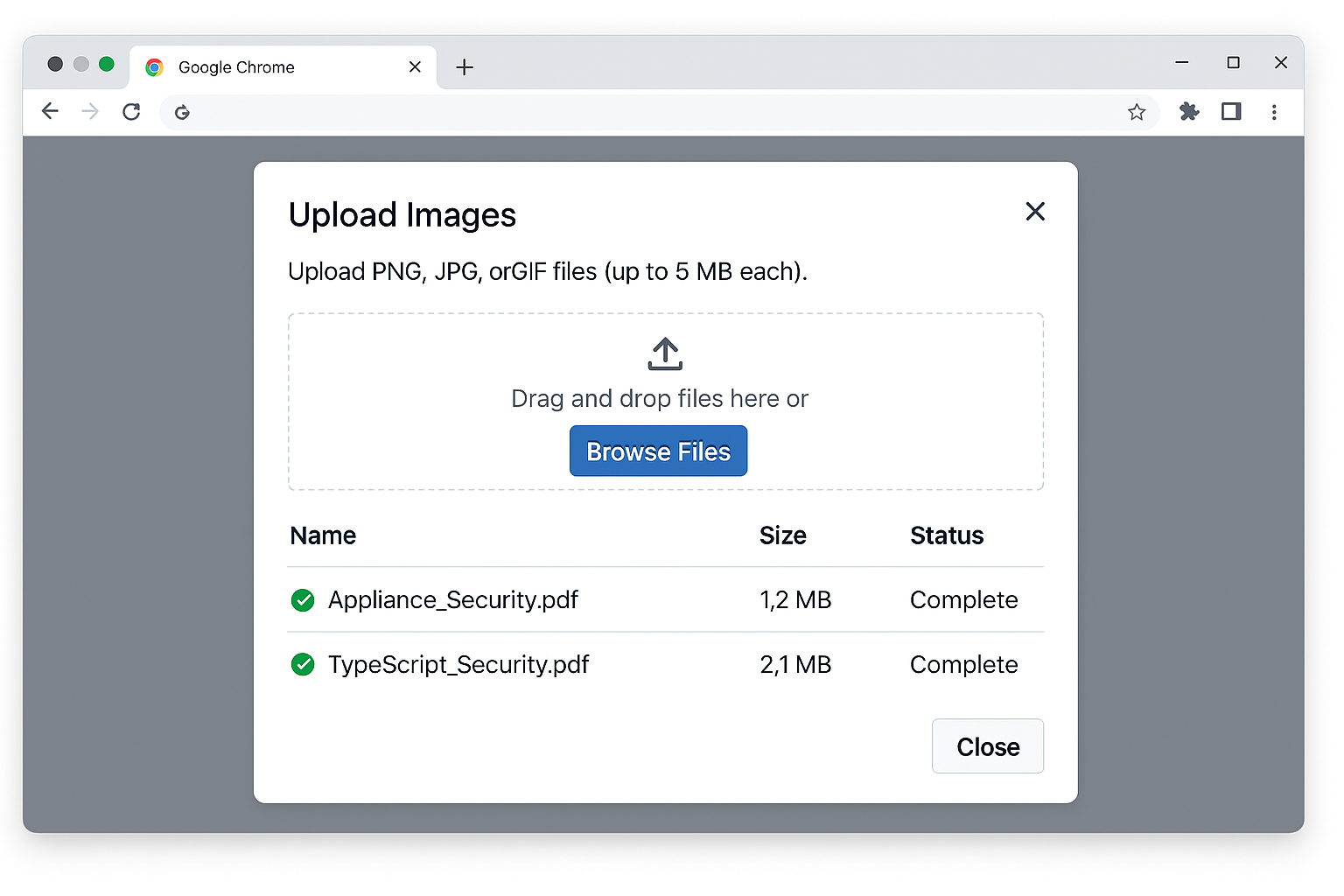
Document Quality Tips:
- Use good lighting when photographing your student ID
- Save documents as JPG, PNG, or PDF (under 5MB)
- Avoid shadows or glare that obscure text
- Make sure your name matches exactly across all documents
Step 5: Complete Identity Verification
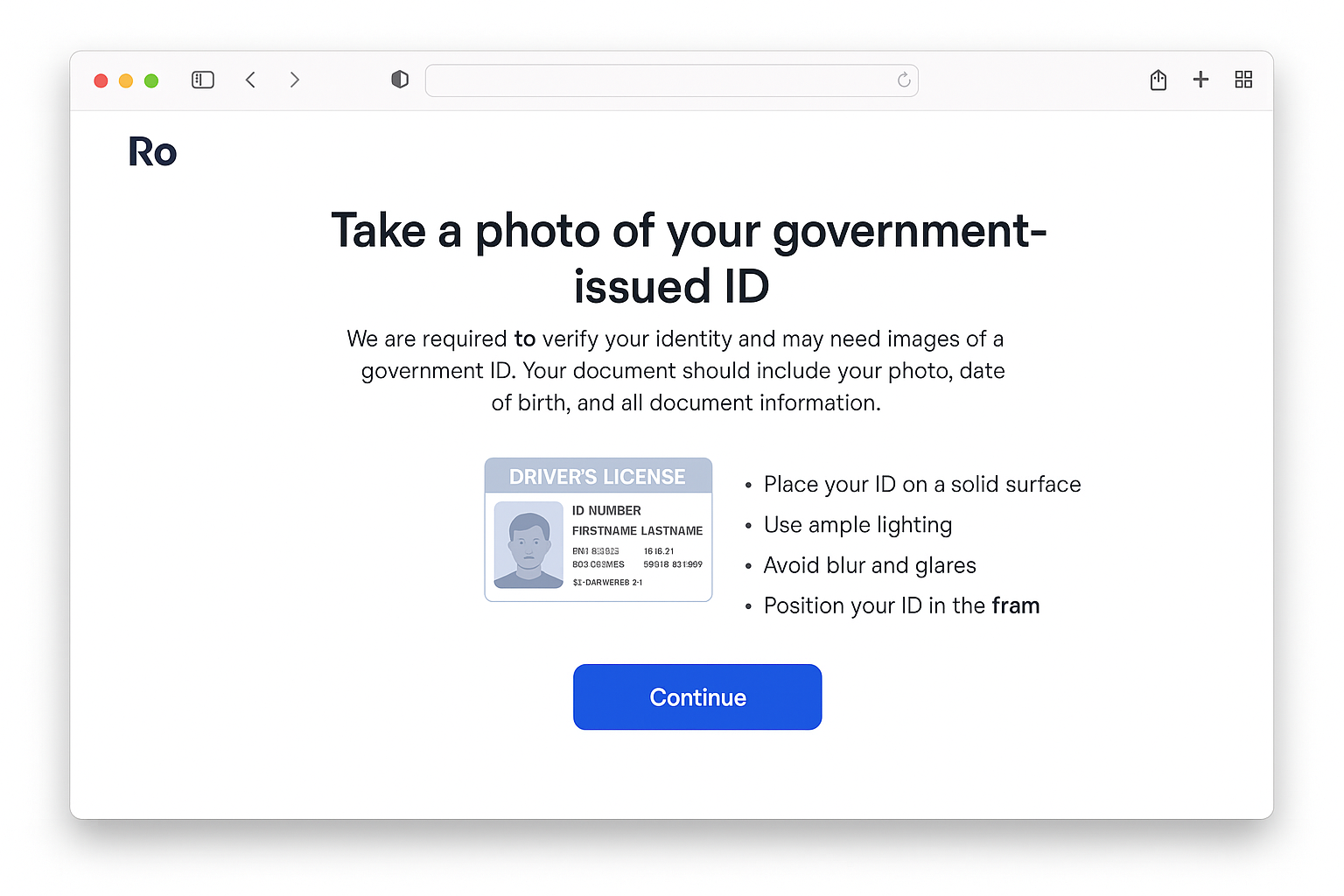
Upload a photo of your government-issued ID. This must match the name on your student documentation exactly and we mean EXACTLY.
Common issues to avoid:
- Name mismatches: “Mike” on your student ID but “Michael” on your driver’s license will cause rejection
- Expired IDs: Make sure your government ID hasn’t expired
- Poor photo quality: Blurry or cropped photos get rejected automatically
Step 6: Wait for Verification Results
The verification system will review your application. Processing times vary, and waiting can feel like watching paint dry:
- Quick approval: Usually happens within minutes for clear documentation
- Manual review: May take 1-2 business days if documents need human verification
- Additional information requested: Could take several days if they need more documents
You’ll receive an email at your .edu address with the verification results.
Step 7: Complete Your Bundle Setup
Once your student status is verified, you’ll be redirected to complete your bundle setup:
- Add payment information for your monthly bundle charge
- Confirm your bundle activation
- Access your Spotify services page to activate additional services
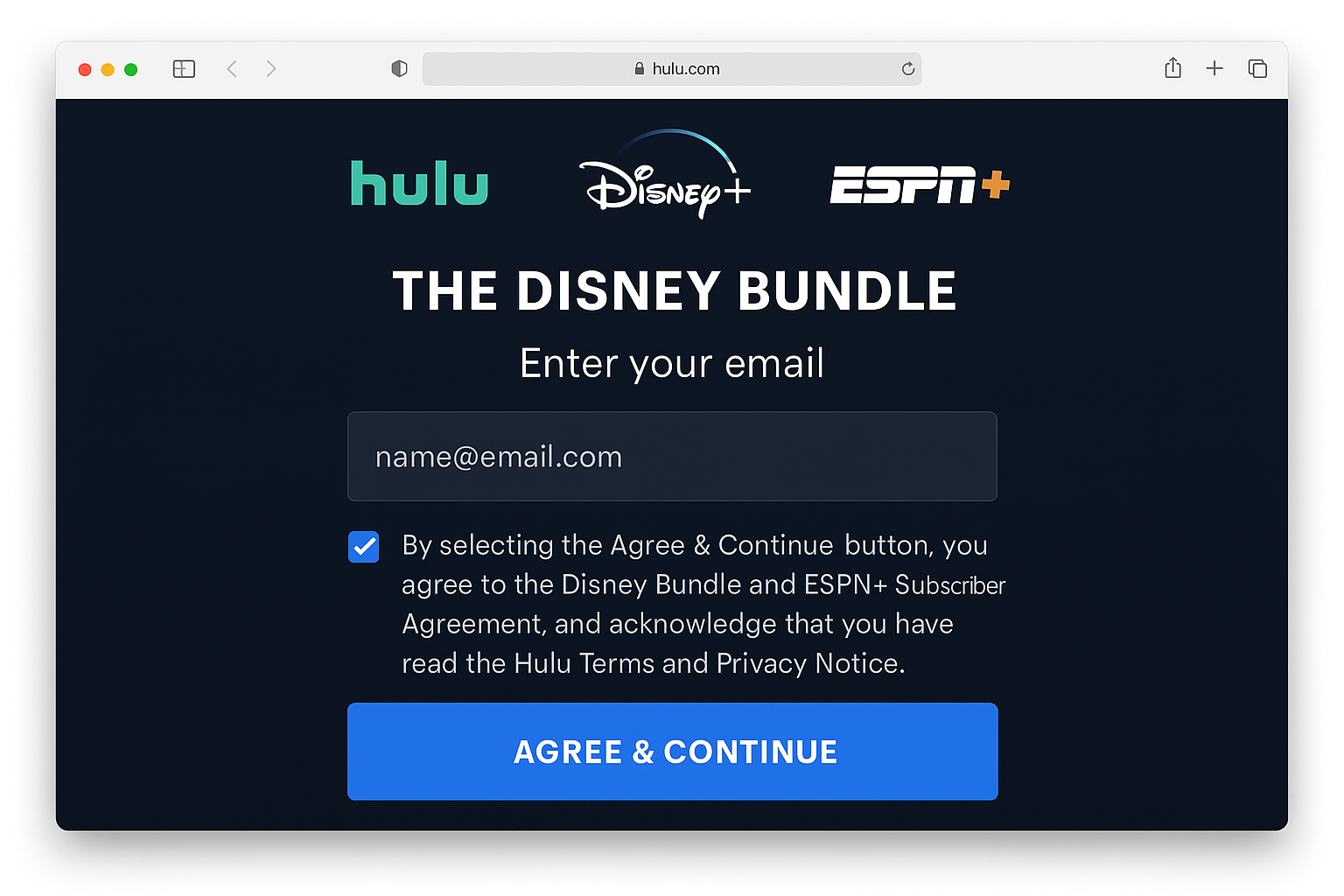
Step 8: Activate Hulu and Showtime Separately
Important: Hulu and Showtime activation isn’t automatic! After your Spotify Student verification is complete:
- Go to your Spotify account services page
- Look for Hulu activation option and click to set up
- Create your Hulu profile (or link an existing account)
- Repeat for Showtime activation through the same services page
- Confirm all services are active in your account dashboard
This separate activation step catches many students off guard – it’s not exactly intuitive!
Platform-Specific Setup
Web Browser Setup
Access all services through their web players:
- Spotify: Go to open.spotify.com and log in
- Hulu: Go to hulu.com and log in with your bundle credentials
- Showtime: Access through Hulu or showtime.com
macOS App Installation
Install Spotify:
- Download the Spotify app from spotify.com/download
- Drag the app to your Applications folder
- Launch Spotify and log in with your student account
Install Hulu:
- Download Hulu from the Mac App Store or hulu.com
- Log in with the same credentials used for your bundle signup
iOS App Setup
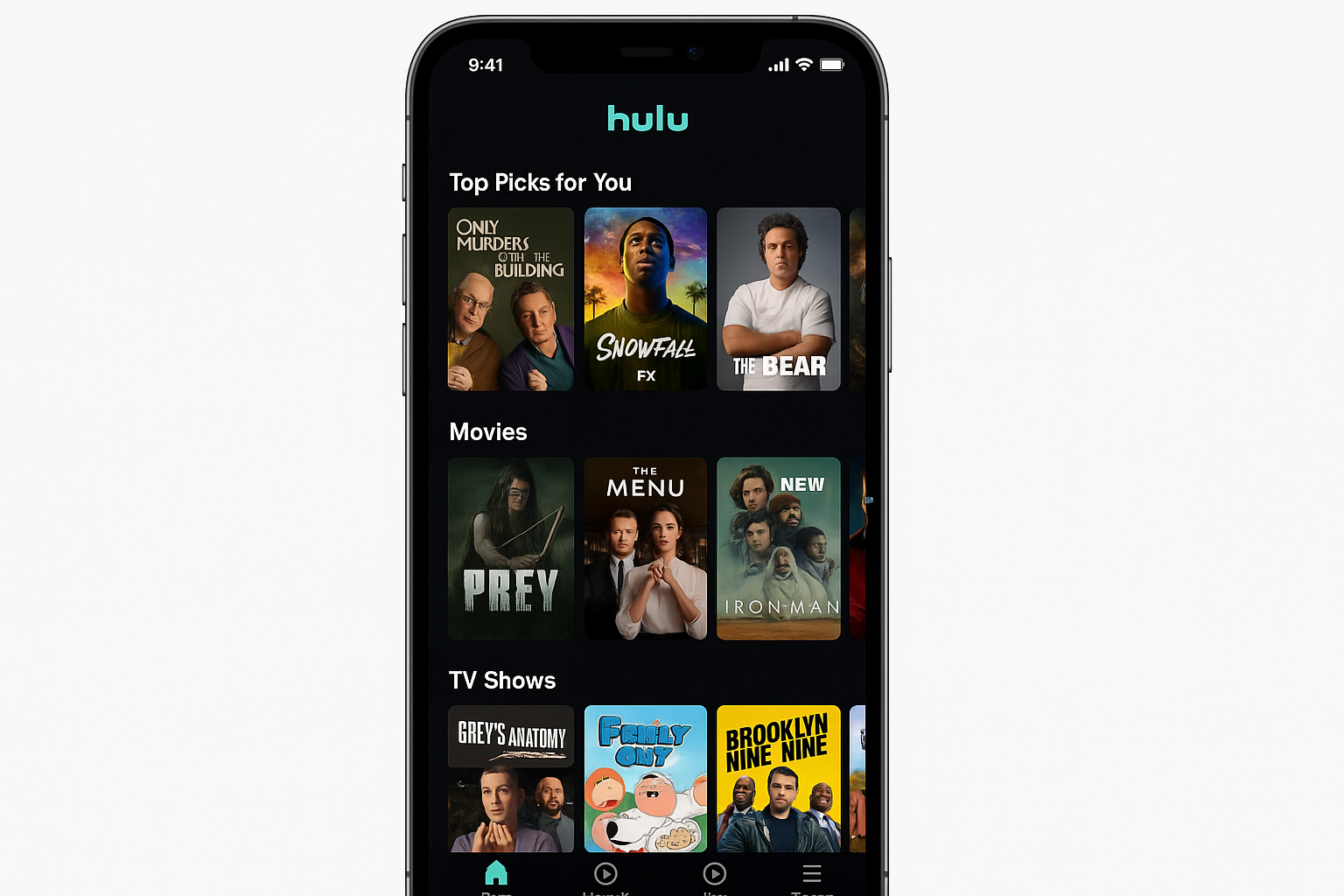
Download apps from the App Store:
- Search for “Spotify,” “Hulu,” and “Showtime” in the App Store
- Download and install all apps
- Log in to each app with your bundle account credentials
Configuration and Account Management
Verify Your Bundle Status
Check Spotify Premium activation:
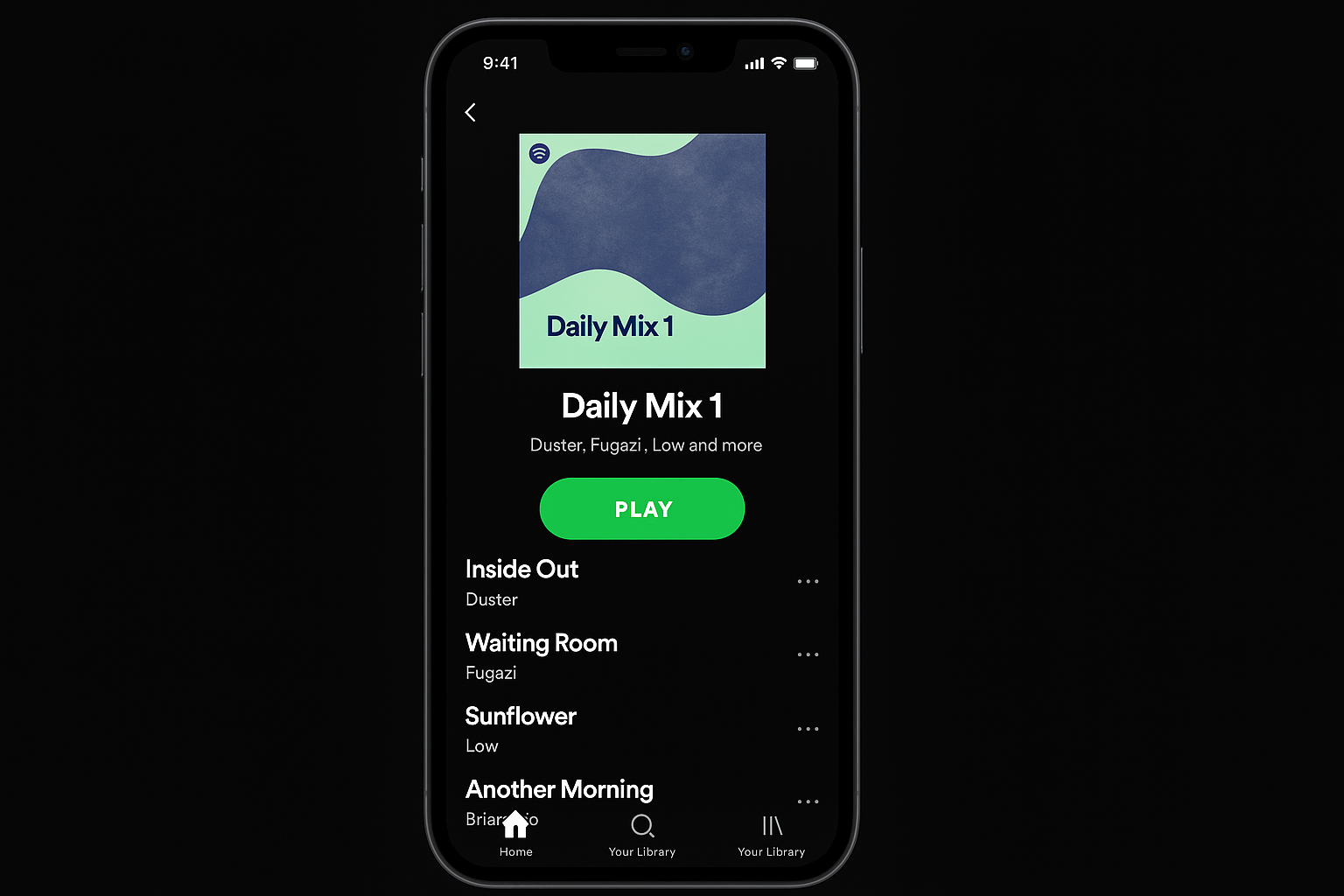
- Look for the “Premium” badge in your Spotify app
- Confirm you can download songs for offline listening
- Verify unlimited skips are working
Check Hulu access:
- Confirm you can stream content (with limited ads)
- Test that your account shows “Spotify Bundle” in billing settings
Check Showtime access:
- Verify premium content is available
- Test streaming quality and offline downloads
Link Accounts Manually (If Needed)
Sometimes the linking process gets confused, like trying to connect two puzzle pieces that almost fit but not quite. If your accounts didn’t connect properly:
- Go to your Spotify account settings
- Look for Services or Connected Apps section
- Find Hulu and Showtime options
- Click Connect and follow the linking process
Billing Management
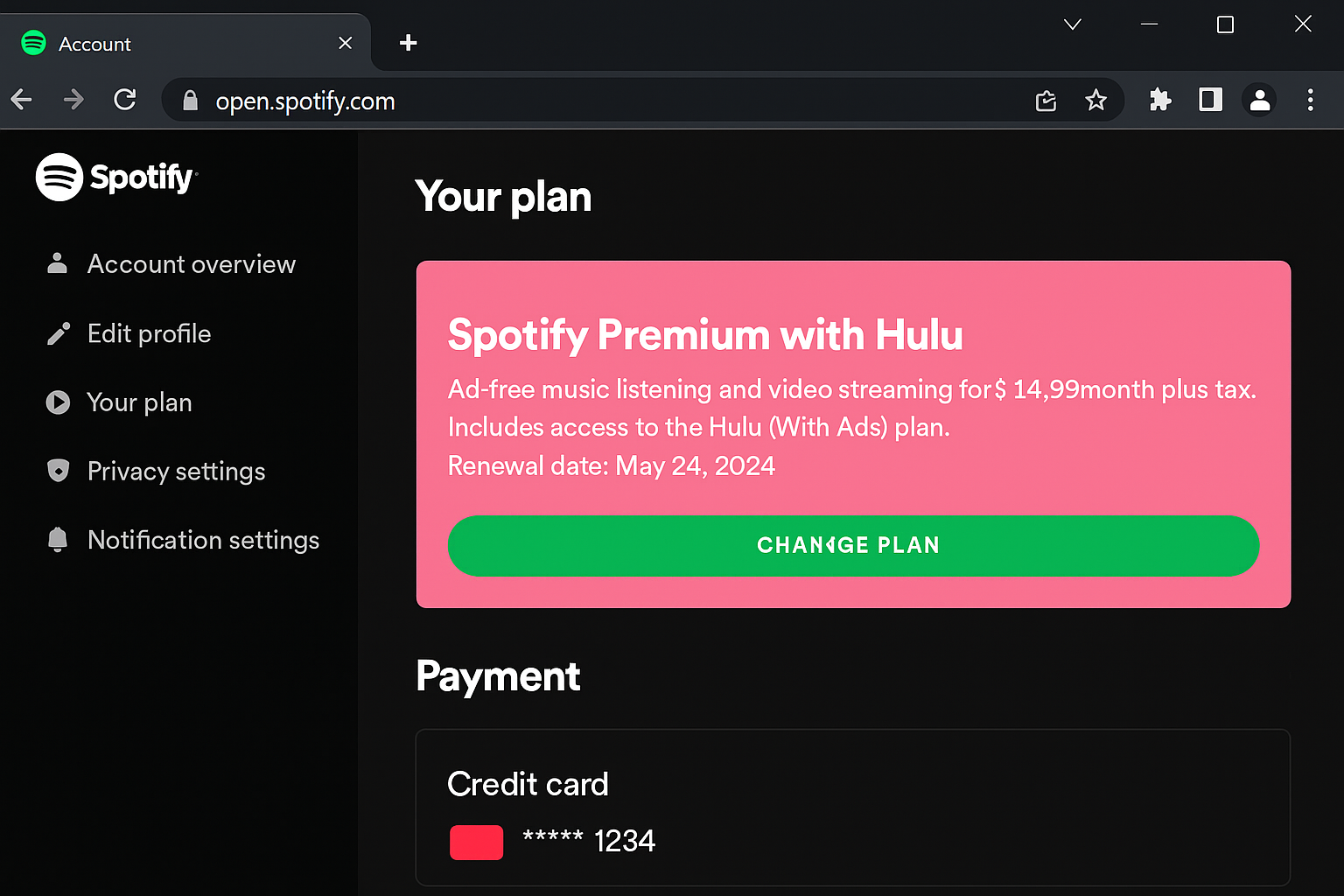
Your bundle billing appears on your Spotify account. To manage it:
- Go to Account Overview in your Spotify settings
- Click Manage Plan to see your bundle details
- Set up billing alerts if your payment method changes
Tips and Troubleshooting
Common Verification Rejections and Fixes
“Document not clear enough”
- Retake photos in better lighting
- Use your phone’s document scanner mode
- Save as high-quality PDF instead of low-resolution JPG
“Name mismatch between documents”
- Ensure your legal name matches exactly on all documents
- If you go by a nickname, use your legal name for verification
- Contact your school’s registrar for updated documents with your legal name
“School not found”
- Use the search dropdown instead of typing manually
- Try searching for your school’s full official name
- Contact support if your accredited school isn’t listed
“Enrollment status cannot be verified”
- Submit more recent documentation
- Use official transcripts instead of screenshots
- Provide a letter from your registrar’s office
Account Linking Problems
“Accounts not connecting” error:
- Clear your browser cache and cookies
- Log out of all services completely
- Log back into Spotify first, then activate other services
- Check that all accounts use the same email address
These linking issues usually resolve with patience. Kind of like untangling headphones, it takes time but eventually works!
Premium features not working:
- Wait 24-48 hours for full activation
- Log out and back in to refresh your account status
- Contact support if premium features don’t activate after 48 hours
Hulu or Showtime showing “subscription required” errors:
- Verify your bundle is active in Spotify account settings
- Check that you completed the separate activation steps
- Try logging out and logging back in
- Ensure you’re using the correct bundle credentials
Billing Issues
Unexpected charges:
- Check if you have overlapping subscriptions to cancel
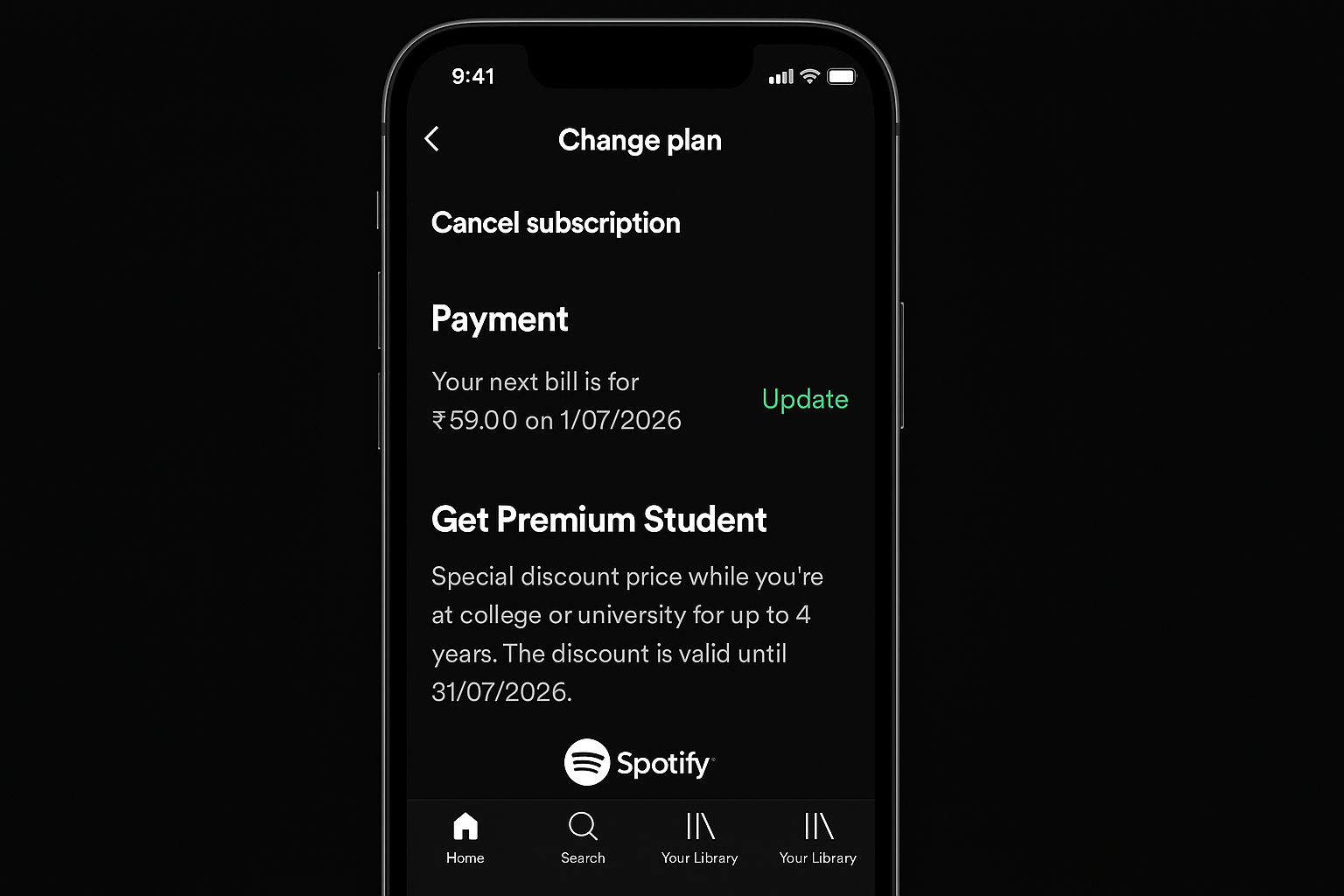
- Verify the student discount applied correctly
- Contact support before the next billing cycle if charges seem wrong
Payment method declined:
- Update your payment information in Spotify account settings
- Ensure your card has sufficient funds
- Try a different payment method if issues persist
Annual Re-verification
Your student status requires periodic re-verification. To maintain your discount:
- Set a calendar reminder for your verification renewal
- Keep current enrollment documents ready
- Update your graduation date if it changes
- Respond quickly to re-verification emails to avoid service interruption
Missing that re-verification deadline means losing your discount – and nobody wants to go back to paying full price!
When to Contact Support
Contact Spotify Student Support when:
- Verification is denied despite correct documentation
- Premium features don’t activate after 48 hours
- Billing shows incorrect amounts after verification
- Service activation fails repeatedly
Contact Hulu Support when:
- Content library access is restricted
- Streaming quality issues persist
- Account linking fails repeatedly
Contact Showtime Support when:
- Premium content isn’t accessible
- Activation through Spotify services doesn’t work
Wrapping Up
Getting through the verification process feels like a small victory and honestly, it should! The bundle saves real money and delivers exactly what most students want: music, shows, and movies all in one affordable package. Just remember to set that re-verification reminder now while you’re thinking about it. Future you will thank present you for being so organized!