

For months, trying to use TikTok on a PC has been a tough challenge. We were forced to use strange desktop apps or try to force workarounds with Android emulators, but that day has come to an end.
TikTok has now finally released a TikTok PC app and it’s available straight within the browser. For the most part, the functionality works the same as it does on the mobile, although you’ll need to wrap your head around the desktop layout, which can be a little confusing at first. Some features are also disabled, but it’s a great first start for desktop users.
If you prefer, you can also check out our YouTube channel, where we posted a short video going on over to use Tiktok on PC and what features are supported and which are missing:
How To Browse TikTok On Your PC
To access TikTok on PC, simply visit TikTok.com. Once you’re there, click the Watch Now button to get started. You now have access to TikTok on your desktop.

You can browse by clicking on each video panel on the trending homepage to watch it, or click discover in the very top right to find more content.
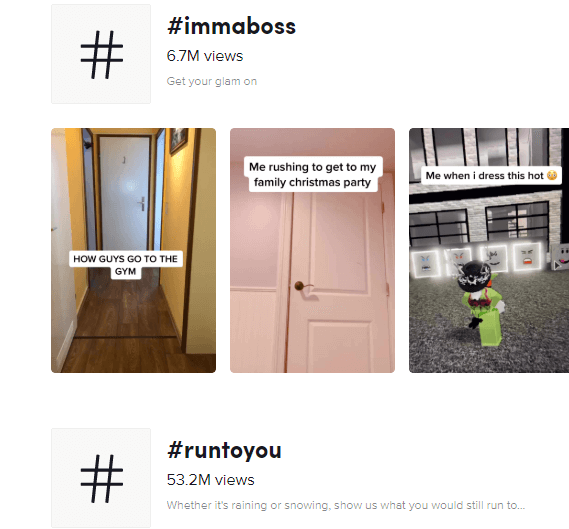
You may notice that functionality is a little bit limited. You won’t be able to search for specific tags or phrases, but there is a workaround. If you want to search for a specific tag, simply click on the URL bar at the top of the page and type the following address:
https://www.tiktok.com/tag/KEYWORD-HERE.
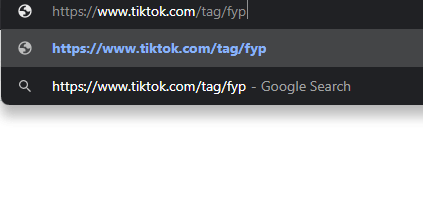
Unfortunately, functionality has been limited to encourage more installs to mobile devices, so this is the only workaround to browse past the standard trending tags right now.

You can also manually search for specific users by using the following URL – https://www.tiktok.com/@USERNAMEHERE.
For now, these are the main workarounds you’ll need to use to browse TikTok on your PC. We predict TikTok will limit functionality on PC for the foreseeable future so you should bookmark this page in case you need to follow our guide again.
How To Upload TikTok Videos & Access Your Account On PC
You can upload videos to TikTok on PC through the main website, and functionality is similar to the mobile app when you follow our steps below. First, visit TikTok.com and click Watch Now if you haven’t already.

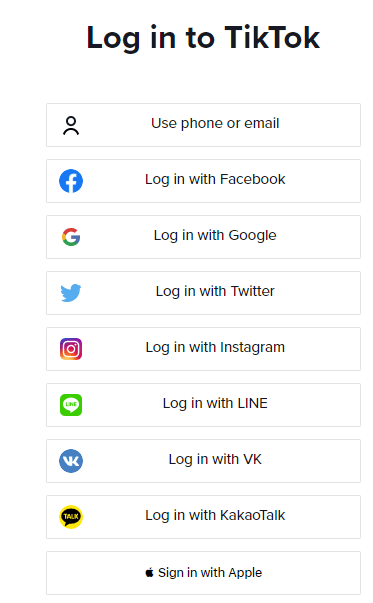
After, click the upload button in the top right, and then choose the login option you’ve used for your account in the past. If you’re new to TikTok, you can use another social platform like Twitter or Instagram to login and automatically create an account.
We would highly recommend downloading the TikTok app first, and setting up your account there as you’ll have more control in the app itself. You can download the TikTok iOS app here and the Android app here. If you need to learn the basics, you can find out how to use TikTok on mobile here.

Once you have signed in, you can start to upload videos. Simply click the upload video at the top right of the screen at any time to get started. You’ll be taken to the upload page. You can click Select a Video to Upload to be taken to your file browser on your computer. Navigate to a video you’d like to upload, and then double click it to start uploading.
It’s important to know that the video must be under 60 seconds in length and 720×1280 resolution or higher. Videos shot in portrait mode will always work out better, but landscape videos will upload too. When a landscape video is viewed, they’ll have black bars above and below the video.
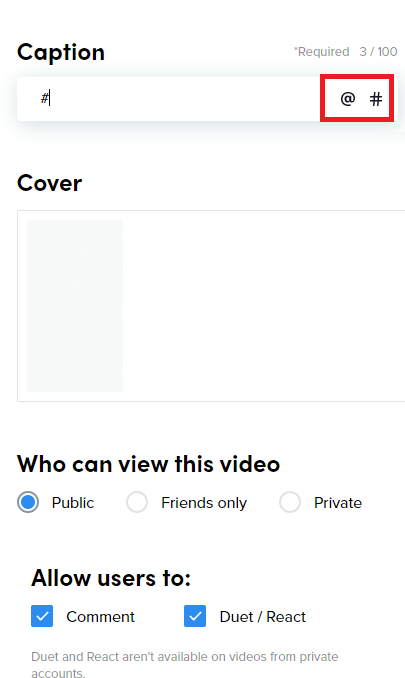
Whilst your video is uploading, you’ll have some options to edit the caption, tag users, and add hashtags. Click either of the @ or # symbols and you’ll be able to type to find tags.
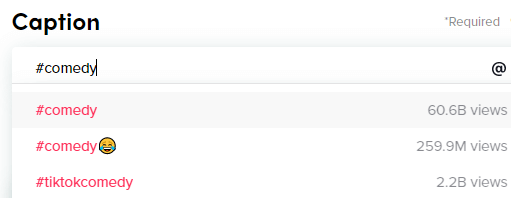
When you start typing, suggestions will appear. This is useful if you want to find popular hashtags, because the results will showcase just how many TikTok videos have been posted for each hashtag. You can read our TikTok marketing guide if you need help with choosing Hashtags.
Many of TikTok’s most powerful editing features are lost on the desktop. You cannot choose music, which is one of TikTok’s biggest features and you cannot add captions on the video itself. However, for those that struggle to upload regularly from their mobile, it’s a great alternative.
If you want to try and get all of the features for TikTok, an alternative option would be to download an Android emulator on your PC. That way, you can download the mobile app within the emulator and get access to all features.
This approach has some difficulties, though. TikTok often crashes or doesn’t respond when you try to upload through an emulator – the developers try their hardest to stop emulator usage so it’s hit or miss whether it’ll actually work.
Will Full TikTok Functionality Come to Desktop Soon?

TikTok is taking a similar approach to Instagram with how they provide access from the browser. Functionality is purposely limited to encourage more app installs.
Unfortunately, this means TikTok’s desktop usage may always lack the great video editing features available on mobile. On top of this, uploading content through Android emulators rarely works. There are many Microsoft Store apps that claim to offer TikTok features on desktop, but through our research we’ve yet to find one that genuinely works.
So what does this mean? You’ll either need to settle for the limited functionality on the official TikTok website, or if TikTok is paramount to your work or social life, you’ll need to change up your workflow so that you can easily transfer videos to and from your mobile device to upload them there.
Did our guide to using TikTok on PC help you? Let us know your thoughts, or reach out and ask for advice by leaving a comment below.