
If you are producing your own video or other media project, you can’t just take whatever music you want from the Internet. If you are flying a jet fighter over the skies of America and filming it, you can’t use Kenny Loggins’ “Danger Zone” song and hope to get away with it. There’s the small icky matter of copyright.
So people who are making their own media projects, who require any kind of audio, are always looking for music which they can use legally. YouTube decided to make it easier by providing a YouTube audio library of free audio clips which you can use in your video projects. The clips are provided by ordinary musicians looking to get their work out there into the world.
The YouTube Audio Library – A Goldmine Of Royalty-Free Music
You’re probably wondering where this YouTube audio library is. Well, it’s in an area of YouTube known as YouTube Studio. To get there, either click on that link or go to your menu in the top-right hand corner of your YouTube page.
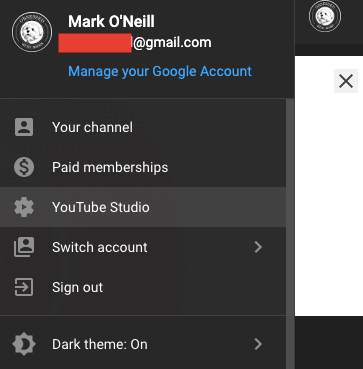
In both cases, you will have to sign in with your Google account details. Once you are inside YouTube Studio, scroll down the menu on the left-hand side until you come to Audio Library. Click on that to open it.
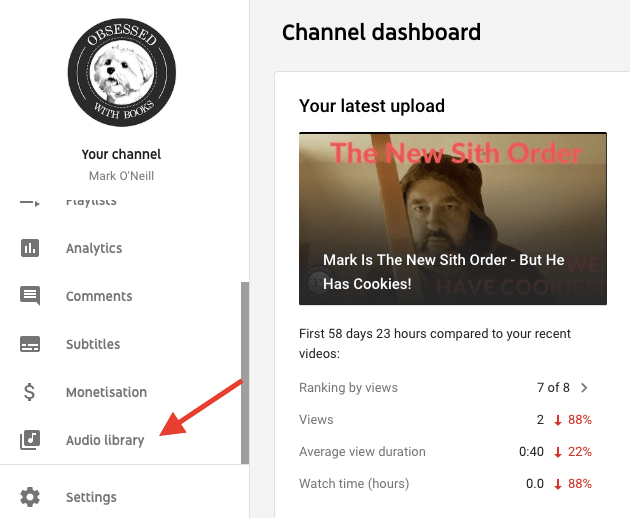
The YouTube Audio Library is split up into two sections – Free Music and Special Effects. YouTube updates both sections on a semi-regular basis with new stuff. So if you don’t see something you like, check back again another time.
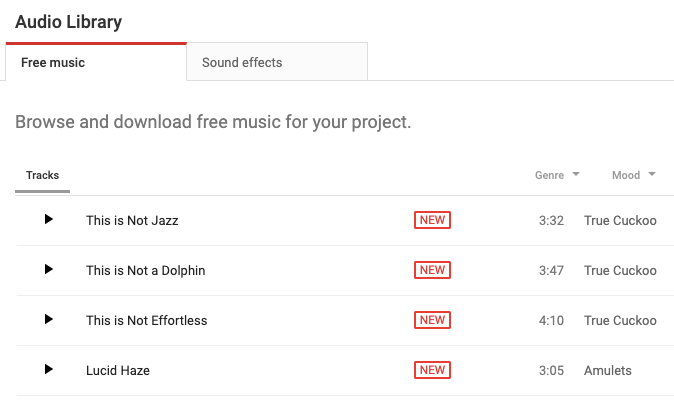
Each entry in the library is basically a MP3 file which you can download, and then drag into the media project creation tool of your choice (such as iMovie for Mac owners). But first you need to find the one you want.
You can narrow and simplify your search by using either the search function, or the filters. If you have a very good idea what you are looking for, the filters are the way to go. It categorizes the music into Genre, Mood, Instrument, Duration, and Attribution. You can use all five filters at the same time to really drill down to the good stuff.
Genre & Mood
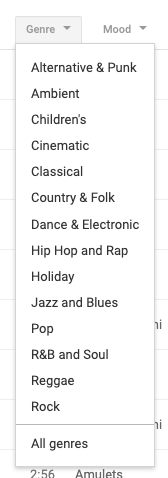
Knowing what type of music you want is half the battle. Do you want something deep, dark, and moody? Something exciting? Or something light, cheerful and positive? If you know for sure, then use the Genre and Mood filters.
Instrument
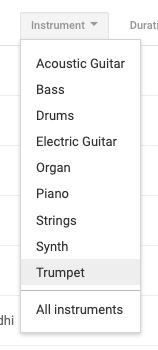
Here, you can filter by instrument. Maybe you want a little bit of light piano music? Or someone playing guitar? Or go really crazy with the trumpets?
Duration
This is an important one because you ideally want to get something that fits the length of your media project. The last thing you need is a 12 minute audio clip for a 5 minute project. You either have to edit the music down with something like Audacity, or have the music cut off just as it’s getting good.
So to get the right duration, use this filter.
Attribution
From a legal perspective, this is an important one as it deals with copyright and Creative Commons. Just because you are getting this music for “free” doesn’t mean that every artist who has contributed to YouTube’s audio library doesn’t want something in return.
Some people don’t want any attribution at all as they perhaps only do it for the fun of it. But there will be others – professional musicians – who will want some kind of acknowledgement and shout-out for their work.
So the Attribution filter is there to filter out who wants recognition and who doesn’t. For those that do, just put their name in the closing credits of your project, and / or in the video description on YouTube.
Deciding On Which One You Want
Once you have tweaked the filters and got yourself a list of possible candidates, it’s now time to listen to them and decide which one is the lucky winner for your naked mud-wrestling video.
You will see a small black arrow on the left-hand side of each clip. That is the Play button so you can preview the music.
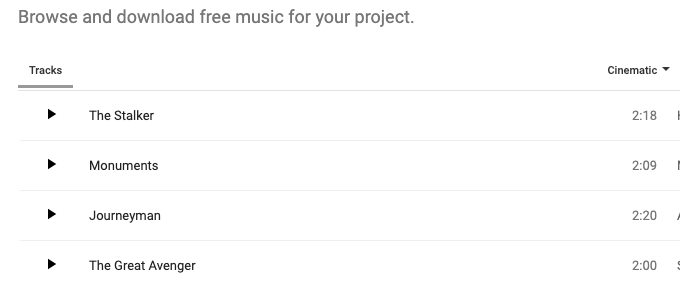
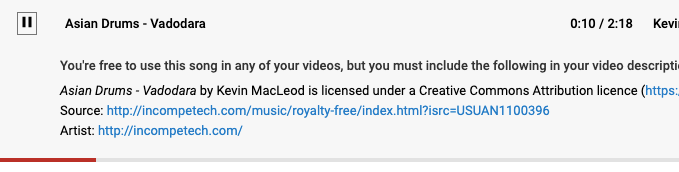
Click on the one you want to listen to and it will begin playing. You will also see if attribution is required or not. In this case, it’s not required.
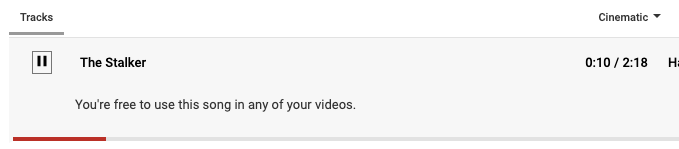
In others though, attribution is required and you will be told what is needed to be done.
When you have found the one you want to use, go to the far-right of the clip and click the download icon. The music file will now be downloaded directly to your computer.
It should be noted however that these YouTube audio library clips are only offered for non-commercial videos which will appear on YouTube. If you intend to make commercial for-profit videos either on or off YouTube, you should instead buy a professional license for a piece of music. AudioJungle is one such possible site.
Have you ever used the YouTube audio library for your projects? What do you think of the music on offer? Let us know in the comments below.