

Do you need a program that you can use to simultaneously voice/video chat, stream from your PC, and message friends, all while gaming? Discord is an instant messaging software that has lots of features and is a top choice for gamers to connect with their friends.
You can download Discord for free on any PC. All you need to do to start using it is create an account. Once you do, you will be able to have access to all of Discord’s features. This includes its own in-game overlay.
What is this overlay, though, and what is it used for? Here you can learn more about this Discord overlay feature, why it’s so useful, and how you can use it yourself while playing your favorite games.
What Is Discord’s In-Game Overlay?
This feature essentially lets you use Discord’s messaging and voice chatting while playing a game. You can open and close it at any point, making it simple to use even while in the midst of gaming.
It’s best to use when you’re playing a game with other people, so you can chat and coordinate easily while you play. It’s also useful for when you want to stream your gameplay over Discord and manage it while you’re in-game.
Discord makes using this feature very easy and customizable to your preferences. You can use the Discord overlay with just the games you select, and you can have the overlay show up over your game, or set it to be completely invisible unless you open it up yourself.
How To Open The Discord Overlay
Before opening your game, go into Discord and click on the User Settings. This is a small gear icon located at the bottom of the window, next to your username.
Under the App Settings, click on the Overlay option. Toggle Enable In-Game Overlay to on by clicking the slider. You can also change what button combination brings up the overlay in-game by clicking the keyboard icon underneath Toggle Overlay Lock.
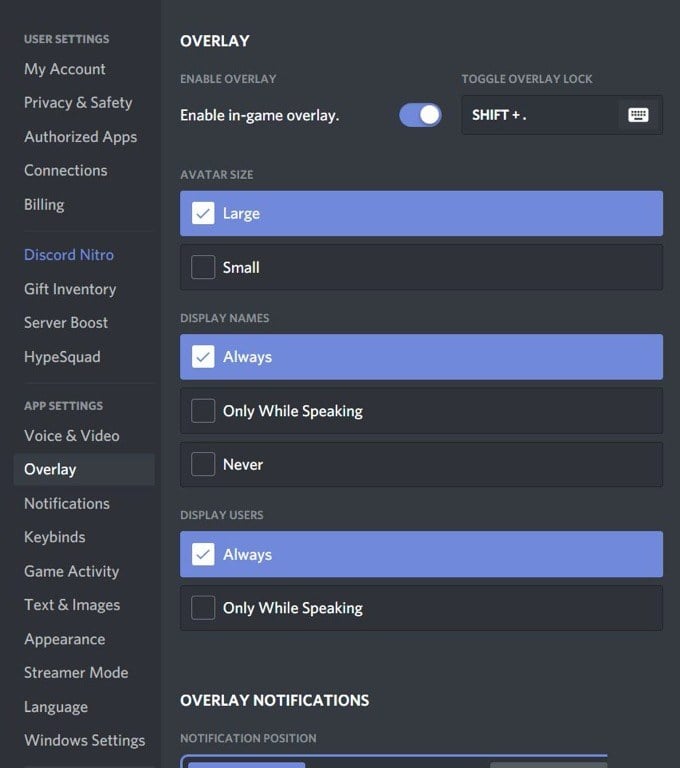
You can also change settings for displaying names, avatars, and other users, as well as notifications that pop up while you’re gaming.
Next, go to Game Activity under the App Settings. You should see a list of games that have been connected to Discord. If you don’t see any, you can connect a game by opening it, then clicking on Add it! at the top. You can also connect your Steam account or other gaming platform to see your games. To do this, click on Connections under the User Settings.
Next to your games you will see an icon of a computer. You can toggle the overlay to be on or off for each specific game. Make sure the overlay is on for the games you want to play with it.
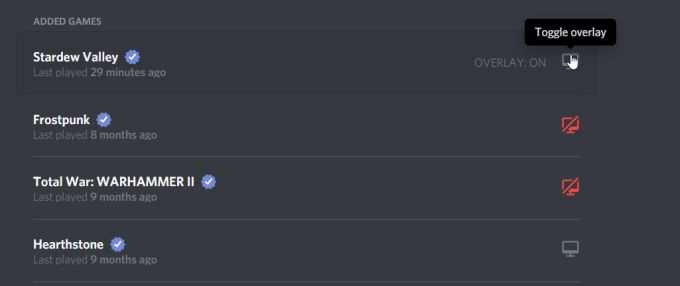
Now, open the game you want to play using the overlay. You can now use the keyboard shortcut Shift + ‘ to open the overlay, or whatever shortcut you set to open the overlay.
How To Use The Discord Overlay
After opening the overlay, you can open any chats you may be part of. You can also search for users or channels you want to start a chat in.
In the overlay, you can direct message or voice chat. To start a voice chat, you can click on the phone icon in the top right. Depending on how you altered your settings for the overlay, a user’s name will show up when voice chatting. You’ll be able to see all users in the voice chat in the upper left corner, or you can open the overlay and move the voice chat box to anywhere on the screen.
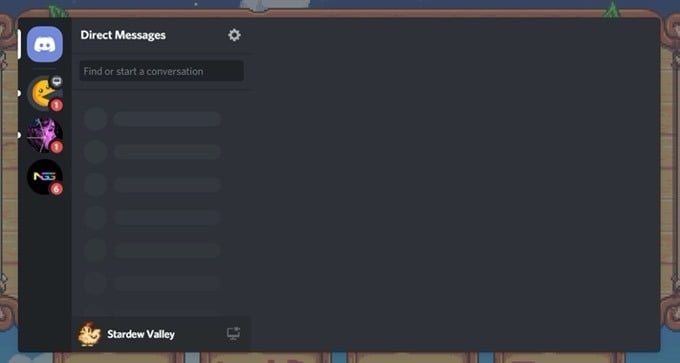
You can also pin a chat to have it stay open even when you close the overlay. To do this, click on the thumbtack icon in the top of the window. The chat should detach from the sidebar, and you’ll have the ability to move the chatbox around and resize it so it doesn’t interfere with your game.
You can press the ] key to type in the chat, or whatever key you may have set this action to in Discord. Also, if you want to change the opacity of the chat box, you can do so by selecting Opacity in the top right and sliding the bar until you find the opacity level you like.
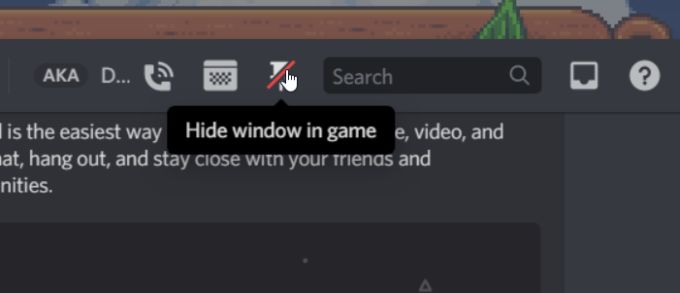
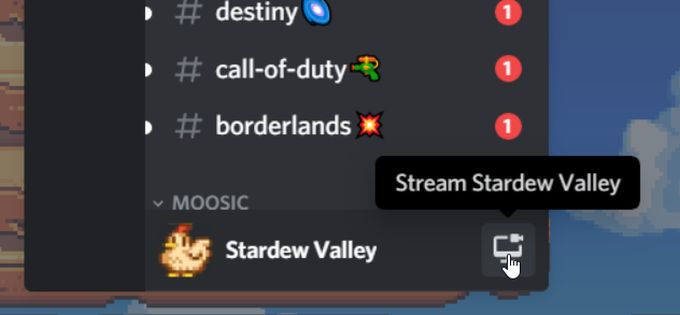
Another option you have is to stream your gameplay over Discord. If you’re in a server channel, you can click on the computer icon in the bottom corner next to the title of your game. This will start streaming your game over the server to those who choose to watch.
You can change the settings of the Discord overlay as well while you’re in-game. Once the overlay is opened, navigate to the gear icon to open the settings. You can change the same ones under the Overlay Settings in Discord’s main program.