
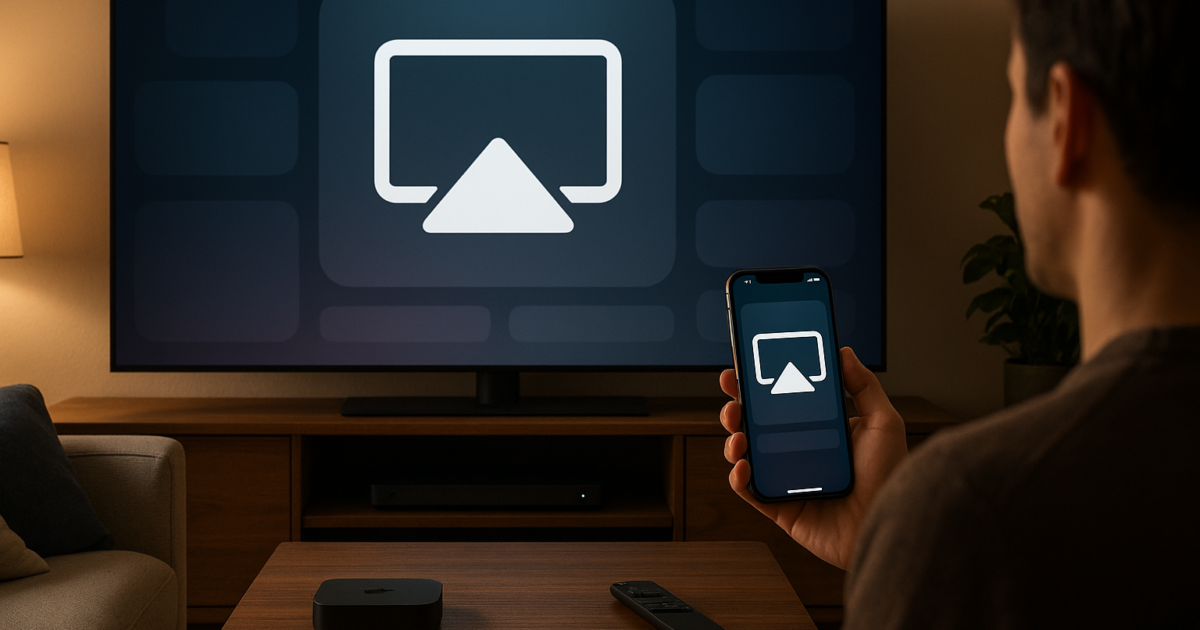
Streaming content becomes a battlefield when you have multiple Apple devices and family members all wanting to use the TV. AirPlay with Roku creates a wireless streaming system. Anyone with an iPhone, iPad, or Mac can instantly share their content to any TV in your house. No fighting, no cables, no headaches.
What is AirPlay with Roku?
AirPlay is Apple’s wireless streaming technology. It sends content from your Apple devices directly to compatible Roku streaming players. Unlike basic screen mirroring, AirPlay maintains high quality. It lets you continue using your device for other tasks. For families with multiple iPhones, iPads, and Macs, this creates an entertainment ecosystem. Anyone can share their content without complex setup or device switching.
Roku added AirPlay support to most devices made in 2019 and later. This makes it one of the most affordable ways to bring AirPlay to multiple rooms. The technology works over your Wi-Fi network. You don’t need additional cables or dongles.
Prerequisites
Before setting up your multi-device AirPlay system, make sure you have:
- [ ] Compatible Roku device running Roku OS 10.0 or later (most 2019+ models)
- [ ] Apple devices with iOS 12.3+, iPadOS 13+, or macOS 10.14.5+
- [ ] Same Wi-Fi network for all devices (2.4GHz and 5GHz networks both work)
- [ ] Stable Wi-Fi connection throughout your home
- [ ] Updated software on all devices
| Requirement | Details |
|---|---|
| Roku Models | Roku Ultra, Streaming Stick 4K+, Express 4K+, and most 2019+ devices |
| Network | Stable Wi-Fi connection recommended for optimal performance |
| Apple Devices | iPhone 6s+, iPad Air 2+, MacBook Air 2013+, or newer |
Check your Roku model compatibility at Settings > System > About on your Roku device.
Step-by-Step Setup Guide
Step 1: Enable AirPlay and HomeKit on Your Roku Device
Start by activating AirPlay on your Roku player. You need to do this for each Roku device in your home.
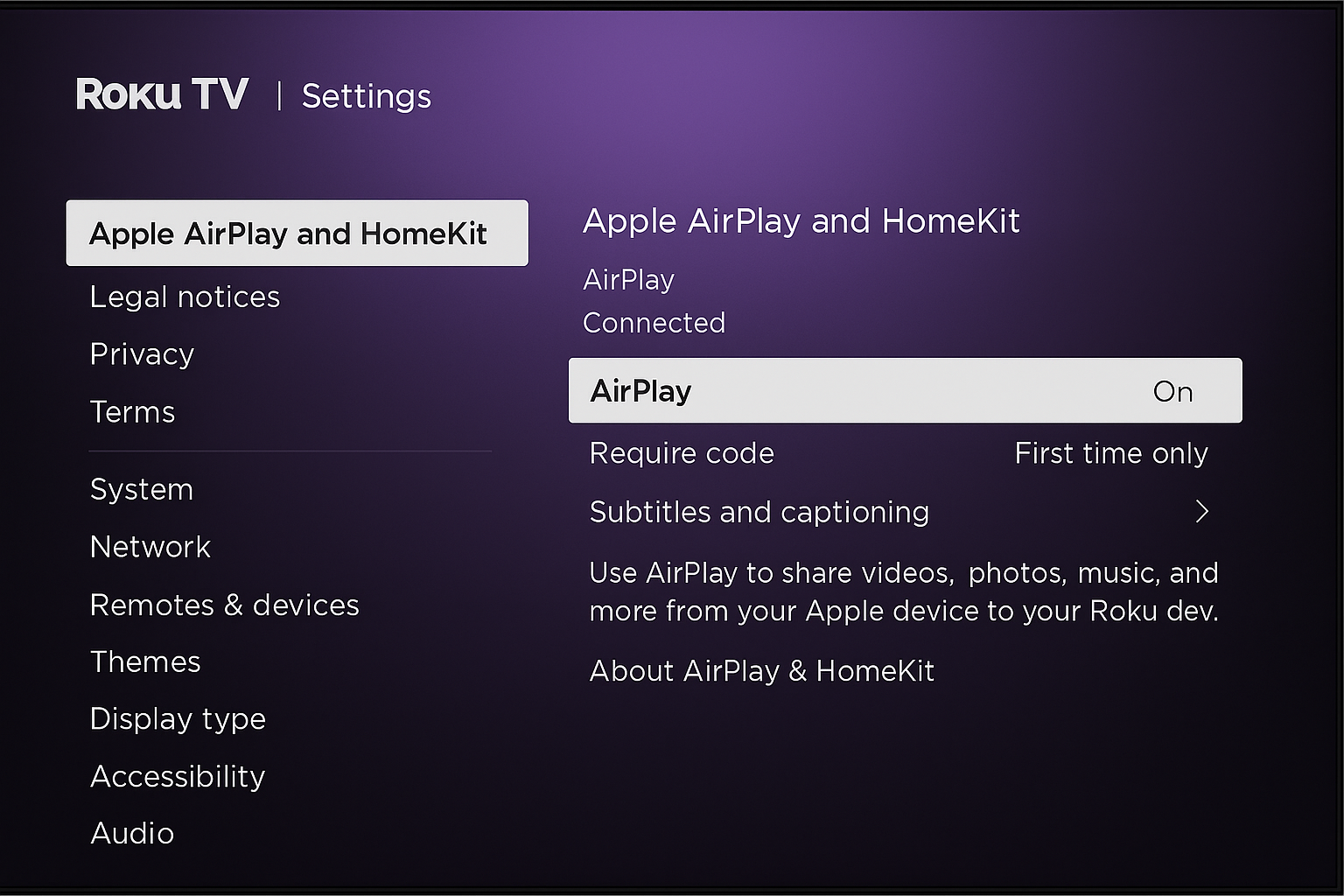
Navigate to Settings > Apple AirPlay and HomeKit > AirPlay and set it to On.
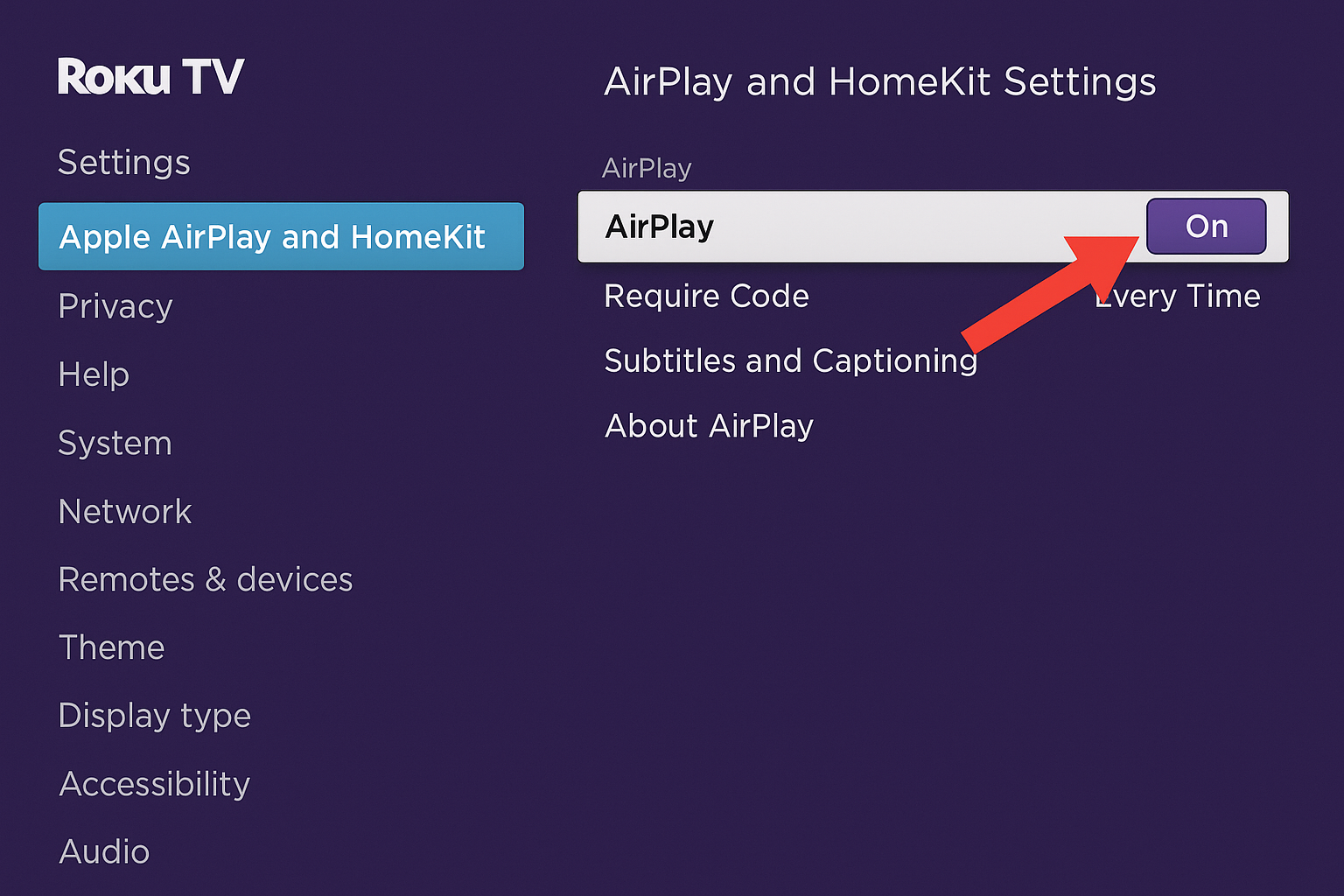
You’ll see options for access control. For multi-device households, choose Everyone initially. This makes setup simpler. You can adjust security settings later.
Step 2: Set Up HomeKit Integration (Optional)
HomeKit integration allows you to control your Roku through the Apple Home app and use Siri voice commands. This is particularly useful in multi-device households.
In Settings > Apple AirPlay and HomeKit > HomeKit, select Set up. You’ll see an 8-digit HomeKit setup code on your TV screen. Open the Home app on your iPhone or iPad, tap the “+” button, and select Add Accessory. Scan the code or enter it manually.
Once connected, you can:
- Control Roku with Siri: “Hey Siri, turn on the Living Room TV”
- Include Roku in HomeKit scenes and automations
- Control multiple Rokus from the Home app
Step 3: Customize Device Names for Multi-Room Setup
Generic device names like “Roku-2847” will drive you crazy. This happens when three family members try to stream to different rooms at once.
Go to Settings > System > About and select Rename device. Use room-specific names like “Living Room Roku” or “Kids Bedroom Roku.”
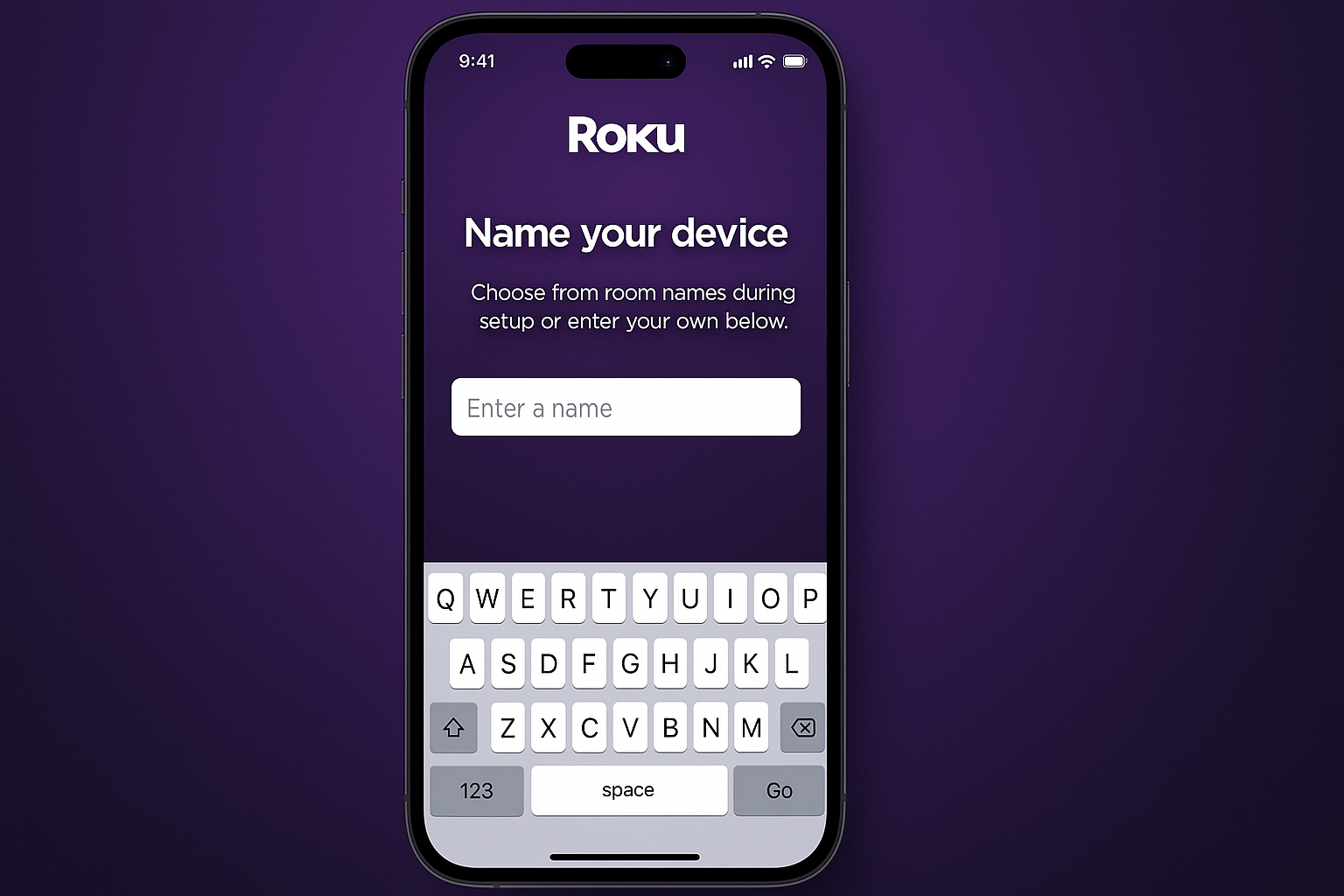
Tip: Use consistent naming patterns across all devices. This helps when you have multiple Rokus. Family members can quickly identify the right destination.
Step 4: Connect Your iPhone or iPad
On your iPhone or iPad, connect to the same Wi-Fi network as your Roku device.
Open Control Center. Swipe down from the top-right corner (iPhone X and later) or swipe up from the bottom (older iPhones).
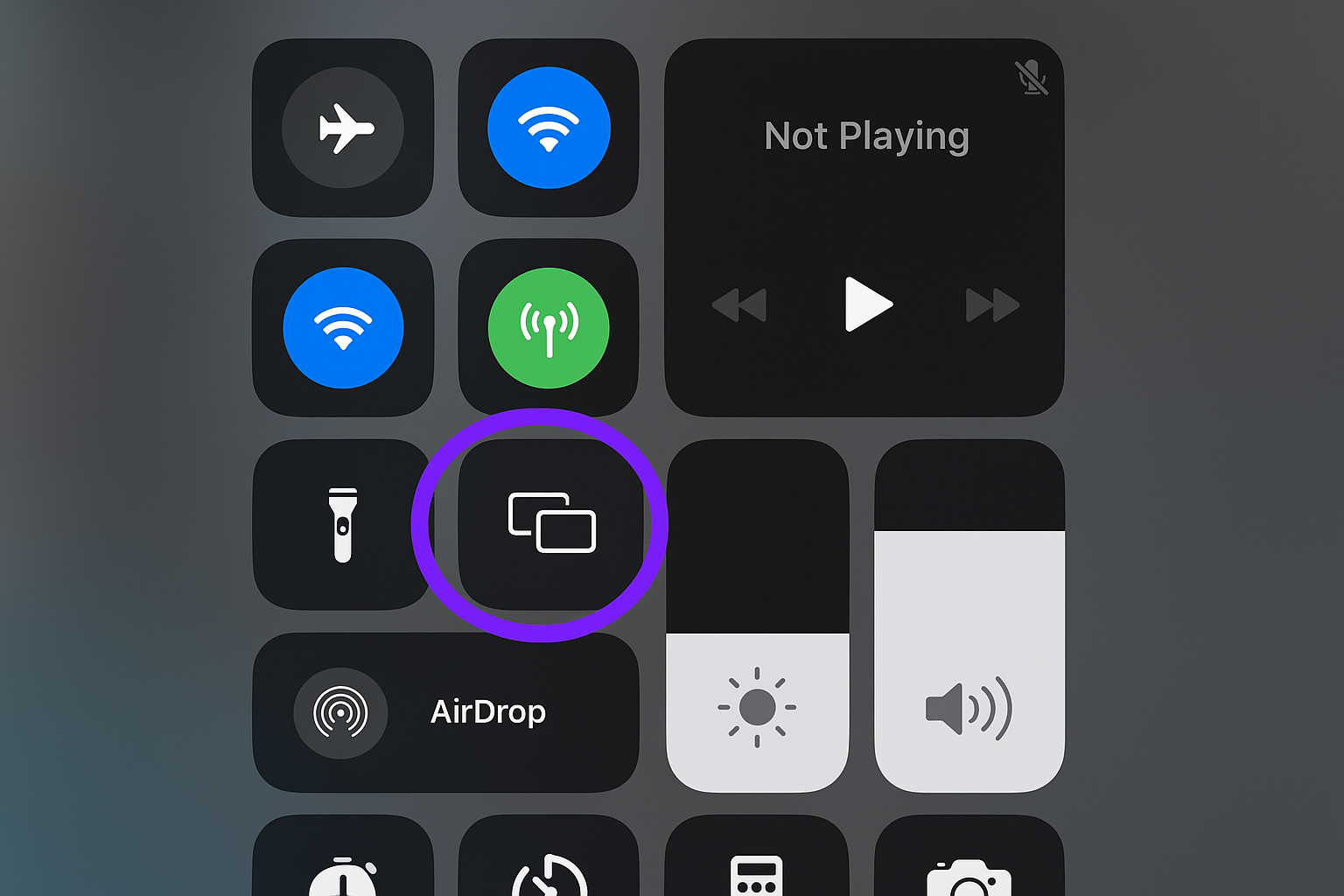
Tap Screen Mirroring and select your Roku device from the list. You may see a 4-digit AirPlay passcode on your TV screen (different from the 8-digit HomeKit setup code). Enter this on your iPhone to complete the pairing.
Step 5: Set Up AirPlay from macOS
On your Mac, click the AirPlay icon in the menu bar. If you don’t see it, go to System Settings > Displays. Check Show mirroring options in the menu bar when available.
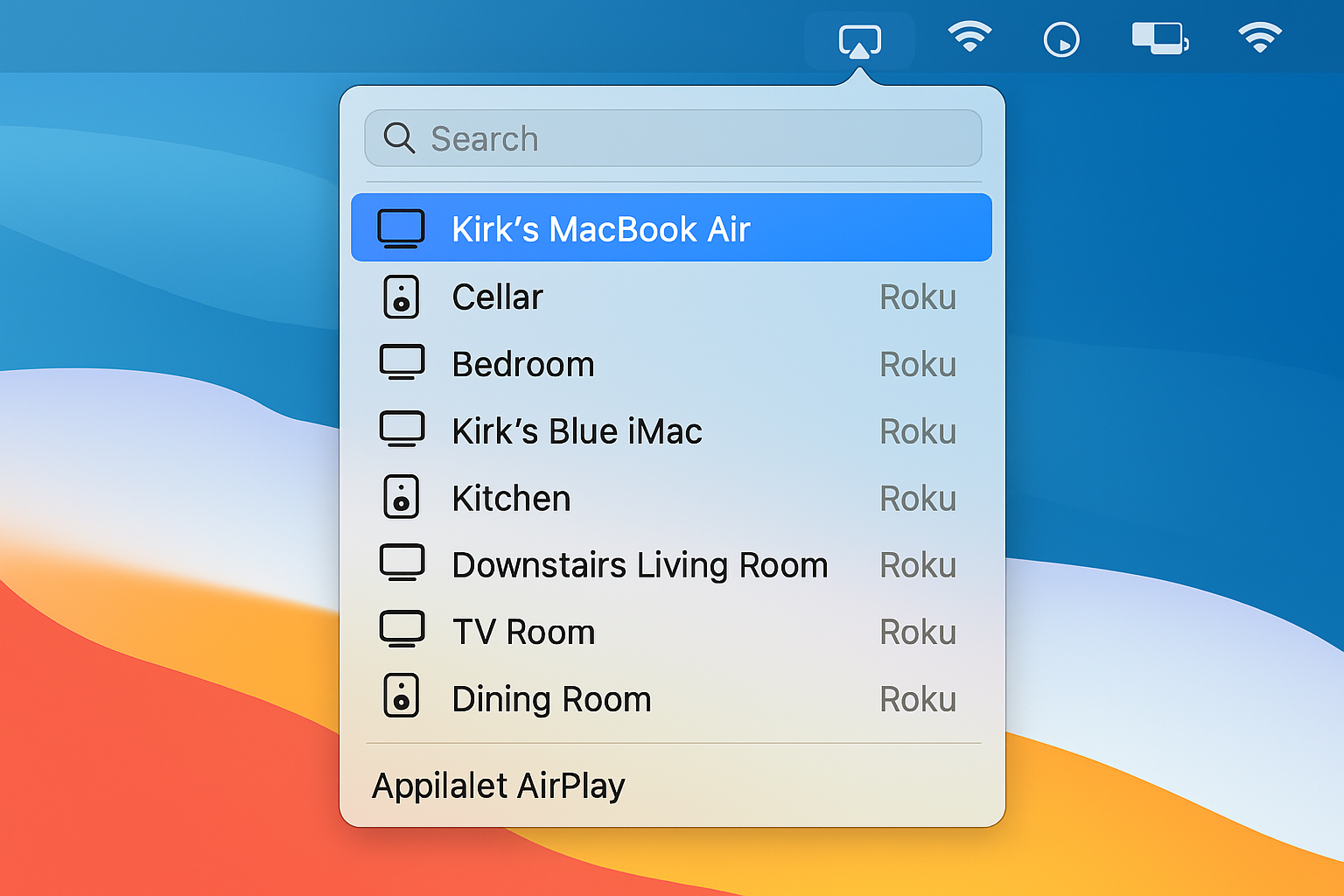
Select your Roku device. Choose whether to mirror your display or use it as a separate display. For presentations or content sharing, mirroring usually works best.
Step 6: Configure Multi-Device Access Settings
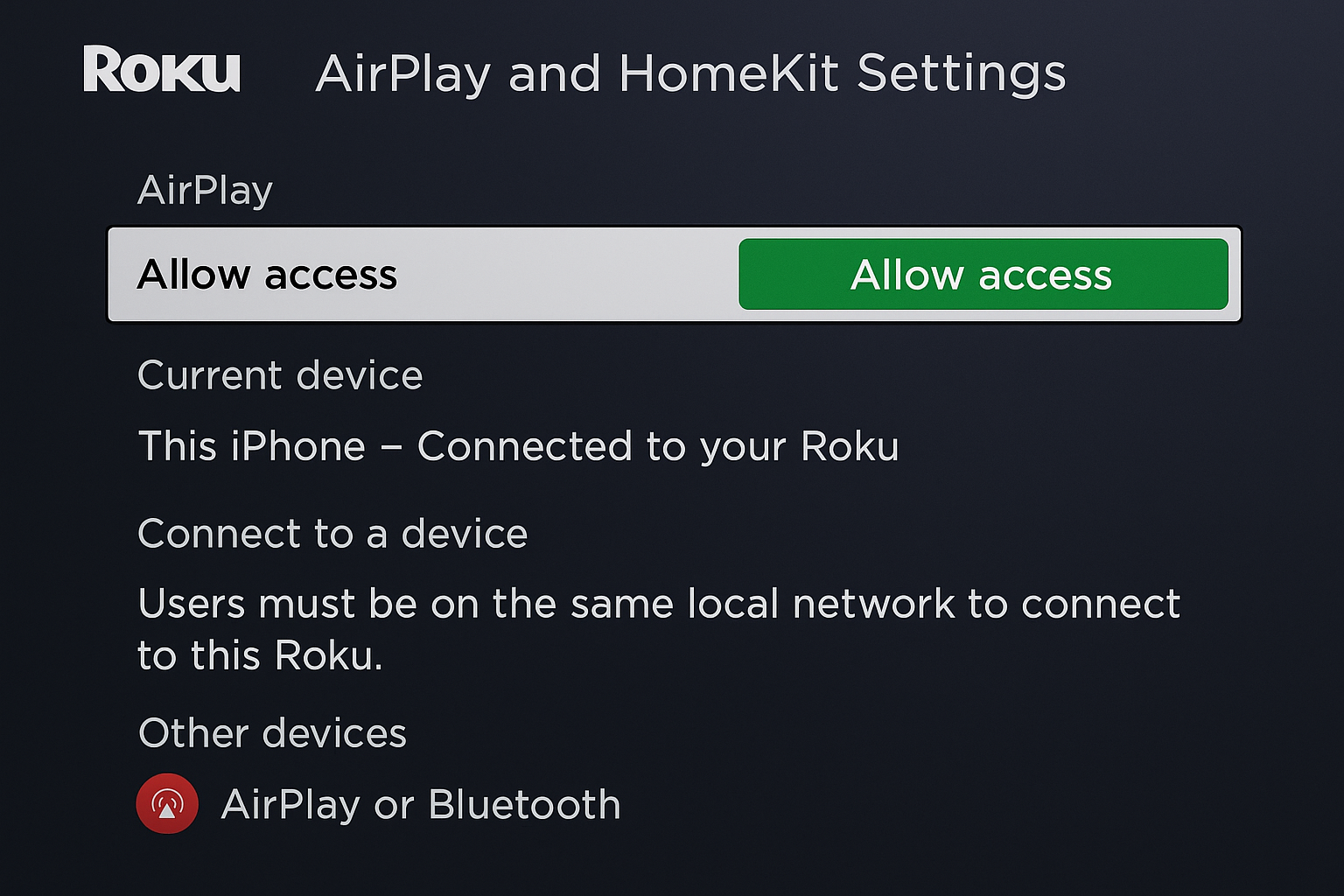
Return to your Roku’s AirPlay settings to optimize for multiple users. Go to Settings > Apple AirPlay and HomeKit > AirPlay.
Set Require code based on your household needs:
- First time only: Devices remember the connection after initial pairing. Good for trusted family devices.
- Every time: Requires passcode entry for each connection. Better for households with guests or security concerns.
Step 7: Optimize Roku Performance Settings
For better AirPlay performance, especially with multiple devices:
Go to Settings > System > Power and enable Fast TV start. This keeps your Roku in a low-power state instead of fully shutting down, allowing faster AirPlay connections.
Audio and Music Streaming with AirPlay
AirPlay isn’t just for video content. You can stream audio from Apple Music, Spotify, podcasts, and other audio apps directly to your Roku.
Streaming Music from iPhone/iPad
- Open your music app (Apple Music, Spotify, etc.)
- Start playing a song
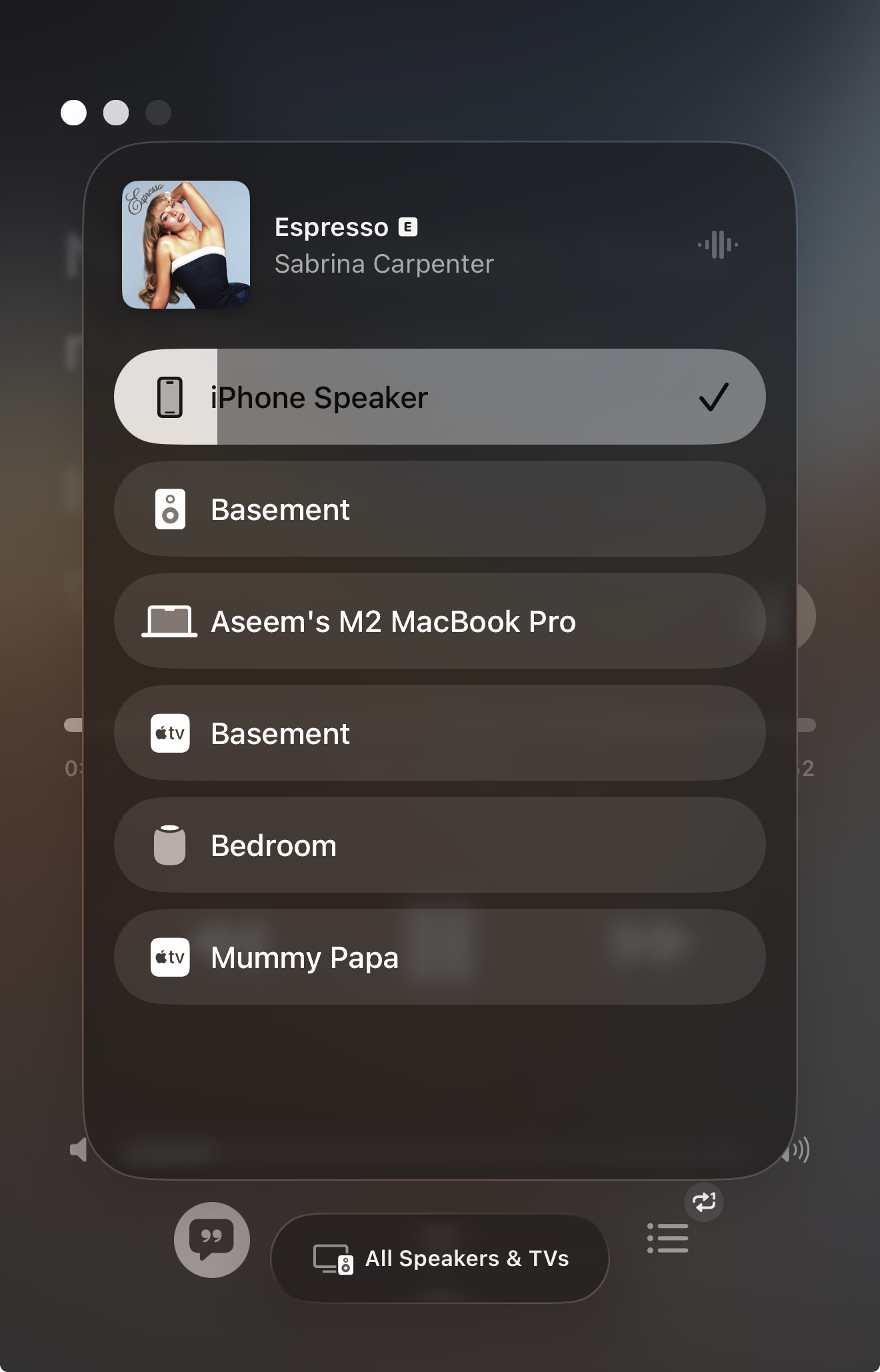
- Tap the AirPlay icon in the app or use Control Center
- Select your Roku device
- Audio will play through your TV speakers
Streaming Audio from Mac
- Click the volume icon in the menu bar while holding Option
- Select your Roku device under “Output Device”
- All Mac audio will route to your TV
Audio Quality Tips:
- Use 5GHz Wi-Fi for better audio quality and less interference
- Keep your device within reasonable range of your router
- Close unnecessary apps to reduce audio dropouts
Configuration for Multi-Device Households
Managing Multiple Apple Devices
When several family members want to use AirPlay at the same time, only one device can actively stream to each Roku. However, you can set up multiple Roku devices. This lets you handle different streams at the same time.
Device Priority Setup:
- Establish room assignments: Designate which family members primarily use which Roku devices
- Create handoff protocols: Use the “Stop Mirroring” option in Control Center to quickly disconnect and allow others to connect
- Set up notifications: When someone wants to use a busy Roku, they can ask the current user to disconnect
- Use HomeKit scenes: Create scenes that automatically switch between different family members’ preferred settings
Quick Handoff Process:
- Current user opens Control Center
- Taps “Stop Mirroring” or “Disconnect”
- Next user immediately connects through their Control Center
- Total handoff time: under 10 seconds
Network Optimization
AirPlay performance depends on Wi-Fi stability rather than specific speed requirements. Here’s how to optimize your network:
Wi-Fi Band Selection:
- 5GHz: Better for high-quality video and audio, less congested, shorter range
- 2.4GHz: Better range through walls, more congested, adequate for standard content
Router Placement: Position your router centrally. Make sure you have strong Wi-Fi signal in all rooms with Roku devices.
Network Prioritization: If your router supports QoS (Quality of Service), prioritize streaming traffic during peak family usage times.
iOS-Specific Settings
On each family member’s iPhone or iPad, optimize AirPlay performance:
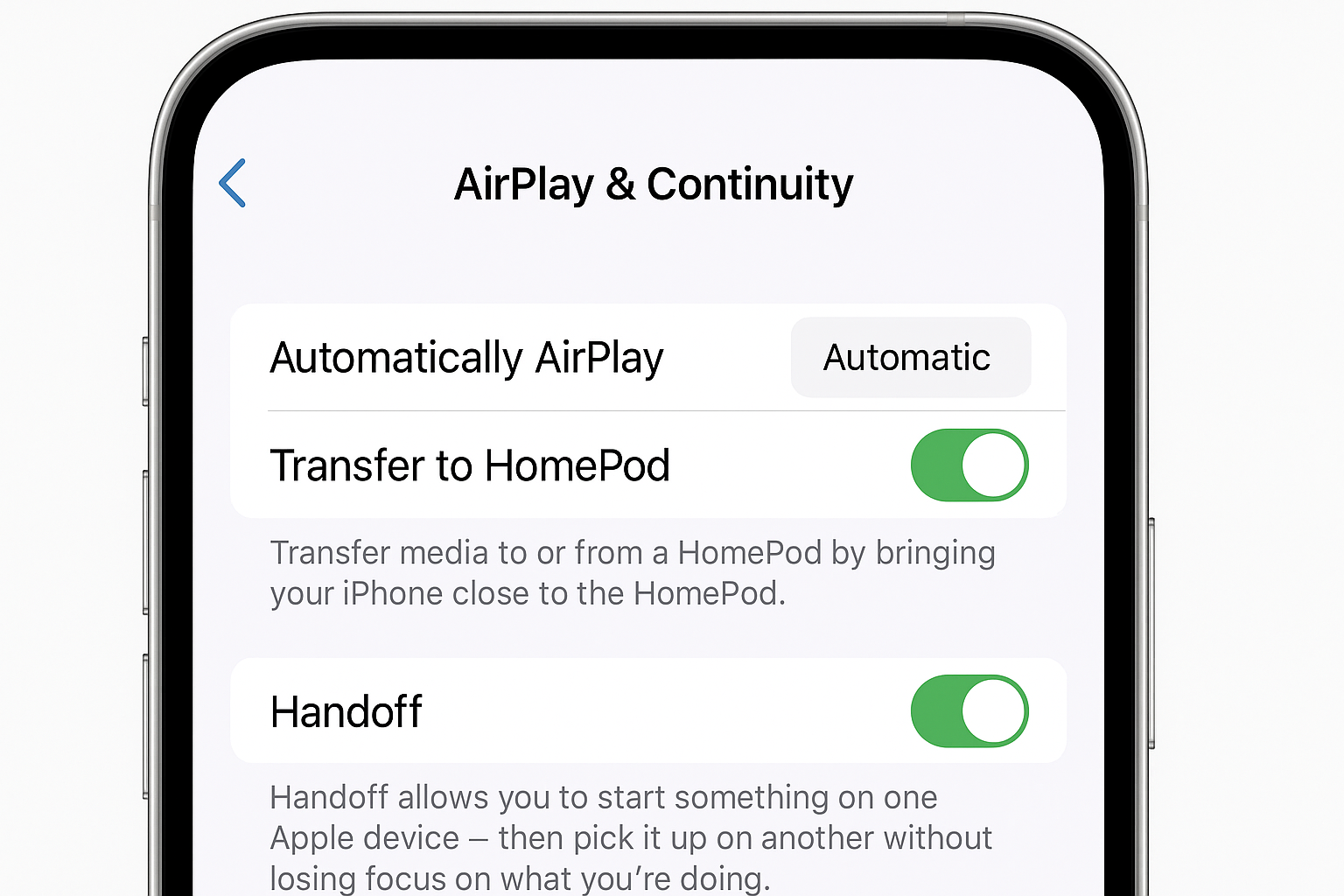
Go to Settings > General > AirPlay & Continuity. Enable Automatically AirPlay. This creates seamless connection to frequently used Roku devices.
macOS-Specific Settings
For Mac users in the household, configure display preferences. This helps with multi-device management:
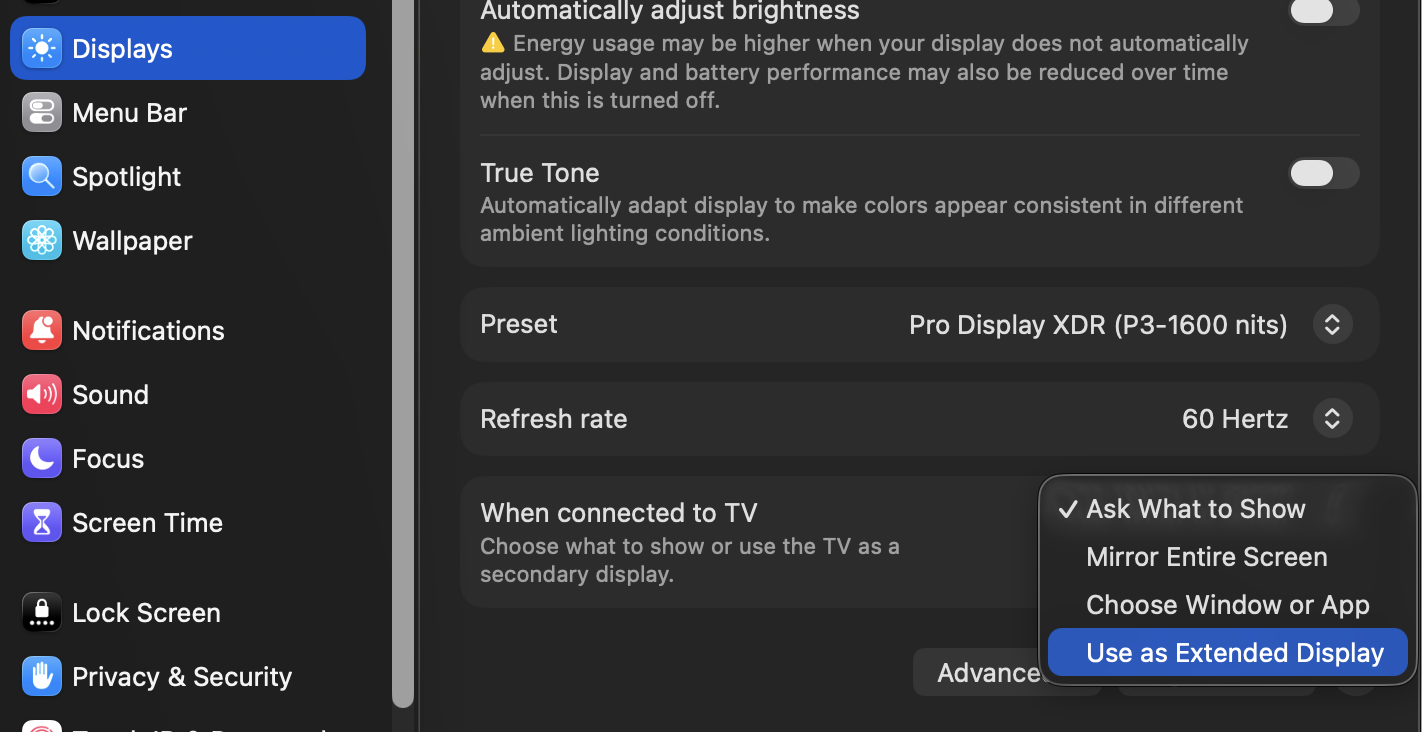
Open System Settings > Displays. Set When Connected to TV to Use as extended display when you want to extend your desktop to the TV. Choose Mirror entire screen for presentations.
Tips and Troubleshooting
Roku Device Not Appearing in AirPlay Menu
Why it happens: Devices are on different Wi-Fi networks, or AirPlay is disabled.
Fix: Verify all devices connect to the same network name. Check that your router isn’t isolating devices on guest networks. Restart both the Roku and Apple device, then try again.
Multiple Family Members Can’t Connect Simultaneously
Why it happens: Each Roku can only accept one AirPlay connection at a time.
Fix: Set up additional Roku devices for high-traffic areas. Or establish family protocols for sharing. Use the “Stop Mirroring” option in Control Center to quickly disconnect. This allows others to connect.
Audio and Video Sync Issues
Why it happens: Network latency or processing delays between devices.
Fix: Move closer to your router during streaming. Close unnecessary apps on your Apple device. Check for software updates on both Roku and Apple devices.
Poor Video Quality with Multiple Streams
This one’s particularly annoying during family movie night. It happens when everyone’s trying to stream different content.
Why it happens: Network congestion or Wi-Fi interference.
Fix: Switch to 5GHz Wi-Fi when possible for less congestion. Consider mesh routers for larger homes. Ensure your internet plan provides adequate bandwidth for your household’s usage patterns.
Connection Drops Frequently
Why it happens: Wi-Fi interference or power management settings.
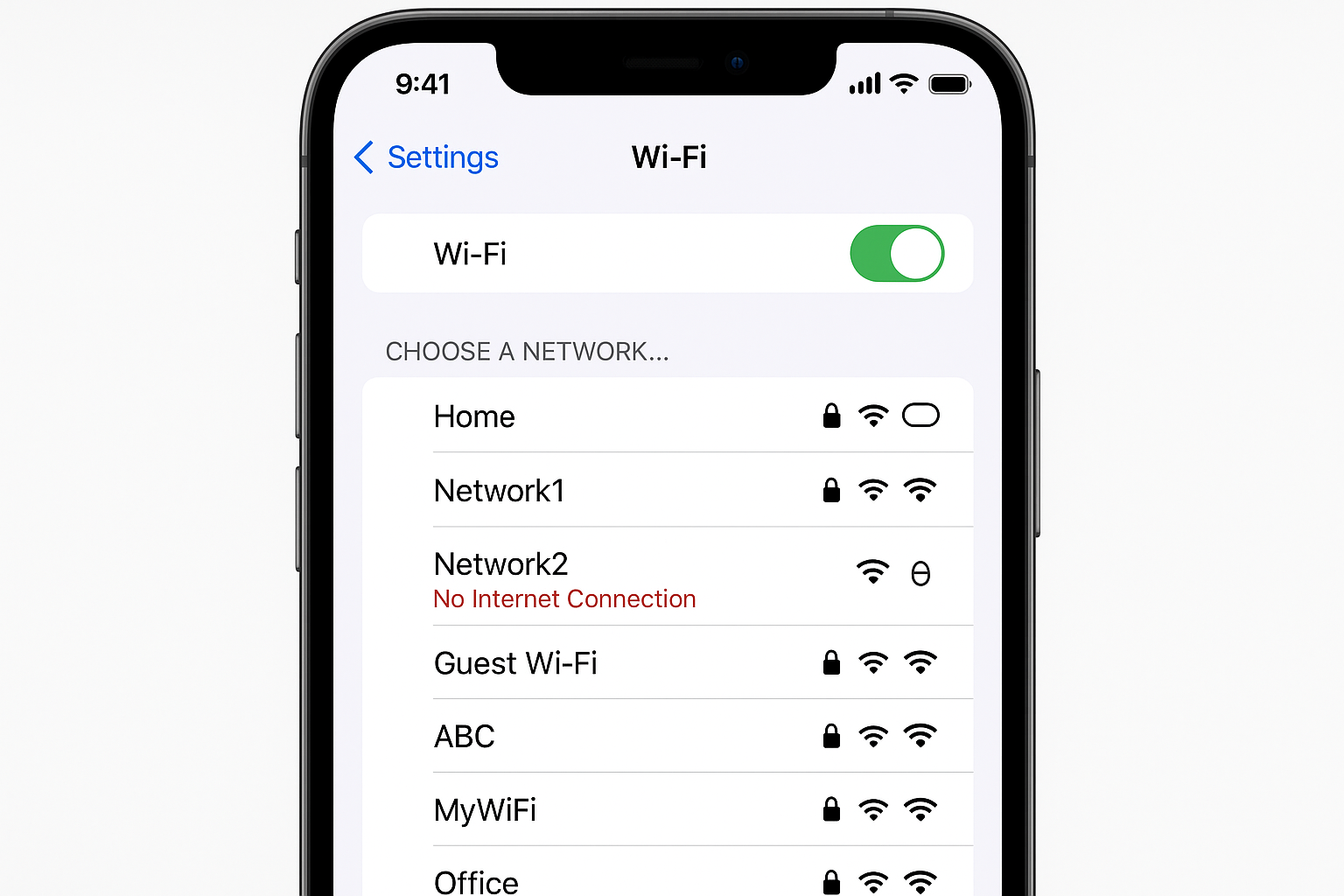
Fix: On iPhone, go to Settings > Wi-Fi. Tap the info button next to your network. Disable Low Power Mode if active. For Mac, check System Settings > Battery and adjust power adapter settings.
Reset Paired Devices
Why it happens: Corrupted pairing data or persistent connection issues between Apple devices and Roku.
Fix: Go to Settings > Apple AirPlay and HomeKit > Reset paired devices on your Roku. This clears all stored device pairings and forces fresh connections. You’ll need to re-pair your Apple devices, but this often resolves stubborn connectivity issues.
Quick Troubleshooting Checklist:
- Restart your router and wait 2 minutes
- Update Roku OS in Settings > System > System update
- Update iOS/macOS to the latest version
- Forget and reconnect to Wi-Fi on Apple devices
- Reset network settings on Roku: Settings > System > Network > Reset connection
- Reset paired devices: Settings > Apple AirPlay and HomeKit > Reset paired devices
Wrapping Up
Your family streaming wars are officially over. You’ve built a multi-device AirPlay system that handles the chaos of multiple Apple devices competing for screen time. Everyone gets to enjoy their content without cable-swapping or waiting in line for the main TV.
Related guides: