
Have you ever wanted to share a YouTube video with someone, but wished it did not have to start at the very beginning? For example, if you want someone to see something that happens 6 minutes and 23 seconds into the video, you either have to let them watch it from the beginning or tell them they need to skip to that point.
Instead, you could make yourself look cool and tech-savvy by sending them a link to the video that starts right where you want it. In this article, I’ll talk about three instances where you would want to specify a starting point for a YouTube video: when you send a link to someone, when you embed a YouTube video on a webpage and when you post a comment on a YouTube video.
Sharing YouTube Links
If you’re watching a video on YouTube, you can always just copy the URL in your address bar and paste that into an email or text message. If you want to specify a time where the video should start, it’s super easy because YouTube already has an option for this.
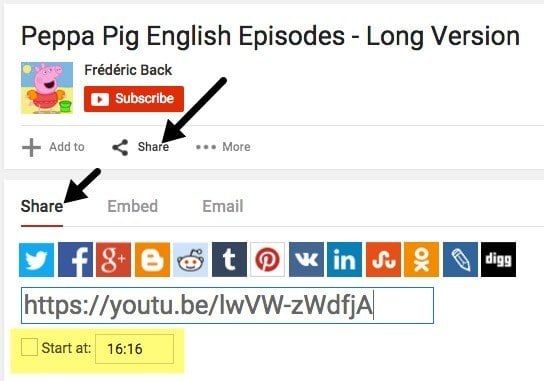
Click on the little share icon that is below the Subscribe button and a little section will expand below. The Share tab should already be selected and you will see the shortlink to the YouTube video. Below that, you will see a little checkbox called Start at, which you can edit. Type in the starting point in the following format: hh:mm:ss.
So if a video is 1 hour and 32 minutes long, you could type in 1:14:30 to have the video start 1 hour 14 minutes and 30 seconds in. The link will change and you will see a parameter added to the end of the URL: ?t=1h14m30s.
“https://youtu.be/lwVW-zWdfjA?t=1h14m30s”
Note that you can also add this to the normal URL that shows up in the address bar of your browser like below, but instead of the question mark, you have to use the & symbol.
“https://www.youtube.com/watch?v=lwVW-zWdfjA&t=1h14m30s”
In addition to the ampersand symbol, you can also use the hashtag symbol, but only for the normal URL, not the short URL.
“https://www.youtube.com/watch?v=lwVW-zWdfjA#t=1h14m30s”
So those are pretty much all the ways you can share a YouTube link and specify a time for the video to start. Now let’s talk about the embed code.
Using Embed Codes
If you want to embed the video on your website, then click on the share icon again, but this time click on the Embed tab. By default, it’ll just show you the code you have to copy, but you can click Show More to see all the options.
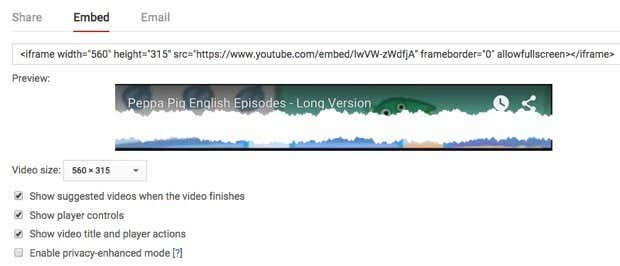
Once you have configured the options to your liking, copy the code and paste it into your HTML editor. On the embed code, we have to specify the starting point using a slightly different parameter. Instead of adding ?t=, &t= or #t= to the end of the URL, we have to add ?start=.
Instead of putting the time in terms of hours, minutes and seconds like we did for YouTube URLs, we have to input the time in seconds for the embed code. So if you want the video to start at 7 minutes and 29 seconds, you will have to do a little math. (7 * 60) + 29 = 449 seconds. So our parameter would be ?start=429. The equation is just number of minutes times sixty plus the number of seconds.
You will add this parameter to the end of the YouTube embed URL. Here is an example of the code pasted into my webpage HTML.
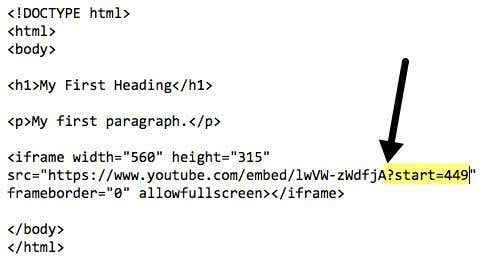
The URL for the video in the embed code is https://www.youtube.com/embed/lwVW-zWdfjA, which is a little different than the sharing URLs. Lastly, let’s talk about adding a time in a YouTube comment.
YouTube Comments
If you want to specify an exact time in a YouTube comment, all you have to do is type in the time like 13:45. When you do that and post your comment, the time will automatically become a link and if anyone clicks on it, the video will start playing from the exact time.
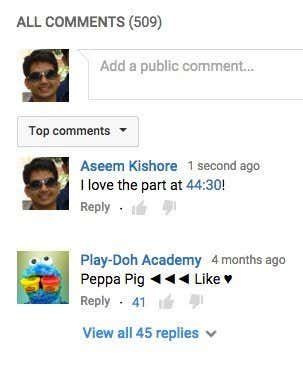
Of course, your comments may never be read with all the spammers and trolls, but you can try! Anyway, if you have private YouTube videos shared with friends and family, it’s a cool way to comment about a specific part of the video without having to write out which part your are talking about.
So those are all the ways you can pick a starting point for a YouTube video that you want to share with someone else via text, email or website. If you have any questions, feel free to post a comment. Enjoy!