
Ever used disappearing ink to write messages to your friends so you never have to worry about your secret getting out? That’s what Facebook Messenger’s self-destructing messages do for the texts and photos or videos you send from your device.
Also known as ephemeral messaging, these messages ensure that any content you send is erased within minutes or seconds of consumption. This happens on both devices, plus on the system servers without storing lasting records of the conversation.
Multiple technologies like encryption and strong password walls are used together to send, code, receive and destroy texts, photos or videos and other attachments.
Self-destructing messages are attractive and popular, especially with the younger generation, but, adults use them for their personal privacy. Other positive use cases include whistleblowing, or communicating about sensitive matters like disciplinary or criminal issues.
You can also use them to keep snoops from reading messages they shouldn’t or during emotionally charged moments like spousal arguments when it’s easy to send harsh texts that can be used against you.
Nothing prevents the recipient from taking a screenshot or external copy of your screen while viewing the message though, so there’s no guarantee that the message hasn’t been recorded, but you do get close to 100 percent privacy.
How Facebook Messenger’s Self-Destructing Messages Work
Facebook Messenger app has the Secret Conversations feature that lets you send private messages to one person while protecting your privacy with special encryption.
The encryption is designed to protect the message so only you and your recipient can view or play it – not even Facebook can access it. You can also add a timer or expiration to the message so it can self-destruct within the time you specified after your recipient sees it.
All the secret conversations appear with a padlock icon next to the contact’s profile icon in your message list. The speech bubbles are black in color, not the usual blue for ordinary Facebook chats, and you can start one in a new chat or an existing one.
However, if the person isn’t your Facebook friend or Facebook doesn’t think you know the contact, your secret message will be sent to their Message Requests or appear like spam under Filtered Messages. The messages won’t be deleted but are kept in the hidden mailbox.
Set Up Self-Destructing Messages in Messenger
Secret conversations can only be created in the Messenger app for Android and iOS, so you won’t find them on messenger.com or Facebook chat. They’re also not available in Facebook Messenger Lite app.
Furthermore, you can only access the conversations on the devices you create them from. For example, you can’t start a secret chat on your iPhone and then continue with the chat on your iPad.
However, you can add a different device to send the message, but you won’t see previous messages on it. The other person will be notified about it, but only new messages in existing conversations will appear on all devices.
The process of creating secret conversations varies slightly depending on whether your device is Android or iOS. We’re going to look at the instructions for each individually.
Android
Before sending a secret conversation, make sure you have installed the latest version of the Facebook Messenger app on your phone or tablet. If you don’t see the disappearing conversations option, download the latest version from Google Play Store.
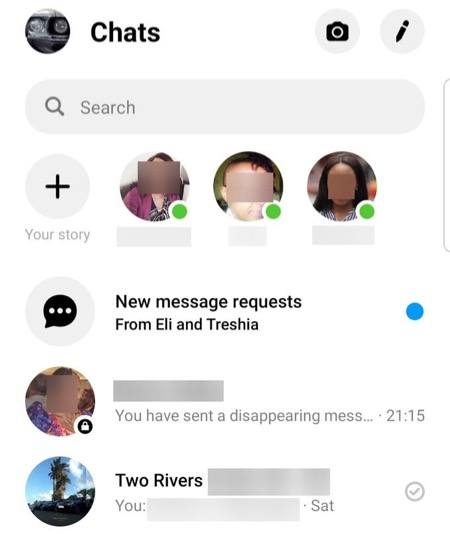
Open Messenger to go to Chats
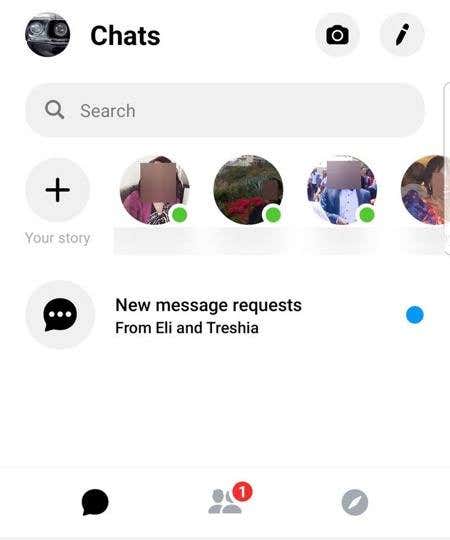
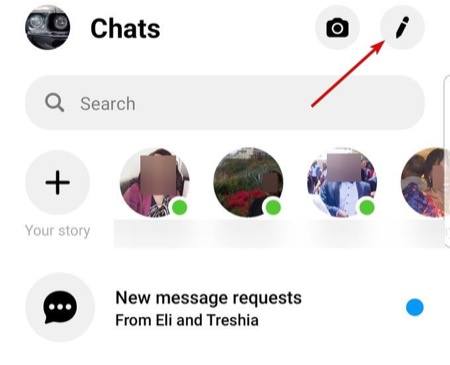
Tap the pencil icon at the upper right side of the screen
Tap the padlock icon
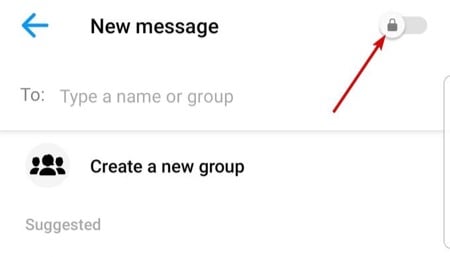
Select the person you’d like to message
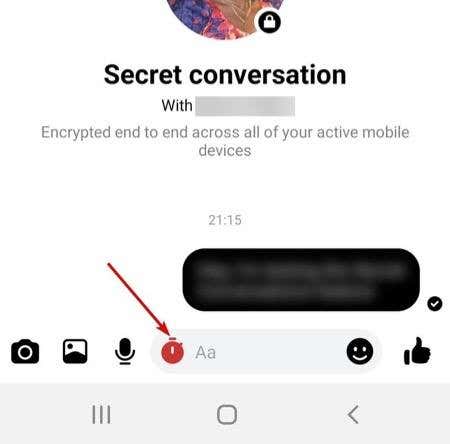
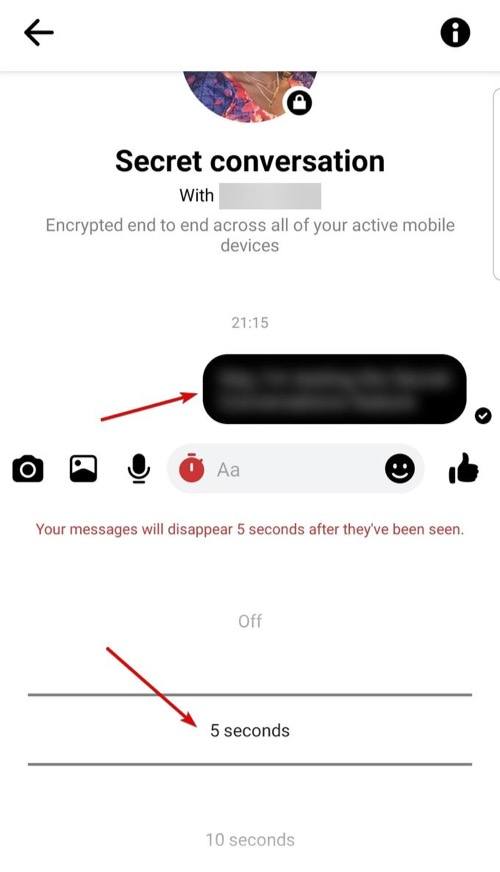
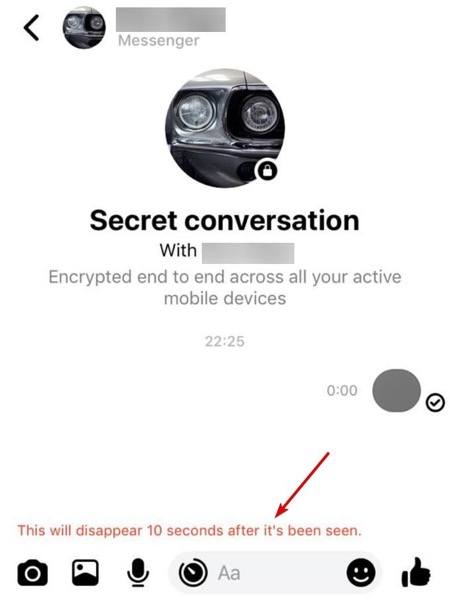
You can tap the timer icon in the text box that appears and set a time or expiration (e.g. 5 seconds, 10 seconds) within which the message disappears once the recipient has consumed it
Your secret conversation will be blurred and a message will appear (in red) at the bottom showing the expiration (in seconds)
iOS (iPhone or iPad)
Open Messenger app to go to Chats
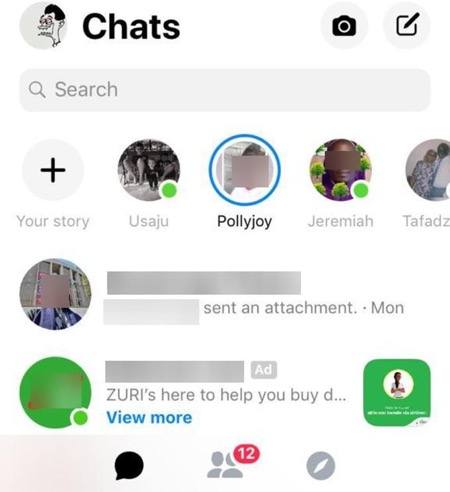
Tap the pencil icon at the top right side of your screen
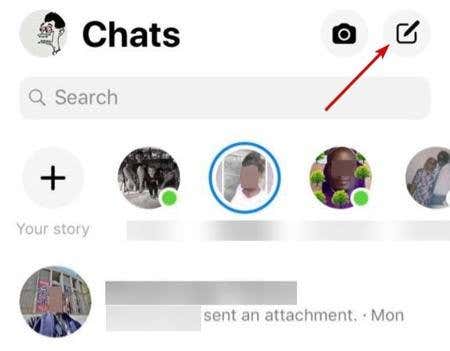
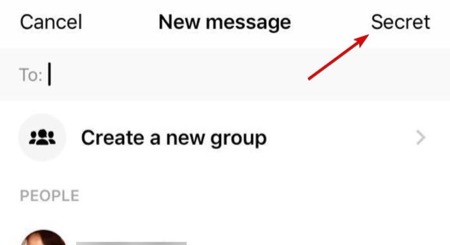
Tap Secret
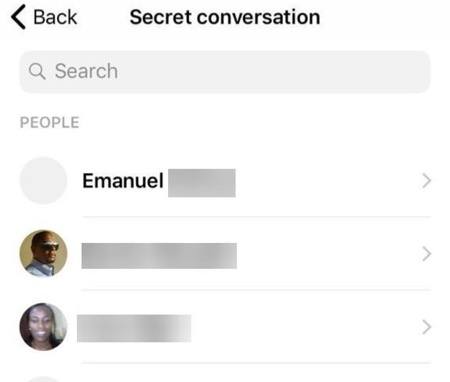
Select the person you want to message
If you want to set an expiration for the message, tap the timer icon and set the timer make the messages disappear
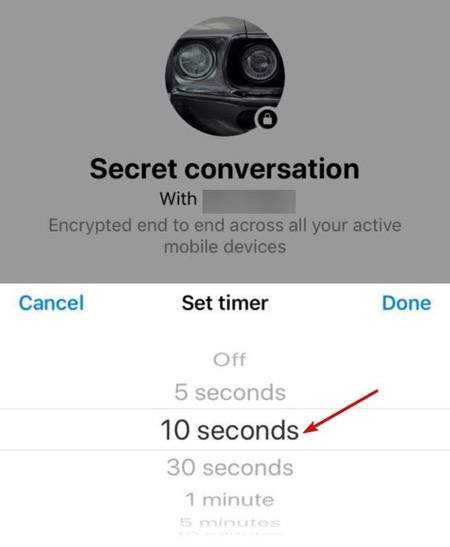
Your secret conversation will be blurred and a message will appear (in red) at the bottom showing the expiration (in seconds)
Verifying Secret Conversations on Facebook Messenger
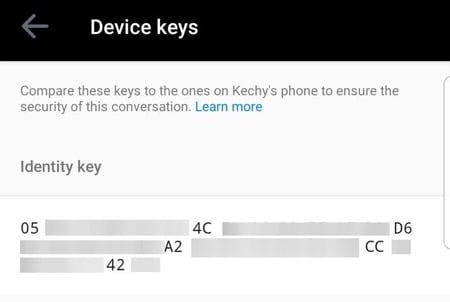
You can verify all encrypted secret conversations by comparing their device keys. Both you and your message recipient will get device keys so you can compare and see if they match.
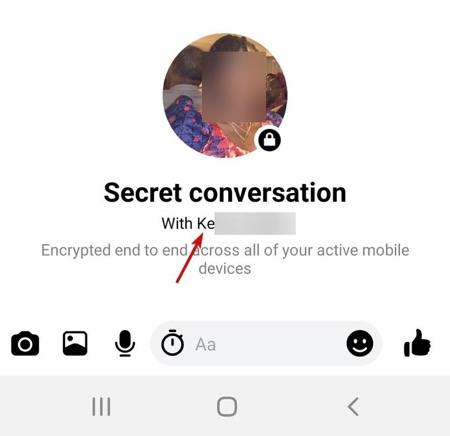
Open a secret conversation and tap the contact’s name
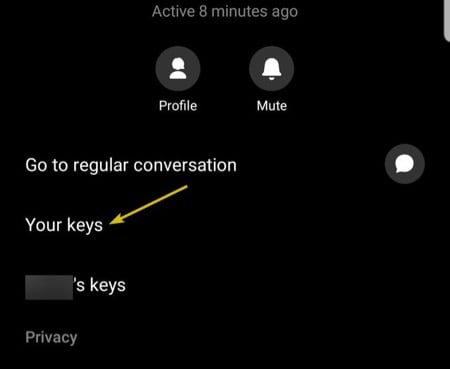
Tap Your Keys
Compare your device key with that of your contact’s name to ensure they match.
How to Delete Secret Conversations
Android
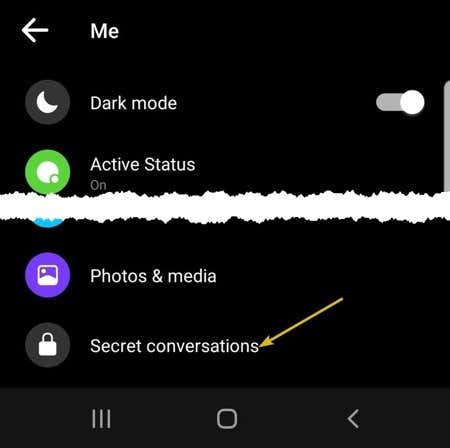
Open Messenger app and tap your profile picture at the upper right corner. Scroll down and tap Secret Conversations.
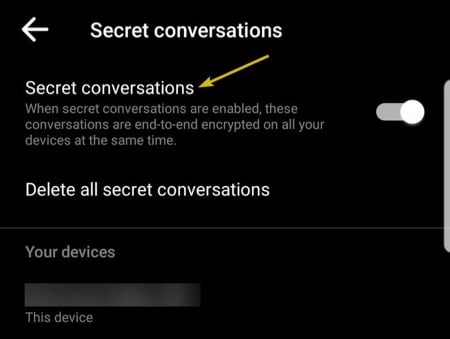
Next, tap Delete All Secret Conversations
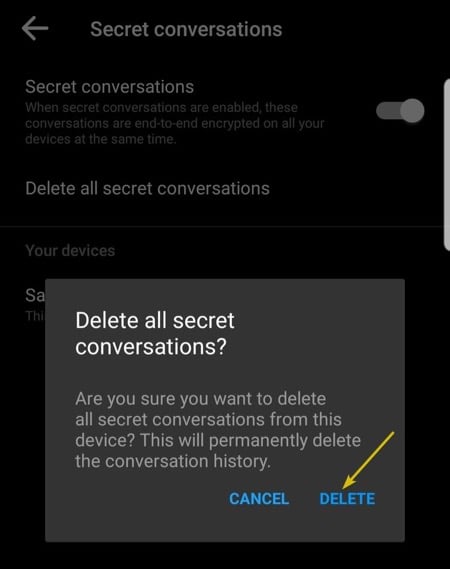
Tap Delete
iOS
Open Messenger, then tap Chats, and then tap your profile photo at the upper left corner.
Scroll down and tap Secret Conversations. Tap Delete All Secret Conversations and tap Delete.
How to Delete One Secret Conversation
If you want to delete a single conversation, tap on the contact’s name. The main chat screen will appear. Tap on the name again (just under the words Secret Conversation)
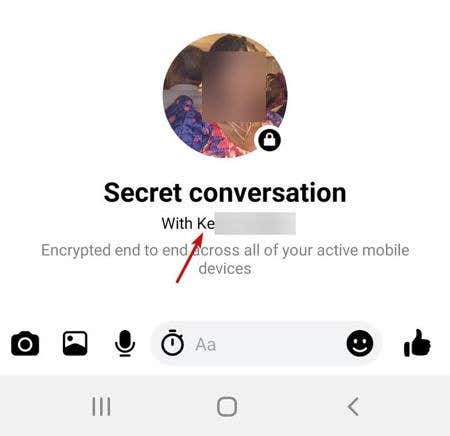
Note: You can delete secret conversations only from your device, not from your recipient’s device.
The downside to Facebook’s secret conversations is it’s only designed for one-to-one conversations, not groups. It also can’t be used to send payments.