

Animated GIFs on Snapchat add fun and humor, help you express emotions and reactions quickly, and are a great way to lighten the mood.
However, if you’re new to the social media platform, you might have trouble figuring out how to add GIFs to your snaps and conversations.
Don’t worry. This simple step-by-step tutorial will walk you through everything you need to know about sending GIFs via Snapchat on iPhone and Android.
Add GIFs to Snapchat Snaps
Snapchat has an integrated GIF library that lets you easily add animated stickers to your Snapchat stories. It fetches the images from GIPHY, one of the largest GIF hosts on the internet, so you have plenty of material to choose from.
To use the GIF feature for Snapchat snaps:
- Open Snapchat and take a photo or a video.
- Tap the Sticker icon on the top right side of the screen.
- Tap the GIF button.
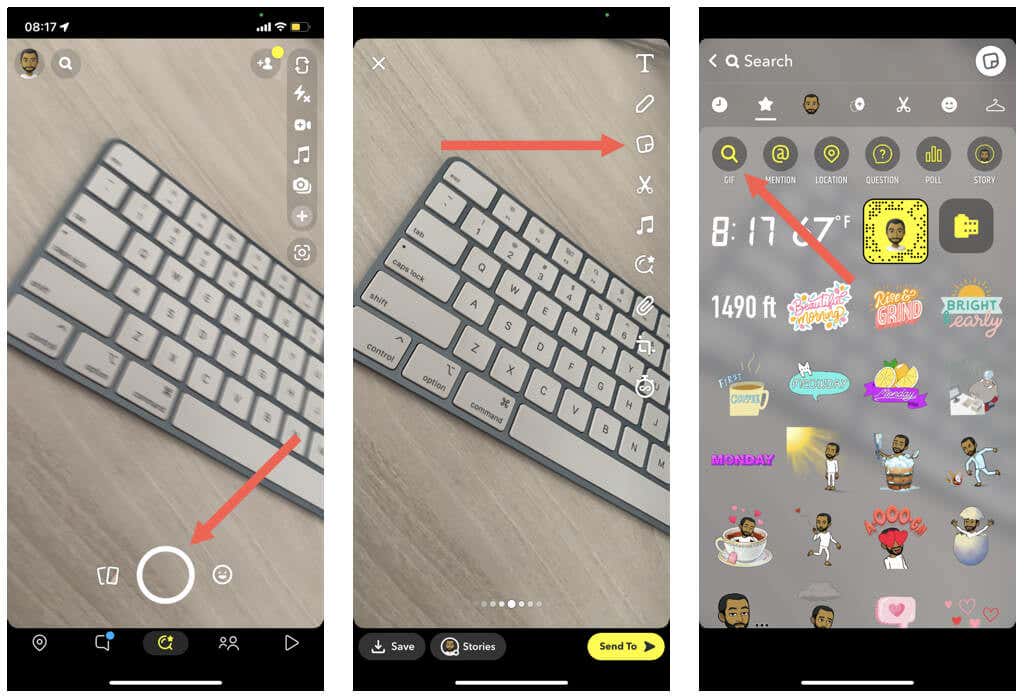
- Scroll through the For You and Giphy Trending sections and pick the GIF you want, or use the Search bar to find additional GIF stickers.
- Drag the GIF where you want it to appear on the snap. You can add multiple GIFs if you want. To remove a GIF, tap and drag it to the Trash icon at the bottom of the screen.
- Spice up your snap with other stickers from the Bitmoji, Scissors, and Cameos categories.
- Tap Send.
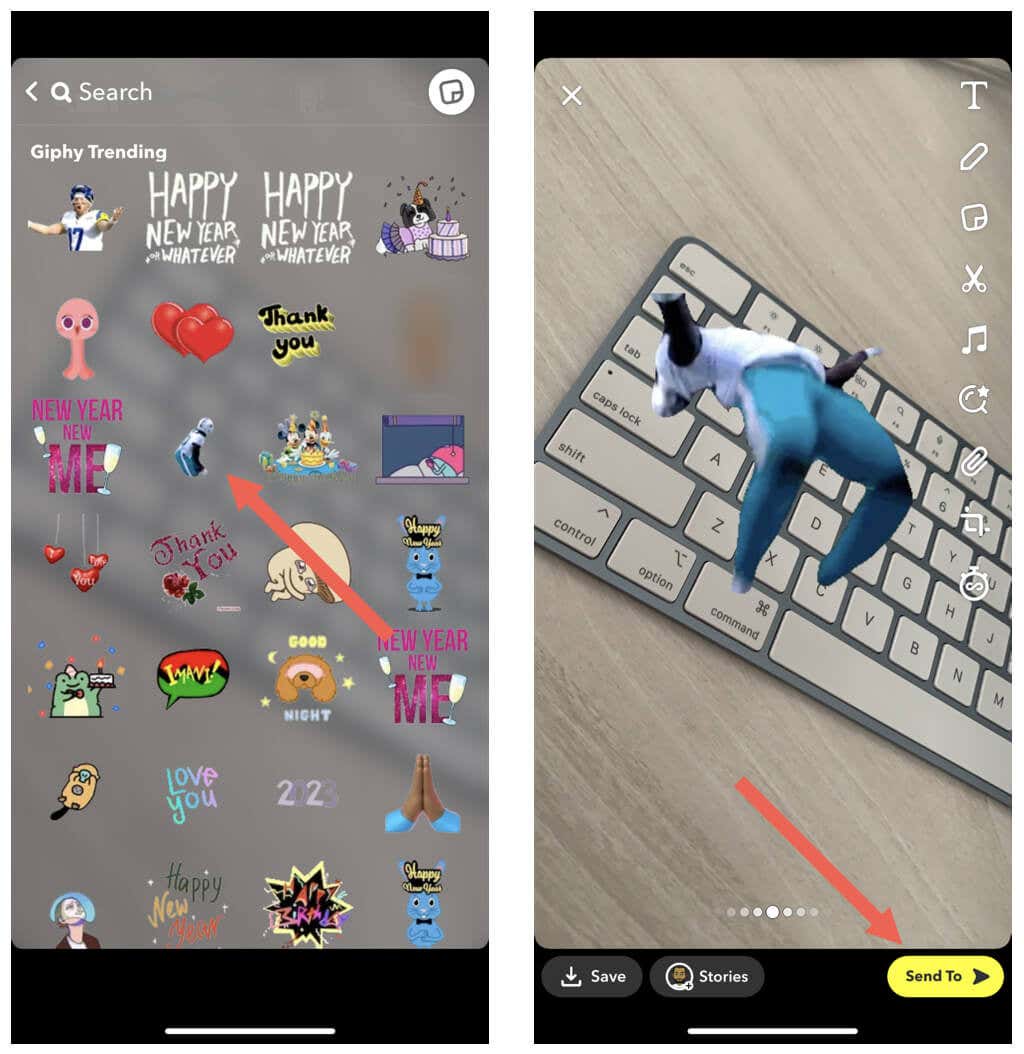
Note: You can’t insert GIFs from your phone’s camera roll to your snaps. You can share GIFs to Snapchat, but the app automatically converts them to static images.
Send GIFs in Snapchat Messages
Snaps aside, you can use GIFs in Snapchat conversations. Again, the built-in GIPHY library can help you with that.
Note: If you can’t follow the steps below, update the Snapchat app to its latest version via the App Store or Play Store and try again.
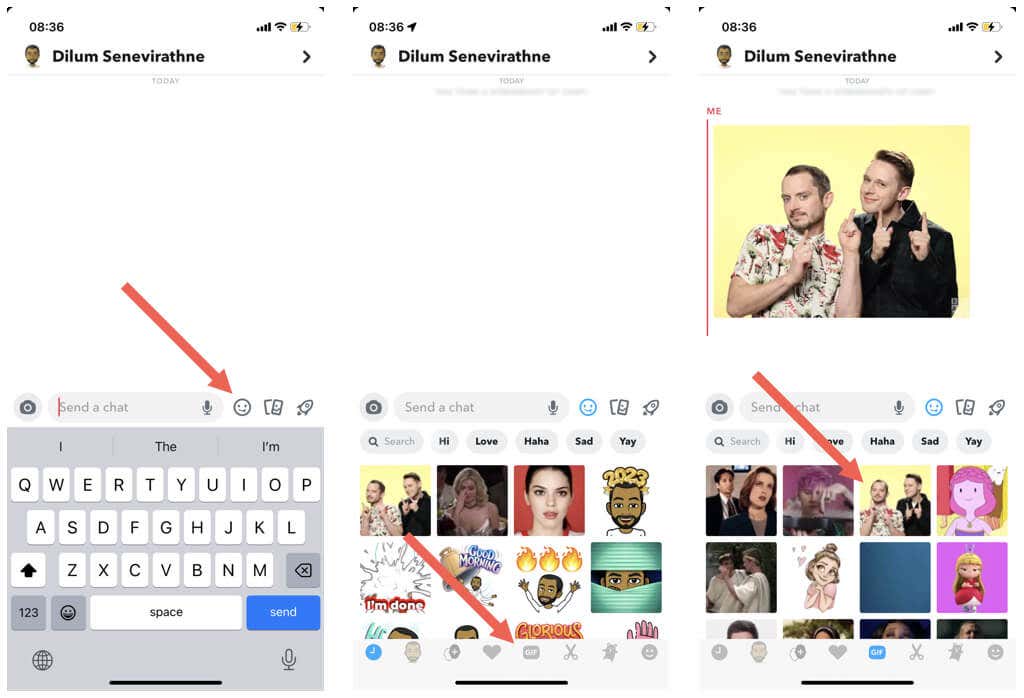
- Initiate a conversation on Snapchat.
- Tap the Emoji icon on the top right corner of the keyboard.
- Switch to the GIF tab.
- Locate the animated image you want to send.
- Tap on the GIF to send it.
Add More GIFs to Snapchat Chats With GIPHY and Gboard
If you need even more GIFs for Snapchat conversations, you can use the dedicated GIPHY keyboard to get them on your iPhone. If you use an Android device, use Gboard’s integrated GIF keyboard instead.
Install and Use GIPHY Keyboard on iPhone
GIPHY for iOS comes as an app and a keyboard. To install and use it to send GIFs on Snapchat:
- Download and install the GIPHY app from the App Store.
- Open the Settings app and go to General > Keyboard > Keyboards.
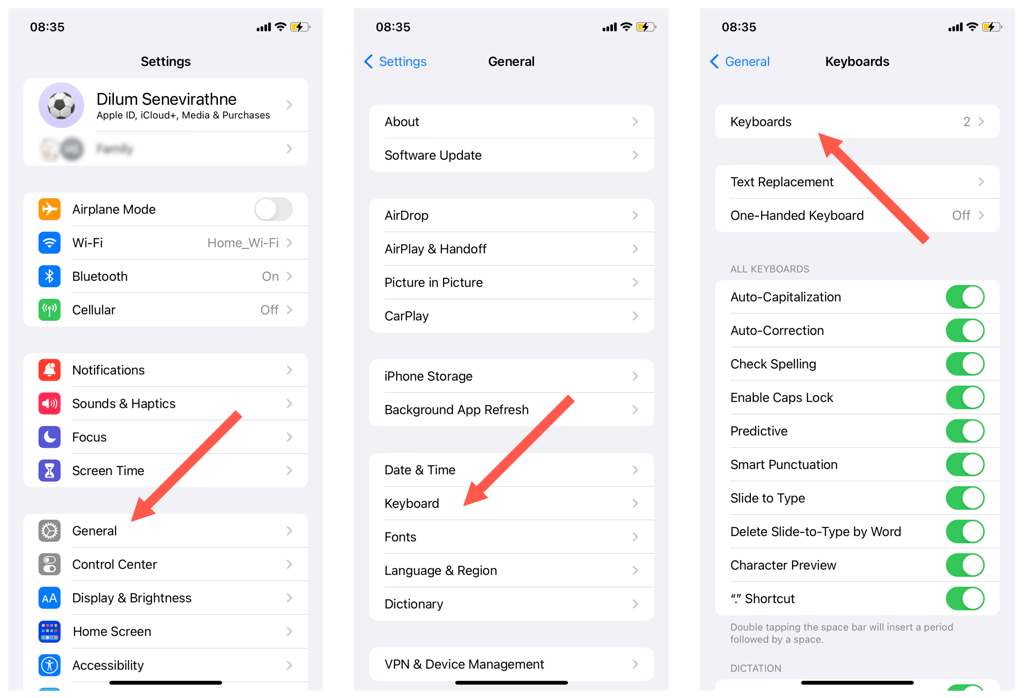
- Tap Add New Keyboard.
- Select GIPHY under the Third-Party Keyboards section. You’ll be automatically taken back to the previous screen.
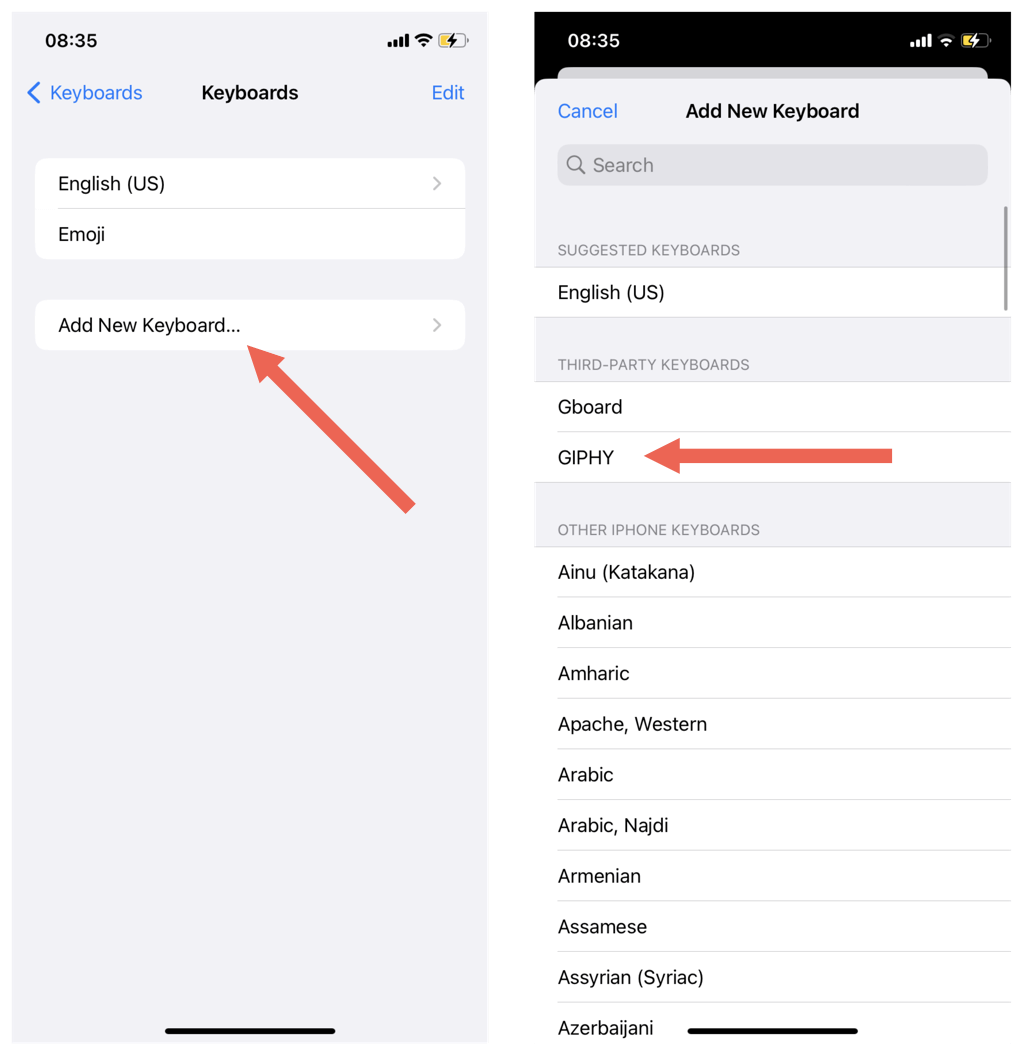
- Select GIPHY from the Keyboards list.
- Turn on the switch next to Allow Full Access to provide full keyboard permissions.
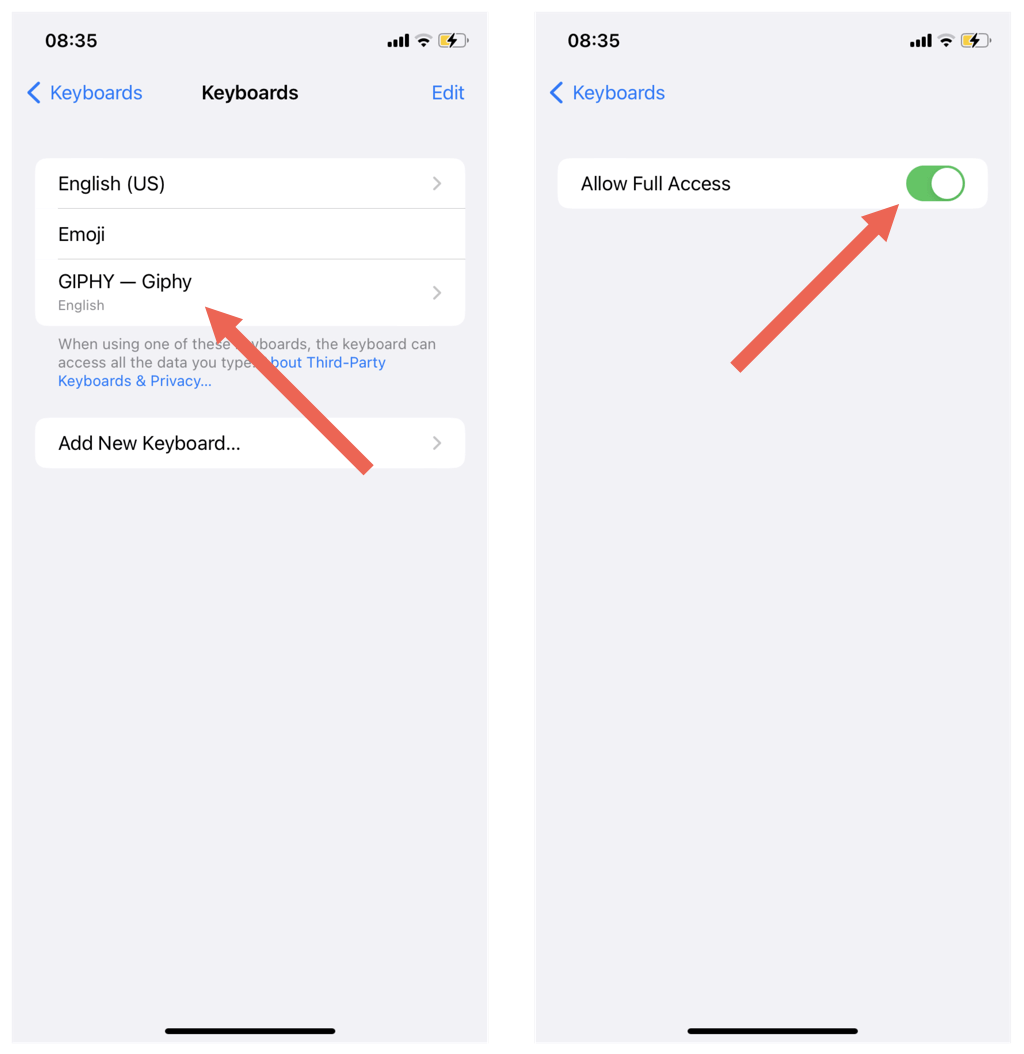
- Initiate a conversation on Snapchat.
- Tap the hold the Globe icon to bring up a list of active keyboards—select GIPHY — Giphy.
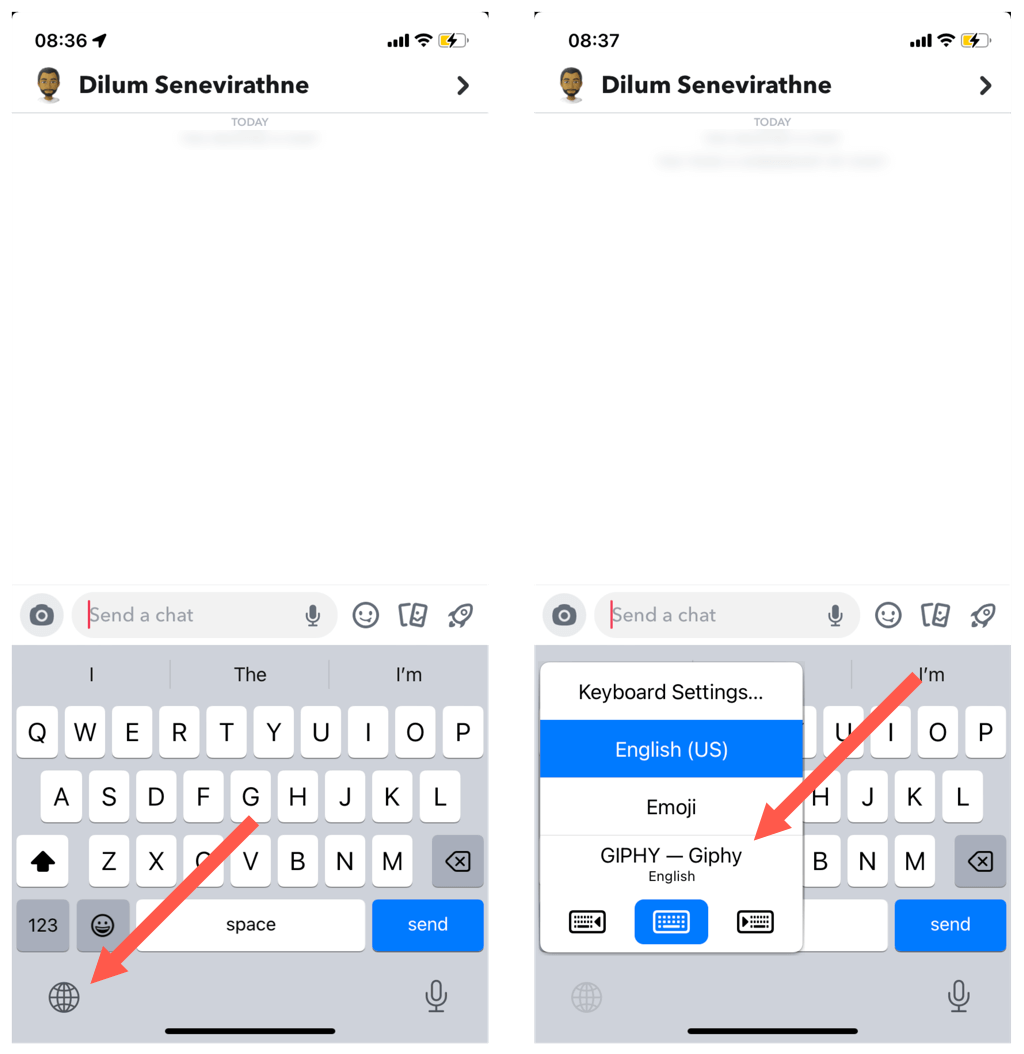
- Scroll through the list of GIFs or tap Search GIPHY to locate the animated image you want to send.
- Tap the GIF to copy it to your iPhone’s clipboard.
- Tap and hold the Send a chat field and select Paste to send the GIF.
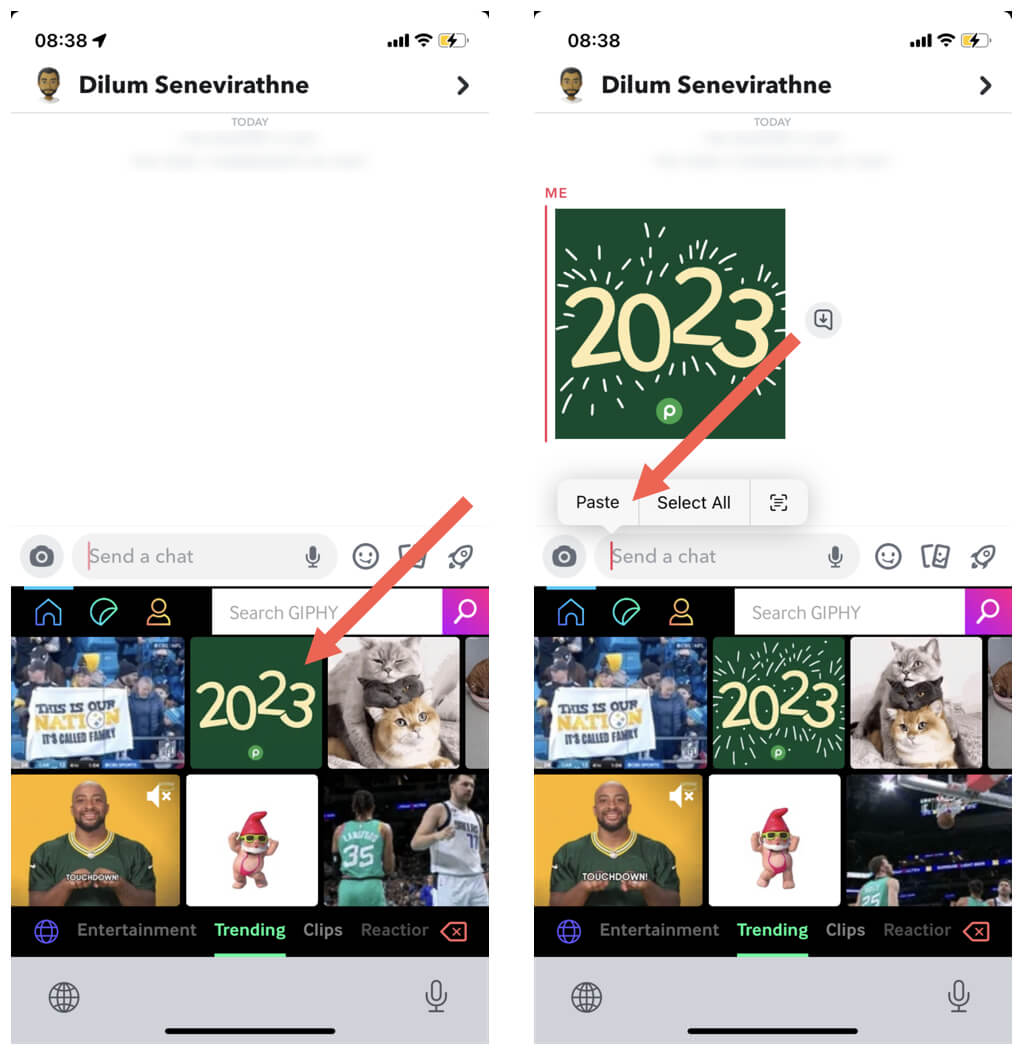
The GIPHY keyboard lacks keys, so you must switch back to the regular keyboard if you want to type something. Again, press and hold the Globe icon and tap English (US) (or the default language on your iPhone).
Use Gboard on Android
The GIPHY keyboard is available for Android, but it’s simply more convenient to use Gboard instead. It’s the default keyboard on Android phones, so you don’t have to install anything. Gboard features its own GIF library that you can use to send GIFs on Snapchat.
To search for and add GIFs, just:
- Tap the Smiley icon on the bottom left of the screen.
- Tap the GIF option.
- Search for and tap on a GIF to send it.
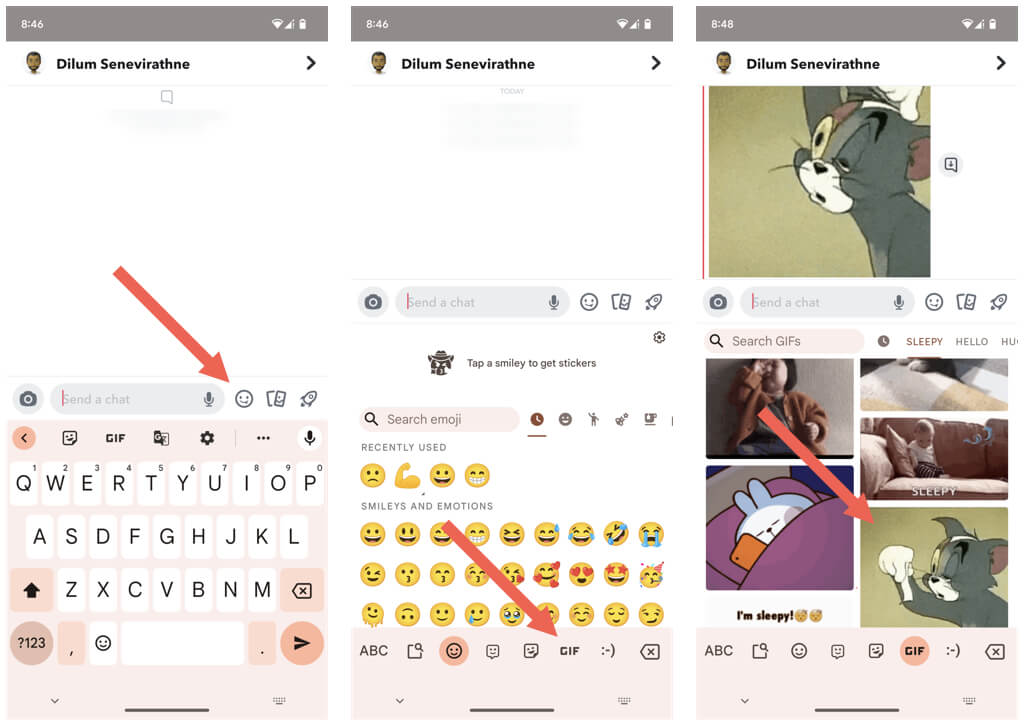
Note: If Gboard is not the active keyboard, tap the Keyboard icon at the bottom right of the screen to switch to it.
Tip: You can also download and use the Gboard app on iPhone.
Add GIFs from Photo Library to Snapchat
If you have any GIFs in your phone’s camera roll or photo library, you can add them to your Snapchat conversations via copy and paste.
- Long-press a GIF from your phone’s camera roll or photo library and tap Copy.
- Long-press the text insertion field in Snapchat.
- Tap Paste.
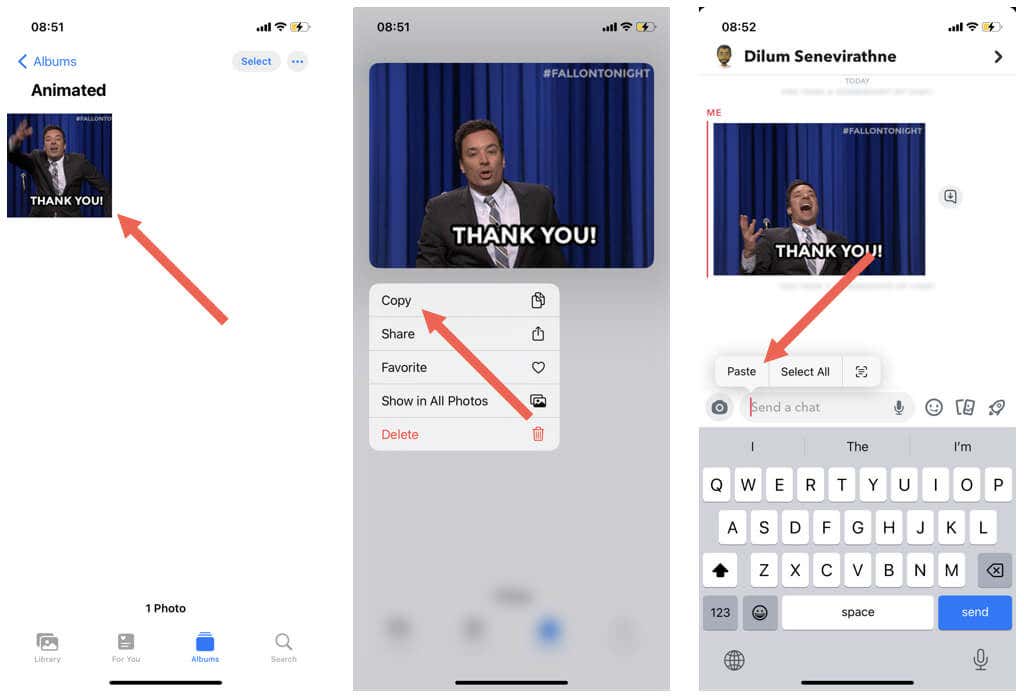
The GIF should appear within the conversation immediately.
Sending GIFs on Snapchat Made Easy
As you just saw, you can easily spice up stories and conversations in Snapchat with GIFs. If you find the built-in GIF library lacking, remember that you can always access more GIFs with the GIPHY and Gboard keyboards. Next up, learn how to create and add your own stickers on Snapchat.