
We’ve seen these buttons so many times already as they have become an integral part of the Internet. If you are too lazy to sign up for services using your email address, you can just use your social media or Google accounts to sign up to those services with.
These websites then contact Facebook, Google, Twitter, etc, and these sites grant an authentication token with your basic details such as your name, photo, and email address. Bang you’re in.
The trouble is once you grant websites entry through the door into your social media accounts, it can become risky. What if that website has bad intentions? What if they try to harvest more of your user information such as your passwords?
This is why you must review on a regular basis which sites have access to your social media accounts or Google account. If you are not using a site anymore, revoke its access! Here is how to do it with the top three third-party sign-in sites.
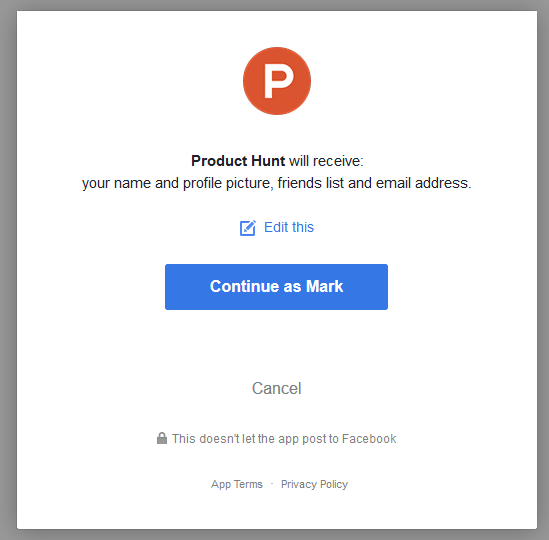
After logging into Facebook, go to this link. There you will see all of the various sites you have signed up to, and logged in with, using your Facebook credentials.
You may decide first of all, before revoking, to see if you can fix the problem you’re having another way. For example, if the app is leaving unwanted status updates all over your Facebook wall, you can perhaps change the privacy setting so nobody sees it.
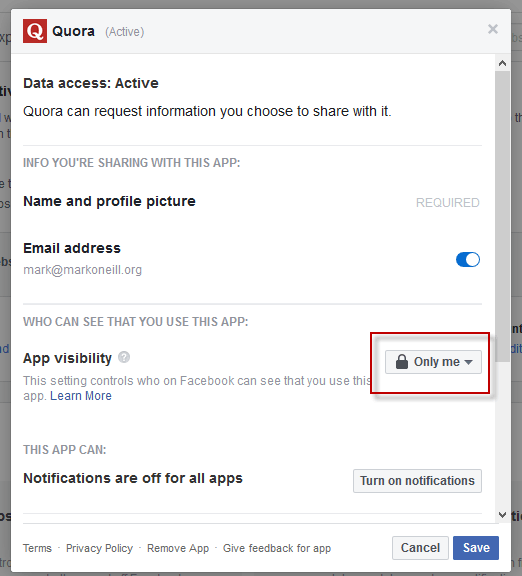
If you decide revoking the app is the only answer, close that app window and next to it is a small checkbox. Select it.
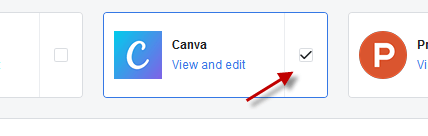
The “Remove” button will now light up. Clicking it will ask you for confirmation that you really want to remove the app. You can also tell Facebook to remove any posts, photos or videos that the app may have posted on Facebook.
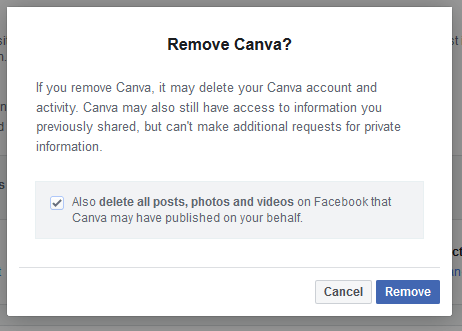
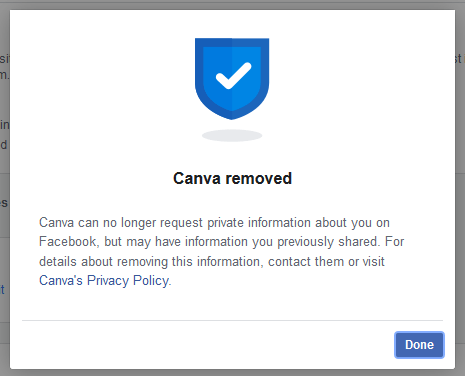
Clicking “Remove” again will revoke the app’s rights to access your account and you will get a confirmation.
Log into your Twitter account, then head here in your Settings. The “Apps and Sessions” tab is where all the action is for reviewing who has access to your Twitter details.
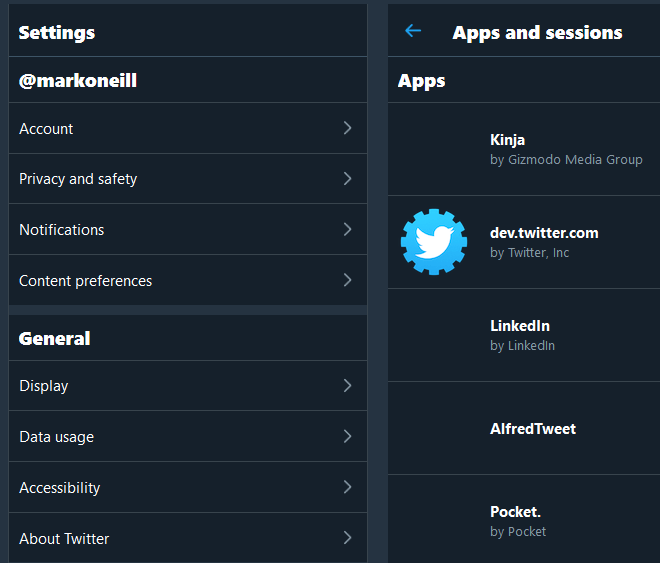
I was quite taken aback just now at how many have accumulated in my Twitter account since my last clean out a few months back.
Simply click on ones you want to revoke, and like Facebook, you will see details of that website.
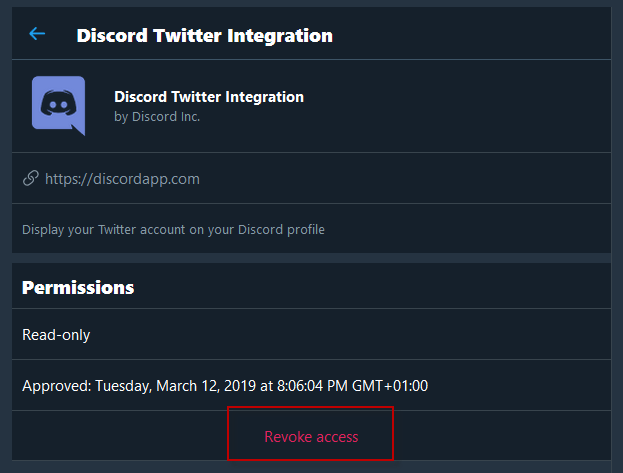
Click “Revoke access” at the bottom and that’s it. Instead of asking you to confirm like Facebook does, Twitter turns the revoke link into an “undo revoke access” link if you suddenly change your mind. Just click that to put things back to the way they were.
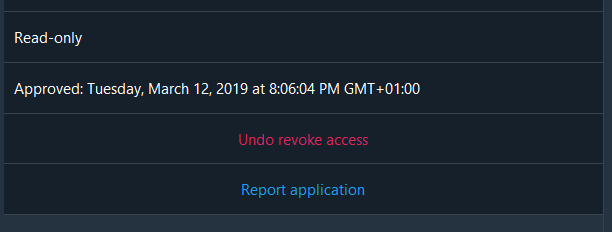
Go back to your Apps page, rinse and repeat for other apps you want to nuke.
Google requires you logging into your account, which you can either access here or via your Gmail settings.
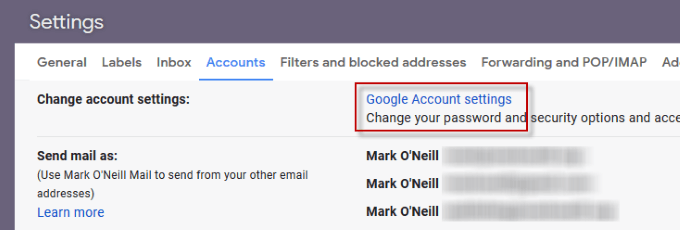
If you go via the direct link, you need to scroll down until you see this box.
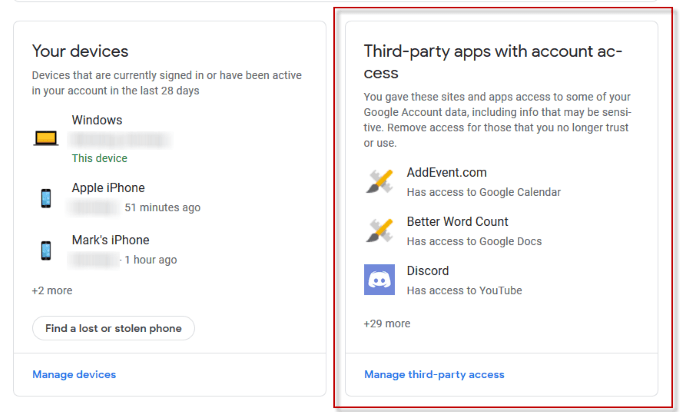
Click “Manage third-party access” at the bottom to open it up properly. I have over 30 apps on here since my last clean out so it really is time I got rid of the clingy entourage.
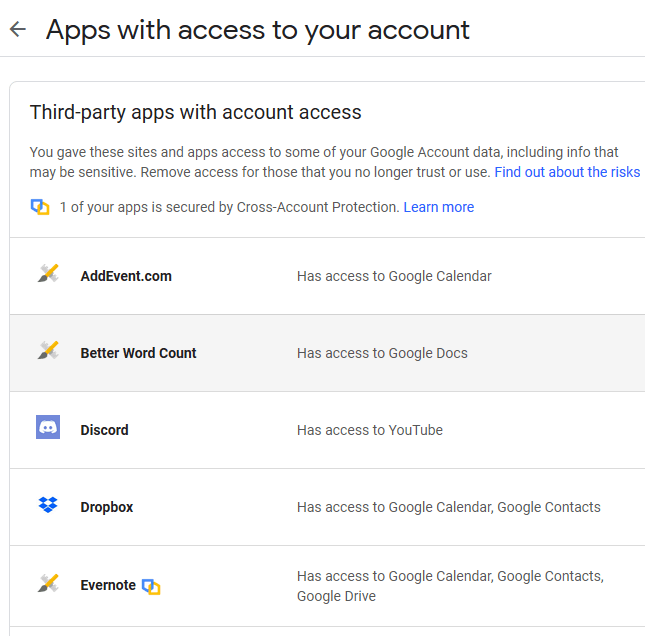
With each one you can see at a glance what it has access to. To get rid of one of them, click on it.
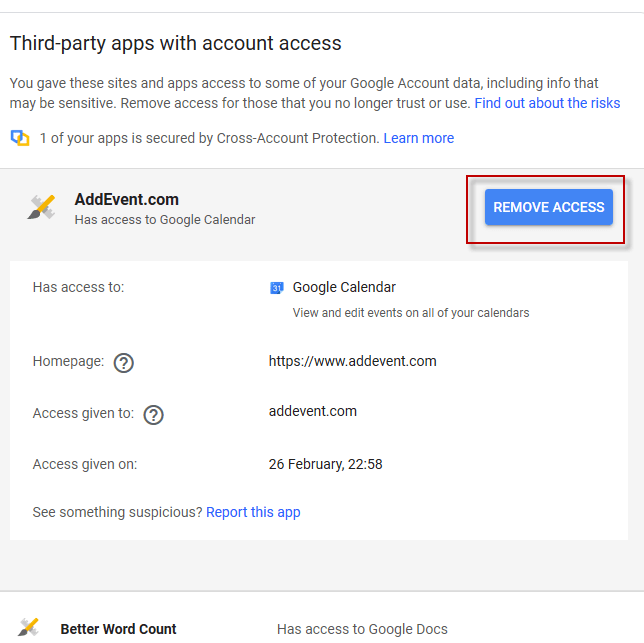
Click the blue “Revoke Access” button and you will be asked to confirm its removal before Google sends it packing.
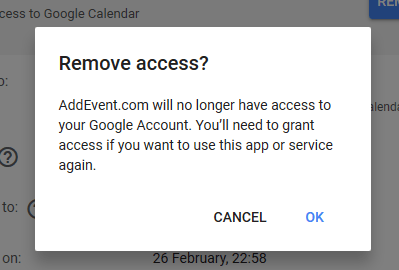
After clicking OK, the app will be gone. Continue the process for others you want to give marching orders to.
Obviously there are many more services you can use to sign into websites. WordPress, for example, offers it and Apple has recently announced that they too will offer a “Sign in with your Apple ID” functionality very soon. But at the moment, Facebook, Twitter, and Google are the three you need to keep a constant eye on.