
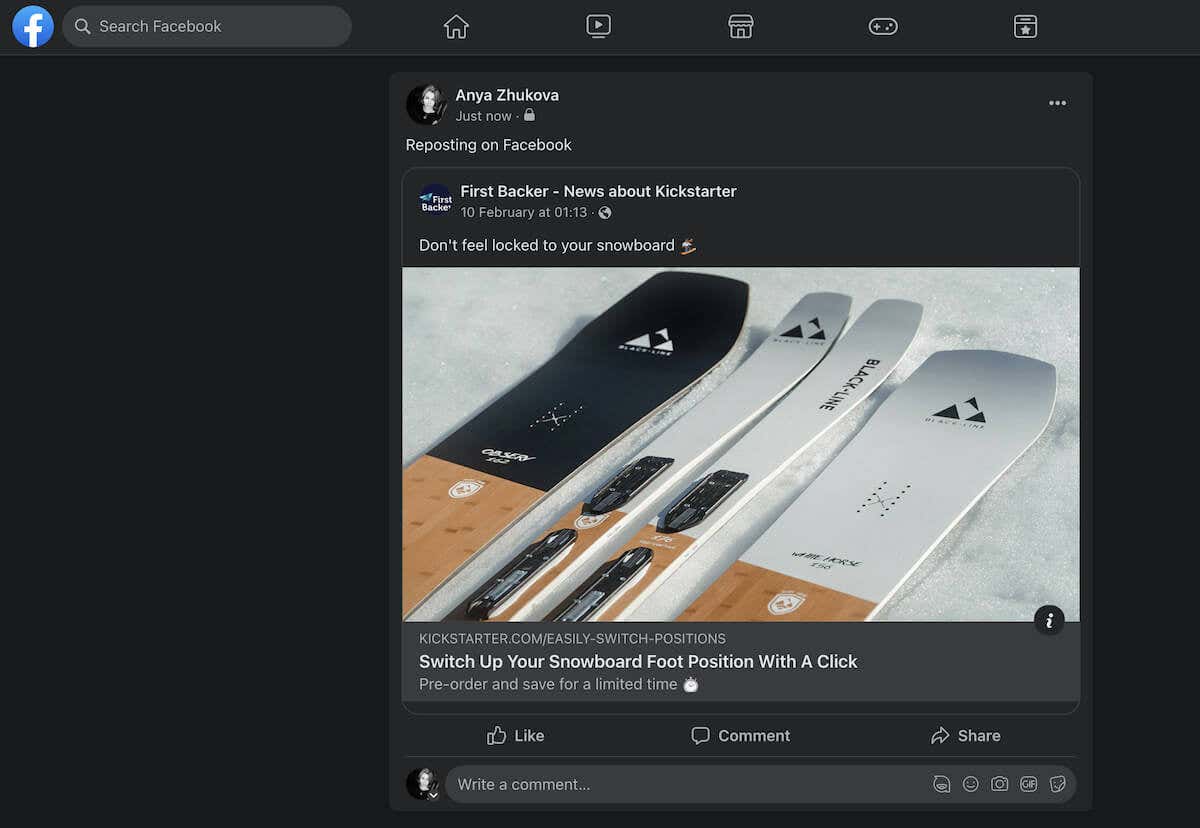
To keep your social media pages fresh, you need to constantly add content to entertain your current followers and attract new ones. However, coming up with fresh content to create new posts can be exhausting. That’s where re-sharing or reposting old content (or someone else’s content, i.e., memes) can help you.
In this tutorial, we’ll show you how to share or repost content to keep your Facebook page up to date.
How to Repost on Facebook Using a Share Button
The easiest way to repost on Facebook is by using the Share button. You can find this button next to most Facebook posts on the social network. You can share or repost content to your own timeline or to a friend’s timeline.
How to Repost on Facebook Web
The instructions are different for desktop and mobile versions of the app. Here’s how to repost on Facebook on your computer.
- Open Facebook in a web browser on your PC or Mac.
- Navigate to the post you want to share.
- Under the post, find and click Share with the arrow icon. If you don’t see the Share button under the post, it’s possible the person has restricted sharing in their privacy settings, or the original post was published in a closed group and can’t be shared with non-group members.
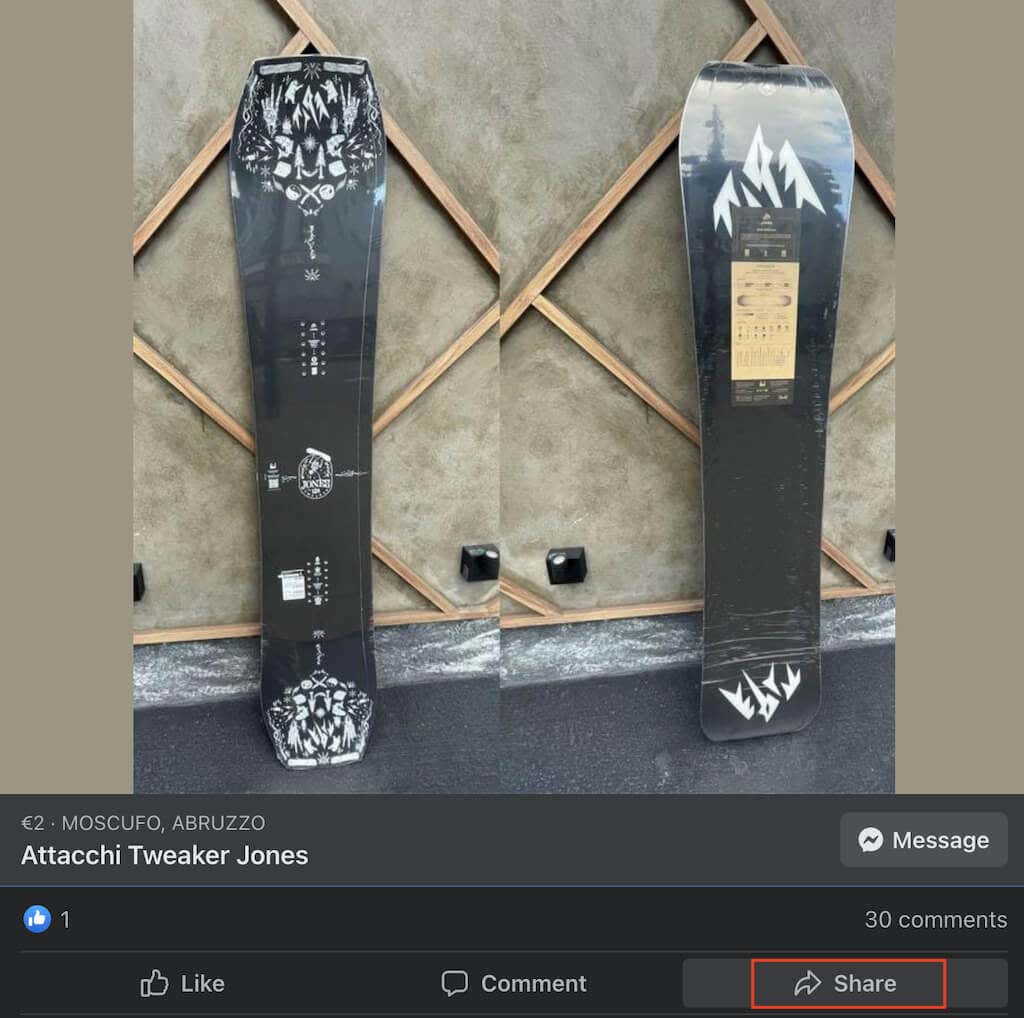
- Under Share, in the drop-down menu, you’ll see a number of sharing options:
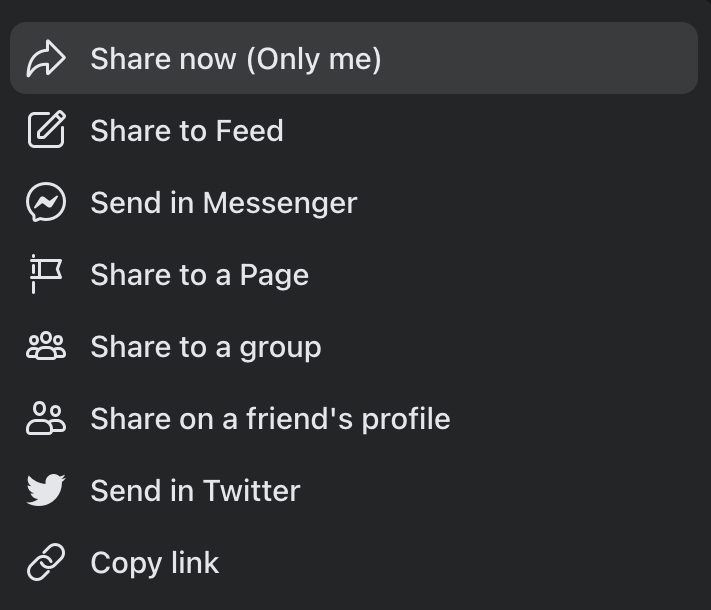
- Share now will share the post straight away with your previously set audience settings.
- Share to Feed allows you to change the post first, like setting a new audience and adding a description or hashtags.
- Share to your Story will share the post to your Facebook Stories.
- Send in Messenger allows you to select a Messenger chat where the post will be shared.
- Aside from that, you can share the selected post to a page, a group, and on a friend’s profile.
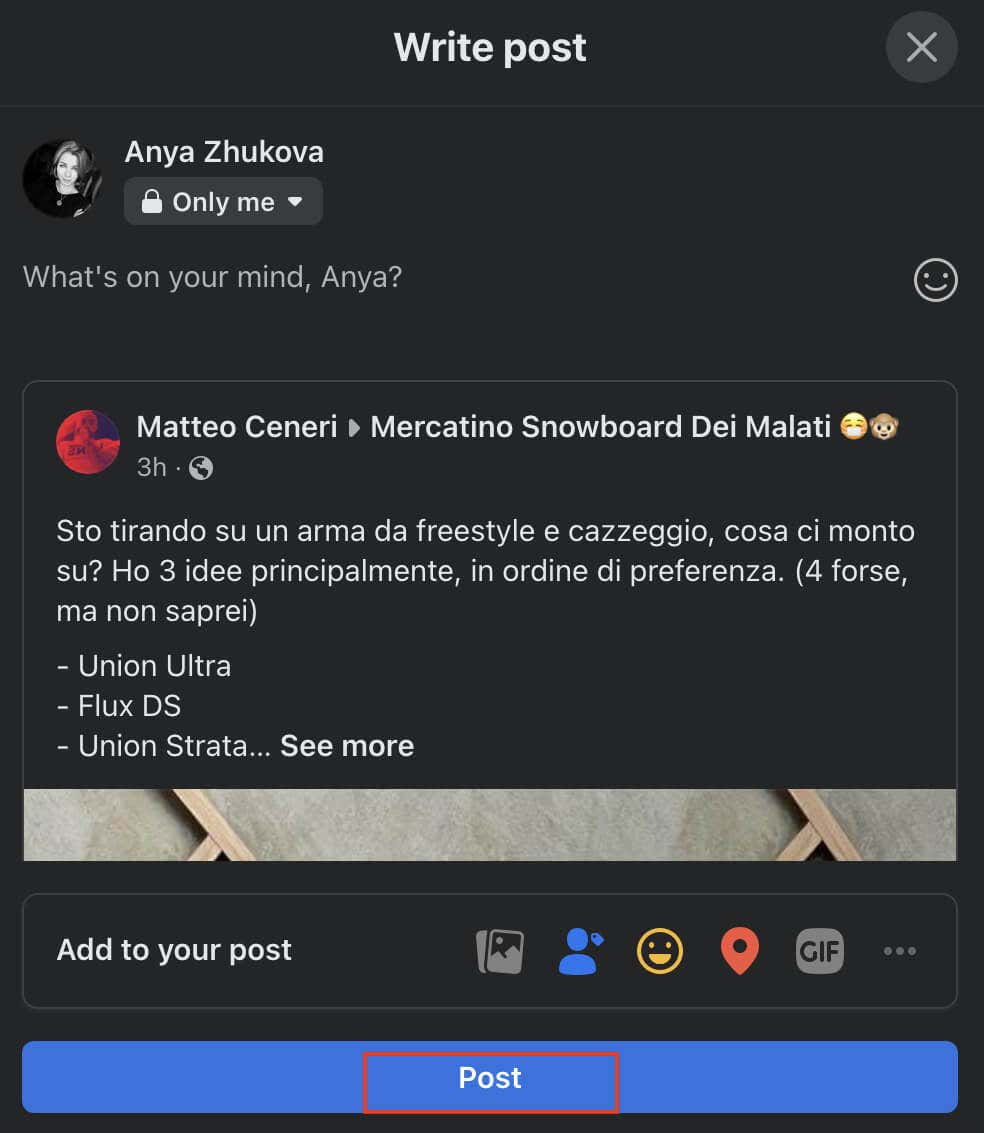
- Depending on the sharing method you picked, you may get a pop-up window that allows you to change the post description and audience. After you’re finished, click Post to publish the post.
How to Repost on Facebook Mobile
If you prefer using Facebook on your iPhone or Android smartphone, here’s how to repost on the Facebook mobile app.
- Open the Facebook app on your smartphone.
- In your news feed, find the post that you want to share.
- Select the Share icon underneath the post.
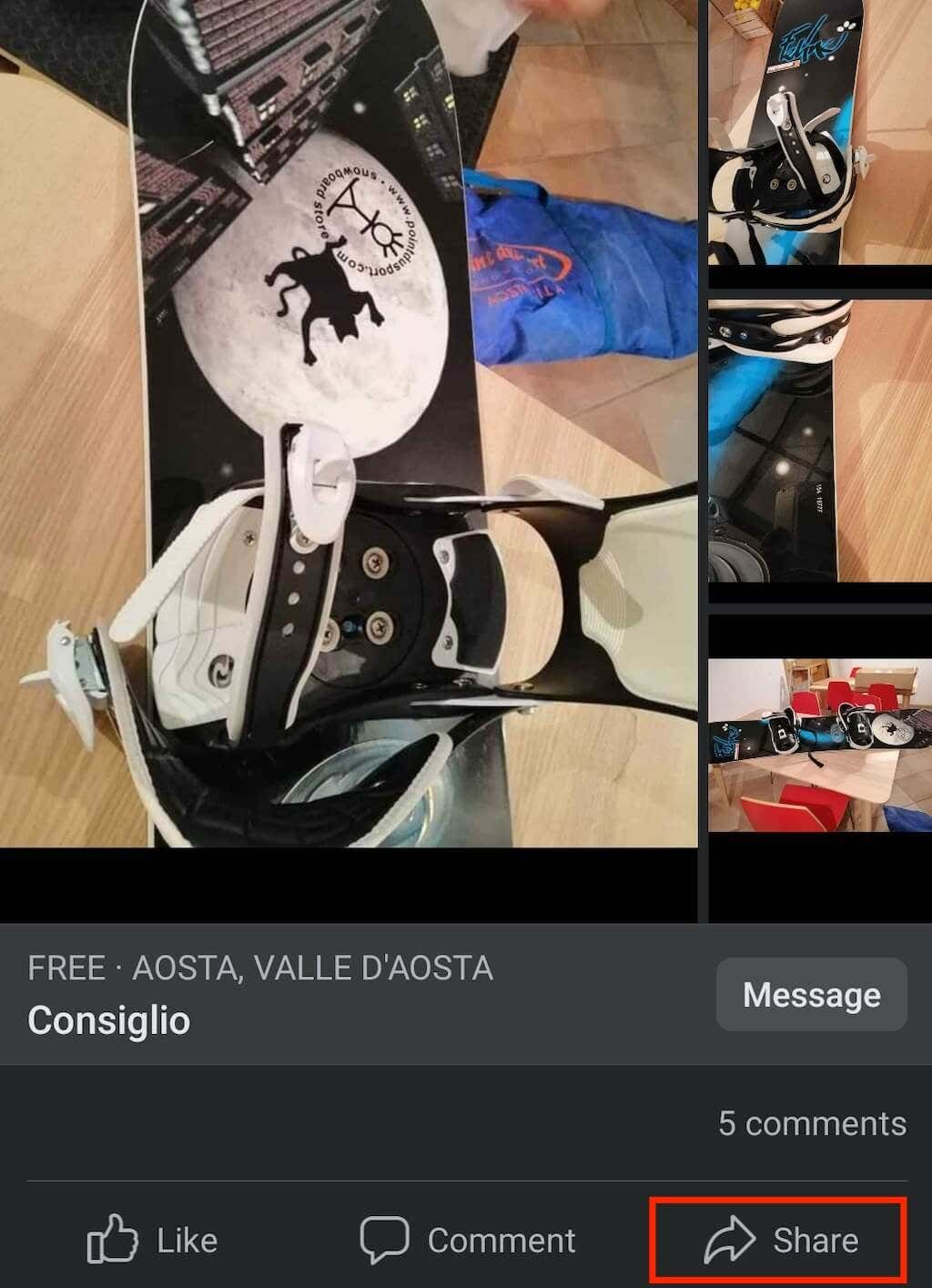
- In the drop-down menu, you’ll see the following sharing options:
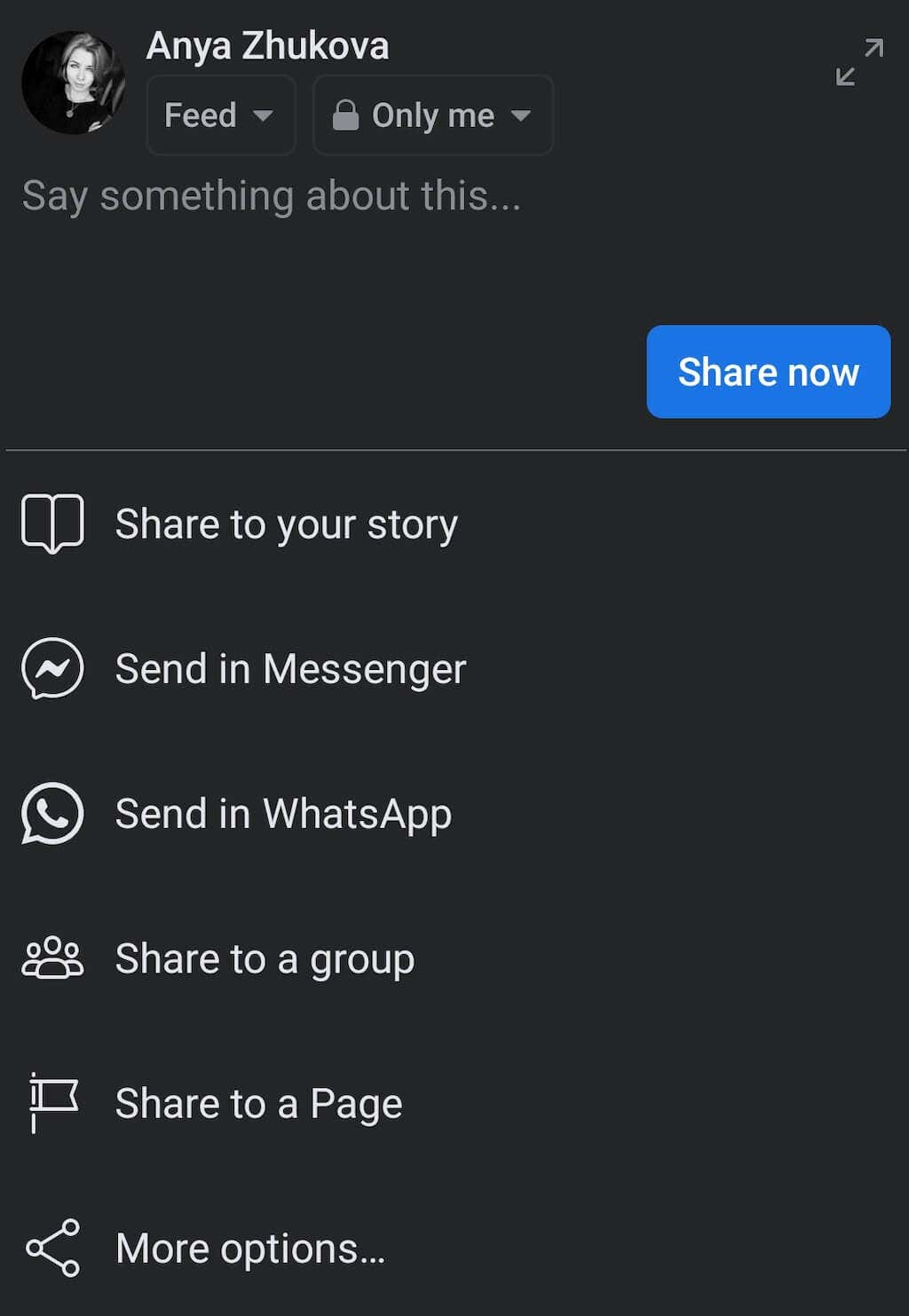
- Share to your story is an option that you can use for Facebook videos.
- Share to a Page’s story is a similar option, but for sharing videos on your personal or business page.
- Send in Messenger allows you to send the post in a Messenger chat instead of someone’s Facebook profile.
- Send in WhatsApp lets you repost something straight to a WhatsApp chat or group.
- Some more sharing options include sharing to a Facebook group or page, as well as sharing the post’s link outside of Facebook (like sharing a post as a Tweet or to your Instagram Stories)
- Depending on the sharing option you picked, the post will be shared automatically, or you’ll need to select Share now to finish reposting.
Once the reposted content appears on your Facebook account, your friends will be able to view the original post by clicking on your post. Any likes and comments from the original post will appear on the right side of the window.
The Share feature allows you to skip giving credit to the original post’s author, as the people viewing the post on your wall still see who the original author was.
How to Repost on Facebook Without the Share Button
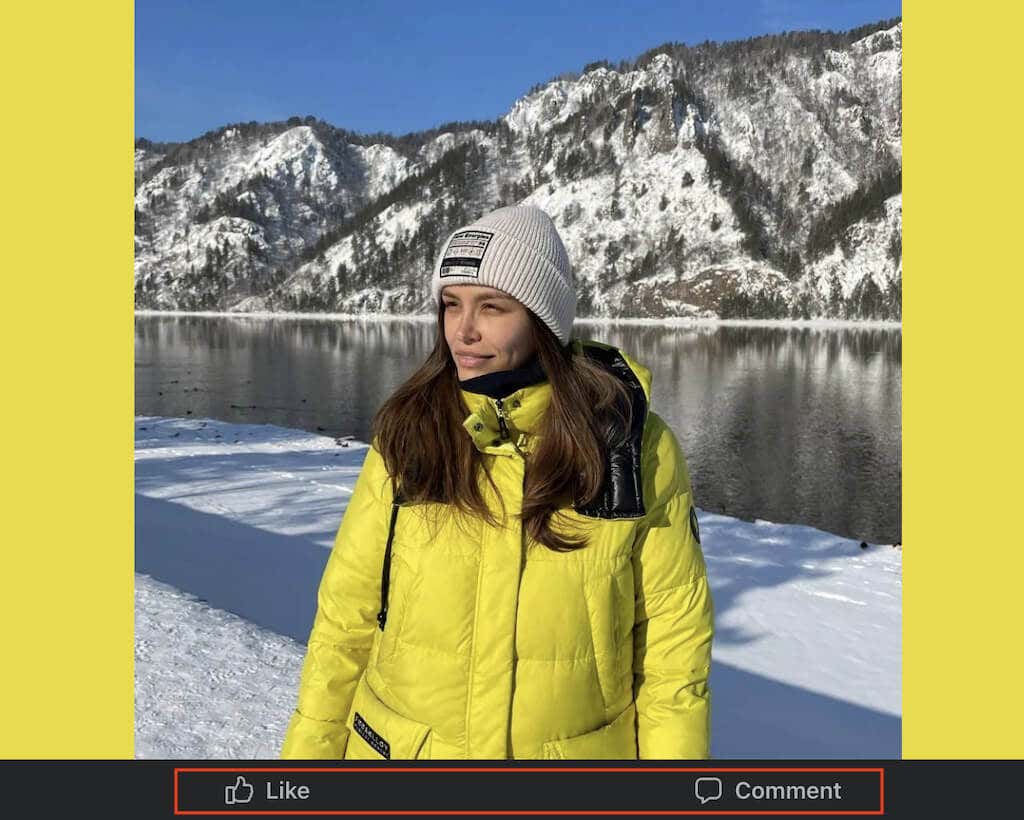
If the original poster tweaked the privacy settings and the post doesn’t seem shareable anymore, you can still share it using the copy link method.
How to Repost on Desktop Without the Share Button
To share a Facebook post that doesn’t have a Share button on your computer, follow the steps below.
- In your browser, open Facebook and navigate to the post you’d like to share.
- Click on the selected post, so it enlarges to cover your entire screen.
- Copy the URL of the post. You can either right-click on the link and select Copy or use the Ctrl + C / Cmd + C keyboard shortcut to copy the link.
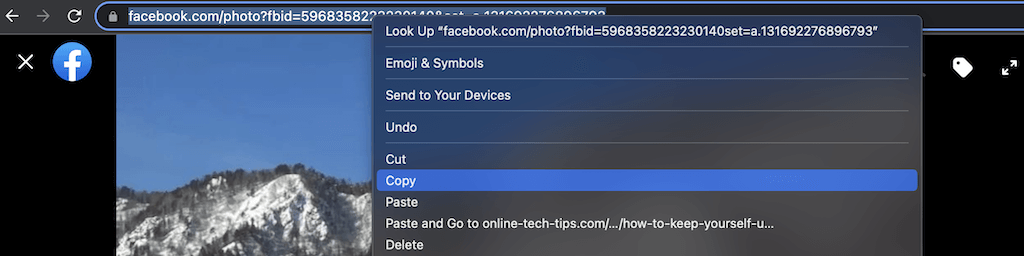
- Create a new Facebook post and paste the copied link into it. You can do it by right-clicking and selecting Paste or using the Ctrl + V / Cmd + V keyboard shortcut.
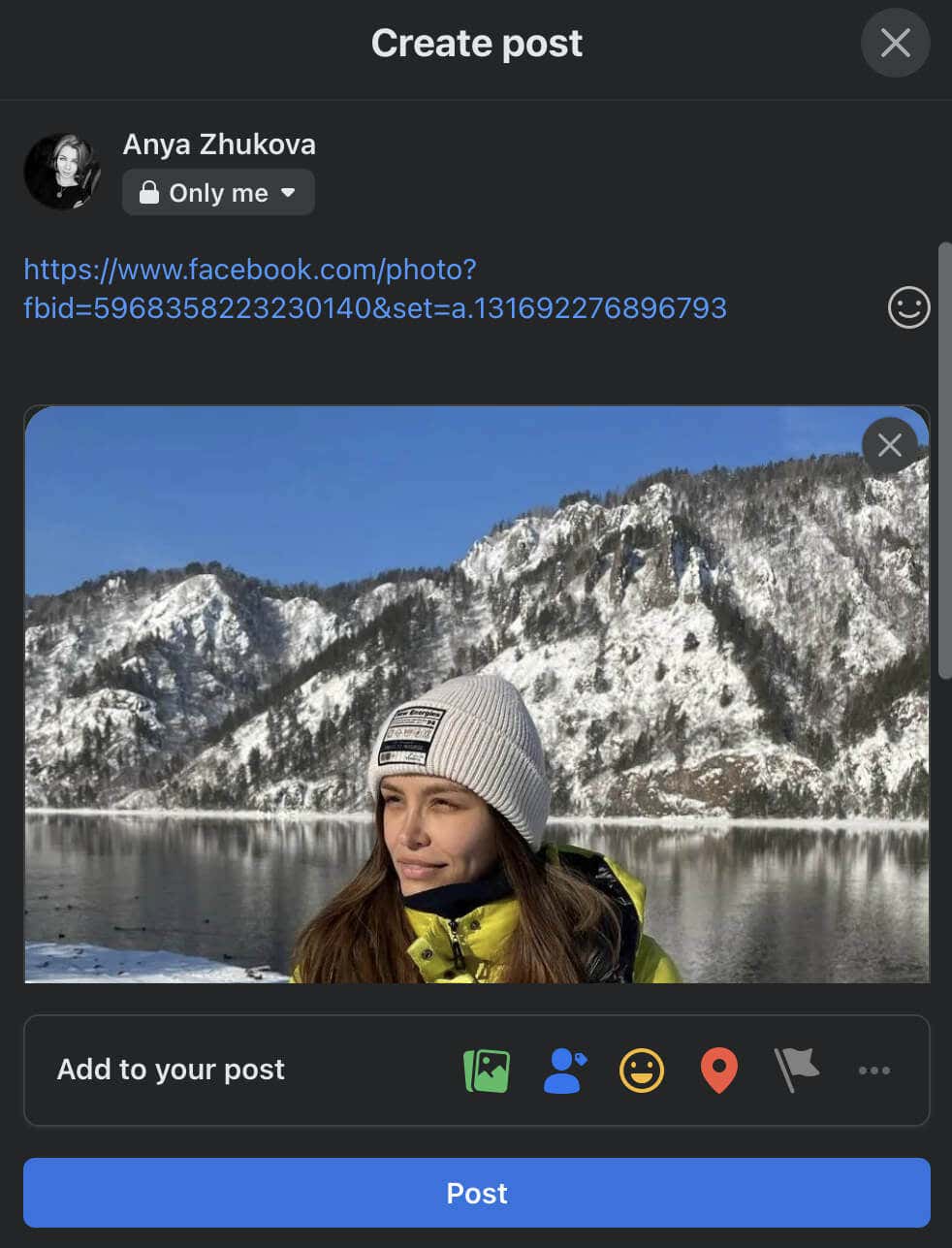
- Change the audience who can see your post and/or add media to it. Then select Post to publish it.
How to Repost on Mobile Without the Share Button
To repost on Facebook mobile, follow the steps below.
- Open the Facebook app on your smartphone.
- Find the post that you want to share.
- Select the three-dot menu icon in the top right corner of the post.
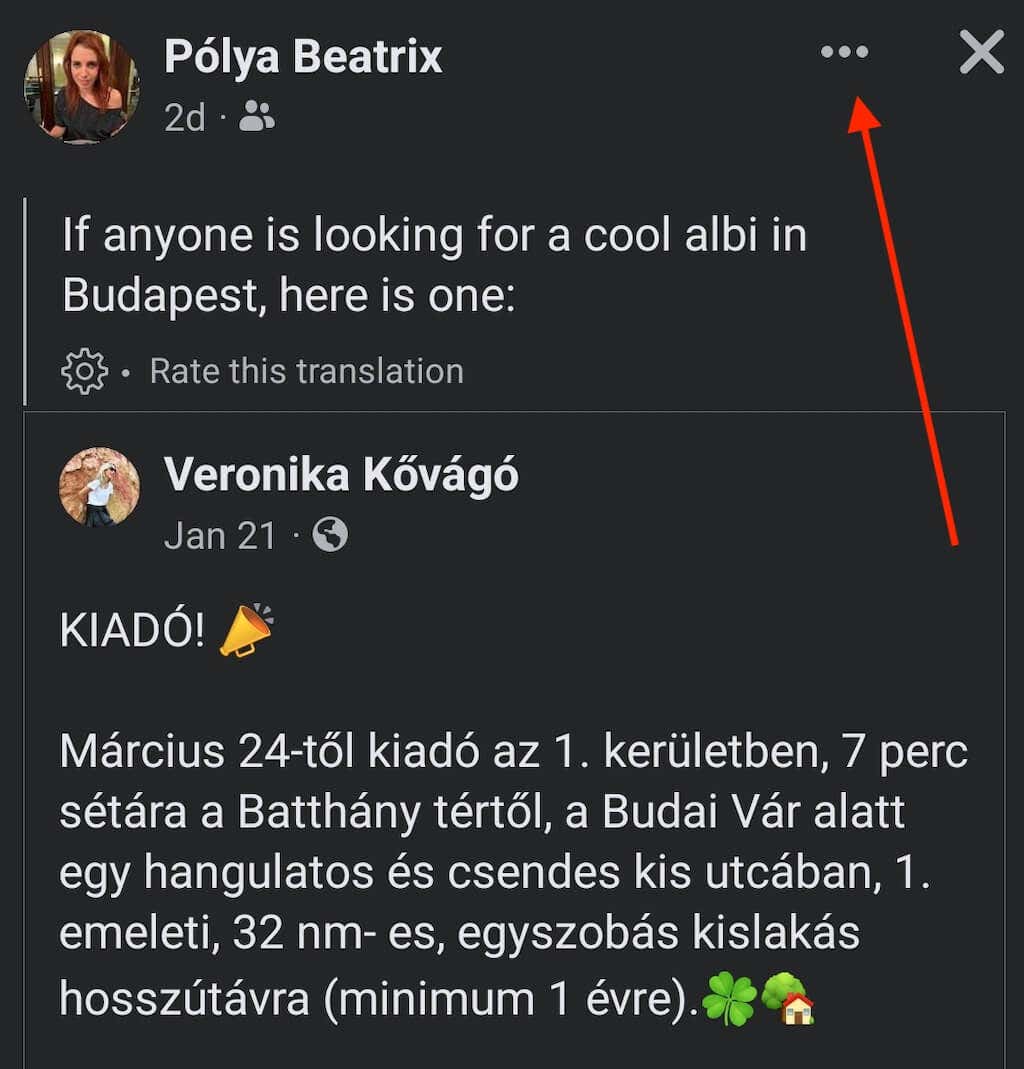
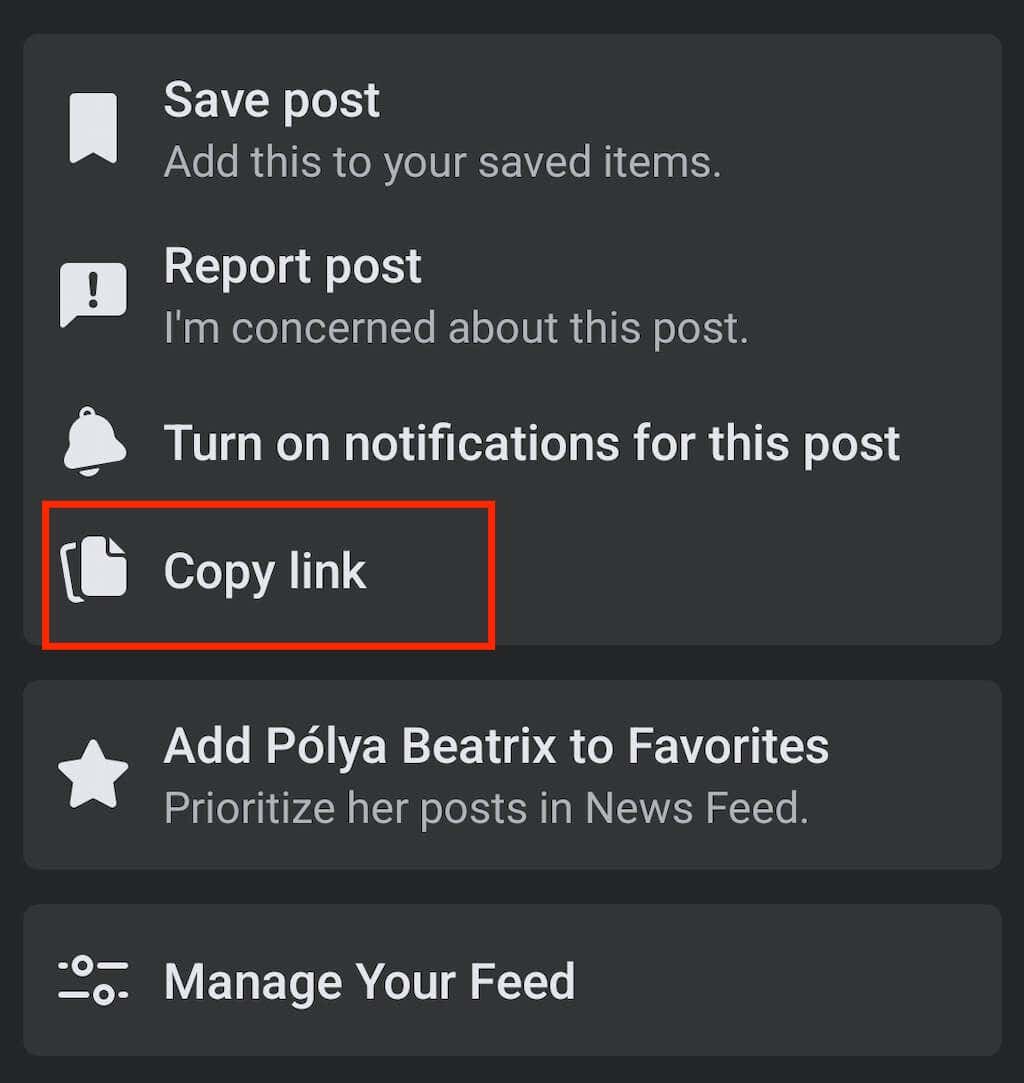
- Select Copy link to save the link into your clipboard.
- Create a new post on Facebook. Then tap and hold until the option to Paste appears.
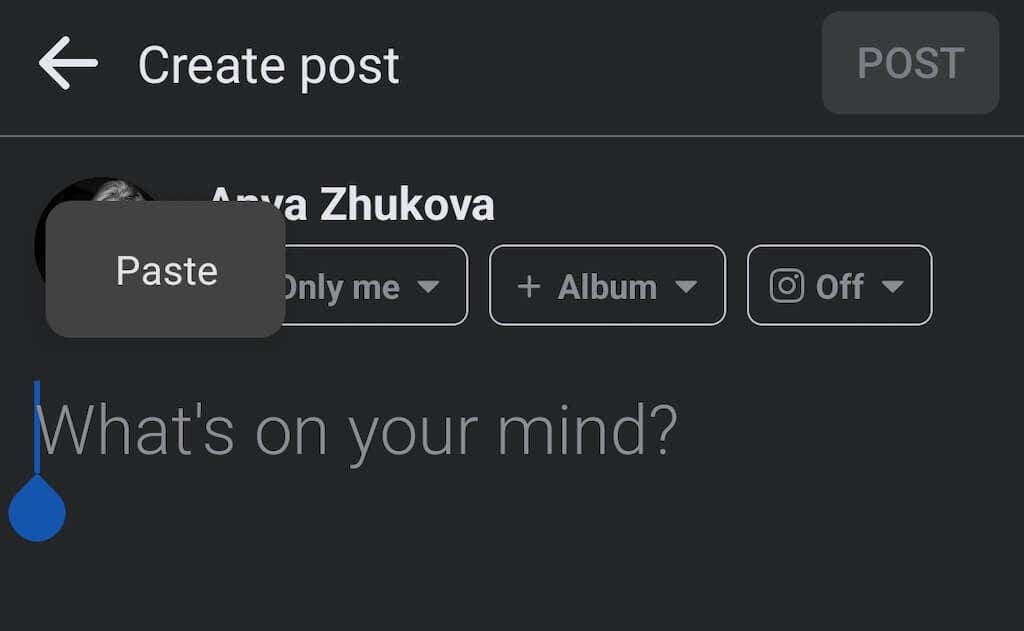
- Paste the link and select Post to publish your post.

How to Repost on Facebook from Instagram
Want to repost your Instagram posts and Reels on your Facebook page? Instagram has the option to cross-post to Facebook if you link your Instagram account with Facebook. You can only use it on the Instagram app and not on the Instagram web, so you’ll have to use your smartphone.
You can share an individual Instagram post to your Facebook page or change the settings to automatically share all of your future Instagram posts to Facebook.
To repost an individual post from Instagram to Facebook, follow the steps below.
- Open the Instagram app on your smartphone.
- Start creating a new post.
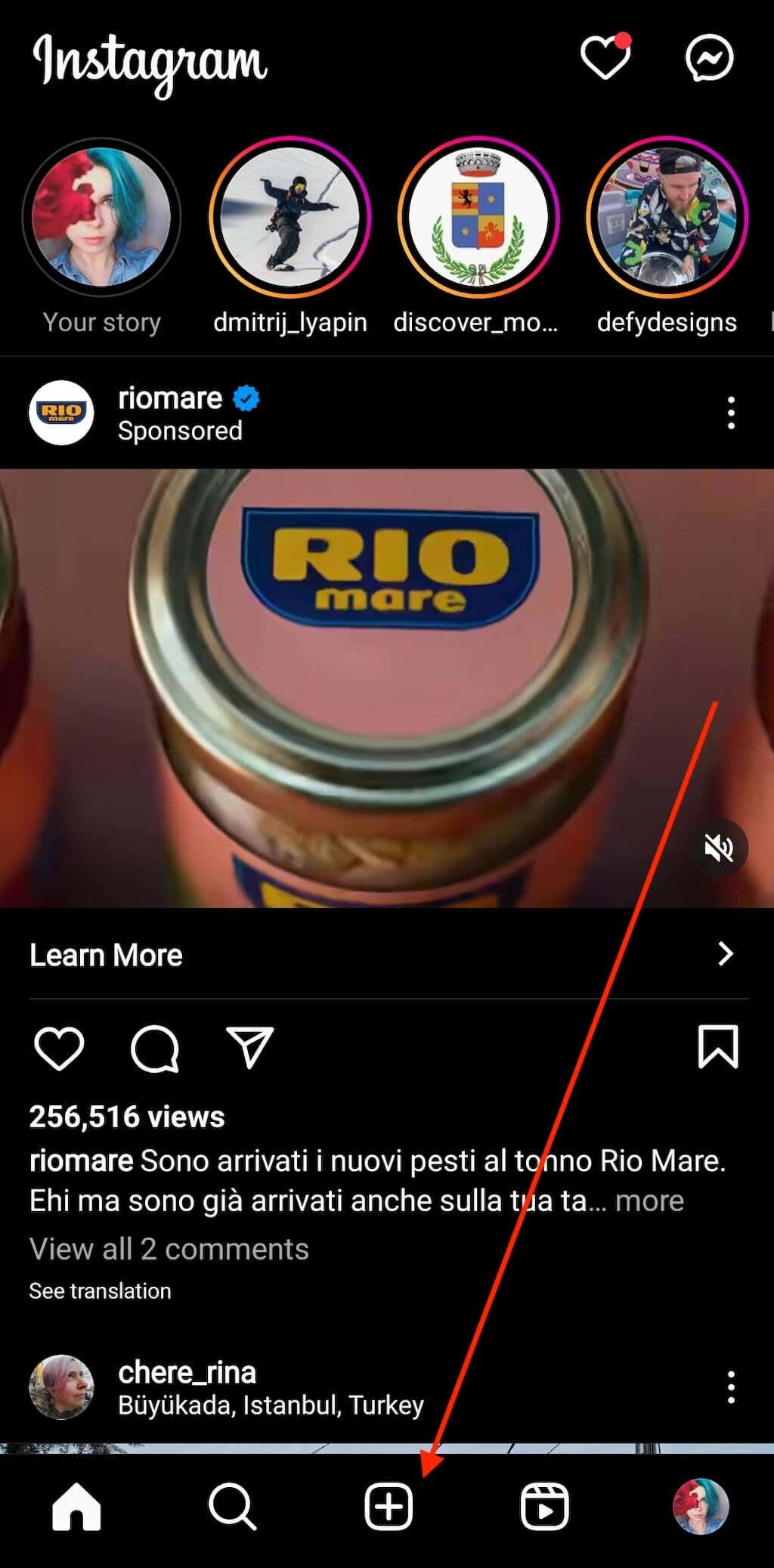
- On the last page, before sharing your post to Instagram, select Also post to > Facebook.
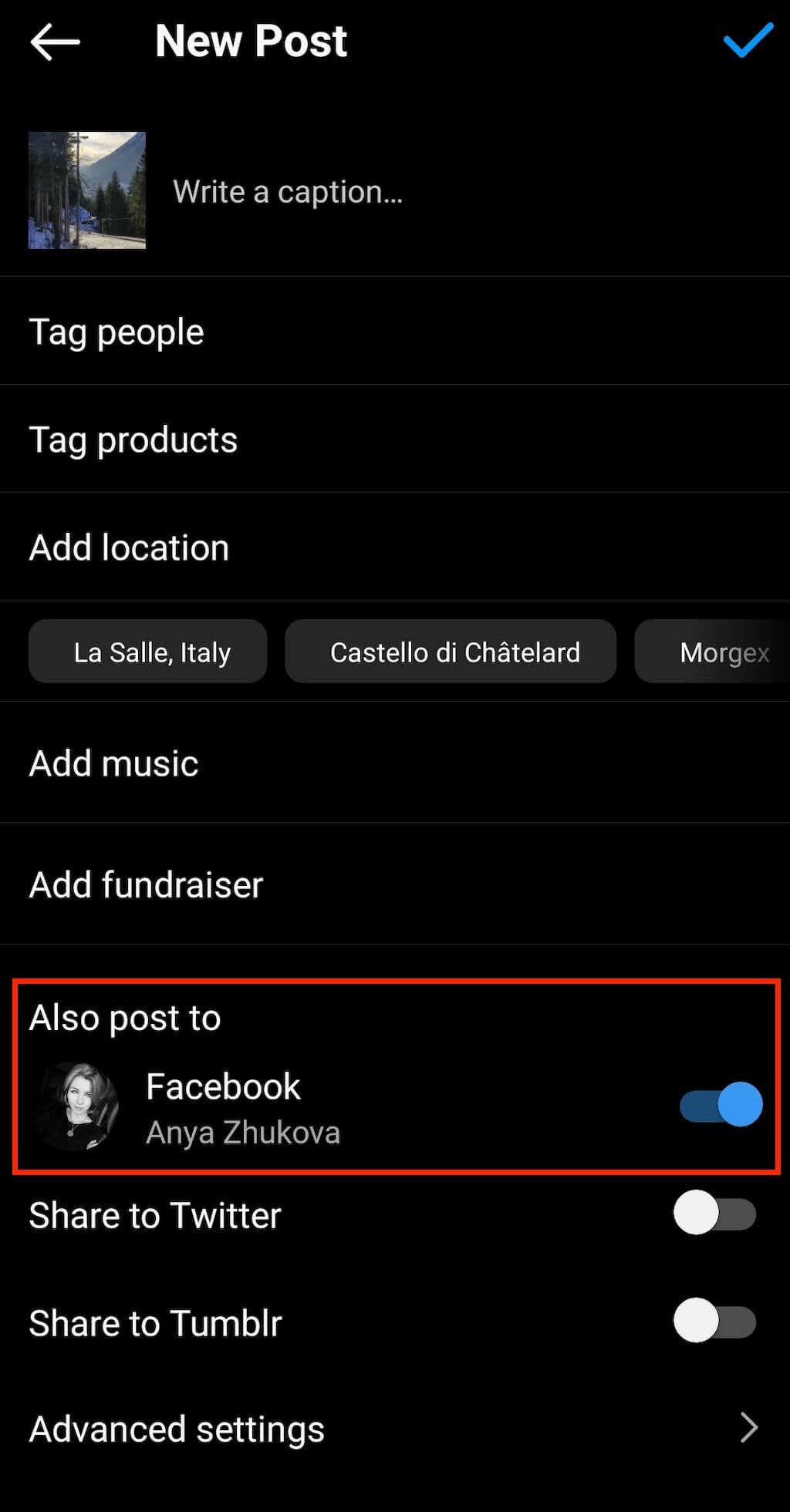
- When you publish your post on Instagram, it’ll also appear on the Facebook page that you have linked with your Instagram account.
To automatically share your future Instagram posts to Facebook, follow the steps below.
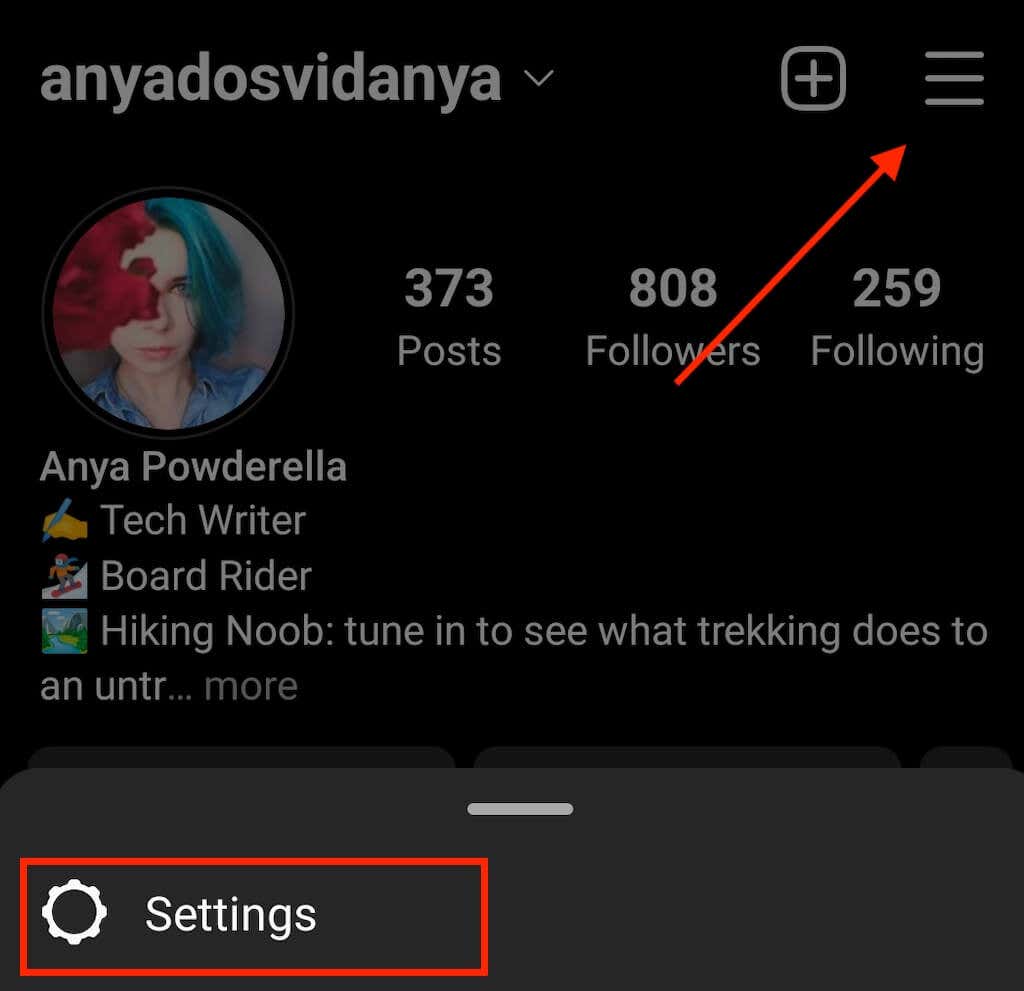
- Open Instagram and go to your profile page.
- Open Menu and select Settings.
- Scroll down and select Accounts Center under Meta.
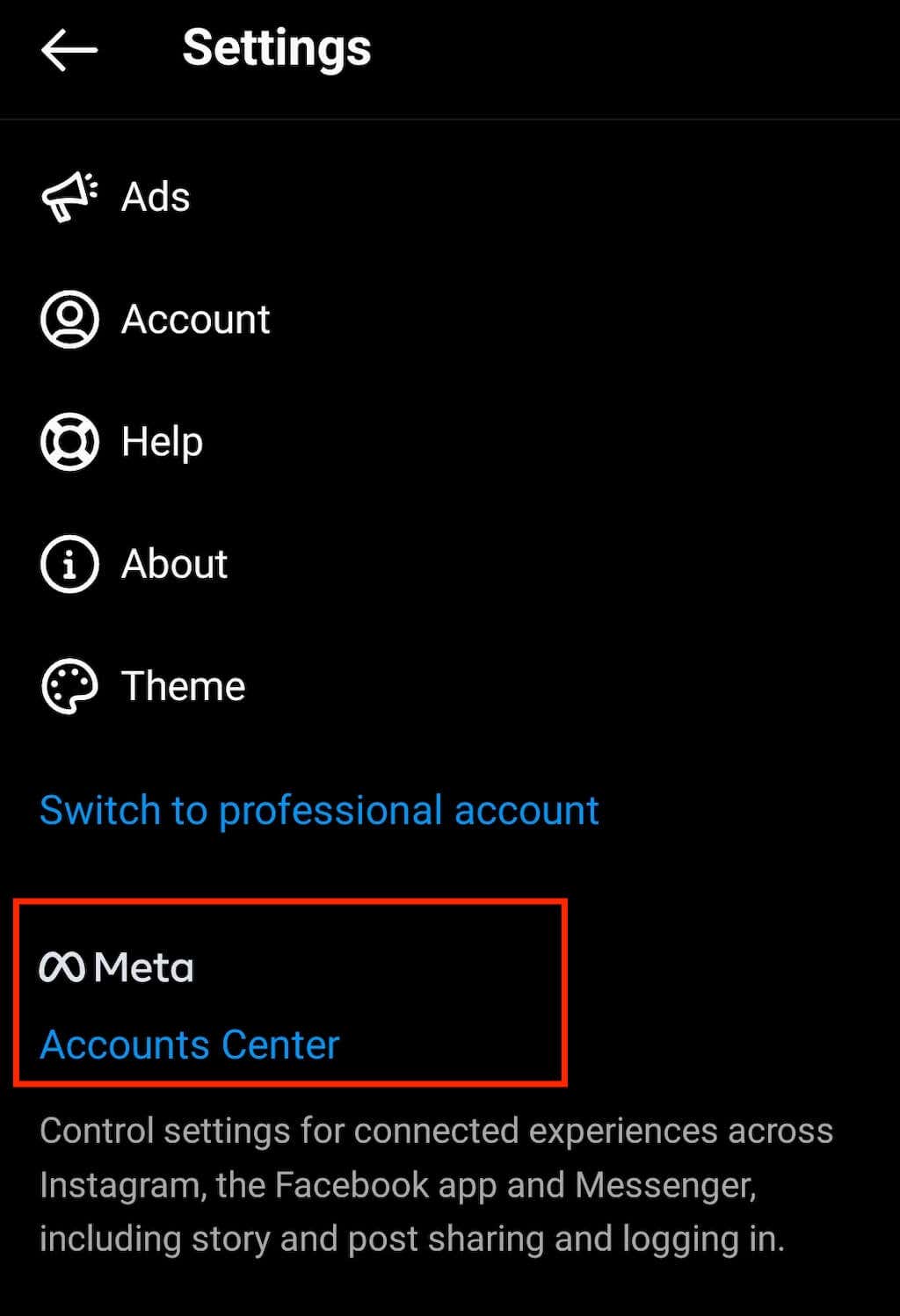
- Under Manage connected experiences, select Sharing across profiles.
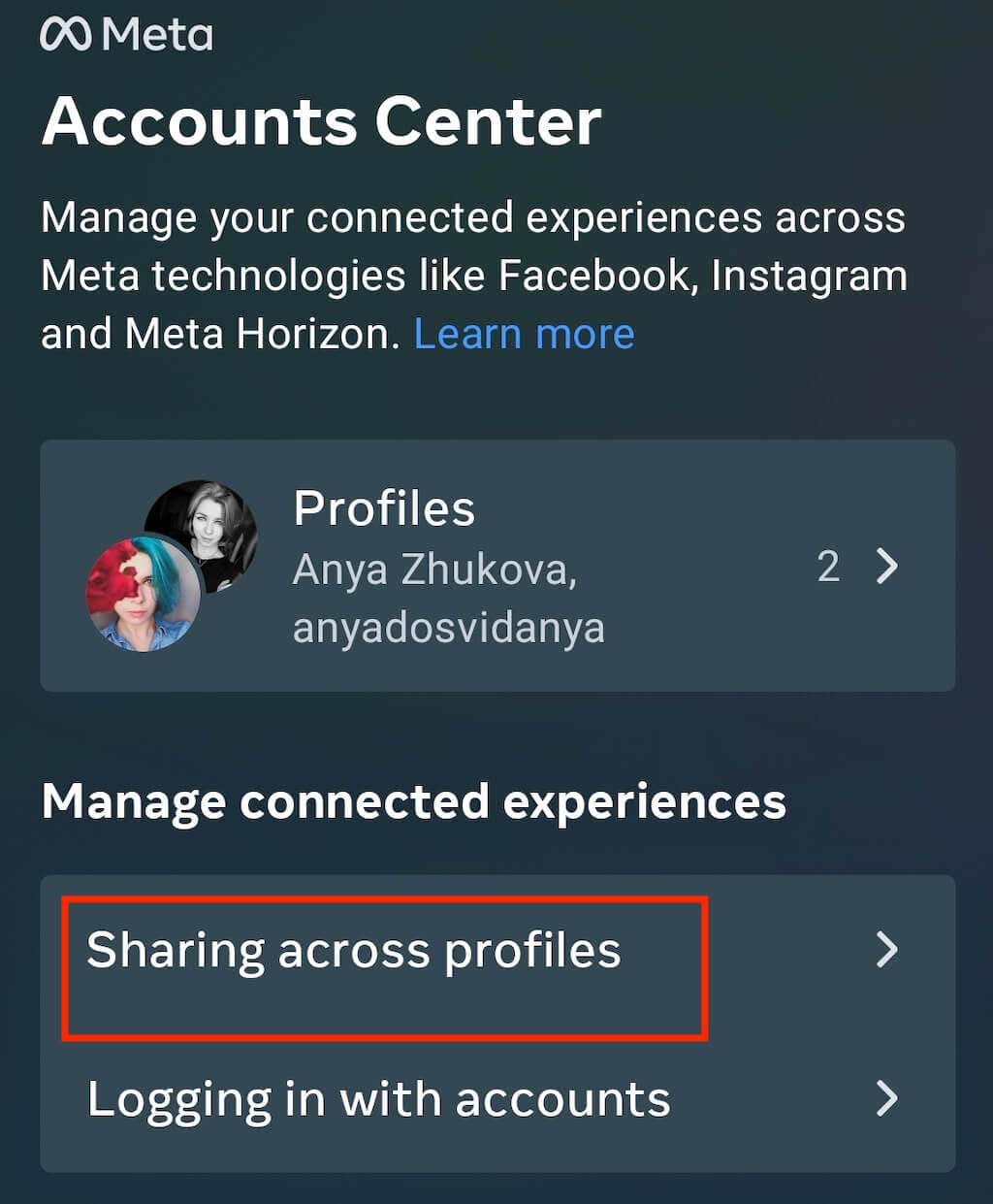
- On the next page, choose your Instagram account under Share from and your Facebook account under Share to.
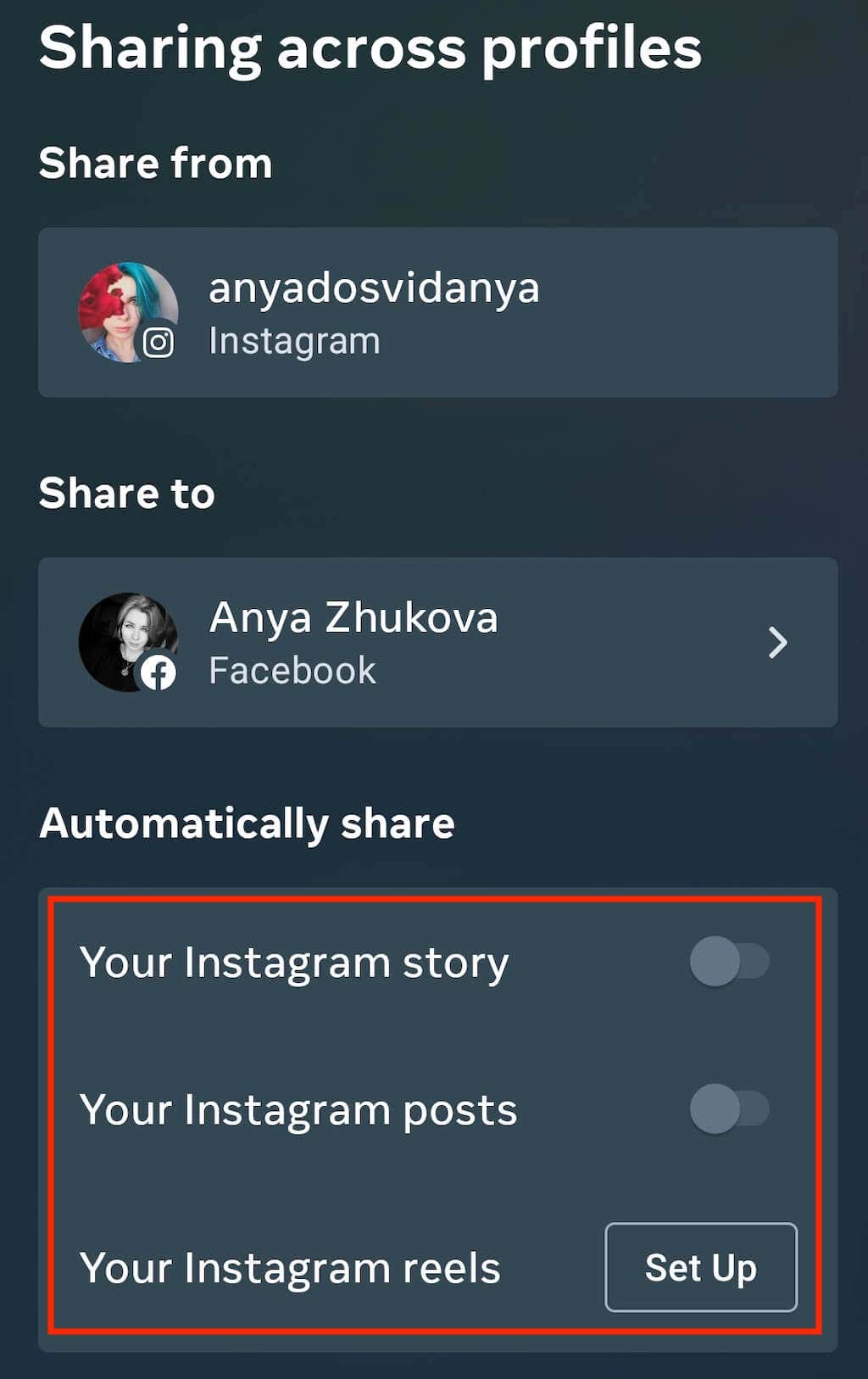
- Switch the toggles on next to Your Instagram story, Your Instagram posts, and Your Instagram reels to automatically repost them to your Facebook page.
Other Ways to Repost on Facebook
Another way to repost or share a post on Facebook or any other social media network is to take a screenshot of the post and then share it on your page. That way, you don’t have to worry about giving credit to the original creator, as you can simply leave their name visible on the screenshot.