

Ever stumbled upon a file with a .pot, .po, or .mo extension and wondered what the heck it is? It caught my eye when working on a WordPress theme translation and it’s actually worth a look if you’re dealing with multilingual websites or apps.
These files are the backbone of translation systems used in WordPress, PHP applications, Python projects like Django, and most Linux software. In this guide, you’ll learn exactly how to open, view, and edit these files on both Windows and macOS and why you might want to.
What Are POT, PO, and MO Files?
POT, PO, and MO files are part of the gettext translation system, basically the standard way software handles multiple languages. Think of them as the filing system that helps your favorite app speak different languages.
Here’s how they work together:
- POT files are templates containing all the text that needs translation (like a blank form)
- PO files are language-specific copies with actual translations filled in
- MO files are compiled versions that software actually uses at runtime (like a processed, ready-to-serve version)
If you’re working with WordPress themes, plugins, or any multilingual software, you’ll run into these files eventually.
Method 1: Use Poedit (The Modern Way)
While you can open these files in Notepad, you’ll get a scrambled mess that’s impossible to work with. Poedit is now the go-to tool for anyone who regularly works with translation files, and it’s actually pretty slick.
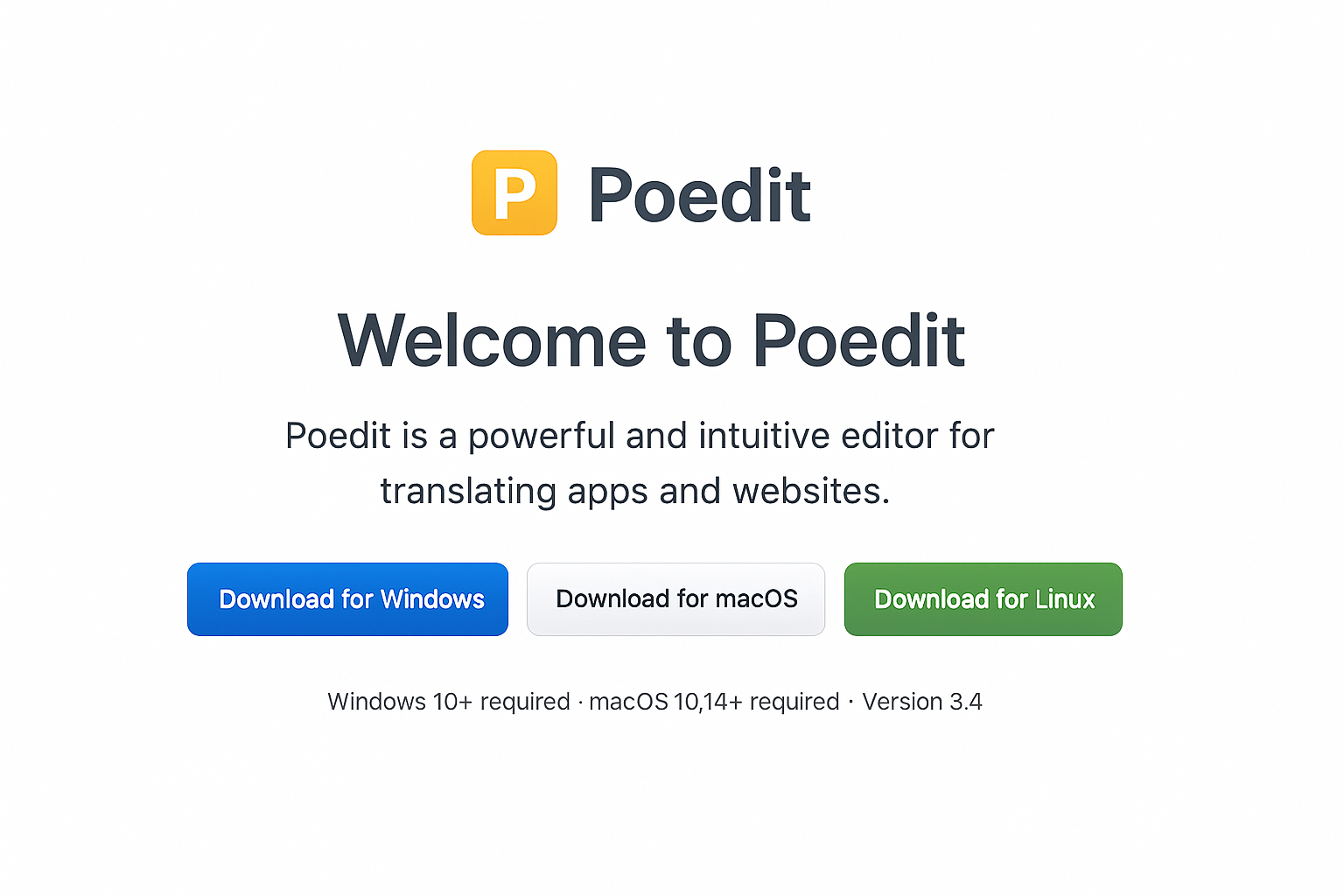
Step 1: Download and Install Poedit
Head to poedit.net and download the version for your operating system. It’s free, open-source, and works on Windows, macOS, and Linux.
Install it like any other program, nothing fancy required.
Step 2: Open Your Translation File
Once Poedit is installed, you can double-click any .pot, .po, or .mo file to open it automatically. Alternatively, launch Poedit and use File > Open.
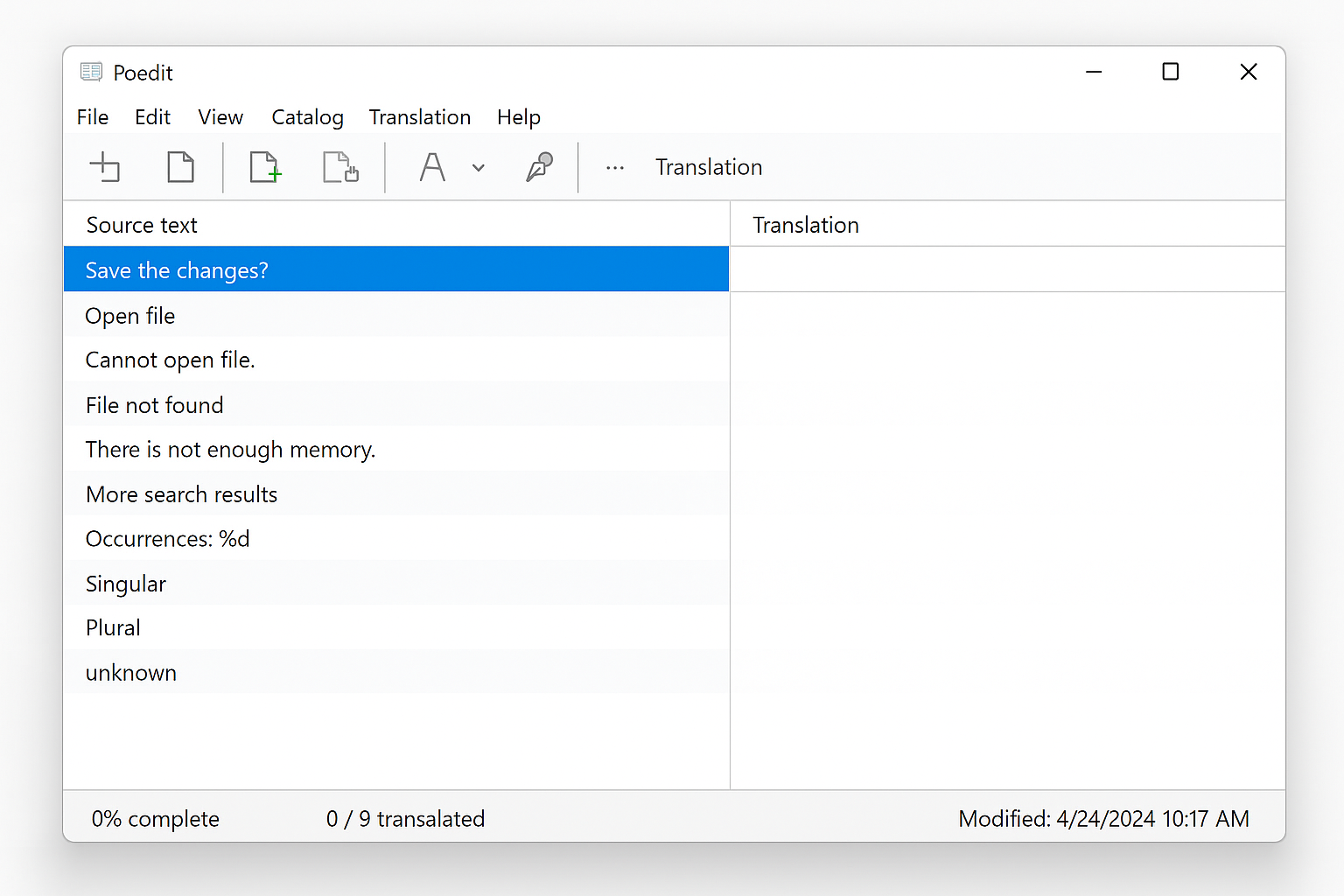
Step 3: Edit Translations
Poedit displays everything in a clean, organized way:
- Original text appears in the main list
- Translations show up next to each original string
- Click any row to edit the translation in the bottom panel
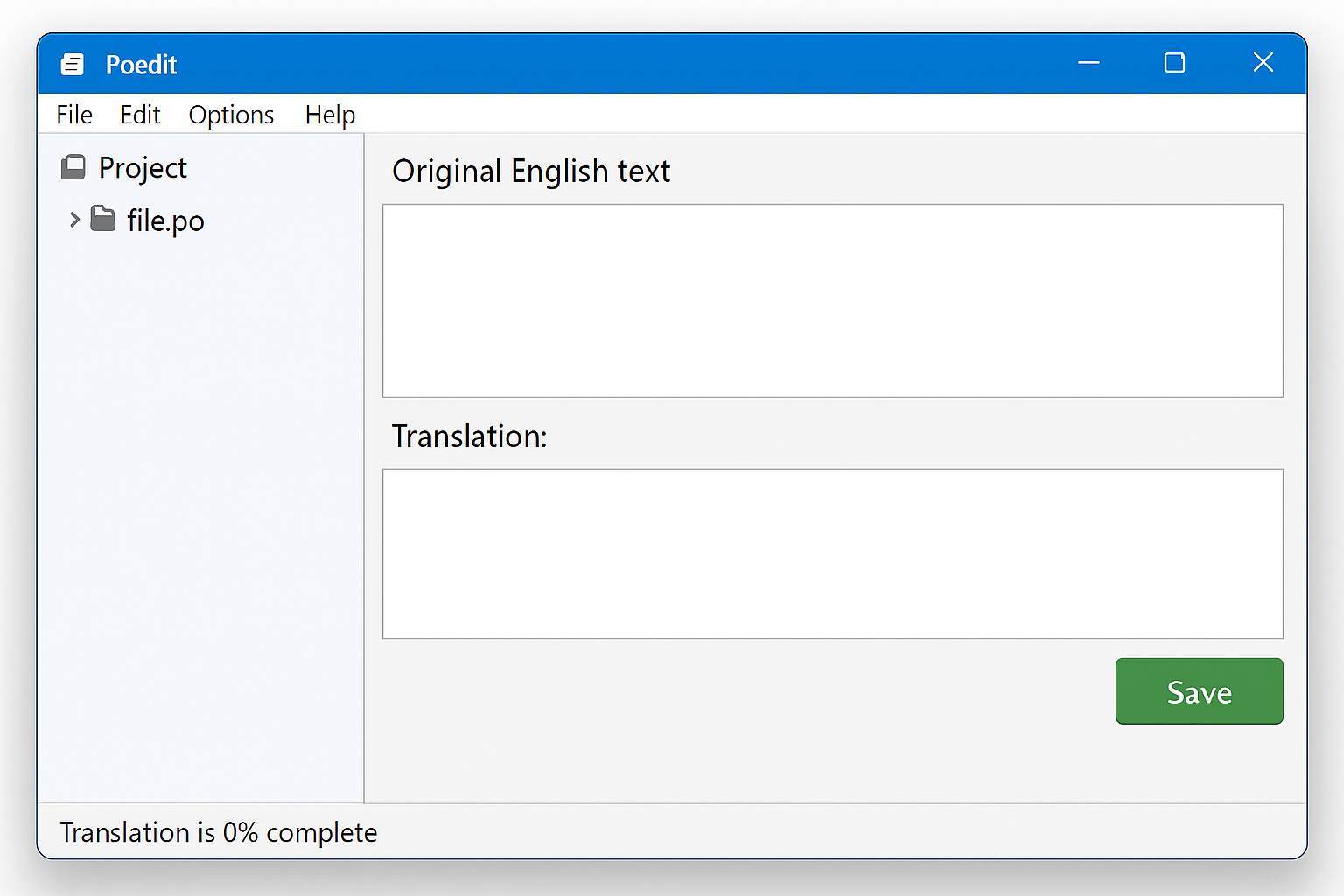
To edit a translation, just click the string you want to change and type in the bottom edit box. Hit Ctrl + S (Windows) or Cmd + S (macOS) to save your changes.
Pro tip: Right-click any string and select Copy original to translation field if you want to use the original text as a starting point.
Method 2: Text Editor (Quick and Dirty)
If you just need to peek inside a file or make a quick change, you can use a regular text editor. This works better for .po and .pot files than .mo files (which are binary and will look like gibberish).
On Windows
Right-click the file, select Open with, then choose Notepad or any text editor you prefer. You’ll see the raw format, which looks something like this:
msgid "Hello"
msgstr "Hola"

msgid "Goodbye"
msgstr "Adiós"
On macOS
Right-click the file, select Open With > TextEdit (or any text editor). The format will be the same as Windows.
While this method works for quick edits, you’ll miss out on Poedit’s helpful features like syntax checking and translation memory.
Working with Different File Types
POT files (templates): These are your starting point. Open them in Poedit and save copies as .po files for each language you want to support.
PO files (translations): These are what you’ll spend most of your time editing. Poedit makes this smooth and actually enjoyable.
MO files (compiled): You typically don’t edit these directly. Poedit can generate them automatically when you save a .po file, or you can use command-line tools if you’re feeling adventurous.
Tips and Troubleshooting
Common Issues
Problem: File opens as gibberish in text editor
This usually happens with .mo files, which are binary. Stick to Poedit for these, or work with the source .po file instead.
Problem: Poedit shows “fuzzy” translations
Fuzzy translations are marked as uncertain and won’t be used in the final software. Review and edit them, then mark them as complete.
Problem: Characters look weird or corrupted
This is usually an encoding issue. In Poedit, go to Catalog > Properties and make sure the charset is set to UTF-8.
Pro Tips
- Keep backups: Always backup your original files before making changes
- Use translation memory: Poedit’s Pro version can remember previous translations and suggest them automatically
- Test your changes: After editing, test the software to make sure your translations display correctly
- Watch for plurals: Different languages handle plurals differently — pay attention to plural forms in your translations
Wrapping Up
Opening and editing POT, PO, and MO files is actually pretty straightforward once you have the right tool. Poedit is genuinely well-designed and makes translation work much more pleasant than wrestling with text editors.
Whether you’re customizing a WordPress theme, contributing to an open-source project, or just curious about how multilingual software works, you’re now equipped to handle these files like a pro. I’d definitely recommend bookmarking Poedit — it’s one of those gems that does exactly what it promises.