
Recently, Instagram brought back the option for users to have a chronological news feed, a previously removed feature in 2016. Instead, they’ve switched to an algorithmic feed, which tries to figure out what you want to see the most and shows you that first. However, many users dislike this type of feed and just want to see things in the order they were posted.
So this led to the reintroduction of the chronological feed, which users can now choose to use instead. Instagram has now made it easy to switch between the different feeds depending on what order you want to see. This article will show you how to change your Instagram feed to chronological order and other orders you may wish to use.
How to Make Instagram Chronological
If you want to see what your friends have posted recently, you probably want to use Instagram’s chronological order feed. You can do this from the Instagram feed itself. Here’s how.
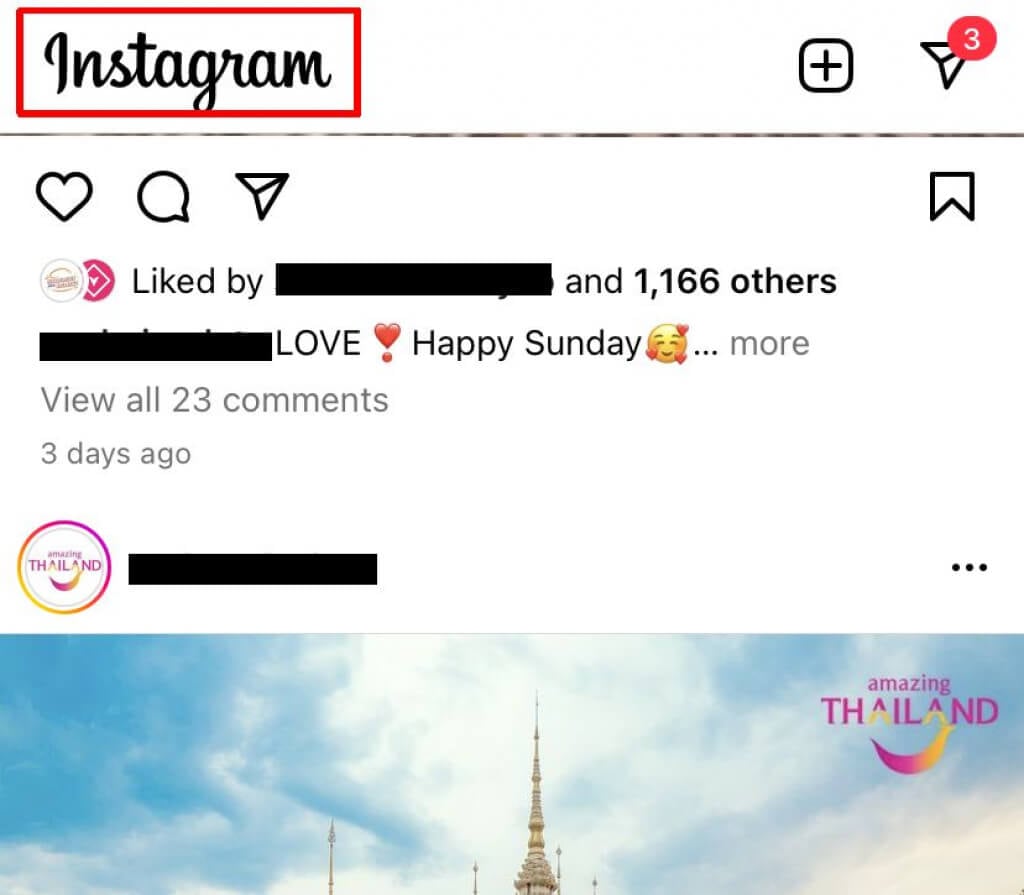
- On Instagram’s home page, tap on the Instagram logo.
- In the dropdown menu that appears, tap on the Following option. This will show you the feed of those you follow in chronological order.
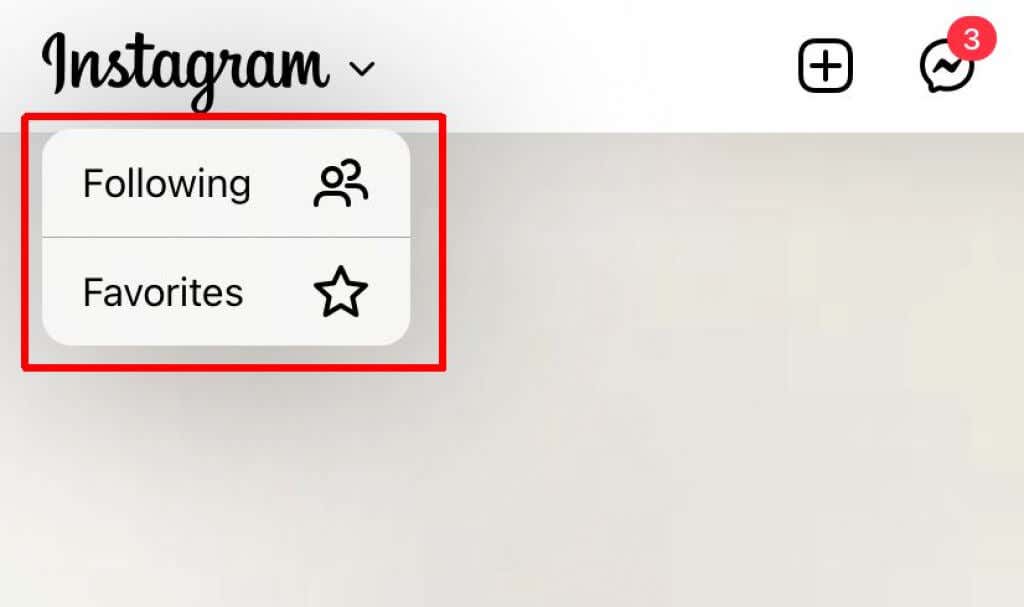
- There is also the Favorite option, which allows you to view the posts of your favorite accounts in chronological order first.
This is a great option for those who miss the chronological feed, but there are a few caveats. The feed will return to algorithmic if you close and reopen the app. You also won’t be able to see anyone’s Stories while using the chronological feed.
Furthermore, if you want to use the Favorites chronological feed, you’ll need to add accounts to your Favorites list first.
How to Add Accounts to Your Favorites
Adding accounts to your favorites can help you manage your chronological feed, so you first see recent posts from your most important accounts. To add Instagram accounts to your favorites, follow these steps.
- On the Instagram home page, tap on the Instagram logo.
- Tap on the Favorites option.
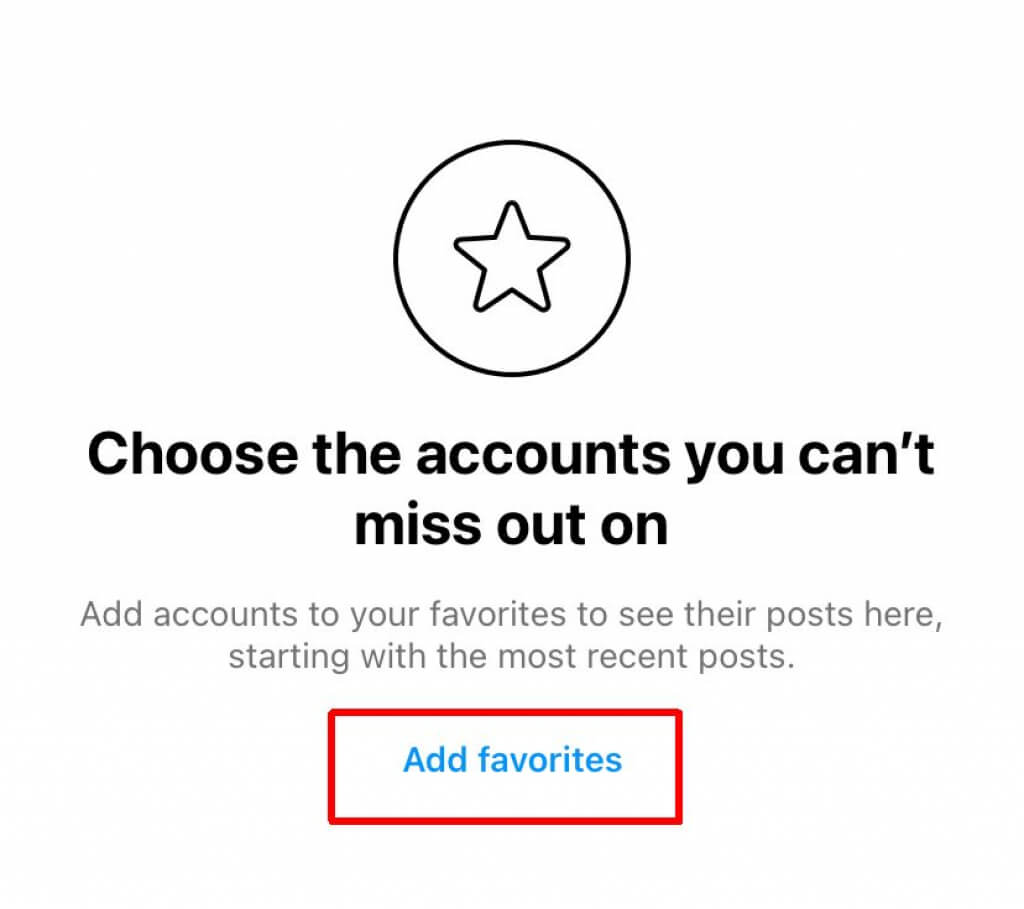
- Tap on the Add Favorites button.
- Use the Search option to find accounts you want to add, then tap Add.
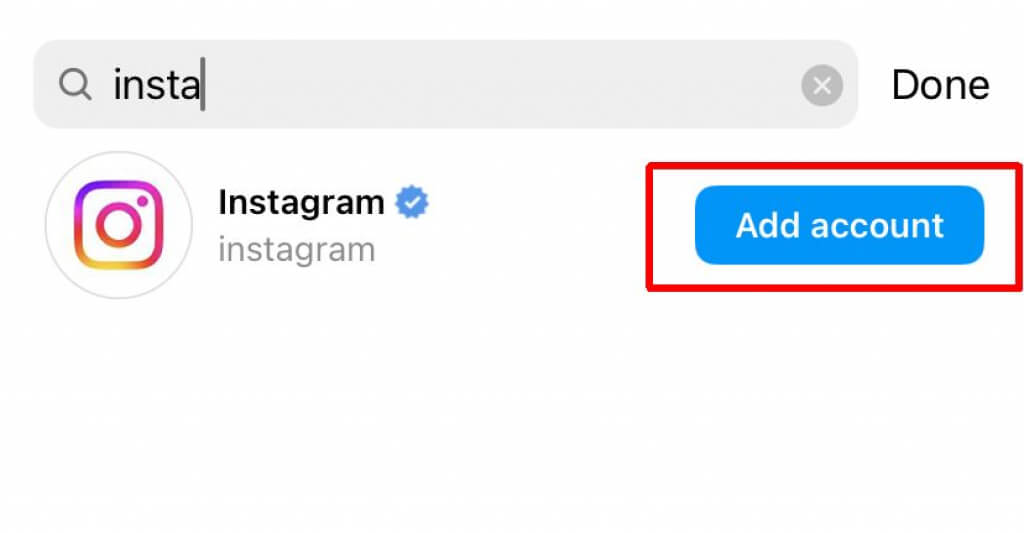
- You can also tap Remove if you change your mind about an account.
- Once you’ve finished creating your list, tap on Confirm favorites to complete the process.
Now, you can use the Favorites feed to see all the posts from your favorite accounts. You can manage this Favorites list by tapping the star list icon in the top right. From there, you’ll be able to add more accounts to your Favorites or delete some.
Algorithm vs. Chronological Feed: Which Is Better?
If you’re unsure how you want to view your Instagram feed, consider which type of feed is better for your needs. Both types offer a different experience when browsing Instagram, and you may prefer one over another for various reasons.
The algorithmic feed works by analyzing what you engage with on the app. Accounts whose posts you like or comment more on will come up in your feed first. Or, if you spend more time on those posts or watch their stories, they’re more likely to come up sooner in your feed. This can have both upsides and downsides. On the upside, your feed is tailored to what you tend to want to see. However, it may not always get things right, and you may wonder what happened to your friend’s posts which you don’t interact with as much but still want to see.
The chronological feed doesn’t discriminate much on what shows up in your feed. The most recent posts come first, so you’ll be caught up on what your friends are posting. This can be a better option for those who just want to use Instagram to connect with friends and family or don’t want to spend tons of time scrolling through their feed.
Also, you can switch back and forth between these two different types of feeds if you’re unsure which one works better for you.
Why Did Instagram Add Back The Chronological Feed?
Initially, when Facebook bought up Instagram, they revamped the app to feature an algorithmic feed instead of the chronological feed that had been commonplace. Facebook did this to optimize the advertisements shown to people within the app, allowing the company to generate more revenue.
This switch faced backlash from Instagram users, but this wasn’t what caused Facebook/Meta to add back the chronological features. Instead, they were preparing for the passing of a bill that targets apps like Instagram, which utilize algorithmic feeds. This bill, the Filter Bubble Transparency Act, would require that social media platforms allow users to turn off algorithmic feeds.
See New Posts First With a Chronological Feed
Using the chronological feed on Instagram can allow you to see what your friends or other favorite accounts post as soon as they post it. As a result, you won’t have to wade through endless amounts of unnecessary algorithmic content to get to the latest updates.
Which type of Instagram feed do you prefer using the most? Let us know in the comments.