
Skip to content
ONLINE 101010 TECH 010101 TIPS
  • Latest
  • News
  • How-To
  • Social
  • Streaming
  • Gaming
  • Reviews
  • Latest
  • News
  • How-To
  • Social
  • Streaming
  • Gaming
  • Reviews
  1. Home/
  2. Social Media/
  3. How to Import Shazam Songs Into YouTube

How to Import Shazam Songs Into YouTube

Aseem Kishore
June 13, 2019
3 min read
 - shazam-to-youtube

Shazam is awesome for identifying songs by their sound. You can use it anywhere you go for near-instant tagging, like while watching movies, walking through the mall, riding in a car, etc. However, what use is it if you never go back to listen to the music?

If you want to put your catalog to use, import all your Shazam songs into a YouTube playlist. This lets you listen to every song in full, and even see videos with the music just like you can with regular YouTube videos.

There isn’t an “export Shazam to YouTube” option in your Shazam account or an “import Shazam songs to YouTube” feature built-in to YouTube. To get this Shazam to YouTube conversion done properly, you can use a third-party website. The one we’ll look at is easy to understand and definitely beats adding all the music manually.

Make a YouTube Playlist From Shazam Songs

The easiest way to find YouTube videos for your Shazam music is with Shazam2Youtube Playlist Converter. It runs entirely online, so you don’t need to download the converter. However, you’ll need to download the list of Shazam songs, so it’s best to do this from a computer:

Step 1: Visit Shazam.com and log in to your account.

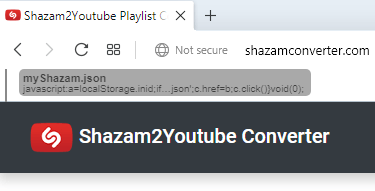
Step 2: Go to Shazam2Youtube Playlist Converter and drag the myShazam.json file from the second step into the bookmarks area of your browser.
 - shazam2youtube-bookmarklet

Step 3: Return to your Shazam account to view all your Shazams.

Step 4: Click the bookmarklet you just dragged into your browser.

Step 5: Wait a few seconds until you see a prompt to download myShazam.json. Confirm it by choosing where on your computer to save it to, but be sure to remember where you put it because you’ll need it in the next step.

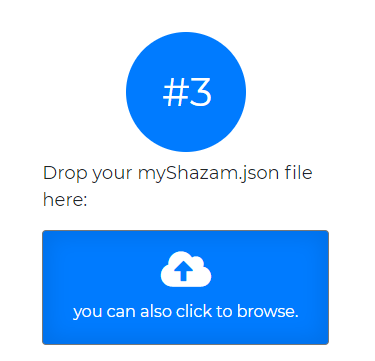
Step 6: Open Shazam2Youtube Playlist Converter again and then select the blue upload area in step 3.
 - shazam2youtube-upload

Step 7: Select and upload the myShazam.json file you downloaded.

Step 8: Wait while the tool loads all your Shazam songs and prepares them for the YouTube import.

 - shazam2youtube-conversion

Note: If you’re already logged in to YouTube, the playlist will start importing into your account immediately. If not, continue with these steps.

Step 9: Select Login to Youtube and then sign on to your YouTube account.

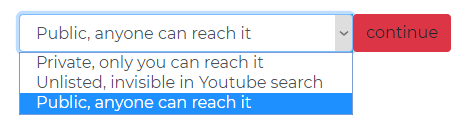
Step 10: Choose a privacy level for the YouTube playlist and then select continue.
 - shazam2youtube-privacy-level

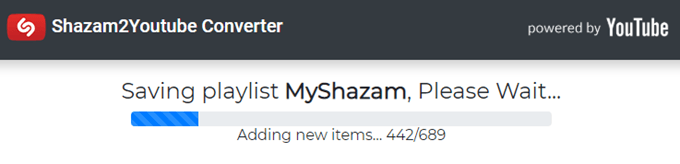
Step 11: Wait while the MyShazam YouTube playlist is being created. It should only take a minute or so if you have less a thousand songs.
 - shazam2youtube-import

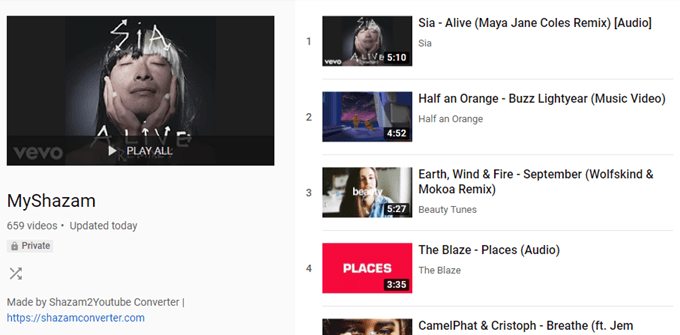
Step 12: Select Watch it with Youtube to open the new Shazam playlist on YouTube.
 - myshazam-youtube-playlist
Tags: YouTube
Share
Written by

Aseem Kishore

Founder of Online Tech Tips and managing editor. He began blogging in 2007 and quit his job in 2010 to blog full-time. He has over 15 years of industry experience in IT and holds several technical certifications. <a href='https://www.online-tech-tips.com/author/akishoreott/'>Read Aseem's Full Bio</a>

View Aseem's Profile

Recent Posts

  •  - personal finance tools
    10 AI Money Apps That Make Mint Look MedievalJun 6, 2025
  •  - smartwatches
    Is a Smartwatch Worth It in 2025 and Beyond?May 20, 2025
  •  - slow wifi
    How to Fix Slow Wi-Fi on Your SmartphoneMay 6, 2025
  • Programmer coding at computer. - vibe coding
    Vibe Coding 101: Your Guide to AI-Powered ProgrammingMar 26, 2025

Search

Categories

  • Gaming (345)
  • How-To (1,119)
  • News (43)
  • Reviews (437)
  • Social Media (461)
  • Streaming (174)
  • Uncategorized (4)

Popular Tags

Adobe AI Alexa Amazon Android Buying Guides ChatGPT Chrome Discord Explainers Facebook FireTV Gadget Reviews Gmail Google Google Docs Google Maps Google Sheets Home Networking Hulu Instagram Internet LinkedIn Minecraft Netflix Nintendo Switch PlayStation Premiere Reddit Remote Work Roblox Roku Roundups Smart Home Snapchat Software Reviews Spotify Steam TikTok Twitch VR WhatsApp Windows X (Twitter) YouTube

Our Publishing Family

Online Tech Tips is part of the AK Internet Consulting publishing family.

  • HELP DESK GEEK
  • THE BACK ROOM TECH
  • SWITCHING TO MAC
  • XBOX ADVISOR

Daily Email Newsletter

Connect With Us

About Online Tech Tips

Online Tech Tips has published easy-to-follow technology tutorials, honest reviews, and practical how-to guides since 2007 — helping millions of readers solve tech problems and get more from their devices.

Learn More →

© 2007-2026 Online Tech Tips.com, LLC.
All Rights Reserved.

  • Home
  • About Us
  • Editorial Standards
  • Contact Us
  • Terms of Use
  • Privacy Policy
Online