

Read receipts on Snapchat can be a double-edged sword. Although they provide feedback when a message has been viewed, they can also create expectations and pressure for immediate responses. Users who want to maintain their privacy or avoid feeling obligated to reply could find that problematic.
Fortunately, there are a couple of workarounds that can help you avoid sending read receipts on Snap’s popular social media platform. One of them is an unofficial hack, popularly referred to as “half-swiping,” which you can use to peek at new messages.
If you have trouble “half-swiping” on Snapchat, you can use another unofficial technique based on shutting down your phone’s internet—a.k.a. the “Airplane Mode” method. This tutorial will walk you through both methods.
How to Half-Swipe on Snapchat
An easy way to avoid sending read receipts on Snapchat and prevent the sender from knowing you’ve read new messages is to use a technique called “half-swiping.” As its name implies, it involves dragging a conversation halfway without pulling it out completely to view unread messages.
“Half-swipe” on Snapchat isn’t perfect. Before using the feature, here are a few things to keep in mind:
- You won’t see the entire text message.
- You can’t scroll up a conversation.
- Snapchat will notify the sender if you take a screenshot of the message.
- “Half-swiping” incorrectly may fully open the conversation thread and send out a read receipt.
- You can’t “half-swipe” to view picture and video messages—only texts.
Note: “Half-swiping” is not an official feature, meaning that Snap could remove it in a future update for Snapchat. At the time of writing, it still works on the Apple iPhone and iPad, including all Snapchat-compatible Android phones.
To use Snapchat’s half-swipe feature, you must:
- Open Snapchat and tap the Chat icon.
- Press down on the sender’s bitmoji and immediately begin swiping to the right. That should “draw” out the relevant conversation thread. Do not release your finger!
- Drag your finger to the right to view as much of the Snapchat message as possible; you won’t see the entire message, but what’s visible should be enough to give you an idea.
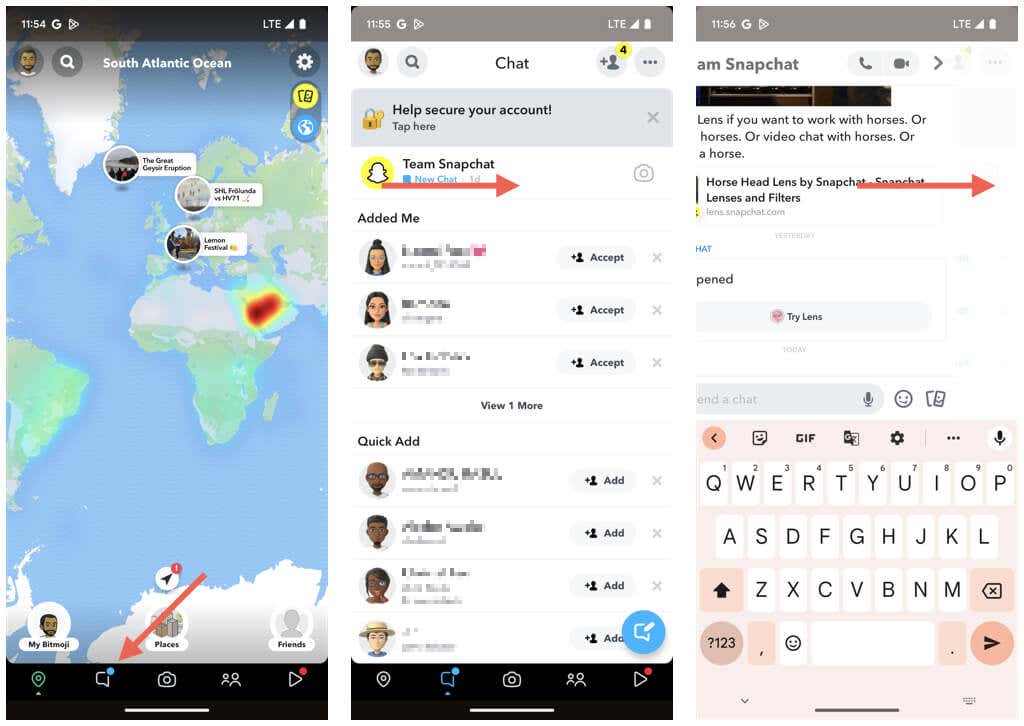
- Once you’re done reading, swipe left until the message screen disappears.
- Remove your finger. The Chat pane will continue to indicate that there are unread messages from the sender.
“Half-swiping” on Snapchat can be tricky to nail down at first. Test it out on multiple conversation threads until you get the hang of it before you put it to use.
Try Snapchat’s Airplane Mode Workaround
An alternative way to avoid sending read receipts on Snapchat is to shut off internet connectivity with your phone’s Airplane Mode feature. Once you’re done reading the messages, you must clear the Snapchat cache, quit the app from memory, restore internet connectivity, and remove and reinstall Snapchat. Yes—it requires a lot of effort!
However, unlike “half-swiping” on Snapchat, you can do all of the following with the “Airplane Mode'” workaround:
- You can see messages in full.
- You can scroll up to see additional messages on the conversation thread.
- You can screenshot Snapchat messages without alerting the sender.
Note: On some iOS and Android devices, clearing the Snapchat cache only should suffice. We recommend you test the method to find out if you can skip reinstalling the application.
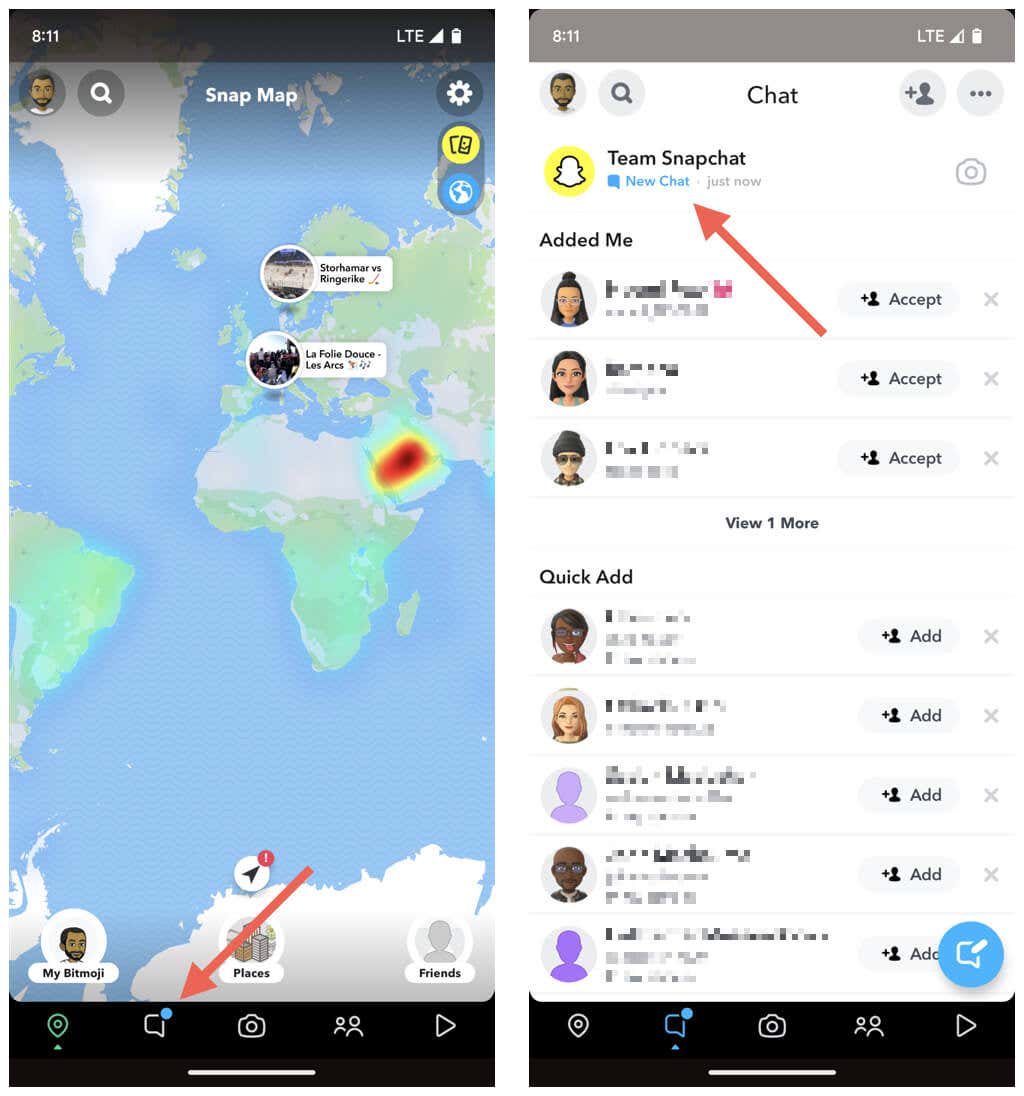
- Open Snapchat and switch to the Chats tab.
- Wait until the Snapchat app preloads your chats and you see the New Chat label appear under the conversations you want to view.
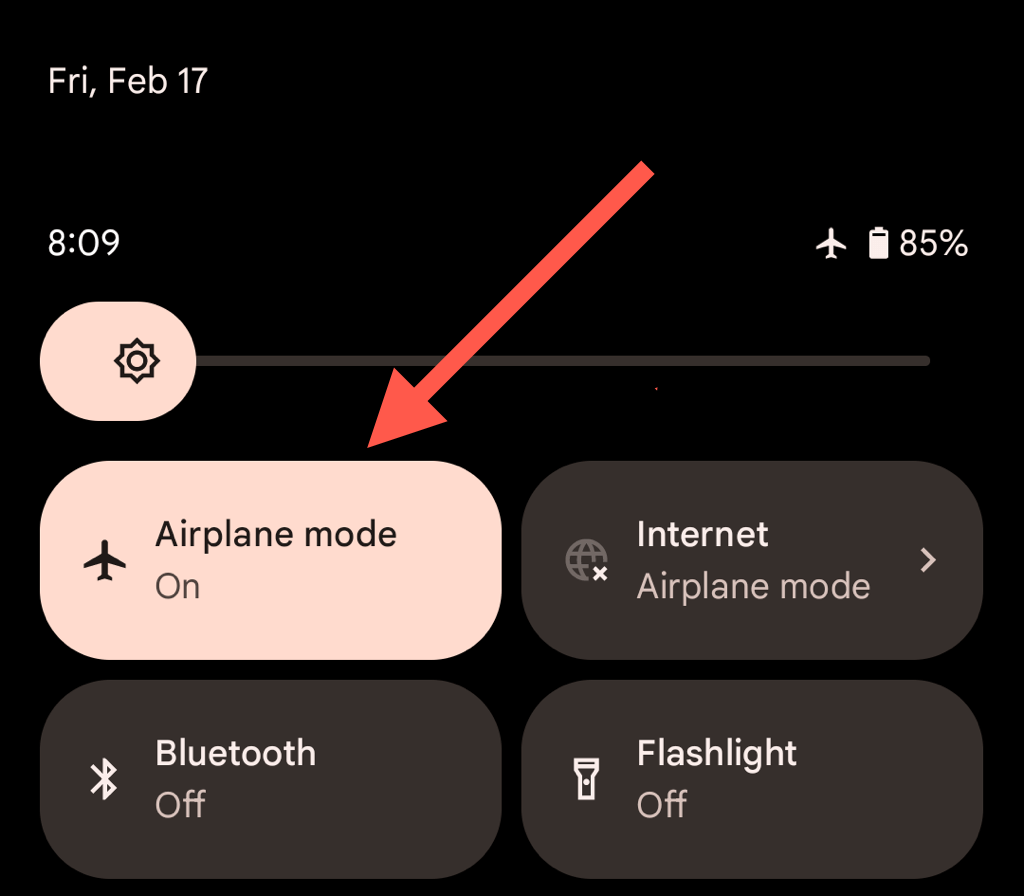
- Open the Control Center or Quick Settings panel on your iPhone or Android device and tap the Airplane Mode icon to deactivate Wi-Fi and cellular data.
- Exit the Control Center or Quick Settings panel and return to Snapchat.
- Tap the conversation and read the messages you want.
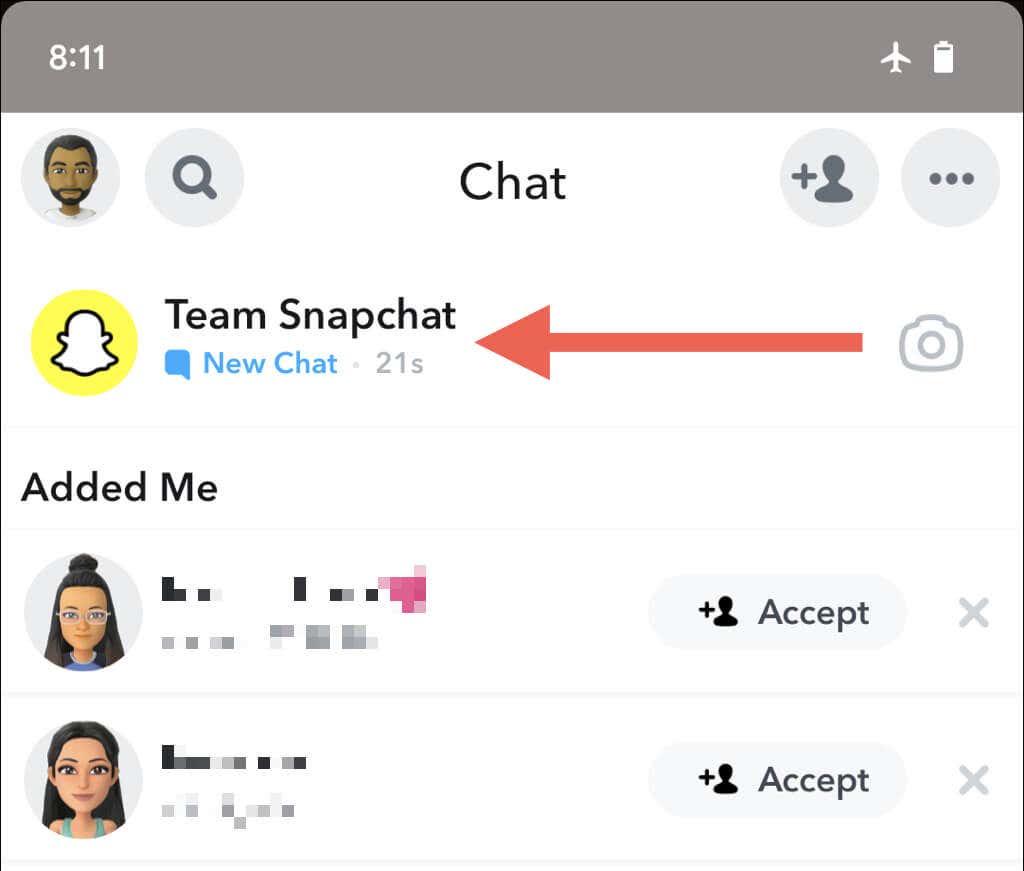
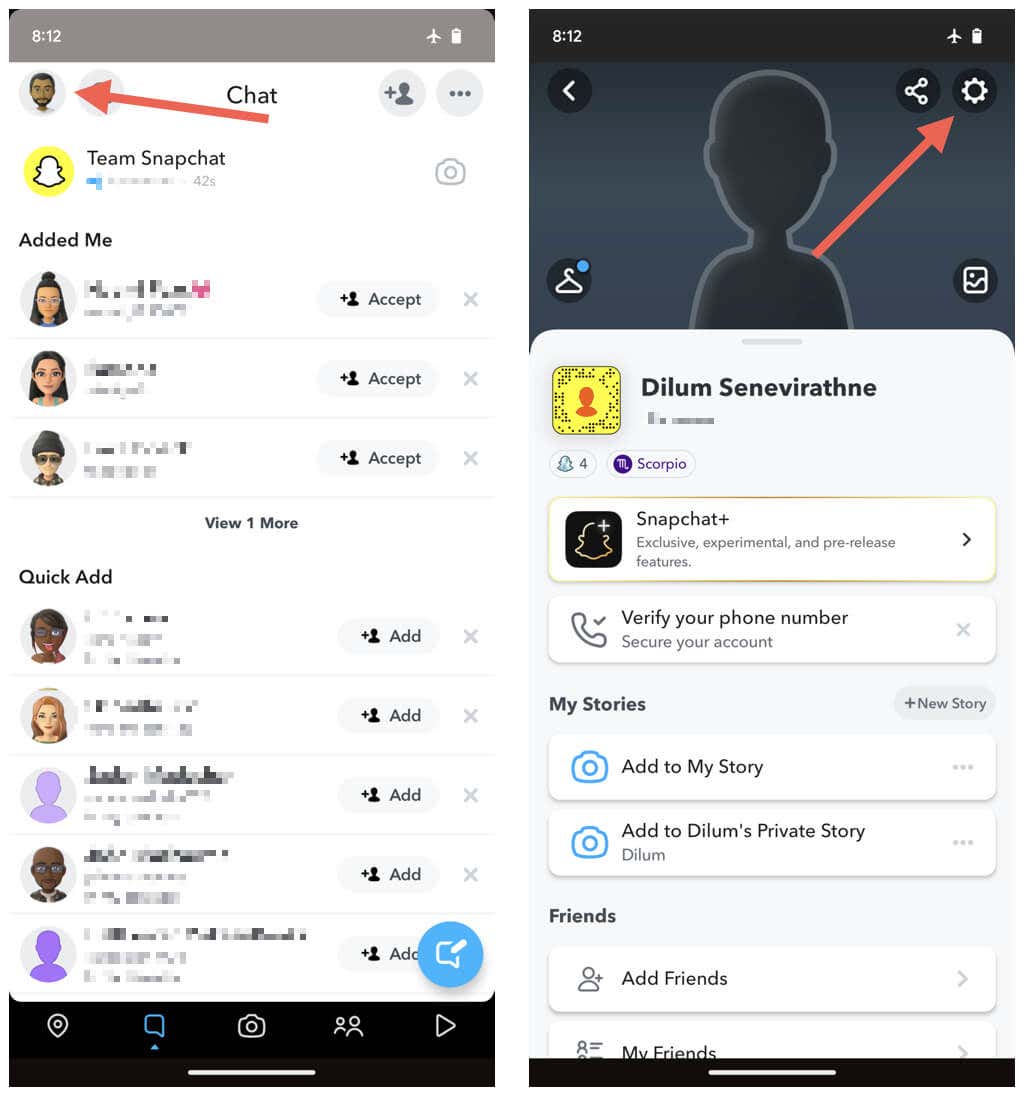
- Go back to the Chat pane and tap your Snapchat profile icon on the top left of the screen.
- Tap the Settings icon on the screen’s top right.
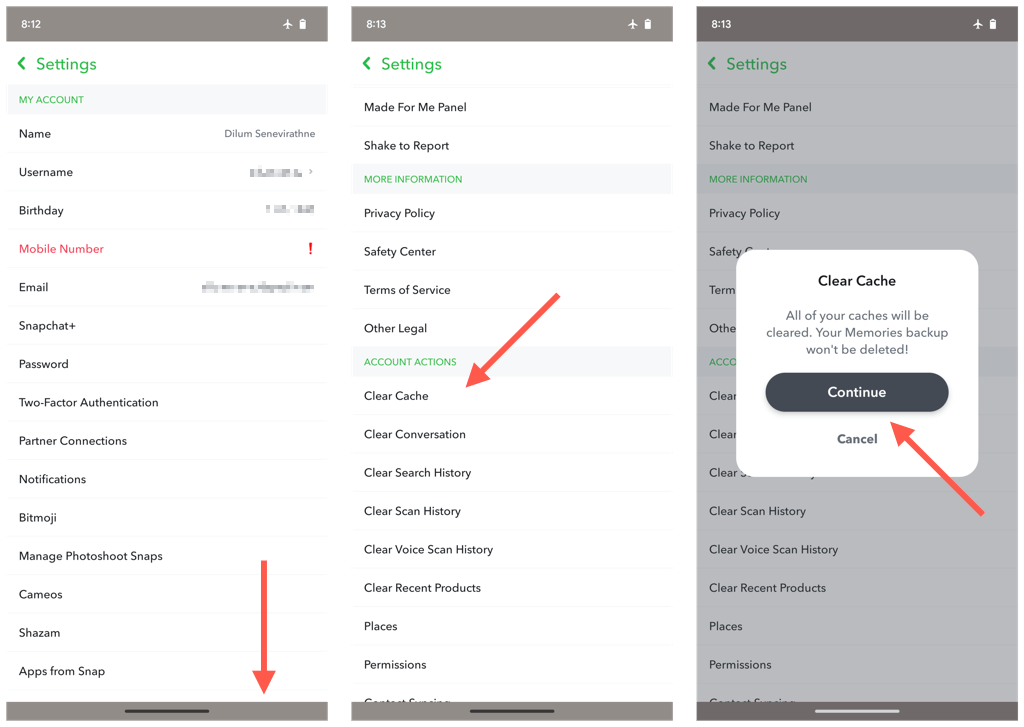
- Scroll down the Settings screen to the Account Actions section and tap Clear Cache.
- Tap Continue.
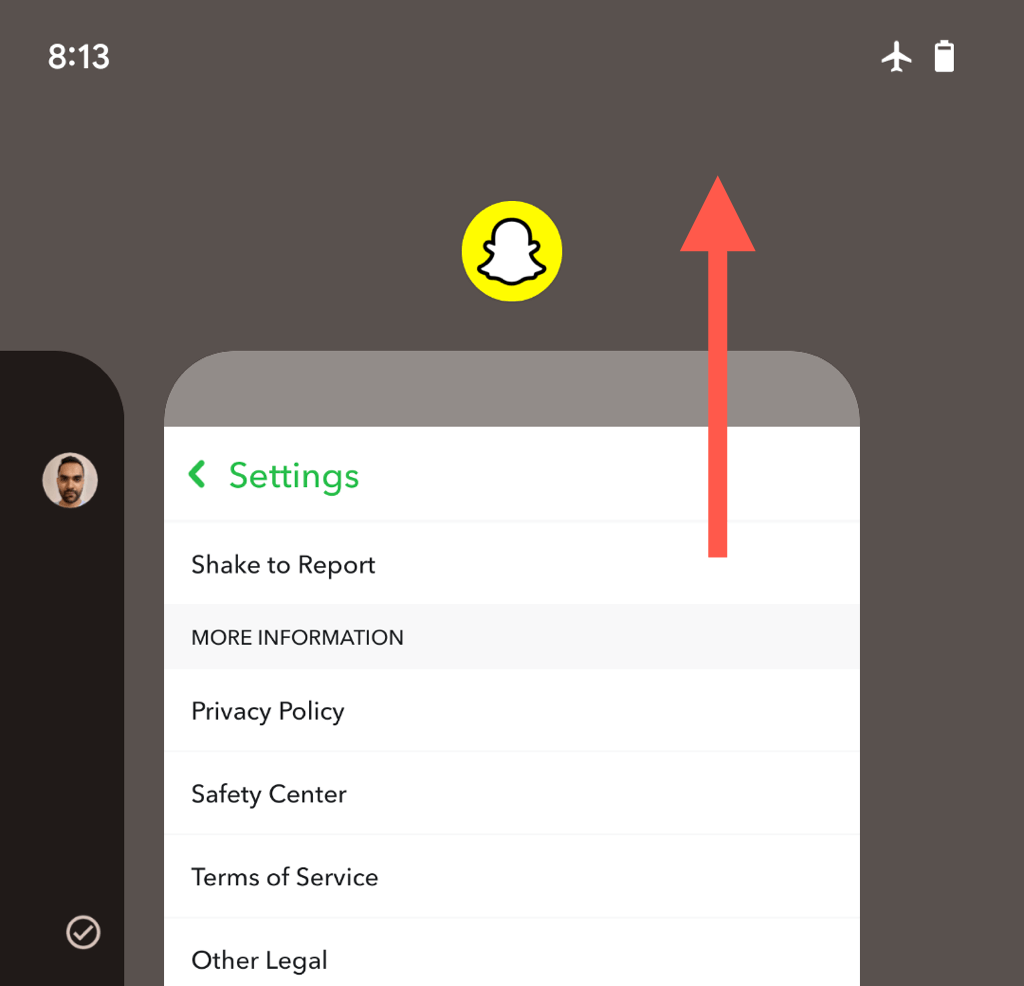
- Open the App Switcher on your phone and force-quit Snapchat.
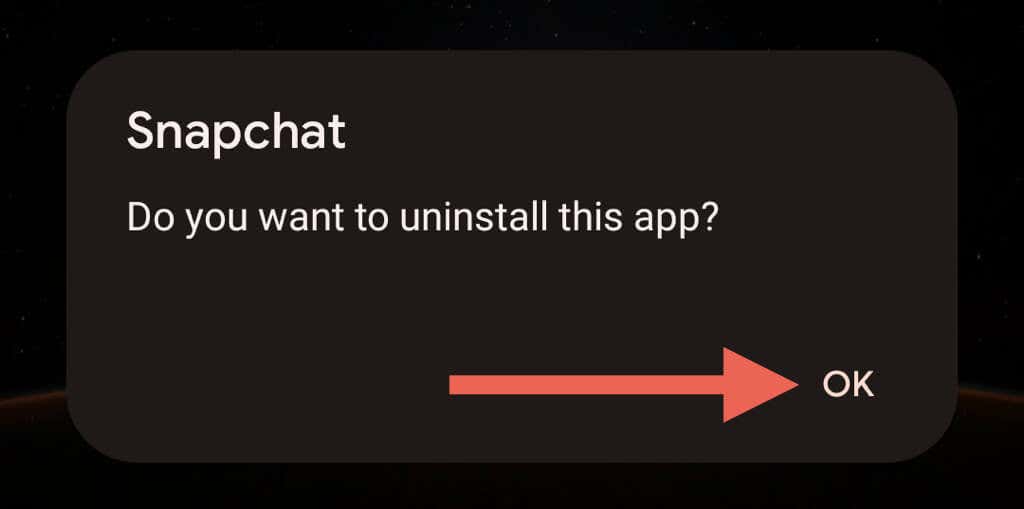
- Uninstall Snapchat.
- iPhone & iPad: Open the Settings app, go to General > iPhone/iPad Storage > Snapchat, and select Delete App.
- Android: Open the Settings app, go to Apps > Snapchat, and select Uninstall.
- Re-open the Control Center or the Quick Settings panel, disable Airplane Mode, and let your phone reconnect to the internet.
- Reinstall Snapchat via the Apple App Store or Google Play Store.
- Re-open Snapchat.
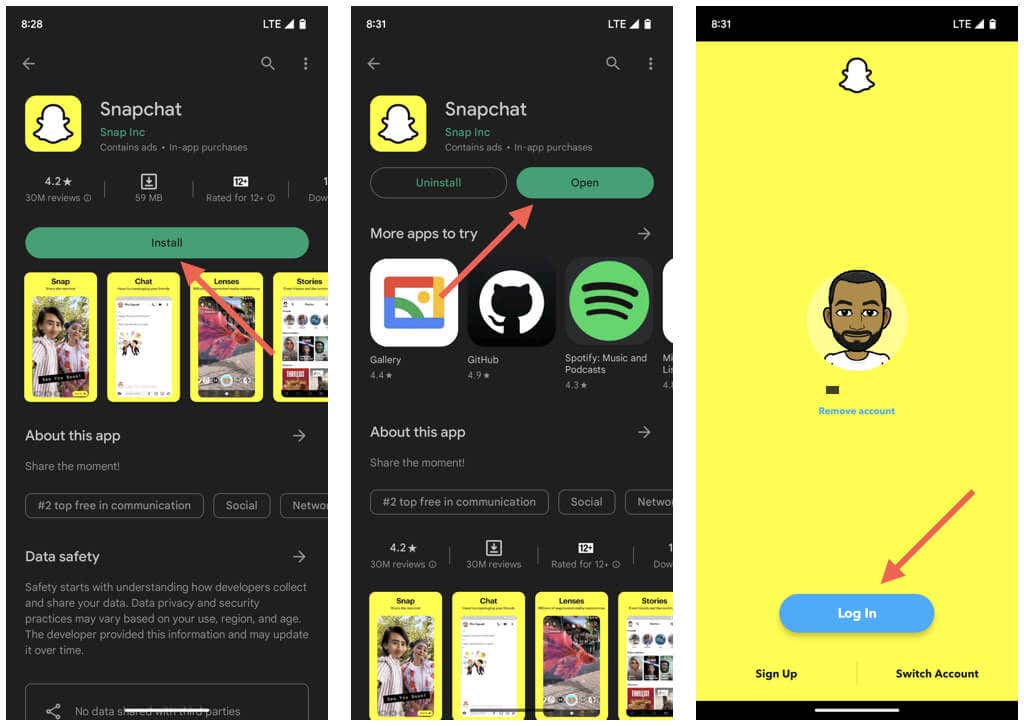
- Log back into your Snapchat account and provide Snapchat the permissions to work on your mobile phone.
Once you do that, visit the Chat pane, and the Snapchat messages you just read should continue to appear as unread.
Maintain Control Over Your Privacy
“Half-swiping” is a quick and easy way to read messages without alerting the other user, but it’s unreliable and risky. Also, since it’s not an official Snapchat feature, Snap could remove it at any time, so remember that whenever you install a new update. Try the “Airplane Mode” technique for a slower but better approach to avoid sending read receipts.