

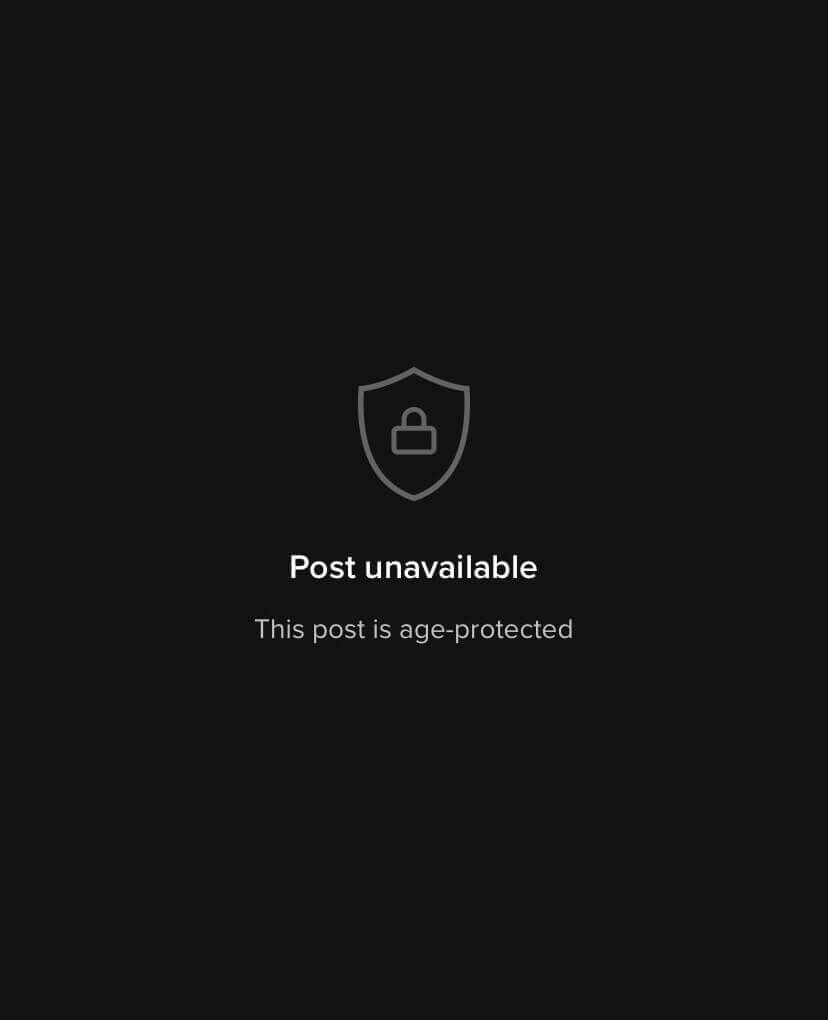
When you’re trying to view TikTok content but see a black screen that says “Post unavailable,” what does that mean? Underneath, you’ll see “This post is age-protected.” That can be pretty annoying if it’s something you want to view, but luckily, there’s a way around TikTok’s age protection. We’ll explain why TikTok age-protects some content and how to see age-protected posts on TikTok.
Why Does TikTok Say Age Protected for Some Content?
If you’re wondering why TikTok applies age protection to some content, it’s because it deems the content too graphic or mature for some users to view. This usually applies if you’re under 18 — more specifically, aged 13 to 17 — and TikTok supposedly follows the same rating systems currently used for films and video games. Sometimes, though, the age protection restriction can appear even if you’re over 18, though there’s a way around this error.
Can Anyone Turn Off Age Protection on TikTok?
There’s a workaround for how to see age-protected posts on TikTok, and we’ll walk you through it below. Note that this workaround is only applicable to TikTok users over the age of 18 who are seeing the age-protected message in error. There is no way to turn off TikTok’s age protection feature if you are aged 13 to 17.
How to Fix Age Protection on TikTok
If you’re seeing the “This post is age-protected” message on TikTok and you’re over the age of 18, it can be frustrating, to say the least. There’s only one way to remove this message, and that’s to change your birthday on TikTok. However, changing your birthday isn’t that simple.
How to Change Your Birthday on TikTok
If TikTok is showing you age-protected messages in error, you’ll need to change your birthday. Unfortunately, changing your birthday on TikTok isn’t as easy as changing your TikTok username. To update your birthday, you’ll have to contact TikTok support. Here’s how to do that:
- Launch TikTok and go to Profile.
- Tap the three horizontal lines at the top right of your screen.
- Tap Settings and Privacy > Report a Problem.
- Select Account and Profile.

- Tap Editing Profile > Other > Need More Help.
- Type in a request to change your date of birth then hit Submit.
- Note that you’ll be asked for a government ID to prove your birthday and age when customer service contacts you.
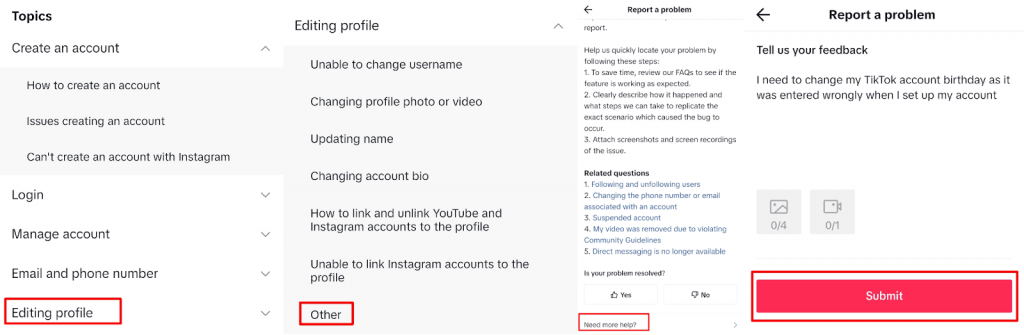
Once your birthday is changed, you should be able to view age-protected content without any issues.
Note: If you don’t hear back from TikTok customer services or cannot change your birthday, you may need to delete your account and create a new one to access age-protected content.
Are Age-Protected Posts Different From Restricted Mode?
Don’t confuse age-protected posts with TikTok’s Restricted Mode. The latter is a mode that can be set up for TikTok users of any age, even those over 18, and is ideal for parents or guardians who want to limit what younger users can see.
Here’s how to enable Restricted Mode:
- Launch TikTok and tap the Profile icon at the bottom right.
- Tap the three horizontal lines menu at the top right.
- Tap Settings and Privacy > Content Preferences.
- Select Restricted Mode > Turn On.

- Choose a four-digit passcode to turn the feature on, then tap Next.
- Enter the passcode again to confirm, then tap Set.
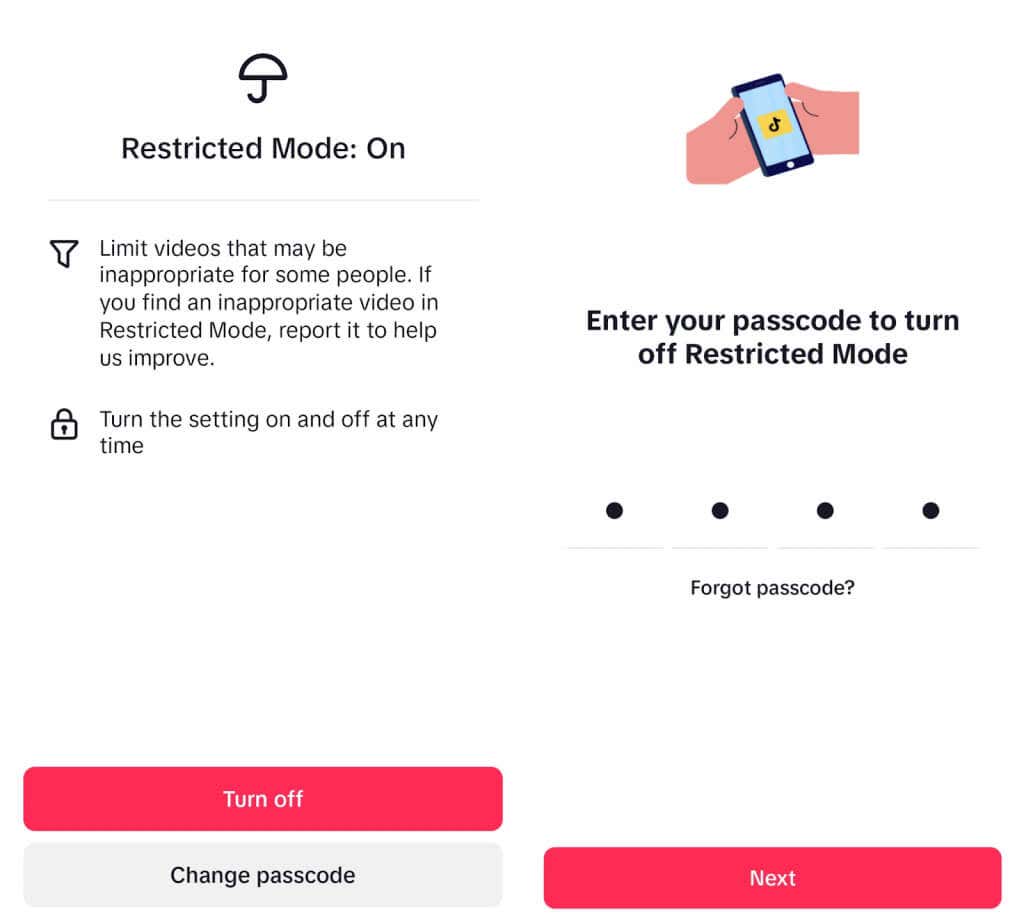
- When Restricted Mode is enabled, you should see it at the top of your screen.
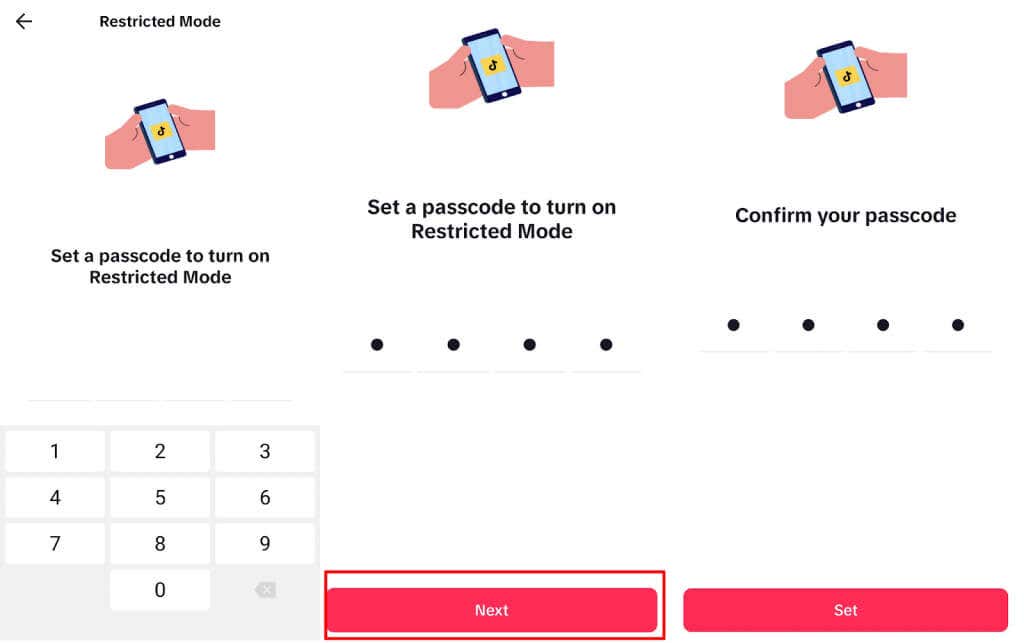
- To disable Restricted Mode, follow steps 1 through 4 above, but this time, tap Turn Off, then enter your passcode and tap Next to turn off Restricted Mode.
TikTok also offers a filter system that can be set up to automatically block content with specific hashtags from appearing in your feed.
Now you know how to see age-protected posts on TikTok, you’ll never need to deal with the annoyance of blocked content again. Remember though, that there’s no way for users under the age of 18 to access age-protected posts on TikTok, as you need to provide a government ID to change your age and birthday in the app. Are you experiencing other issues with TikTok? Check out our 8 ways to fix TikTok if it isn’t working for you.