
Do you get a “Something went wrong. Try reloading” error while accessing Twitter in Google Chrome on your computer? The site may be down, or your web browser may have an issue. Various items can cause Chrome not to launch Twitter. We’ll show you a few ways to get around this problem on your computer.
Some reasons you have trouble accessing Twitter are that your internet connection is not working, your Chrome extensions are faulty, you have an outdated Chrome version, and more.
Check Your Internet Connection
When a site fails to load in your web browser, the first thing to do is check if your internet connection is working. Your connection may have stopped working, causing the Twitter site not to load.
Open a new tab in your Chrome browser and try to access another site. If this site fails to load, you likely have a connection issue. In this case, try to resolve your connection problems by rebooting your router, restarting your computer, re-joining your wireless network, and more.
Check if Twitter Is Down
After confirming that your internet connection is working, check and ensure Twitter isn’t down. This is because you can’t access the site if the site’s servers are facing an outage.
You can check Twitter’s online status using a site like Downdetector. If Twitter is experiencing any issues, you’ll find those issues reported here on this site.
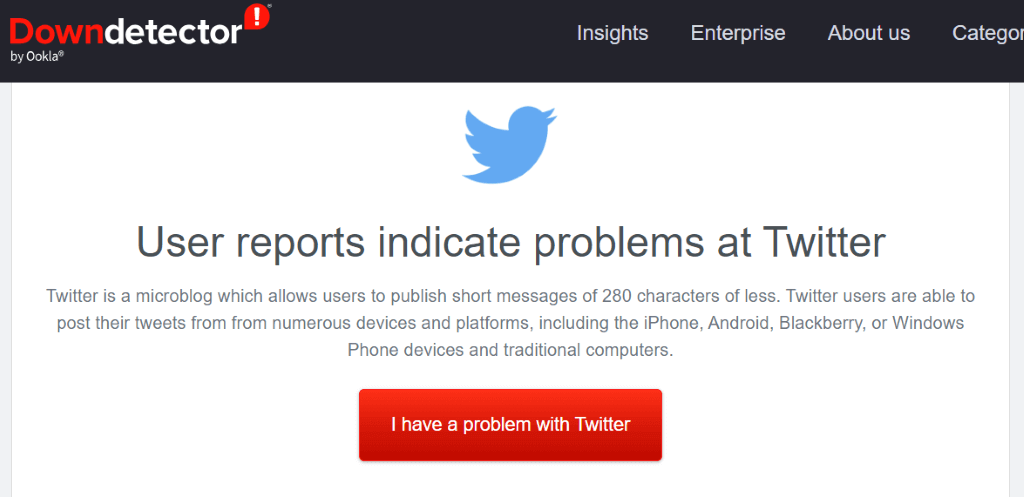
If Twitter is indeed down, wait until the company resolves the problems and brings the platform back up.
Hard-Refresh Your Twitter Web Page
If you’ve performed a simple refresh of your Twitter web page but to no avail, try a hard-refresh that ignores cached content and loads your web page from scratch. This helps you access the web pages that otherwise refuse to open.
You can hard-refresh your current web page by pressing and holding down the Shift button on your keyboard and selecting the refresh icon beside Chrome’s address bar.
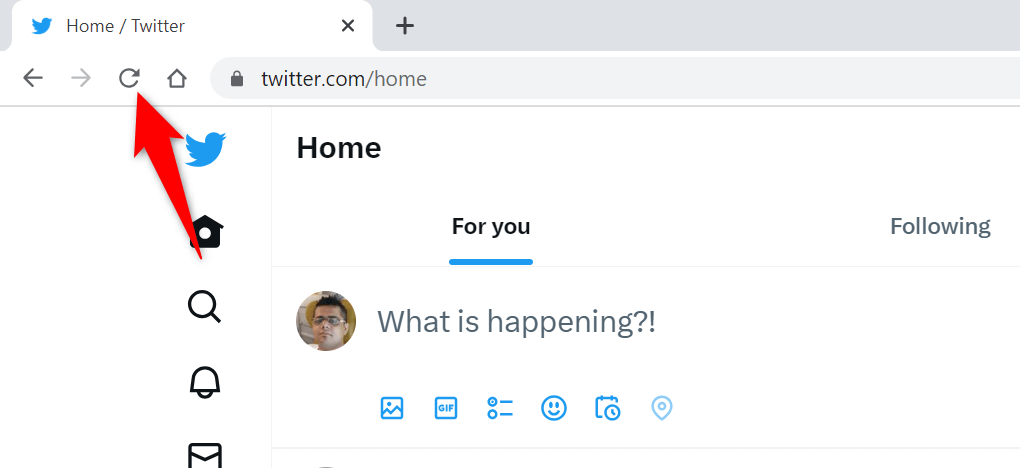
Another way to hard-refresh your web page in Chrome is to press Shift + F5 or Ctrl + Shift + R on Windows, or press Command + Shift + R on a Mac computer.
Restart Google Chrome on Your Computer
If you still can’t access Twitter in your Chrome browser, give your browser a reboot to possibly fix the issue. Your problem may have occurred due to a minor glitch in Chrome, which you can fix by restarting your browser.
Quitting and relaunching Chrome is as easy as entering a command in the browser’s address bar or using your computer’s standard close-and-open method. Here are both ways.
Using a Command
- Put your cursor in Chrome’s address bar.
- Type the following command and press Enter: chrome://restart
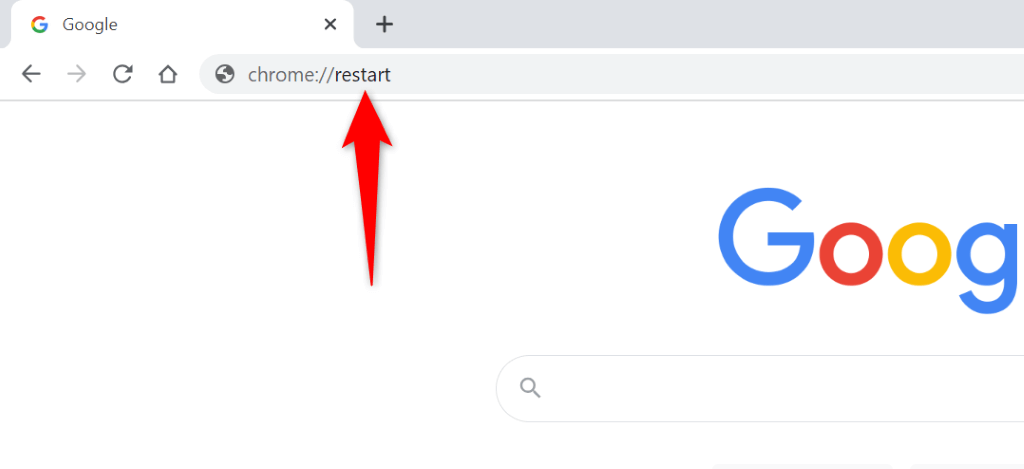
- Chrome will close and reopen.
- Access Twitter in your browser.
On Windows
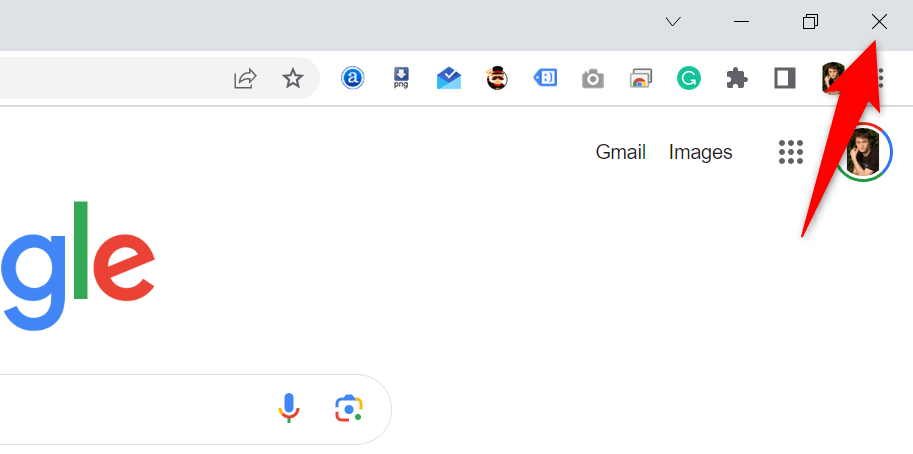
- Select X in Chrome’s top-right corner to close all your open tabs and quit the browser.
- Access your PC’s Start menu, find Google Chrome, and select the browser in the search results.
On macOS
- Choose Chrome > Quit Google Chrome in your browser’s menu bar.
- Open Spotlight by pressing Command + Space, type Google Chrome, and select the browser.
Clear Chrome’s Cached Content
Chrome stores various cache files on your machine to speed up loading your sites. Sometimes, this cache gets corrupted and doesn’t work well with your browser, causing the browser not to load your sites. This may be the reason you’re getting a “Something went wrong. Try reloading” error while accessing Twitter.
You can fix that issue by clearing Chrome’s cached files. You don’t lose your browsing history, passwords, bookmarks, or other items when you do that.
- Open Chrome, select the three dots in the top-right corner, and choose Settings.
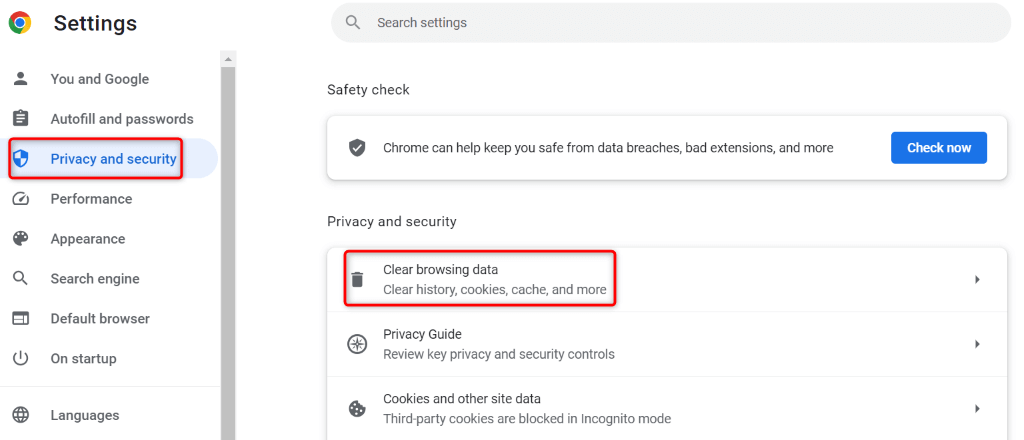
- Select Privacy and security in the left sidebar.
- Choose Clear browsing data on the right pane.
- Select All time from the Time range drop-down menu.
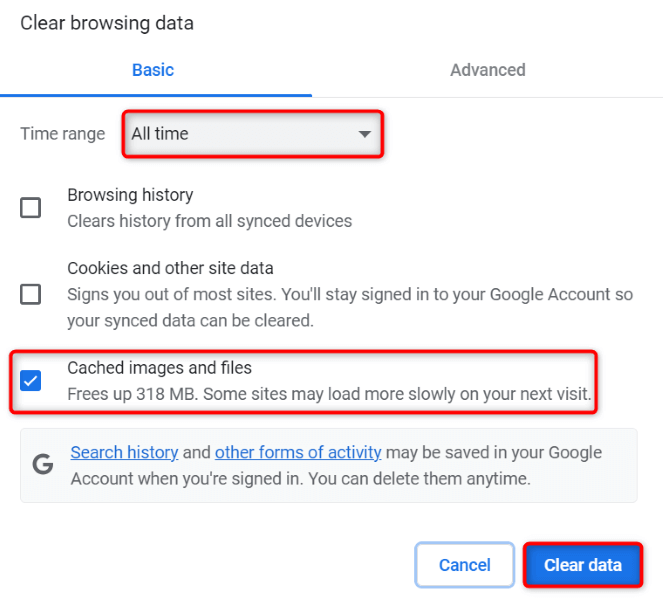
- Enable the Cached images and files option and untick all other options.
- Select Clear data at the bottom.
- Close and reopen Chrome, then access your Twitter web page.
Disable Your Installed Chrome Extensions
You can add extensions to Chrome to extend your browser’s functionalities. Sometimes, the extensions you install are corrupted, causing random issues in the browser. This may be the reason you can’t access Twitter.
In this case, turn off your installed Chrome extensions and see if your issue occurs.
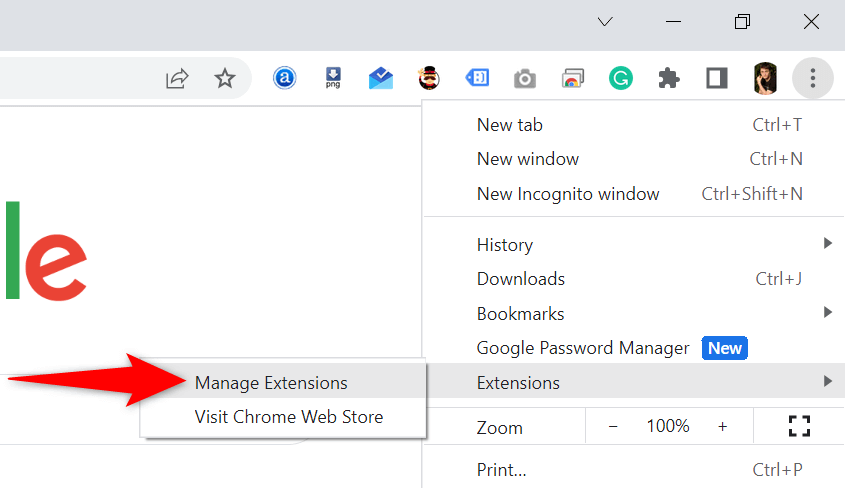
- Open Chrome, select the three dots in the top-right corner, and choose Extensions > Manage Extensions.
- Disable the toggle for all your extensions.
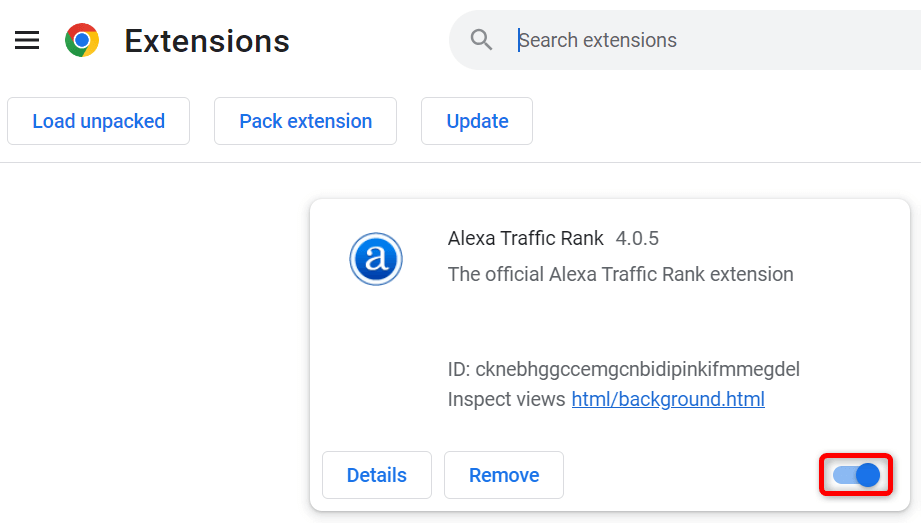
- Try to access Twitter.
If Twitter loads after you’ve disabled your extensions, one or more of your extensions are the culprit. In this case, enable one extension at a time to find the culprit, then remove that extension.
Update Google Chrome on Your Computer
The last solution to fix your “Something went wrong. Try reloading” Twitter error is to update Chrome on your computer. You may be using an outdated browser version, containing many bugs and issues.
You can resolve those bugs and issues by bringing your browser to the latest version.
- Select the three dots in Chrome’s top-right corner and choose Settings.
- Select About Chrome in the left sidebar.
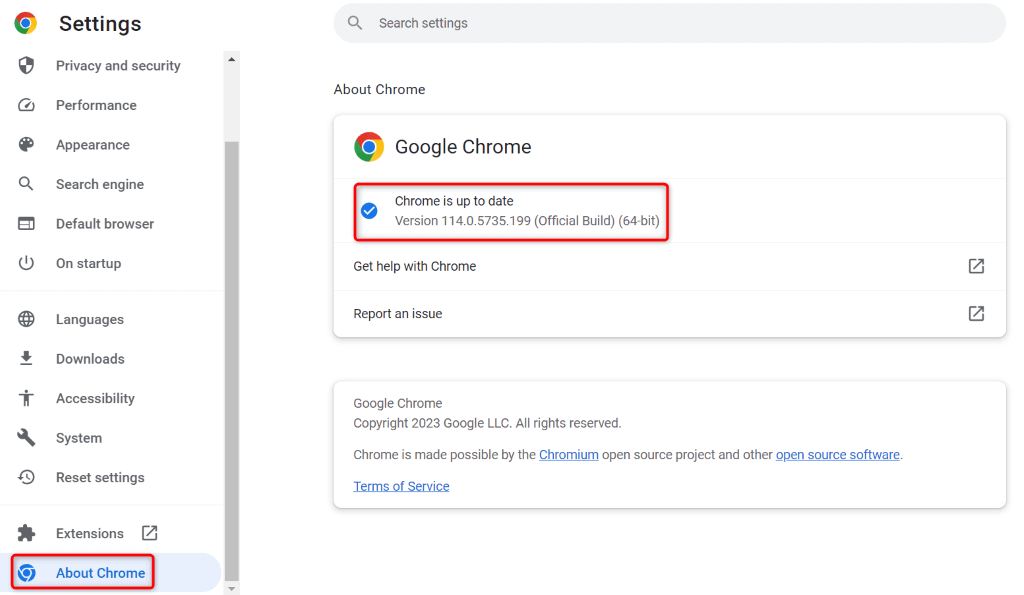
- Let Chrome check for and install the available updates.
- Restart your browser.
Resolve Twitter’s Access Issues in Chrome on Your Computer
It’s frustrating when you want to access your Twitter feed, someone’s profile, or an interesting thread and Twitter just won’t load in your browser. You can use the methods outlined above to resolve your Twitter problems in your Chrome browser.
Once you’ve applied those methods, you’ll find that Twitter loads just fine in your browser, allowing you to access all your favorite content. Happy tweeting!