

If your Discord is stuck on the connecting screen, you can follow our troubleshooting guide to get it fixed. There are plenty of causes for this issue, which means we’ll need to go through each troubleshooting step one by one until it’s solved.
We’ll start with the easier fixes first, but we have made sure to include any potential fix, so if you’ve had problems with Discord not connecting, you should have your issues solved once you’ve tried each step in this guide.
Check For Outage Problems
The first thing you can do when Discord is stuck on connecting is to check whether there are any current outage problems. If the Discord server is undergoing problems, you won’t be able to get past the connecting screen. Visit status.discordapp.com to see the current server status.
The page you see will showcase the past 90 days – you can hover over any yellow or red bars to see more details. Red bars mean outages and this may impact your ability to log on.
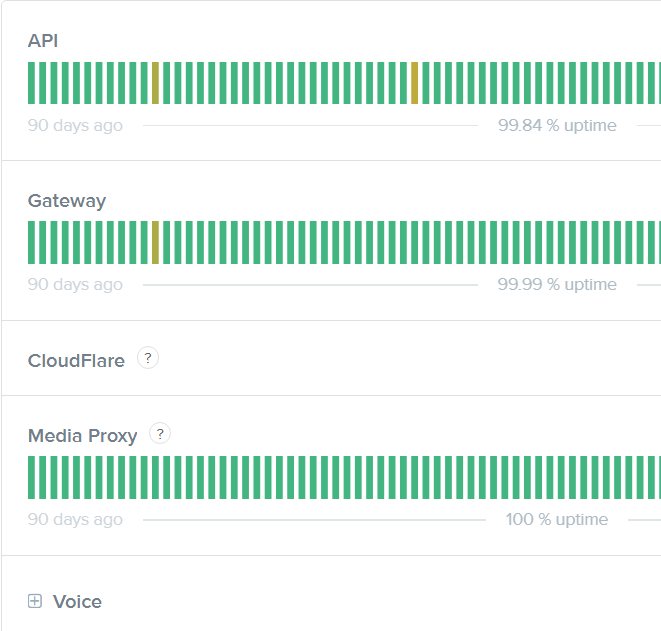
If there is a red bar on the far right, or a maintenance announcement here, this means there is a live outage today. You can visit the Discord Twitter for updates, but at this point all you can do is wait for the server issues to be resolved.
Check Your Time and Date Settings
Choosing anything other than automatic time and date settings on Windows 10 can cause some issues with Discord running properly. Even if the time may look right, it’s best to double check you have set the time to be automatic.
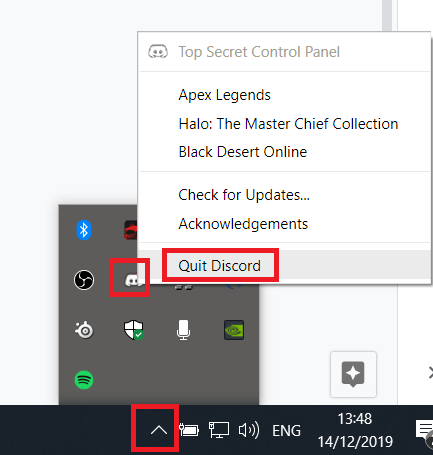
- First, close Discord by clicking the show hidden icons button in the bottom left of the taskbar. Right click Discord, and click Close discord.
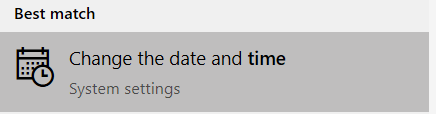
- Once Discord is closed, open the Start menu and type time. Click on Change the date and time in the search results.
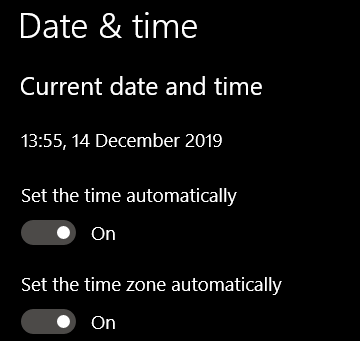
- On the new page, make sure that the toggles for Set the time automatically and Set the time zone automatically are switched on.
- Open Discord again. If Discord is not connecting, try the next step below.
Run a Malwarebytes scan
It could be possible that malware is stopping you from connecting to Discord. You can download Malwarebytes for free and then run a scan.
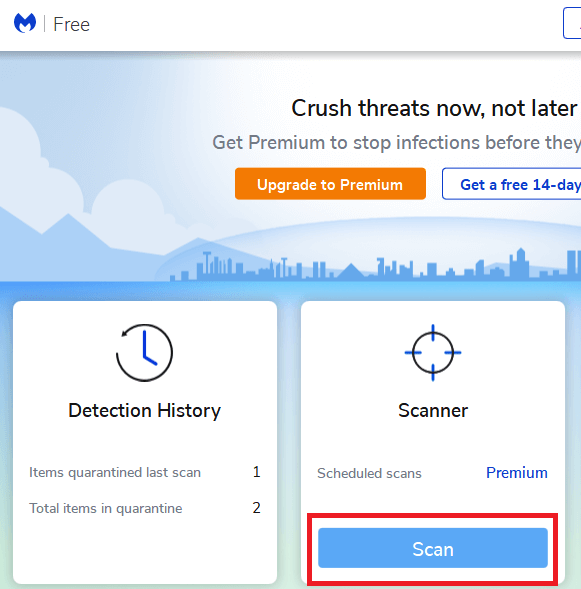
Once Malwarebytes has installed, open Malwarebytes and click Scan on the main dashboard. Wait for the scan to finish. If any malware was found, quarantine it and restart your PC.
Try connecting to Discord again. If Discord is still stuck on connecting, try the other steps below.
Turn Off Proxies
Proxies must be turned off for Discord to connect, so follow the steps below to disable them.
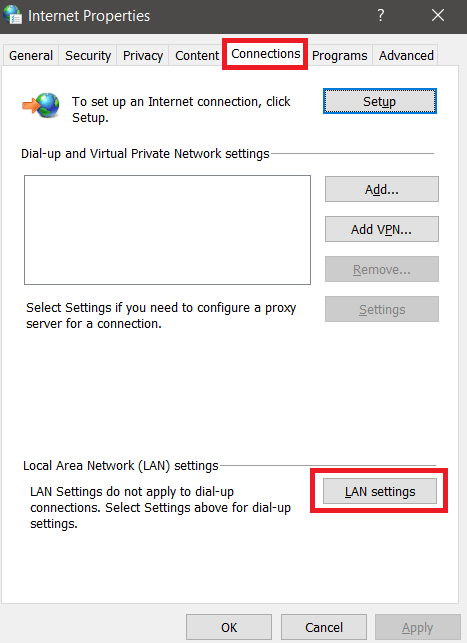
- On Windows, open the start menu and type Internet options.
- Click on Internet Options in the search menu.
- Click on the Connections tab, then click on LAN Settings.
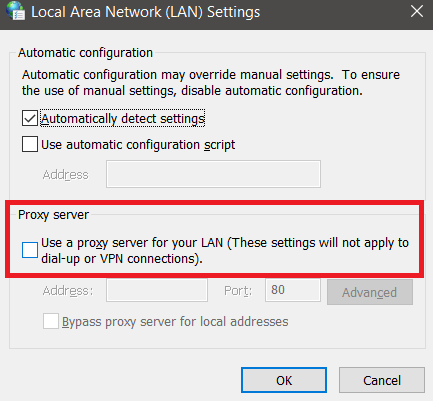
- Under Proxy Server, ensure Use a Proxy server… is unchecked, and then click OK.
Change DNS
Discord works better when using Google’s or Cloudflare’s DNS. We will explain how you can change your DNS to Google’s.
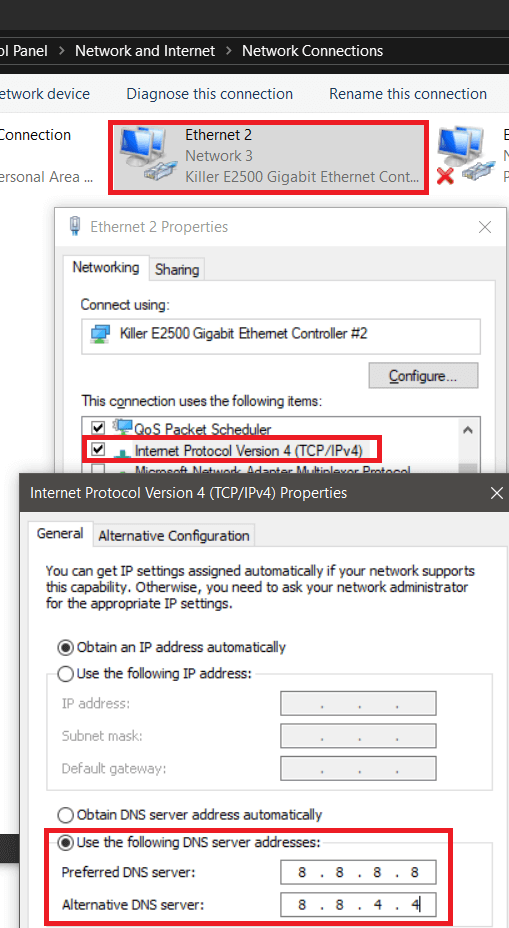
- Open the Start menu, and search Control Panel.
- Select Network and Sharing Centre.
- On the left, click Change adapter settings.
- Right click the internet connection you are currently using and click Properties.
- Double click Internet Protocol Version 4 and it will open a new page.
- Select Use the following DNS server addresses.
- Enter 8.8.8.8 and 8.8.4.4 into the first, and the second box, respectively.
- Click OK.
Repeat the steps for Internet Protocol Version 6 but enter 2001:4860:4860::8888 into the first box and 2001:4860:4860::8844 into the second box.
Allow Discord Past Your Firewall
You must make sure that Discord is allowed in your Firewall so that it can connect.
- To do this, press the Windows Key, and type Windows Defender Firewall.
- Click Windows Defender Firewall With Advanced Security.
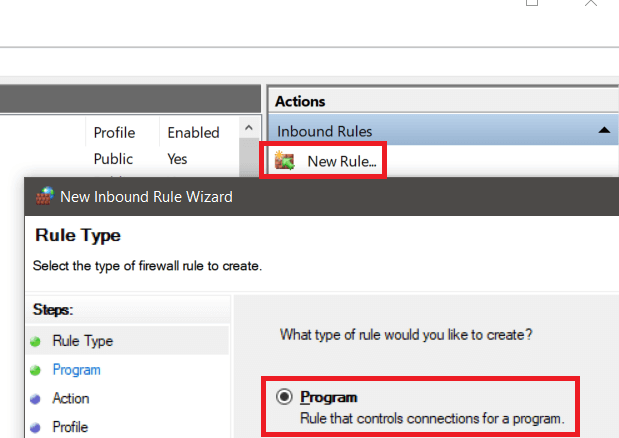
- On the right side of the new page, click New Rule, select Program and then click Next.
- On the next page, click Browse under the This Program Path option.
- Navigate to the installed location for Discord. By default this will be C:UsersYOURUSERAppDataLocalDiscord.
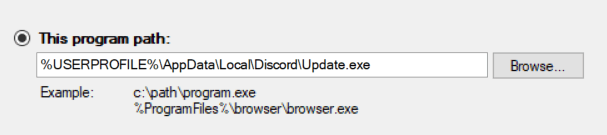
- Find the Update.exe file and double-click it.
- Once you have selected the right file, click Next and select Allow this Connection.
- Click Next once more, select all boxes for Domain, Private, and Public, then click Next.
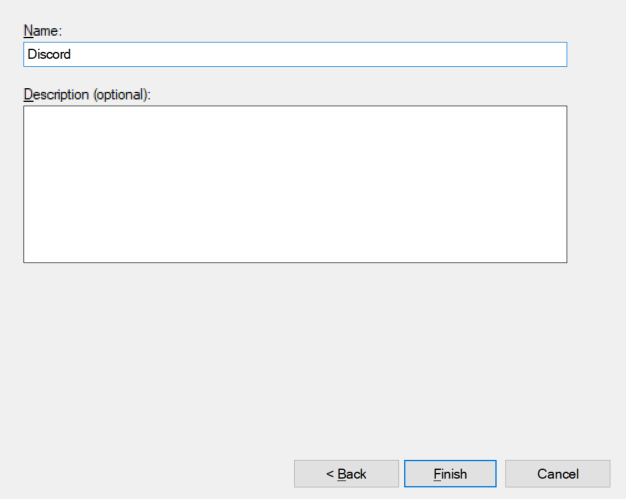
- Add Discord as the name and then click Finish.
- Open the Start menu again, and type Windows Firewall. This time, select Windows Defender Firewall.
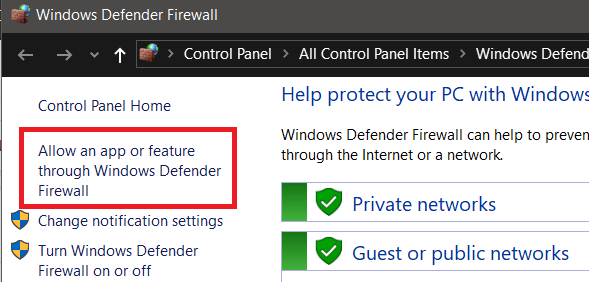
- On the new page that opens, select Allow an app or feature through Windows Defender Firewall.
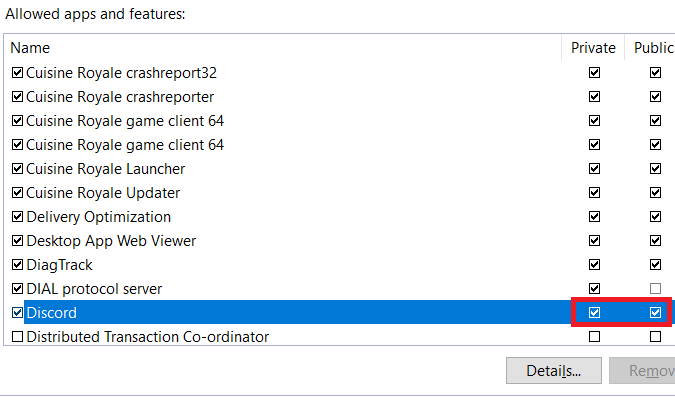
- A new page will open. Scroll down and ensure that Discord has been ticked for the network you are connected to. If you’re not sure, tick both Private and Public. To make changes, you must click the Change settings box first.
If you are using an antivirus with an additional firewall, you must allow Discord in that firewall too. This is usually straightforward and can be found within your antivirus software. If you cannot find it, you can contact your antivirus support or search online for help.
Summary & Other Steps
Hopefully one of these steps has helped you to fix your problems with Discord getting stuck on the connecting screen. If you are still facing issues, you can try to use a VPN to connect.
Some users have commented that this has helped them to connect, but Discord hasn’t officially given this advice. You can also use their support page to ask for help from Discord directly. Alternatively, you can look for alternative team chat software.