
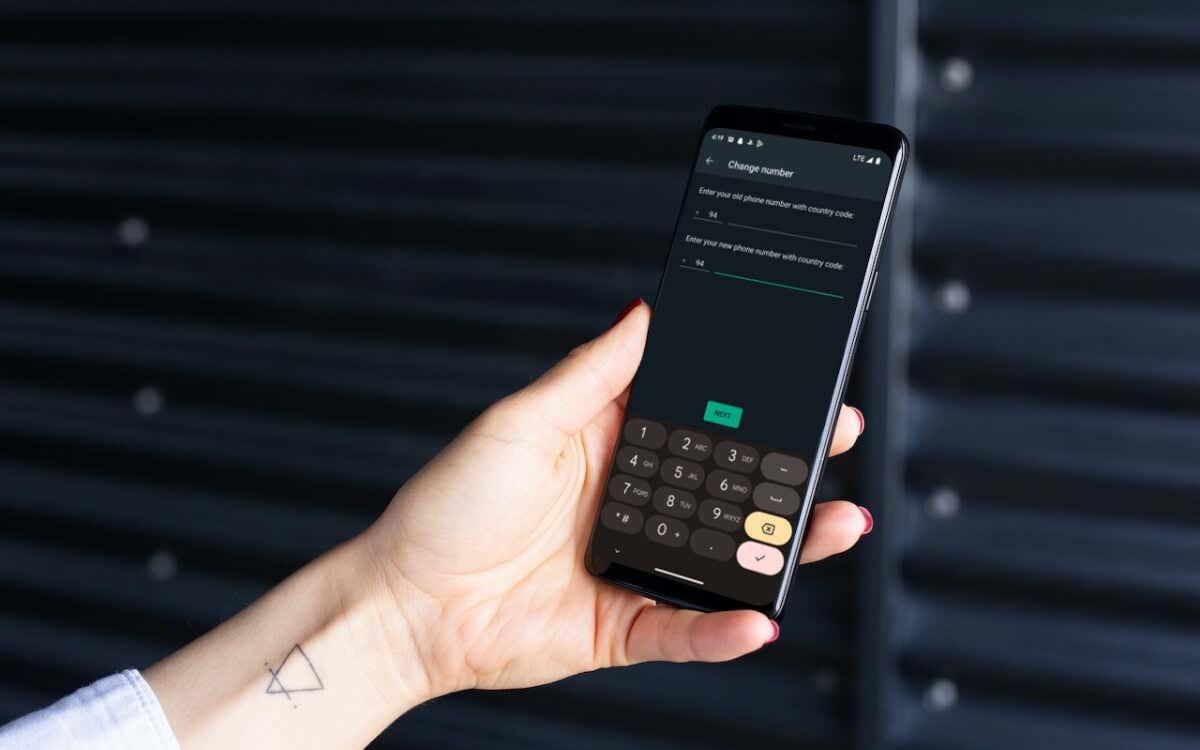
WhatsApp allows you to easily change the registered phone number while retaining your chat history, call records, and account information. This tutorial will walk you through the entire process on iPhone and Android.
Did you recently change your phone number? If so, it’s a good idea to update your registered WhatsApp number so new contacts can message or call you on the world’s most popular messaging app.
We’ll show you how to find and change your WhatsApp account number on iPhone and Android, including what it takes to switch WhatsApp numbers on a new phone.
Find the Current Registered Phone Number on WhatsApp
Before changing your mobile number in WhatsApp, you need to find the number currently registered with your WhatsApp account. Skip to the next section if you already know it.
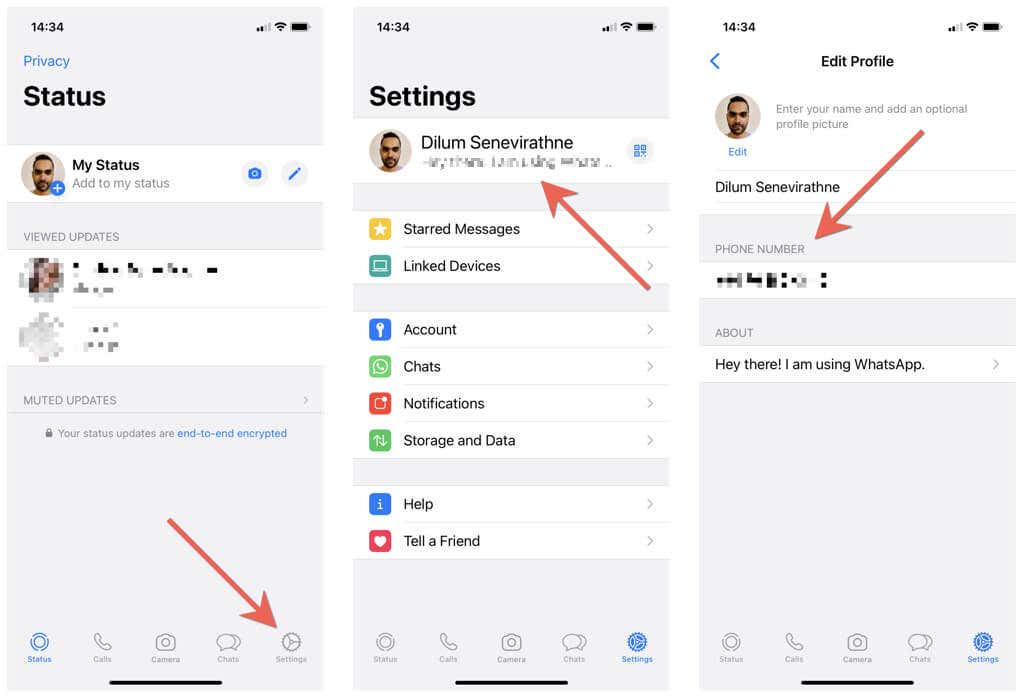
- Open WhatsApp and switch to the Settings tab. If you use an Android phone, tap the More icon (three dots) at the top right of the screen and select Settings.
- Tap your WhatsApp profile picture at the top of the screen.
- Note down the number under Phone Number.
Change the Registered Phone Number in WhatsApp
WhatsApp’s built in Change Number tool makes it incredibly convenient to switch registered phone numbers. It preserves your WhatsApp chats, calls history, and settings, and even auto-notifies WhatsApp group chats and contacts about the number change. Be sure to insert the SIM card into your phone (if you haven’t already) since you must verify the new number over SMS.
Note: If you own multiple phones, you can choose to receive the verification code on another device. However, you can’t have the same phone number registered in WhatsApp on more than a single phone.
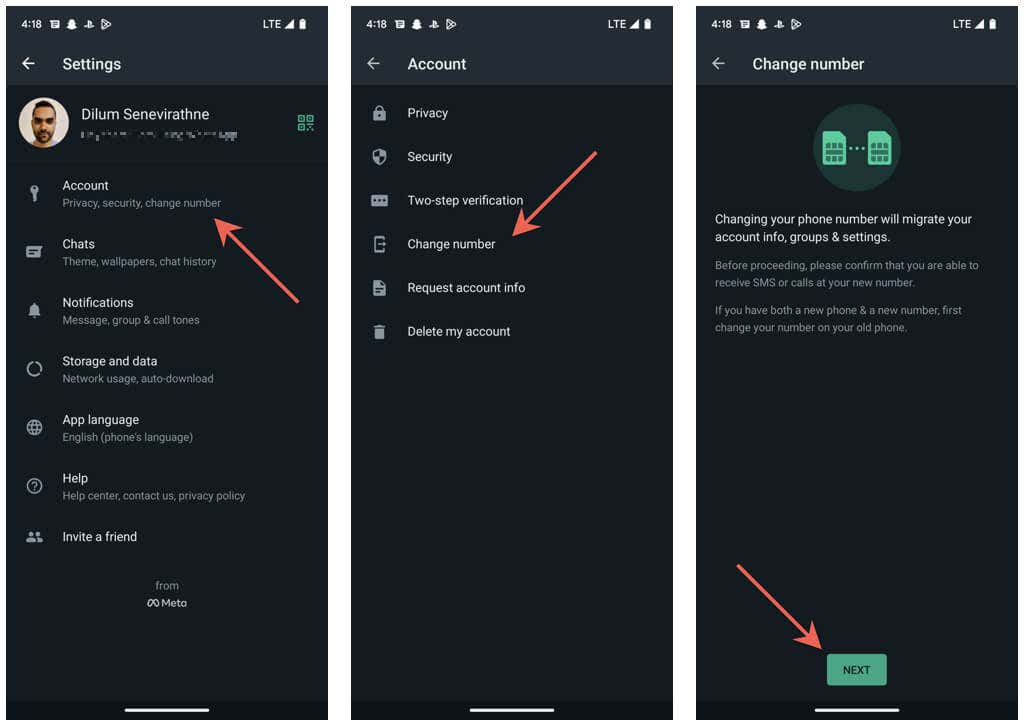
- Open the WhatsApp Settings screen and tap Account.
- Tap Change number.
- Tap Next to begin the phone number registration process.
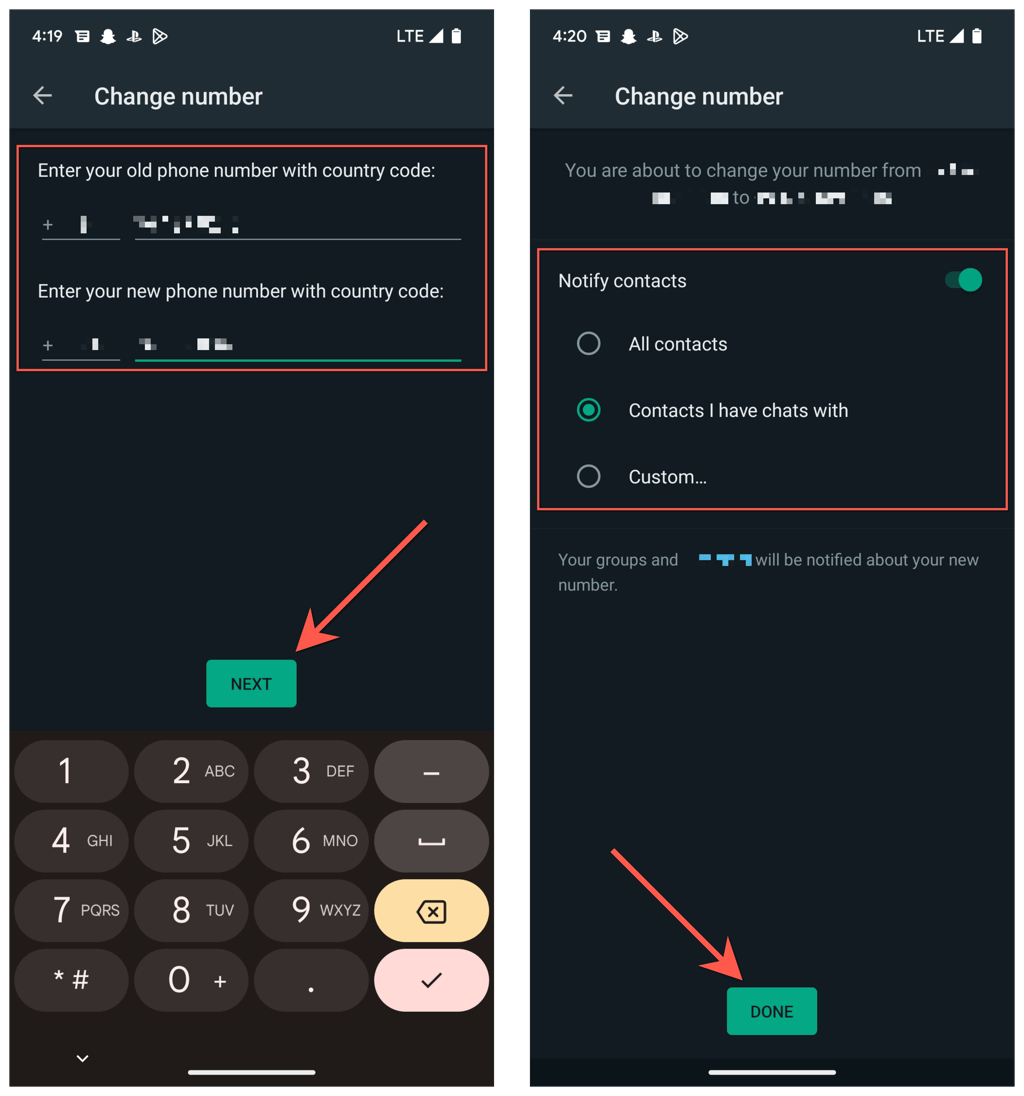
- Select your country (iOS) or country code (Android), enter the new and old phone numbers into the relevant fields, and tap Next.
- Turn on the switch next to Notify contacts if you want to notify your WhatsApp contacts about the number change. Then, pick between the All contacts, Contacts I have chats with, and Custom options to determine with whom on your contact list you want to share your new number.
- Enter the 6-digit security code you receive over SMS or let your phone auto-fill it in for you.
- Wait until WhatsApp verifies the code.
- Modify your WhatsApp name or change your profile information if you want. Finally, tap Done.
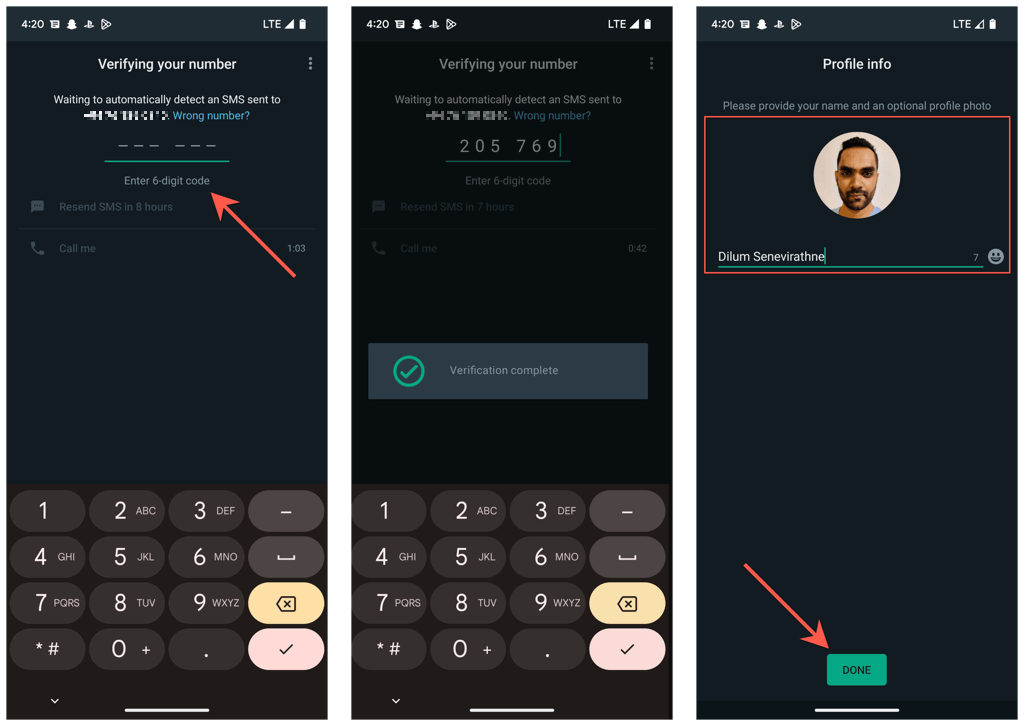
That’s it! You’ve successfully changed your phone number on WhatsApp. You can immediately begin using WhatsApp again, and you’ll continue to have access to your WhatsApp messages and call history from your old number.
Register Number on a New Phone Without Losing WhatsApp Data
Did you get a new number and a new phone? If you still have your old phone around, the following steps will show how to change numbers in WhatsApp and move your chat history over to your new phone. However, they only work if both phones are on the same platform—iOS or Android.
- Register the new number in WhatsApp on your old phone. You can choose to receive the verification code on the new phone, meaning you do not have to swap SIMs.
- Go to Settings > Chats > Chat Backup and tap Back Up Now to back up your information to iCloud (iOS) or Google Drive (Android). Be sure to turn the switch next to Include Videos if you want to transfer WhatsApp video attachments to the new phone.
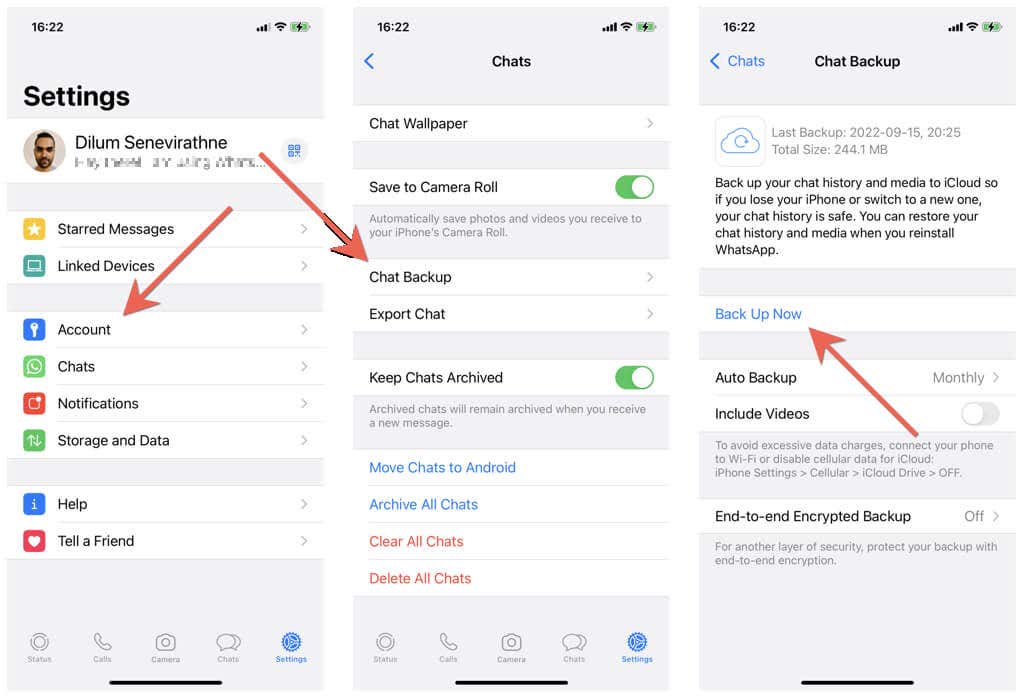
- Wait until WhatsApp finishes completing the backup. You will not receive a notification, so check this screen after some time before you go ahead.
- Install WhatsApp on the new phone and register your new number. You’ll be automatically signed out of WhatsApp on your old phone.
- Choose to restore your WhatsApp backup. You will not see this option if you aren’t signed into your new phone with the same Apple ID or Google Account as your old phone.
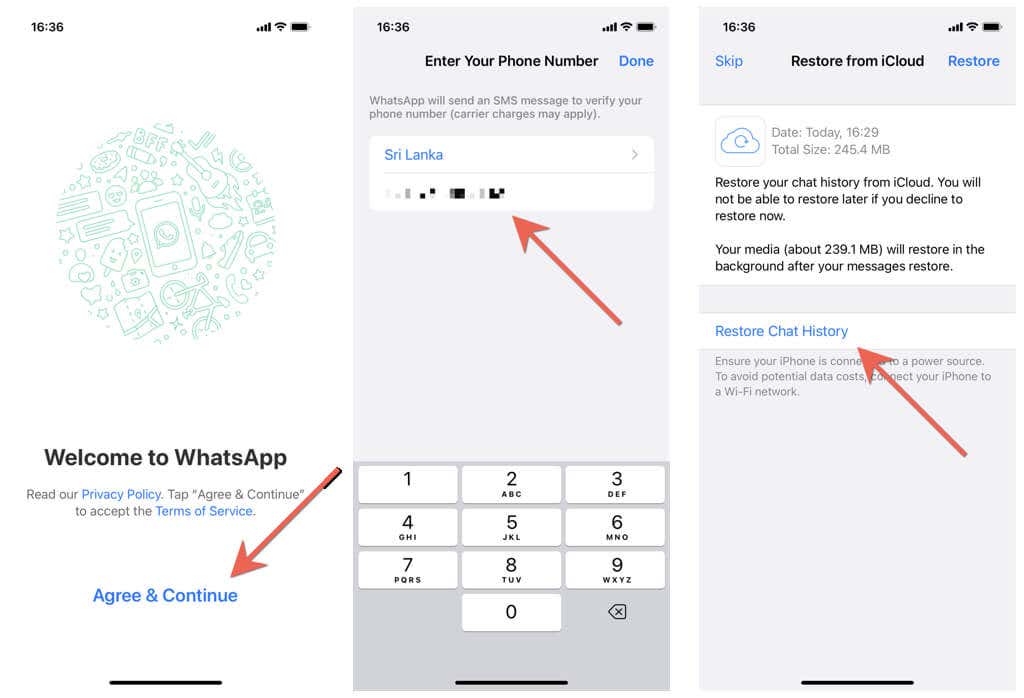
- Wait until the backup restoration process ends. WhatsApp will initially load text messages only and then download data—like images and video files—in the background.
- Change your profile photo or name if you want, and you can start using WhatsApp right away.
Suppose the new phone is on a different platform than your old phone. Check our complete guides to moving WhatsApp chats from iPhone to Android or Android to iPhone for step-by-step instructions.
Can’t Change WhatsApp Phone Number? Here’s What You Must Do
Despite how straightforward it is to change phone numbers on WhatsApp, there are instances where the registration process will fail to work on iPhone and Android.
For example, if you fail to receive your WhatsApp security code or the Change Number tool gets stuck at verification, here are several things you might want to do:
- Check the old and new phone number for accuracy, and don’t forget to set the country codes for both numbers.
- Contact your carrier and confirm that the new number can receive text messages and phone calls.
- Make sure you’re in an area with strong cellular signals or Wi-Fi connectivity.
- Toggle Airplane Mode off, and then on to resolve minor connectivity issues.
- Update WhatsApp to its latest version via the App Store or the Play Store to fix known problems with the Change Number feature.
- Restart your iPhone or Android device.
A New Start With Your Old Chats
Changing your phone number on WhatsApp is not complicated, and you should be done in minutes. You don’t even need to bother notifying contacts about the number change since WhatsApp does the heavy lifting for you.
Also, unless you’re switching platforms, it’s easy to move your chat history if you want to use WhatsApp with a new number and a new phone. If you’re still contemplating switching phone numbers, go ahead without worrying.